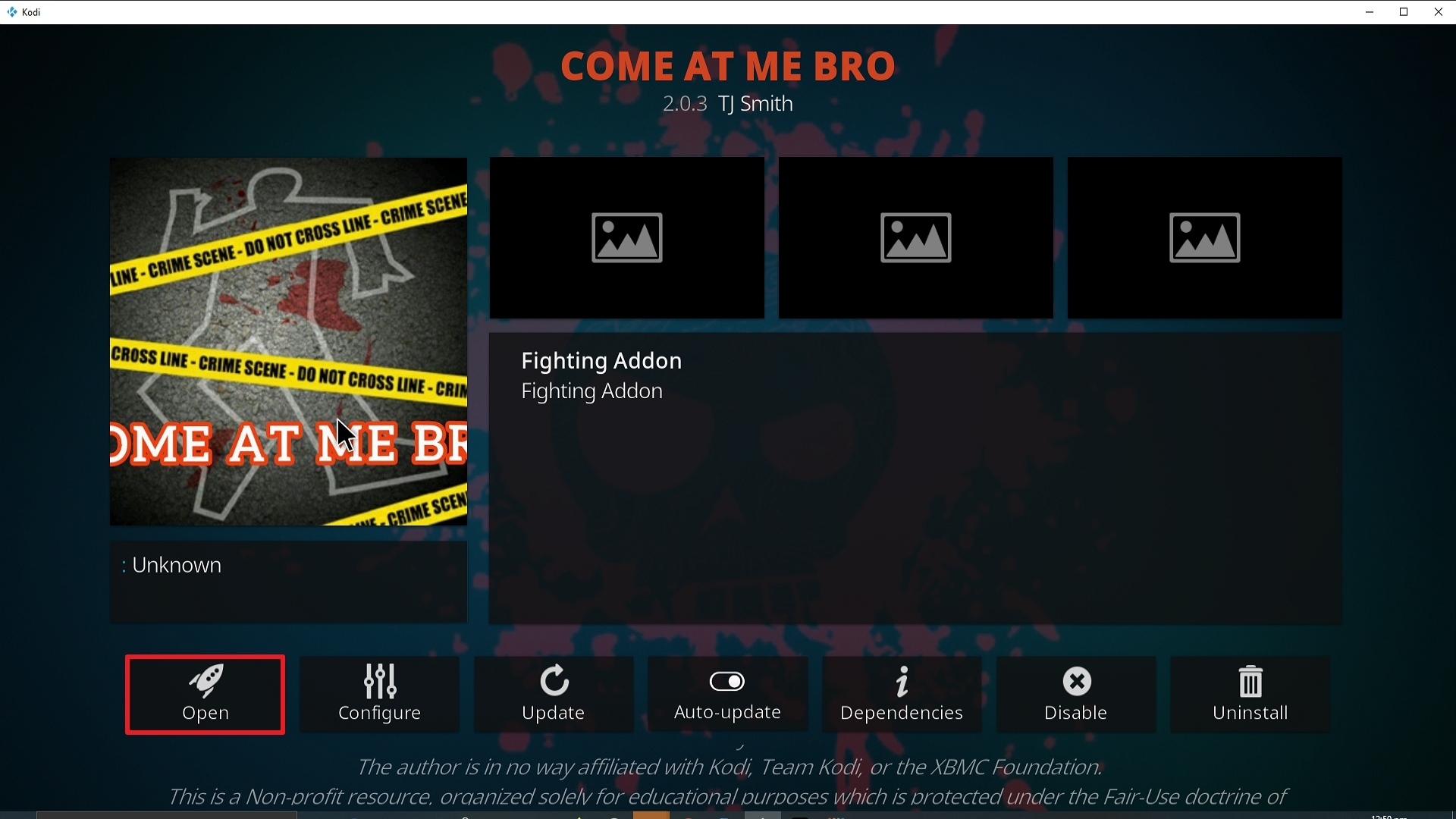
Come at me Bro Kodi Addon
Source: http://luxray.xyz/repo/
Come at me Bro Kodi addon comes from the well-respected Luxray repository which also holds the massively popular Nole Cinema.
A great addon that is specifically targeted at fight fans, tune in for PPV fights, or watch thousands of hours of back content.
Tends to serve up some good links and offers a great back library of content including their highly amusing knockouts sections.

Common Errors
Here are the most common errors and fixes you will come across with Come at me Bro:
- Kodi check log error: You won’t get this error if you have just started using Kodi. However, over time as you watch more content, you are increasingly likely to get this. Every time you load a page of an add on, a little snippet is stored in your media cache. This allows much faster loading the second time around. Depending on the storage space of your device, this cache will fill up quickly. When it comes to emptying the cache, it depends on your device. To learn about how to empty the cache of your Kodi and other fixes for the check log error read our fix guide linked above.
- Source not working/slow/frozen: If a source doesn’t work, it could be for several reasons. Firstly, it’s important to remember that using Kodi is not like flicking through channels on your TV. It takes time for your device to connect to a server that may be across the world, accesses your source a start to stream it. Give it as much as 15 seconds to load. Next, you want to refresh it. If none of these fixes work, read more of our guide linked above.
- Script Error: Script errors occur when there is a missing or corrupted script in either the Come at me Bro add on or your Kodi installation. A script error may prevent the addon from installing or even running. To check the problem doesn’t lie with the add on, try re-installing it and making sure that it is a fresh install. If the problem remains then you may need to either update or freshly install Kodi. To find out how to update and reinstall Kodi as well as other fixes read our fix guide linked above.
- No Link Found. This can happen more often than you would think and has nothing to do with the quality of Come at me Bro’s scrapers. Sometimes when you are looking for content the add ons servers can get overloaded with multiple requests. If those fixes don’t work, then try some more of our guide linked above.
- Olpair Streaming Error. If you don’t want to pay for Real Debrid, then at one time or another you’re going to get an error that says “Open Load Stream Authorisation” which means that you need to pair your device through Olpair. Otherwise known as Open load pairing. Each pair will give you 4 hours more streaming time. If you still have problems check out our error fixing guide linked above.

Review
Come at me Bro is a tidy addon in a not so tidy package, the interface is basic and could do with some updating, but it fetches some good links and has been around a few years.
Good alternatives include Sports Devil and Sportowa TV for all-purpose sports.
Better addons for fight sports is Planet MMA and Fight Tube.
Come at me Bro is a great backup, but it wouldn’t be out the first choice for a sports addons and it’s a bit hit and miss for big PPV fights.
Categories included:
- Fight Box
- Boxing
- Street Fight
- Road Rage
- UFC
- Knockouts
ReviewVPN cannot attest to the legality, security and privacy of the applications discussed on this site. It is highly recommended that you use a VPN service while streaming or using Kodi. Currently, your IP 216.73.216.72 is visible to everyone and your Browser is being tracked by Advertisers & ISP Provider. Here are the main reasons why you must use a VPN: A VPN works be replacing your ISP-assigned IP address and creating an encrypted tunnel. We recommend the no log service offered by IPVanish. It works well on a Firestick and offers the fastest possible speeds.
YOUR INTERNET ACTIVITY IS BEING WATCHED
How to Install Come at me Bro Addon on Kodi with Screenshots
- From the home screen, select the cogwheel at the upper left.

2. Select System in the bottom right corner.

3. Select Add-ons on the left side of the screen.

4. Select Unknown sources.
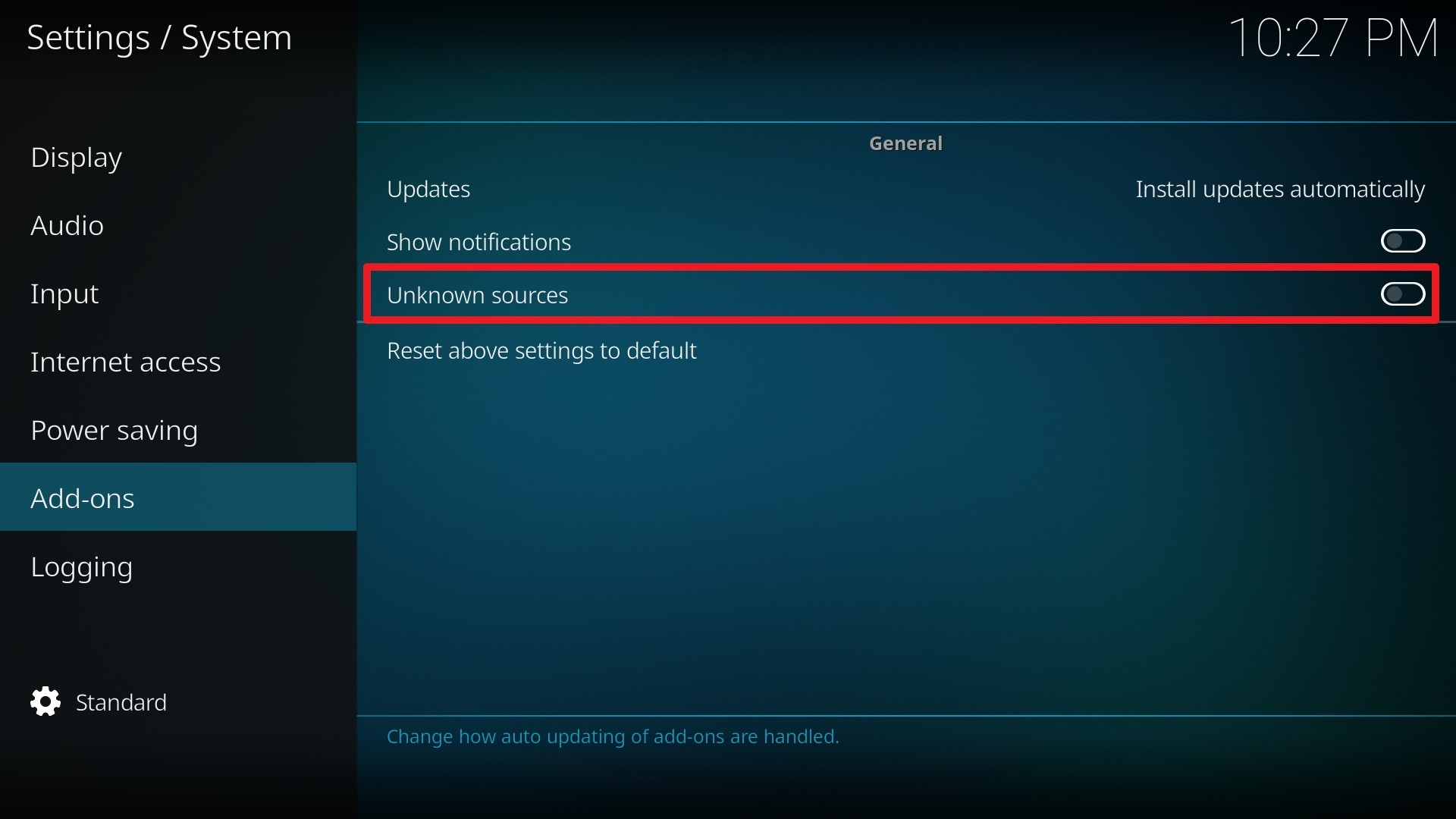
5. Click Yes to allow unknown sources.

6. Select File manager.
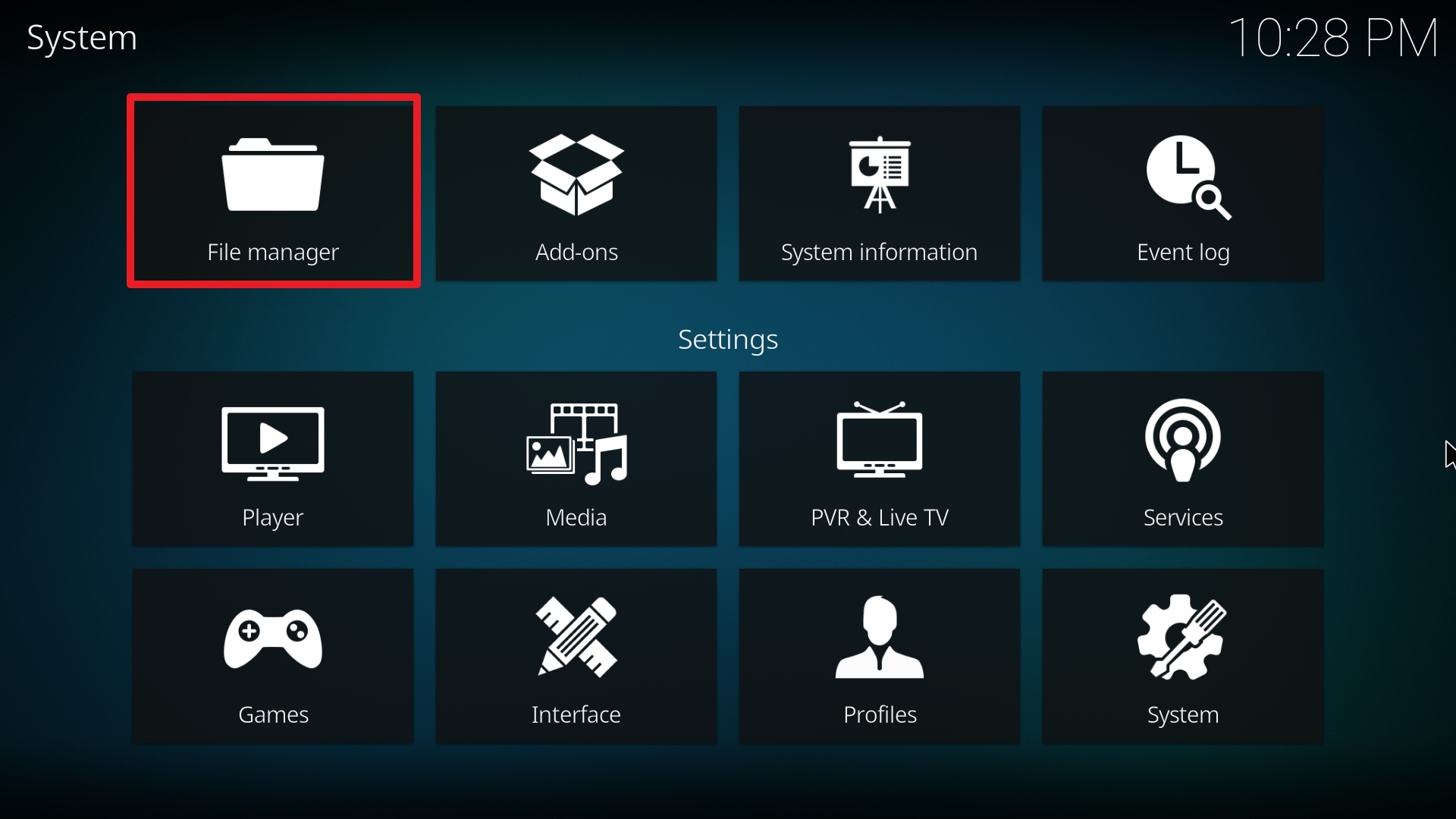
7. Click Add source.

8. Click on <None>.

9. Type exactly: http://luxray.xyz/repo/
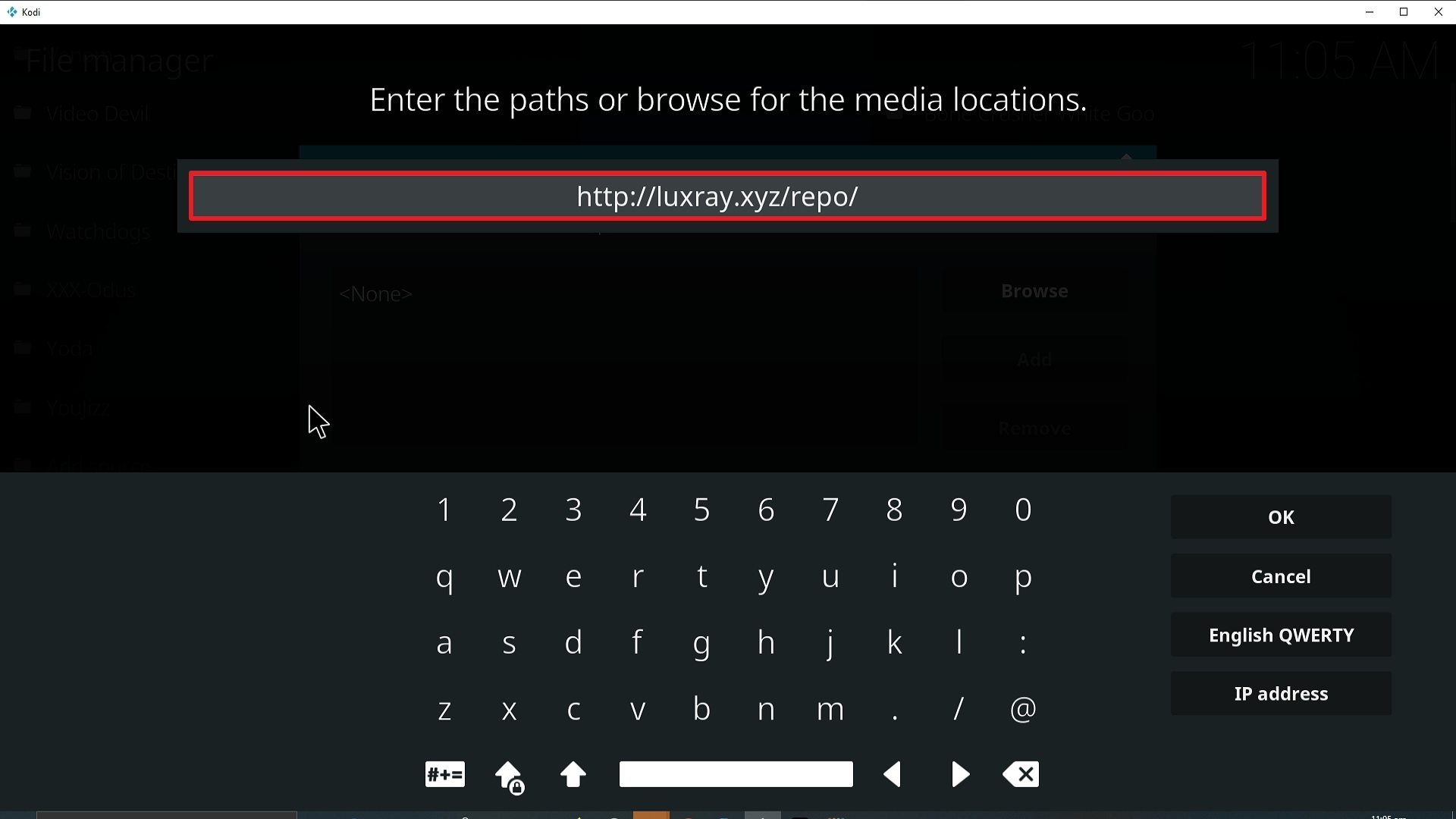
10. Click on OK.
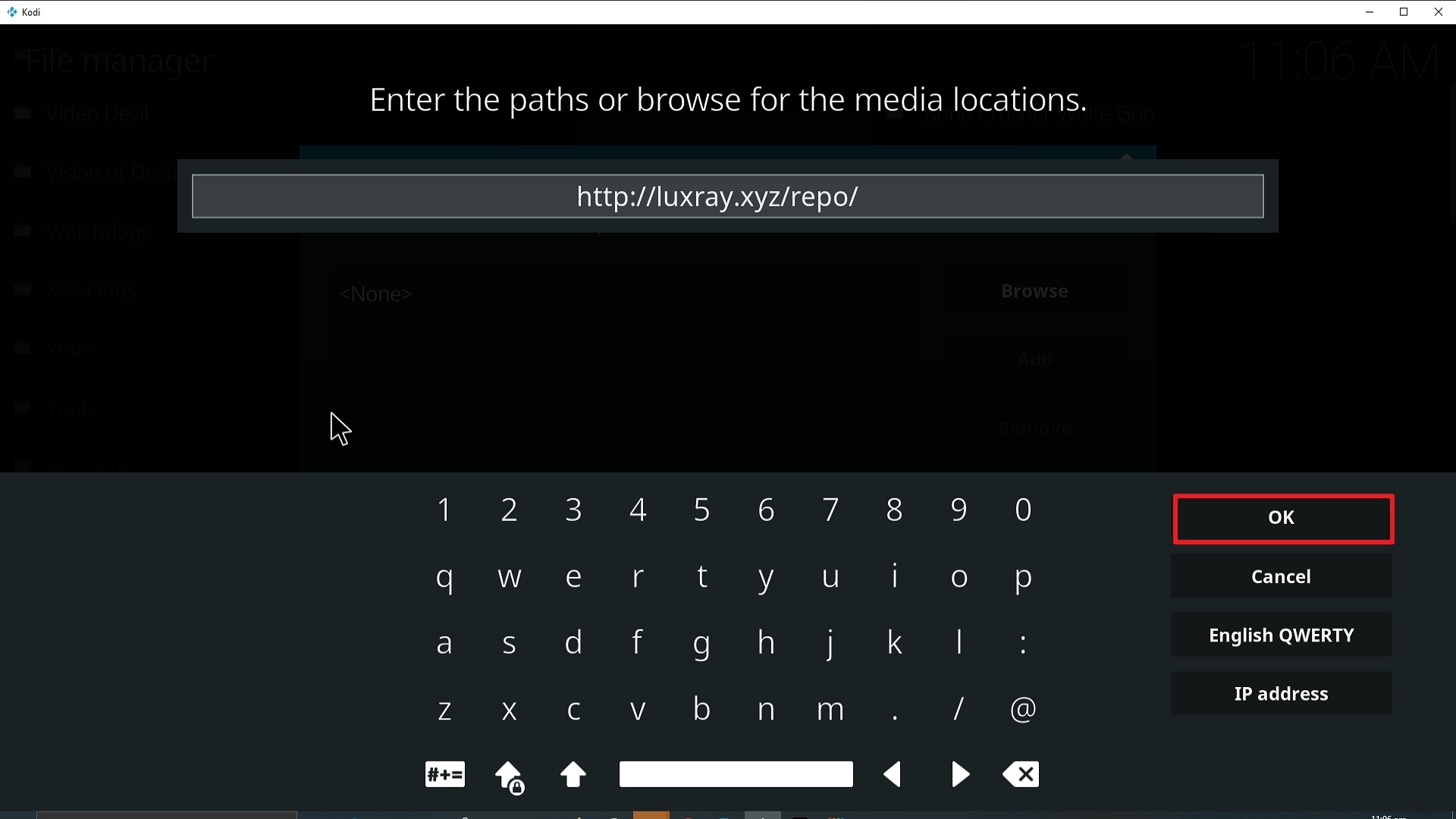
11. Select enter a name for this media source.
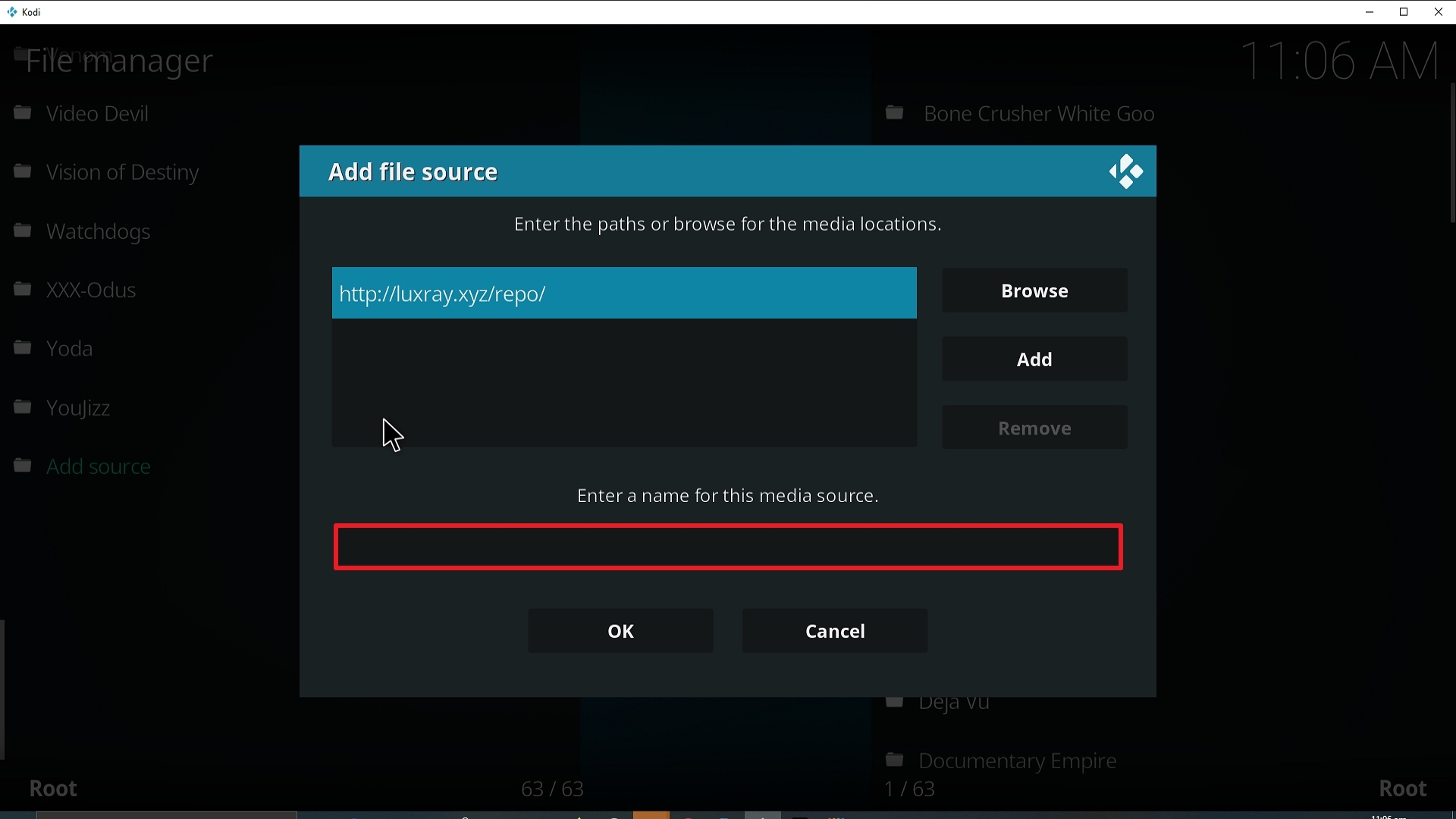
12. Name is Come at me Bro (this part isn’t critical as long as you remember the name).
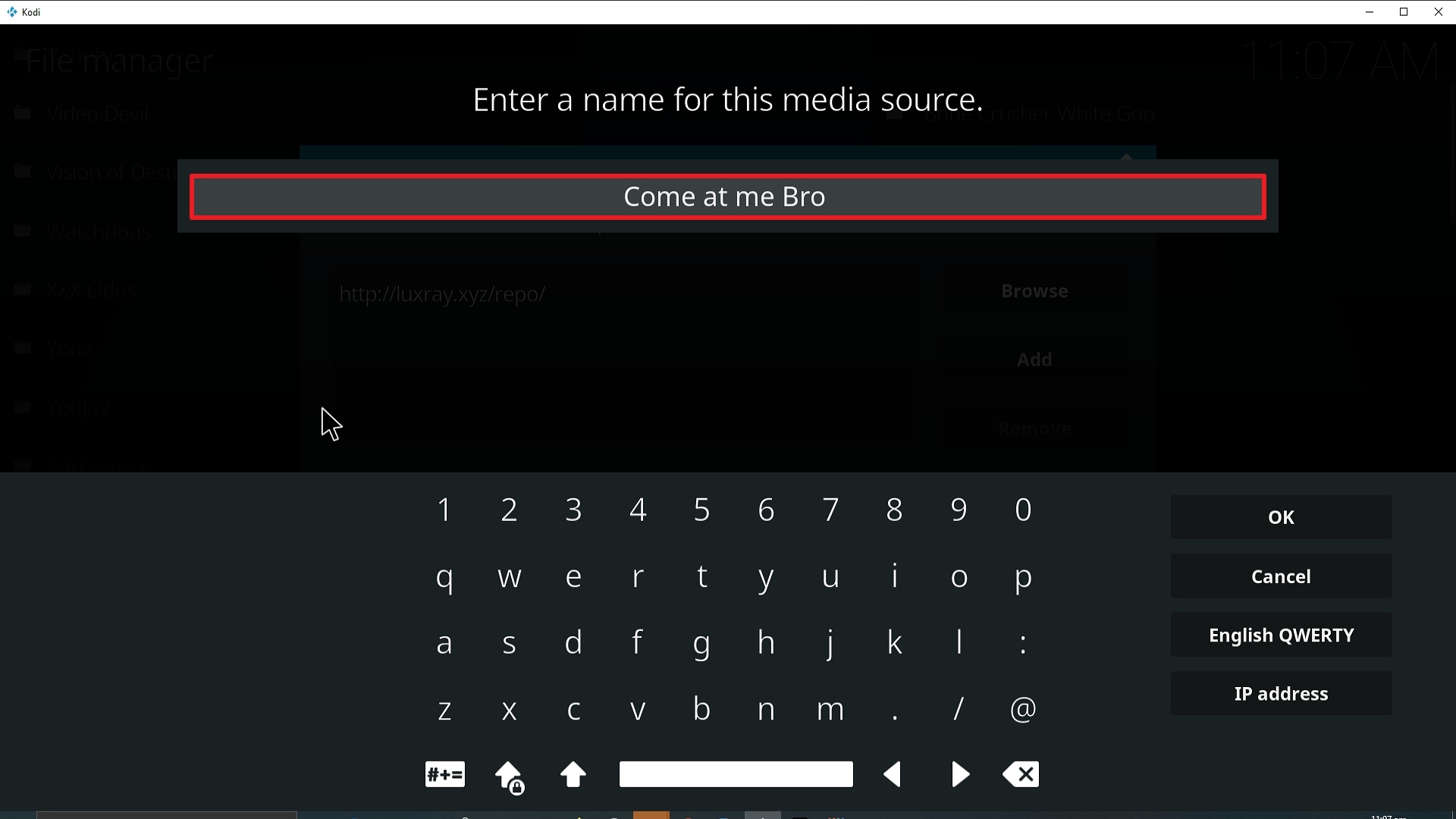
13. Click on OK.
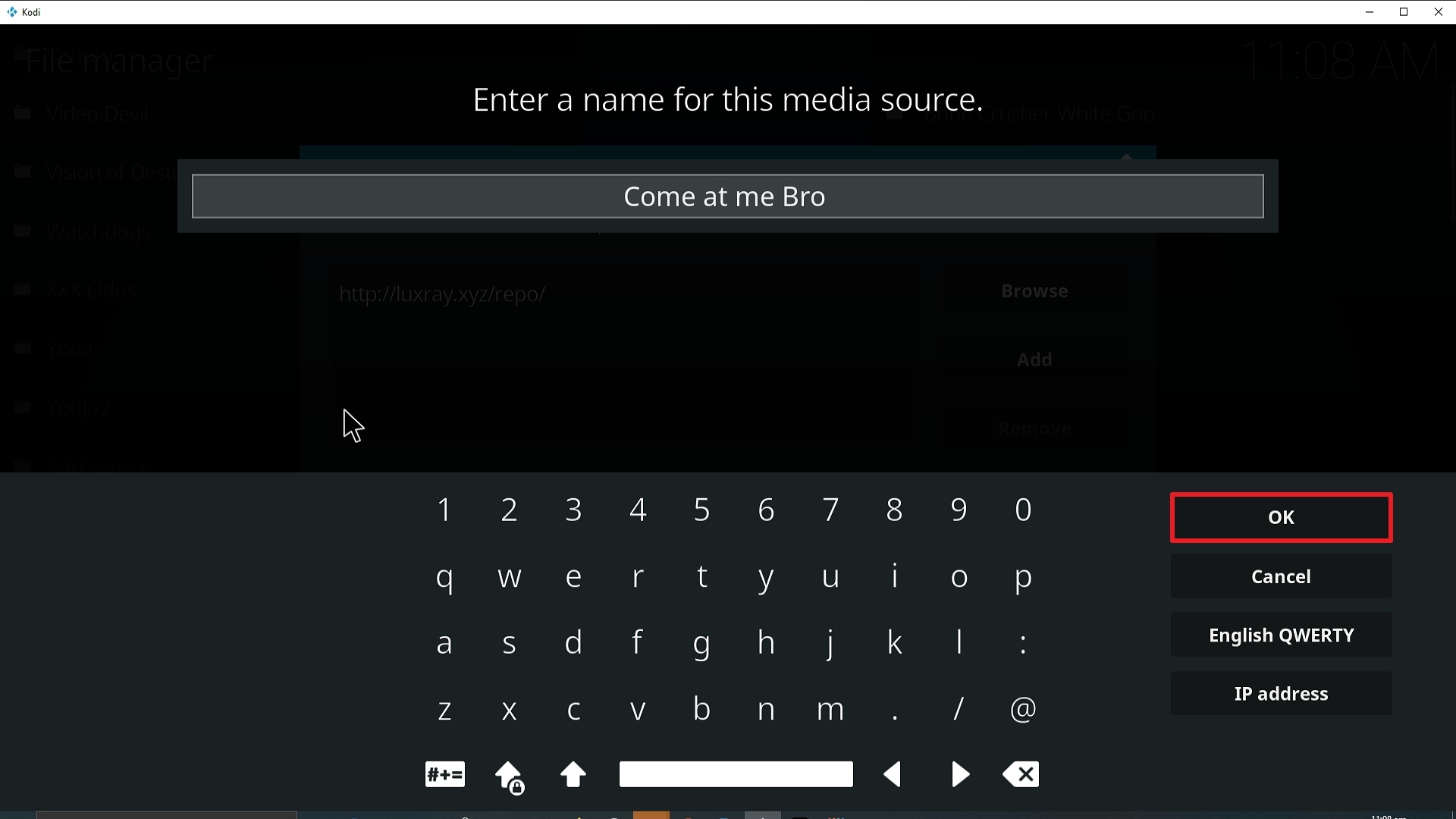
14. Click on OK.
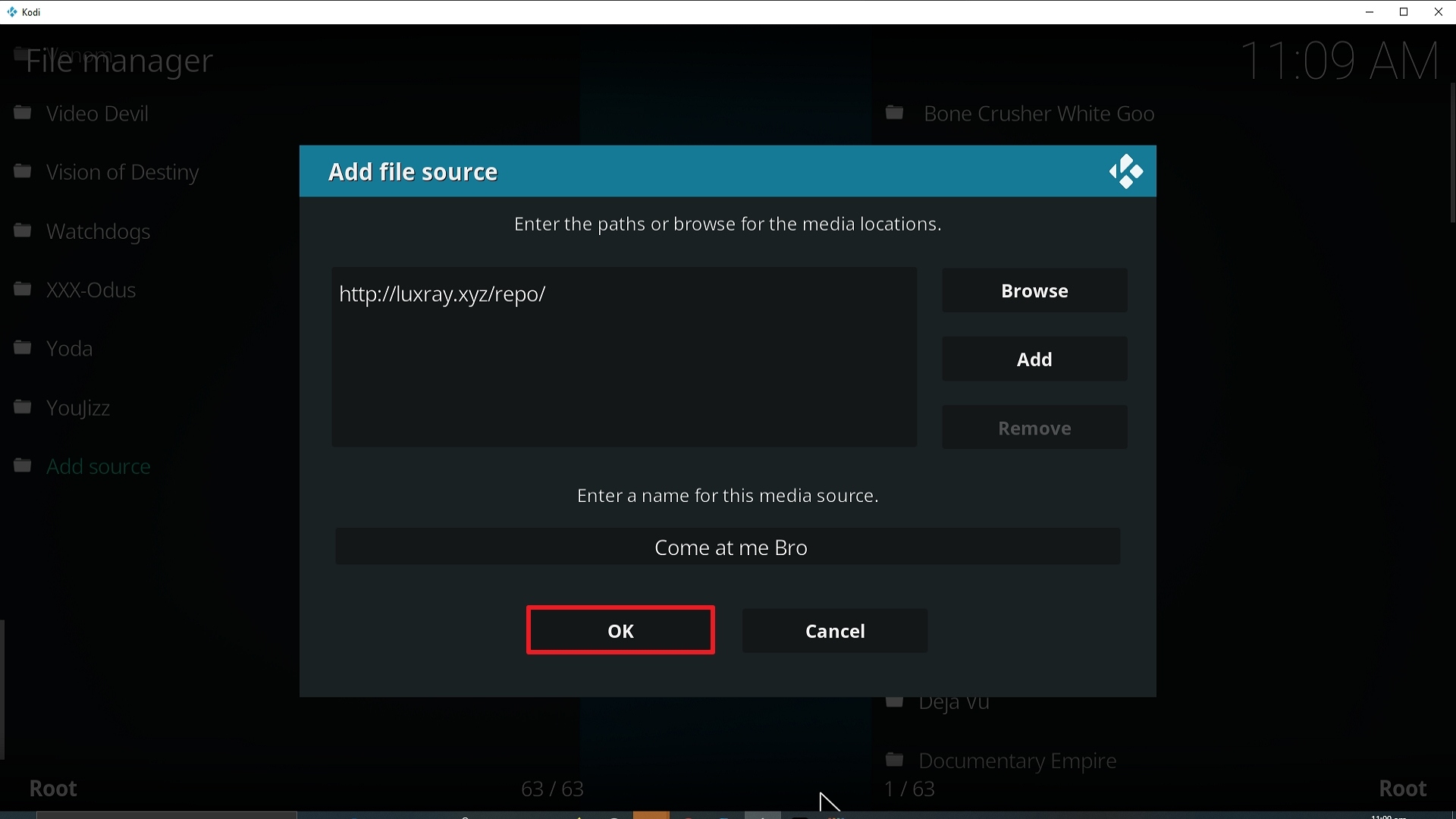
15. Take one step back and click on Add-ons.
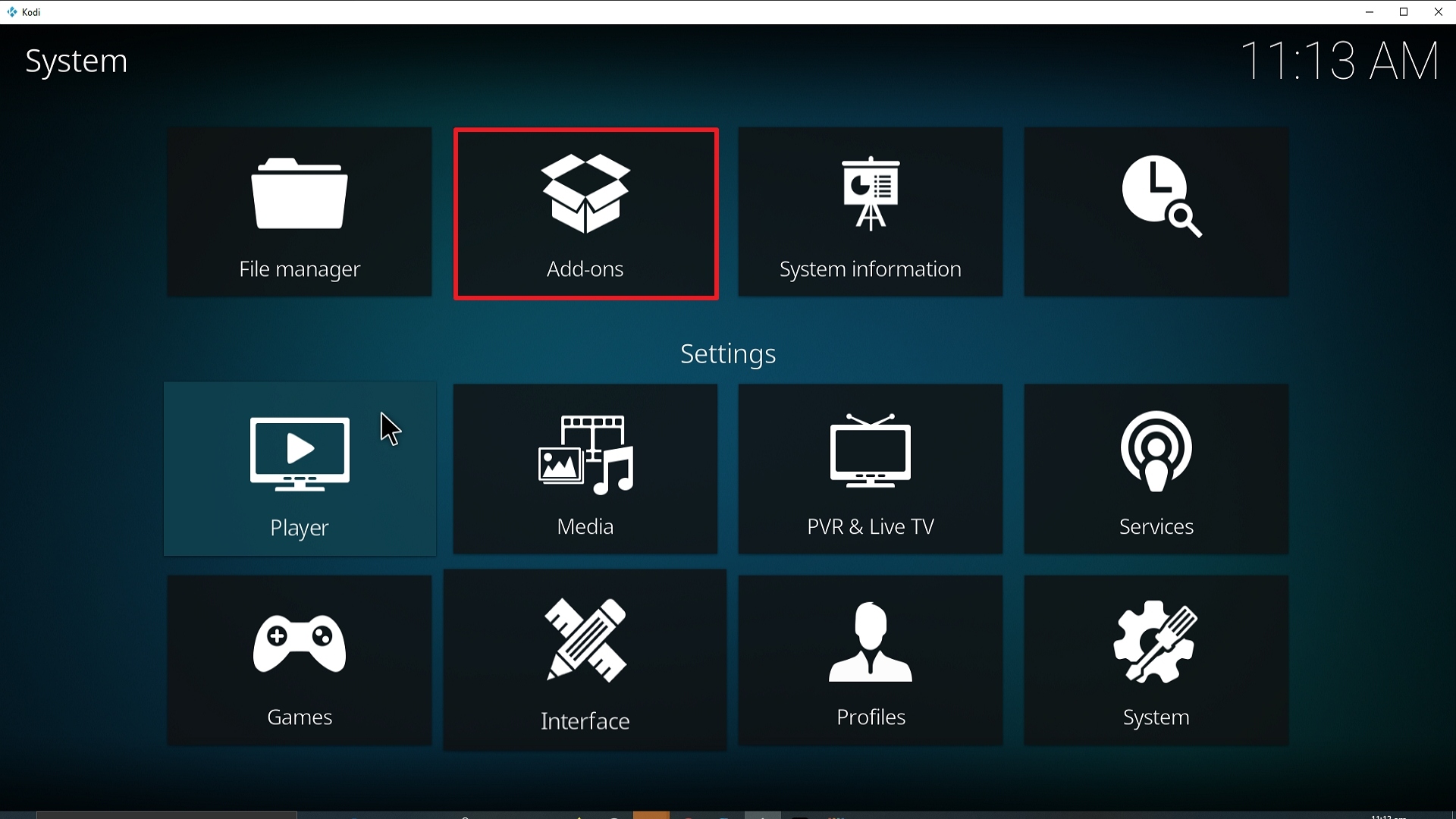
16. Select install from zip file.
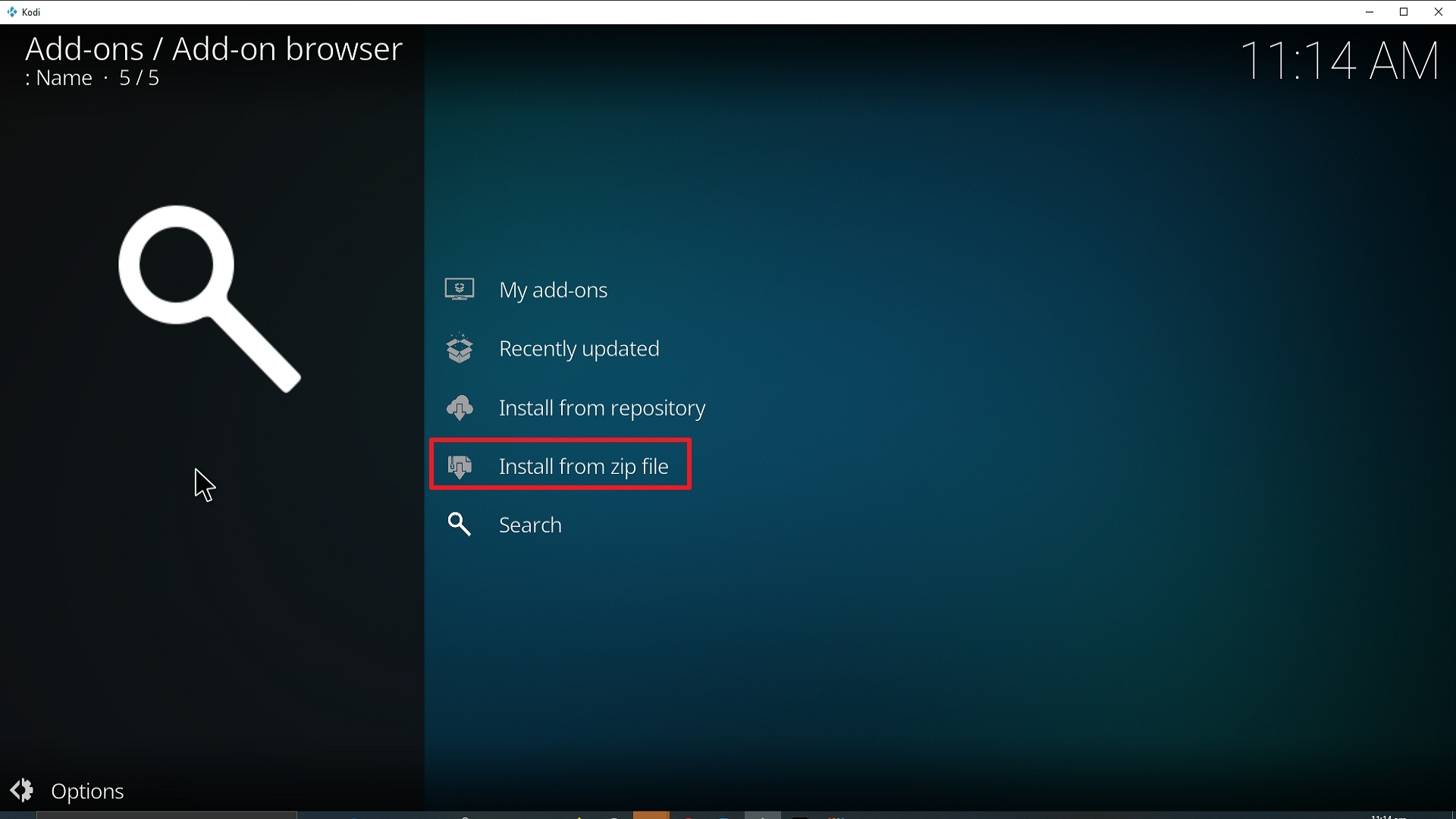
17. Click on Come at me Bro (or whatever you named the source).
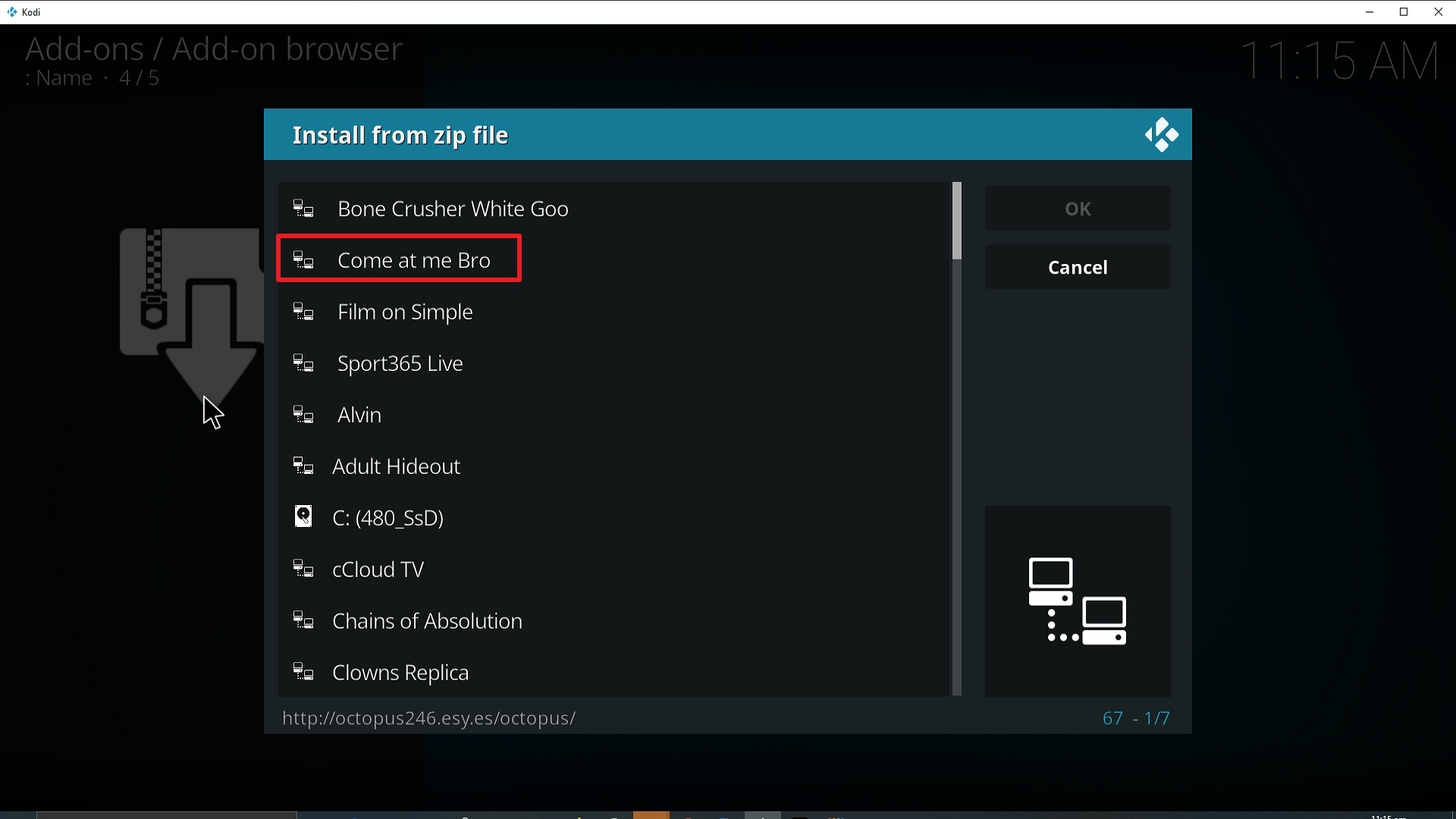
18. Click on repository.luxrayrepo-1.9.zip
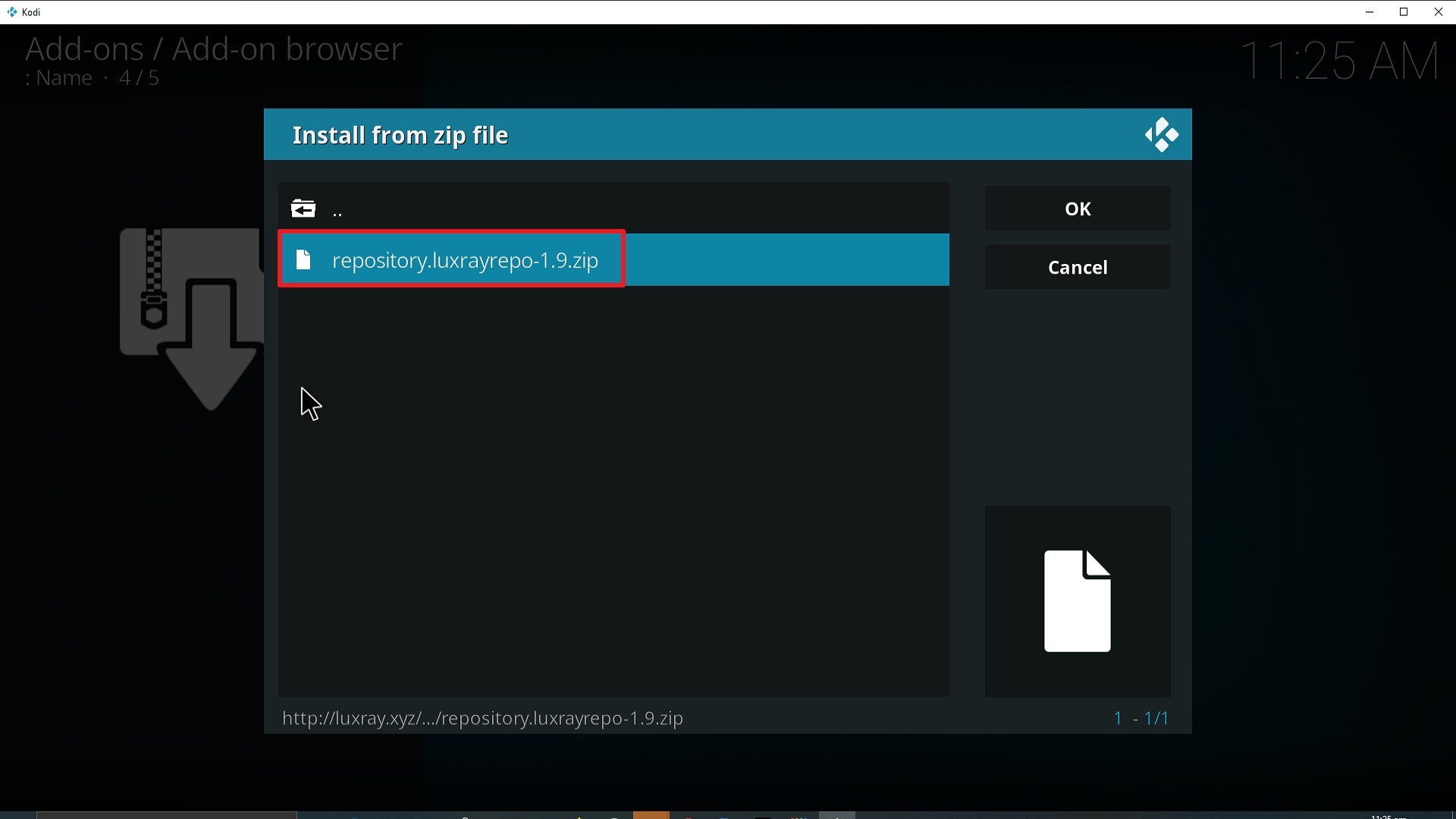
19. Select on Install from repository.
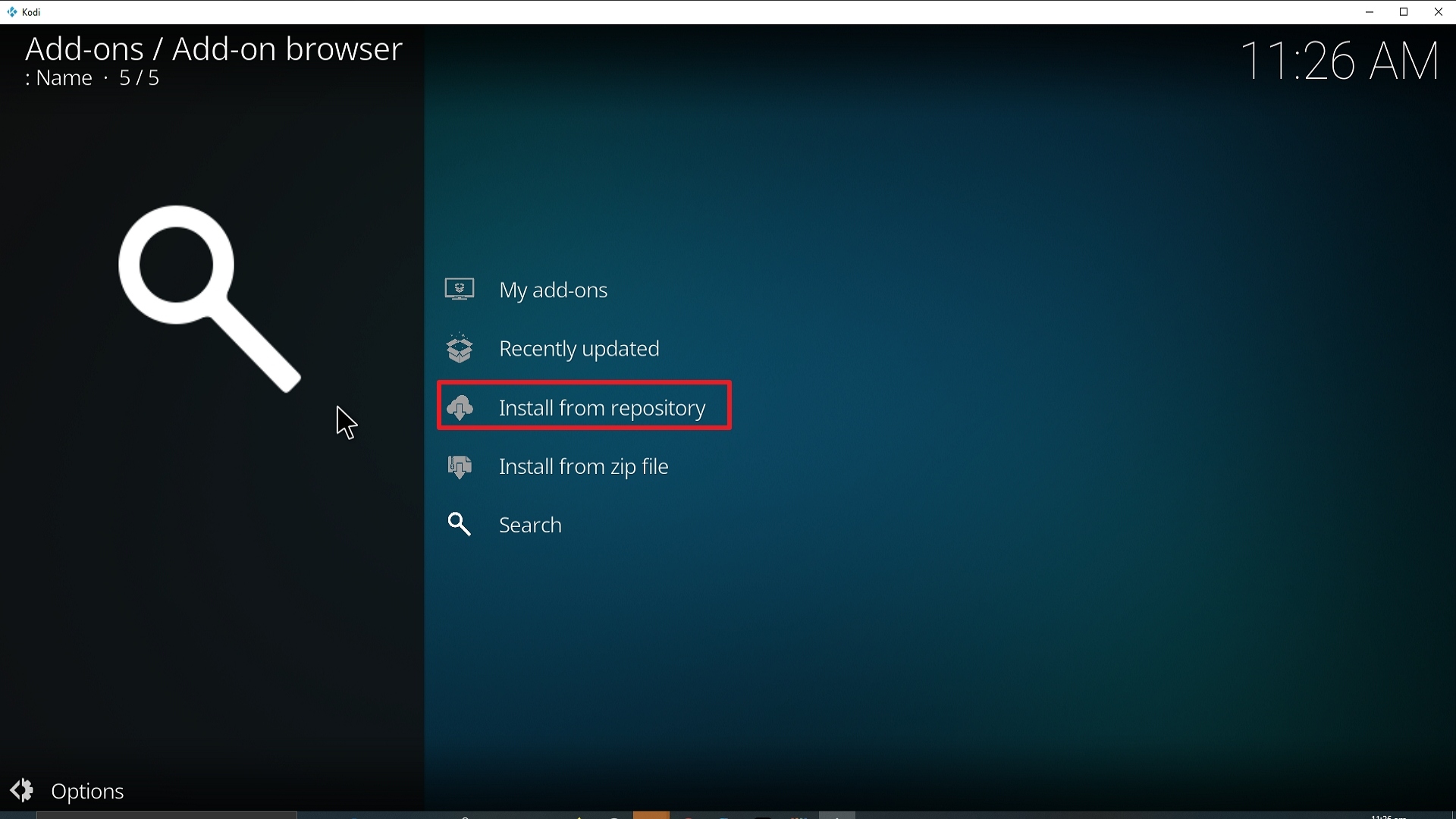
20. Click on Luxray Repo.
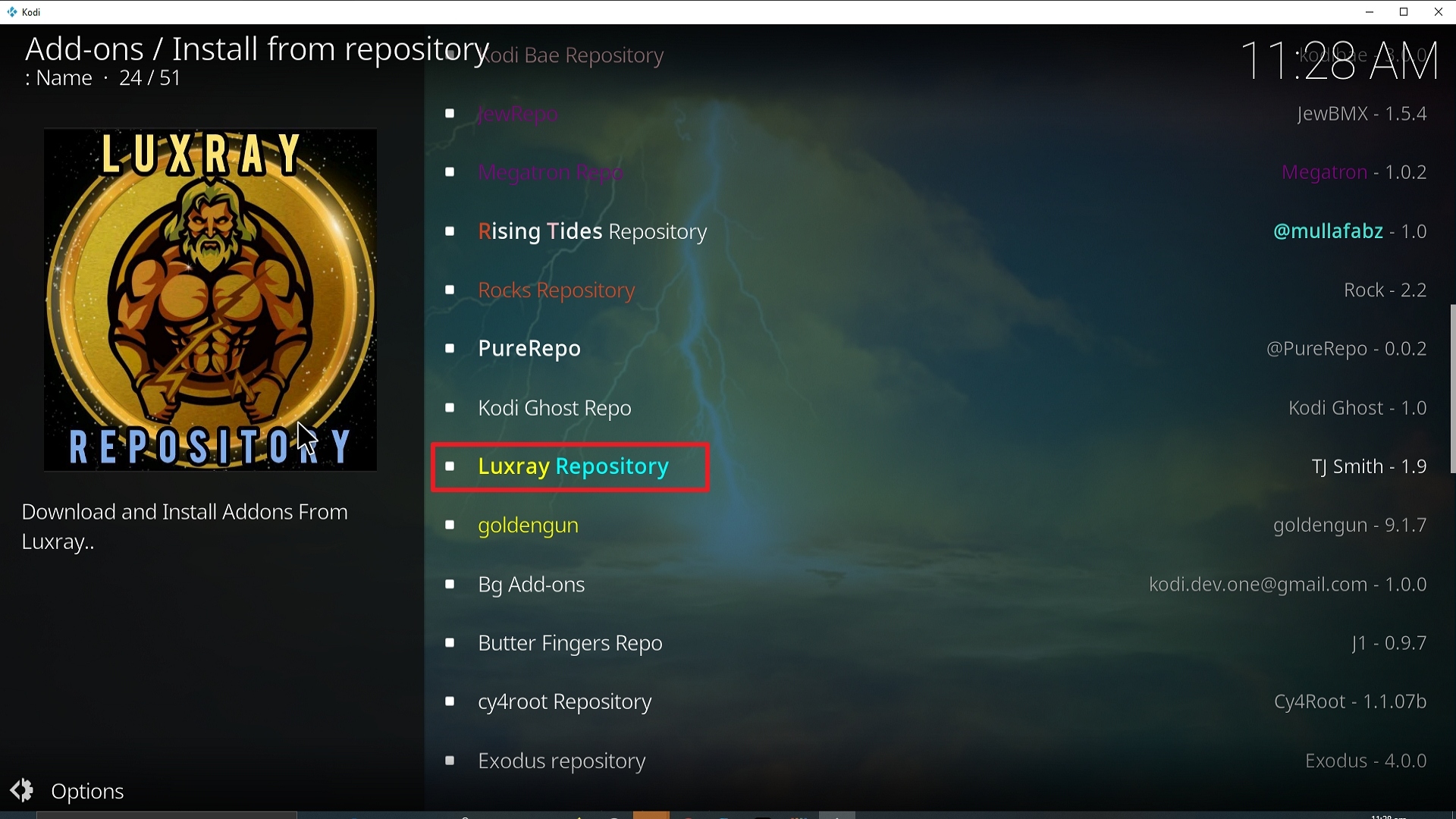
21. Pick Video add-ons.
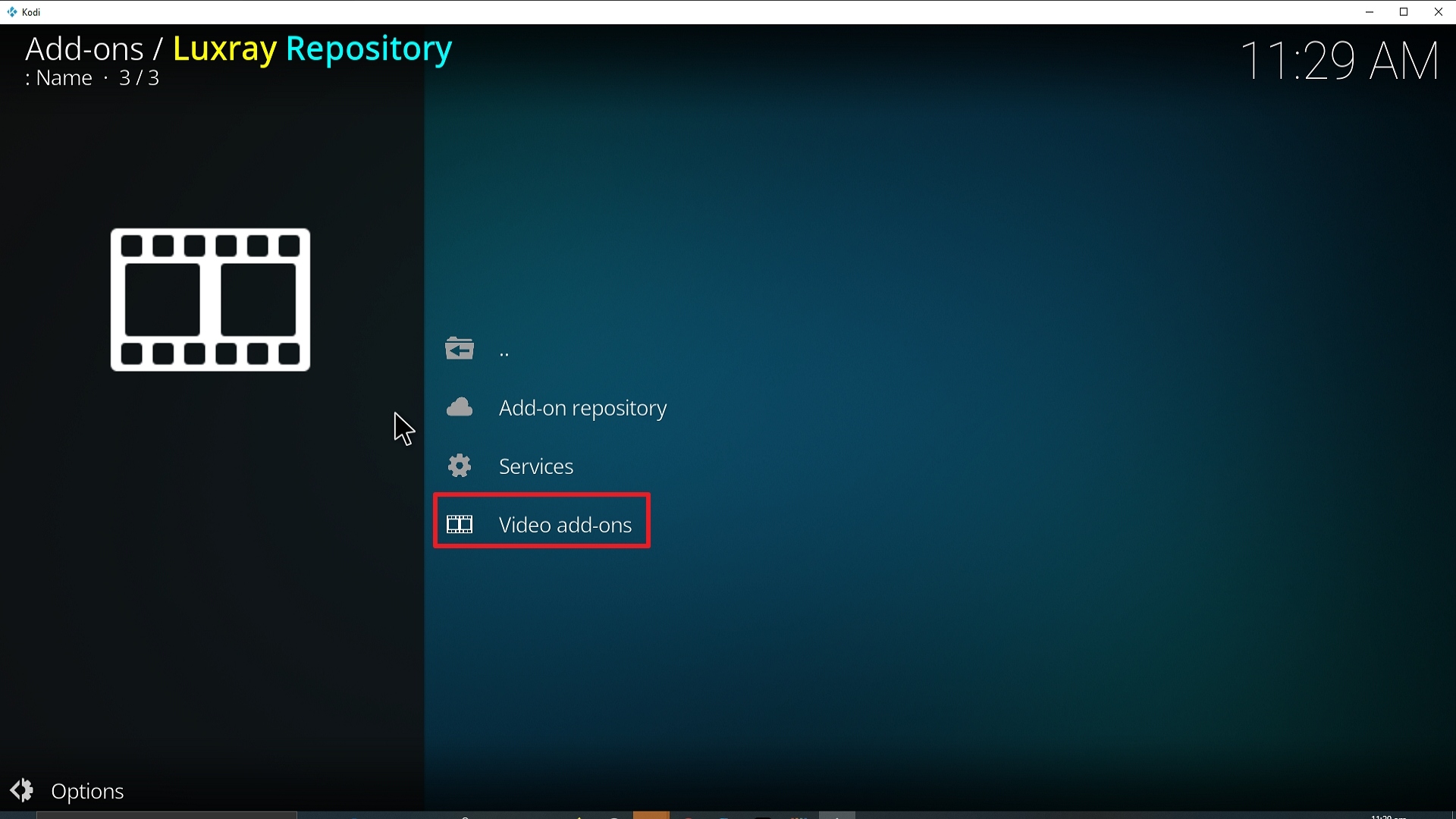
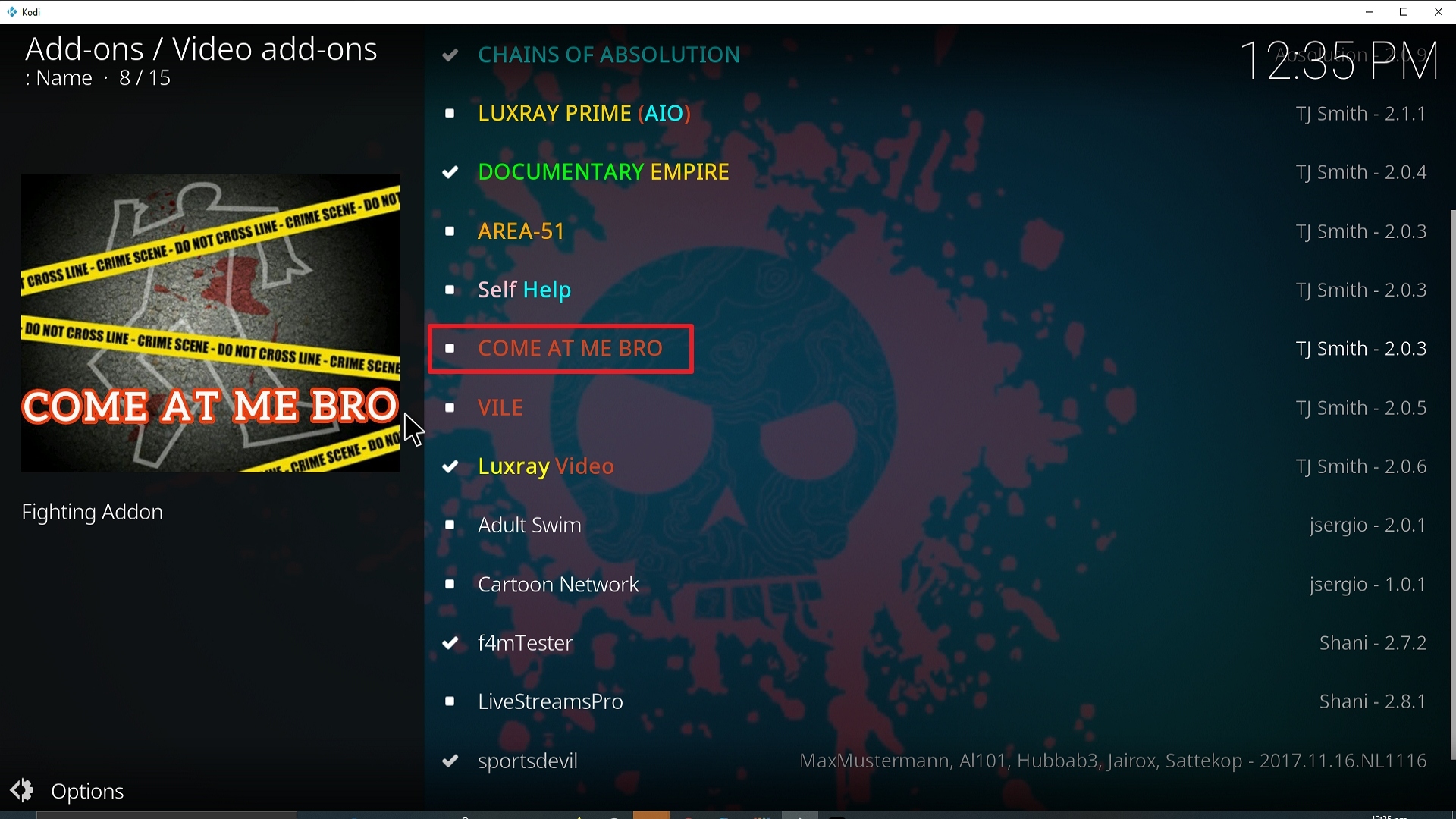
22. Select Come at me Bro again.
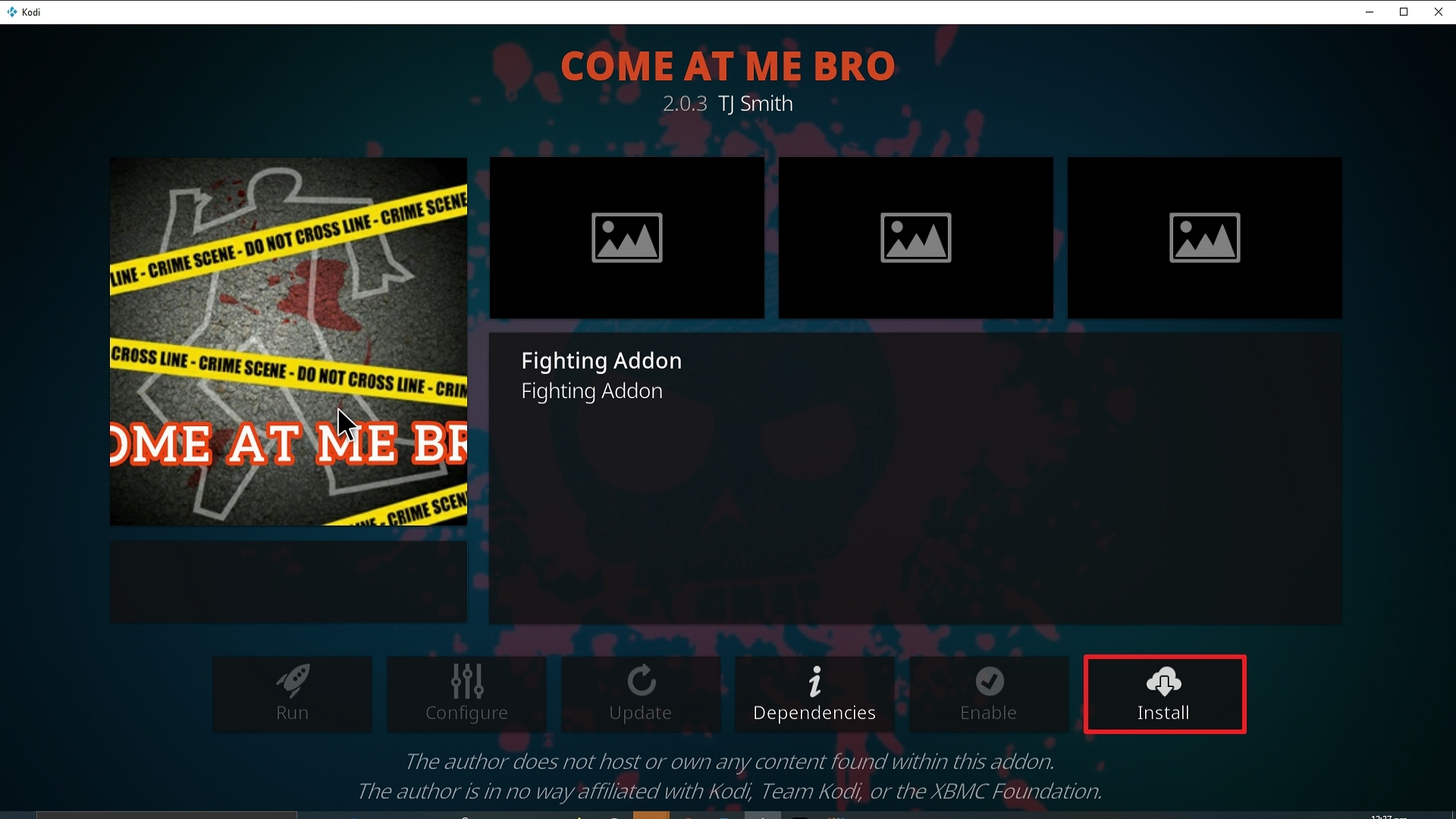
23. Click on Install.
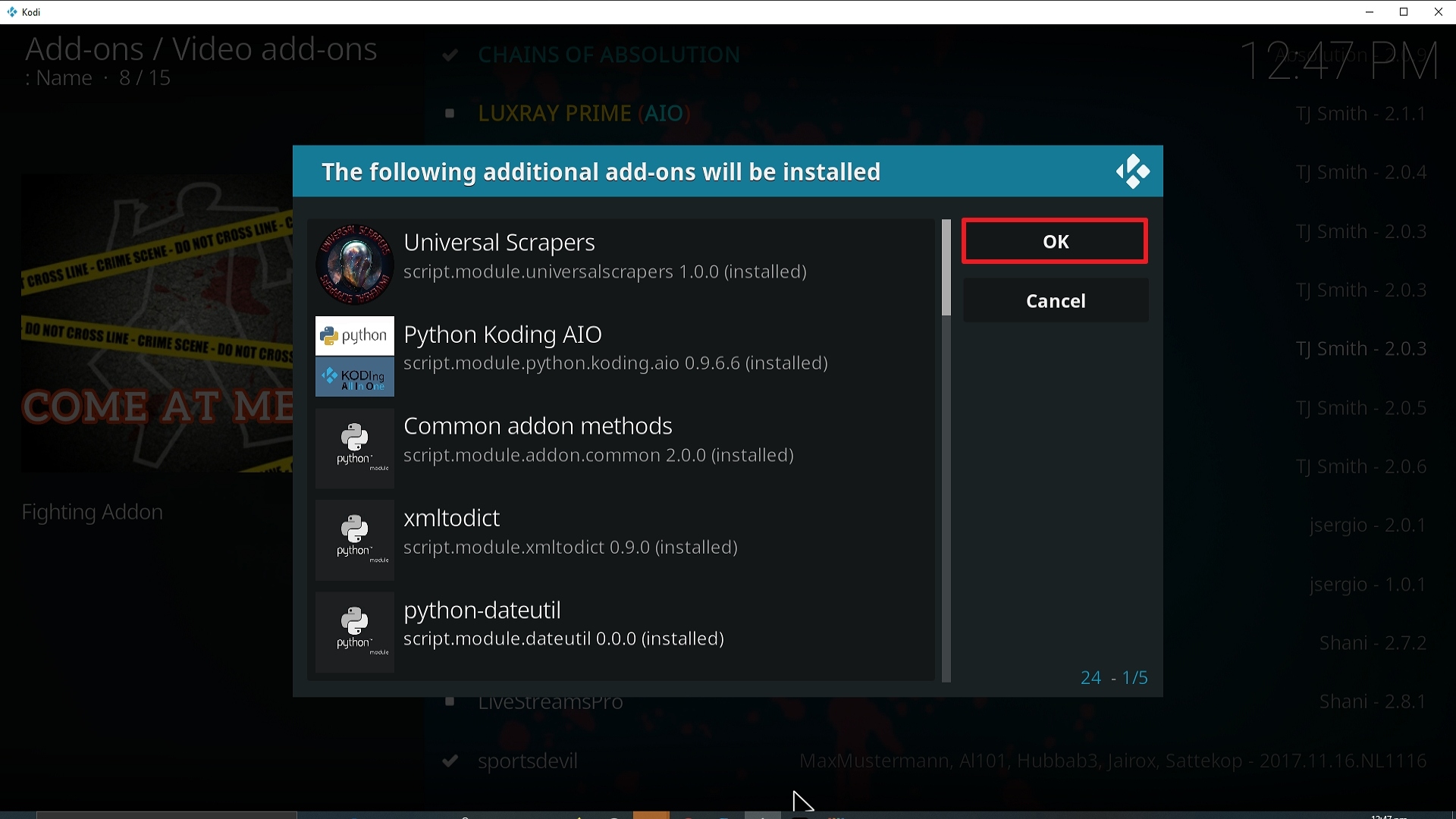
24. Select OK after reviewing the add-ons that will be installed.
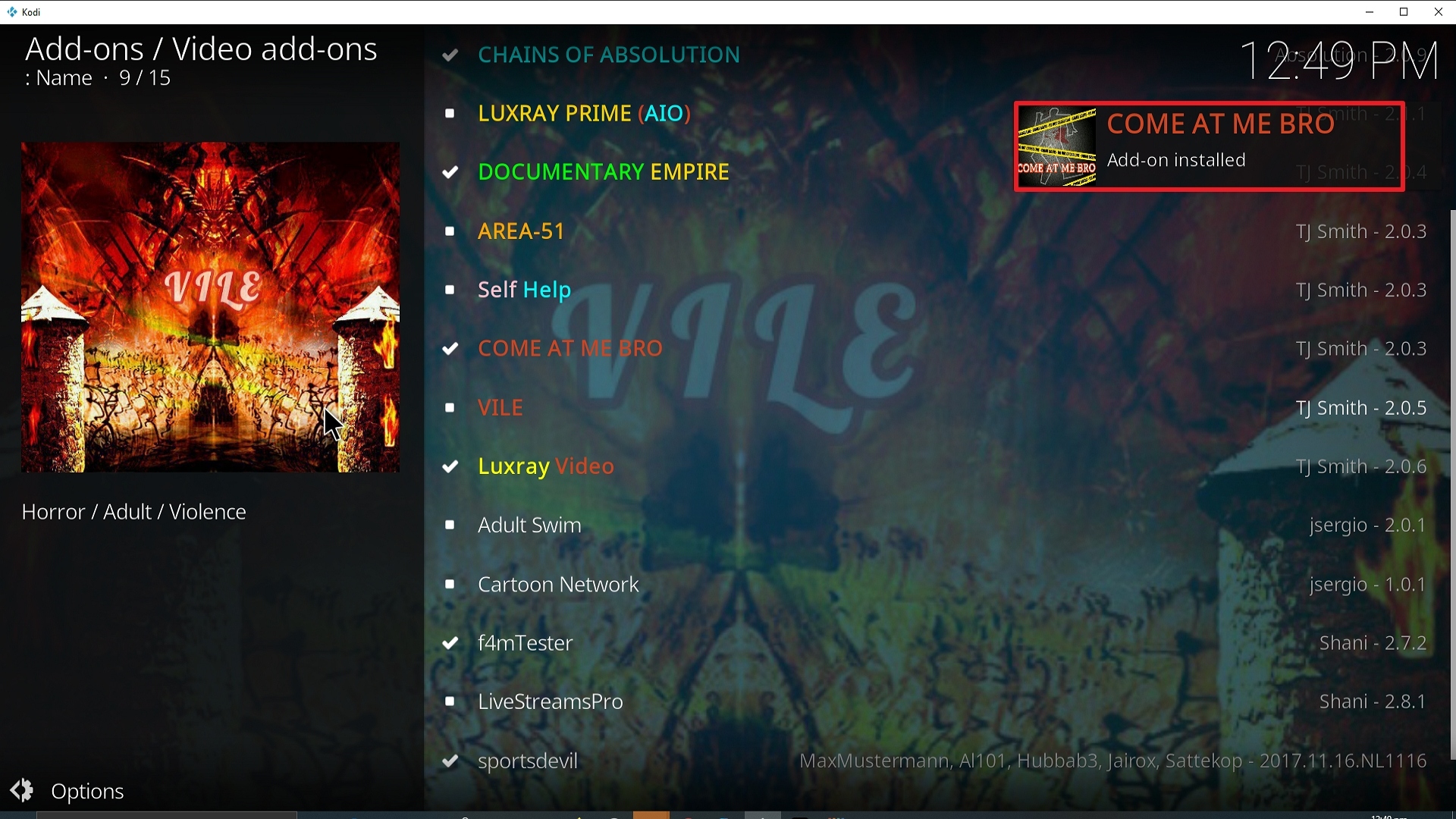
25. You should see a popup in the upper right corner saying Come at me Bro has installed. There will actually be multiple popups for the various components.
26. Click on Open to start the Come at me Bro add-on.