

Our Match Kodi Video Addon
Quick Navigation
Source: https://anon2018.github.io/UNICORN/
Liver Pool FC, Bayern Munchen, Barcelona, Manchester City, and Juventus are some of the biggest names in the field of Soccer. All around the globe, there are millions upon millions of soccer fans that eagerly watch soccer games in support of their favorite teams. But sometimes there are unavoidable circumstances where you won’t be able to watch the games live. You get stuck in traffic, in a meeting, or even forget to wake up on time to watch. You resent the moment that you weren’t able to watch your favorite team play and your only recourse is to watch it online. But sometimes, you won’t be able to watch it online due to restrictions and copyright issues. So what do you do? Well, the good news is there is a Kodi add-on that can help you with that dilemma and that is Our Match Add-on. If you haven’t installed Kodi yet, you better do it now if you know what is right for you.

Our Match Kodi Video Add-on under the Unicorn Repository provides soccer content to its subscribers. Anything that has to do with soccer it can deliver.

Features
- Replays
- Game Highlights
- Soccer Team Information
Installation Guide for Our Match Addon
- Launch Kodi on your device
- At the top left corner of your device, click on the “System Setting” icon
- Select “File Manager”
- Choose “Add source”
- Click on “None”
- Type in the URL address https://anon2018.github.io/UNICORN/
- A box under will appear, name it “Unicorn” and select “Ok”
- Double-check and then click “Ok”
- Head back to the main menu and select “Add-ons”
- At the top left corner, click on the “Add-on Package Installer” icon
- Select “Install from zip file” and then a pop-up will appear
- Choose “Unicorn”
- Select – repository.unicorn-0.0.2.zip
- It will download and wait for a few seconds for a pop-up saying “Repo Installed”
- Choose “Install from Repository”
- Select “Unicorn Repository”
- And then go to “Video Add-ons”
- Select “Our Match” and choose “Install”
- Select “Ok”
YOUR INTERNET ACTIVITY IS BEING WATCHED
ReviewVPN cannot attest to the legality, security and privacy of the applications discussed on this site. It is highly recommended that you use a VPN service while streaming or using Kodi.
Currently, your IP 216.73.216.171 is visible to everyone and your Browser is being tracked by Advertisers & ISP Provider.
Here are the main reasons why you must use a VPN:
- Your activities are hidden from your ISP, the government, and from the apps you are using.
- You can access additional movies and TV streams.
- ISP attempts to throttle are thrwarted thus reducing buffering issues.
- Geographically restricted content like Netflix and Hulu can be unblocked.
A VPN works be replacing your ISP-assigned IP address and creating an encrypted tunnel. We recommend the no log service offered by IPVanish. It works well on a Firestick and offers the fastest possible speeds.
How to Install the Our Match on Kodi with Screenshots
1. From the home screen, select the cogwheel at the upper left.

2. Select System in the bottom right corner.

3. Select Add-ons on the left side of the screen.

4. Select Unknown sources.

5. Click Yes to allow unknown sources.

6. Select File manager.

7. Click Add source.

8. Click on <None>.

9. Type exactly: https://anon2018.github.io/UNICORN/

10. Click on OK.

11. Select enter a name for this media source.

12. Name is Our Match (this part isn’t critical as long as you remember the name).

13. Click on OK.

14. Click on OK.

15. Take one step back and click on Add-ons.

16. Select install from zip file.

17. Click on Our Match (or whatever you named the source).

18. Click on repository.unicorn-0.0.2.zip

19. Select on Install from repository.

20. Click on Unicorn Repo.

21. Pick Video add-ons.
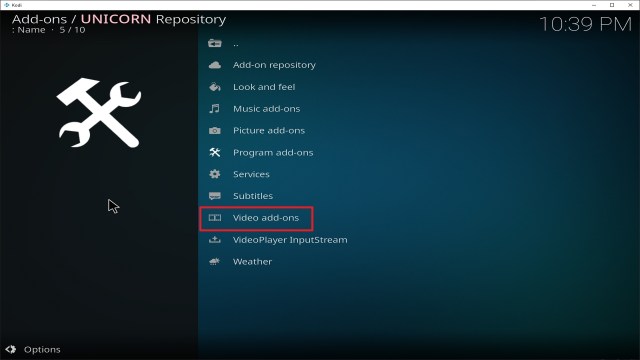
22. Select Our Match again.

23. Click on Install.

24. Select Version 2.0.3 Unicorn Repo

25. Select OK after reviewing the add-ons that will be installed.

26. You should see a popup in the upper right corner saying Our Match has installed. There will actually be multiple popups for the various components.

27. Click on Open to start Our Match add-on.

Alternatives
At times you may encounter an issue with an add-on and that is usually governed by the creator of the add-on. We always recommend that you get your content from trusted sources and always protect your browsing history with a reliable VPN. What if Our Match add-on encounters an issue? That would mean your viewing experience gets interrupted so here at ReviewVPN, we decided to come up with a list of alternatives that offer the same content as Our Match does. The list of alternative add-ons is as follows:
- Halow TV Live Add-on
- Sports Devil Add-on
- BoB Unleashed Add-on
- DC Sports Add-on
- UK Turk Playlist Add-on
- Maverick TV Add-on
A friendly reminder, these alternatives provide sports content in general but not very specific on Soccer like Our Match.
Common Errors
These are some of the things that may cause an issue when installing Our Match:
Always verify if you have written the correct URL. Also, recheck if you have downloaded the right repository. Always make sure that your internet connection is stable and also you must be protected by a very reliable VPN. Check here for the best VPN deal.
This usually appears when Kodi is not properly installed. Also, it is worth noting that the add-on may be improperly installed as well. To resolve this, you must reinstall the add-on by following the guide we provided above. You can also reinstall Kodi if this problem still continues to persist.
This happens when your media cache is full of memory. Our cache usually produces what we call snippets that make loading faster. Over time, this will fill out your entire cache. So the best solution to this issue is to just simply empty your cache and use trusted tools that will optimize the performance of Kodi on your device.
Our Match does not store any of the content on its servers, it only provides streams that provide that particular content it is meant for. You should try other sources that may only take a matter of seconds to load up. For other solutions please take the time to read our in-depth guide linked above.
Click here to get the lowest price on Surfshark through our exclusive limited-time offer.
How to Install Surfshark VPN on Firestick
If your Firestick still has the older interface, read this article to learn how to update it: Update Firestick Interface.
You can download Surfshark directly from the Amazon App store. It will be easy for you to find Surfshark with your Firestick’s Find feature. Refer to our screenshots below.
1. Go to the Home screen of your Firestick.

2. Navigate towards the Find tab. Press the Search button from the resulting dropdown.

3. Type in the keyword of SurfShark and select from the suggestions that will appear.

4. Click the official SurfShark icon from your search results.

5. Press the Download (You own it) button.

6. The SurfShark VPN installer will download on your device.

7. SurfShark VPN’s app will automatically install itself on your Fire TV stick.

8. Press the Open button after completing SurfShark VPN’s installation process.

9. Please wait for the SurfShark VPN to load its user interface.

10. You can now log in with your SurfShark VPN account credentials.

Learn more about Surfshark and Grab the Best Surfshark Deal Now!
Install Surfshark on Firestick


For more VPN discounts, go to ReviewVPN Deals and purchase the best VPN for you.
Click here to get the lowest price on Surfshark through our exclusive limited-time offer.
Conclusion
Our Match is the perfect add-on for you if you are a Soccer fan. It gives you replays and highlights if ever you miss live games. You can enjoy this add-on with your buddies. Have them come over and enjoy a few rounds of beer and experience sports entertainment at its finest. We hope that this guide will be of help to you and if you have questions, please do not hesitate to contact us through our website and our other social media platforms. As the popular soccer cheer goes, Know ‘em down! Happy viewing!


