

Ghostbusters Kodi Build Overview
Quick Navigation
The article will help you on how to install Ghostbusters Kodi Build.

Ghostbusters is a Kodi build that has a very attractive ghostbusters-inspired theme with a massive collection of content to watch. This build is one of the few Kodi builds compatible with Kodi 19.5 Matrix and is located in the cMaN Repository.
It brings you a great lineup of content to watch for free and high-quality streaming links from different providers. You can choose from their wide variety of content categories such as Movies, Tv shows, Sports, Kids, Free and more. It is also a feature-rich build that supports Real Debrid integration to provide you with a high quality of streaming links.
This build also uses different Kodi addons to bring you a great lineup of content. Some of the popular pre-loaded add-ons here are Asgard, Venom, Odin, Loop Repository, The Endzone 19, and more. You will surely enjoy streaming in this build as it brings you all of the latest and fresh release contents in different categories.

How to Install Ghostbusters Kodi Build with Screenshot
Installing a Kodi build has a lot of processes to take. That is why we will guide you step by step on how you can install it on Kodi.
Follow the following steps below.
1. On your Firestick, open Kodi and go to Settings.

2. Select on System.
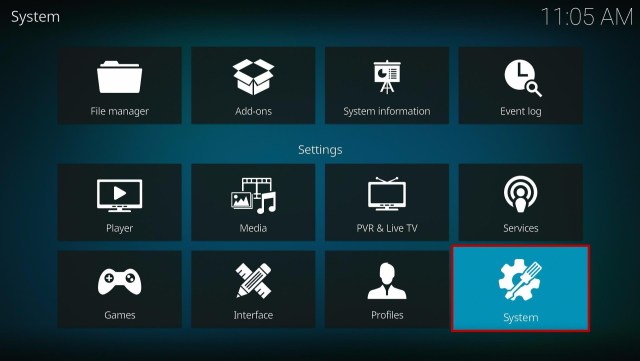
3. Click on the Add-ons menu and Turn ON the Unknown Sources.

4. Select Yes when the box appears.

5. Go back one step and click on File Manager.

6. Select the Add Source.

7. A box will pop up, so click on the ‘None’ option.

8. Now type in this URL http://cmanbuilds.com/repo and click OK.

9. Name this URL as cman and tap OK.

10. After that, go back to the system menu and select Add-ons.

11. Click Install from Zip File.

12. When a box pop up, tap the Yes button.

13. Select cman or any name you have given.

14. Choose repository.cMaNWizard.zip

15. Wait a few minutes for the addon to be installed. After that, an icon will appear at the top menu.

16. Tap the Install from Repository.

17. Then select cMaN’s Wizard Repository from the list.

18. Select the Program add-ons.

19. Click cMaN Wizard 19.

20. Tap the Install button.

21. Wait for the cMaN Wizard 19 installed notification.

22. Wait for the Installed message to appear and click the Continue

23. Tap the Close

24. Go back to the Kodi home screen and scroll down to Addon.

25. From the Program add-ons, select cMaN Wizard 19.
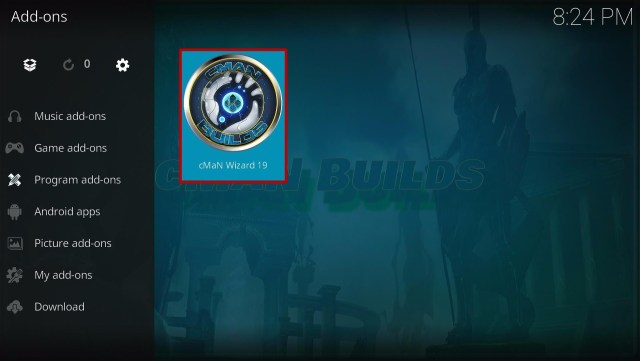
26. Click the Builds

27. Scroll down and select Ghostbusters

28. Click Fresh Install

29. Tap on the Yes button

30. Wait for the build to download.

31. Click the OK button

32. Launch your Kodi again

33. That’s it! You have successfully installed the Ghostbusters Build.

ReviewVPN cannot attest to the legality, security and privacy of the applications discussed on this site. It is highly recommended that you use a VPN service while streaming or using Kodi. Currently, your IP 216.73.216.84 is visible to everyone and your Browser is being tracked by Advertisers & ISP Provider. Here are the main reasons why you must use a VPN: A VPN works be replacing your ISP-assigned IP address and creating an encrypted tunnel. We recommend the no log service offered by IPVanish. It works well on a Firestick and offers the fastest possible speeds.
YOUR INTERNET ACTIVITY IS BEING WATCHED
Legal Disclaimer: ReviewVPN.com does not encourage or endorse any illegal activity involved in the usage of services and applications referenced on this site. We do not verify the licensing agreements of services. The end-user is wholly responsible for ensuring that any media accessed through these services does not violate copyright and/or licensing laws. ReviewVPN does not promote, link to, or receive compensation from any Apps and IPTV services.
Install Surfshark on Firestick

Features of Ghostbusters Kodi Build
- It has a simple and attractive interface with a Ghostbusters theme design.
- Allows you to access their content without any registration needed.
- The main sections are Movies, TV Shows, Free, Kids zone, Sports, Live TV, Wizard, and more.
- Movies Section: Choose from different categories such as 4K One-Click Section, One-Click Section, Non-Debrid Section, Movies, Tv shows, Soaps, Documentaries, Kids, Sports, Stand Up, Apps, Music, Anime, Live TV, and more.
- Available resume watching to continue watching where you stopped off.
- It also has Last Link Played, Search History, Trakt, One-Click Search, and more.
- You can also integrate your Trakt and Real Debrid accounts for a better streaming experience.
- In the TV shows you can choose from New Releases, 4K TV Shows, TV Shows, Classic TV Shows, Popular, On The Air, New TV Shows, New Episodes, and more.
- Movies and TV shows by genres are Action Adventures, Animation, Comedy, Crime, Documentary, Drama, Family, Kids, Fantasy, History, Horror, Music, Mystery, Romance, Sci-Fi, Sport, Superhero, War and Western.
- For sports, you can watch Wrestling, Boxing, UFC Replays, Sports Documentaries, and Sports Catch-Up.
- You can also watch other sporting events such as NFL, NHL, MLB, NBA, NCAA, Fight Zone, and more.
- It also has Live TV where you can watch on TV Tap, Fluxus TV, SwiftStreamz, and Daily Motion.
- This build also brings you Free content on Movies, TV shows, Soaps, Documentaries, Kids, Sports, Stand Up and more.
- Bring you different streaming links with the video quality of 360p, 480p, 720p, 1080p, and 4k.
- This build also brings you sports, such as MMA Live, Football, Wrestling, Boxing, American Football, Formula 1, Baseball, Basketball, NASCAR, Hockey, and more.
-
Preloaded add ons – Asgard, Venom, ODIN, Loop Repository, The Endzone 19, Q Sports, Black, Black Lightning, Goto, Fenom, Fluxus IPTV, Host 505, Loop TV 1, 2, 3, Nixgates Repo, Q Continuum, Seren, The Loop and more.
Pros and Cons
Pros
- It is a simple and easy-to-use Kodi build that works well on Kodi 19.5 Matrix.
- You can watch their massive collection of content.
- Wide variety of content categories to choose from.
- It is an AIO build that serves you almost all kinds of content.
- Brings you different video quality of streaming links.
Cons
- Some streaming links and providers in this build are not working.
Protect Your Privacy with a VPN
We always suggest using a Virtual Private Network on your device and one of the reasons is to stay private and secured while doing any activities online. Whereas, as far as your know your internet service provider has access to everything that you do and keeps logs on every activity, which makes you less private. That is why we suggest using a VPN such as Surfshark to keep you secure and private online. Surfshark will automatically encrypt your real IP address, identity, and your activities to keep you anonymous online. There are lots of impressive features and security services that Surfshark has to give and some of them are:
- Surfshark helps you keep your activity online private and safe by encrypting your data. It also prevents your ISP from interfering with your connection and snooping ISP to give you privacy on whatever you do online.
- Gives you unlimited bandwidth to stream as much as you want. It also has a solid zero logs policy and no IP Leak.
- High standard of AES 256 bit of encryption, it is the same level of security used by the US military, so you can assure that all of your data is secured.
Note: For more information about Surfshark, please read our Surfshark Review.
Install Surfshark on Firestick
How to Install Surfshark VPN on Firestick
If your Firestick still has the older interface, read this article to learn how to update it: Update Firestick Interface.
Follow our screenshots below to install the SurfShark VPN app on your Fire TV stick.
1. Go to the Home screen of your Firestick.

2. Navigate towards the Find tab. Press the Search button from the resulting dropdown.

3. Type in the keyword of SurfShark and select from the suggestions that will appear.

4. Click the official SurfShark icon from your search results.

5. Press the Download (You own it) button.

6. The SurfShark VPN installer will download on your device.

7. SurfShark VPN’s app will automatically install itself on your Fire TV stick.

8. Press the Open button after completing SurfShark VPN’s installation process.

9. Please wait for the SurfShark VPN to load its user interface.

10. You can now log in with your SurfShark VPN account credentials.

Learn more about Surfshark and Grab the Best Surfshark Deal Now!
Install Surfshark on Firestick


For more VPN discounts, go to ReviewVPN Deals and purchase the best VPN for you.
Alternatives for Ghostbusters Kodi Build
We list down some of the Kodi builds that you can try on your Kodi. If you want to know more about these builds, kindly read their corresponding articles. For more addon/build compatible with Kodi 19.5, visit this link What’s working on Kodi 19.5.
FAQs
Can I watch Ghostbusters Kodi Build for free?
Yes, this build is free and allows you to access their content for free.
Is the Ghostbusters Kodi Build legal to use?
Yes, this build is legal, as long as it does not offer any copyrighted and restricted content.
Is the Ghostbusters Kodi Build safe to use?
Yes, this build is safe to use, but if you want to ensure your security, we suggest using a VPN such as Surfshark.
Conclusion
Ghostbusters is a third-party build that brings you a large collection of content to watch for free. This build brings you all of the latest and popular content from different streaming sites. The good thing is, that this build allows you to access their content for free and watch them on Kodi without any ads to interrupt. However, since it is a third-party build, we still suggest using a VPN such as Surfshark for your safety. We hope this article helps you install the Ghostbusters Kodi Build.


