

Overview
Quick Navigation
When the Amazon Firestick is cluttered, the device becomes slower and can even crash from time to time. The major reason that a device can be slow is the lack of storage space, which you can no longer enjoy. Adding up to the OS (operating system), data garbage’s ever-increasing accumulations lead to unnecessary utilization of memory space. In this article, we’ll discuss the best apps to clean up Firestick to speed it up.
A cleaner app for Amazon Firestick is an application that you can download & install on the streaming device to clean it. However, there are tons of apps available on the market so choosing one may seem a difficult task. But, no worries! This article has compiled the best options available.

Why Does The Amazon Fire TV Stick Slow Down?
Does it take forever for the Firestick to load your favorite streams or does the streaming start to lag at the very beginning? Before getting the streaming device clean, you should first diagnose the problem. It can be a simple lag issue then some Firestick users may need to do a factory reset.
Nonetheless, in most cases, it boils down to the cache. You just simply need to free up the storage or clear data. The Firestick is not a beefy gadget. Thus, always remember that it only has a limited amount of space. The device will go quicker than most owners think. If the issue seems storage-related, below are the options for the best apps to clean up Firestick. You can then quickly get rid of unwanted apps.

The Best Apps to Clean Up Firestick
CCleaner
This cleaning application not only does amazing stuff on Android devices but also for macOS and Windows PCs. The cleaning app lets you clean your device’s RAM, remove junk, and get more available space. However, it is one of the best cleaning apps for Android.
The app provides the option to uninstall a number of apps at once. It has a Storage Analyzer feature that gives a great idea of how the device’s storage space is being utilized.
Aside from CCleaner’s essential cleaning functions, it also comes along with a system monitoring tool. This tool lets you monitor the CPU usage of various apps, the temperature levels of the device, as well as the RAM being used by applications.
Features:
- It speeds up your device and safely removes junk.
- It has a clean app cache, clipboard content browser history, download folders, and many more.
- The cleaning app analyzes & optimizes extremely useful storage space.
- It easily & quickly uninstalls numerous unwanted apps.
- CCleaner boosts device performance.
- The app monitors the system – it checks the usage of the CPU.
- Optimize the Android device in just a couple of clicks.
- It has a simple, intuitive user interface UI that you can easily navigate.
- The cleaning app is compact, efficient, & fast – with low CPU & RAM usage.
Install CCleaner Pro App on Firestick with Screenshots
1. Install the Downloader app and jailbreak your firestick by enabling unknown sources. To learn more about the procedure, you may read How to Install the Downloader App and Enable Unknown Sources.
2. Open Downloader App. Type https://reviewvpn.com/ccl and click Go.

3. Click Install.

4. Click Open.

All-In-One Toolbox
It is a multi-purpose cleaner application for Android that can handle tons of stuff rather than just getting rid of junk files. It has over 30 tools to boost the productivity of your Android device. The All-In-One Toolbox comes with a system app uninstaller that functions even without root. This cleaning app’s Boot Speedup feature allows you to choose which applications should start when you reboot your device.
The All-In-One Toolbox app comes with options for mass uninstalling or installing applications. It lets you move apps from the memory of the device to a removable storage drive. This awesome cleaning aims to provide a faster, cleaner interface. It is one of the best free cleaning apps for Android.
Features:
- It has a photo compressor to lessen the space seize by high-resolution photos.
- The app comes with a hardware info checker.
- It has a feature that identifies huge files stored on the device.
- You have the option to remove app leftovers & empty folders.
Install All-In-One Toolbox App on Firestick with Screenshots
1. Install the Downloader app and jailbreak your firestick by enabling unknown sources. To learn more about the procedure, you may read How to Install the Downloader App and Enable Unknown Sources.
2. Open Downloader App. Type https://reviewvpn.com/tool and click Go.

3. Click on INSTALL.

4. Click on OPEN.

5. Select Yes, I Agree.

6. All-In-One Toolbox is Installed.

DB Assistant
DangBei Assistant or DB TV Assistant is among the best tools you can use on Android devices to boost its performance. This professional management software clears cache, obsolete Android files, Memory or RAM, as well as residual files. Since the DB TV Assistant removes obsolete & residual files you’ll acquire some storage space boost on your Android devices.
Features:
- DB TV Assistant allows you to uninstall rarely utilized apps that eat up large storage.
- It has a Network Test feature that lets you perform a speed test on a network.
- Its Autorun Killer feature lets you forcibly close applications that run in the background.
Install DBTV Assistant on a Firestick with Screenshots
1. Install the Downloader app and jailbreak your firestick by enabling unknown sources. To learn more about the procedure, you may read How to Install the Downloader App and Enable Unknown Sources.
2. Type https://reviewvpn.com/dbt and click Go.

3. Click Install.

4. Click Open.
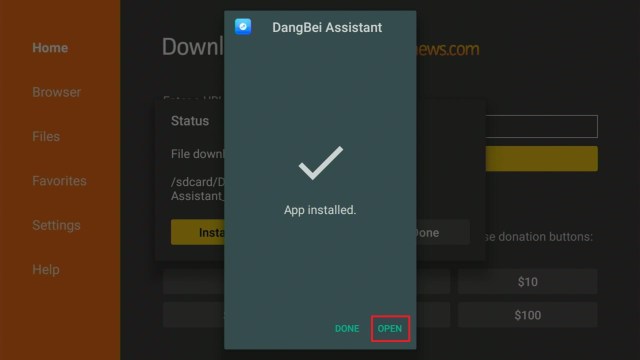
5. DBTV Assistant is Installed.

Clean Cache App
Clean Cache app is an Android device tool you can use to clean all the files cached in the apps. This Android device cleaning app frees up space & memory and boosts the performance of the device. The cleaning app is available with a number of interesting options.
Nevertheless, it is an easy-to-use app that helps Android device users enhance the performance of their devices. Additionally, you can use this cleaning app to view application info, and even immediately get rid of the apps from the device.
Features:
- The app clears the cache and gives extra memory & performance to the device.
- It is the most effective cleaning app to remove cache in one click.
- The cleaning app’s Speed Booster feature will boost your device’s performance.
- If you run out of storage space, it lets you acquire more by clearing the apps-created cache.
- Huge Files – the Clean Cache app saves storage space to keep handy files.
- The app gets rid of unnecessary apps and gives more memory space.
- The cleaning app blocks non-essential notifications and brings them to one spot.
- It has a Battery Saver feature that optimizes your device battery to extend the usage time.
- Allows you to view the duplicated material’s history.
- It lets you feel the power of your device while you play video games.
- The app put unutilized apps to sleep to utilize more resources.
Install Clean Cache App On Firestick with Screenshots
1. Install the Downloader app and jailbreak your firestick by enabling unknown sources. To learn more about the procedure, you may read How to Install the Downloader App and Enable Unknown Sources.
2. After installing the Downloader app, launch it.

3. Enter the Clean Cache app download URL/APK – https://reviewvpn.com/clc and click GO.

4. When the Clean Cache file download is complete – click Install.

5. Now, you have successfully installed the Clean Cache app on FireStick.

MiXplorer
MiXplorer is a great file management app that helps Android device users work comfortably with their devices’ files & folders. This ad-free safe to use application is absolutely one of the best file manager apps that you can have on your Firestick or other Android devices.
Features:
- It automatically syncs all device files.
- The app lets you customize the interface to your preferred color.
- It supports a dual-panel user interface for effortless drag & drop of files.
- MiXplorer lets you sort, enable, & disable menu options as well as action buttons.
- It has basic functions such as copy, paste, move, cut, select, & delete.
- The app has various viewing options – columned, compact, wrapped, detailed, grid, gallery, & minimal.
- Different view modes & sorting alternatives on every folder.
- It has file encryption & decryption utilizing Aescrypt file format.
- The app has a built-in FTP/HTTP Server and TCP server to obtain files from devices utilizing it.
- It has a built-in image viewer that comes with GIF animation & large images support.
- The MiXplorer app comes with a built-in media player & VLC codecs.
- It contains an excellent Text Editor.
- The app supports SAMBA, WebDAV FTP, & SFTP.
- Contains custom USB OTG driver – exFat(R/W), NTFS ®, & FAT32 (R/W).
- It has an available Html viewer supporting CHM, AXml, Markdown, MHT, MAFF, and many more.
- The app comes with an eBook reader that supports Epub, PDF, Docs, and many more.
- It lets you extract and create zip files.
- You can extract XZ, RAR/RAR5, NTFS, LZMA, VHD, FAT, CAB, APM, RPM, ISO, NSIS, DEB, SWM, MBR, ARJ, MSLZ, LZH, ARC, CramFS, LHA, ELF, Dmg, Mub, MachO, MSI, CHM, Z, WIM, PE, CPIO, Xar, Split, HFS, Udf, PPMD, & SquashFS.
- The app supports numerous providers, such as Dropbox, Amazon Cloud Drive, Meo, Google Drive, iCloud, OneDrive, VDisk, SugarSync, Yandex, Box, Baidu, HiDrive, Kuaipan, Mediafire, IDrive, Kanbox, Hubic.
- All storage has EncFS volumes support.
- The app has user & system application management that can backup data.
How to Install MiXplorer App on Firestick and Android
Total Commander
Total File Commander is an awesome file manager software to copy, delete, or transfer files in the quickest way. The app has numerous features that are appropriate for you as this file manager software can help you in numerous ways.
Features:
- It can copy, move entire subdirectories.
- Drag & Drop.
- Zip & unzip or unrar.
- Rename or generate directories.
- Delete.
- Built-in text editor.
- Properties dialog, modify permissions.
- Directory history.
- Search function & text.
- Choose by clicking on file icons.
- Select or unselect a file or groups of files.
- List of installed applications.
- Select range – Long tap and release on the icon.
- WebDAV or Web folders.
- FTP & SFTP client.
- Plugins for cloud platforms: Microsoft Live, Google Drive, or Dropbox.
- LAN access.
- Send files through Bluetooth.
- Root support for the primary functions.
- Bookmarks.
- Thumbnails for images.
- Two panels or virtual 2-panel mode.
- Configurable button bar to change internal commands, directories, sending shell commands, as well as launching apps.
- Media player to stream straight from WebDAV, cloud, & LAN plugins.
- Optimizations for the visually impaired.
- Straightforward aid function in English, Russian, German, Czech, & Ukrainian.
- Main program’s supported languages – English, Bulgarian, German, Czech, Croatian, Dutch, Danish, Greek, French, Hungarian, Hebrew, Italian, Indonesian, Korean, Japanese, Portuguese, Polish, Russian, Romanian, Simplified Chinese, Serbian, Slovenian, Slovak, Swedish, Spanish, Turkish, Traditional Chinese, Vietnamese, & Ukrainian.
Pros and Cons
Pros
- Lifetime License
- Support Plugins
- Numerous state-of-the-art options
- In-built Utility Tools
- Easy to use for language translation
- Dual Pane Interface
- User-friendly file manager software
Cons
- It’s a Shareware
- Very slow on launching network shares
- Contains a classic Interface
- Without a recycle bin
How to Install Total File Commander on Firestick with Screenshots
1. Click FIND.

2. Click Search.

3. Search for the Total File Commander.

4. Select the icon of Total File Commander.

5. Click Download.

6. Click Open.

7. Click Allow.

8. Total File Commander is Installed.

TDUK Update Blocker
With Amazon constantly updating the Fire TV Interface on its popular streaming gadgets (Firestick), tons of users have become distressed and annoyed with advertisements and suggested content. Sadly, it seems this Fire OS system update will be rolled out to newer Firesticks regardless of the preference of users.
Typically, it is impossible to deactivate this function, as Amazon’s popular streaming devices don’t have an in-built option to do it. Nonetheless, there’s a method for overcoming the issue by utilizing the TechDoctorUK (TDUK) FireOS Update Blocker app.
How to Install TDUK Update Blocker
1. Install the Downloader app and jailbreak your firestick by enabling unknown sources. To learn more about the procedure, you may read How to Install the Downloader App and Enable Unknown Sources.
2. After installing the Downloader app, launch it
3. Enter the TDUK FireOS Update Blocker app download URL/APK – https://reviewvpn.com/uso and click GO

4. When the TDUK FireOS Update Blocker file download is complete – click Install

5. Now, you have successfully installed the TDUK FireOS Update Blocker app on FireStick

ReviewVPN cannot attest to the legality, security and privacy of the applications discussed on this site. It is highly recommended that you use a VPN service while streaming or using Kodi. Currently, your IP 216.73.216.109 is visible to everyone and your Browser is being tracked by Advertisers & ISP Provider. Here are the main reasons why you must use a VPN: A VPN works be replacing your ISP-assigned IP address and creating an encrypted tunnel. We recommend the no log service offered by IPVanish. It works well on a Firestick and offers the fastest possible speeds.
YOUR INTERNET ACTIVITY IS BEING WATCHED
Always Use The Best VPN on Firestick
The reason why Firestick users need a Virtual Private Network or VPN for their devices is to stay protected on the internet. Firestick users can then safely & securely stream movies, TV shows, and more through streaming platforms, such as BeeTV, Kodi, CyberFlix TV, and many more. Also, you need a VPN to access apps or streams that are otherwise not available in your region. These include BBC iPlayer, US Netflix, Disney Plus, ITV Hub, HBO, and lots more.
Surfshark is one of the top VPN recommendations. It is considered the best Virtual Private Network for online streaming. It provides numerous servers that are accessible in multiple locations. The Surfshark is one of the user-friendly VPN providers that you can utilize on FireStick devices. This VPN service provides a strong 256-bit AES encryption and allows you to access tons of applications or platforms that have geo-restrictions, such as Hulu, Netflix, HBO Max, and many more.
Surfshark has a strict no-logs policy so you can feel secure while you stream entertainment content on your FireStick. But, with just one Surfshark account, you’ll be able to connect an unlimited number of devices at the same time.
How to Install Surfshark VPN on Firestick
If your Firestick still has the older interface, read this article to learn how to update it: Update Firestick Interface.
Follow our screenshots below to install the SurfShark VPN app on your Fire TV stick.
1. Go to the Home screen of your Firestick.

2. Navigate towards the Find tab. Press the Search button from the resulting dropdown.

3. Type in the keyword of SurfShark and select from the suggestions that will appear.

4. Click the official SurfShark icon from your search results.

5. Press the Download (You own it) button.

6. The SurfShark VPN installer will download on your device.

7. SurfShark VPN’s app will automatically install itself on your Fire TV stick.

8. Press the Open button after completing SurfShark VPN’s installation process.

9. Please wait for the SurfShark VPN to load its user interface.

10. You can now log in with your SurfShark VPN account credentials.

Learn more about Surfshark and Grab the Best Surfshark Deal Now!
Install Surfshark on Firestick


For more VPN discounts, go to ReviewVPN Deals and purchase the best VPN for you.
Click here to get the lowest price on Surfshark through our exclusive limited-time offer.
Wrapping Up
In this article, we have provided information on the best Apps to Clean Up Firestick. The information above should really help you enhance the performance of the Firestick device by taking it to the next level.
However, always remember to use A VPN service every time you use your Firestick. If you have any thoughts about the Apps to Clean Up Firestick, don’t hesitate to let us know in the comments section.


