
Delta Quadrant – One Click Kodi Addon
In this article, we will help you install Delta Quadrant Kodi Addon on Firestick.

Source: http://repo.rubyjewelwizard.com/
There is a saying “No Man Is An Island” which basically means, no one can do everything on his own. Just like in a basketball team, no point guard can win a game doing everything by himself. He will need cooperation and help from his teammates in order to win the game. We can say the same about Kodi, we will not have a wonderful entertainment experience without the collaboration of the App Creator and the add-ons that make it outstanding. The featured add-on for today is called Delta Quadrant. Delta Quadrant requires the installation of certain add-ons to make its features work. Well, is that a bad thing? We will see as this article progresses.
Delta Quadrant comes from the famous Diamond Wizard Repository which offers great content by collaborating with other add-ons. Think of it as a middleman that will automatically search for content through other add-ons without going back and forth.

Features
Quick Navigation
– Access to Live TV via Beta Quadrant Add-on
– Access to Pluto TV via Pluto TV Add-on
– Access to Xumo TV via Xumo TV Add-on
– Access to Cached Torrents via A Pirates Life For Me Add-0n
– Access to Popcornflix via its add-on
– Access Crackle via its add-on
– Access to Shout Factory TV via its Add-on
– WNBC
– Youtube Theater
– Film Rise
– The Big Short
– Creature feature Plus and many more
ReviewVPN cannot attest to the legality, security and privacy of the applications discussed on this site. It is highly recommended that you use a VPN service while streaming or using Kodi. Currently, your IP 216.73.216.72 is visible to everyone and your Browser is being tracked by Advertisers & ISP Provider. Here are the main reasons why you must use a VPN: A VPN works be replacing your ISP-assigned IP address and creating an encrypted tunnel. We recommend the no log service offered by IPVanish. It works well on a Firestick and offers the fastest possible speeds.
YOUR INTERNET ACTIVITY IS BEING WATCHED
Legal Disclaimer: ReviewVPN.com does not encourage or endorse any illegal activity involved in the usage of services and applications referenced on this site. We do not verify the licensing agreements of services. The end-user is wholly responsible for ensuring that any media accessed through these services does not violate copyright and/or licensing laws. ReviewVPN does not promote, link to, or receive compensation from any Apps and IPTV services.
Install Surfshark on Firestick

Easy Installation Guide
- Launch Kodi on your device
- Click on the “Gear Icon” and select “System”
- At the add-ons menu, turn on the “Unknown Sources” by clicking “yes”
- Go back to the “systems” page and choose “File Manager”
- Choose Add source and select “none”
- Type in http://repo.rubyjewelwizard.com
- Highlight the source and rename it to “diamond” or any name you would like to use to identify this particular source and click “ok”
- Go back to the System Screen and click “Add-ons”
- Select “Install Zip File” choose “diamond” or whatever you renamed the file.
- Select the zip file URL- repository.Diamond-Wizard-Repo-3.9.6.zip
- Wait for the notification “Diamond Build Add-on Repo Installed” to appear.
- Select “Install Repository”
- Choose “Diamond Build Repo”
- Click on “Video Add-ons” and select “Delta Quadrant” and “Install”
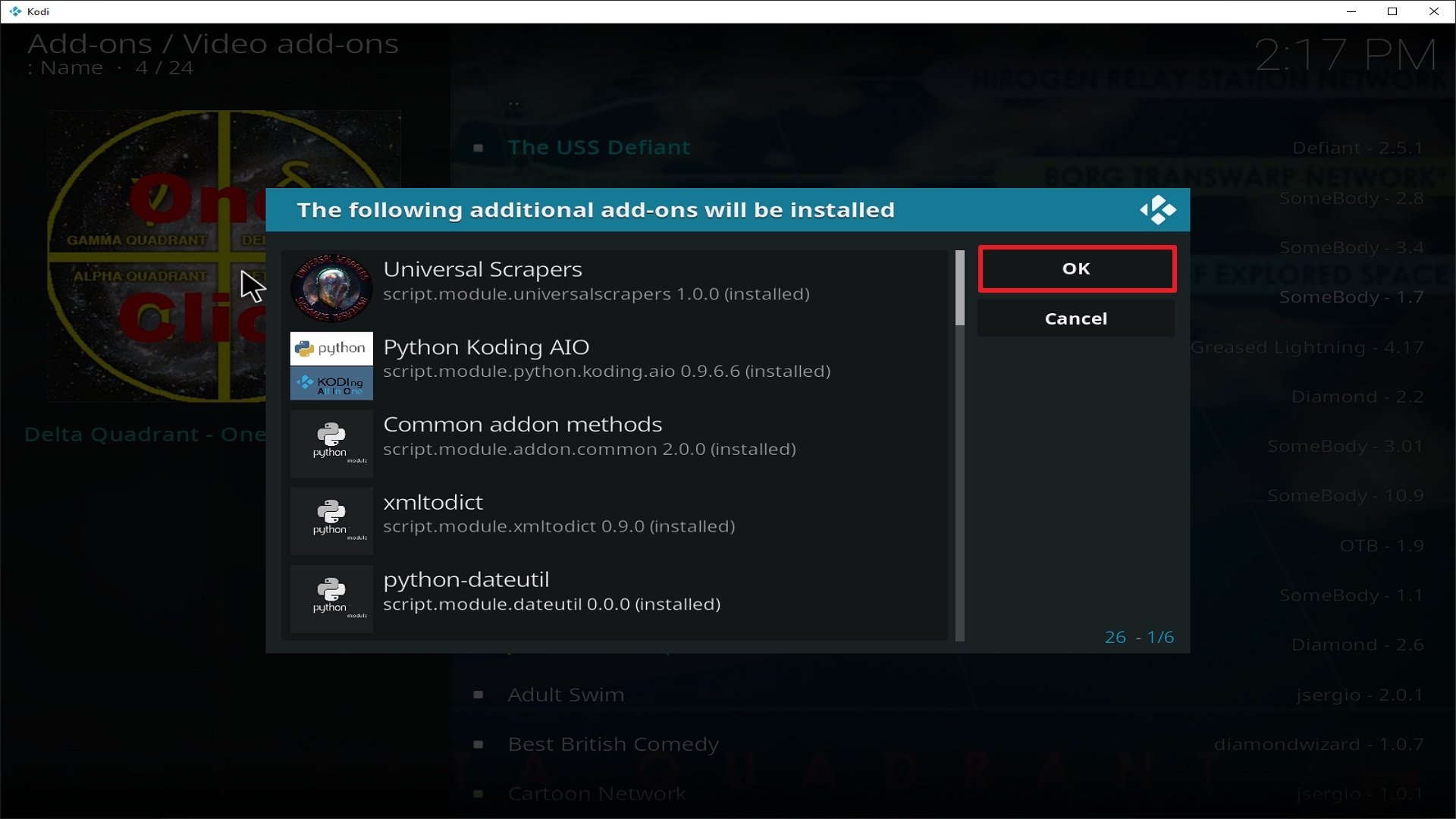
- Click “Ok” when a notification “the following add-ons will be installed” appears and wait for Delta Quadrant Add-on to install
- Once the add-on is installed go back to the home screen and select “add-ons”
- Choose “Video add-ons” and select “Delta Quadrant”
- There you go, Delta Quadrant add-on is now installed.
How to Install Delta Quadrant – One Click on Kodi with Screenshots
1. From the home screen, select the cogwheel at the upper left.

2. Select System in the bottom right corner.

3. Select Add-ons on the left side of the screen.

4. Select Unknown sources.
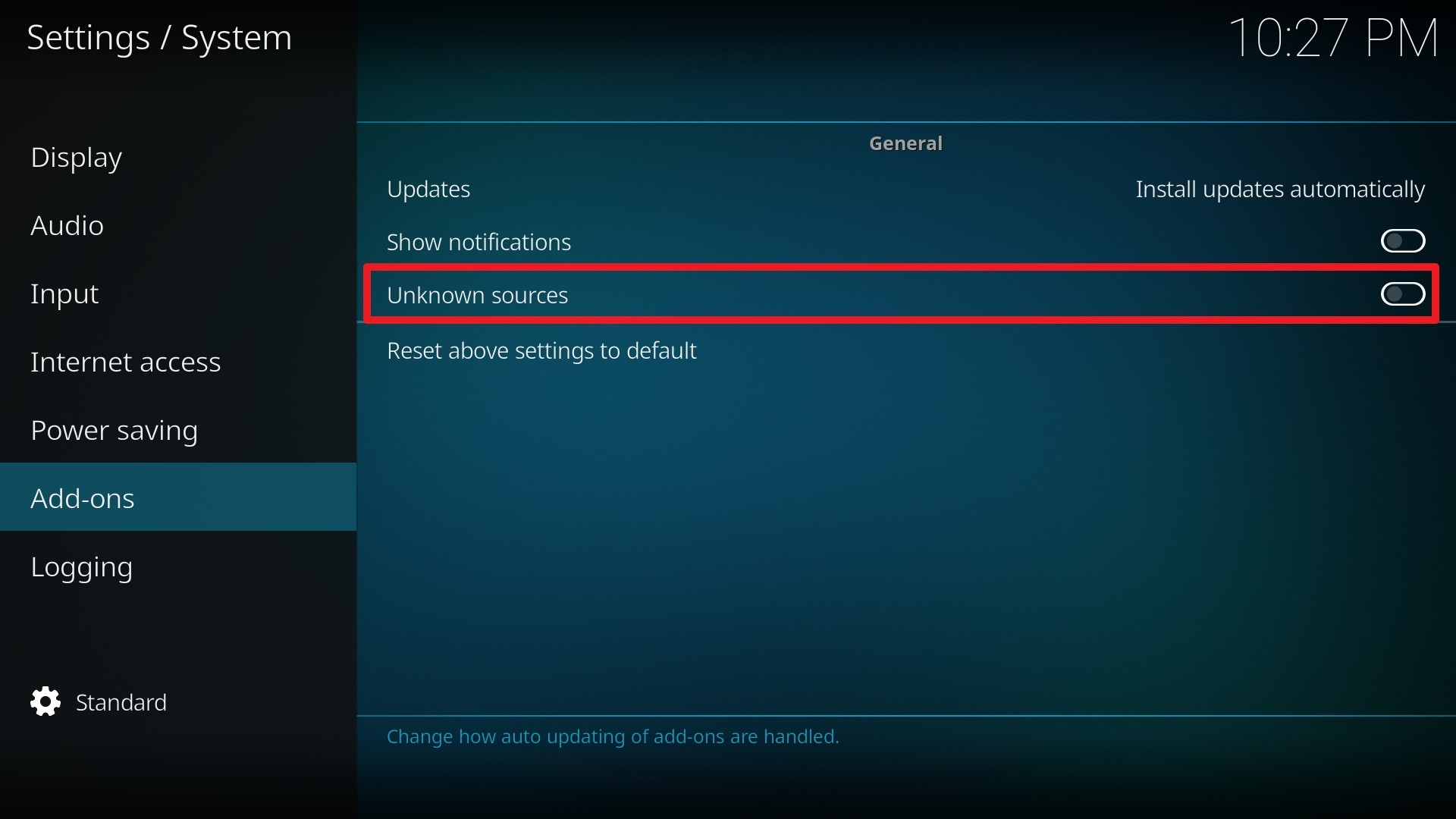
5. Click Yes to allow unknown sources.

6. Select File manager.
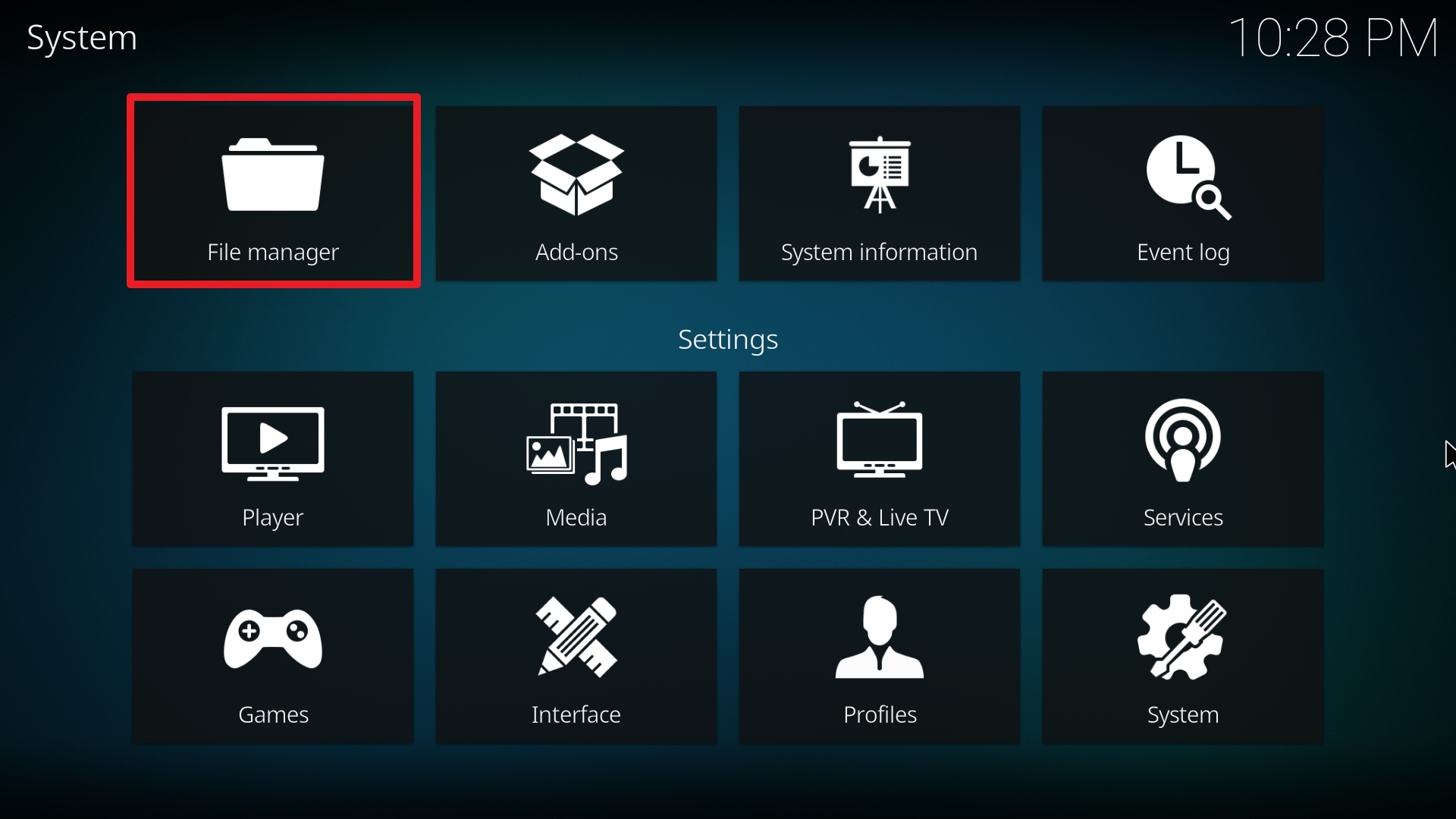
7. Click Add source.

8. Click on <None>.

9. Type exactly: http://repo.rubyjewelwizard.com/
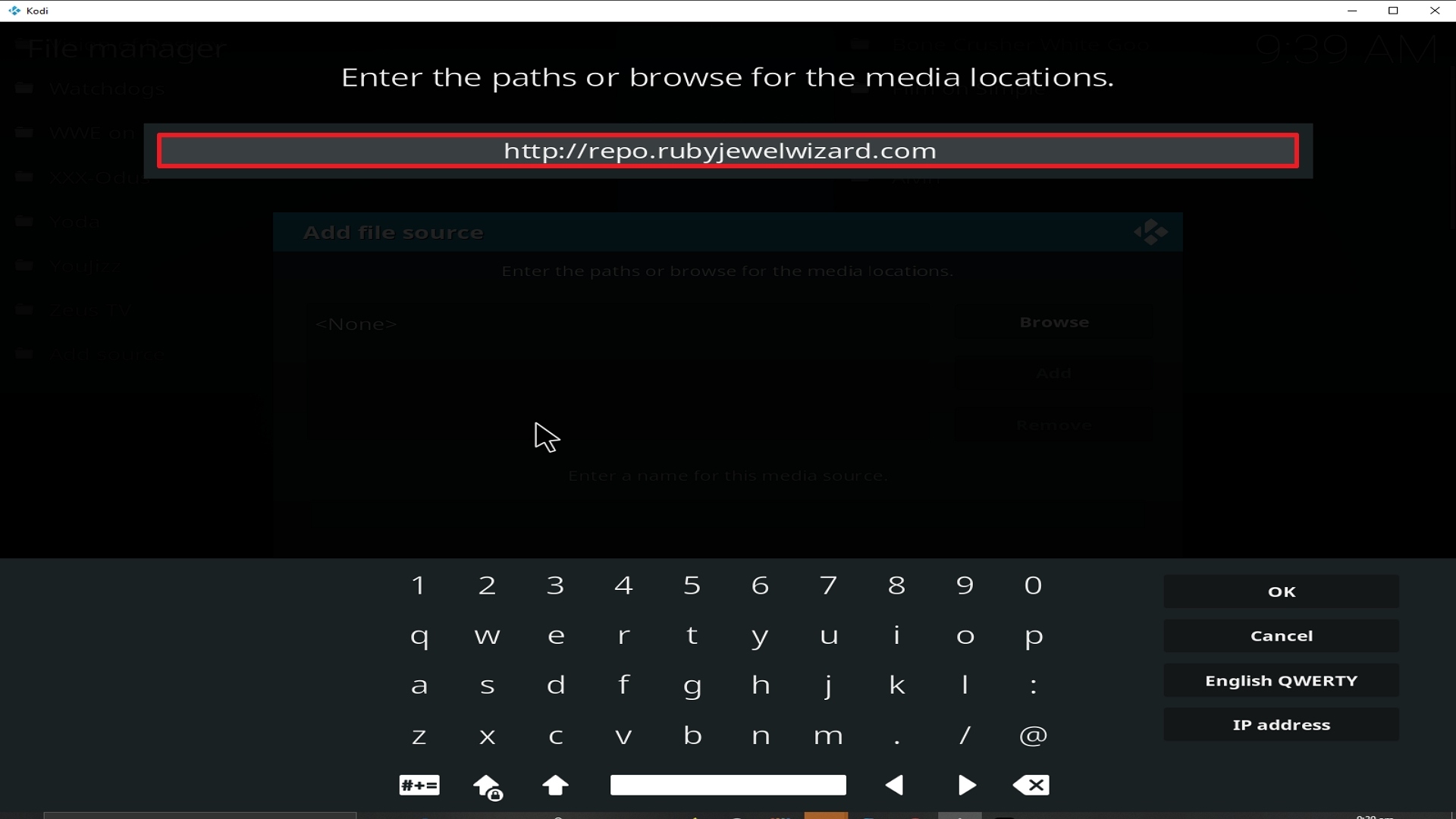
10. Click on OK.
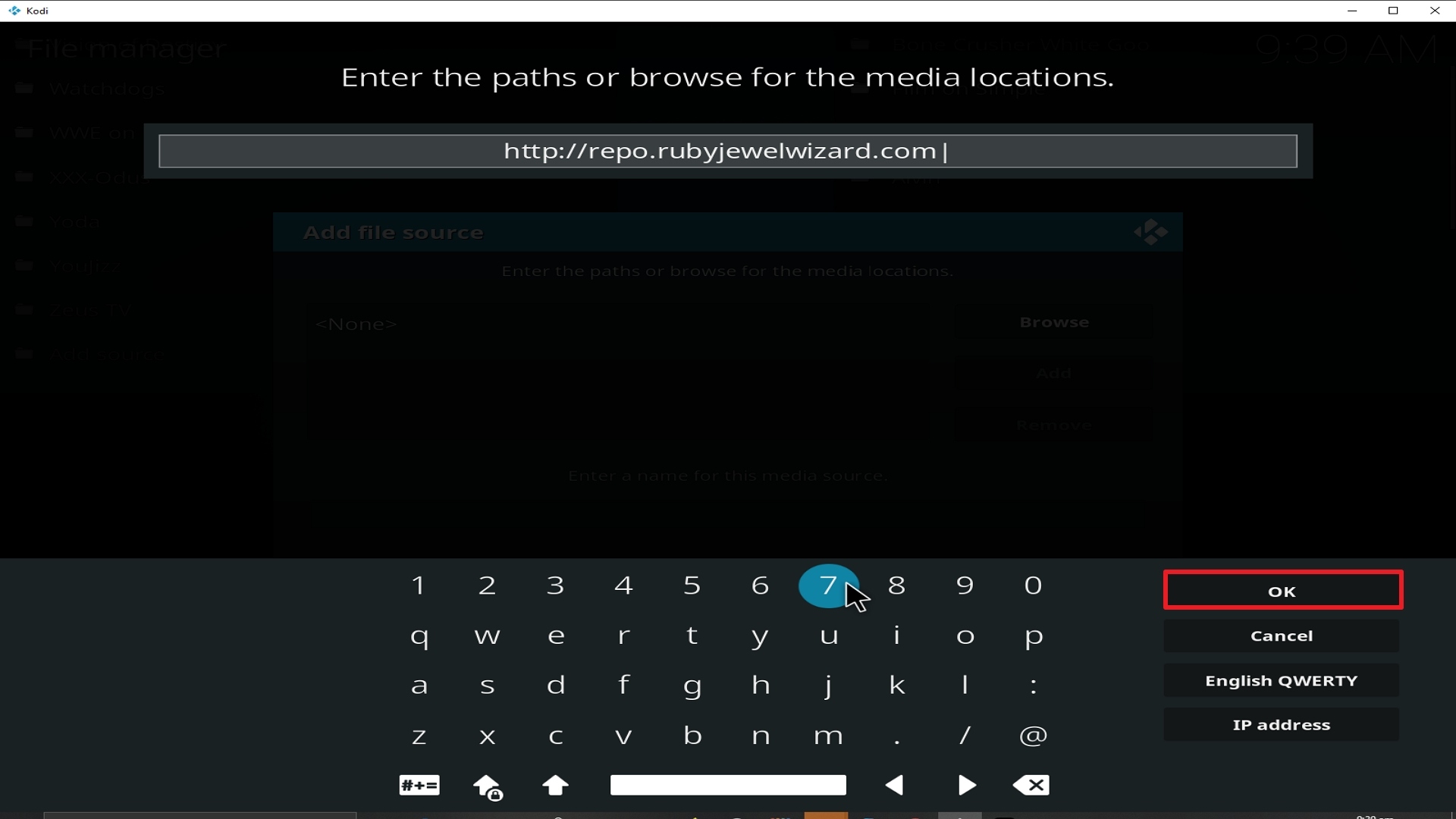
11. Select enter a name for this media source.
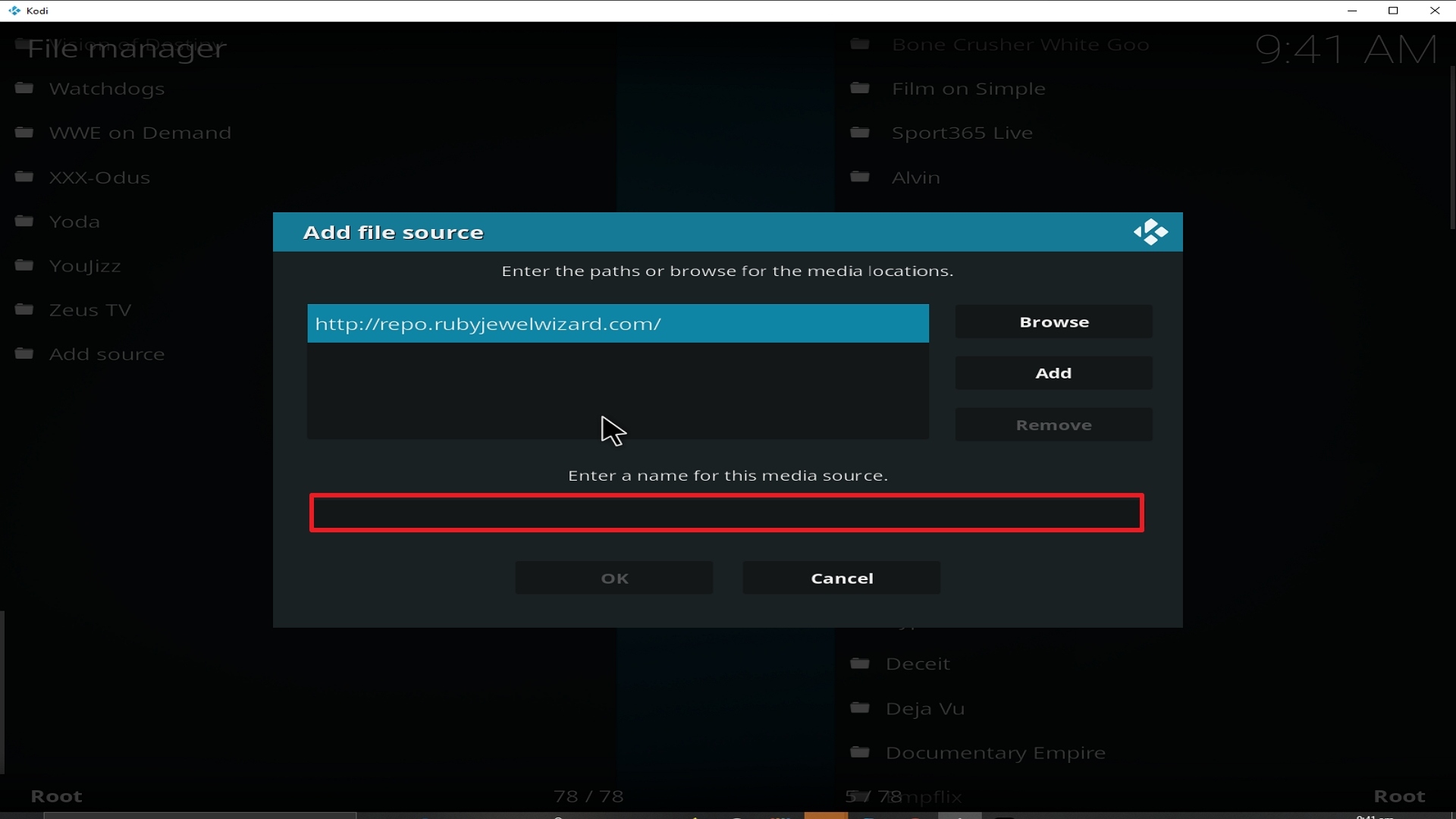
12. Name is Delta Quadrant (this part isn’t critical as long as you remember the name).
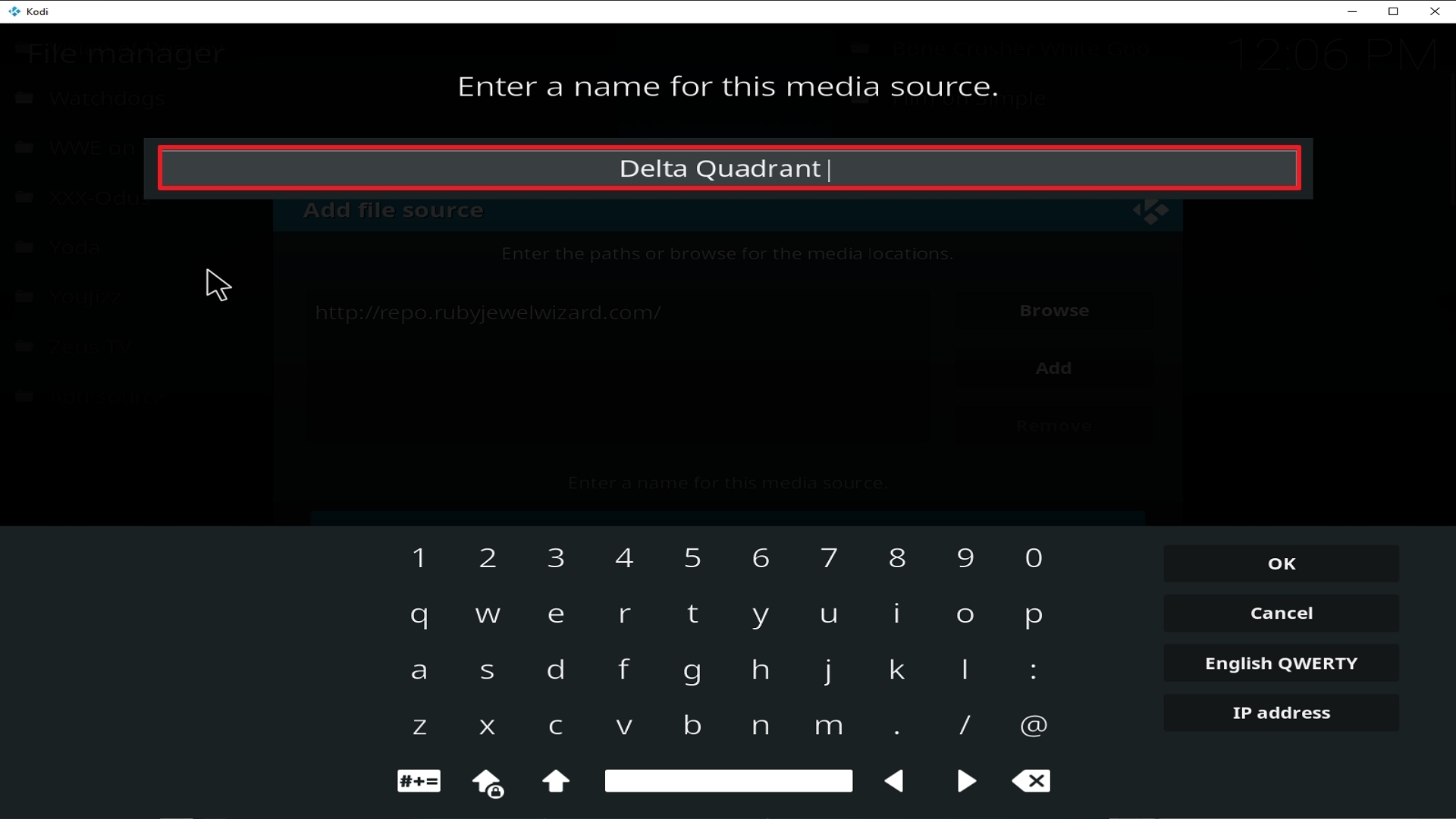
13. Click on OK.
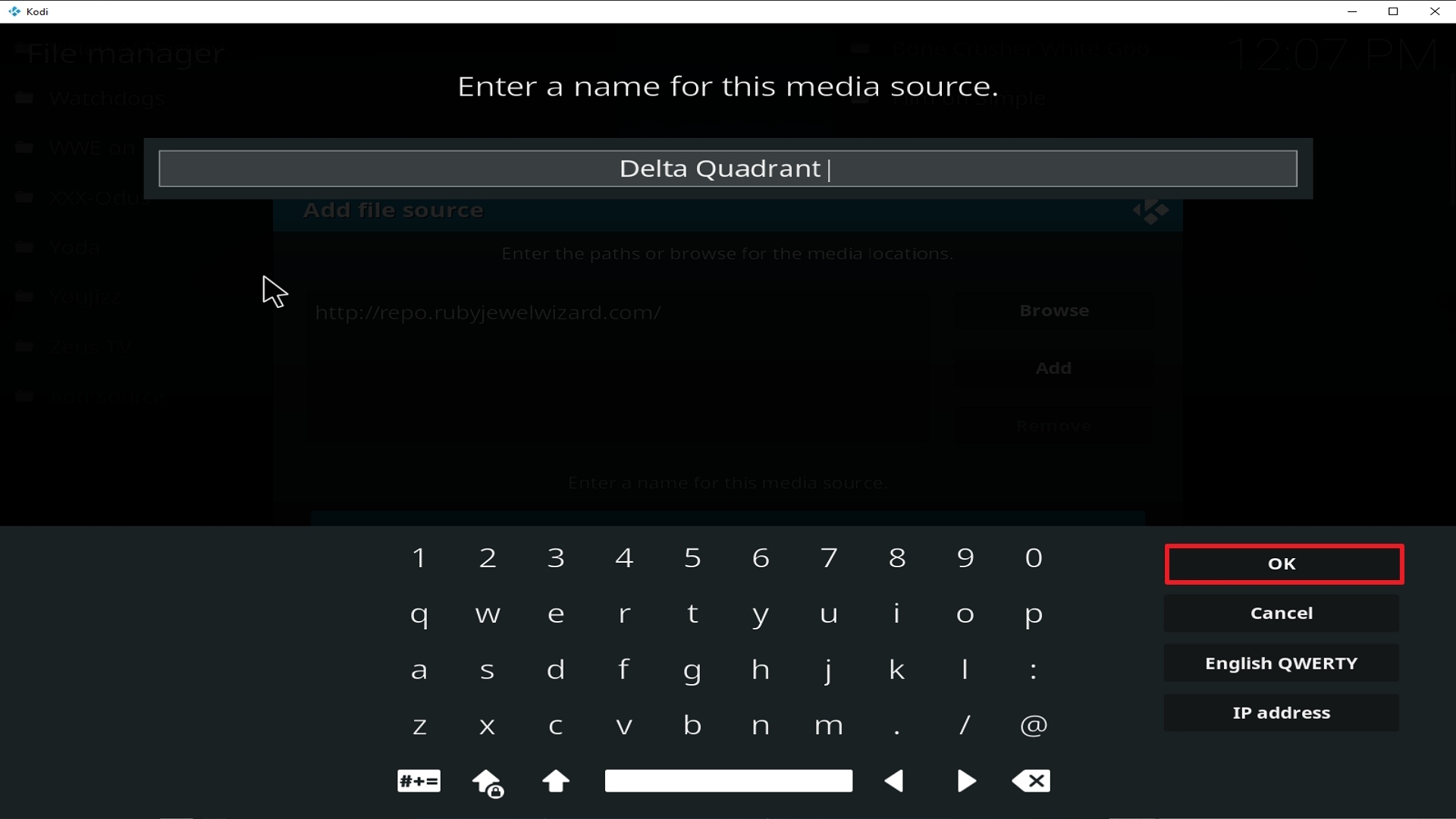
14. Click on OK.
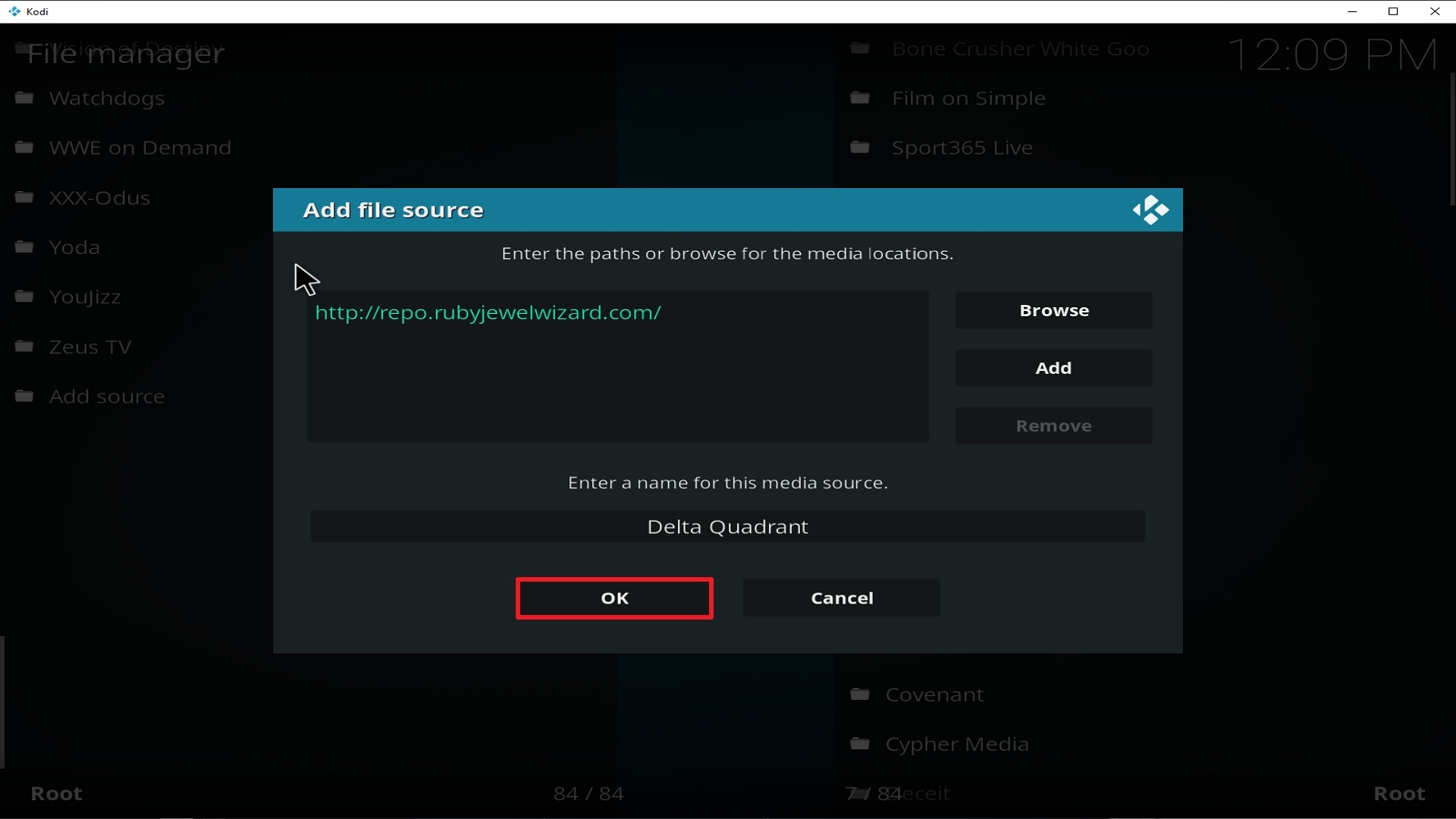
15. Take one step back and click on Add-ons.
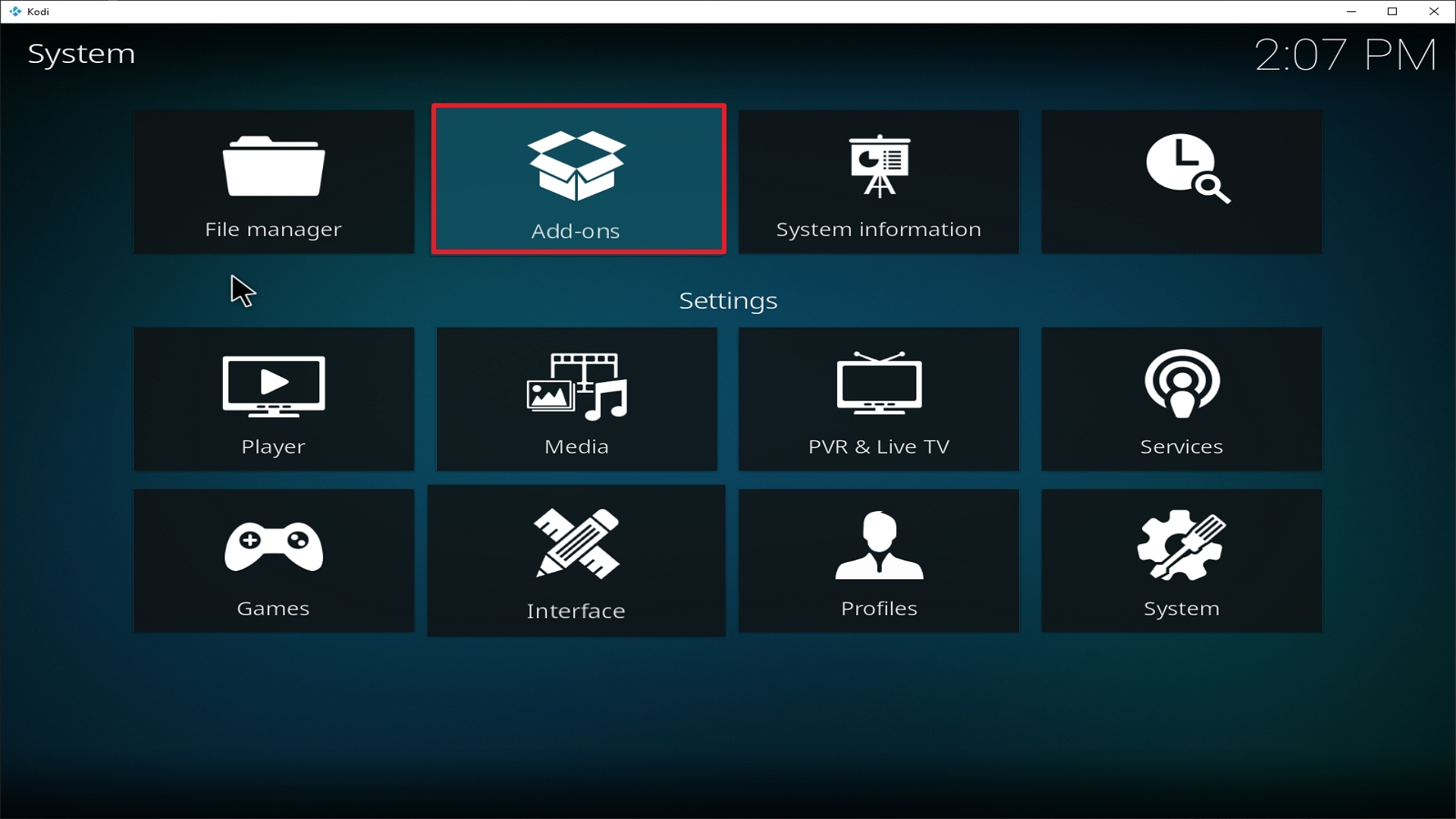
16. Select install from zip file.
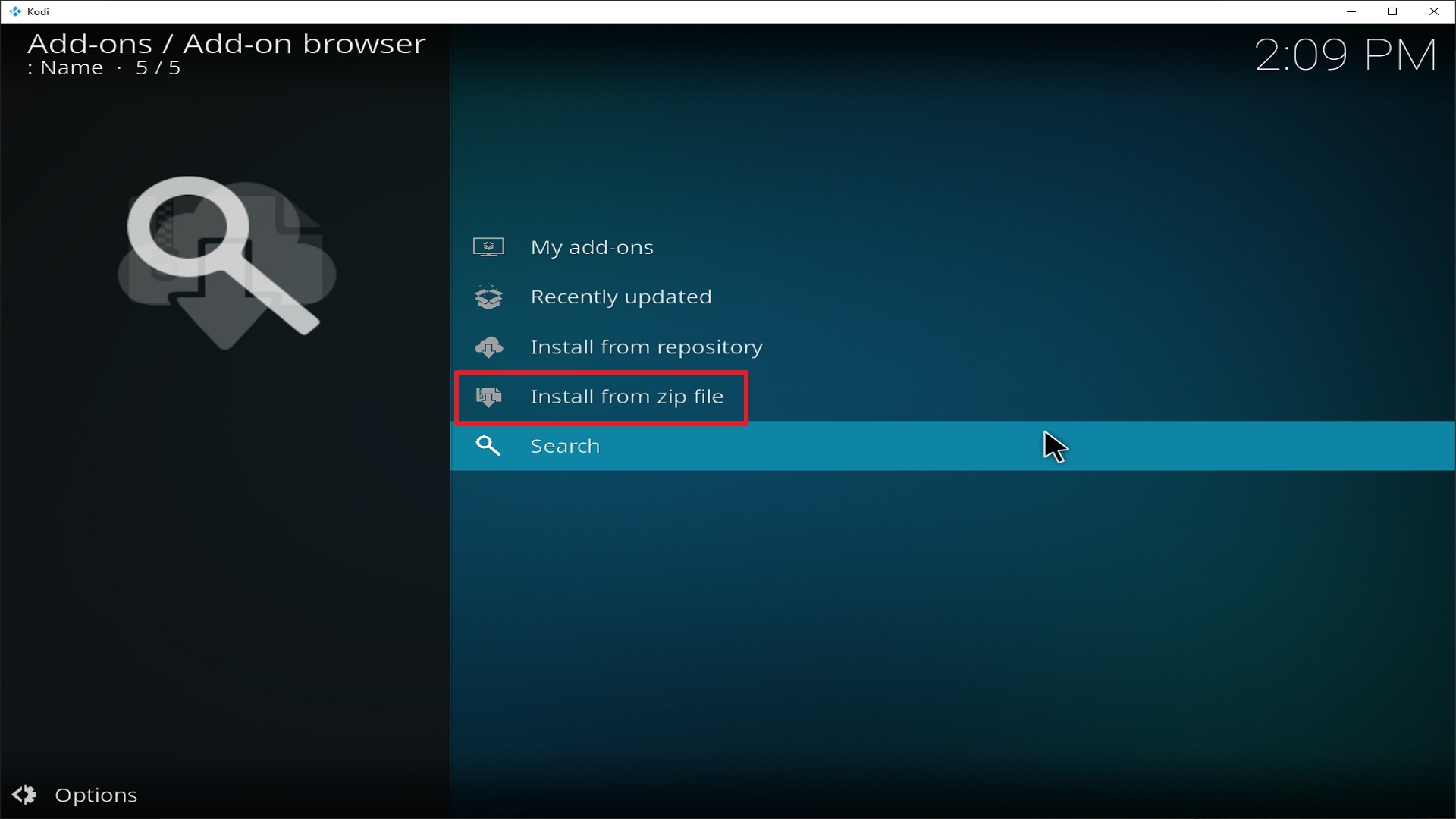
17. Click on Delta Quadrant (or whatever you named the source).
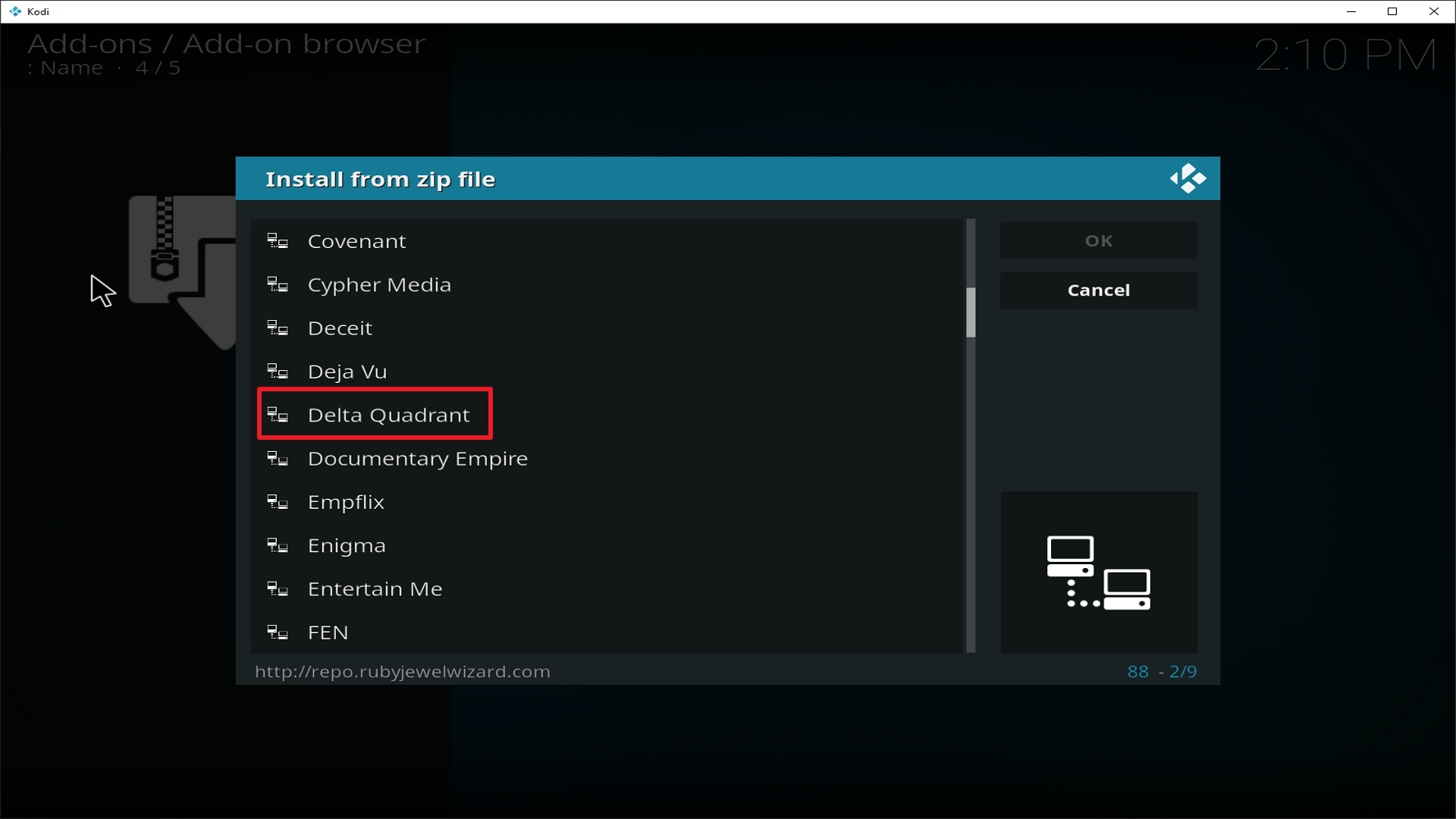
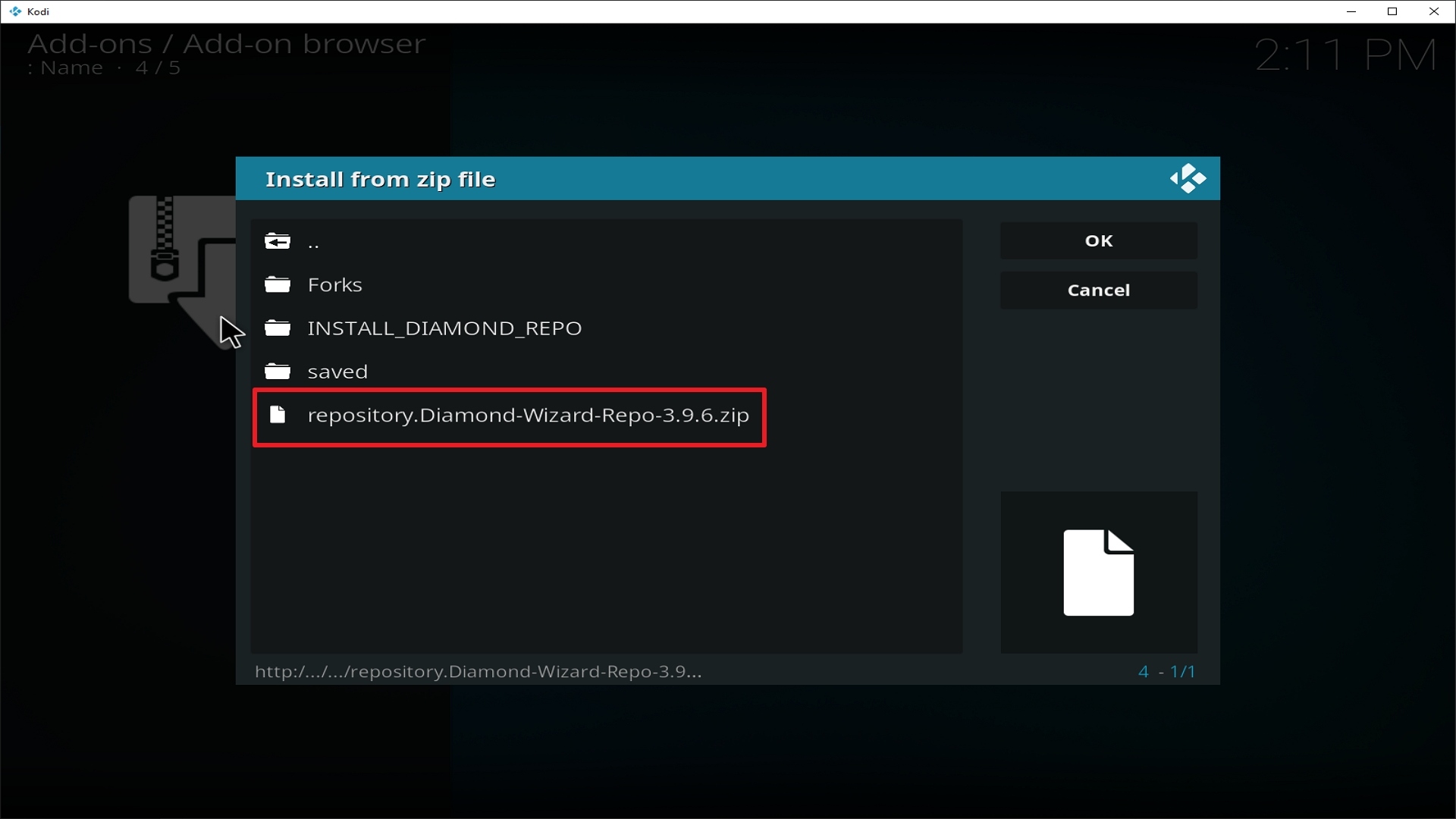
18. Click on repository.Diamond-Wizard-Repo-3.9.6.zip
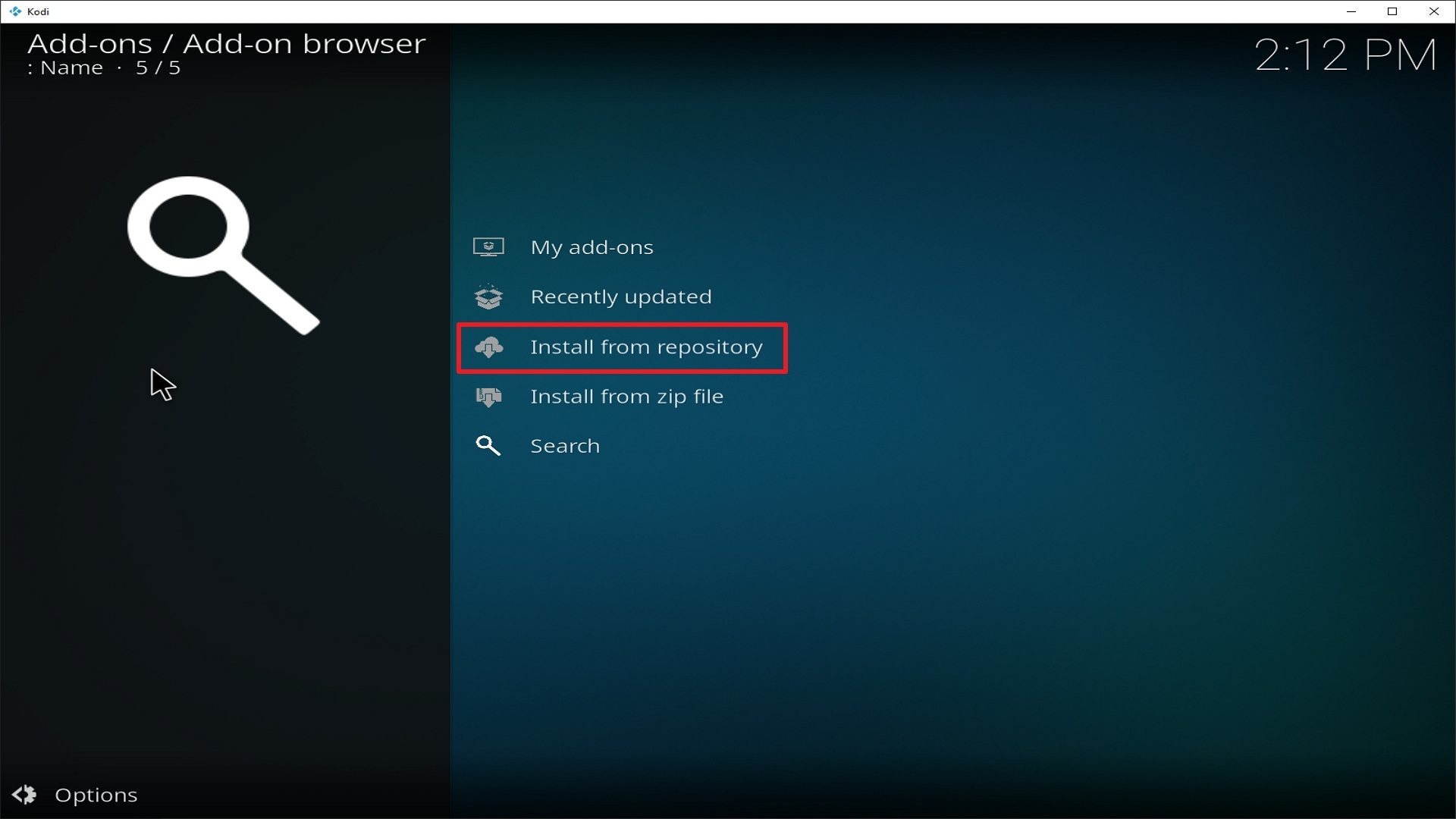
19. Select on Install from repository.
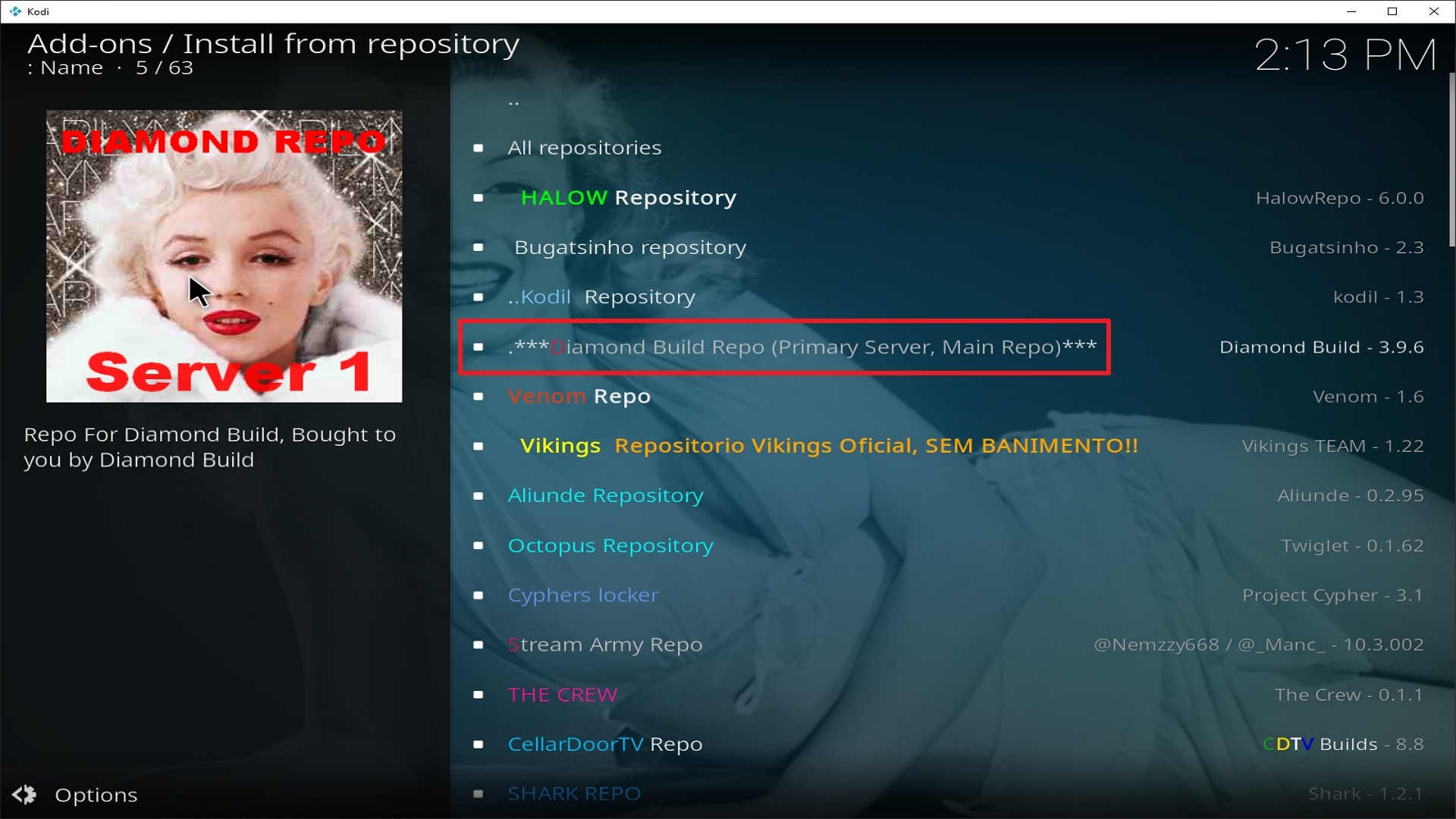
20. Click on Diamond Repo.
21. Pick Video add-ons.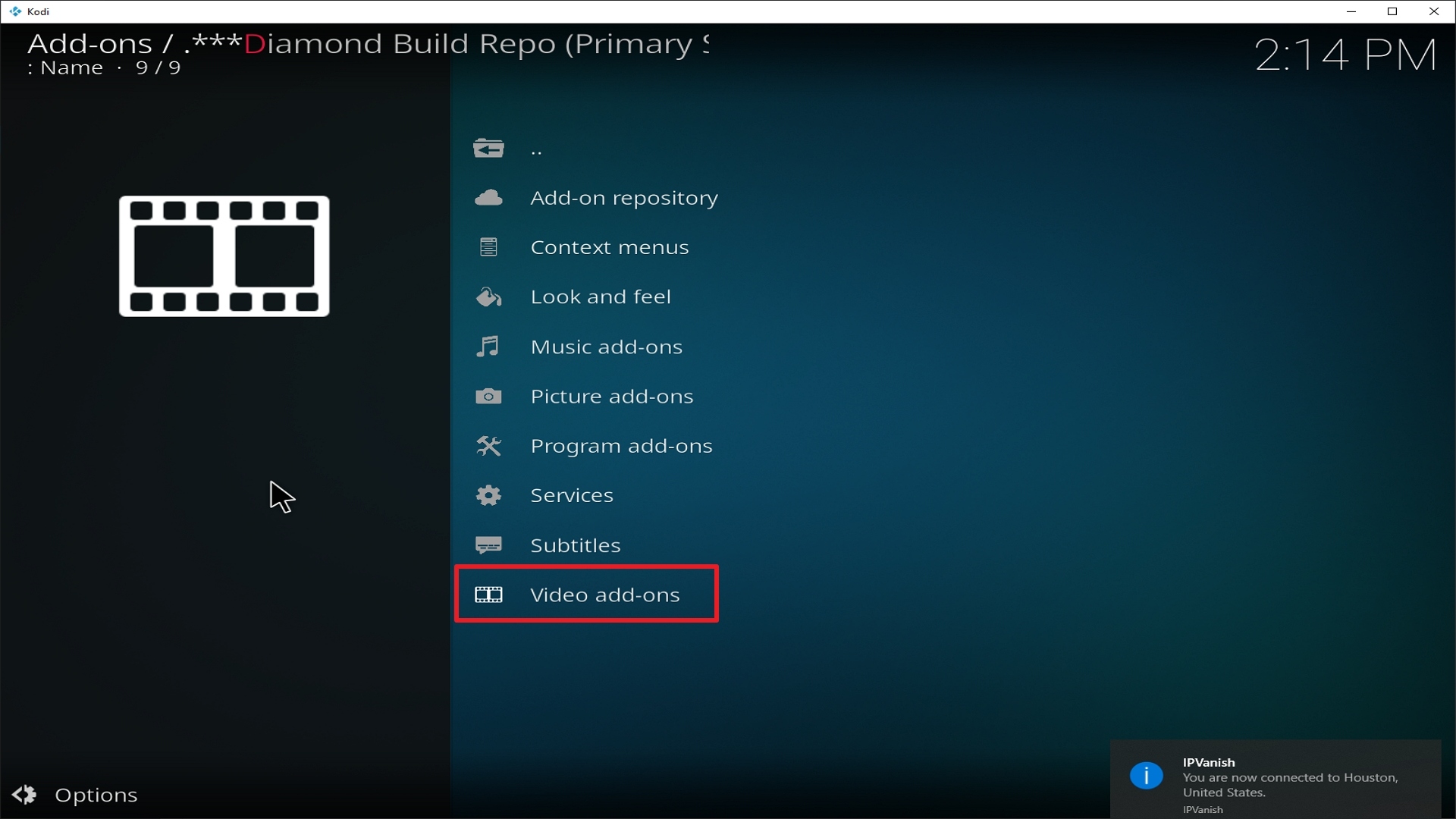
22. Select Delta Quadrant again.
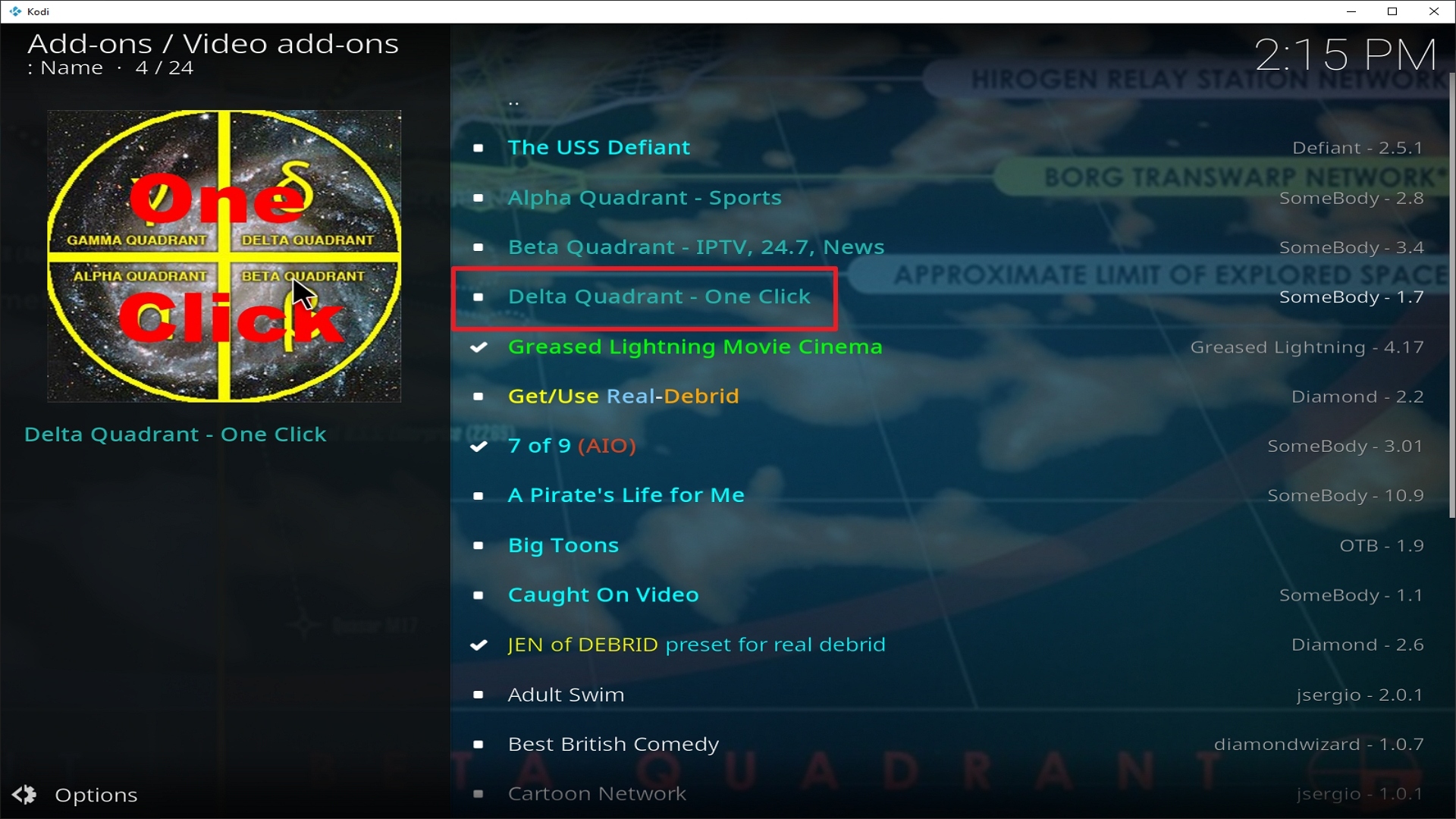
23. Click on Install.
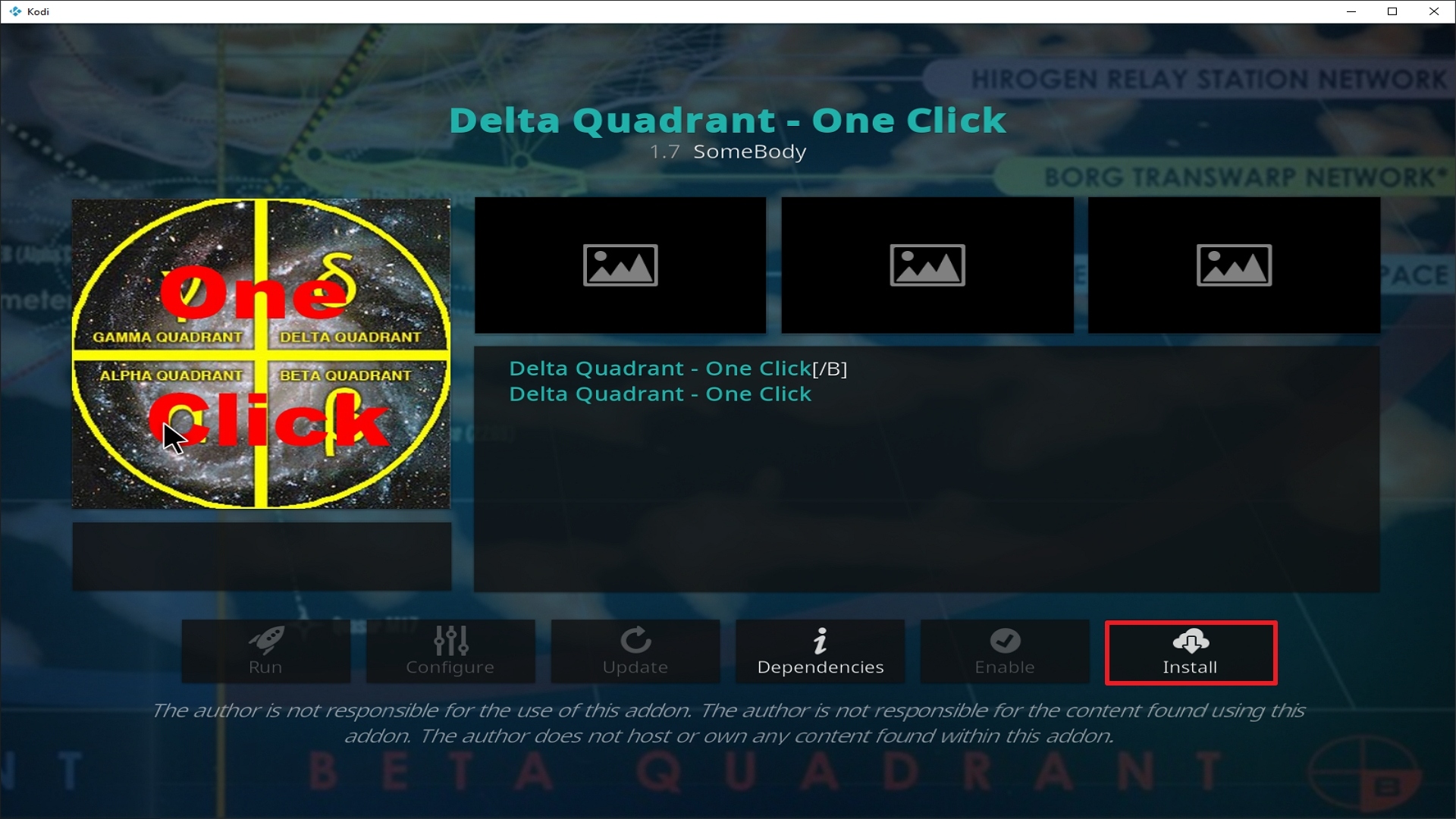
24. Select OK after reviewing the add-ons that will be installed.
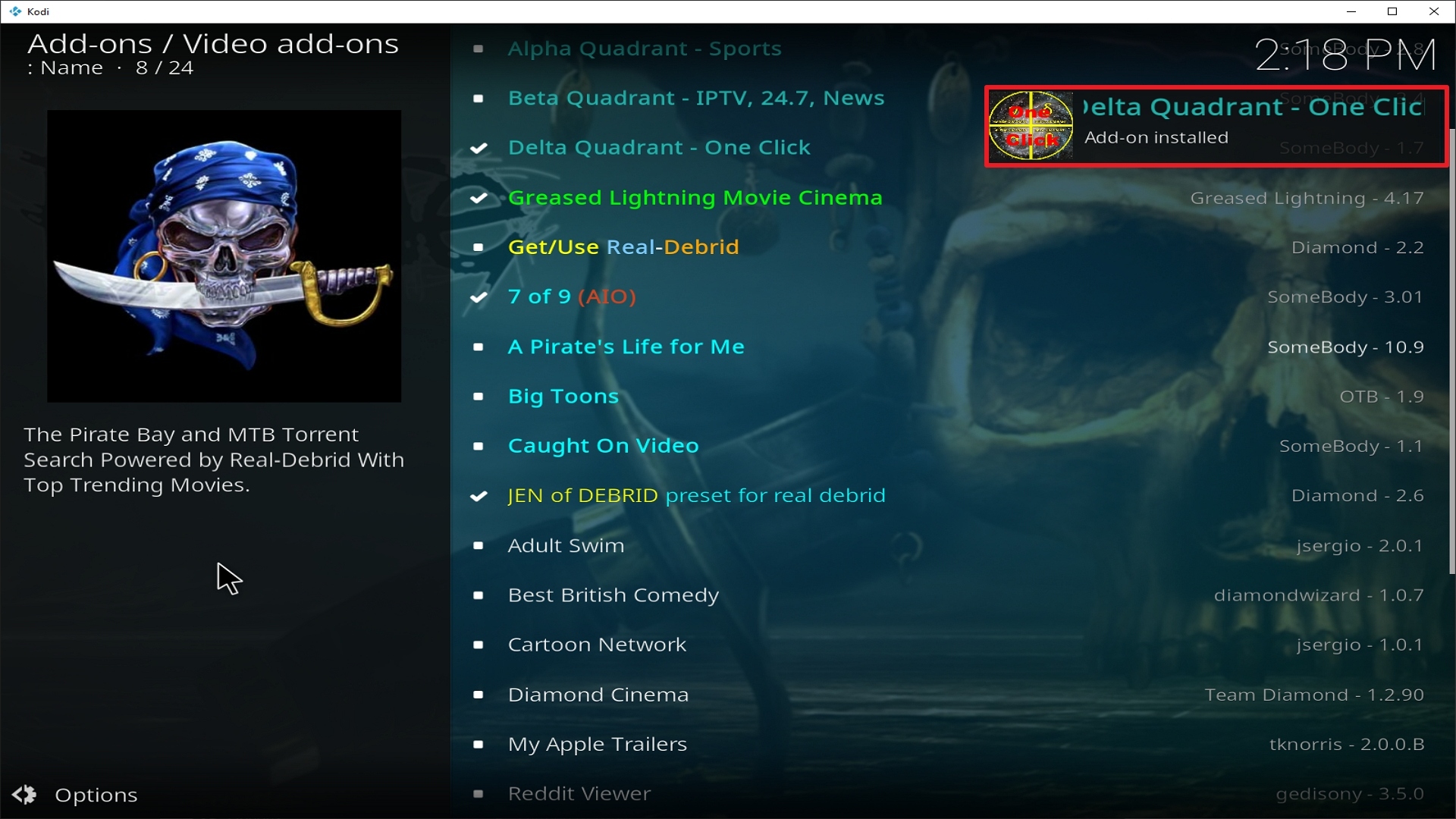
25. You should see a popup in the upper right corner saying Delta Quadrant has installed. There will actually be multiple popups for the various components.
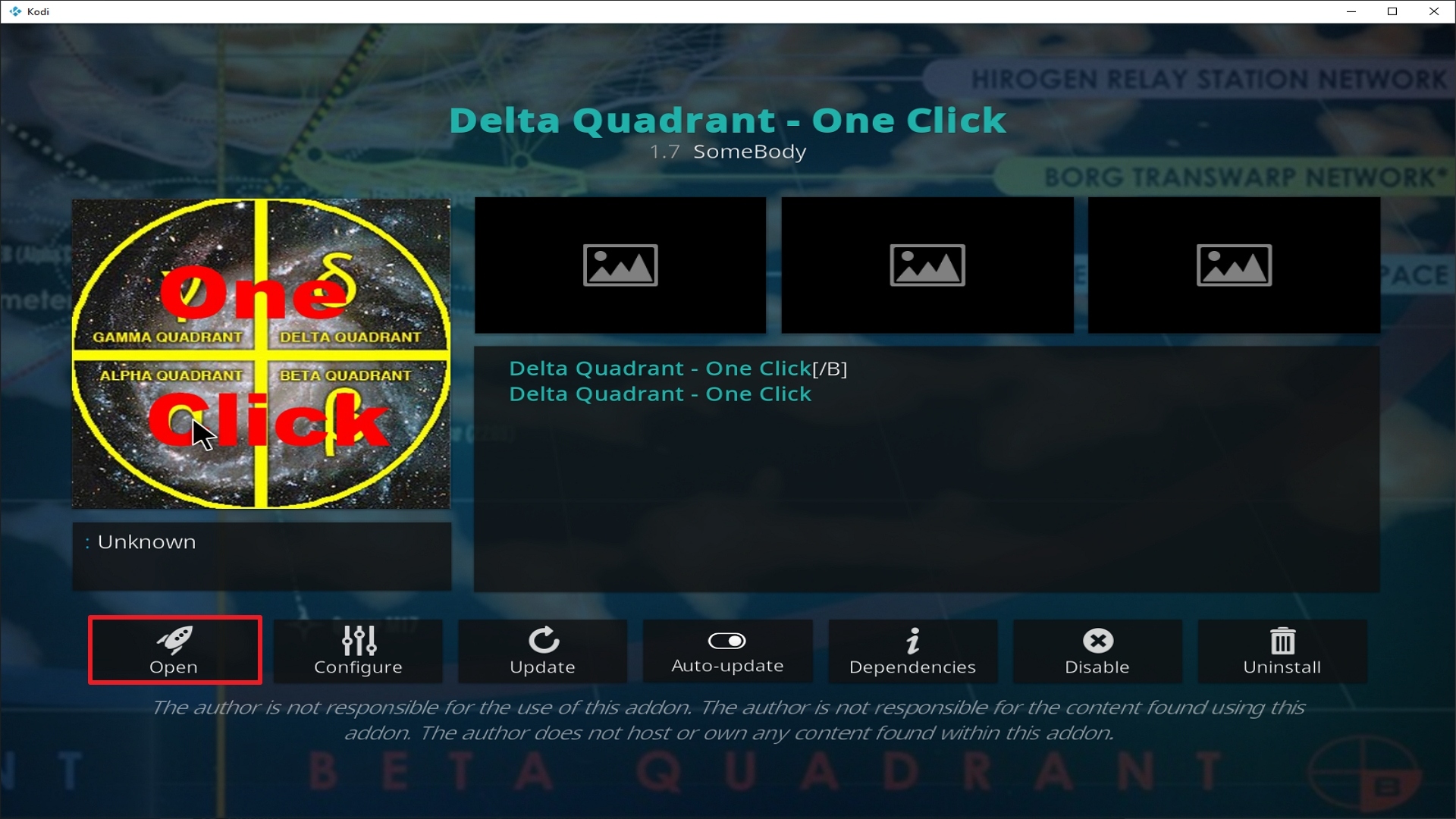
26. Click on Open to start the Delta Quadrant add-on.
Alternatives
When Delta Quadrant add-on encounters issues rendering it unable to function properly what do we do? We always suggest that our users create a backup plan so as to have their entertainment experience uninterrupted. This backup should be procured from a trusted source and here at ReviewVPN, we only suggest the best out of the best. The following add-ons can serve as a stand-in for Delta Quadrant:
– Open Meta
These two add-ons have very similar natures that serve as intermediaries between other add-ons.
Common Errors
These are some of the things that may cause an issue when installing Delta Quadrant:
One of the main reasons why this happens is that you might have written the wrong URL. Please be careful when typing in the URL because the slightest mistake can totally ruin your download. Secondly, having a stable internet connection is always desired as it does not impend the speed of your download. Lastly, to protect your identity and internet trail, you must have a reliable VPN to mask your online activities and will help you remain anonymous. Check here for the best VPN deal.
This issue usually arises when Kodi is not properly installed or has lacking features for it to work properly. If that is the case, you can redownload Kodi and install it properly. An in-depth guide on how to install the Kodi app is provided on our website. Lastly, if the issue is with the add-on itself, you can reinstall it by following the procedure given above.
A check log error only happens when your media cache is full. You can remedy this situation by emptying your cache.
Delta Quadrant does not keep any of the content on its servers. It is distributed by 3rd party apps. Patience is key here, just wait for a couple of seconds for the other suggestions and click on them. For other solutions please take time to read our in-depth guide linked above.
Should I Use This App With a VPN?
We recommend you use a VPN for the following reasons:
- Many of the addons you will access in Streamline will direct you to links for illegally distributed content. Without a VPN you may find many of these links do not work because your ISP is blocking your access
- If you try to access Live TV Channels in other countries through Streamline your access may also be blocked. This is because these channels can detect your IP is not in that country and will block you from accessing their channels.
- Using a VPN, you can encrypt your requests, change your IP, and also the location where your IP originates from. Thus, allowing you to circumvent any blocks or firewalls in place to do your accessing most restricted content
- A VPN also helps you maintain anonymity, safety, and privacy online from unwanted third parties.
Note: For more information about Surfshark, please read our Surfshark Review.
How to Install Surfshark VPN on Firestick
If your Firestick still has the older interface, read this article to learn how to update it: Update Firestick Interface.
Follow our screenshots below to install the SurfShark VPN app on your Fire TV stick.
1. Go to the Home screen of your Firestick.

2. Navigate towards the Find tab. Press the Search button from the resulting dropdown.

3. Type in the keyword of SurfShark and select from the suggestions that will appear.

4. Click the official SurfShark icon from your search results.

5. Press the Download (You own it) button.

6. The SurfShark VPN installer will download on your device.

7. SurfShark VPN’s app will automatically install itself on your Fire TV stick.

8. Press the Open button after completing SurfShark VPN’s installation process.

9. Please wait for the SurfShark VPN to load its user interface.

10. You can now log in with your SurfShark VPN account credentials.

Learn more about Surfshark and Grab the Best Surfshark Deal Now!
Install Surfshark on Firestick



For more VPN discounts, go to ReviewVPN Deals and purchase the best VPN for you.
Click here to get the lowest price on Surfshark through our exclusive limited-time offer.
Conclusion
Delta Quadrant is a pretty useful add-on if you don’t have a lot of patience when it comes to switching add-ons here and there to get the content you like. It totally does the job for you and lessens the time you have to spend in navigating through other add-ons. Look at it as a mini assistant that does all the searching for you and provides results that exceed your expectations.
We hope that this guide has enlightened you regarding Delta Quadrant. For comments, questions, and suggestions, feel free to message us here on our website and through our other social media platforms. Thank you for reading and have a great day ahead!






