

Overview
Quick Navigation
This post will walk you through the process of installing the Crazy Canucks Kodi Addon on Firestick.

If you’re looking for a way to stream the newest movies and TV episodes on your Firestick or other smart devices, you should check out Crazy Canucks.
Crazy Canucks is a video addon from the Canuck Repository that allows you to acquire high-quality streaming links by integrating your debrid account. This add-on contains a list of some of the top networks and filmmakers, along with links to their latest releases. Additionally, it enables you to authorize your Trakt account so you can manage your watchlist across all of your preferred add-ons.
But before we go any further, we want to let you know that Crazy Canucks is a third-party addon that isn’t available in the official Kodi Repository. As a result, it’s critical to protect your connection using a VPN since Kodi disclaims responsibility for any harm this addon may cause.

How To Install Crazy Canucks Kodi Addon on Firestick
You can follow this tutorial to install the Crazy Canucks Kodi Addon on your Firestick.
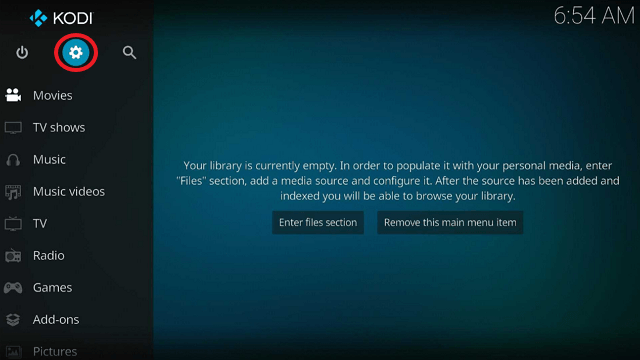
1. Launch the Kodi app on your Firestick. Click on the gear wheel icon (Settings)
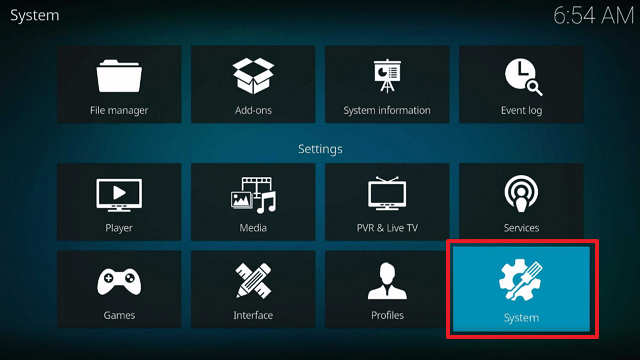
2. Select “System”
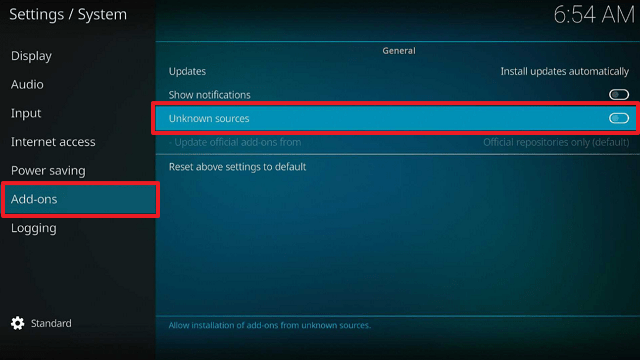
3. Scroll down to “Add-ons” Then Go to “Unknown sources” then toggle it on.
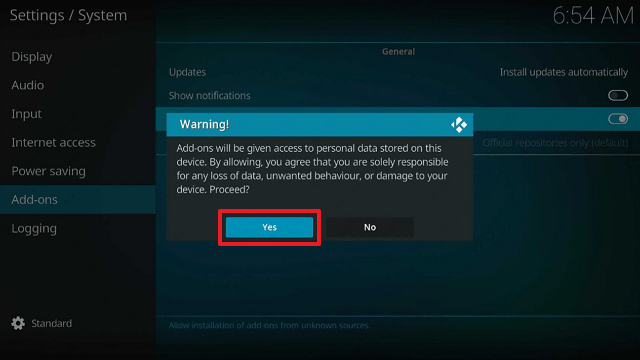
4. Select “Yes”. Then using your Firestick remote, press the return button to go back to the System page
5. Now choose “File Manager”
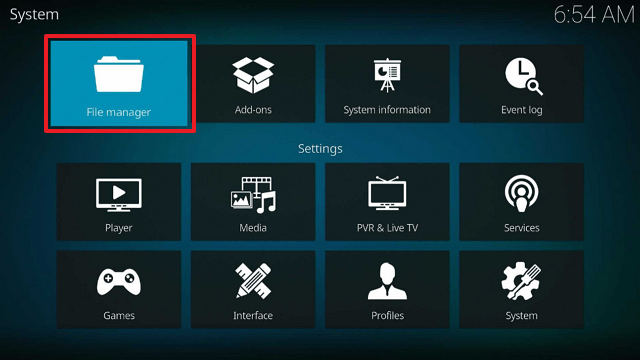
6. Scroll down and select “Add source”
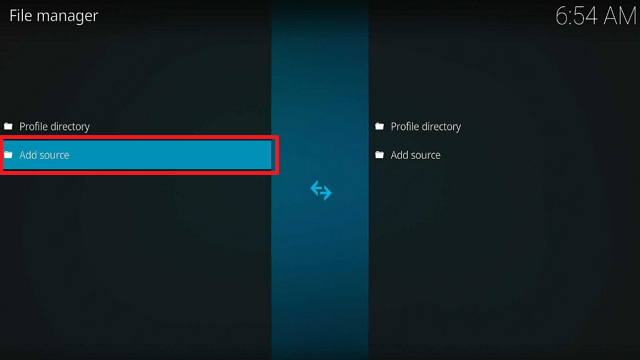
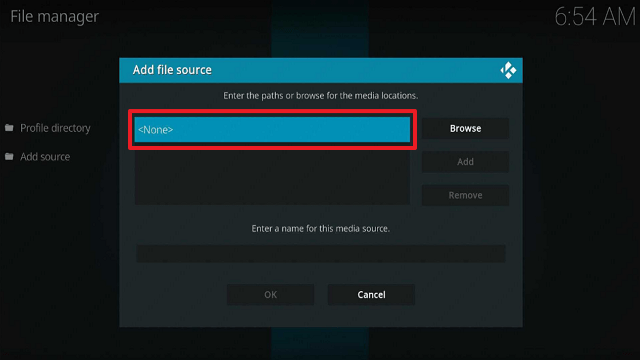
7. Click “<None>”
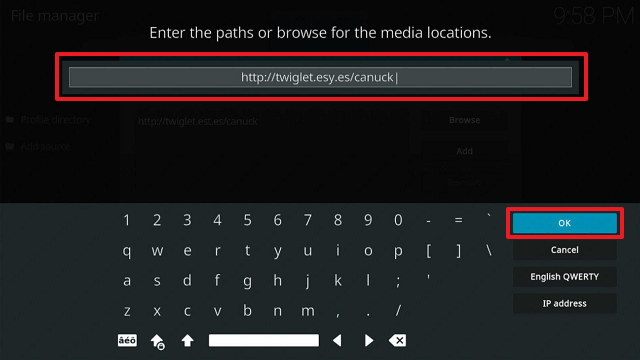
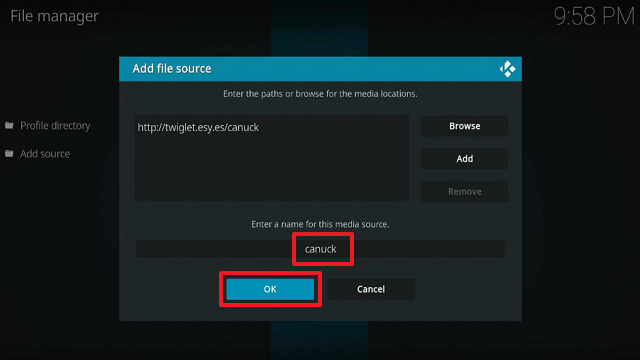
8. Type in “http://twiglet.esy.es/canuck” then click “OK”
9. Highlight the box under the source to give the media source a name, and put “canuck” or any other name that will help you identify it quickly. Click “OK”. Return to the System page by pressing the return button on your remote.
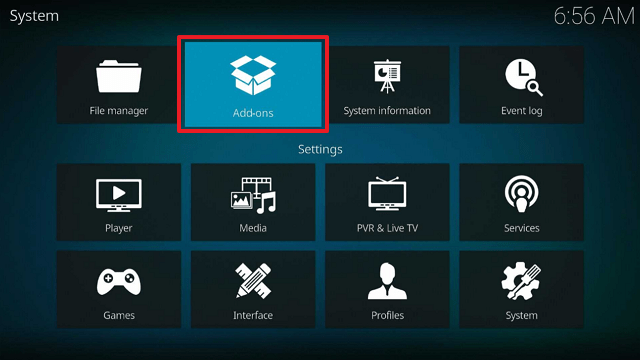
10. Select “Add-ons”
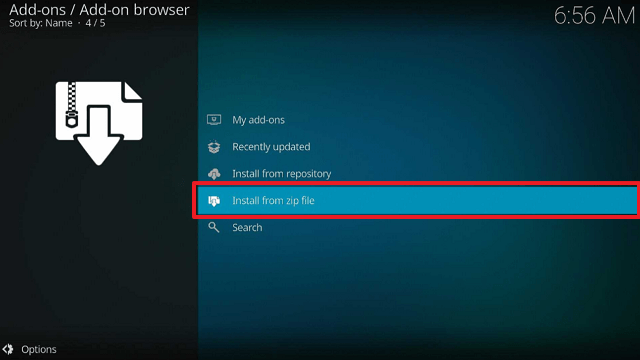
11. Choose “Install from zip file”
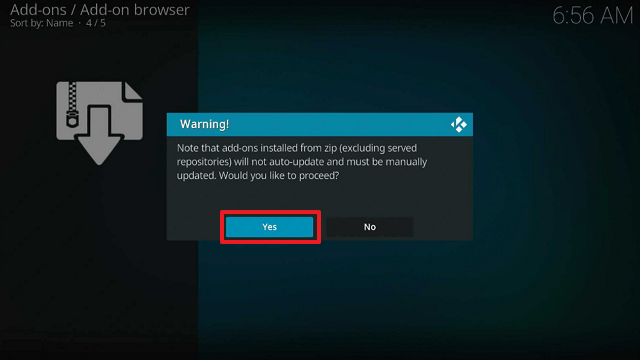
12. Click “Yes”
13. Select “canuck”
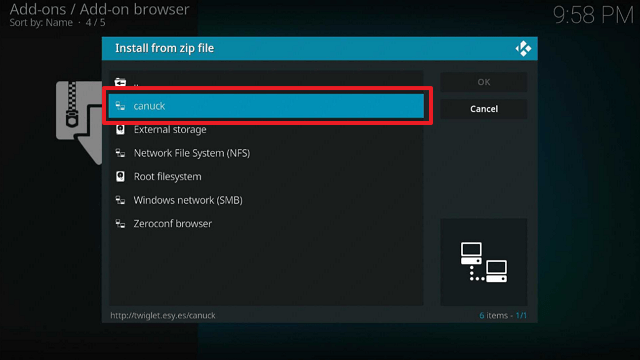
14. Then click on the zip file URL – repository.canuck-0.1.0.zip
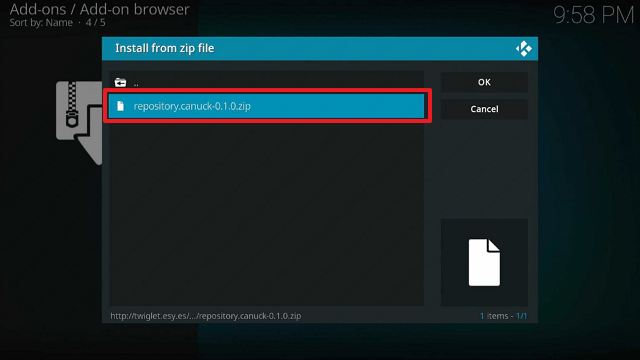
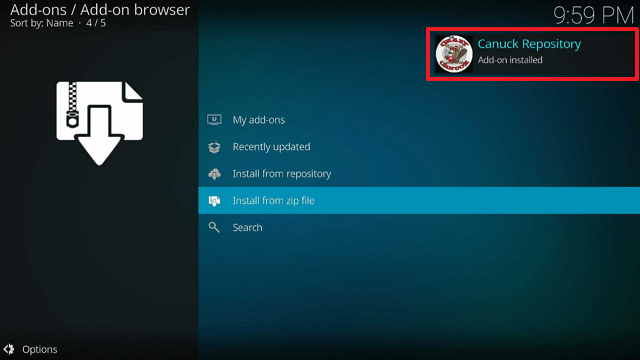
15. Wait for the notification “Canuck Repository Add-on installed” to appear on the upper right part of the screen
16. Afterward, select “Install from repository”
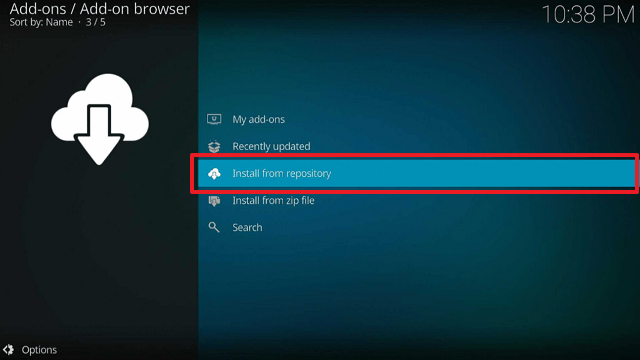
17. Then click “Canuck Repository”
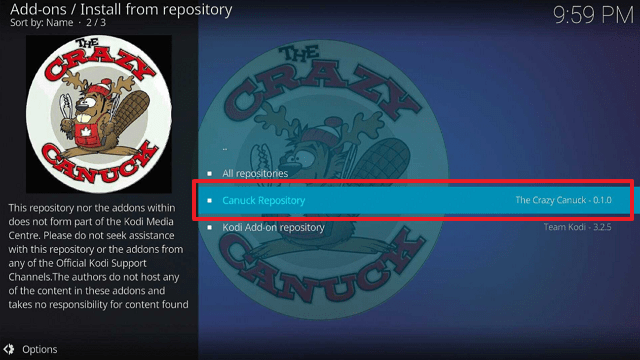
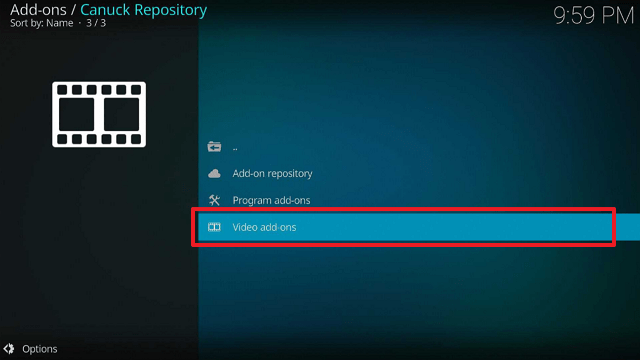
18. Select “Video add-ons”
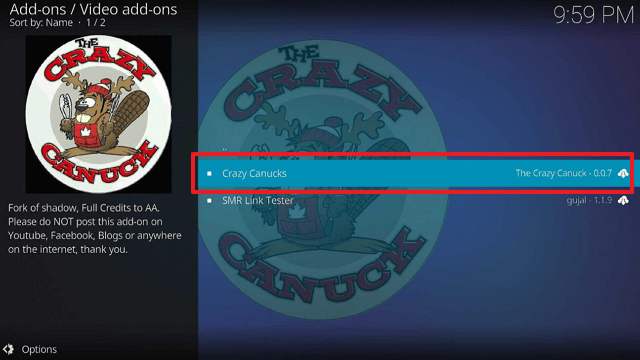
19. Click on “Crazy Canucks”
20. Then click “Install”
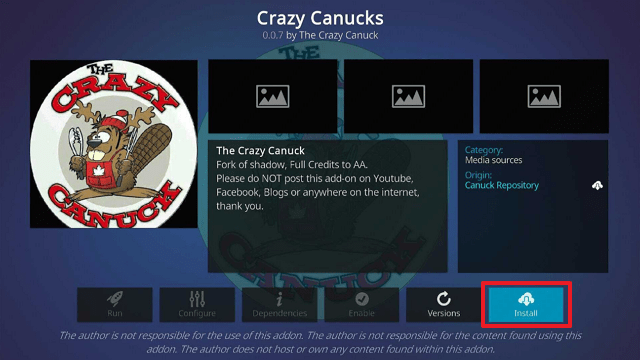
21. Then wait for it to install. It’s finished once you see the “Crazy Canucks Add-on Installed” message appears.
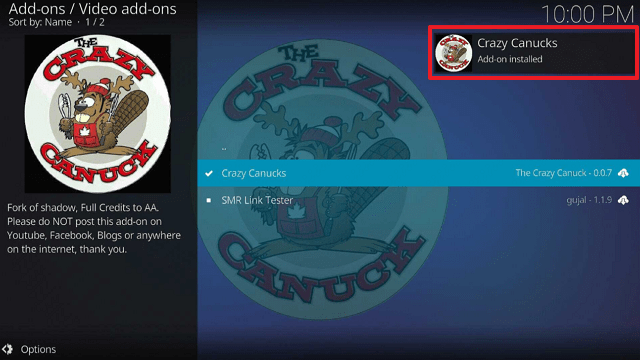
22. Select “Crazy Canucks”. Then select “Open”
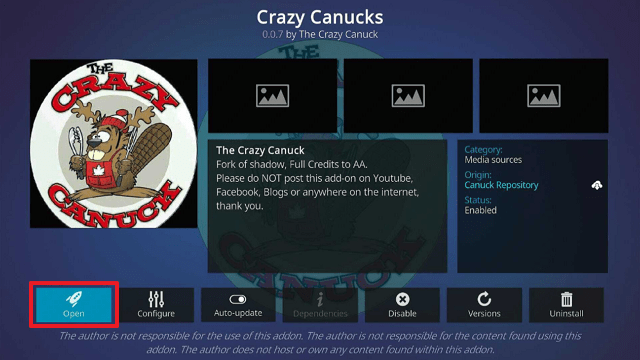
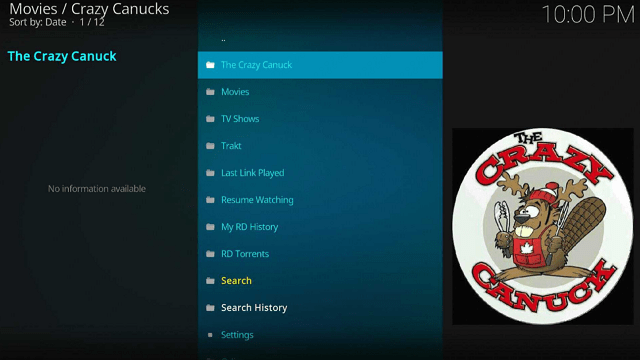
23. That’s it, Crazy Canucks Kodi Addon is already installed in your Firestick.
ReviewVPN cannot attest to the legality, security and privacy of the applications discussed on this site. It is highly recommended that you use a VPN service while streaming or using Kodi. Currently, your IP 216.73.217.138 is visible to everyone and your Browser is being tracked by Advertisers & ISP Provider. Here are the main reasons why you must use a VPN: A VPN works be replacing your ISP-assigned IP address and creating an encrypted tunnel. We recommend the no log service offered by IPVanish. It works well on a Firestick and offers the fastest possible speeds.
YOUR INTERNET ACTIVITY IS BEING WATCHED
Legal Disclaimer: ReviewVPN.com does not encourage or endorse any illegal activity involved in the usage of services and applications referenced on this site. We do not verify the licensing agreements of services. The end-user is wholly responsible for ensuring that any media accessed through these services does not violate copyright and/or licensing laws. ReviewVPN does not promote, link to, or receive compensation from any Apps and IPTV services.
Install Surfshark on Firestick

Features
- The Crazy Canuck, Movies, TV Shows, Trakt, Last Link Played, Resume Watching, My RD History, RD Torrents, Search, Search History, Settings, and Odin are among the categories you can discover on its Home Screen.
- Contains films, TV shows, and video on demand
- There are also one-click links for movies.
- Selections from TMDb and IMDb are also available.
- You can choose and filter Year and Genre using the Advanced Content Selection feature.
- You can find genres like Action & Adventure, Animation, Comedy, Crime, Documentary, Drama, Family, Kids, Mystery, News, Reality, Sci-Fi & Fantasy, Soap, Talk, War & Politics, and Western.
- There are a number of networks available, including Disney+, Apple TV+, Netflix, HBO, CBS, SyFy, The CW, ABC, NBC, Amazon, Hulu, Showtime, BBC, and ITV.
- It has a search box where you can type titles into the field.
- Available video resolutions include 4K, 1080, 720, and 480.
- Allows you to authorize your Trakt account
- You can filter movies and TV shows by minimum and maximum quality.
- Real-debrid, Premiumize, and AllDebrid are all supported.
Pros & Cons
Pros
- It offers a large number of streaming links in various video resolutions.
- Trakt and debrid account authorization are supported.
- Allows for HD-quality streaming
- VOD content from YouTube is also available.
Cons
- To view its content, a debrid account is necessary.
- No free streaming is available.
Stream Safely With a VPN

While Kodi streaming is highly convenient, it poses a significant risk to your data privacy. This is because you are unaware of any potential lurkers while accessing and streaming content through add-ons, particularly third-party ones.
Therefore, the best course of action is to stream in anonymity. And the easiest way to accomplish this is using a VPN like Surfshark.
To protect your privacy, Surfshark will provide you with an anonymous IP address. Your true identity won’t be exposed in this manner on any online network you use. Additional benefits of utilizing Surfshark include the following:
- Makes certain that no logs are stored and that no IP addresses are disclosed.
- Allows you to bypass geo-restrictions and access content from all around the world.
- Gives you access to unlimited bandwidth so you may stream and download any content from your favorite Kodi Addons.
- Encrypts your connection with unbreakable 256-bit military-grade encryption.
- Surfshark features a built-in cookie consent pop-up blocker, so you can get rid of bothersome popups.
- Additionally, a Cleanweb feature will stop malware and advertisements.
- A customer service that is available around the clock will help you with any issues you may have.
Note: For more information about Surfshark, please read our Surfshark Review.
How to Install Surfshark VPN on Firestick
If your Firestick still has the older interface, read this article to learn how to update it: Update Firestick Interface.
Follow our screenshots below to install the Surfshark VPN app on your Fire TV stick.
1. Go to the Home screen of your Firestick.

2. Navigate toward the Find tab. Press the Search button from the resulting dropdown.

3. Type in the keyword of Surfshark and select from the suggestions that will appear.

4. Click the official Surfshark icon from your search results.

5. Press the Download (You own it) button.

6. The Surfshark VPN installer will download on your device.

7. Surfshark VPN’s app will automatically install itself on your Fire TV stick.

8. Press the Open button after completing Surfshark VPN’s installation process.

9. Please wait for the Surfshark VPN to load its user interface.

10. You can now log in with your Surfshark VPN account credentials.

Learn more about Surfshark and Grab the Best Surfshark Deal Now!
Install Surfshark on Firestick



FAQs
What is Crazy Canucks Kodi Addon?
Crazy Canucks is a Kodi Addon that allows you to watch high-definition movies, TV programs, and VOD. You can use your actual Debrid account to scrape the highest-quality links on Crazy Canucks.
Is Crazy Canucks Kodi Addon Safe?
Running the repository URL of Crazy Canuck will reveal that it does include one suspicious file or malware. It is therefore strongly advised to use a VPN such as Surfshark while using this add-on.
Is Crazy Canucks Kodi Addon Legal?
In general, Kodi Addons are legal. However, we are unable to verify the legitimacy of the streams provided by Crazy Canucks, so be sure to only view publicly available material.
Should I Use a VPN with Crazy Canucks Kodi Addon?
A VPN is unquestionably recommended when using the Crazy Canucks Kodi Addon. This is done to stop any data breaches, especially as its repository contains a suspicious file. You wouldn’t want to jeopardize your data only to view your favorite movies and TV shows.
For more VPN discounts, go to ReviewVPN Deals and purchase the best VPN for you.
Click here to get the lowest price on Surfshark through our exclusive limited-time offer.
Wrapping Up
Crazy Canucks offers a bunch of streaming links in varying video quality based on your preferences. What worries me, though, is the security of the users while they utilize this add-on. So I’ll merely recommend that you look through our list of the top Kodi addons to locate more trustworthy add-ons.






