

The Xstream Kodi Addon Overview
Quick Navigation
The article will help you on how to install The Xstream Kodi Addon.

The Xstream is a third-party add-on from the Where The Monster Live Repository, which brings you a large collection of content to watch. It is also a Debrid addon that provides you high-quality streaming links, but you need a Real Debrid account.
You can choose from their wide variety of categories and watch their great lineup of content such as Movies, Tv shows Comedy, Live Sports, TV rewind, and more. This addon works well with Debrid users because it has a regularly updated list of content and HD videos to watch.
The good thing with this add-on is, it is compatible with Kodi 19.2 Matrix. However, if you do not have any Real Debrid account then you cannot stream on it. So, if you want to access a wide selection of quality streaming links and have an excellent streaming experience on Kodi, then this addon is a good option for you.

How to Install The Xstream Kodi Addon with a Screenshot
Follow these simple steps:
1. On your Firestick, open Kodi and go to Settings.
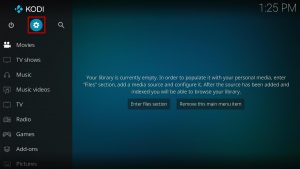
2. Select on System
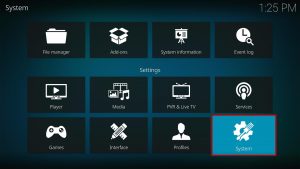
3. Click on the Add-ons menu and Turn ON the Unknown Sources
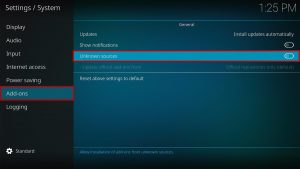
4. Select Yes when the box appears
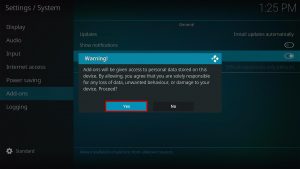
5. Go back one step and click on File Manager.
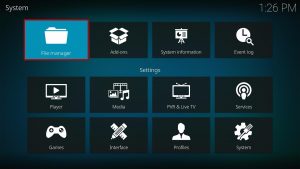
6. Select the Add Source
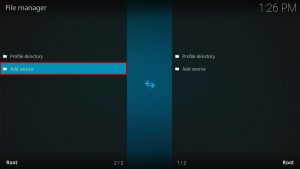
7. A box will pop up, so click on the ‘None’ option.
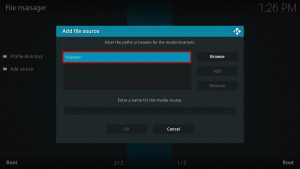
8. Now type in this URL https://www.midian.appboxes.co/repo and click OK.
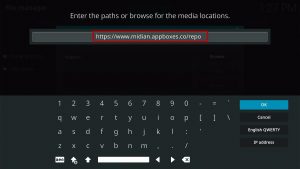
9. Name this URL as xstream and tap OK.
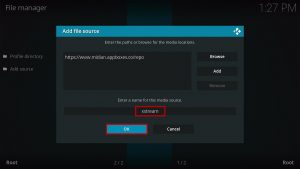
10. After that, go back to the system menu and select Add-ons.
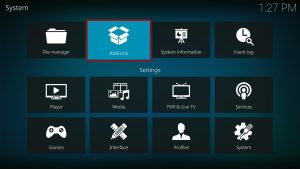
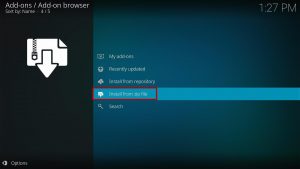
11. Click Install from Zip File
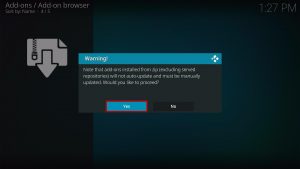
12. When the box pop-up, tap the Yes button
13. Select the xstream or any name you have given.
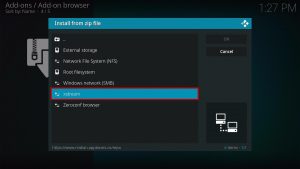
14. Choose repository.Wherethemonsterslive.zip
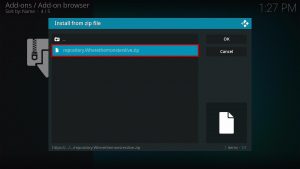
15. Wait a few minutes for the addon to be installed. After that, an icon will appear at the top menu.
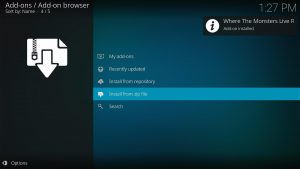
16. Tap the Install from Repository
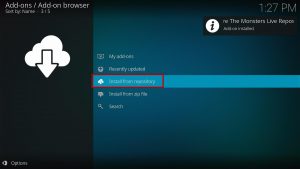
17. Then select Where The Monsters Live Repository from the list
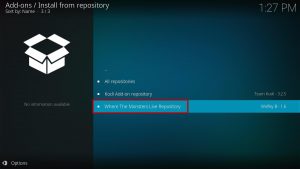
18. Click on Video Add-ons
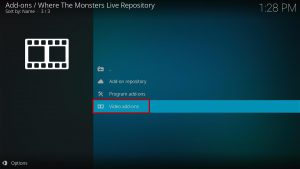
19. Select The Xstream
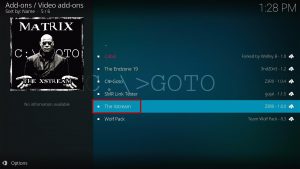
20. Click the Install button
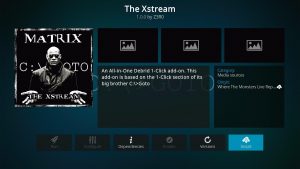
21. When a box Pop up, click OK
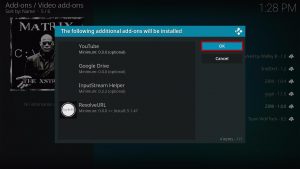
22. Wait for The Xstream Add-on installed message to appear.
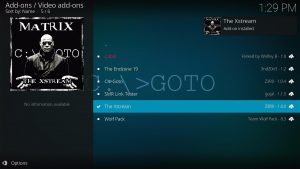
23. Go back to the Kodi home screen and scroll down to Addon.
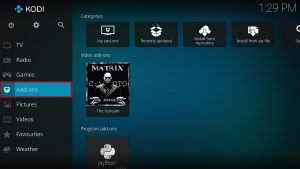
24. From the Video Add-on, select The Xstream Add-on icon
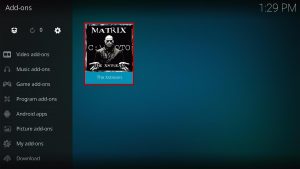
25. That’s it! Choose from the categories and enjoy.
ReviewVPN cannot attest to the legality, security and privacy of the applications discussed on this site. It is highly recommended that you use a VPN service while streaming or using Kodi. Currently, your IP 216.73.216.207 is visible to everyone and your Browser is being tracked by Advertisers & ISP Provider. Here are the main reasons why you must use a VPN: A VPN works be replacing your ISP-assigned IP address and creating an encrypted tunnel. We recommend the no log service offered by IPVanish. It works well on a Firestick and offers the fastest possible speeds.
YOUR INTERNET ACTIVITY IS BEING WATCHED
Legal Disclaimer: ReviewVPN.com does not encourage or endorse any illegal activity involved in the usage of services and applications referenced on this site. We do not verify the licensing agreements of services. The end-user is wholly responsible for ensuring that any media accessed through these services does not violate copyright and/or licensing laws. ReviewVPN does not promote, link to, or receive compensation from any Apps and IPTV services.
Install Surfshark on Firestick

Features of The Xstream Kodi Addon
- Easy Real debrid account authorization.
- It has a simple and well-organized list of contents.
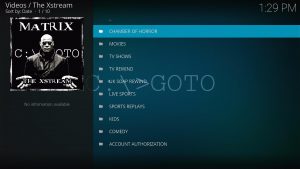
- The main categories are Chamber of Horror, Movies, TV shows, TV Rewind, UK Soap Rewind, Live Sports, Sports Replays, Kids, and Comedy.
- You can watch a great lineup of Horror movies from the 90s up to the present.
- Watch on a collection of 1999 below up to 2021 Movies,
- It also brings you 4K movies, documentaries, Hallmark, Horror, Boxsets, and Collection.
- This add-on also brings you a different collection of Movies, including The Troubles, The Scottish, The Disaster, Marvel Cinematic, and more.
- Alphabetically arrange the list of Tv series from the 90s to 20s.
- Brings you a complete and ongoing Tv series.
- It also brings you Rewind Tv series such as the Eastenders, Coronation Street, Emmerdale, Hollyoaks, and more.
- Watch on Live sports including MMA Live, Football, Wrestling, Boxing, Formula 1, Baseball, College Football, NASCAR, Hockey, and more.
- If you miss the Live game, don’t worry because it also brings you Sports Replays.
- Kids’ content such as Movies, holiday Movies, Short Movies, and Collections.
- Authorize your Real Debrid account, Alldebrid, Linksnappy, and Premiumizeme.
- Set your Trakt.tv account and monitor what you are watching.
- Watch on a maximum of 4k video streaming quality.
- Access high-quality streaming links.
- Subtitles in multiple languages.
- Allows background playing.
Pros and Cons
Pros
- This add-on is compatible with Kodi 19.2 Matrix.
- It has a simple and easy-to-use interface that allows you to access its content for free.
- You can access high quality streaming links on up to 4k video quality
- Brings you a wide variety of categories and a large collection of content.
Cons
- This addon requires you to have an existing Real debrid account.
- You cannot stream on it without authorizing your Debrid account.
Do I need to use a VPN?

In everything you do online like streaming using free streaming links on different servers, it is much safer if you use a Virtual Private Network on your device. This VPN will ensure that you have a safe and secure internet connection to safely stream and do online activities without anything to worry about.
In terms of this kind of discussion, the best VPN that we can recommend is Surfshark, whereas this VPN brings you quality and impressive features.
Some of the features of Surfshark are:
- It helps you keep your activity private and safe online by automatically encrypting everything about you, such as your real IP address, web traffic, personal data, identity, and activities.
- SurfShark prevents snooping ISP from interfering with your connection to avoid any buffering and lags while doing any activities online.
- Safely destroy any geo-block or geo-restriction by allowing you to connect to more than 3,200 servers in 65+ locations to choose from. This will keep you anonymous online and avoid being tracked or attributed to any individual.
- It is also one of the fastest VPNs with unlimited bandwidth to stream as much as you want.
- Military-grade AES-256 encryption follows FIPS (Federal Information Processing Standards) that oversee the handling of sensitive data.
Note: For more information about Surfshark, please read our SURFSHARK REVIEW.
How to Install Surfshark on Firestick with Screenshots
If your Firestick still has the older interface, read this article to learn how to update it: Update Firestick Interface.
You can download Surfshark directly from the Amazon App store. It will be easy for you to find Surfshark with your Firestick’s Find feature. Refer to our screenshots below.
Follow our screenshots below to install the Surfshark VPN app on your Fire TV stick.
1. Go to the Home screen of your Firestick.

2. Navigate towards the Find tab. Press the Search button from the resulting dropdown.

3. Type in the keyword of Surfshark and select from the suggestions that will appear.

4. Click the official Surfshark icon from your search results.

5. Press the Download (You own it) button.

6. The Surfshark VPN installer will download on your device.

7. SurfsharkVPN’s app will automatically install itself on your Fire TV stick.

8. Press the Open button after completing Surfshark VPN’s installation process.

9. Please wait for the Surfshark VPN to load its user interface.

10. You can now log in with your Surfshark VPN account credentials.

Learn more about Surfshark and Grab the Best Surfshark Deal Now!
Install Surfshark on Firestick



For more VPN discounts, go to ReviewVPN Deals and purchase the best VPN for you.
Alternatives for The Xstream Kodi Add-on
We list down some of the Kodi addons as an alternative for The Xstream Kodi Addon. Kindly read their corresponding articles to know more about these add-ons.
FAQs
Is this addon required to have an existing real Debrid account?
Yes, this add-on requires you to have an existing Real Debrid account because you cannot access its contents if you do not authorize your account. It is a debrid addon that brings you paid streaming links.
Can I stream on the Xstream Kodi Addon safely?
Yes, streaming in this add-on is safe, but we suggest using a VPN such as Surfshark to keep you safe.
Is The Xstream Kodi Addon free?
Yes, this Add-on is free and allows you to watch their content for free.
Is The Xstream Kodi Addon legal?
Yes, this addon is not illegal to install and use.
Conclusion
The Xstream is a debrid addon that brings you high-quality of streaming links provided by Real Debrid. You can watch their large collection of contents, but if you do not have any Real Debrid account to authorize, then you cannot watch on this add-on. The good thing is, you can assure that this addon brings you a quality and great lineup of content. We hope this article helps you install The Xstream Kodi Addon.
Note: ReviewVPN.com does not own or operate any app nor does it endorse any. The main purpose of this article is strictly for educational purposes only.






