
Overview
Quick Navigation
This article will show you how to install UKTV Play on your Firestick.
If you’re a big fan of the shows aired on United Kingdom Television (UKTV), you’re going to find UKTV Play irresistible. After all, it is a UKTV-owned video-on-demand service that has been bringing fresh content directly to your device for years.

UKTV Play provides viewers with access to a variety of popular UKTV programs, including well-known dramas and sitcoms. This contains all of your favorite channels, such as Dave, Yesterday, Home, and Alibi. Moreover, UKTV Play is the place to go for catch-up television as it includes an impressive library and user interface.
Furthermore, you may stream UKTV Play from any device through a browser or by downloading the app on platforms such as Firestick. That is why, with so many programming selections available, it’s unsurprising that UKTV Play continues to be the market leader in premium linear streaming in the United Kingdom.
Note: We’d like to inform you in advance that a Mouse Toggle will be needed to assist you in navigating the app.

How To Install UKTV Play on Firestick
To begin, if your Firestick has not yet been jailbroken, follow the simple steps below to jailbreak it to install UKTV Play on your device:
1. Click Home on your remote and scroll once to your Right. Click Setting (Gear Wheel Icon).
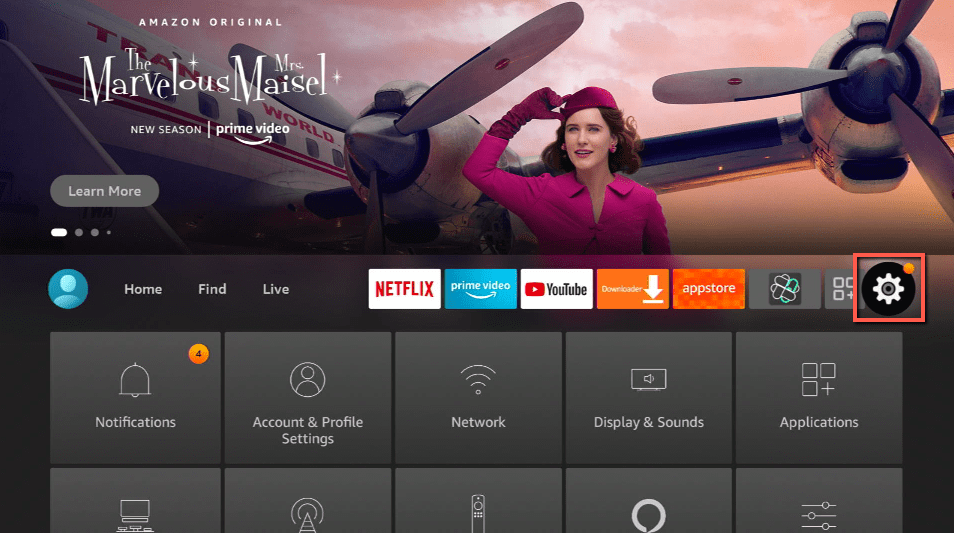
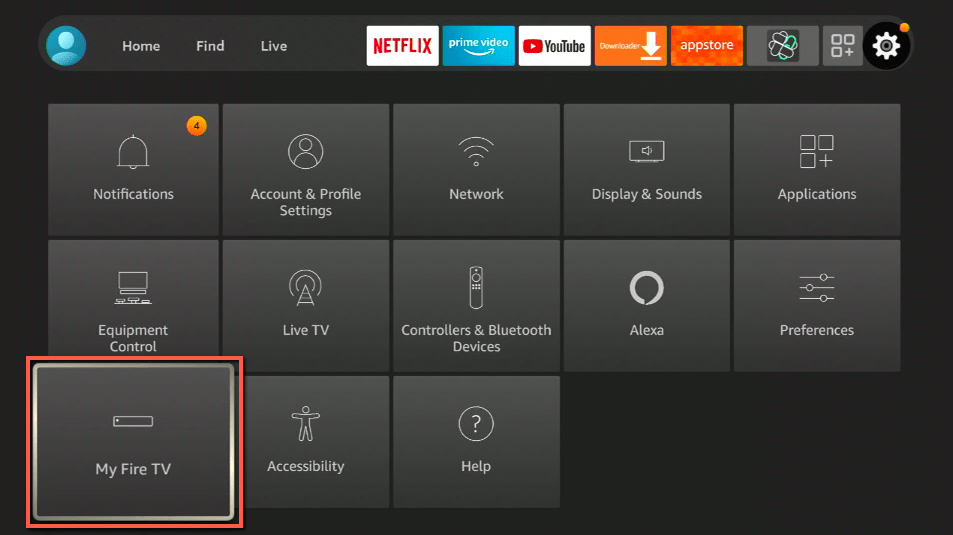
2. Scroll down and to the right until you get to My Fire TV. Click on it.
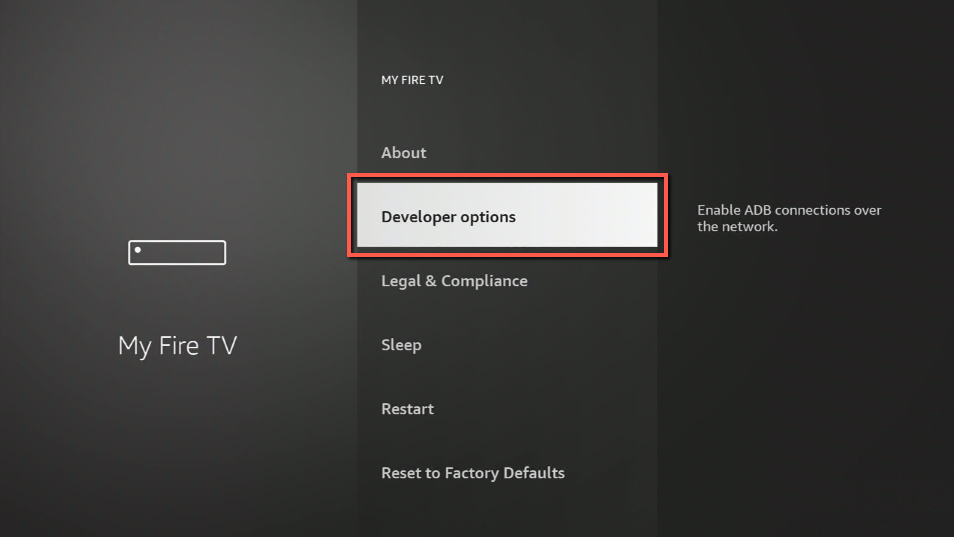
3. Select Developer options.
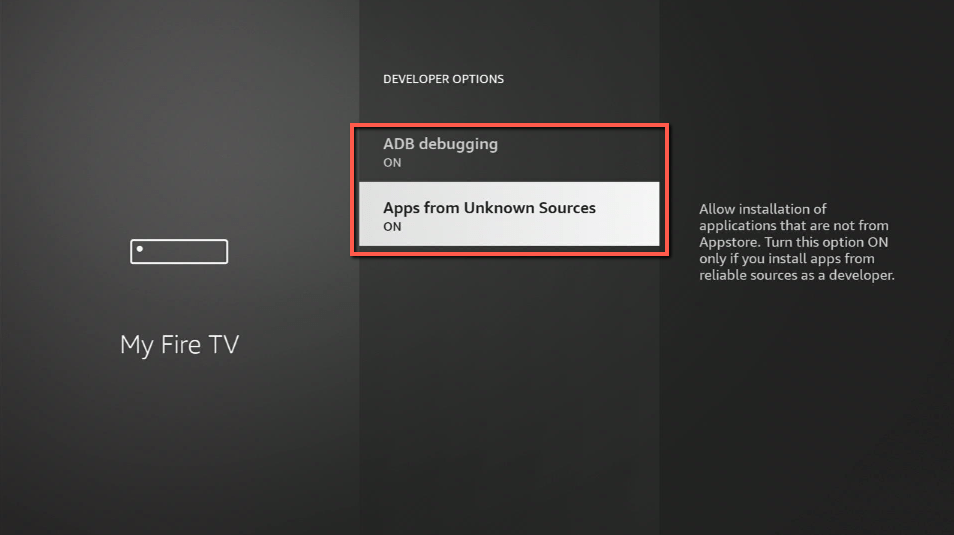
4. Turn on ADB debugging and Apps from Unknown Sources.
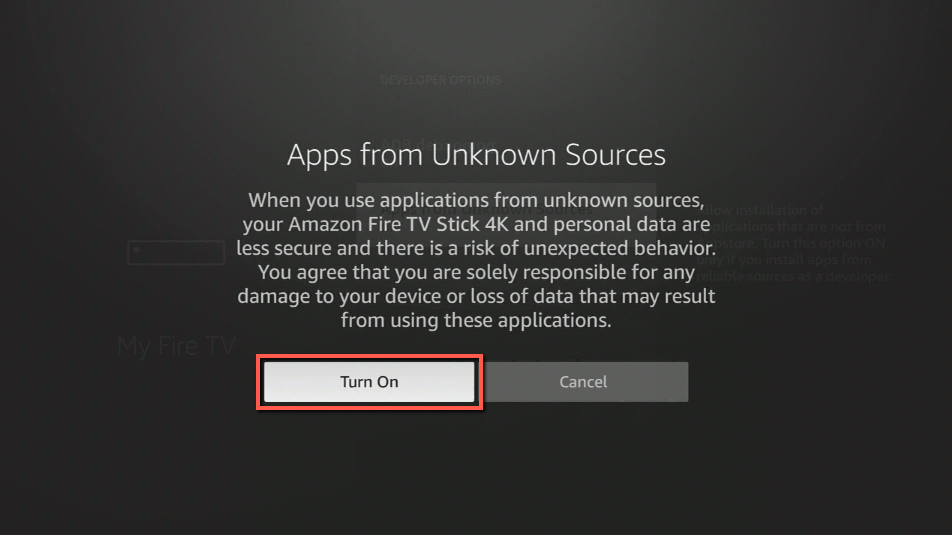
5. Click Turn On when the pop-up appears.
Then, after jailbreaking your Firestick, you’ll need to download the Downloader app to sideload UKTV Play. This app, which is easily available on the Amazon App Store, allows you to download APK files.
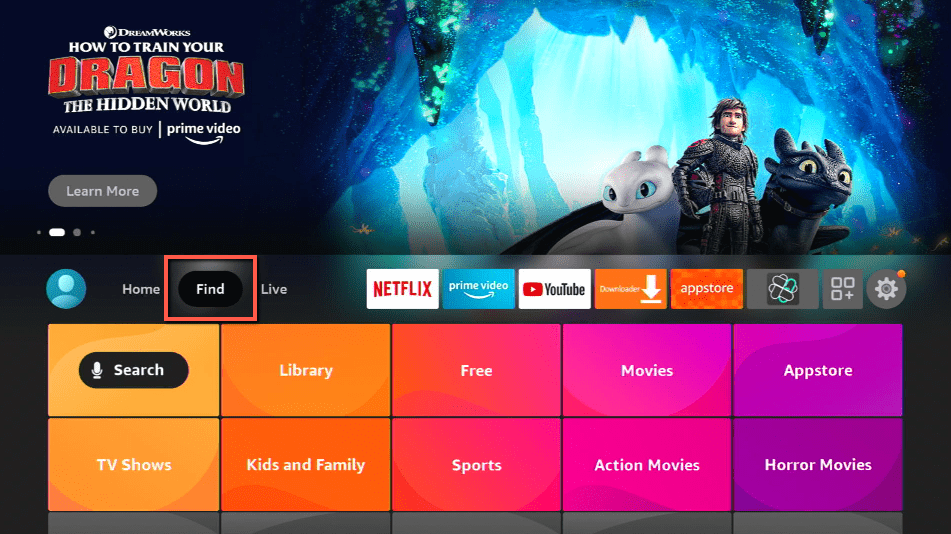
6. Click Home, click FIND.
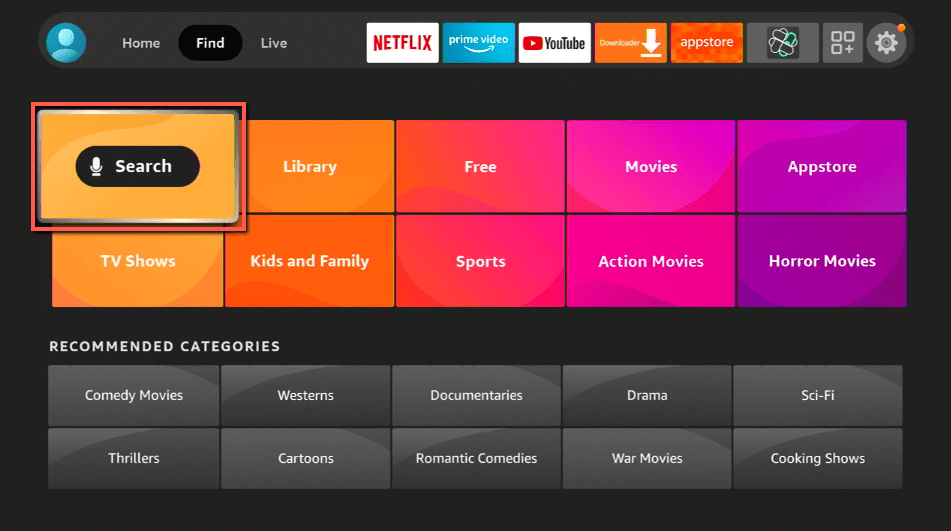
7. Click Search.
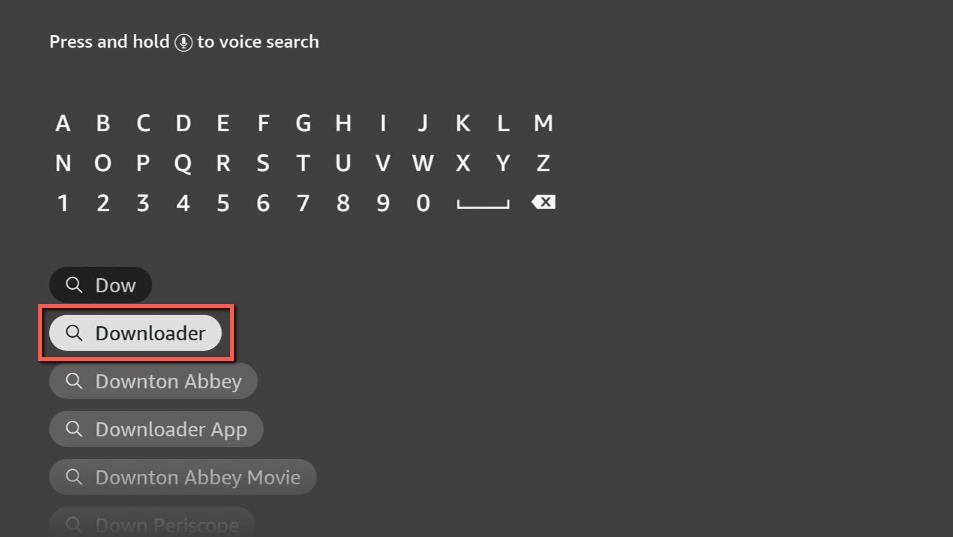
8. You can either say Downloader to your Alexa voice-enabled remote or start typing it. If you typed it, click on the suggestion when it appears.
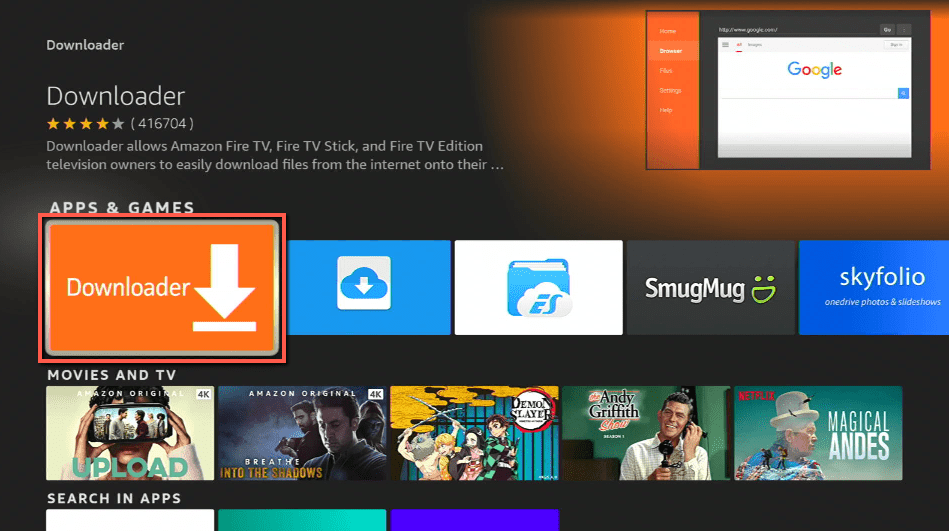
9. Click on the Downloader Icon.
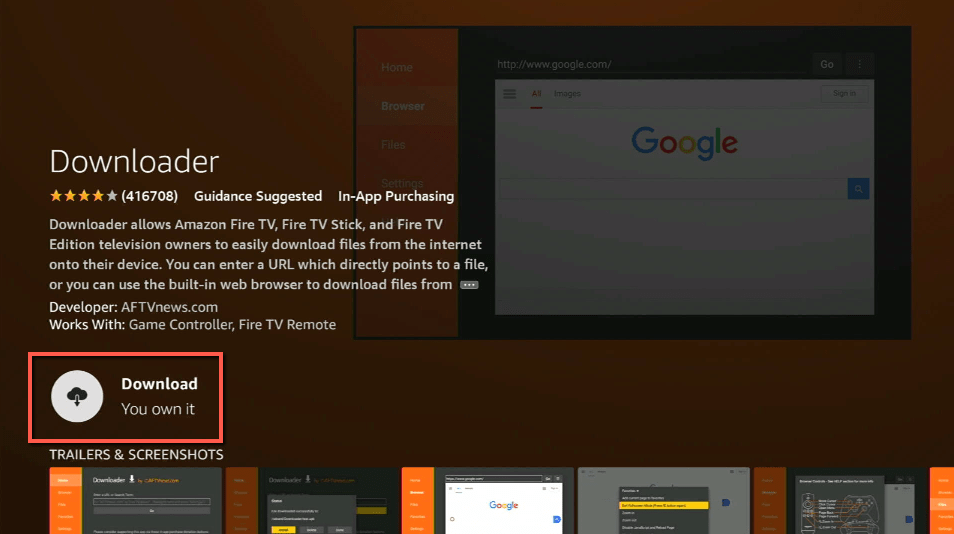
10. Click Download.
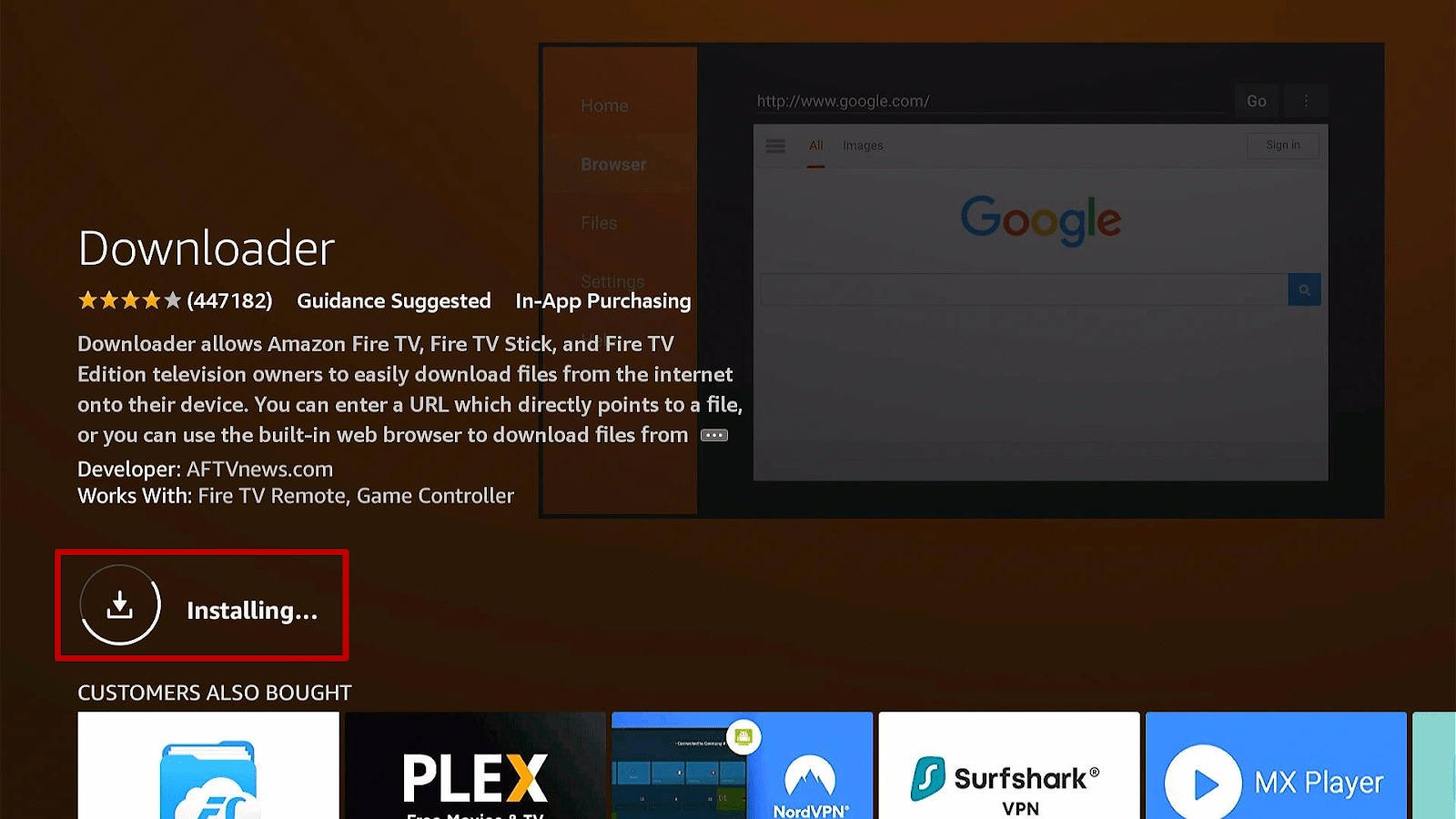
11. Click on Open.
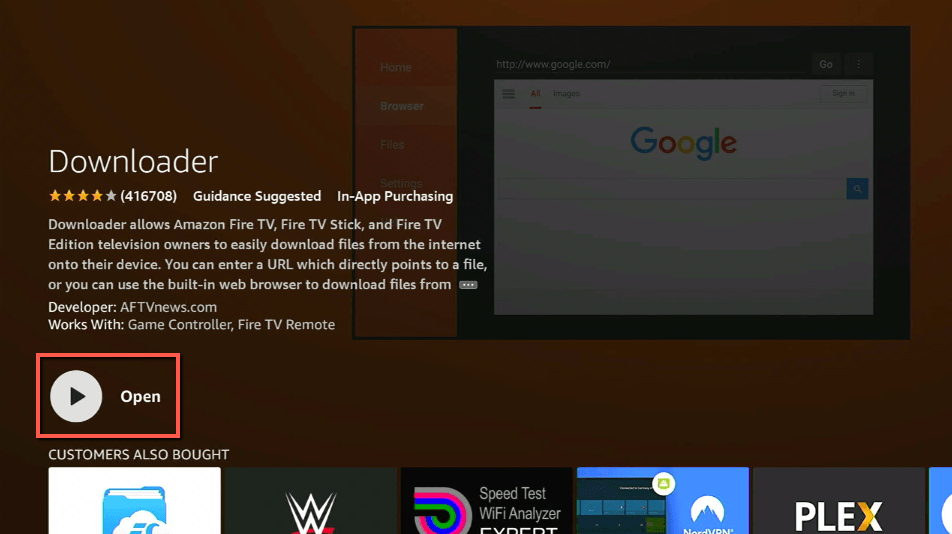
12. Click on Allow.
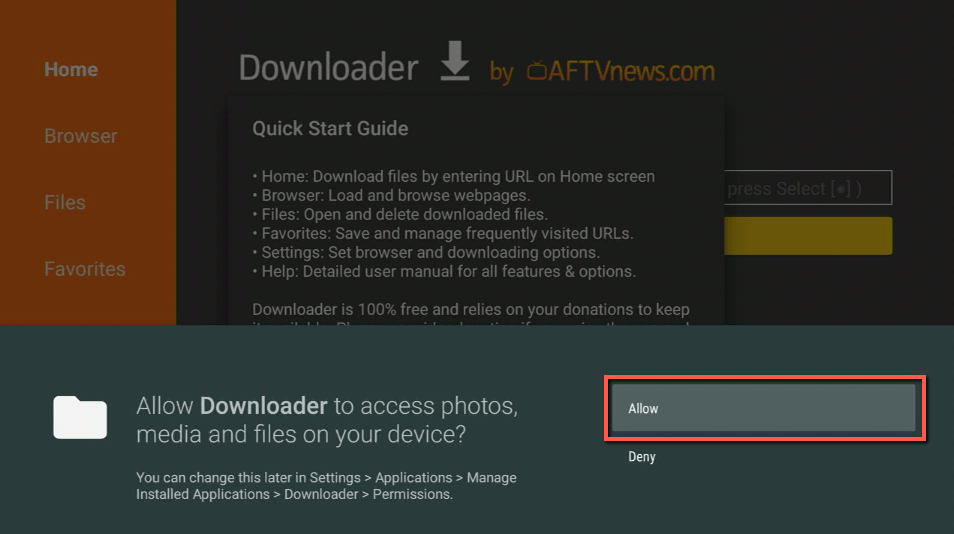
13. Use the Downloader search tab.
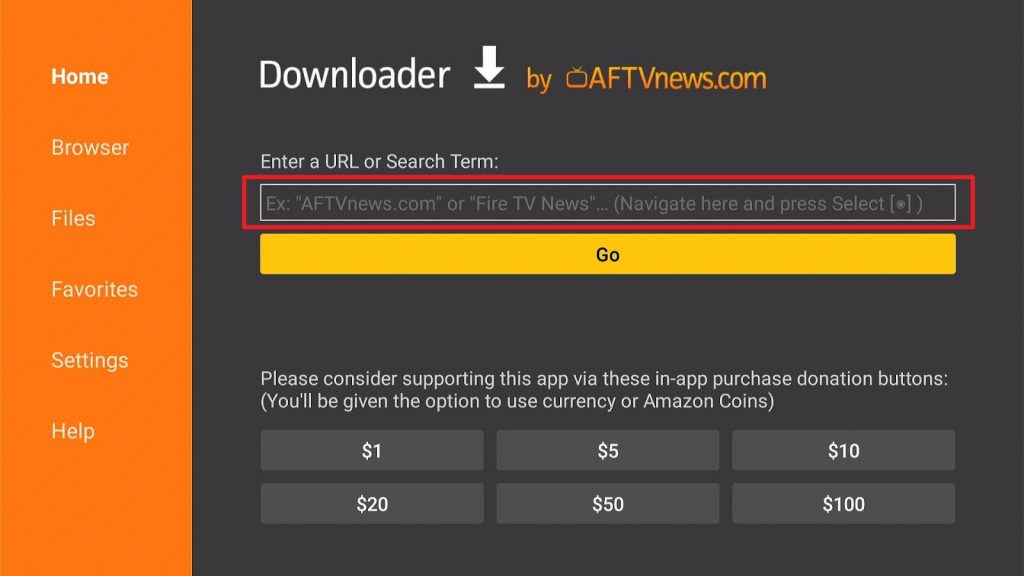
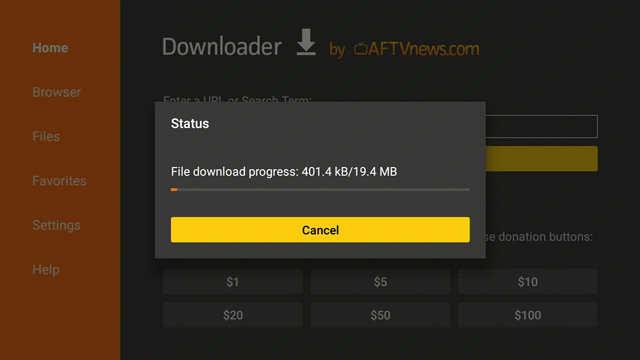
14. You will be asked to enter a download link. Type in “https://reviewvpn.com/ukpl” and select Go.
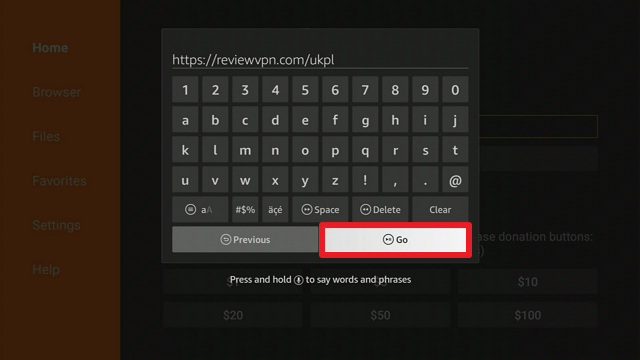
15. Depending on your internet connection, the APK will take a few seconds to download.
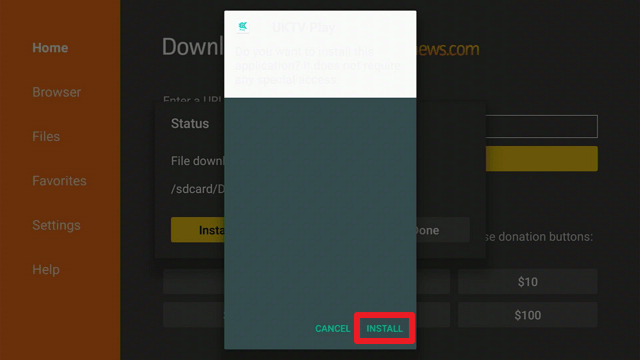
16. After that, choose Install.
17. Then click Open.
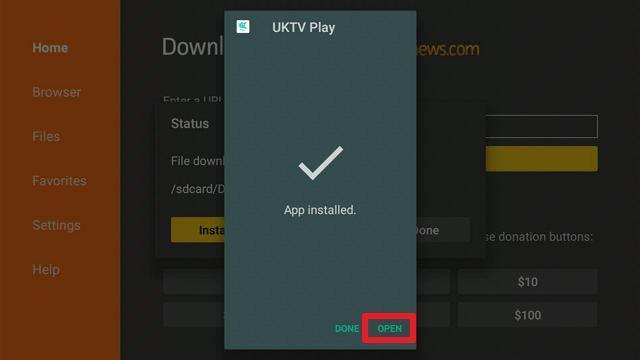
Note: You may skip the registration process, but you will be required to do so in order to watch the content.
UKTV Play APK Download for Android Devices

Note: ReviewVPN.com does not host this APK file. It is hosted by Archive.org
Install Surfshark on Firestick
Legal Disclaimer: ReviewVPN.com does not encourage or endorse any illegal activity involved in the usage of services and applications referenced on this site. We do not verify the licensing agreements of services. The end-user is wholly responsible for ensuring that any media accessed through these services does not violate copyright and/or licensing laws. ReviewVPN does not promote, link to, or receive compensation from any Apps and IPTV services.
ReviewVPN cannot attest to the legality, security and privacy of the applications discussed on this site. It is highly recommended that you use a VPN service while streaming or using Kodi. Currently, your IP 216.73.216.193 is visible to everyone and your Browser is being tracked by Advertisers & ISP Provider. Here are the main reasons why you must use a VPN: A VPN works be replacing your ISP-assigned IP address and creating an encrypted tunnel. We recommend the no log service offered by IPVanish. It works well on a Firestick and offers the fastest possible speeds.
YOUR INTERNET ACTIVITY IS BEING WATCHED
App Features
- You can watch catch-up programs from UKTV’s free-to-air channels.
- This app includes the Dave, Yesterday, and Drama channels.
- The Bill, Bad Girls, The Brokenwood Mysteries, Task Master, Alan Davies, and The Architecture are just a few of the popular box sets available.
- Features collections from UKTV such as Classic Comedy, Dave Original Comedy, Engineering, Motoring, and Trains & Railways.
- You can add your favorite programs to My List
- It includes a History section where you may see unfinished shows, allowing you to easily resume where you left off.
- You can browse for shows in alphabetical order.
- It enables you to create a parental control pin that can be set to either all rated content (15+ years of age) or only 18+ rated content (18+ years of age).
- There is a feature that allows you to delete all data in the application.
- It contains a search option that enables you to quickly and easily locate content within the program.
Categories
- Comedy
- Drama
- Entertainment
- Documentaries
- Highlights
- Crime Drama
- Soaps
- UK Drama
Pros & Cons
Pros
- Provides on-demand content
- Its videos are available for free viewing and playback.
- It enables you to resume playing shows where you left off.
Cons
- At times, you may be unable to scroll down to view its content.
- You must register to watch its shows.
- I encountered issues entering my birthdate during the registration process.
Access UKTV Play from Anywhere in The World
Given that UKTV Play is geo-restricted to the United Kingdom, you’re presumably looking for a way to access its content if you’re not in the country. Fortunately, there is a means to do so regardless of where you are in the world, and that is through the use of a VPN. A VPN such as Surfshark can assist you with this by providing you with an anonymous IP address originating in the United Kingdom. And because your IP address appears to be from the United Kingdom, UKTV Play will offer you access to its programming. Moreover, it employs AES 256-bit encryption, so you won’t have to worry about disclosing your true IP address if it is located outside the United Kingdom. Furthermore, Surfshark provides you with several additional perks, including the following:
- Provides you with limitless bandwidth, allowing you to binge-watch any content on UKTV Play without restriction.
- Surfshark maintains no logs, which means you’ll never have to worry about IP address leaks or data breaches when using its service.
- Enjoy unlimited simultaneous connections to secure all the devices that you own
- Risk-free 30-day money-back guarantee
How to Install Surfshark VPN on Firestick
You can download Surfshark directly from the Amazon App store. It will be easy for you to find Surfshark with your Firestick’s Find feature. Refer to our screenshots below.
1. Go to the Home screen of your Firestick.

2. Navigate towards the Find tab. Press the Search button from the resulting dropdown.

3. Type in the keyword of SurfShark and select from the suggestions that will appear.

4. Click the official SurfShark icon from your search results.

5. Press the Download (You own it) button.

6. The SurfShark VPN installer will download on your device.

7. SurfShark VPN’s app will automatically install itself on your Fire TV stick.

8. Press the Open button after completing SurfShark VPN’s installation process.

9. Please wait for the SurfShark VPN to load its user interface.

10. You can now log in with your SurfShark VPN account credentials.

Learn more about Surfshark and Grab the Best Surfshark Deal Now!
Install Surfshark on Firestick



For more VPN discounts, go to ReviewVPN Deals and purchase the best VPN for you.
Click here to get the lowest price on Surfshark through our exclusive limited-time offer.
FAQs
What is UKTV Play?
UKTV Play is a video-on-demand service that is owned by UKTV, which is a division of the well-known BBC Studios. It includes all of UKTV’s free-to-air channels across several genres, including Comedy, Entertainment, and Drama.
Is UKTV Play free?
Yes, UKTV Play provides its users with free content.
How do I get UKTV Play on my TV and other devices?
You can get UKTV Play on your TV by following our guide in this article. Meanwhile, we’ve included an APK download button for your other devices, such as Android, so you can easily install it.
What channels are on UKTV Play?
Dave, Drama, Really, Yesterday, and Home are among the channels available on UKTV Play.
Is UKTV Play safe?
Yes, using and installing UKTV Play on your Firestick is completely safe. Moreover, when you connect to Surfshark, it also adds a layer of security to your streaming.
Is UKTV Play legal?
Yes, UKTV Play is legal as its holds rights to its content.
How long has it been around?
UKTV Play has been prepared for streaming since August 2014.
Is there an official website for UKTV Play?
Yes, you can view them using the following link: https://uktvplay.uktv.co.uk/.
Final Thoughts
UKTV Play is a video-on-demand service that began in 2014. It is a subsidiary of the popular BBC Studios, which is home to some of the best shows ever produced. Moreover, it allows access to all of UKTV’s catch-up programs and a diverse selection of entertainment.
Furthermore, it enables you to view programs for free. However, as with any other video-on-demand streaming service, you must first register and then log in to view your favorite programs whenever you want.






