
Overview
Quick Navigation
Apk Extractor is an amazing, fast, & lightweight application to extract Android Package (APK) and the icons of the app from apps installed on a device. It is considered a useful tool to use to extract any APK from all of the apps on an Android device.

It can extract apps in just a couple of simple steps. The app is very simple to use. Simply launch the Apk Extractor app to access the list of applications you have installed on your Android device. Then, select the app from which you wish to take out the APK.
After that, you get two choices. You can extract the link directly to copy it or send/share the Android Package directly from the APK Extractor app. This allows you to share the APKs with someone so that he/she can access them straight via the link.

APK Extractor App Installation on FireStick
- Turn on the FireStick device, go to the top menu bar and choose > Settings.
- Click My Fire TV > Developer Options.
- Enable Apps from Unknown Sources.
- Go back to FireStick’s home screen and go to the menu bar.
- Go to the Search option.
- Search & install the Downloader app on FireStick.
- After installing the Downloader app, launch it.
- Enter the APK Extractor app download URL/APK – https://reviewvpn.com/ext
- Click GO.
- When the APK Extractor file download is complete – click Install.
- Now, you have successfully installed the APK Extractor app on FireStick.
Install APK Extractor on Firestick with Screenshots
Install the Downloader app and jailbreak your firestick by enabling unknown sources. To learn more about the procedure, you may read How to Install the Downloader App and Enable Unknown Sources.
1. After installing the Downloader app, launch it.

2. Enter the APK Extractor app download URL/APK – https://reviewvpn.com/ext and click GO.
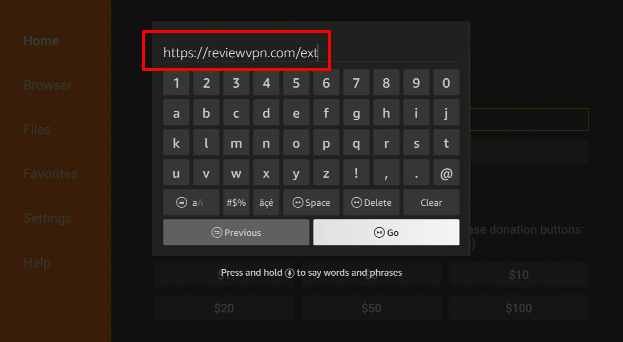
3. When the APK Extractor file download is complete – click Install.
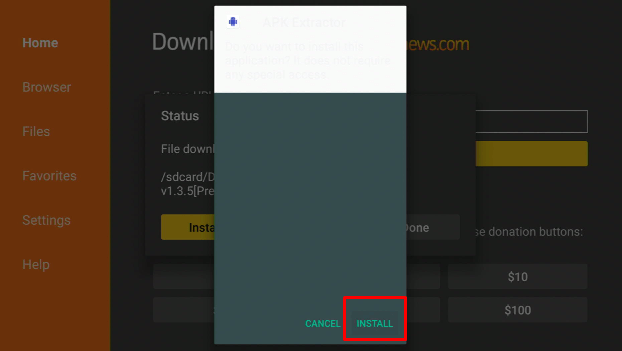
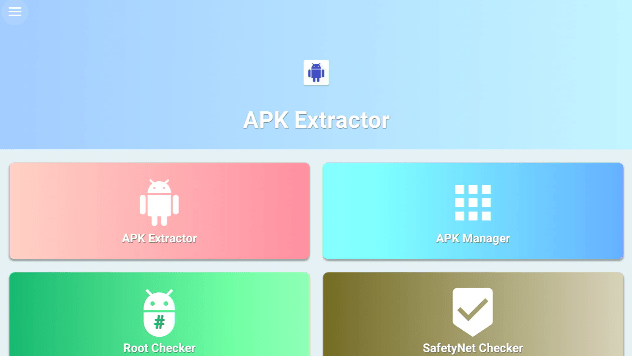
4. Now, you have successfully installed the APK Extractor app on FireStick.
Install Surfshark on Firestick
Moving the Newly Installed app to the Front
- Go back to FireStick’s Home Screen (you may click the Home Button on the Fire Stick remote)
- Go to Your Apps & Games/Channels
- Scroll once to the left
- Click See All
- All the newly installed apps are located at the bottom – you can move the APK Extractor app by clicking the Options button (at the right side of the Home Button)
What Is an APK Extractor?
The APK Extractor is an app that allows you to create or make a copy of an APK file of an app that you can share easily. This application provides one-click extraction. Simply find the installed app then click on it to extract its APK file. It is compatible with numerous Android-based devices and it works well to extract nearly all the files.
The APK Extractor app instantaneously extracts the app’s APK file. The app does it by copying/duplicating the APK file from the app’s system, app folder, or data. It enables you to make a shareable copy of the APK that you can keep as the installed app’s backup file.
Features
- It functions fast and it is very easy to use
- The app can extract system as well as install apps
- It can extract numerous applications at the same time
- The app doesn’t need ROOT access
- It lets you save app icons
- The extracted apk files are kept in primary storage
- Allows you to share extracted applications directly from the APK Extractor app
- The extracted APK files contain the name of the app
- Extracts apk file in one click
- It has Dark Mode to provide a better User Interface
- The app lets you get detailed information about every application
- It functions flawlessly on every Android device
- The APK Extractor app has about 15 themes
It’s Better to Use the APK Extractor Premium Version
The APK Extractor app’s free version comes with pop-up ads. However, if you can ignore these pop-up ads then you’ll be all good. But, it’s better to use the premium version of the app. When you launch the app, the app will provide a list of all the apps installed on your Android device, which includes the system.
Furthermore, the APK Extractor app lets you switch between systems & installed apps via the side menu. Nonetheless, in extracting an APK file, just look for it from the main homepage of the app. Select the desired application and select the download icon. Then, the APK Extractor will extract the APK file.
ReviewVPN cannot attest to the legality, security and privacy of the applications discussed on this site. It is highly recommended that you use a VPN service while streaming or using Kodi. Currently, your IP 216.73.216.193 is visible to everyone and your Browser is being tracked by Advertisers & ISP Provider. Here are the main reasons why you must use a VPN: A VPN works be replacing your ISP-assigned IP address and creating an encrypted tunnel. We recommend the no log service offered by IPVanish. It works well on a Firestick and offers the fastest possible speeds.
YOUR INTERNET ACTIVITY IS BEING WATCHED
Always Use a VPN on Firestick

The Amazon Firestick is a great way to stream movies, TV shows, live news, documentaries, and more. However, depending on where a person lives, some entertainment content might be unavailable in his/her country. Also, the release dates of Amazon’s original films may differ. Thus, to make sure you can watch the best Amazon Prime videos, you need to have a Virtual Private Network or VPN on your Firestick to hide your location to access restricted content.
A Virtual Private Network routes the internet traffic via its secure servers. As the traffic is encrypted through secure servers, it makes your activities online secure & private. Furthermore, with a VPN like Surfshark, you can choose one of its more than 5,300 servers in 60+ worldwide locations across the globe. If you select a foreign server, then your device will have a foreign IP address.
Surfshark Features:
- Great download speed
- Robust encryption
- Unlimited simultaneous devices
- Strict NO log policy
- 30-day money-back guarantee
- Unblocks Disney+, Hulu, Netflix, and many more
- Great customer service
- Compatible with Android, Windows, Linux, iOS, and other routers
Click here to get the lowest price on Surfshark through our exclusive limited-time offer.
How to Install Surfshark VPN on Firestick
If your Firestick still has the older interface, read this article to learn how to update it: Update Firestick Interface.
Follow our screenshots below to install the SurfShark VPN app on your Fire TV stick.
1. Go to the Home screen of your Firestick.

2. Navigate towards the Find tab. Press the Search button from the resulting dropdown.

3. Type in the keyword of SurfShark and select from the suggestions that will appear.

4. Click the official SurfShark icon from your search results.

5. Press the Download (You own it) button.

6. The SurfShark VPN installer will download on your device.

7. SurfShark VPN’s app will automatically install itself on your Fire TV stick.

8. Press the Open button after completing SurfShark VPN’s installation process.

9. Please wait for the SurfShark VPN to load its user interface.

10. You can now log in with your SurfShark VPN account credentials.

Learn more about Surfshark and Grab the Best Surfshark Deal Now!
Install Surfshark on Firestick



For more VPN discounts, go to ReviewVPN Deals and purchase the best VPN for you.
Click here to get the lowest price on Surfshark through our exclusive limited-time offer.
FAQs
Is the APK Extractor app free?
Yes, the APK Extractor app is free to download, install, & use.
Is the APK Extractor app legal?
Yes, the APK Extractor App is legal.
Is the APK Extractor app safe?
Yes, the APK Extractor app is very safe to use and has no viruses or malware.
Compatibility
With the APK Extractor app, you can easily extract an APK file from the installed apps on your device. Moreover, the app is compatible with numerous Android-powered devices, such as Amazon Firestick, mobile phones, tablets, and lots more.
Wrapping Up
In this article, we have provided information on how to install the APK Extractor app on Firestick. The information above should really help enhance your Firestick experience.
However, always remember to use A VPN service every time you use your Firestick. If you have any thoughts about the app, don’t hesitate to let us know in the comments section.






