

Overview
AirPlayMirror Receiver is a screen mirroring app that lets Android devices mirror the screen of an Apple Airplay device. The app can playback photos, video, or audio on iOS devices. Also, it can play YouTube videos from iOS devices on the local network. Additionally, the AirPlayMirror Receiver app is highly useful for sharing the screen and content of iOS devices with family, colleagues, friends, business partners, or customers.
However, AirPlay Mirroring Receiver is one of the most state-of-the-art multiple wireless transmission protocol receivers for Android & DLNA (Digital Living Network Alliance) Receivers. Thus, the app lets you use the local network connection, Wi-Fi or Ethernet, with your family & friends to experience the pleasure of sharing screens from Android devices to iOS devices.

AirPlay Mirror Receiver App Installation on FireStick
- Turn on the FireStick device, go to the top menu bar and choose > Settings.
- Click My Fire TV > Developer Options.
- Enable Apps from Unknown Sources.
- Go back to FireStick’s home screen and go to the menu bar.
- Go to the Search option.
- Search & install the Downloader app on FireStick.
- After installing the Downloader app, launch it.
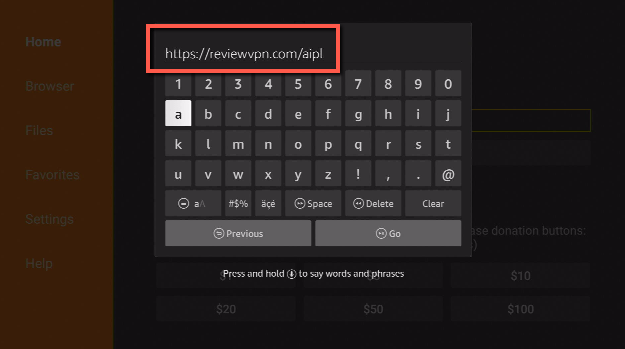
- Enter the AirPlay Mirror Receiver download URL/APK – https://reviewvpn.com/aipl
- Click GO.
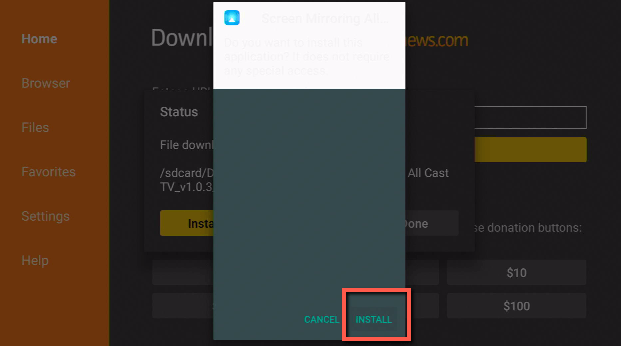
- When the Cineflix file download is complete – click Install.
- Click Done.
- Click Delete > click Delete again.
- Now, you have successfully installed the AirPlay Mirror Receiver app on FireStick.

Step by Step Instructions with Screenshots
1. Install the Downloader app and jailbreak your firestick by enabling unknown sources. To learn more about the procedure, you may read How to Install the Downloader App and Enable Unknown Sources.
2. Open Downloader App. Type https://reviewvpn.com/aipl and click Go.
3. Click on INSTALL.
4. Then, click on OPEN.
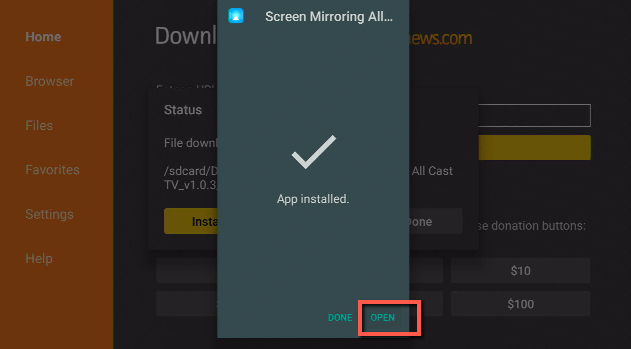
5. Now, you have successfully installed the AirPlay Mirror Receiver app on FireStick.
Install Surfshark on Firestick
Moving the newly Installed App to the Front
- Go back to FireStick’s Home Screen (you may click the Home Button on the Fire Stick remote)
- Go to Your Apps & Games/Channels
- Scroll once to the left
- Click See All
- All the newly installed apps are located at the bottom. But, you can move the AirPlay Mirror Receiver by clicking the Options button (at the right side of the Home Button)
What Is an AirPlayMirror Receiver App?
AirPlayMirror is a Receiver application for AirPlay Mirroring & Casting from iOS devices. An iOS device can be an iPad, iPodTouch, iPhone, iMac, MacMini, or MacBook. The AirPlayMirror Receiver app is available for various devices such as Android-based phones or tablets, Amazon FireTV devices, Microsoft Windows computers/PCs, & more.
Using AirPlay Mirror Receiver App
- Open the AirPlayMirror App on an Android device. The App will start to recognize the Android device as an AirPlay Receiver. The Receiver’s default name is the name of the Android device.
- On an iOS device, launch AirPlay and choose the name of the AirPlayMirror Receiver from the list. Launch Mirroring utilizing the slider. The iOS device must have the same network connection as the Android device.
- On the AirPlay Mirror Receiver app, the iOS devices linked to the app are displayed in a semi-transparent control screen that slides out when you touch the > symbol.
- You can disconnect the iOS device and mute or unmute the mirroring or casting by touching the app’s mirroring window for two seconds.
- By touching the Settings icon, you can navigate to Settings, where you can change the name of the AirPlayMirror Receiver or enable/disable the authentication password. Also, you can toggle AirPlayMirror Receiver discovery, set the bandwidth of YouTube, change the quality of mirroring, or reset to default settings.
YOUR INTERNET ACTIVITY IS BEING WATCHED
ReviewVPN cannot attest to the legality, security and privacy of the applications discussed on this site. It is highly recommended that you use a VPN service while streaming or using Kodi.
Currently, your IP 216.73.217.61 is visible to everyone and your Browser is being tracked by Advertisers & ISP Provider.
Here are the main reasons why you must use a VPN:
- Your activities are hidden from your ISP, the government, and from the apps you are using.
- You can access additional movies and TV streams.
- ISP attempts to throttle are thrwarted thus reducing buffering issues.
- Geographically restricted content like Netflix and Hulu can be unblocked.
A VPN works be replacing your ISP-assigned IP address and creating an encrypted tunnel. We recommend the no log service offered by IPVanish. It works well on a Firestick and offers the fastest possible speeds.
App Features:
- Screen mirroring of iOS devices
- Mirror or cast from up to 4 iOS devices at the same time
- Playback the media content of the Apple device
- Slideshow of images & videos
- Restrict unauthorized users by using the passcode feature
- YouTube free content playback from iOS device to the AirPlay Mirror receiver app
- You can resize and move the mirroring window in the application view
- You can share a game screen while you play a game on an iOS device
Always Use The Best VPN – Surfshark Service
Using Virtual Private Network or VPN service can be very useful. Thanks to a VPN service, web users can access platforms, services, or websites that are unavailable in their country or bypass restrictions that numerous platforms sometimes impose. However, when you utilize the internet, an encrypted Virtual Private Network service provider is highly recommended to conceal your activities, location, as well as identity. Tons of internet users choose Surfshark for privacy, price, and speed.
Offering superfast servers and astounding live chat support, the Surfshark service is also an easy-to-use app. Ensure to turn the Surfshark on when you’re streaming on the internet.
Surfshark Features:
- Unlimited simultaneous devices
- Strict NO log policy
- Unblocks Disney+, Hulu, Netflix, and many more
- Great customer service
- 30-day money-back guarantee
- Great download speed
- Robust encryption
- Compatible with Android, Windows, Linux, iOS, as well as other routers
Click here to get the lowest price on Surfshark through our exclusive limited-time offer.
How to Install Surfshark VPN on Firestick
If your Firestick still has the older interface, read this article to learn how to update it: Update Firestick Interface.
Follow our screenshots below to install the SurfShark VPN app on your Fire TV stick.
1. Go to the Home screen of your Firestick.

2. Navigate towards the Find tab. Press the Search button from the resulting dropdown.

3. Type in the keyword of SurfShark and select from the suggestions that will appear.

4. Click the official SurfShark icon from your search results.

5. Press the Download (You own it) button.

6. The SurfShark VPN installer will download on your device.

7. SurfShark VPN’s app will automatically install itself on your Fire TV stick.

8. Press the Open button after completing SurfShark VPN’s installation process.

9. Please wait for the SurfShark VPN to load its user interface.

10. You can now log in with your SurfShark VPN account credentials.

Learn more about Surfshark and Grab the Best Surfshark Deal Now!
Install Surfshark on Firestick



For more VPN discounts, go to ReviewVPN Deals and purchase the best VPN for you.
Click here to get the lowest price on Surfshark through our exclusive limited-time offer.
FAQs
Is the AirPlay Mirror Receiver app Free?
Yes, the AirPlay Mirror Receiver app is free to download, install, & use
Is the AirPlay Mirror Receiver app legal?
Yes, the AirPlay Mirror Receiver app is 100% legal.
Is the AirPlay Mirror Receiverapp safe?
Yes, the AirPlay Mirror Receiver app is very safe to use and has no viruses or malware.
What devices can the AirPlay Mirror Receiver app be installed on?
Aside from iOS devices, the AirPlay Mirror Receiver app is compatible and functions the best with Android-powered devices, such as Amazon Firestick, smartphones, as well as tablets.
Alternatives
- Airbeam TV Screen Mirroring Receiver – The AirBeam TV app allows you to cast photos and play videos on the smart TV. The Screen Mirroring Receiver app is an easy way to cast iOS device screens to Amazon’s FireStick devices. However, this procedure does not require any cables.
- ApowerMirror – Screen Mirroring App – It is a great screen mirroring application for Android & iOS devices. With this Screen Mirroring app, you can screen mirror Android devices & iOS devices to computers through USB. Nevertheless, you may use Wi-Fi and cast the smartphone screen to the television
Conclusion
In this article, we have provided information on how to install the AirPlay Mirror Receiver app on your Firestick. The information above should really help you screen mirror your device.
Nonetheless, always remember to use A VPN every time you use the internet. If you have any thoughts about the AirPlay Mirror Receiver app, don’t hesitate to let us know in the comments section.






