

Overview
Quick Navigation
This article will show you how to install Kodi for Mac.

Thankfully, Apple devices now provide users with unrestricted access to a variety of apps, including Kodi. This allows users to get more out of their Apple devices and as a result of this, it completes the user experience.
As we all know, Kodi is a popular open-source media center that allows you to stream content from your device. It is the most well-known app for streaming movies, TV series, and videos from all genres. And, as individuals become more tech-savvy, more people are utilizing this application to get the most out of their media streaming experience.
Kodi has been around for a while and has maintained its popularity due to its amazing features like live TV, free movies, and so much more. So, let’s get started with the installation so you can start using Kodi for your Mac.

How to Install Kodi for Mac
We’ll show you how to install Kodi through their website since it’s not available on the official Apple Appstore.
1. Go to “https://kodi.tv/” in the Safari App (or any other browser you prefer).
2. Then, in the upper right corner of your screen, select the “Download” icon.

3. Then, scroll down and select “macOS” from the platforms available.

4. Click on the “Installer (64BIT)” button.
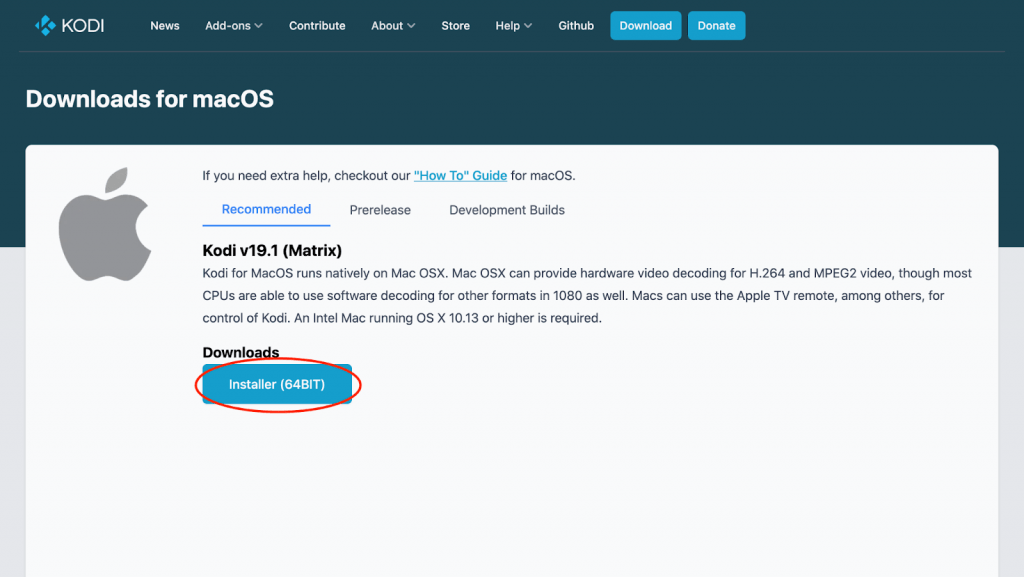
5. Then wait for the file to download.
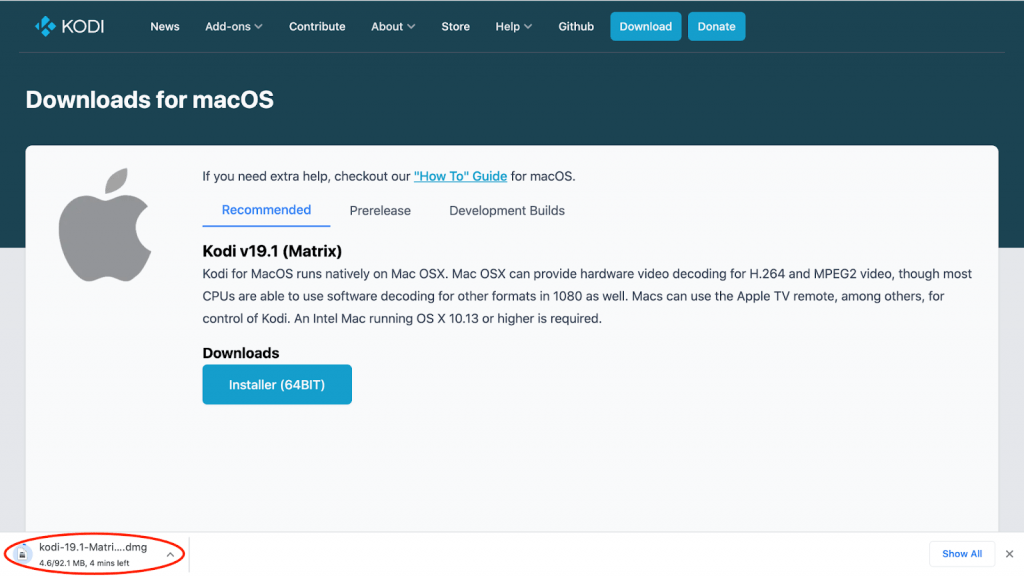
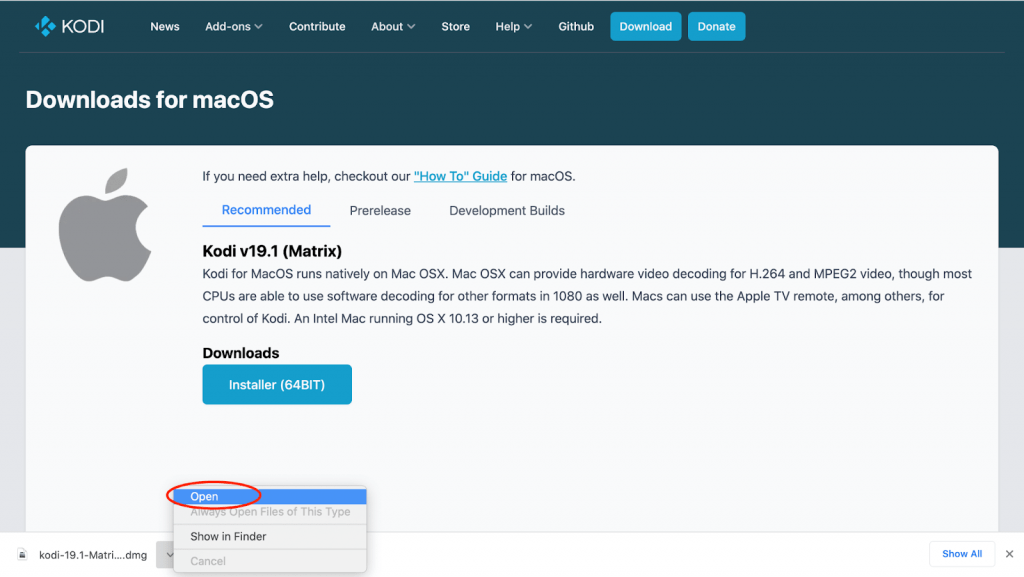
6. Click “Open”.
7. Drag the Kodi icon to the Applications folder after a pop-up appears.
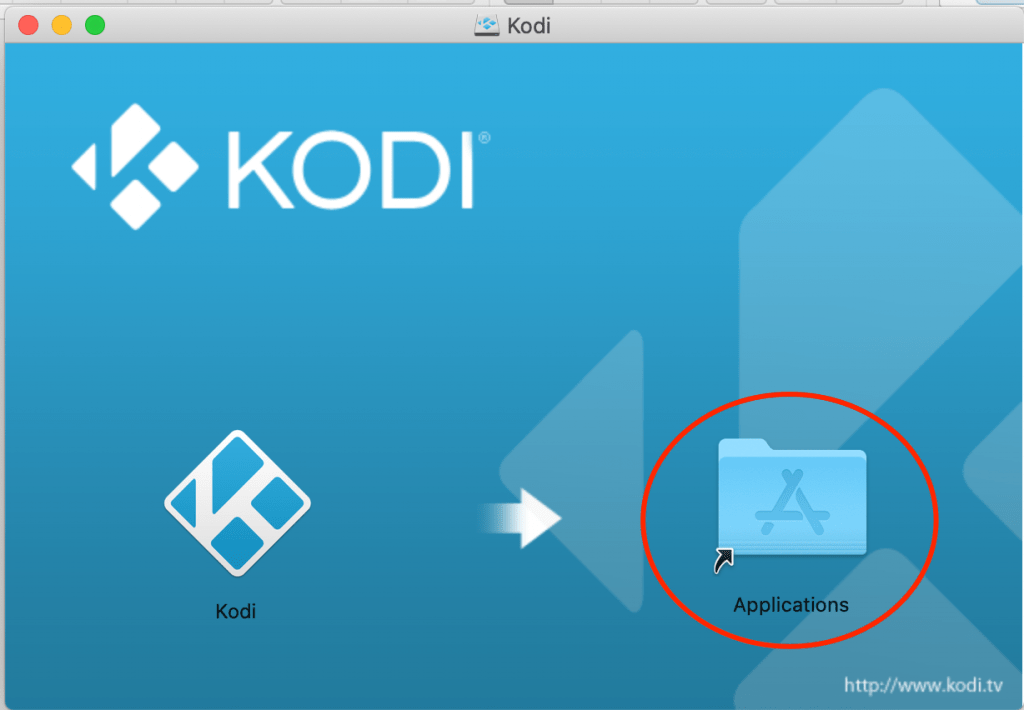
8. Next, navigate to your Applications folder and look for the Kodi software.
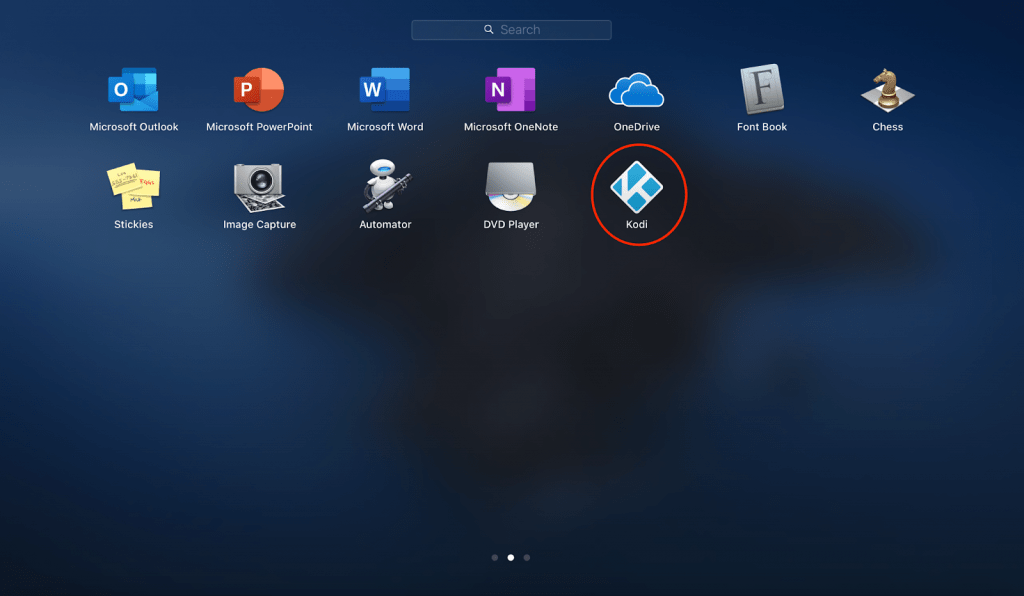
9. Select “Open.”
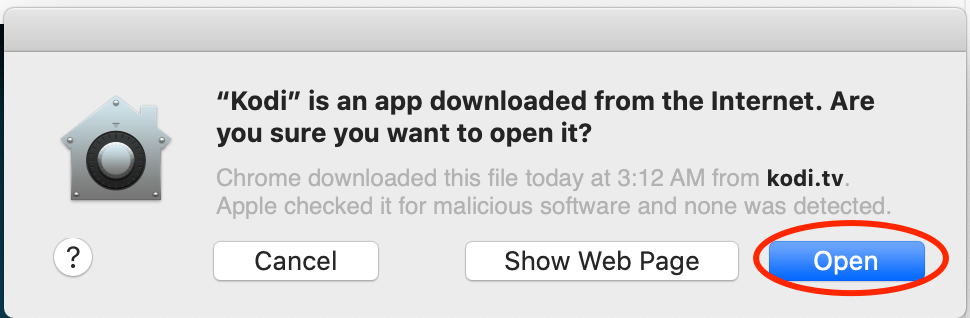
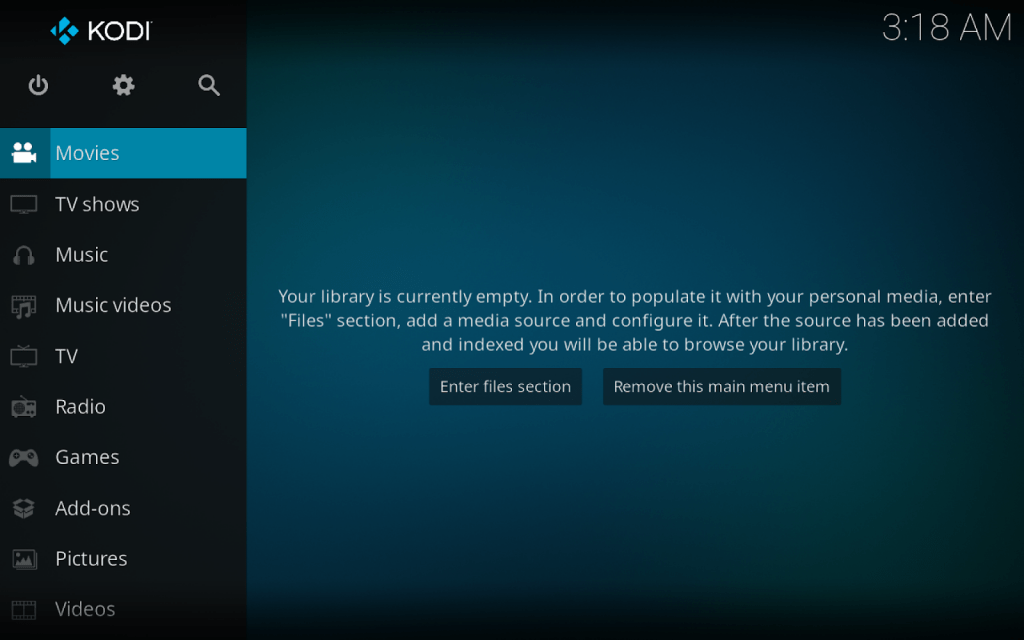
10. That’s in, Kodi for Mac has now been installed on your device.
ReviewVPN cannot attest to the legality, security and privacy of the applications discussed on this site. It is highly recommended that you use a VPN service while streaming or using Kodi. Currently, your IP 216.73.216.193 is visible to everyone and your Browser is being tracked by Advertisers & ISP Provider. Here are the main reasons why you must use a VPN: A VPN works be replacing your ISP-assigned IP address and creating an encrypted tunnel. We recommend the no log service offered by IPVanish. It works well on a Firestick and offers the fastest possible speeds.
YOUR INTERNET ACTIVITY IS BEING WATCHED
Legal Disclaimer: ReviewVPN.com does not encourage or endorse any illegal activity involved in the usage of services and applications referenced on this site. We do not verify the licensing agreements of services. The end-user is wholly responsible for ensuring that any media accessed through these services does not violate copyright and/or licensing laws. ReviewVPN does not promote, link to, or receive compensation from any Apps and IPTV services.
Install Surfshark on Firestick

Features
- Allows you to watch videos from a variety of categories, including movies, television shows, music, music videos, and more.
- Installs Kodi add-ons from a repository or a zip file.
- You can choose between a windowed or full-screen display mode.
- It comes with a file manager that will assist you in organizing your files.
- You can change the appearance of the interface by changing the skin, language, screen saver, and master lock.
- It provides you with information about your storage, network, video, and hardware.
- You can customize videos, music, DVDs, pictures, language, and accessibility in its player options.
- It has a search option that allows you to quickly locate files.
- On the pictures, you can use pan and zoom effects.
- It allows you to automatically play the next video and music.
- Allows you to skip steps and delays.
- You can select a preferred audio stream for visually and hearing-impaired users.
- It gives you the option of selecting your desired audio and subtitle language.
- Allows you to save and rewind supported games automatically.
- Switch TV and radio channels to full screen
- It has an event log to assist you in keeping track of your activities.
- You can put the display to sleep when idle.
- It shows the current time on the upper right side of the screen.
Sections
- Movies
- TV Shows
- Music
- Music Videos
- TV
- Radio
- Games
- Add-ons
- Pictures
- Videos
- Favorites
- Weather
Pros and Cons
Pros
- Easy to install and use
- It allows you to watch free content on your Mac
- You can install add-ons to expand your streaming possibilities
- It lets you tweak a lot of the app’s features
- Available on other platforms for TV and mobile
Cons
- The app can be a little laggy at times.
- Mac Yosemite and older OS versions are not supported by Kodi for Mac
- Because there are so many ins and outs while using the app, it might not be very user-friendly.
Best VPN for Mac and Kodi
Fortunately, free content can now be streamed on your Mac using apps like Kodi. However, because Kodi allows you to watch a wide range of content on your device, you should never put your privacy at risk by exposing it to third-party servers.
And one way to do so is to use a Virtual Private Network (VPN) to protect your data and network. A VPN, such as Surfshark, will provide you with an anonymous IP address, allowing you to hide your real IP address and avoid data leaks.
It will encrypt your connection using military-grade AES-256 bit encryption, which is the same as that utilized by the US government. As a result, all of your incoming and outgoing activities will be hidden from anyone on the internet especially from prying eyes like hackers and phishers.
- More than 3,200 servers will provide you with an anonymous internet connection for everyday use.
- You can bypass censorship and geo-restrictions by connecting to 65+ countries, allowing you to view whatever content you want from anywhere in the globe.
- Enjoy an unlimited number of simultaneous connections to ensure that IPVanish’s encryption protects all of your devices.
- You’ll get unlimited bandwidth to stream and download any content you want from the internet.
- By hiding your internet activity from your ISP, you can avoid ISP throttling, which causes lags, buffering, and internet slowdown.
- It has a kill switch that will automatically disconnect you from the internet if the VPN service is accidentally interrupted.
- Customer service is available 24/7 via live chat and email, so you may contact them with any questions or issues at any time.
- Even if you’re using public wifi or a hotspot, it helps you keep your connection secure.
How To Install Surfshark on Mac
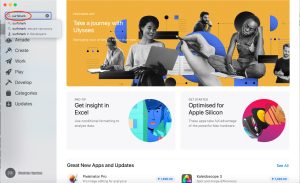
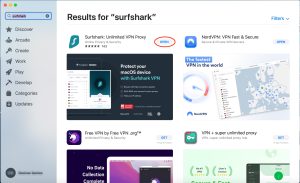
1. Go to the Apple App Store
2. Type “Surfshark” on the search bar
3. Click “Get“
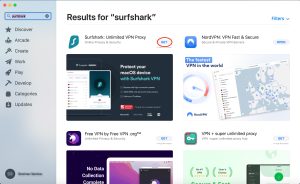
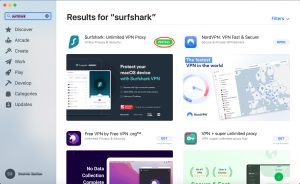
4. Then click “Install“
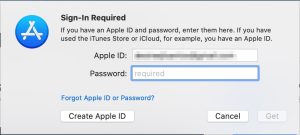
5. Type in your Apple ID and password
6. Then click “Open“
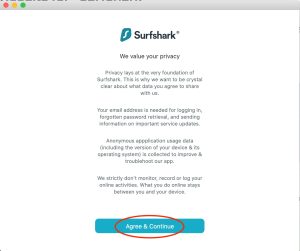
7. Click “Agree & Continue“
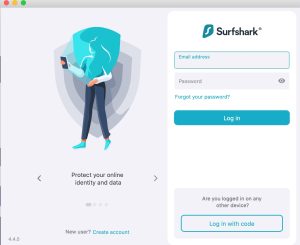
8. Login using your email address and password, or with a code.
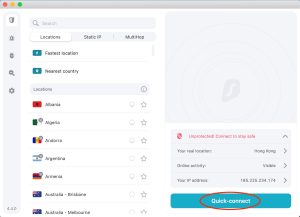
9. Then simply click “Quick connect“
Learn more about Surfshark. Get SURFSHARK now.
Alternatives
- Stremio
- Jellyfin
- Video Hub App
FAQs
What is Kodi for Mac?
Kodi is an open-source media center that allows you to watch movies, TV shows, live TV, sports, and other content on your Mac device. With Kodi for Mac, you can now stream any content that you want from anywhere in the world on your device.
Is Kodi available for Mac?
Yes, Kodi is available for Mac. This article also includes a step-by-step guide on how to download Kodi for your Mac device.
How do I download Kodi on my Mac Laptop?
Kodi for Mac laptops can be downloaded via the Kodi website at https://kodi.tv/. And the detailed installation instructions for a Mac laptop can be found at the top of this article.
Is Kodi for Mac safe to use?
Yes, installing and using Kodi for Mac is completely safe. However, when streaming content online, we always advise our readers to use a VPN like Surfshark.
Is Kodi for Mac legal to use?
Yes, installing and using Kodi for Mac is legal. On the other hand, Kodi cannot ensure that all of the content available on their app is legal. If you’re unsure whether the content is legal, it’s still a smart option to utilize Surfshark.
Is Kodi for Mac free?
Yes, this is one of the best things about Kodi. It is free to download, use, and stream free content on your Mac.
On what other devices is Kodi available for download?
You can also download Kodi for Windows, Linux, Android, Raspberry Pi, iOS, and Apple TV OS.
Conclusion
Kodi for Mac is another great way to stream on your MacOS at any time and from any location. Aside from that, you may now use Kodi on your laptop in addition to your TV and mobile device to stream video. While Apple is known for having a restricted number of apps available for download, it’s nice to see Kodi now available for Mac users.
Finally, we’d like to thank you for taking the time to read our post on how to install Kodi for Mac. We hope that we were able to assist you with the installation so that you can begin browsing and streaming video on your Mac device using Kodi. Have a great time streaming!
You may also read:
How to Choose the Best Link For Streaming on Kodi and Other APKs
How to Enable Auto-Play in Kodi to Stream Continuously
How to Install Kodi on Google Chromecast with Google TV






