
Overview
Quick Navigation
In this article, we will show you how to remove malware.
Today, many of us enjoy the benefits of the modern-day internet. However, cyber threats are lurking on some of its darkest corners.

We may even stumble upon these threats while we download files for education or entertainment. One of the most difficult cyber threats to remove is malware.
Are you having a hard time removing malware infecting your device? If yes, we can help you with your problem. Here at ReviewVPN, we conduct reviews about the latest software for streaming. Apart from that, we also cover some important problems you might encounter along the way. In this case, we will teach you how to effectively deal with a malware infection.
Let us first understand what malware is all about. Afterward, we will recommend to you the best app for dealing with malware threats.

What is Malware?
Malware is the general term for malicious software. It covers all types of harmful files, programs, and software that intend to damage your device. While doing so, the perpetrators can steal your credentials or demand payments. It is what makes malware a dangerous threat to battle. You may not also know that some form of malware is taking form inside your device.
The term malware also includes any type of software that is made to cause damage to any computer, server, client, or computer network. Once the malware infects a computer or network, cyber attackers who are using it can steal sensitive information, delete data, and take over the core functions of your computer. There are many different forms of malware, let us now discuss each of them:
Viruses
Viruses are pieces of code inside the sequences of a program. In its early days, cyber attackers distributed viruses with the aid of physical devices (floppy disks, CDs, DVDs). Today, since a majority of the world’s population has an internet connection, hackers are transmitting viruses through online methods. You can get a virus after downloading a program, email, or setup file.
Worms
Computer worms are self-propagating software that can infect your device. As soon as it detects a network computer without firewalls, worms will start horizontally replicating themselves. Without the presence of countermeasures, worms are difficult to stop when they begin spreading inside your computer or network.
Spyware
While browsing the internet, you can contract some spyware programs. This type of malware is different from viruses and worms which are typically email-borne. Spyware is more malicious and does more potential damage.
When spyware software gets inside your computer, it will send information to an outward third party. It communicates with them without your knowledge or permission. The information it sends can be your online history, email address, home address, fax number, and might even contain your financial records.
Adware
Adware is a less dangerous type of malware. However, it can still cause pop-up ads to appear on your PC screen. Its primary purpose is to show ads based on your search history. An adware will even go through the products you check online for precise records. One of the problems that users encounter when having an adware infection is its pop-up windows which are hard to close.
Trojans
A Trojan is a piece of software that infects your computer by relying on concealment. Based upon the Greek mythology of the Trojan Horse, a computer trojan invites you to install a piece of file with trojan software. After it infects your device, it installs a back route into your system. It will be a pathway where hackers can take control of your computer.
Bots
Bots are pieces of software that allow your PC to be taken over. Cyber attackers will use your computer with thousands of other devices with infections. Their purpose is to execute Denial of Service attacks against other websites. They will also send out many spam email messages. If anyone traces these illegal cyberattacks back to their source, they will discover that your device was an unwilling victim.
YOUR INTERNET ACTIVITY IS BEING WATCHED
ReviewVPN cannot attest to the legality, security and privacy of the applications discussed on this site. It is highly recommended that you use a VPN service while streaming or using Kodi.
Currently, your IP 216.73.217.24 is visible to everyone and your Browser is being tracked by Advertisers & ISP Provider.
Here are the main reasons why you must use a VPN:
- Your activities are hidden from your ISP, the government, and from the apps you are using.
- You can access additional movies and TV streams.
- ISP attempts to throttle are thrwarted thus reducing buffering issues.
- Geographically restricted content like Netflix and Hulu can be unblocked.
A VPN works be replacing your ISP-assigned IP address and creating an encrypted tunnel. We recommend the no log service offered by IPVanish. It works well on a Firestick and offers the fastest possible speeds.
How Can I Stop Malware Infections?
Luckily for many of us, there is software whose purpose is to stop malware infections on its tracks. There are many apps available on the internet. As an example, we will recommend to you the Malwarebytes app. We will now show you how to install the Malwarebytes app on your devices.
How to Install Malwarebytes on Android
1. Go to your Android Phone’s home screen and open your Google Play Store.

2. Click on the search box.
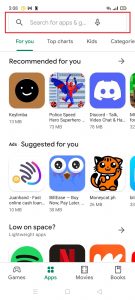
3. Select the apps section on the bottom.

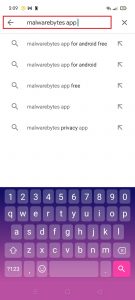
4. Type in Malwarebytes app
5. Click on the Install button.
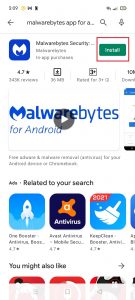
6. Wait for the verification of the software.
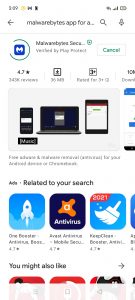
7. Install the app on your Android phone.
8. Select Open after it installs the Malwarebytes app.
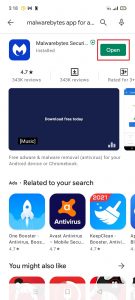
9. The app will check if your phone is safe.
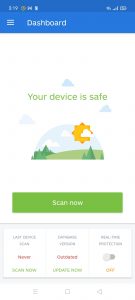
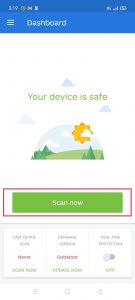
10. You can click on the Scan Now button to perform a device scan.
Install Surfshark on Firestick
How to Install Malwarebytes on Windows
1. Open any web browser you prefer.
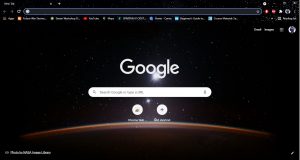
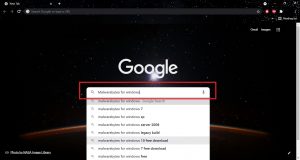
2. Type in Malwarebytes for Windows.
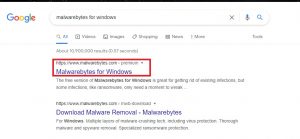
3. Select the appropriate search result.
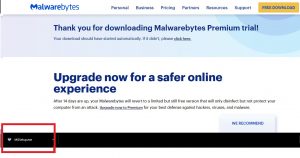
4. Click on the Free Download option.

5. Wait for the Malwarebytes setup file to download on your browser.
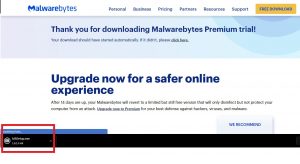
6. Click on the Malwarebytes setup file after download.
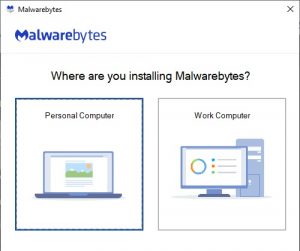
7. Select whether you are installing it on a Personal or Work computer.
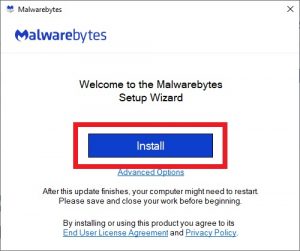
8. Press the install button.
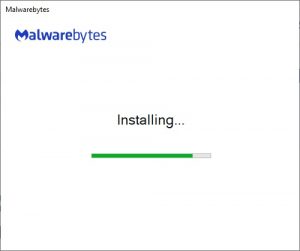
9. Wait for Malwarebytes to install itself on your computer.
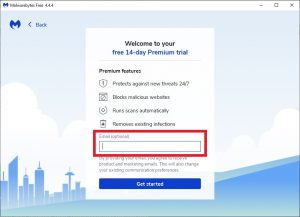
10. Get started with the Malwarebytes app.

11. You can opt to enter your email if you want to receive notifications.
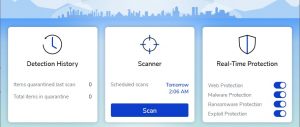
12. Upon opening the Malwarebytes app, you can check the status of your device or perform a scan.
Install Surfshark on Firestick
How to Install Malwarebytes on Fire TV stick
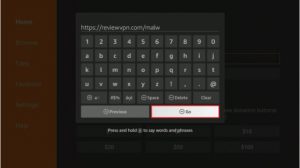
1. Type in: reviewvpn.com/malw
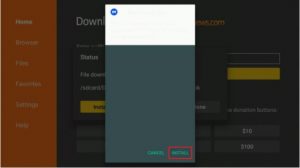
2. Click on the install button.
3. Open the Malwarebytes app on your Fire TV stick.
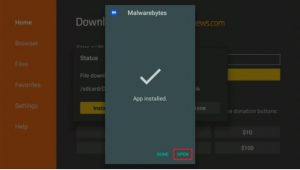
4. Press on the Get Started button.

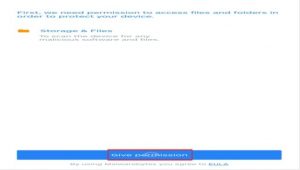
5. Select the Give Permission button.
6. Allow the Malwarebytes app to access your directory.
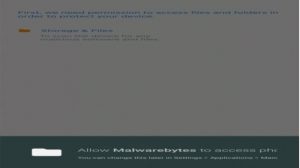
7. You can now use the Malwarebytes app to perform scans.

Protect Your Device with a VPN
The internet has given us many options to connect with other people and gather more information. However, it is a place with lurking cyber threats we cannot foresee. Once malicious software infects us, it sometimes is a hard battle to win.
To add another layer of protection, we recommend installing Surfshark on on your device. Whether you are using a computer, android, or Fire TV stick, Surfshark can help your device prevent cyberattacks. It also works well with media file downloads while enhancing your streaming speeds.
Surfshark offers you several advantages:
- Additional layers of protection.
- Provides additional walls of security.
- Keeps your device safe from malware.
- Enhances your streaming experience without buffering and stuttering.
Install Surfshark on Firestick
How to Install Surfshark VPN on Firestick
If your Firestick still has the older interface, read this article to learn how to update it: Update Firestick Interface.
Follow our screenshots below to install the SurfShark VPN app on your Fire TV stick.
1. Go to the Home screen of your Firestick.

2. Navigate towards the Find tab. Press the Search button from the resulting dropdown.

3. Type in the keyword of SurfShark and select from the suggestions that will appear.

4. Click the official SurfShark icon from your search results.

5. Press the Download (You own it) button.

6. The SurfShark VPN installer will download on your device.

7. SurfShark VPN’s app will automatically install itself on your Fire TV stick.

8. Press the Open button after completing SurfShark VPN’s installation process.

9. Please wait for the SurfShark VPN to load its user interface.

10. You can now log in with your SurfShark VPN account credentials.

Learn more about Surfshark and Grab the Best Surfshark Deal Now!
Install Surfshark on Firestick



For more VPN discounts, go to ReviewVPN Deals and purchase the best VPN for you.
Click here to get the lowest price on Surfshark through our exclusive limited-time offer.
Alternative Apps That Can Stop Malware
We’ve made some reviews of apps you can install on your device. Here are some apps that can prevent the onset of malware infection and some of its forms:
FAQs
Do anti-malware programs require payment?
Yes, if you want to get maximum security features, you will sometimes have to subscribe to their premium accounts.
Can I install anti-malware programs on any device?
Yes, there are anti-malware apps specifically made for the systems of modern devices.
Conclusion
The term malware is the shortcut for malicious software. It represents all harmful programs such as worms, viruses, trojans, and bots. When malware infects your device, it can be a challenging task to remove it. We recommend installing an effective anti-malware program that prevents malicious programs before they infect your device.
We hope this article extends your knowledge about malware and helps you protect your device and network.






