
Overview
Quick Navigation
Tons of Firestick users are wondering why their streaming device is not acquiring updates timely. Why are they being denied the pleasure of streaming the new episodes of their favorite TV series? However, it could be because of the time that’s set on the Firestick device. Fortunately, this article will tell you How To Change Time On Amazon Firestick.

The timing on the Firestick device could be inaccurate for some reason. Thus, you must know how to change the time on your streaming device. However, if the time settings don’t coordinate with your zone then it might cause the Firestick to not acquire timely updates of applications and it might even hinder the schedule’s synchronization.
Firestick users’ schedule doesn’t start or end simultaneously with their schedule. The problem may be the time zone setting of the device. Nonetheless, Firestick users can check their device’s settings. In this article, we will walk you through the process to change the Firestick device’s time zone.

How to Change Time on Firestick
Below is a step-by-step guide on how to change time on Firestick:
1. Press the Home button on the remote to head to the homepage of the Firestick.
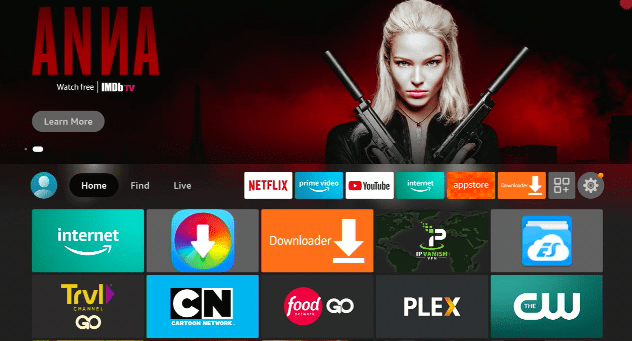
2. Select on Settings.
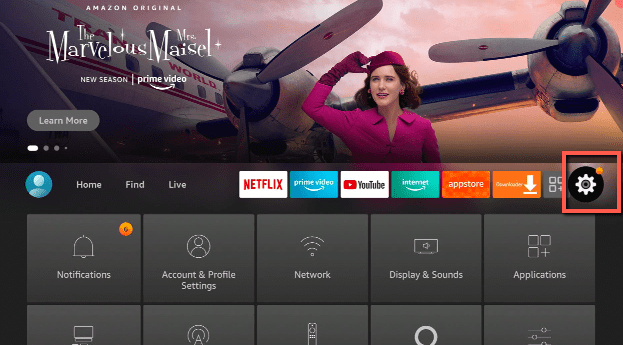
3. Choose Preference.
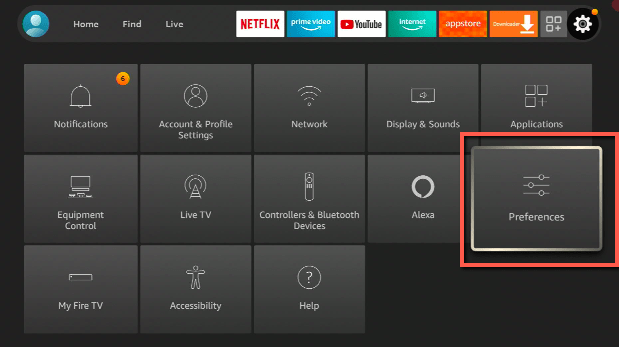
4. Press the arrow down to head to Time Zone – click on it.
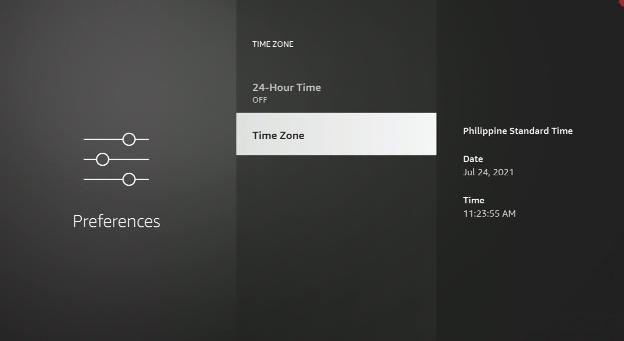
5. Choose Time Zone.
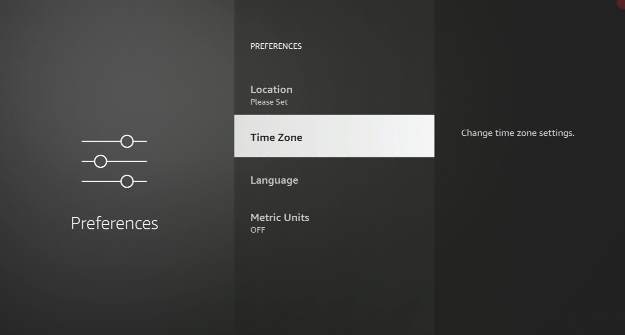
6. From there, choose your Region.
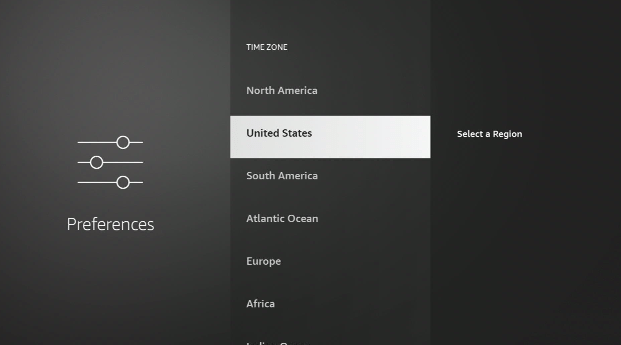
7. You will set the accurate Time Zone automatically.
Nonetheless, the methods above can easily change time on Fire TV stick, Fire Cube, & Fire TV.
YOUR INTERNET ACTIVITY IS BEING WATCHED
ReviewVPN cannot attest to the legality, security and privacy of the applications discussed on this site. It is highly recommended that you use a VPN service while streaming or using Kodi.
Currently, your IP 216.73.216.193 is visible to everyone and your Browser is being tracked by Advertisers & ISP Provider.
Here are the main reasons why you must use a VPN:
- Your activities are hidden from your ISP, the government, and from the apps you are using.
- You can access additional movies and TV streams.
- ISP attempts to throttle are thrwarted thus reducing buffering issues.
- Geographically restricted content like Netflix and Hulu can be unblocked.
A VPN works be replacing your ISP-assigned IP address and creating an encrypted tunnel. We recommend the no log service offered by IPVanish. It works well on a Firestick and offers the fastest possible speeds.
Not Updating The Time
There are many individuals who update the time on Firestick via settings, however, it does not work. However, this is usually because of software issues. With this being said, below are some troubleshooting methods that should really help you.
Reset
Upon restarting the Firestick, it will repair minor software issues. Wherein, the reset option will deal with the Wi-Fi signals. Additionally, resetting the streaming device optimizes the first routine that guarantees exact location settings, thus the accurate time zone & time.
Internet Connection
You might think that time is not linked with an internet connection. Nonetheless, there are possibilities that the internet connection is slow. Thus, restart your Wi-Fi modem so the internet signals will be optimized. In a similar way, the distance between Firestick and modem will reduce to make the internet signals stronger.
Insufficient Power
With regard to the Amazon Firestick, the timing issue can transpire because of the low power problem. However, the insufficient power issue happens when you’re utilizing the USB port to link with Amazon Firestick. This is for the reason that computers contain small batteries and do not need adequate power. Nonetheless, it will help if you optimize Firestick’s direct connection to make sure there’s no insufficient power issue.
Factory Reset
If all else fails regarding the date & time problem, it is ideal to perform a factory reset. This method will delete all the settings as well as customizations. It is likely to repair the time issue. However, if you want to factory reset your Firestick, follow this guide: How to Reset Firestick – Fast and Secure Guide 2021
Always Use A VPN While Using The Amazon Firestick
Using Virtual Private Network or VPN can be very handy on a Firestick. Thanks to a VPN service, you can access platforms or services that are unavailable in your country or bypass the meaningless restrictions that several platforms sometimes impose. When you use Amazon Firestick, a Virtual Private Network service provider will hide your online activities, identity, and location. However, many Firestick or Fire TV Stick users prefer Surfshark VPN service for privacy, price, and speed.
Nonetheless, providing the fastest server speeds and amazing live chat support, Surfshark is also an easy-to-use VPN app. Make sure to enable the VPN service when you are streaming on the internet.
Surfshark Features:
- Unblocks Netflix, Disney+, and lots more
- 30-day money-back guarantee
- Robust encryption
- Great download speed
- Zero log policy
- Great customer service
- However, it is compatible with Android, Windows, Linux, iOS, Mac, and other routers
How to Install Surfshark VPN on Firestick
If your Firestick still has the older interface, read this article to learn how to update it: Update Firestick Interface.
You can download Surfshark directly from the Amazon App store. It will be easy for you to find Surfshark with your Firestick’s Find feature. Refer to our screenshots below.
1. Go to the Home screen of your Firestick.

2. Navigate towards the Find tab. Press the Search button from the resulting dropdown.

3. Type in the keyword of SurfShark and select from the suggestions that will appear.

4. Click the official SurfShark icon from your search results.

5. Press the Download (You own it) button.

6. The SurfShark VPN installer will download on your device.

7. SurfShark VPN’s app will automatically install itself on your Fire TV stick.

8. Press the Open button after completing SurfShark VPN’s installation process.

9. Please wait for the SurfShark VPN to load its user interface.

10. You can now log in with your SurfShark VPN account credentials.

Learn more about Surfshark and Grab the Best Surfshark Deal Now!



For more VPN discounts, go to ReviewVPN Deals and purchase the best VPN for you.
Firestick Screensaver Date & Clock Display Option
The Amazon Firestick screensaver has not changed since the device was first launched. However, it is now obtaining a new option that tons of individuals have been wishing for. The setting to showcase the date & time in the screen’s upper right corner has begun appearing on some Amazon Firesticks. Nonetheless, while it is just a minor change, a lot of Firestick users like it, particularly those who love to keep their televisions on constantly.
However, it’s unclear if the new option is being unhurriedly activated gradually or if the feature is experimental and is only being triggered for a small chunk of devices. For many Firestick users, having the updated software is not sufficient for the new Date & Clock option. However, if the feature is experimental, it might never be unleashed to all Firestick users.
FAQs
Why is the Firestick displaying the incorrect time?
With regard to the wrong time issue, Firestick users won’t be able to stream the live shows on their streaming devices. This is for the reason that their television will display the incorrect time zone settings, which leads to accessibility problems. Thus, you need to ensure that time on your Firestick is always updated.
How to check the time & date on a Firestick?
Go to Device Options and then choose Date and Time. If you see the Automatic Time Zone is already turned On, the streaming device will utilize Wi-Fi to determine the time zone. However, you may change the Date and Time on Firestick to the correct time on the device.
Wrapping Up
In this article, we have provided information on how to change the time on Amazon Firestick. The information above should really help you boost your entertainment by streaming nearly anything you want on Firestick. Nonetheless, changing the time on Firestick can easily keep the streaming device up to date.
However, always remember to use A VPN every time you use the Amazon Firestick. If you have any other methods on how to change time on Amazon Firestick, don’t hesitate to let us know in the comments section.






