

Sportz Kodi Addon
Source: http://j1wizard.net/butter/
Sportz Kodi Addon is a brand new addon in 2019, with a wide range of sports, though mainly concentrated on what we would categorise as manly America sports! So, you can come here for your daily fix of fishing, hunting and wrestling.
A relatively basic looking add on with some good working streams, coming from the well-respected Butter Fingers repository, so let’s see what happens!

Common Errors
These are the 3 most common errors you might see with Sportz:
- Add on won’t install / start: There are a couple of reasons why an add on won’t install or start. Firstly, make sure that you have typed in the exact URL. Next check that the URL is working on an internet browser. Also have a look through Google and Reddit and see if you can find any recent threads about the add on being down or not working. If those fixes don’t work, read on our guide linked above.
- Source not working/slow/frozen: When trying to find live sport streams, you are going to run up against a lot of problems, including broken links, degraded streams or just poor-quality watching. Always bear in mind you must be patient when trying to stream Live TV. Wait a full 10 seconds for the stream to connect and refresh the stream a few times, in case there has been an error connecting you to the streaming server. If none of these fixes work, then try and read through more guides linked above.
- Kodi check log error. You’re unlikely to get this error if you have only just started using Kodi, but you will become more used to it as time goes on. To make sure that you don’t spend time staring at a blank screen while your content buffers, Kodi will cache the first couple of seconds of every piece of media to watch. So, if you returned to it later, you would only have to wait for it to buffer once. Over time your media cache will fill and need to be emptied. To find out how to do this and other ways to fix check log errors, read on our guide linked above.

[videopress HuFOKiYR]
Review
Sports is a sound add on, being fresh and new it as that on its side. Now we just need to wait and see whether the add on gets enough users to make it worthwhile for the developer to stay for the ride.
The nature of the sports streamed is widespread, we don’t often see fishing.
Honestly if you want something potentially a bit more stable, with the provenance of having history on its side we recommend using Sports Devil for now. That or Mobdro. Between there isn’t a channel or a sport that they wouldn’t cover.
Sportz is a good add on to have as a backup, but there isn’t enough on it, to let us know whether it’s a good add on that’s going to stay or one that will go dark in a few months.
Or you can pay $7+ a month and get yourself a premium IPTV provider like Player’s Klub, Helix or Sports TV. All offering at least 3,000+ channels in glorious HD and you will never have to worry about whether your stream will be working again.
Categories include:
- Game Sports
- Motor Sports
- Euro Sports
- Women’s Sports
- Combat Sports
- Sports Documentaries
- Wrestling
- Women’s Wrestling
- Fishing
- Hunting
ReviewVPN cannot attest to the legality, security and privacy of the applications discussed on this site. It is highly recommended that you use a VPN service while streaming or using Kodi. Currently, your IP 216.73.216.72 is visible to everyone and your Browser is being tracked by Advertisers & ISP Provider. Here are the main reasons why you must use a VPN: A VPN works be replacing your ISP-assigned IP address and creating an encrypted tunnel. We recommend the no log service offered by IPVanish. It works well on a Firestick and offers the fastest possible speeds.
YOUR INTERNET ACTIVITY IS BEING WATCHED
Legal Disclaimer: ReviewVPN.com does not encourage or endorse any illegal activity involved in the usage of services and applications referenced on this site. We do not verify the licensing agreements of services. The end-user is wholly responsible for ensuring that any media accessed through these services does not violate copyright and/or licensing laws. ReviewVPN does not promote, link to, or receive compensation from any Apps and IPTV services.
Install Surfshark on Firestick

How to Install Sportz Addon on Kodi with Screenshots
- From the home screen, select the cogwheel at the upper left.

2. Select System in the bottom right corner.

3. Select Add-ons on the left side of the screen.

4. Select Unknown sources.
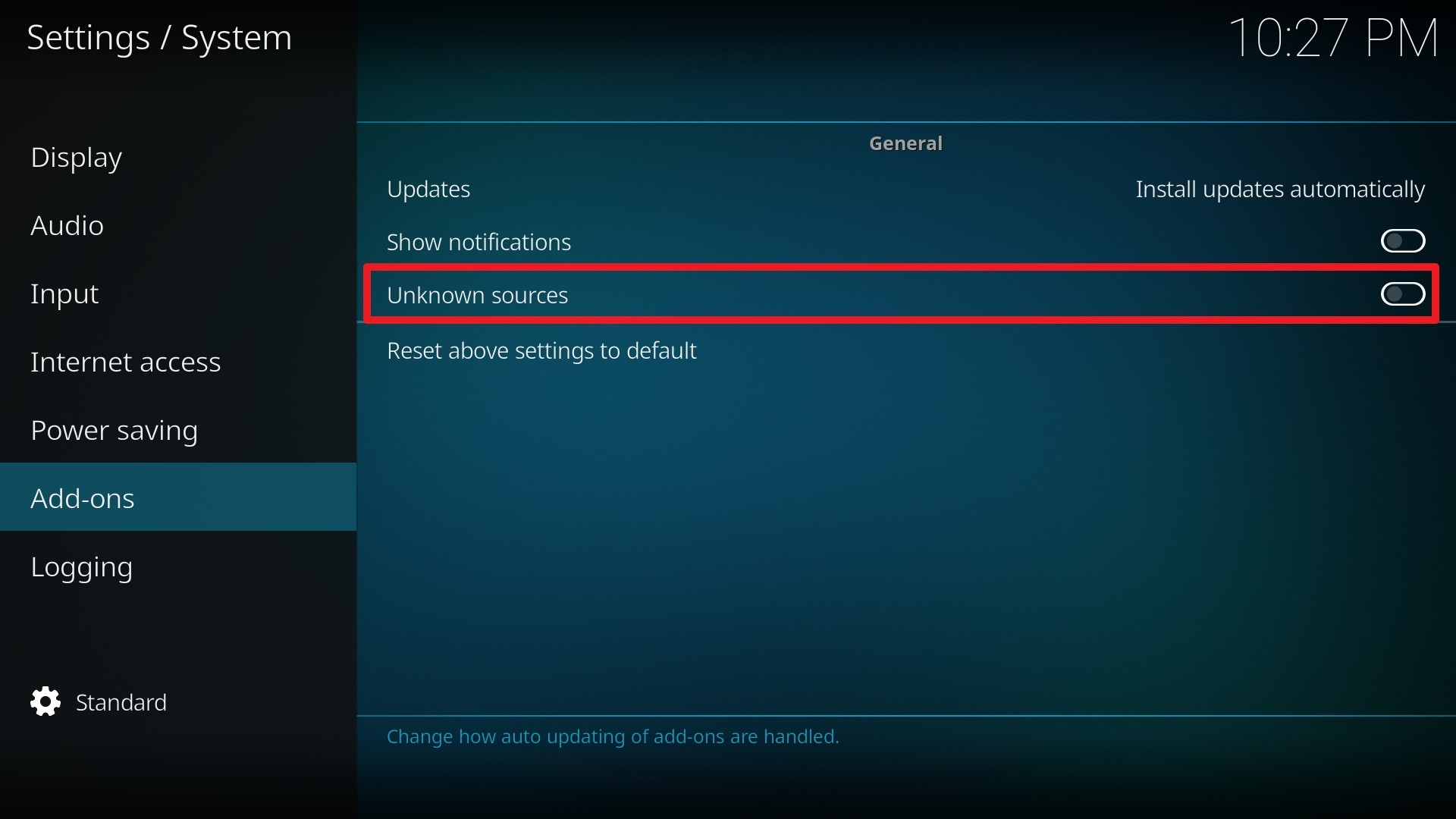
5. Click Yes to allow unknown sources.

6. Select File manager.
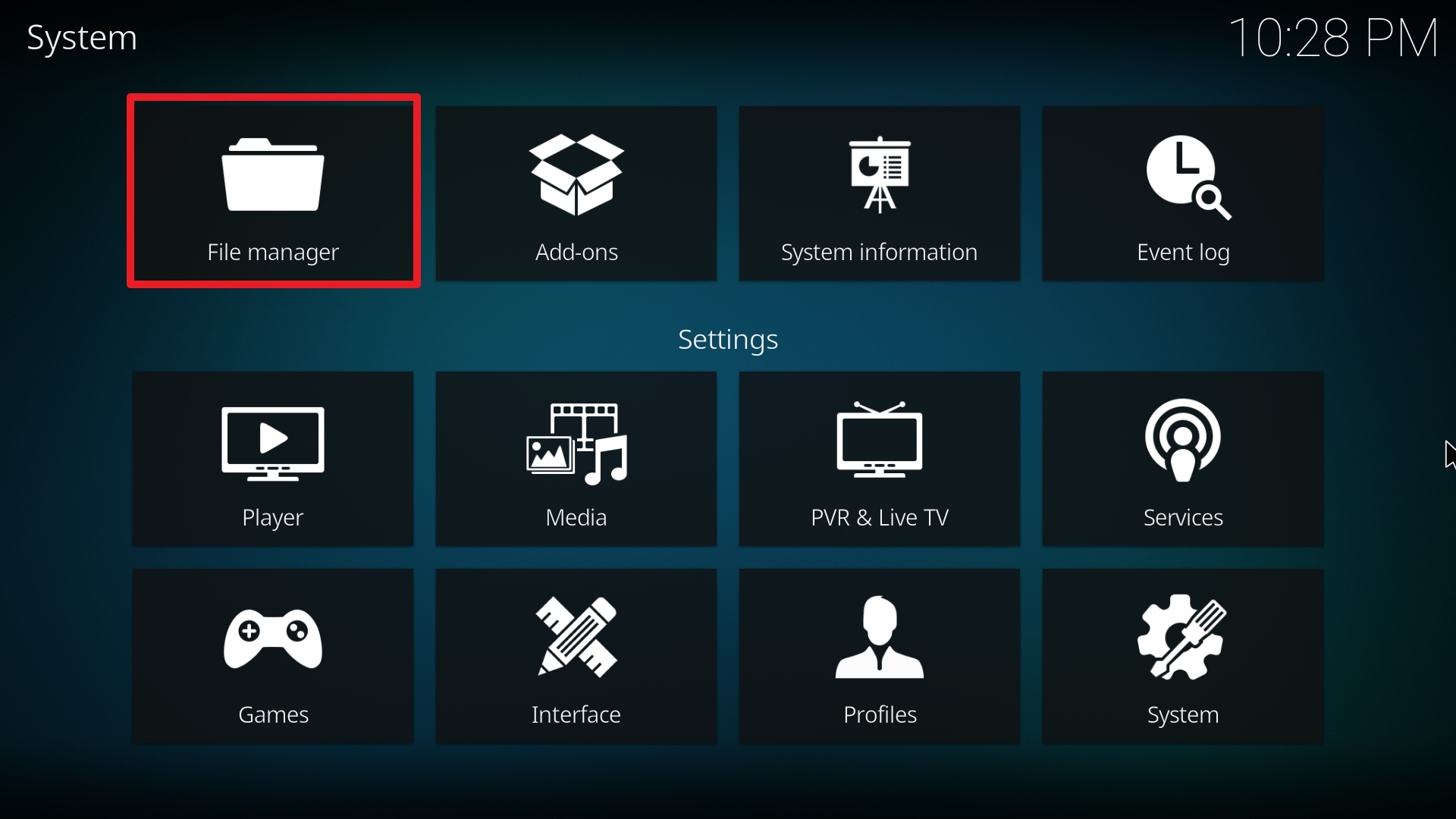
7. Click Add source.

8. Click on <None>.

9. Type exactly: http://j1wizard.net/butter/

10. Click on OK.

11. Select enter a name for this media source.

12. Name is Sportz (this part isn’t critical as long as you remember the name).

13. Click on OK.

14. Click on OK.

15. Take one step back and click on Add-ons.

16. Select install from zip file.

17. Click on Sportz (or whatever you named the source).

18. Click on repository.butter-0.9.6.zip.

19. Select on Install from repository.

20. Click on Butter Fingers Repo

21. Pick Video add-ons.

22. Select Sportz again.

23. Click on Install.

24. Select OK after reviewing the add-ons that will be installed.

25. You should see a popup in the upper right corner saying Sportz has installed. There will actually be multiple popups for the various components.

26. Click on Open to start the Sportz add-on.

Why Should You Use A VPN On Your Fire Stick?
If you are dealing with geo-restrictions trying to stream the entertainment content on your Fire Stick, a Virtual Private Network or VPN is the best solution. Even though the Amazon Fire TV and Fire Stick have built-in Virtual Private Network services, you can still acquire all of the Surfshark service’s advantages. The Surfshark service will encrypt the internet traffic of your Fire Stick and hide your location to go around geo-restrictions. Thus, you can easily stream your favorite videos, movies, and TV shows on your Fire Stick even if the content isn’t available in your region, regardless of where you are.
Best VPN Deal
The first thing a VPN service asks for is a username and a password. Surfshark is a premium service but it has an exclusive discount that offers 83% OFF. To obtain the user name & password and avail of the huge discount, type https://reviewvpn.com/deal into any browser.
Note: For more information about Surfshark, please read our Surfshark Review.
Install Surfshark on Firestick
How to Install Surfshark VPN on Firestick
If your Firestick still has the older interface, read this article to learn how to update it: Update Firestick Interface.
Follow our screenshots below to install the SurfShark VPN app on your Fire TV stick.
1. Go to the Home screen of your Firestick.

2. Navigate towards the Find tab. Press the Search button from the resulting dropdown.

3. Type in the keyword of SurfShark and select from the suggestions that will appear.

4. Click the official SurfShark icon from your search results.

5. Press the Download (You own it) button.

6. The SurfShark VPN installer will download on your device.

7. SurfShark VPN’s app will automatically install itself on your Fire TV stick.

8. Press the Open button after completing SurfShark VPN’s installation process.

9. Please wait for the SurfShark VPN to load its user interface.

10. You can now log in with your SurfShark VPN account credentials.

Learn more about Surfshark and Grab the Best Surfshark Deal Now!
Install Surfshark on Firestick



For more VPN discounts, go to ReviewVPN Deals and purchase the best VPN for you.






