

Overview
Quick Navigation
In this article, we will discuss how to Play Retro Games on your Firestick.

There is nothing much like reliving your old habits by going back to your childhood favorites and playing these awesome cool games you spent hours at your home before. How cool to know that there is a way for you to continue playing Retro Games using a Firestick device.
Most gamers nowadays prefer graphics and content more than ever. Only those who have lived their 80s and 90s can say that they find it cool to play classic games or retro games. Retro Games concepts are so unique that developers work nonstop to keep these old games on the latest platform that kids enjoy now.
Retro Games are continually under development to be available on different devices such as Android, iOS, Amazon TV, and other apps that can exist. Applications provide emulators to play games like NES, PlayStation One, SEA Genesis, and others.
If you want to have access to these games, it is worth noting that it works better with a controller and a TV. Firestick allows you to sideload these games without hassle. It lets you attach controllers for your better Retro Gaming experience.
As we discuss furthermore, you will understand better about Retro Games. We will also guide you on how you can install Retro Games on your device.

How to Install Retro Games on Firestick with Screenshots
In this guide, we will be using a Kodi App to sideload Retro Games. It serves as an emulator to have a better gaming experience.
If this is the first time you heard about Kodi App, you can read this article about Roku App and what it does: How to Install Kodi App on your Firestick device.
Step by step guide to install Kodi on your Firestick.
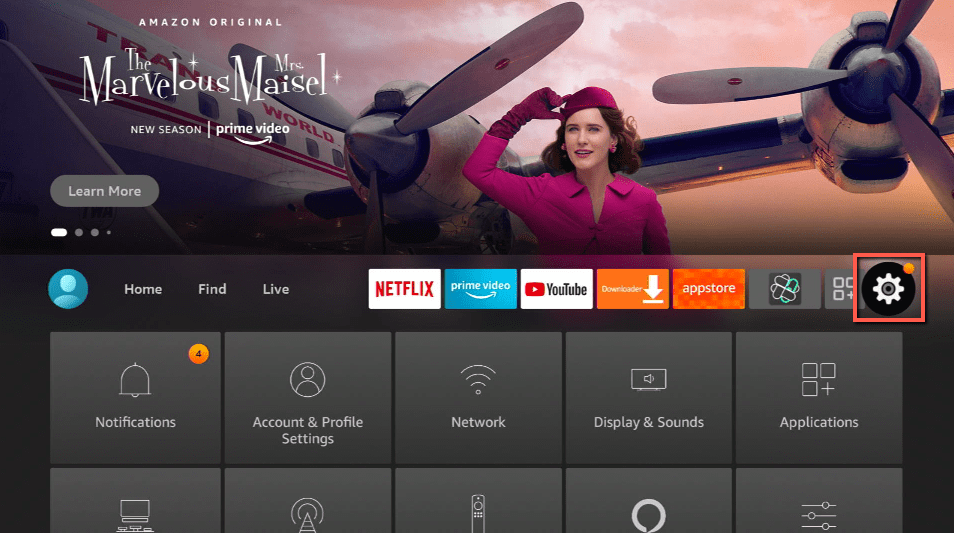
1. Click Home on your remote and scroll once to your Right. Click Setting (Gear Wheel Icon).
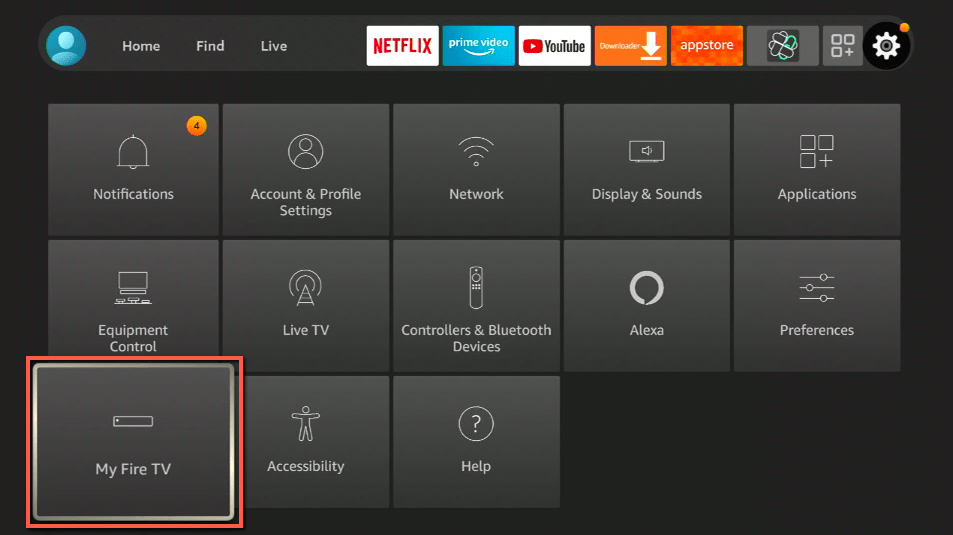
2. Scroll down and to the right until you get to My Fire TV. Click on it.
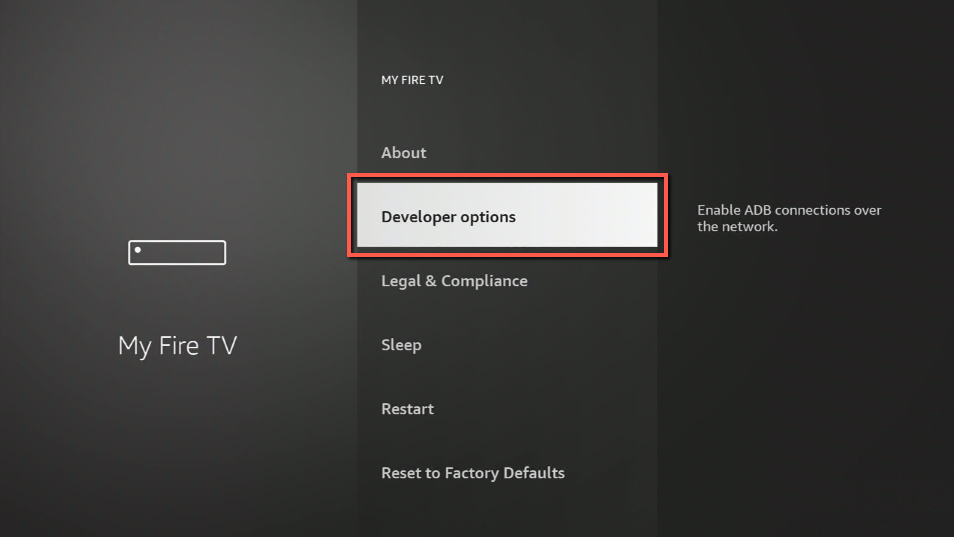
3. Select Developer options.
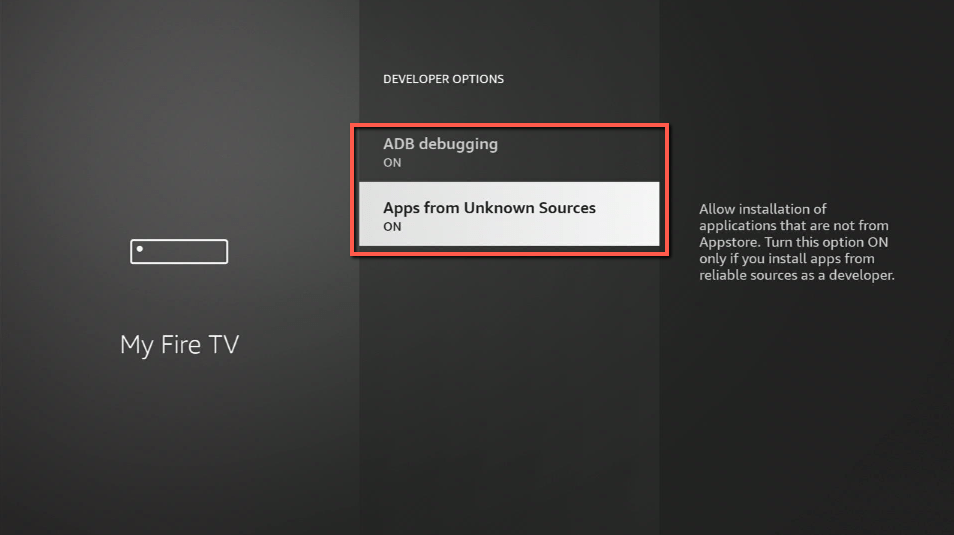
4. Turn on ADB debugging and Apps from Unknown Sources.
5. Click Turn On when the pop-up appears.
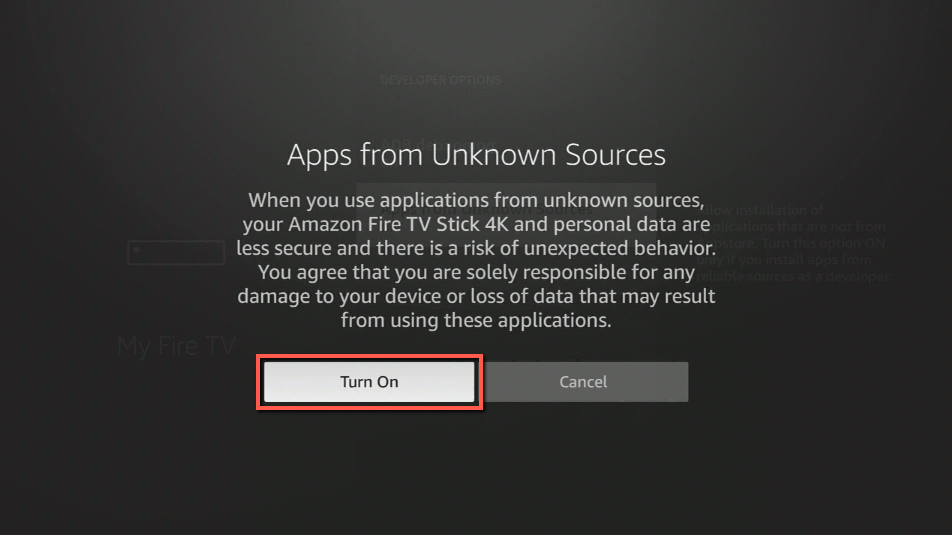
6. Click Home, click FIND.
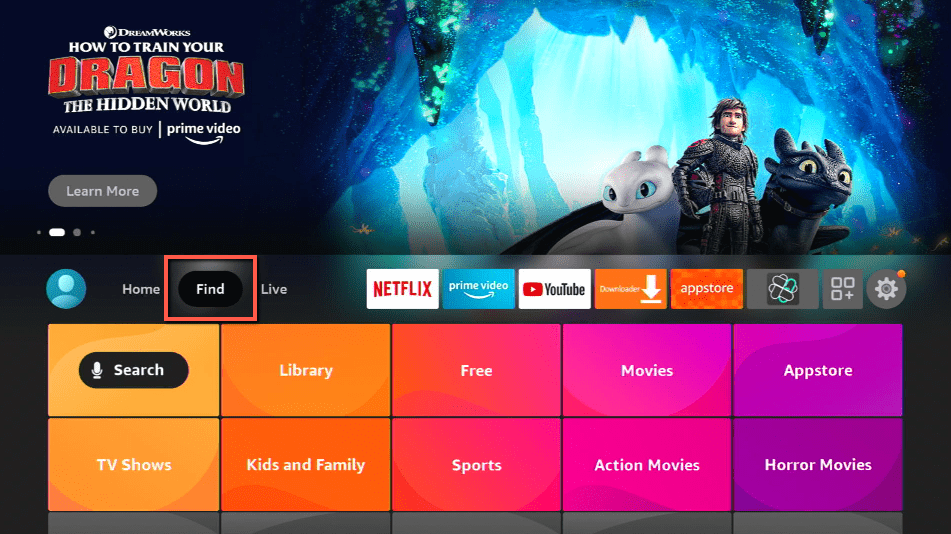
7. Click Search.
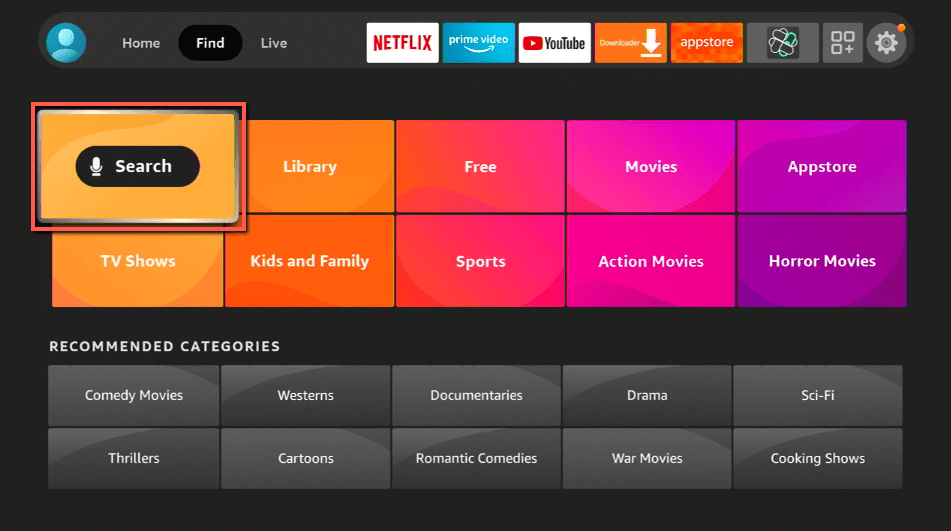
8. You can either say Downloader to your Alexa voice-enabled remote or start typing it. If you typed it, click on the suggestion when it appears.
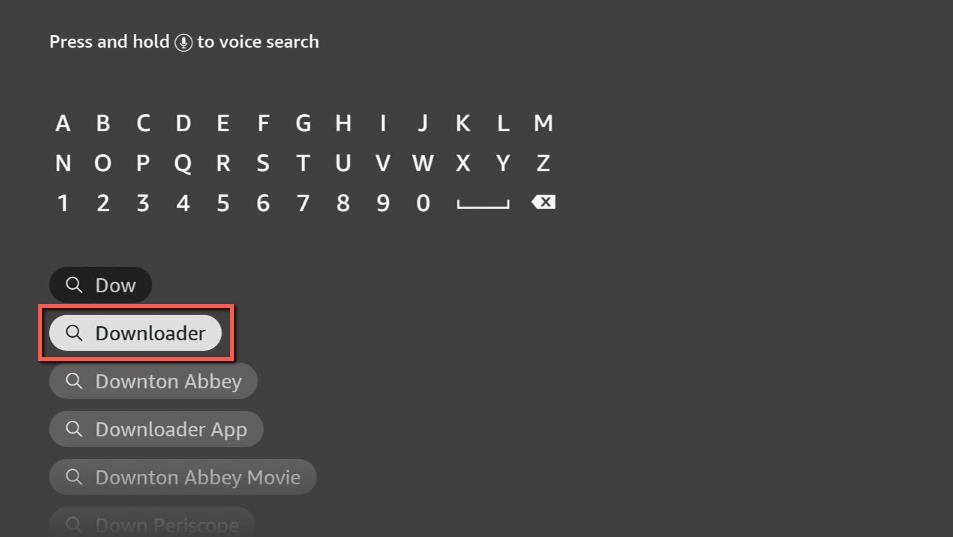
9. Click on the Downloader Icon.
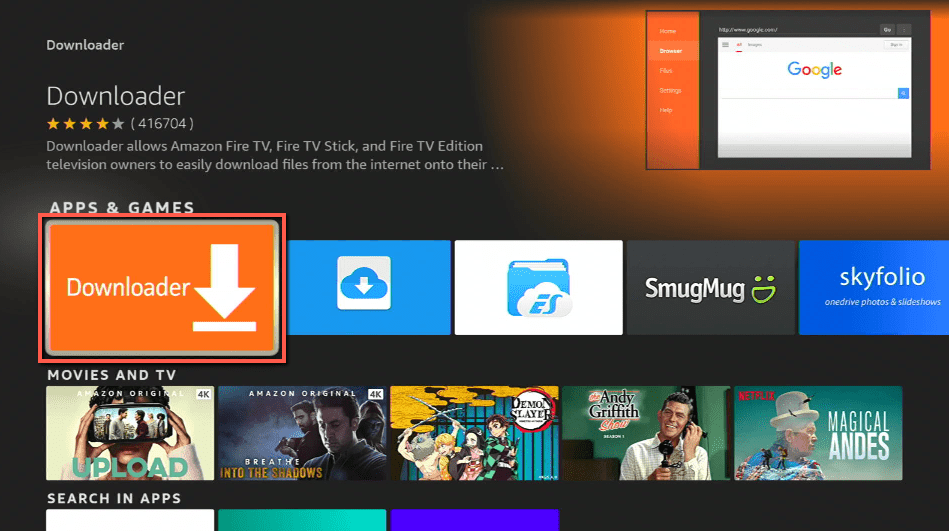
10. Click Download.
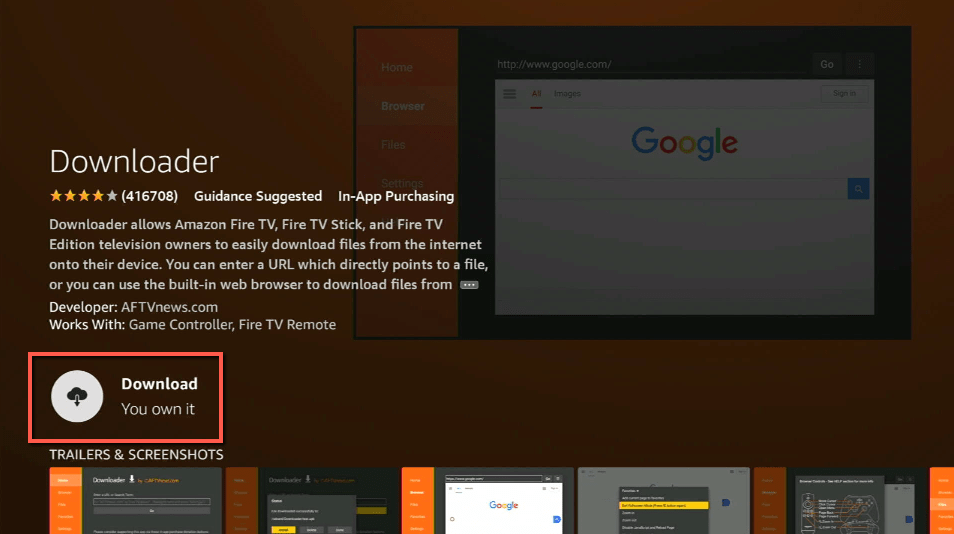
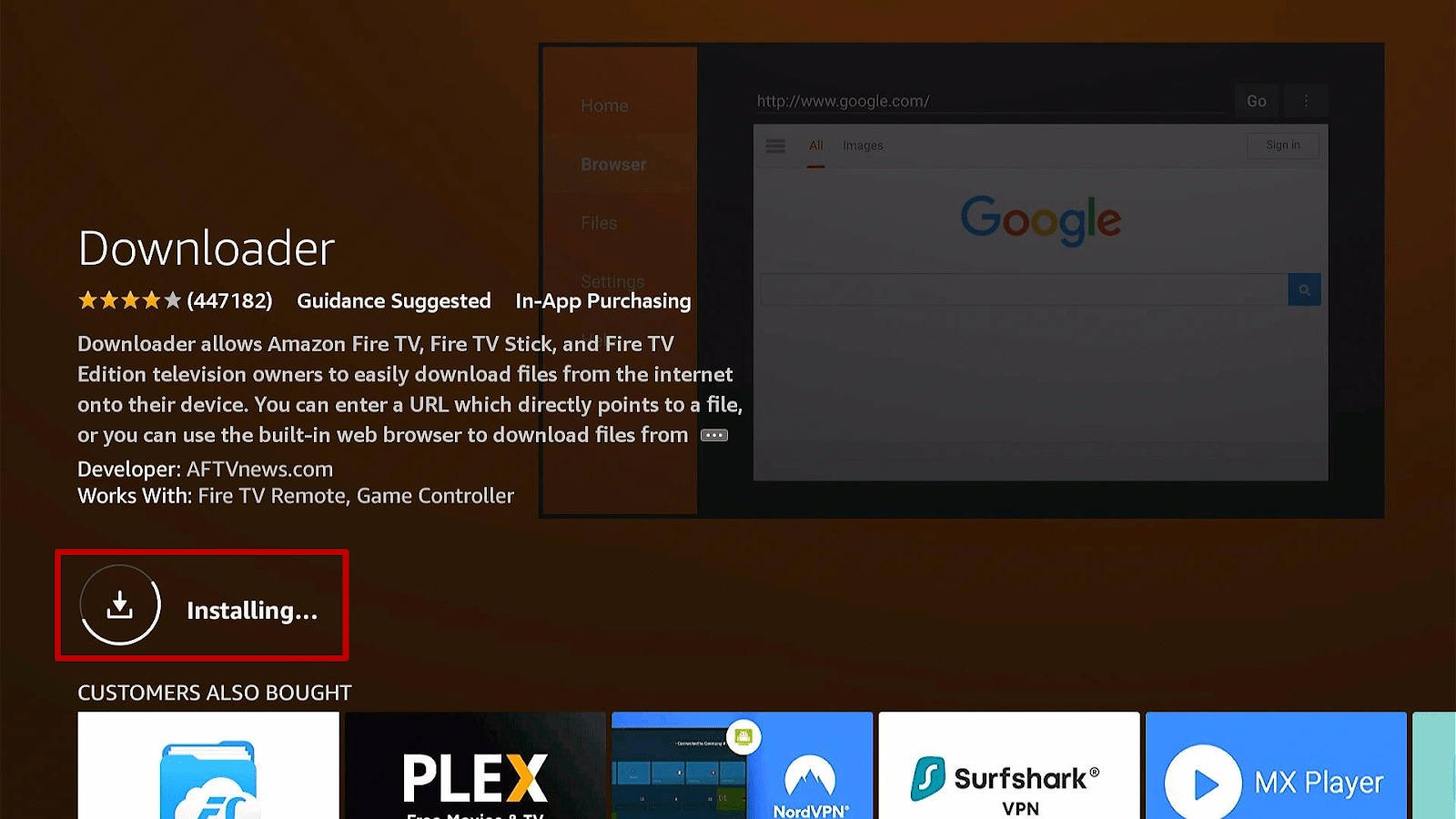
11. Click on Open.
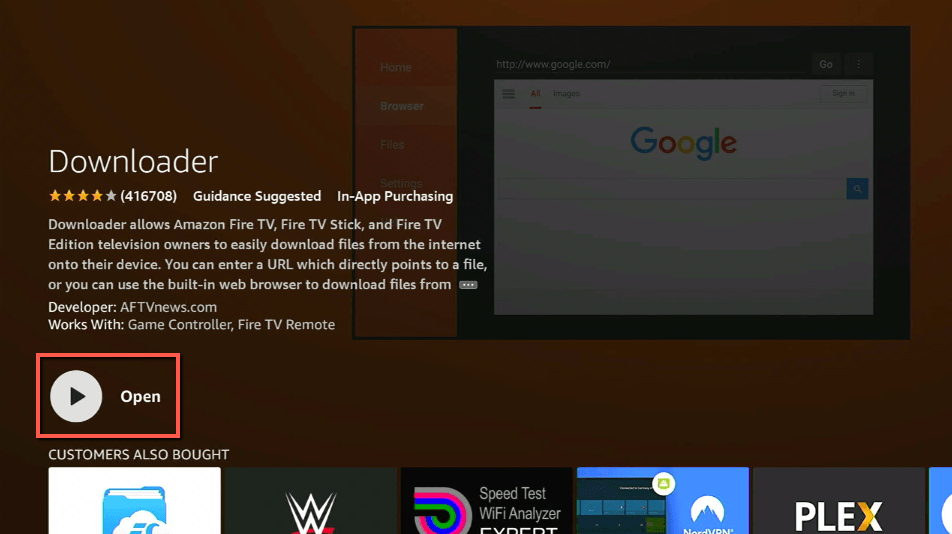
12. Click on Allow.
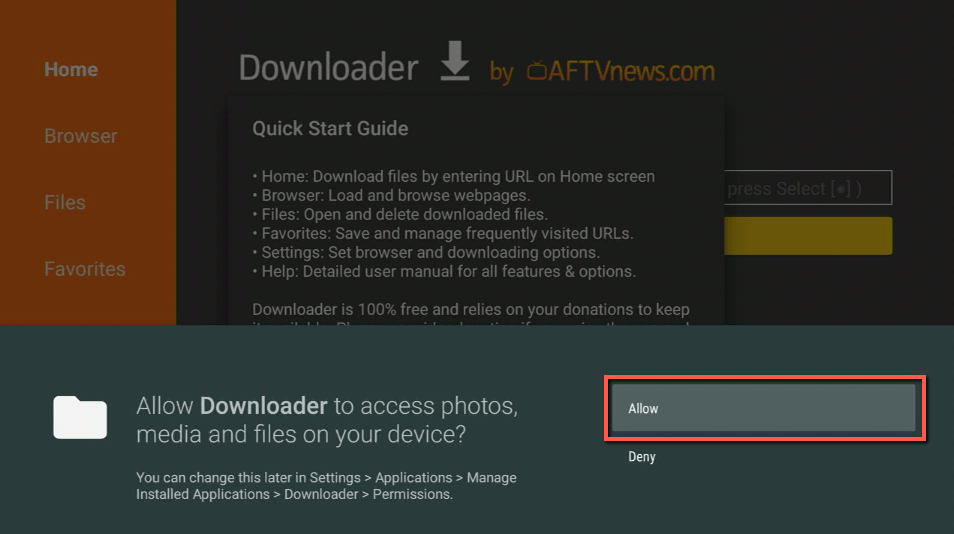
13. Use the Downloader search tab.
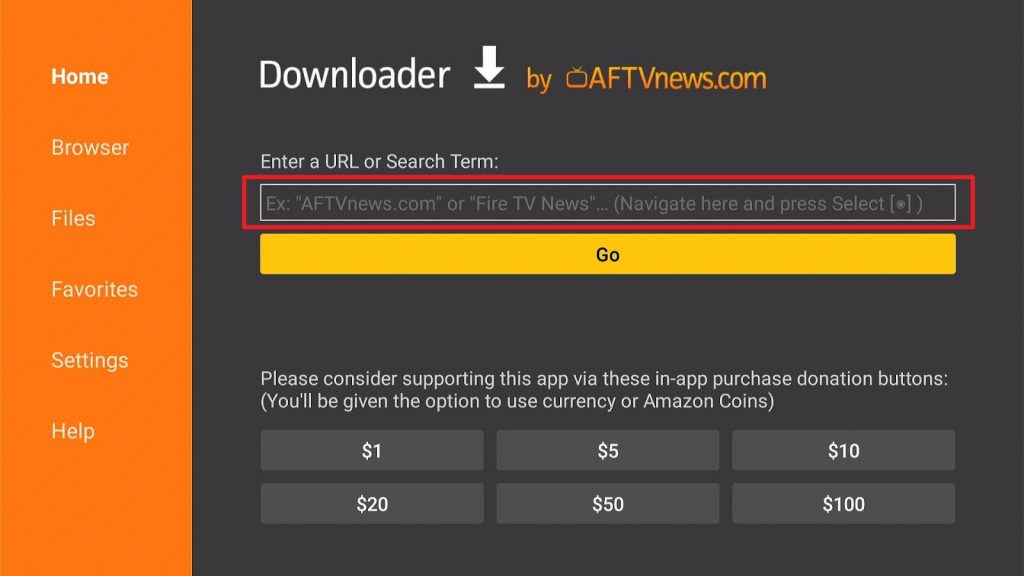
14. in the URL https://kodi.tv/download and Enter.
15. A page will appear. Scroll down and look for the Android device. Click on it once.
16. Click on the 32-bit ARM version.
17. Once the download is complete, select Install.
18. Click OK.
19. Click the delete button twice on the two pop-up boxes that will appear.
20. Go to your home screen, and in the Apps & Games category, launch the Kodi App.
ReviewVPN cannot attest to the legality, security and privacy of the applications discussed on this site. It is highly recommended that you use a VPN service while streaming or using Kodi. Currently, your IP 216.73.217.24 is visible to everyone and your Browser is being tracked by Advertisers & ISP Provider. Here are the main reasons why you must use a VPN: A VPN works be replacing your ISP-assigned IP address and creating an encrypted tunnel. We recommend the no log service offered by IPVanish. It works well on a Firestick and offers the fastest possible speeds.
YOUR INTERNET ACTIVITY IS BEING WATCHED
Legal Disclaimer: ReviewVPN.com does not encourage or endorse any illegal activity involved in the usage of services and applications referenced on this site. We do not verify the licensing agreements of services. The end-user is wholly responsible for ensuring that any media accessed through these services does not violate copyright and/or licensing laws. ReviewVPN does not promote, link to, or receive compensation from any Apps and IPTV services.
Install Surfshark on Firestick

After successfully installing your Kodi App on Firestick, we can now download Retro Games on your device. It is worth noting to follow these steps and do every direction in its proper order. Once you miss something, it will not work, or there may be an issue.
- On the Apps & Games section of your Firestick device, Launch the Kodi app.
- Click the Settings icon on the top left of the Kodi home screen.
- Select on System.
- Under the System category, click on Add ons.
- Turn on the Unknown Sources.
- A warning pop-up box will appear. Click Yes.
- Go back to your system page on the Settings and click File Manager.
- Click Add Source.
- On the <None>, type this URL: https://fusion.tvaddons.co and then click OK.
- Next, under the box where you put in your source, you can type in anything as a name for your media source.
- Click OK.
- Go back again on your System screen in Settings and select Addons
- Select Install from ZIP File.
- Choose the name you assigned as your media source.
- Click Kodi-Repos.
- Select English.
- Scroll down and look for a zip file named repository.zachmorris-1.0.0.zip
- Wait for a dialogue box that says that Zach Morris Add-on Installed.
- Click Install from a repository.
- Select Zach Morris Add ons.
- Click Game Addons.
- Choose Game Providers.
- Select Internet Archive Game Launcher.
- Click on Install.
- A dialogue box will appear that states an installation of add-ons. Click OK.
- Wait until a message appears that Internet Archive Game Launcher is Installed.
- A prompt message from Kodi about executing a wizard setup will appear, and you have to click No.
- Select the Internet Archive Game Launcher Addons.
- Choose Configure.
- On its General category, you can change the cache data entry from zero depending on how much MB you think you need.
- On its external launchers, click on My System Type.
- Choose the platform from the provided list. In this case, you can click Android.
- Click OK.
- Return on the home screen of Kodi and select Games.
- Click Game Addons.
- Select Internet Archive Game Launcher.
- Click Agree.
You may also notice a downloaded Game List on your Kodi App, but you do not have to worry about it. In most cases, there is a need to execute wizard to make some add ons work. You have to prepare the installation for several minutes.
You can test the game archive by selecting the browse listing and choosing your preferred console game. Once you decide what game to play, you only need to click Launch and install the emulation file.
It is important to note that most of the games in the archive only work with a controller. As long as you have a Bluetooth Game Controller, you can set it up on Kodi App and Firestick devices. In case you are using an old Firestick device, you can also read this article on how you can update your device: How to Update your Firestick Device.
App Features
- It only requires this single download to access every game console you wanted to play.
- The contents available are not limited to one single file emulator. But, there are a lot of emulator files included in the app.
- The application is easy to use, and there is a simple navigation process. You only need your remote control to toggle the device or use a controller to access everything on the app.
- It comes free and does not include any banners or advertisements.
- It has a quality level of HD graphics despite its old game features.
Pros and Cons
Pros
- Everything is free
- Thousands of contents of classical games such as Sega Genesis, Atari, Playstation One, Game boy, and other game classic consoles
- Easy access and simple feature
- Good graphics
Cons
- You cannot access an emulator without using a Bluetooth controller.
Stream Safely with the Use of a VPN
It is hard to stream something online without the scare of having everything safe and secured. Online streaming also needs a fast internet connection if you are sideloading apps and downloading add-ons.
What can make you comfortable with your online activity is by having a VPN. VPN or Virtual Private Network improves internet connection and protects you from harmful malware and viruses as you stream using Firestick or other devices.
We recommend the use of Surfshark. There are a lot of VPN servers that can accommodate you. But, not everyone offers a guaranteed 100% free accuracy. Surfshark extends its protection limits up to the best care of your internet usage. Also, it is free.
Benefits of using Surfshark:
- Keeps your information protected and anonymous
- Keep everything on your file protected from hackers
- Can bypass censorship and other restrictions
- High level of security if you are using a public WiFi
- Has a total of 3,200 VPN servers in 65 countries to choose from
- It works on all unlimited simultaneous devices
- High standard of AES
- 256-bit encryptions that provide high security on your date
- Internet connection up to 84mbs and zero lags
Note: For more information about SurfShark, please read our SURFSHARK REVIEW.
Click here to get the lowest price on Surfshark through our exclusive limited-time offer.
How to Install Surfshark VPN on Firestick
If your Firestick still has the older interface, read this article to learn how to update it: Update Firestick Interface.
You can download Surfshark directly from the Amazon App store. It will be easy for you to find Surfshark with your Firestick’s Find feature. Refer to our screenshots below.
1. Go to the Home screen of your Firestick.

2. Navigate towards the Find tab. Press the Search button from the resulting dropdown.

3. Type in the keyword of SurfShark and select from the suggestions that will appear.

4. Click the official SurfShark icon from your search results.

5. Press the Download (You own it) button.

6. The SurfShark VPN installer will download on your device.

7. SurfShark VPN’s app will automatically install itself on your Fire TV stick.

8. Press the Open button after completing SurfShark VPN’s installation process.

9. Please wait for the SurfShark VPN to load its user interface.

10. You can now log in with your SurfShark VPN account credentials.

Learn more about Surfshark and Grab the Best Surfshark Deal Now!



For more VPN discounts, go to ReviewVPN Deals and purchase the best VPN for you.
Best Alternatives
Kodi App is not the only application that can help you sideload an emulator file for your game console experience. You can check out this list:
- ADBLink
- Happy Chick
- RetroArch
- Antstream
There are also different APKs available online that you can use as an alternative URL for Internet Archive Game Launcher. You have to make sure that it does not come with any costs and extra subscriptions for your gaming experience.
FAQs
Is playing Retro Games in Firestick legal?
Using Kodi App as a sideloading app is not illegal. However, you might want to use a VPN because Amazon has restrictions on the apps you installed on your Firestick device.
Is it necessary to use a VPN while playing Retro Games on Firestick?
Yes. It not only keeps your data secure but also allows a fast streaming service.
Do I need a gamepad to play Retro Games in Kodi?
Yes. You need a controller that you can set up on your Firestick to make your emulator accessible.
Does the Firestick Remote device work on the emulator?
No. It does not work. A third-party device is necessary.
Conclusion
Retro Games is an addictive list of consoles that most 90s kids are in a deep interest in before. Developers are continually doing optimization to keep these classical games available on today’s gaming platform.
Using the Kodi app is an excellent function if you want to access these kinds of games. It will only require you a gaming controller, but the rest of your gaming experience is possible using Firestick, and it works on TV.
It is a good application that everyone can use who has an interest in Retro Games. You only need to follow the guidelines we provided, and you can use them directly right in the comfort of your home.
We hope we have given you the information you needed about Retro Games and everything that comes with having it on your devices.






