
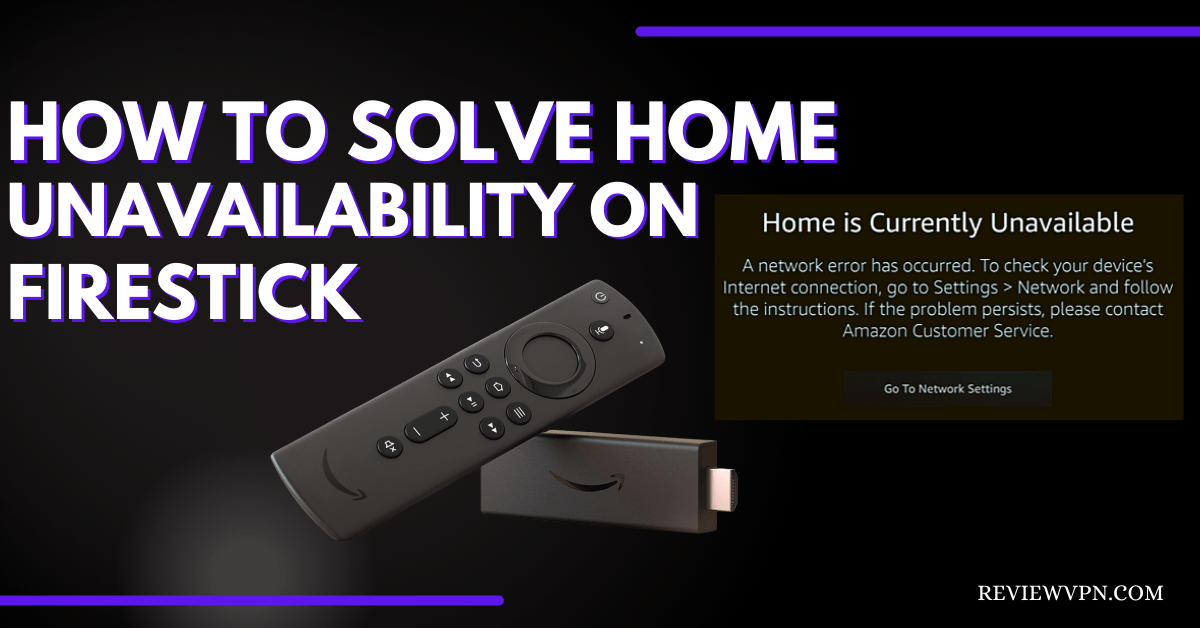
Solving Home Currently Unavailable on Firestick
Quick Navigation
This article will teach you how to solve the Home Currently Unavailable error on Firestick.

The Amazon Firestick is one of the best home entertainment innovations. It offers several features and benefits to its users.
It includes unlimited streaming of TV shows and movies. A selection of songs is also available on Amazon Prime Music.
Nonetheless, the Firestick is also widely used within the cord-cutting community.
While several people are deciding to opt for online streaming services, the Firestick is an excellent device that meets their needs.
All that is required is to have an Amazon Prime subscription. Once logged in and installed, users can begin streaming content.
Firestick may provide quality entertainment to its users, but the device and its systems are still far from perfect. However, you may encounter a few bugs, errors, and glitches with its usage.

Solutions for Home Currently Unavailable Error on Firestick
One of the errors usually encountered by users is the ‘Home Currently Unavailable’ on their Firestick. Here is our brief guide with a list of possible solutions that can mitigate your problem:
Unplugging
Errors and bugs are sometimes prevalent with faulty connections. Unplugging your router and Firestick may fix some problems:
Router Unplug
- Disconnect your router from its power source.
- Wait for 15-30 seconds.
- Then, Reconnect your router.
- Check out your devices for re-establishment of internet connection.
- Input your WiFi login credentials.
- Then, Wait for the internet connection icon to show.
Firestick Unplug
- Switch off your Firestick device.
- Unplug its provided power adapter.
- Turn off your mobile hotspot.
- Shut down your WiFi connection.
- Then, disconnect your device from your display’s HDMI port.
- Detach the Firestick’s MicroUSB cable.
- Wait for sixty seconds to five minutes maximum.
- Reconnect your WiFi connection.
- Power up your Firestick by connecting its adapter.
- Then, Plug-in Firestick’s MicroUSB cable.
- Connect your Firestick to your TV’s HDMI port.
- Restart the device with a cold reboot.
WiFi Restart to Solve Home Currently Unavailable on Firestick
Your Firestick may display some problems if your WiFi connection is unstable. Nonetheless, it may be caused by overheated hardware or signal difficulties.
Router Restart
- Detach your router’s power cord from your electrical socket.
- Wait for ten to twenty seconds.
- Then, Reboot your router by plugging the power cord back into the electrical socket.
- For mobile data users: Disable your WiFi hotspot for thirty seconds and turn it back on.
- Open the Settings tab on your Firestick’s Home screen sections.
- Choose Network from the list of options.
- Then, Click on the Network name of your internet connection.
- Rescan if no networks are not found.
- Enter your WiFi login password.
- Connect your Firestick device to your WiFi connection.
Deregister your Firestick Device
Your registered account may sometimes cause unforeseen problems with your Firestick. Another solution you can apply is by Deregistering your account from Firestick. Nonetheless, follow the steps provided below:
Deregistering your Amazon Account
- Open any browser tab on a laptop or personal computer.
- Another method is to use the Amazon app on your smartphone.
- Visit the main Amazon Website.
- Then, Log in with your present account. (Amazon registered account applied on Firestick).
- Navigate towards ‘Manage Your Content and Devices.
- Select the Devices tab. (Contains all registered Firestick devices and Alexa-supported hardware).
- Choose your registered Firestick device account.
- Click on the Deregister button.
- Then, Reboot your Firestick device.
- Log in with your previous account for registration. (You can create another account).
- Register your Firestick device with your entered account.
- Your previous apps will install automatically.
*Note: Deregistering your Amazon account is like a nuclear option. All of your previously installed applications are disabled. Some features of Firestick may not be accessible. All discontinued apps and features will be restored after registering a new or existing Amazon account.
YOUR INTERNET ACTIVITY IS BEING WATCHED
ReviewVPN cannot attest to the legality, security and privacy of the applications discussed on this site. It is highly recommended that you use a VPN service while streaming or using Kodi.
Currently, your IP 216.73.216.1 is visible to everyone and your Browser is being tracked by Advertisers & ISP Provider.
Here are the main reasons why you must use a VPN:
- Your activities are hidden from your ISP, the government, and from the apps you are using.
- You can access additional movies and TV streams.
- ISP attempts to throttle are thrwarted thus reducing buffering issues.
- Geographically restricted content like Netflix and Hulu can be unblocked.
A VPN works be replacing your ISP-assigned IP address and creating an encrypted tunnel. We recommend the no log service offered by IPVanish. It works well on a Firestick and offers the fastest possible speeds.
Transfer to another HDMI Port
Some Firestick users have fixed the Home Unavailability problem. They have simply changed their Firestick’s input connection.
- Disconnect your Firestick’s HDMI cable from its attachment.
- Check your TV Monitor for other HDMI ports.
- Then, Reconnect your Firestick’s HDMI cable to another HDMI port.
- Reboot your Firestick device.
- Check if your TV set detects the new attachment.
Reset Firestick to Factory Settings to Solve Home Currently Unavailable on Firestick
If the suggested solutions did not work, you can factory reset your Firestick device. Nonetheless, it is the final solution available to fix some errors.
Factory Reset To Fix Home Currently Unavailable on Firestick
- Open the Settings tab.
- Choose on My FireTV or Device.
- Then, Select the Reset to Factory Defaults option.
- Commence reset.
- Firestick will now automatically reset itself. (Do not turn off the device while reset in progress).
- Reboot your Firestick.
- Then, Register your Amazon Prime subscription account.
- Follow on-screen instructions for Firestick setup.
Stream Videos Safely with a VPN
Your personal web surfing can be monitored by your internet service provider (ISP). Streaming high-quality media content can overload a server’s bandwidth. However, it can cause difficulties that result in lags, stuttering, and buffering.
The best solution we can recommend is to have a reliable VPN like Surfshark. Several VPNs apps are available on the internet, but Surfshark is created for your streaming activities. It also protects you while downloading your favorite shows and movies.
Nonetheless, Surfshark is the best choice for streaming high-resolution media files.
Here is a list of advantages that Surfshark may offer you:
- Provides a protective shield that stops your ISP from recording your online activities.
- Connects you to virtual tunnels that neutralize the limits placed by geo-blocks stopping people from accessing online content.
- Cloaks your identity from online threats like hackers wanting to steal vital information.
- Provides overall security while stopping ransomware and malware breaches.
- Anonymizes your internet connection, online credentials, and data.
- Increases your internet speed.
- Torrent downloads are faster and more efficient.
- Prevents Firestick buffering and Kodi buffering.
How to Install Surfshark VPN on Firestick
If your Firestick still has the older interface, read this article to learn how to update it: Update Firestick Interface.
You can download Surfshark directly from the Amazon App store. It will be easy for you to find Surfshark with your Firestick’s Find feature. Refer to our screenshots below.
1. Go to the Home screen of your Firestick.

2. Navigate towards the Find tab. Press the Search button from the resulting dropdown.

3. Type in the keyword of SurfShark and select from the suggestions that will appear.

4. Click the official SurfShark icon from your search results.

5. Press the Download (You own it) button.

6. The SurfShark VPN installer will download on your device.

7. SurfShark VPN’s app will automatically install itself on your Fire TV stick.

8. Press the Open button after completing SurfShark VPN’s installation process.

9. Please wait for the SurfShark VPN to load its user interface.

10. You can now log in with your SurfShark VPN account credentials.

Learn more about Surfshark and Grab the Best Surfshark Deal Now!


For more VPN discounts, go to ReviewVPN Deals and purchase the best VPN for you.
Grab the Best Surfshark Deal Now!
Conclusion
The Amazon Firestick is one of the best devices for home entertainment. Used by several people for streaming, the device is susceptible to glitches and errors. A typical problem encountered is the Home Currently Unavailable error. However, it may be caused by various hardware or software issues. Reboots, reconnection of cables, and account registration can solve the problem.
Nonetheless, we hope that this article has helped with the Home Screen Unavailable error on Firestick.


