
Overview
Quick Navigation
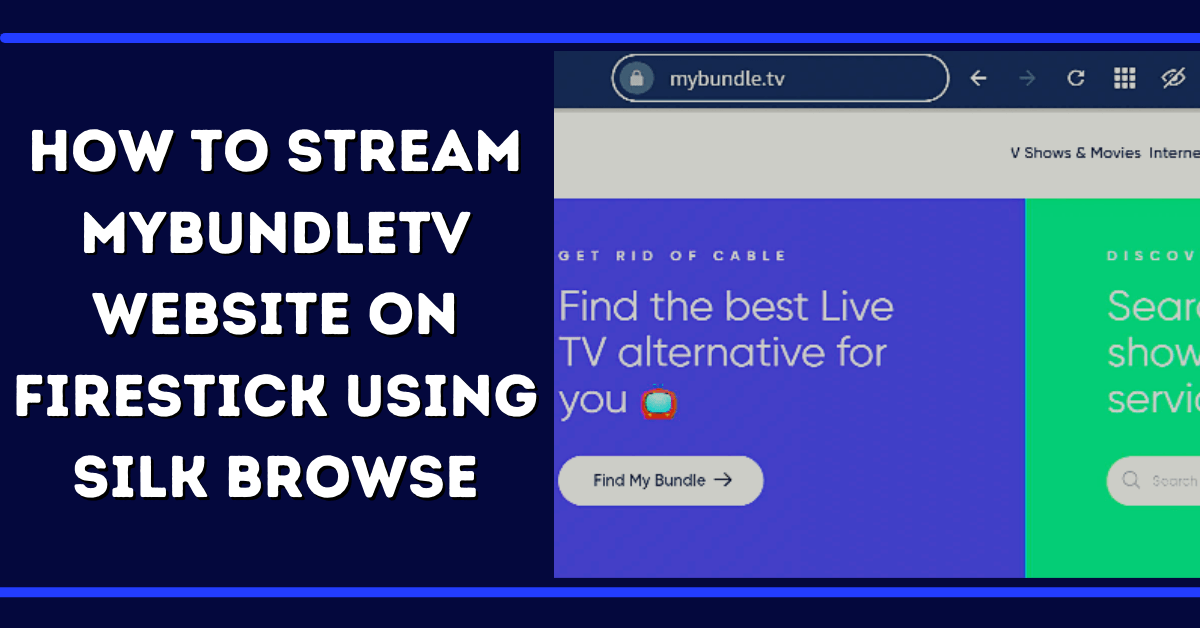
MyBundle TV offers the enterprise platform as well as the industry-leading consumer a simplified TV streaming experience. The MyBundle.TV website’s free and easy-to-use tools help you discover new streaming platforms and find entertainment content to stream across the platforms.

Incorporating over 150 streaming services and collaborating with over 30 broadband providers serving 5.7 million customers, MyBundle TV helps people navigate the streaming video industry and allows new growth opportunities for high-speed data providers and programmers alike.
A lot of people are overwhelmed on how to cut cable subscriptions without a huge channel bundle, which is why many of them are intrigued by a new website dubbed as MyBundle.TV. Aside from the fact that the website will tell you which live TV streaming platforms offer your favorite TV channels, it also suggests methods to get rid of bloated bundles completely.

Installing Silk Browser on Firestick To Use MyBundle TV
Before you can stream videos or TV channels on the MyBundle TV website, you must first install the Silk Browser on your Firestick.
1. Tap Home on your Firestick remote – hover over the search icon.

2. Choose Find and choose Search.
3. Type in Silk Browser.

4. Click on the Silk Browser Icon and select Download.

5. Choose Open to launch the Silk browser.

6. Now, you can start browsing on the internet using Amazon Silk Browser.
7. Launch the Amazon Silk Browser.

8. For this example, we are visiting www.mybundle.tv within the Amazon Silk Browser.

Install Surfshark on Firestick
Here’s how it works
After installing Silk Browser on your Firestick, launch it and enter MyBundle.TV. Then, answer a couple of questions and choose the channels you wish to stream. MyBundle TV will help you cut out all the wasted time browsing what you want by customizing the streaming bundles. Just answer questions such as what’s your ZIP code, do you need a DVR with the bundle, and how many people are in your household.
Then, MyBundle TV will ask you which streaming platforms you already have and the streaming gadget you use, including mobile phones, tablets, smart TVs, and many more. One huge question is if you find live sports essential.
After you answer all of those questions, you can select the TV channels you want to watch. A list of channels will appear, such as Bloomberg Television, TBS, ESPN, Food Network, TNT, and lots more. MyBundle TV even lets you filter channels by search by name or genre.
After choosing all the channels you want, the MyBundle.TV website will compile a list of bundle choices. The website will provide suggestions like bundling Philo (live & on-demand TV) with YouTube TV.
However, if you feel like you won’t enjoy the options provided to you, you may opt for a Build My Bundle option. This option shows streaming platform options that you might like.
The best part of the MyBundle TV is that there are no contracts. Just like with most other streaming platforms, you can cancel without paying a dime.
YOUR INTERNET ACTIVITY IS BEING WATCHED
ReviewVPN cannot attest to the legality, security and privacy of the applications discussed on this site. It is highly recommended that you use a VPN service while streaming or using Kodi.
Currently, your IP 37.27.51.131 is visible to everyone and your Browser is being tracked by Advertisers & ISP Provider.
Here are the main reasons why you must use a VPN:
- Your activities are hidden from your ISP, the government, and from the apps you are using.
- You can access additional movies and TV streams.
- ISP attempts to throttle are thrwarted thus reducing buffering issues.
- Geographically restricted content like Netflix and Hulu can be unblocked.
A VPN works be replacing your ISP-assigned IP address and creating an encrypted tunnel. We recommend the no log service offered by IPVanish. It works well on a Firestick and offers the fastest possible speeds.
MyBundle TV Profiles Features
- Access to a customized streaming content hub where you can find content from across all streaming applications in an easy-to-use destination.
- It gives you the ability to obtain tailored Movie and TV Show recommendations. Provides suggestions for the latest Streaming apps, based on your viewing habits as well as interests
- A great way to plan what you want to stream and monitor what you are currently streaming with traditional Watchlists
- What to Watch Next – An amazing feature that creates a list of binge-worthy movies or series from across your apps and interests that your friends can also vote on
- Provides a way to easily track & manage your streaming expenses
Sign up for streaming platforms
Browse the search results to find out the ideal offer for you. You can click on the Channel Lists option on each live TV streaming platform to see a list of TV channels. Click the Learn More button to get more information about each streaming platform – it will also let you visit the streaming marketplace’s apps page. Then, click the Visit Site button to sign up with a new streaming home.
MyBundle TV “Profile” Feature
MyBundle TV is a premier online platform connecting people, broadband partners, and streaming services with tools to make streaming television easy, and expands the broadband provider solutions with the release of the Profiles feature. It is a personalized interactive streaming television guide for people. The MyBundle TV website currently has over 30 broadband partners and over 5.7 million customers, which includes industry leaders WOW!, CenturyLink, EPB, & MetroNet.
Find My Bundle Tool
The Find My Bundle tool is created for individuals who are ready to cut their huge cable TV bills. Based on a person’s preferences and favorite television channels, the Find My Bundle tool will figure out the best Live TV streaming package, which makes the transition to streaming television as seamless as possible. You can obtain all the live TV channels you like without all of cable’s high-priced and hidden fees.
The core streaming platforms with live television include Sling TV, Hulu + Live TV, Vidgo, YouTube TV, fubo TV, AT&T TV, Locast, Frndly TV, and Philo. The Find My Bundle tool will mix & match these platforms with other platforms that either come along with the specific content you want or are alternative options to save some money and still obtain the type of videos you want.
Always Use A VPN While Using Your Firestick

Using Virtual Private Network or VPN can be very handy on a Fire TV Stick. Thanks to a VPN service, you can access platforms or services that are unavailable in your country or bypass the meaningless restrictions that several platforms sometimes impose. When you use Fire TV Stick, an encrypted Virtual Private Network service provider is highly recommended to hide your online activities, identity, and location. Many FireStick users prefer Surfshark services for privacy, price, and speed.
Providing the fastest server speeds and amazing live chat support, Surfshark is also an easy-to-use VPN app. Make sure to enable the VPN service when you are streaming on the internet.
Surfshark Features:
- unlimited simultaneous devices
- Unblocks Netflix, Disney+, and more
- Robust encryption
- 30-day money-back guarantee
- Great customer service
- Great download speed
- No log policy
- Compatible with Linux, Windows, Mac, iOS, Android, and other routers
Click here to get the lowest price on Surfshark through our exclusive limited-time offer.
How to Install Surfshark VPN on Firestick
If your Firestick still has the older interface, read this article to learn how to update it: Update Firestick Interface.
Follow our screenshots below to install the SurfShark VPN app on your Fire TV stick.
1. Go to the Home screen of your Firestick.

2. Navigate towards the Find tab. Press the Search button from the resulting dropdown.

3. Type in the keyword of SurfShark and select from the suggestions that will appear.

4. Click the official SurfShark icon from your search results.

5. Press the Download (You own it) button.

6. The SurfShark VPN installer will download on your device.

7. SurfShark VPN’s app will automatically install itself on your Fire TV stick.

8. Press the Open button after completing SurfShark VPN’s installation process.

9. Please wait for the SurfShark VPN to load its user interface.

10. You can now log in with your SurfShark VPN account credentials.

Learn more about Surfshark and Grab the Best Surfshark Deal Now!
Install Surfshark on Firestick


For more VPN discounts, go to ReviewVPN Deals and purchase the best VPN for you.
Click here to get the lowest price on Surfshark through our exclusive limited-time offer.
Conclusion
Now you know how to stream the MyBundleTV website on your Amazon Firestick. Please feel free to let us know what you think of the MyBundleTV website in the comments section below.


