

Odin Kodi Addon
Source: https://goldengunrepo.github.io/install/me/
Odin is a pretty new Kodi addon having only come out this year but has fast gained in popularity. The most important reason being the repo it comes from. The Golden Gun repository has a long track record of producing quality Kodi add ons, so Odin comes from good stock.

Odin primarily is for Movies and TV Shows, they do have a “Test IPTV Zone” which is exactly what it is. A place where Live Tv Channels are tested, but there is no guarantee they will work, and currently it doesn’t seem like Odin has serious plans to become a multipurpose add on serving Live TV as well. Which is just as well as most add ons fail on that front.
You can integrate Odin with Real Debrid and Trakt.TV. We always recommend using a Kodi add on with Real Debrid. For a few dollars a month you can save yourself the trouble of finding great links, Real Debrid will do that for you from its 50+ paid servers. Just sit back and enjoy all your content in high-quality HD or above.
Odin has a diverse toolbox, and you can turn downloads on, to download content and watch offline. As well as being able to turn on subtitles with a wide range of languages. Though subtitles do tend to be hit and miss, so you might be better off downloading Open Subtitles instead.

Common Errors
Use Kodi for any period and you will get used to seeing errors. Find our quick fix guides and simple suggestions here for the most common errors you might come across with Odin.
- No Link Found. You tend to get no link found most often with Live TV. With Odin bear in mind, their Live TV function is not stable. So, chances are there just isn’t a working link currently. But you can also try and refresh the page, check your internet connection and make sure you are using a VPN. Your Internet Service Provider may be blocking the content. Find more fixes here. <LINK>
- Olpair Streaming Error. Olpair handles all the streaming for free users. You need to refresh your key every 4 hours. Normally this is straight forward just following the link, or you can disable Captcha streaming providers. To find more fixes click here.
- Script Error. A script error can arise with either a script missing in the Odin add on (unlikely if you have downloaded it from the Golden Gun repository) or a script is missing with your Kodi installation. The quickest fix is a fresh install of Kodi, or one of our other fixes which you can find here.
- Cannot download Odin. Check the URL you have entered is correct, also that you are using a VPN as your ISP may be blocking that content. If that doesn’t work, go through all the steps in our guide here.
Review
Categories include:
- TV Shows
- Movies
- Test IPTV Zone
- Tunes
- Bone Crusher Old (Includes Boxsets, Classics and more sections)
- My Movies
- My TV Shows
- New Movies
- New Episodes
- Channels
- Tools
- Search
Odin is a solid Kodi addon, which is probably going to continue to get better over time. They don’t have the range of content of some of the older add ons but that will change. They also have some unique sections like Tunes where you can tune into digital radio stations and Bone Crusher Old to get a tonne of classic content.
The fact you can download content with Odin is a big plus, as most new add ons tend to avoid this feature. Certainly, one to watch for the future.
YOUR INTERNET ACTIVITY IS BEING WATCHED
ReviewVPN cannot attest to the legality, security and privacy of the applications discussed on this site. It is highly recommended that you use a VPN service while streaming or using Kodi.
Currently, your IP 216.73.216.84 is visible to everyone and your Browser is being tracked by Advertisers & ISP Provider.
Here are the main reasons why you must use a VPN:
- Your activities are hidden from your ISP, the government, and from the apps you are using.
- You can access additional movies and TV streams.
- ISP attempts to throttle are thrwarted thus reducing buffering issues.
- Geographically restricted content like Netflix and Hulu can be unblocked.
A VPN works be replacing your ISP-assigned IP address and creating an encrypted tunnel. We recommend the no log service offered by IPVanish. It works well on a Firestick and offers the fastest possible speeds.
How to Install Odin Addon on Kodi with Screenshots
- From the home screen, select the cogwheel at the upper left.

2. Select System in the bottom right corner.

3. Select Add-ons on the left side of the screen.

4. Select Unknown sources.

5. Click Yes to allow unknown sources.

6. Select File manager.

7. Click Add source.

8. Click on .

9. Type exactly: https://goldengunrepo.github.io/install/me/

10. Click on OK.

11. Select enter a name for this media source.
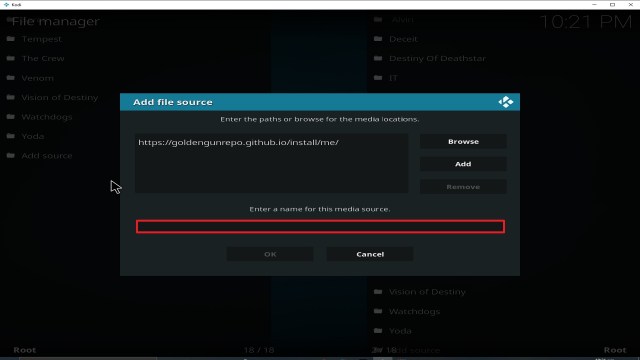
12. Name is Odin (this part isn’t critical as long as you remember the name).

13. Click on OK.

14. Click on OK.

15. Take one step back and click on Add-ons.

16. Select install from zip file.

17. Click on Odin (or whatever you named the source).

18. Click on repository.goldengun-9.1.7.zip

19. Select on Install from repository.

20. Click on goldengun.

21. Pick Video add-ons.

22. Select Odin again.

23. Click on Install.

24. Select OK after reviewing the add-ons that will be installed.
25. You should see a popup in the upper right corner saying Mirror has installed. There will actually be multiple popups for the various components.
26. Click on Open to start the Mirror add-on.
Install IPVanish on Firestick with Screenshots
If your Firestick still has the older interface, read this article to learn how to update it: Update Firestick Interface.
1. Click Home on your remote and click “Find”.

2. Click “Search”.

3. You can either say “IPVanish” to your Alexa’s voice-enabled remote or start typing it. If you typed it, click on the suggestion when it appears.

4. Click on the “IPVanish” icon.

5. Click on “Download”.

6. Wait to “Download”.
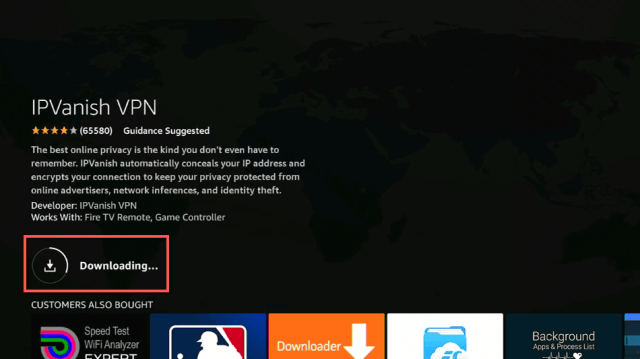
7. Wait to “Install”.

8. Click on “Open”.

9. Input your username and password to “Log In”.

10. Click “Connect”.


