
Overview
Quick Navigation
In this article, we will show you how your Firestick works with Alexa remote.
Do you wonder how your Fire TV stick works with its Alexa remote? If you do, then you’ve come across the right article. Aside from troubleshooting tips and installation guides, we also teach our viewers about the wonderful features of the Fire TV stick. We will discuss first the Fire TV stick then how it functions with Alexa.

What is the Fire TV stick?
Amazon’s Fire TV stick is a device for home entertainment. The purpose of the Fire TV stick is to let you stream any online videos you like. The device has its own HDMI cord and USB Power charger. You can plug it into a TV monitor’s HDMI 2.0/4K port to watch your favorite TV shows, movies, streaming services, and various media files.
The Fire TV stick is shaped like an oversized USB and comes in a matte black color. It is portable and travel-friendly. Imagine connecting your Fire TV stick to any TV monitor you can find. You can access a personal TV platform that contains your favorite media content.
Upon opening the Fire TV stick, it will prompt you to create an Amazon account. Your personal Amazon account is required to access its apps store for installing official Fire TV stick apps. As an alternative, you can also install apps with its downloader app.
The Fire TV stick has many official apps for different purposes. You won’t run out of apps to use for different entertaining activities.
When you purchase a Fire TV stick, the package is complete with a USB cable, power adapter, HDMI cable, an instruction manual, and a pair of Triple-A batteries. The Fire TV stick also comes with an Alexa voice-controlled remote. Let us now discuss how your Fire TV stick works with its Alexa remote.

How does the Fire TV stick work with the Alexa Voice-control Remote?
Today, many people support the new technologies present in modern streaming devices. These gadgets let you conveniently stream many television shows and movies inside your comfortable home. The Fire TV stick is an excellent example of bringing you the voice-controlled Alexa remote.
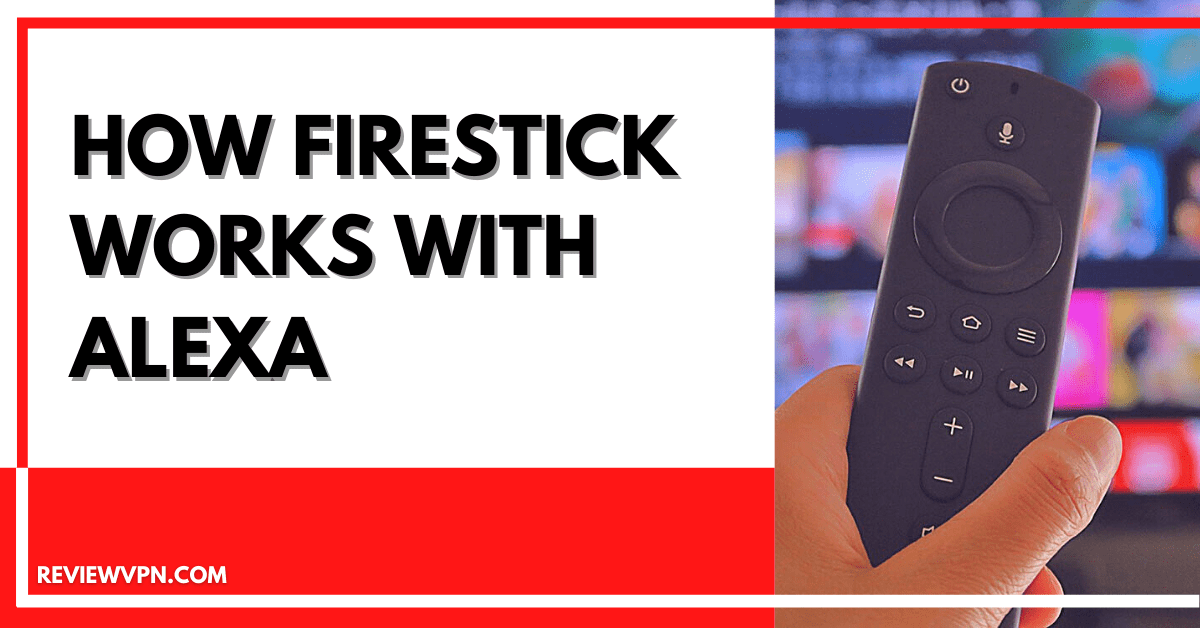
If you wonder how the Fire TV stick functions with the Alexa Voice-control remote, the answer is quite simple. Both devices connect with each other using Bluetooth technology. Your voice commands are received by the Alexa remote which has a mic on it. It will then convert your commands as executable actions for your Fire TV stick.
How to use the Alexa Voice-Control Remote?

Install Surfshark on Firestick
Parts of Alexa Voice-Controlled Remote
- Voice Button
- Navigation Scroll Buttons
- Back Button
- Home Button
- Menu Button
- Fast Forward Button
- Rewind Button
- Play or Pause Button
- Increase Volume Button
- Decrease Volume Button
- Mute Button
Issuing Commands to the Alexa Remote
- Press on the Microphone button on your Fire TV stick remote.
- Wait for the Blue light to blink, this means that Alexa is activated and can receive audio signals.
- Speak clearly on your remote’s microphone, begin with “Alexa, (issue command)” while pressing on the Microphone button.
Alexa Voice Control Commands for the Fire TV stick
We have a list of known voice control commands for the Fire TV stick.
1. Control your Fire TV stick: “Alexa, [Say Command] on Fire TV“.
-
- Pause
- Play
- Resume
- Stop
- Fast-forward
- Rewind
2. Find movies and TV shows:
-
- “Alexa, search for [movie or TV show title] on Fire TV“.
- “Alexa, find [movie or TV show title] on Fire TV.”
3. Search for movies or shows done by actors and actresses:
-
- “Alexa, show me titles with [actor] on Fire TV.”
4. Open Fire TV stick apps:
-
- “Alexa, open [app name] on Fire TV” or “Alexa, launch [app name] on Fire TV.”
5. Go back to your Fire TV stick’s home screen:
-
- “Alexa, return home.“
YOUR INTERNET ACTIVITY IS BEING WATCHED
ReviewVPN cannot attest to the legality, security and privacy of the applications discussed on this site. It is highly recommended that you use a VPN service while streaming or using Kodi.
Currently, your IP 3.218.103.254 is visible to everyone and your Browser is being tracked by Advertisers & ISP Provider.
Here are the main reasons why you must use a VPN:
- Your activities are hidden from your ISP, the government, and from the apps you are using.
- You can access additional movies and TV streams.
- ISP attempts to throttle are thrwarted thus reducing buffering issues.
- Geographically restricted content like Netflix and Hulu can be unblocked.
A VPN works be replacing your ISP-assigned IP address and creating an encrypted tunnel. We recommend the no log service offered by IPVanish. It works well on a Firestick and offers the fastest possible speeds.
Use your Mobile Device as an Alternative Remote
Aside from having its own Alexa remote, you can also control the Fire TV stick with the Alexa mobile application. It is an app compatible with mobile devices. After installing the app, you can use the voice controls of your phone to work with Alexa. Now, your mobile device functions as another remote for your Fire TV stick.
How to connect your Fire TV stick with the Alexa app:
- Install the Alexa app on your mobile device.
- Open the Alexa app on your Android or iOS mobile device.
- Search for the Menu button on the upper left side part of the screen.
- Tap on the Menu button.
- Select the Fire Stick option found on the video selection.
- Connect your Fire TV stick with the Alexa app by tapping on the Connect your Alexa device prompt.
- All detectable Fire TV options will be shown to you.
- Choose any device you want to connect with the Alexa app.
- Your screen will display a list of devices connected with the Alexa app.
- Pick one or more from the list of devices that you want to run with the Fire TV Stick.
- Finally, click on the Linked Devices button.
Use Fire TV Stick with a VPN
The Amazon Fire TV stick is the best device for streaming online videos. Install apps that you want for watching TV shows and movies. You can also install other apps for many purposes.
Unfortunately, your streaming activities are tracked by your ISP. They will reduce your internet speed to prevent the overloading of their servers.
Installing Surfshark will prevent ISP throttling protocols. The VPN has many benefits to offer you:
- Access geo-restricted content.
- Conceals your internet traffic.
- Protects your connection from cyber threats.
- Improves streaming speeds.
- Smooth video streaming without disturbances.
Click here to get the lowest price on Surfshark through our exclusive limited-time offer.
How to Install Surfshark VPN on Firestick
If your Firestick still has the older interface, read this article to learn how to update it: Update Firestick Interface.
Follow our screenshots below to install the SurfShark VPN app on your Fire TV stick.
1. Go to the Home screen of your Firestick.

2. Navigate towards the Find tab. Press the Search button from the resulting dropdown.

3. Type in the keyword of SurfShark and select from the suggestions that will appear.

4. Click the official SurfShark icon from your search results.

5. Press the Download (You own it) button.

6. The SurfShark VPN installer will download on your device.

7. SurfShark VPN’s app will automatically install itself on your Fire TV stick.

8. Press the Open button after completing SurfShark VPN’s installation process.

9. Please wait for the SurfShark VPN to load its user interface.

10. You can now log in with your SurfShark VPN account credentials.

Learn more about Surfshark and Grab the Best Surfshark Deal Now!
Install Surfshark on Firestick


For more VPN discounts, go to ReviewVPN Deals and purchase the best VPN for you.
Click here to get the lowest price on Surfshark through our exclusive limited-time offer.
FAQs
Are there any other ways to access Alexa?
Yes, Amazon has made Alexa accessible through many methods. These are:
- Alexa app for Android and iOS mobile devices.
- Amazon’s Shopping and music app.
- Asking your computer’s Cortana to “Open Alexa.” after the connection begins.
Can I use the Amazon Smart Echo Speaker with Alexa?
Yes. Alexa is present in nearly every Amazon device. Just say “Alexa, [issue Command]”, and then your device will summon Alexa.
Conclusion
The Fire TV stick is a wonderful invention that joins the ranks of modern streaming devices. You can control your Fire TV stick with its Bluetooth Alexa voice-controlled remote. Your mobile device can also become your Fire TV stick’s remote by installing the mobile Alexa application.
We hope that this article teaches you about how your Fire TV stick works with Alexa.


