

Overview
This article will show you how to install tVOne+ (112) Kodi Addon on Firestick/Android.

tvOne+ is a Kodi addon from The Chains Repository that offers live TV and Sports streaming. It provides quick-loading videos that you may watch for free. You will undoubtedly locate a channel from its extensive library of streaming media. It also includes sports content for basketball, hockey, hockey, cricket, baseball, boxing, golf, and other sports.
However, we want to make sure that you are aware that tvOne+ is a third-party addon before we start the installation. It is not accessible through the official Kodi repository, and Kodi disclaims all responsibility for any harm and violations that may result from using this addon. We advise using a VPN before installing it on your device to ensure your privacy. And Surfshark is now the best VPN on the market.

How To Install TVONE+ (tvOne112) Kodi Addon on Firestick
You can follow this tutorial to install TVONE+ Kodi Addon on your Firestick.
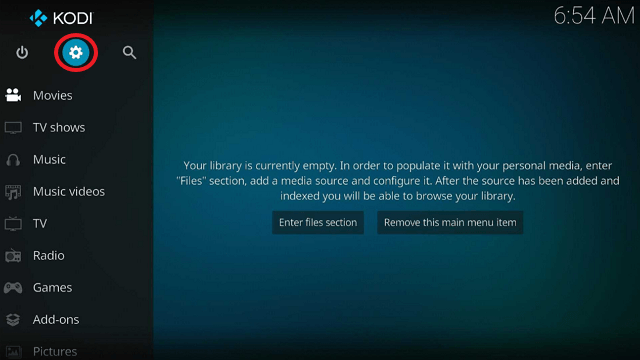
1. Launch the Kodi app on your Firestick. Click on the gear wheel icon (Settings)
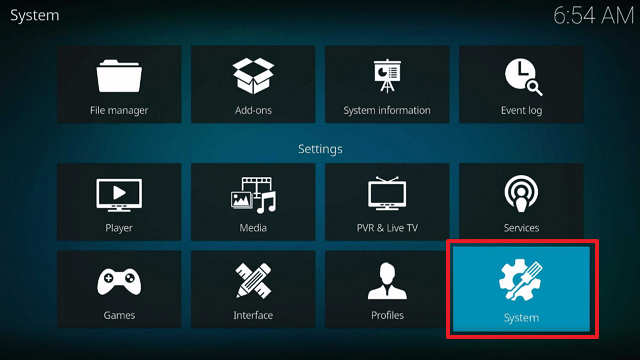
2. Select “System”
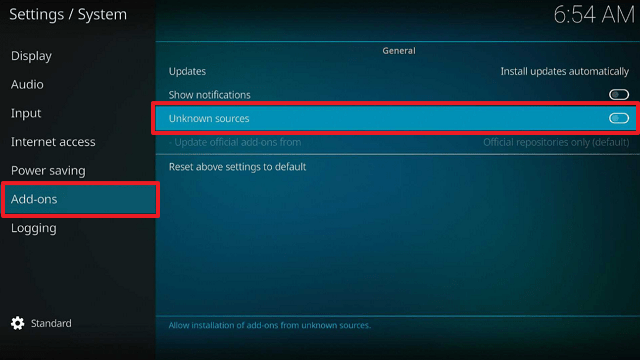
3. Scroll down to “Add-ons” Then Go to “Unknown sources” then toggle it on.
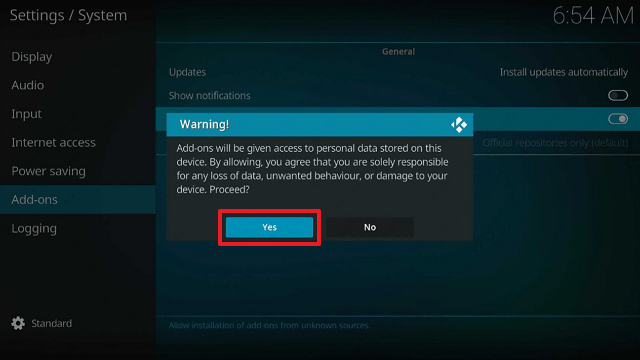
4. Select “Yes”. Then using your Firestick remote, press the return button to go back to the System page
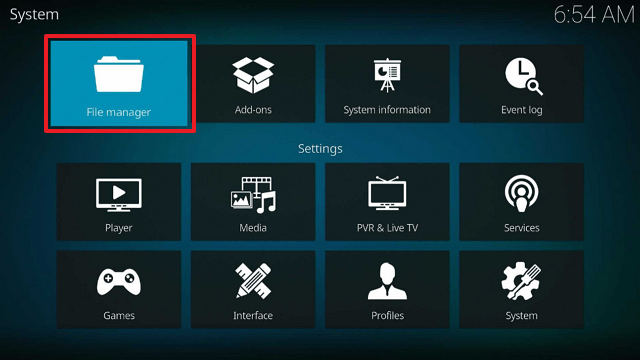
5. Now choose “File Manager”
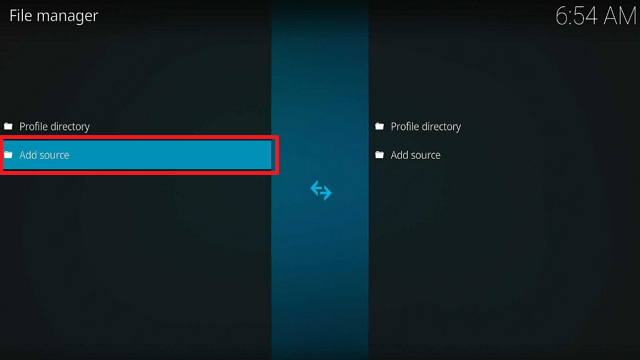
6. Scroll down and select “Add source”
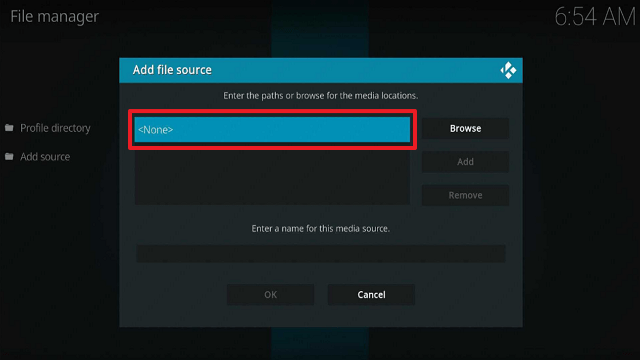
7. Click “<None>”
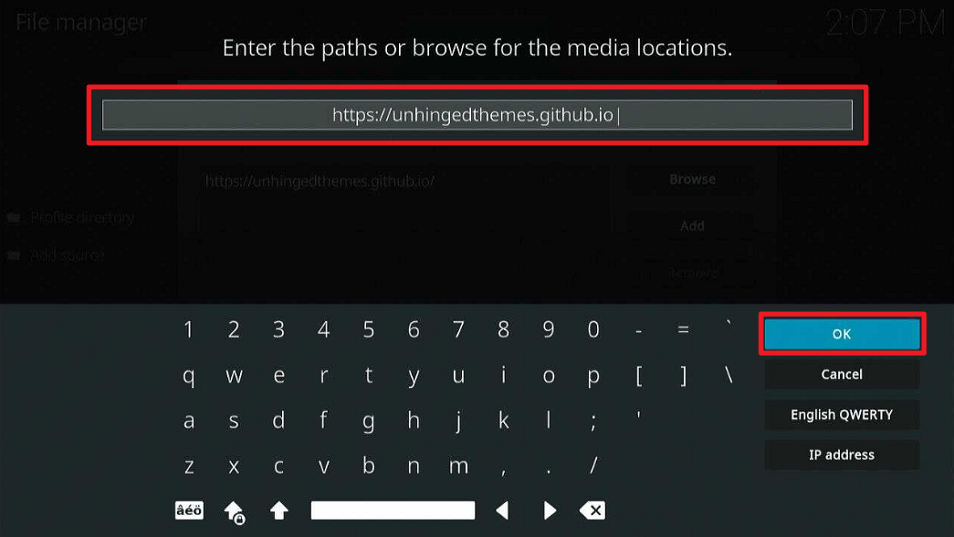
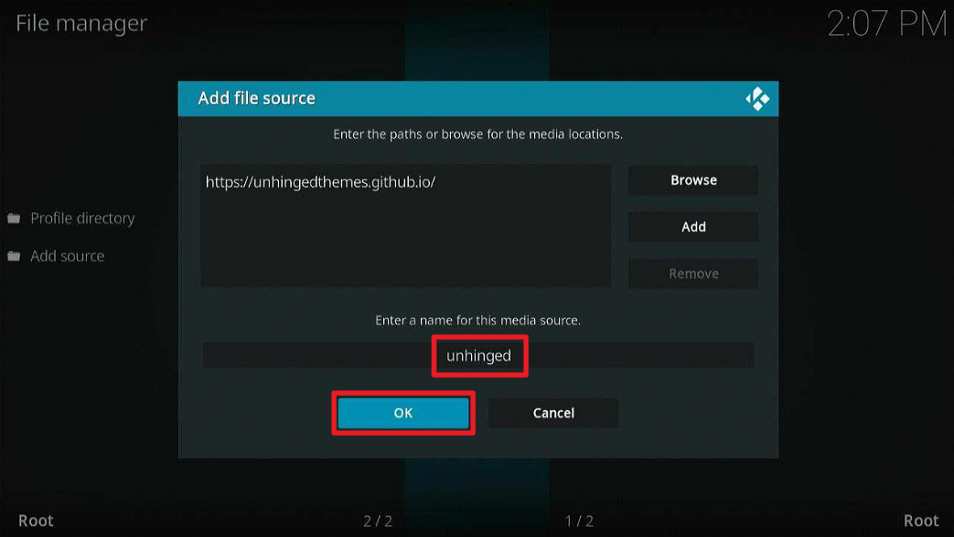
8. Type in “https://unhingedthemes.github.io” then click “OK”
9. Highlight the box under the source to give the media source a name, and put “unhinged” or any other name that will help you identify it quickly. Click “OK”. Return to the System page by pressing the return button on your remote
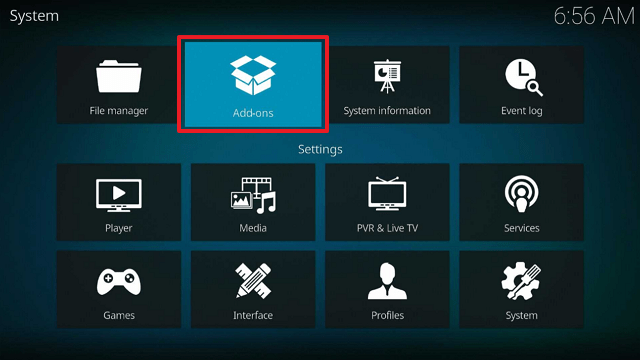
10. Select “Add-ons”
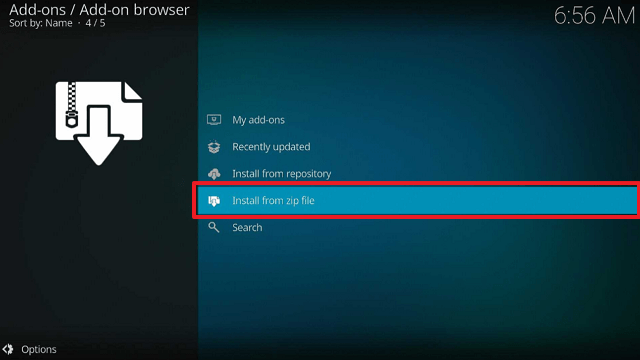
11. Choose “Install from zip file”
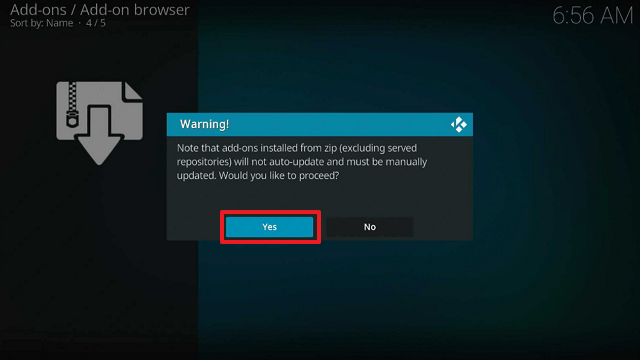
12. Click “Yes”
13. Select “unhinged”
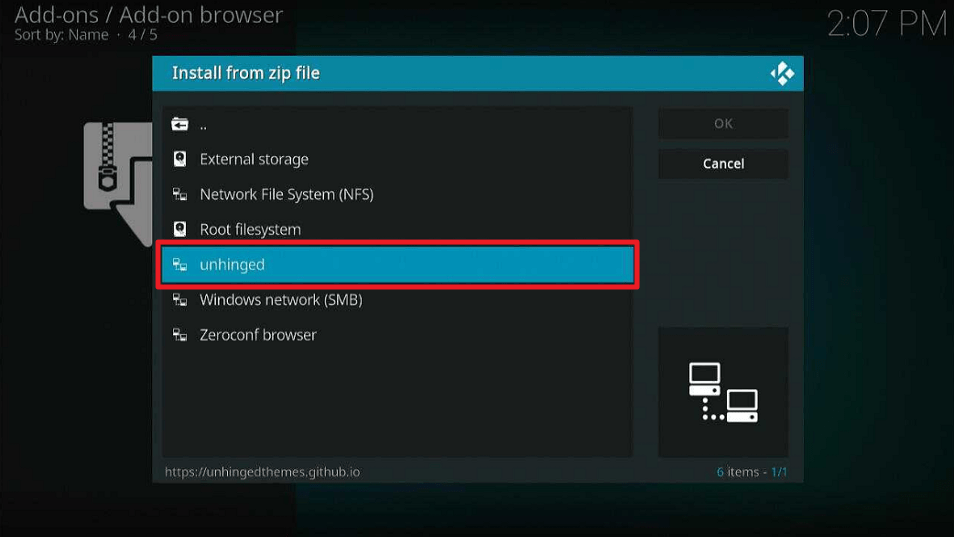
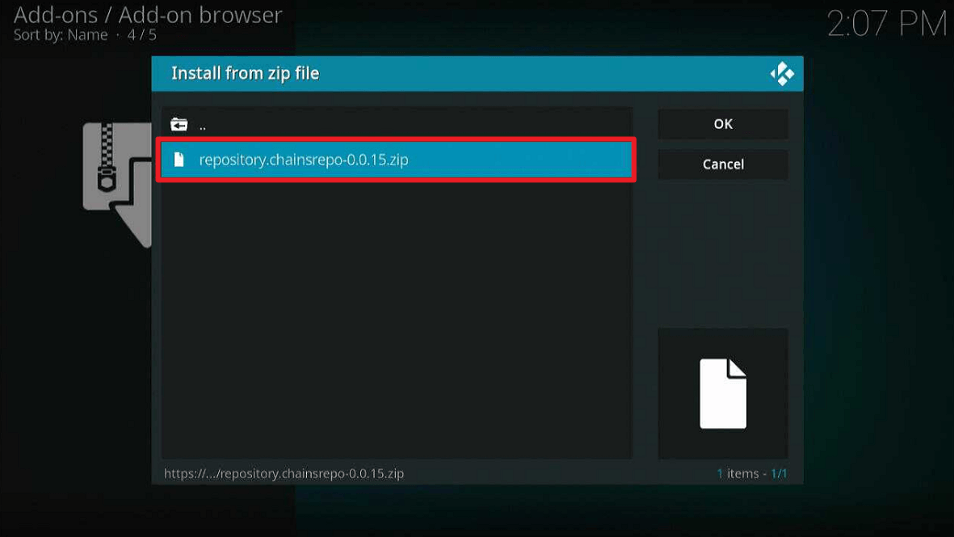
14. Then click on the zip file URL – repository.chainsrepo-x.x.x.zip
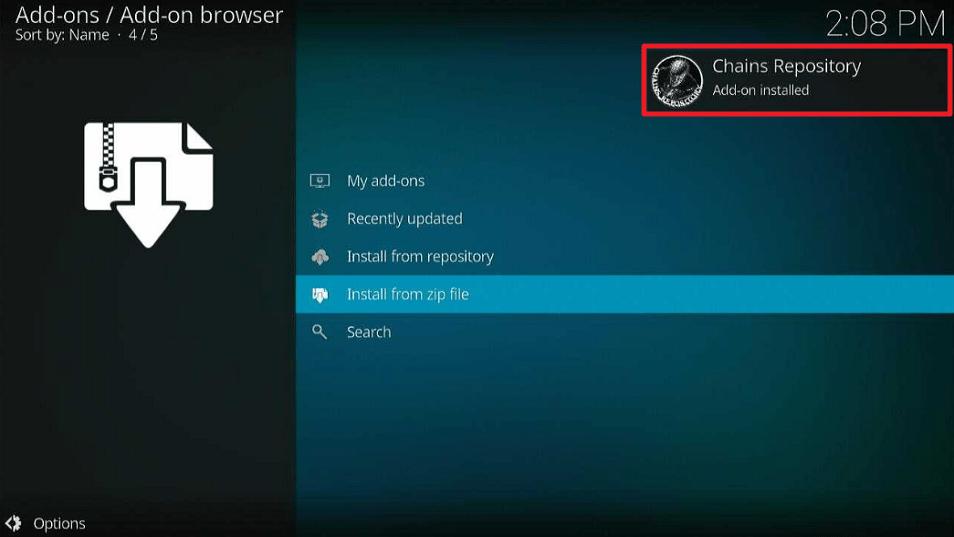
15. Wait for the notification “Chains Repository Add-on installed” to appear on the upper right part of the screen
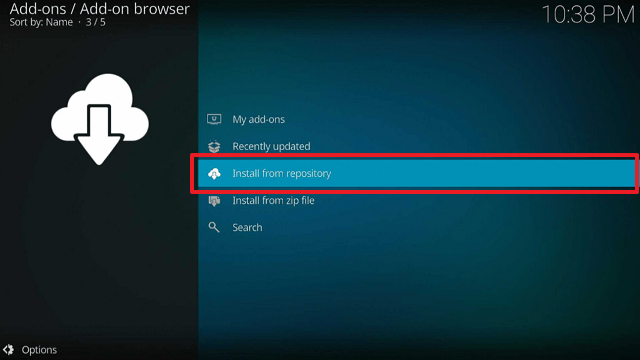
16. Afterward, select “Install from repository”
17. Then click “Chains Repository”
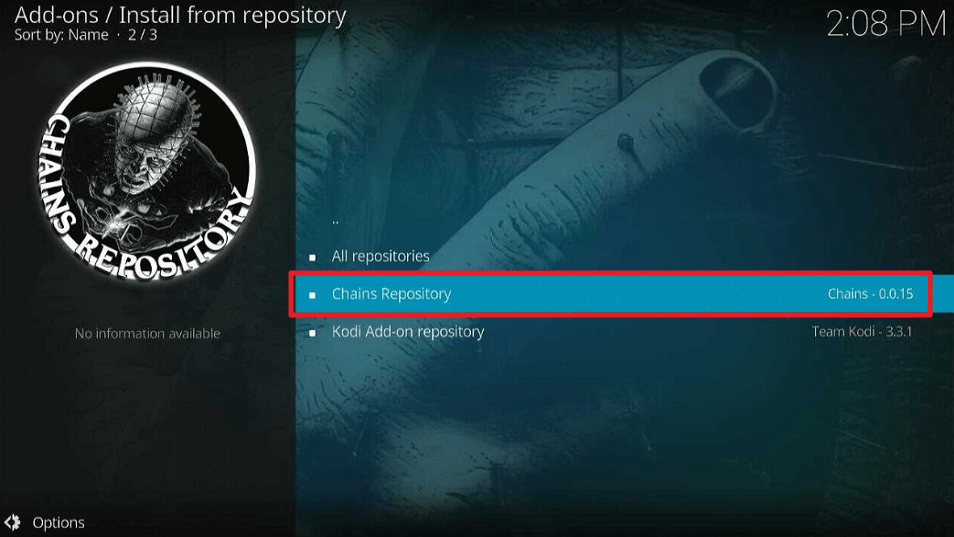
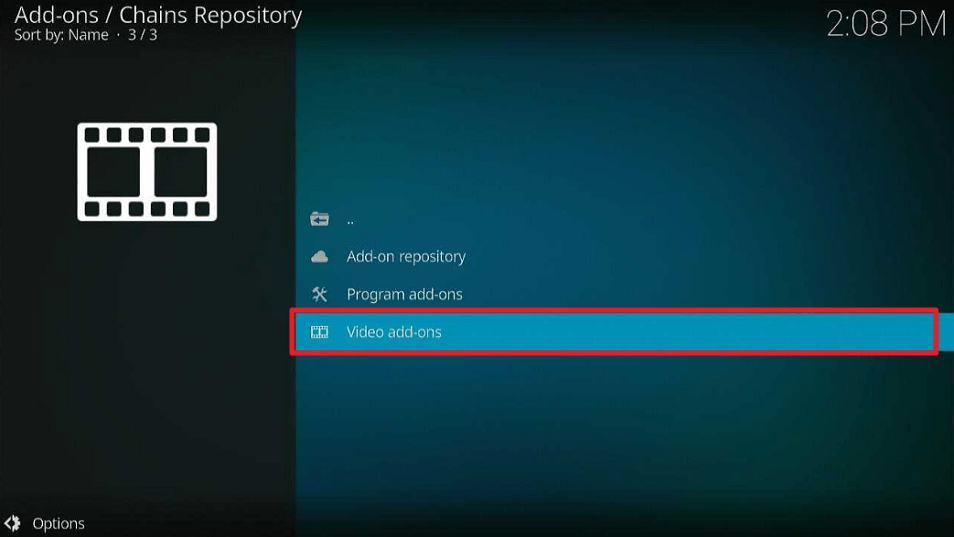
18. Select “Video add-ons”
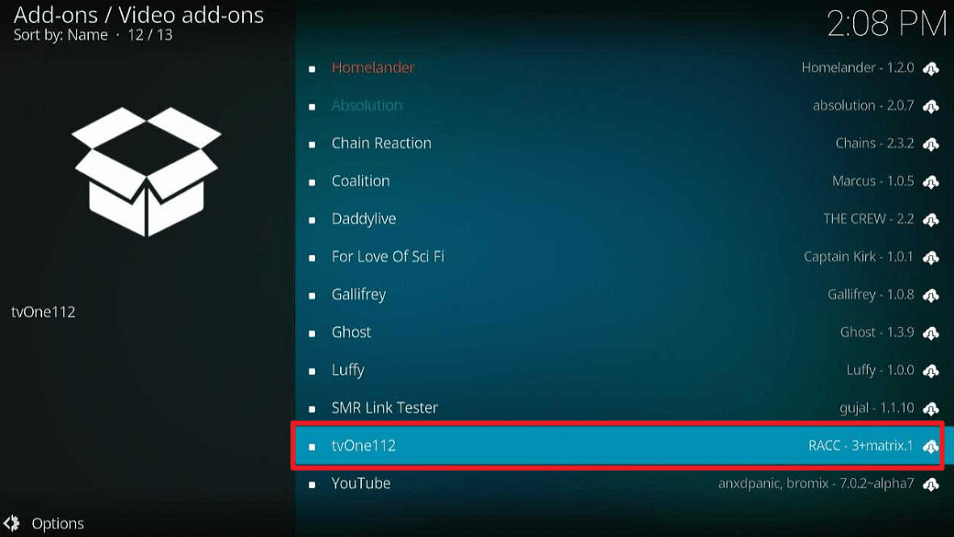
19. Click on “tvOne112”
20. Then click “Install”
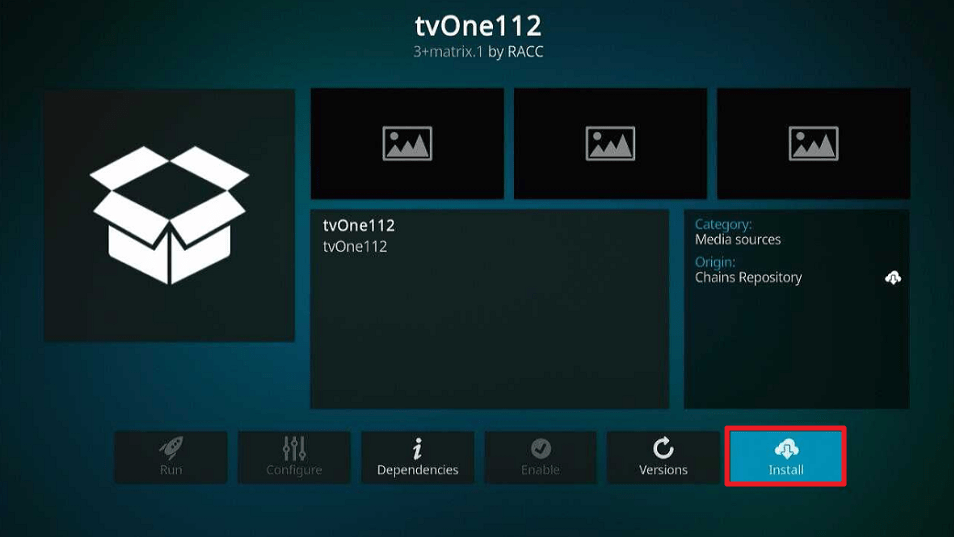
21. Wait for the add-on to install. It’s finished once you see the “tvOne112 Add-on Installed” message appears.
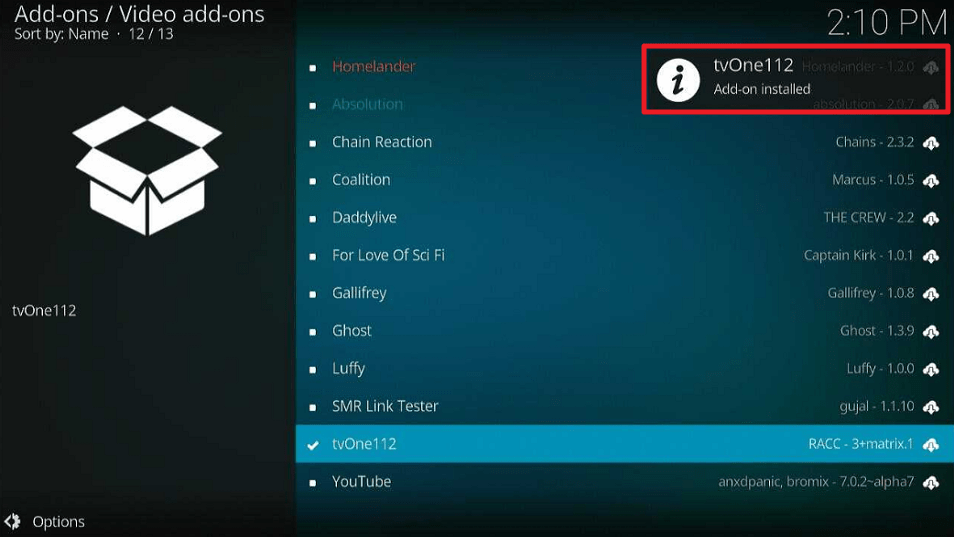
22. Select “tvOne112”. Then select “Open”
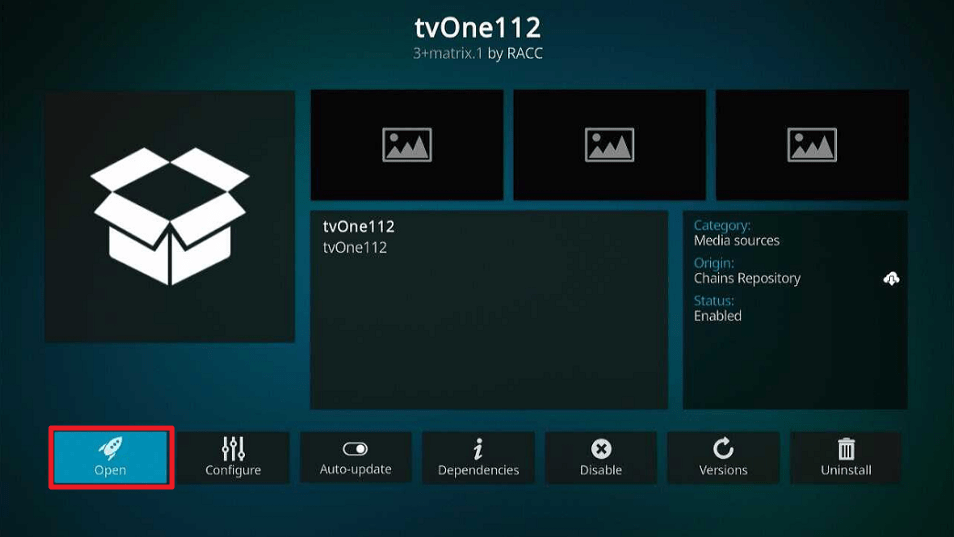
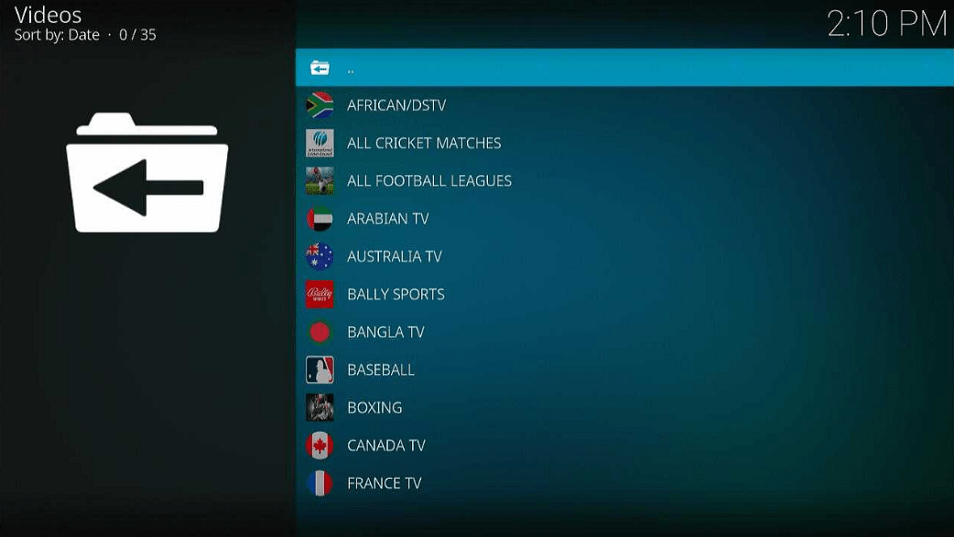
23. That’s it, tvOne112 Kodi Addon is already installed on your Firestick.
YOUR INTERNET ACTIVITY IS BEING WATCHED
ReviewVPN cannot attest to the legality, security and privacy of the applications discussed on this site. It is highly recommended that you use a VPN service while streaming or using Kodi.
Currently, your IP 216.73.216.193 is visible to everyone and your Browser is being tracked by Advertisers & ISP Provider.
Here are the main reasons why you must use a VPN:
- Your activities are hidden from your ISP, the government, and from the apps you are using.
- You can access additional movies and TV streams.
- ISP attempts to throttle are thrwarted thus reducing buffering issues.
- Geographically restricted content like Netflix and Hulu can be unblocked.
A VPN works be replacing your ISP-assigned IP address and creating an encrypted tunnel. We recommend the no log service offered by IPVanish. It works well on a Firestick and offers the fastest possible speeds.
Legal Disclaimer: ReviewVPN.com does not encourage or endorse any illegal activity involved in the usage of services and applications referenced on this site. We do not verify the licensing agreements of services. The end-user is wholly responsible for ensuring that any media accessed through these services does not violate copyright and/or licensing laws. ReviewVPN does not promote, link to, or receive compensation from any Apps and IPTV services.
Install Surfshark on Firestick

tvOne+ Features
- Streams sports and local live TV networks from around the world.
- You may find sports like cricket, football, baseball, boxing, golf, hockey, motorsports, tennis, and more.
- It also offers streaming for the NBA, NFL, UFC, and Rugby World Cup.
- Local live TV is available in countries such as Africa, Arabia, Australia, Canada, France, Germany, India, Pakistan, Portugal, Spain, Turkey, the United Kingdom, and the United States.
- It also has live TV channels for Wildlife/Science, Kids, and Punjabi.
- Allows you to save your favorite channels as bookmarks.
- Subtitle support is available.
- SD to HD resolution videos are available.
- Allows you to adjust certain aspects of viewing, including View Type, Order, Search, and Filter.
- Actions would allow you to navigate to the playlist or add-on settings.
Pros & Cons
Pros
- It provides free streaming.
- Videos load quickly.
- Offers a large number of streaming channels.
Con
- There are buffers, which is the only flaw I observe with this add-on.
Stream Safely with a VPN

tvOne+ offers hundreds of live TV channels and sports events that you can stream from the convenience of any device of your choice.
However, we constantly want to urge our readers to use a Virtual Private Network (VPN) to prevent internet activity tracking and logging, especially those who are from nations with strong internet surveillance.
As a result, a VPN like Surfshark can assist you in protecting your data from being stolen and utilized in ways that could threaten your privacy.
Using this service, you can be guaranteed that there won’t be any log or IP address leaks because it encrypts your connection with an AES-256 GCM key.
In addition, it enables you to benefit from the following advantages:
- 3,200+ servers in 100+ locations are available
- Enables you to bypass geo-restrictions
- Protects an unlimited number of simultaneous connections
- It has a Cleanweb feature that prevents malware and ads
- Comes with a cookie consent pop-up blocker
- A kill switch is available
- Supports major platforms such as macOS, iOS, Android, Windows, Nvidia Shield, etc.
- 30-day money-back guarantee
- 24/7 customer support
Note: For more information about Surfshark, please read our Surfshark Review.
Install Surfshark on Firestick
How to Install Surfshark VPN on Firestick
If your Firestick still has the older interface, read this article to learn how to update it: Update Firestick Interface.
Follow our screenshots below to install the SurfShark VPN app on your Fire TV stick.
1. Go to the Home screen of your Firestick.

2. Navigate towards the Find tab. Press the Search button from the resulting dropdown.

3. Type in the keyword of SurfShark and select from the suggestions that will appear.

4. Click the official SurfShark icon from your search results.

5. Press the Download (You own it) button.

6. The SurfShark VPN installer will download on your device.

7. SurfShark VPN’s app will automatically install itself on your Fire TV stick.

8. Press the Open button after completing SurfShark VPN’s installation process.

9. Please wait for the SurfShark VPN to load its user interface.

10. You can now log in with your SurfShark VPN account credentials.

Learn more about Surfshark and Grab the Best Surfshark Deal Now!
Install Surfshark on Firestick



For more VPN discounts, go to ReviewVPN Deals and purchase the best VPN for you.
FAQs
What is tvOne+?
tvOne+ is a Kodi addon from Chains Repository that provides access to free live TV and Sports.
Is tvOne+ safe?
It is safe to install tvOne+ on your device, yes. However, because this addon is run by other developers, you will never know if there are logs when using it.
Because of this, we suggest using Surfshark to prevent data breaches.
Is tvOne+ legal?
The legality of the streams provided by tvOne+ cannot be guaranteed. As a result, we once more advise utilizing a VPN to stream anonymously when using tvOne+.
Is tvOne+ free?
Yes, tvOne+ has the benefit of providing free streaming for all of its content.
Wrapping Up
One of the most popular Kodi streaming add-ons is tvOne+. It gives users access to sports and live TV. The best part about it is that all of its content is free as well. Therefore, you might want to check out tvOne+ if you’re looking for a good addon for viewing live TV and sports for free.






