

XFireStreamz IPTV Overview
Quick Navigation
This article will show you our review and installation guide of XFireStreamz on your Fire TV stick.

Do you enjoy watching TV shows during your free time? Are you searching for affordable alternatives to an expensive cable TV subscription? Then worry no more! The XFireStreamz IPTV shares with us a 24/7 live TV streaming service.
We will be reviewing XFireStreamz IPTV in this article. Before we show you some details, we like to share what an IPTV is and how it works.
What is IPTV?
IPTV stands for Internet Protocol Television. IP translates to internet protocol and is a medium for transmitting TV signals using your internet connection. You can enjoy streaming online video content with an IPTV service or an app.
An IPTV service uses an Internet protocol for delivering video content to its users. As a result, you can access many live TV channels after subscribing.
The TV Channels you can stream vary with each IPTV service provider. Some typical live TV channels show documentaries, sports, movies, and news.
IPTV Content
- Time-Shifted media
- Videos On Demand (VOD)
- Live TV
Now that you know what an IPTV is and how it works let us introduce you to the XFireStreamz IPTV service.

Is XFireStreamz IPTV Good for Streaming?
XFireStreamz is an IPTV service provider offering up to 3,000 channels. Most TV Channels of XFireStreamz come from either the USA or Canada. All of its channels come in SD (30 fps) and full HD (60 fps) quality.
The XFireStreamz service does not offer international live TV channels. However, XFireStreamz also offers videos on-demand content. Subscribers can also submit a request for their favorite movie or TV series by sending an email.
The XFireStreamz service has an app compatible with your Android & Fire TV stick.
XFireStreamz App for Android Devices

Note: ReviewVPN.com does not host this APK file. Archive.org sponsors it.
How to Install XFireStreamz IPTV on your Fire TV Stick
To install the XFireStreamz IPTV app, you first have to jailbreak your Firestick & install the Downloader app.
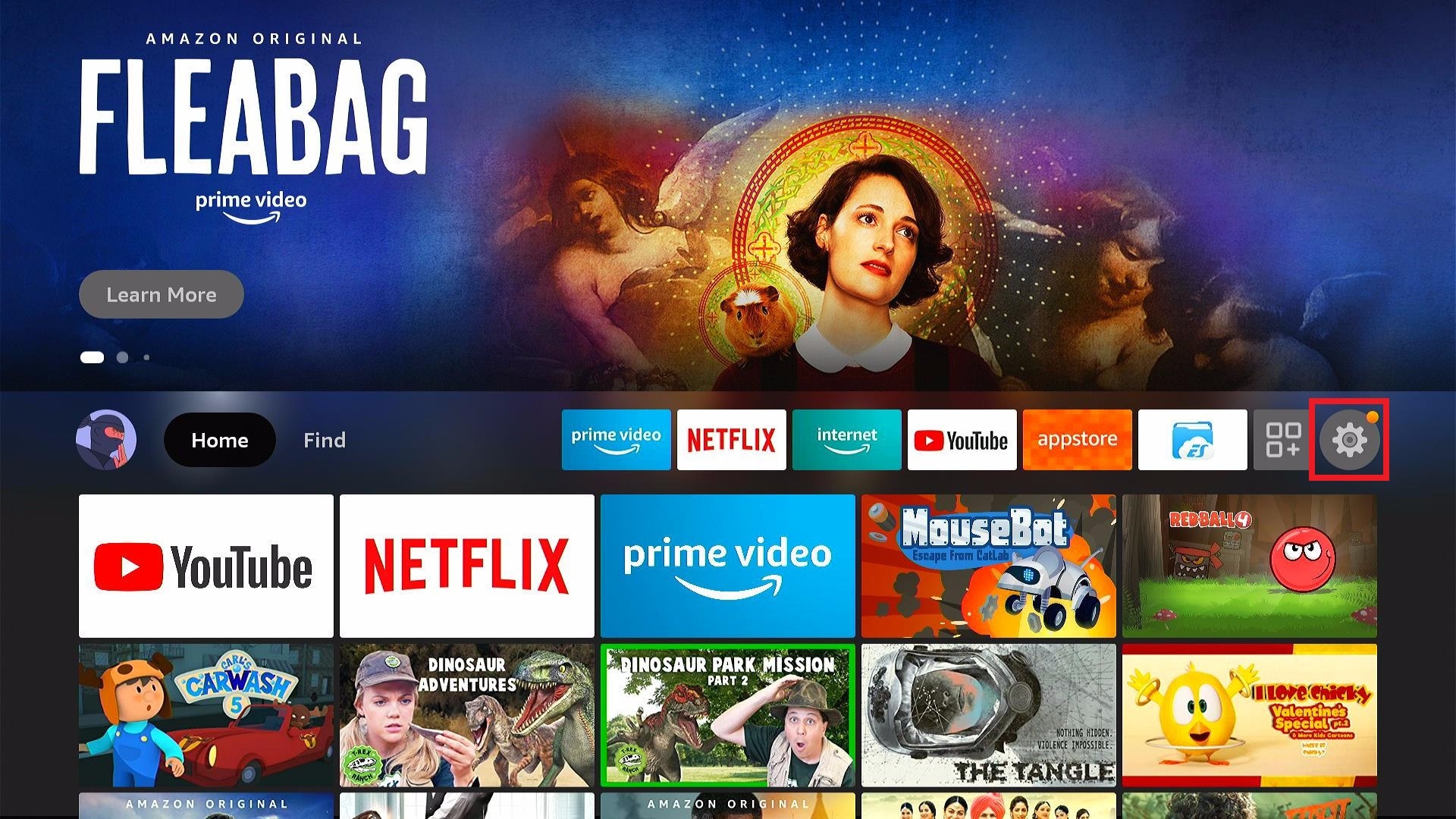
- Open your Firestick Settings Tab. (Gear Wheel Icon).
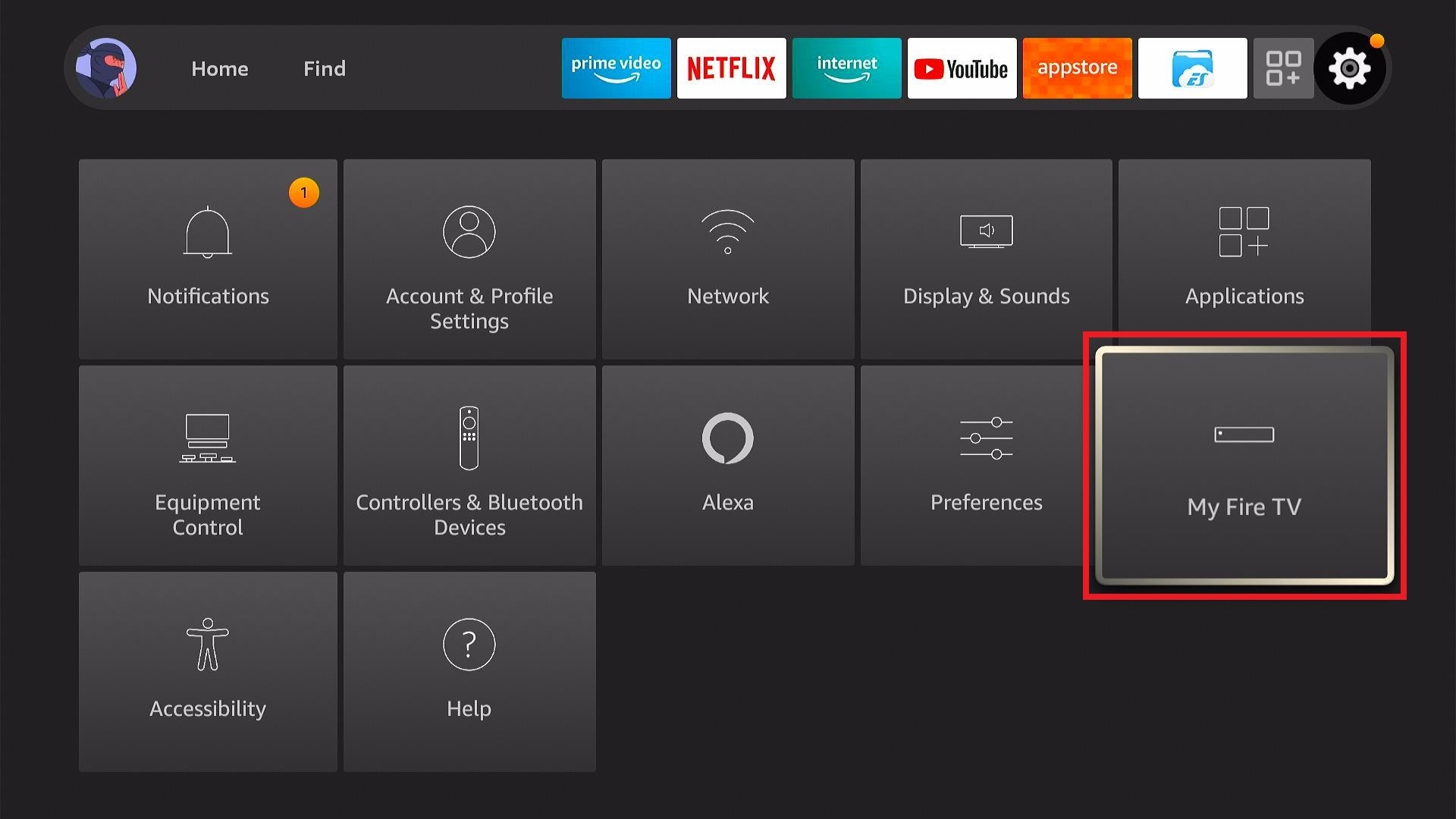
- Scroll down and to the right until you get to My Fire TV. Click on it.
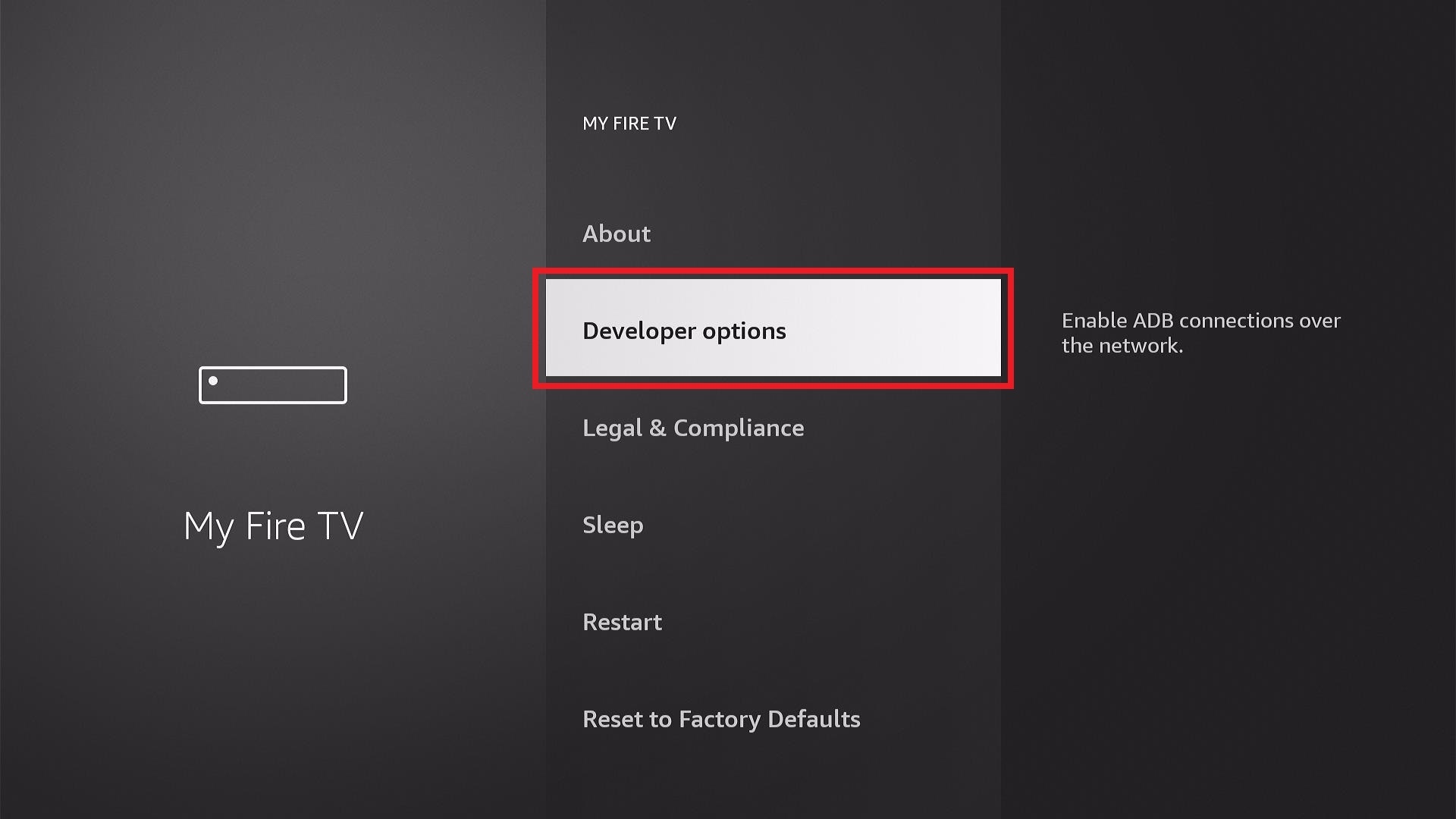
- Select Developer options.
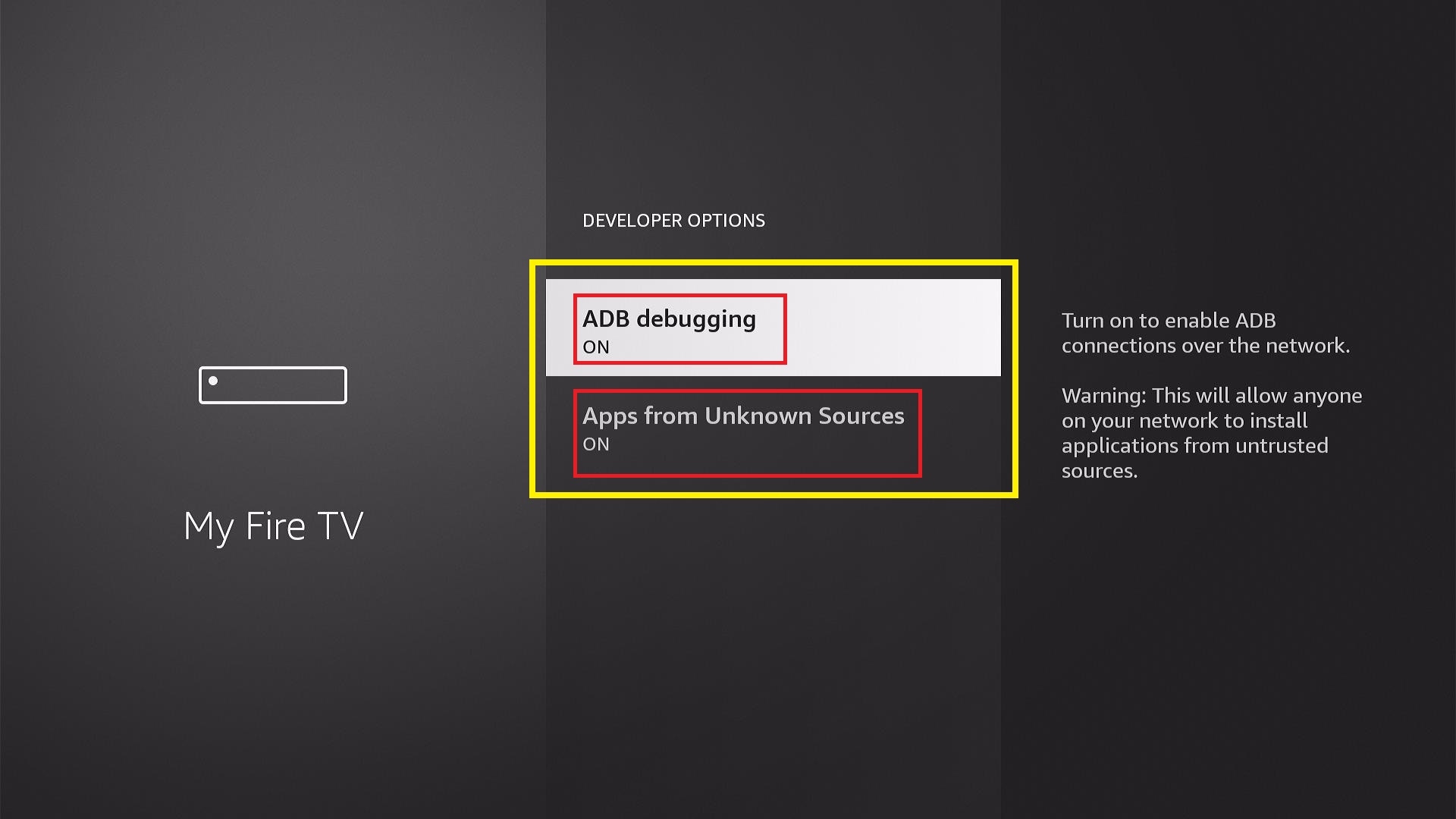
- Turn on ADB debugging and Apps from Unknown Sources.
- Press the Turn On when the pop-up appears.
- Click Home and press on FIND.
- Press the Search button from the dropdown.
- You can either say Downloader to your Alexa voice-enabled remote or start typing it. If you typed it, click on the suggestion when it appears.
- Click on the Downloader Icon.
- Tap on Download.
- Click on Open.
- Press on the Allow button.
- You can now use the Downloader app.
- Type in https://reviewvpn.com/xfire and click the Go button.
- The XFireStreamz installer will download on your device.
- Press the Install button.
- XFireStreamz will now install on your Fire TV stick.
- Click the Open button to launch the XFireStreamz IPTV app.
- Please wait while the XFireStreamz IPTV app loads its user interface.
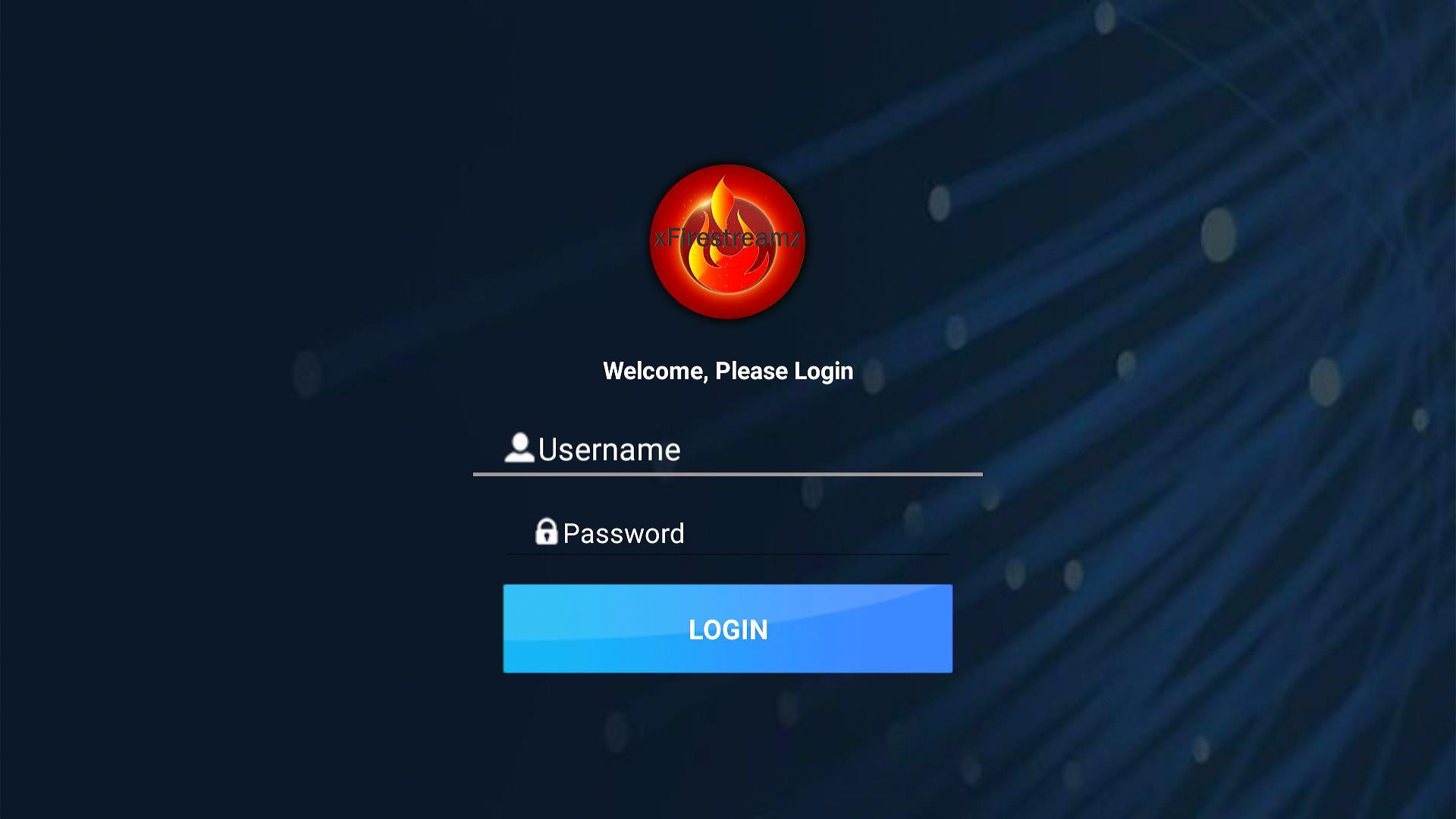
- You can now enter the app with your account credentials.
How to Install XFireStreamz IPTV on your Firestick (Screenshots)
1. Open your Firestick Settings Tab. (Gear Wheel Icon).
2. Scroll down and select My Fire TV.
3. Select Developer options.
4. Turn on ADB debugging and Apps from Unknown Sources.
5. Press the Turn On when the pop-up appears.
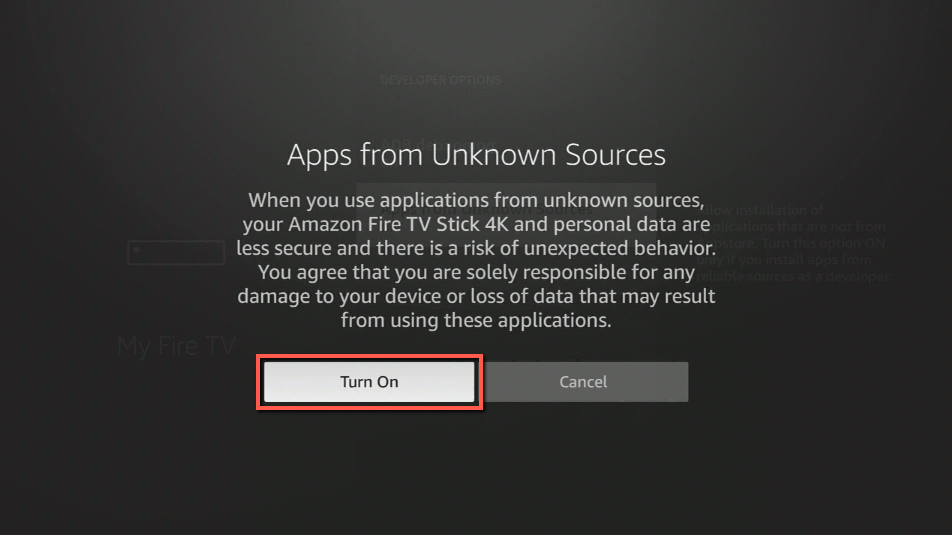
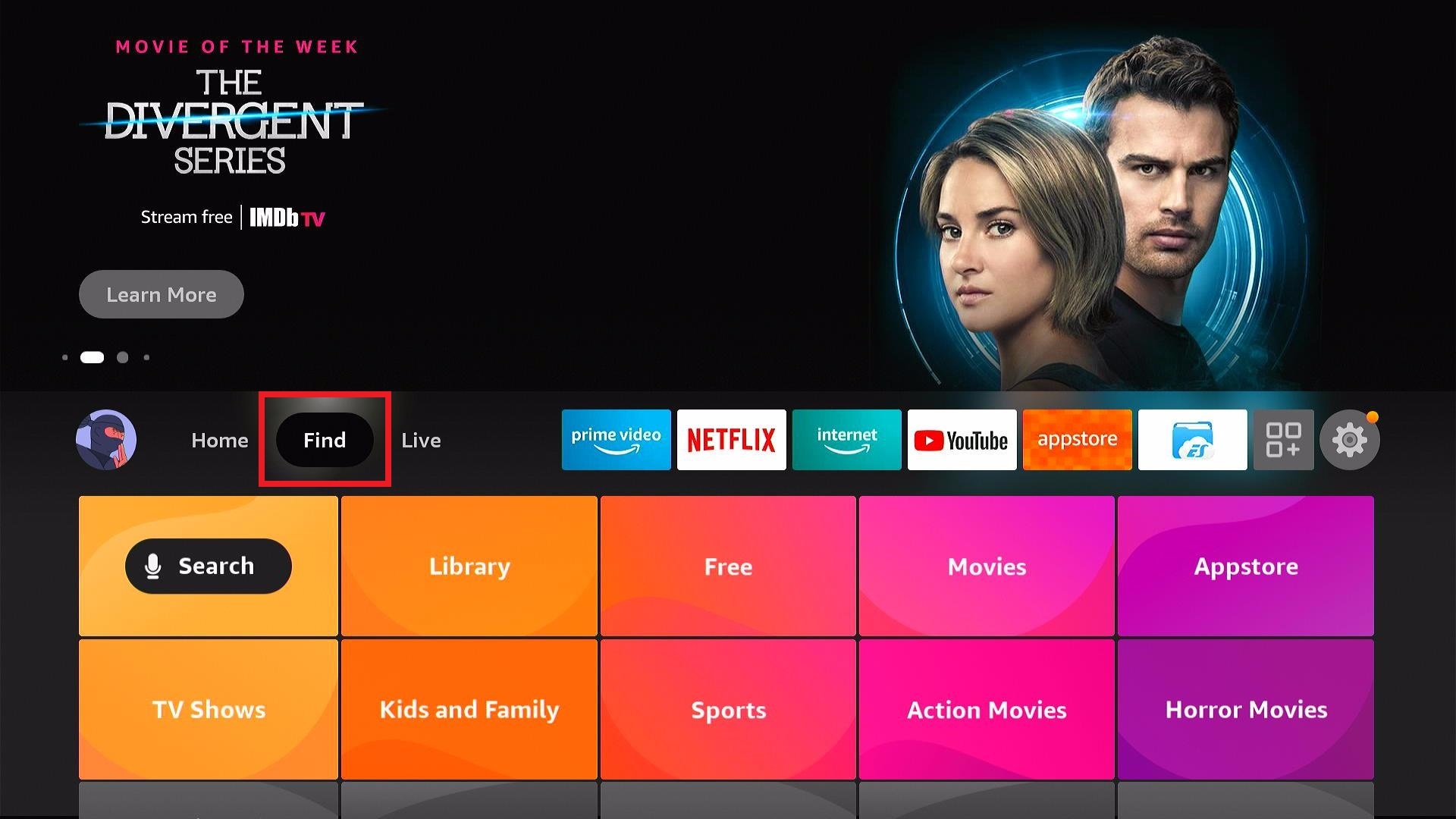
6. Click Home and press on FIND.
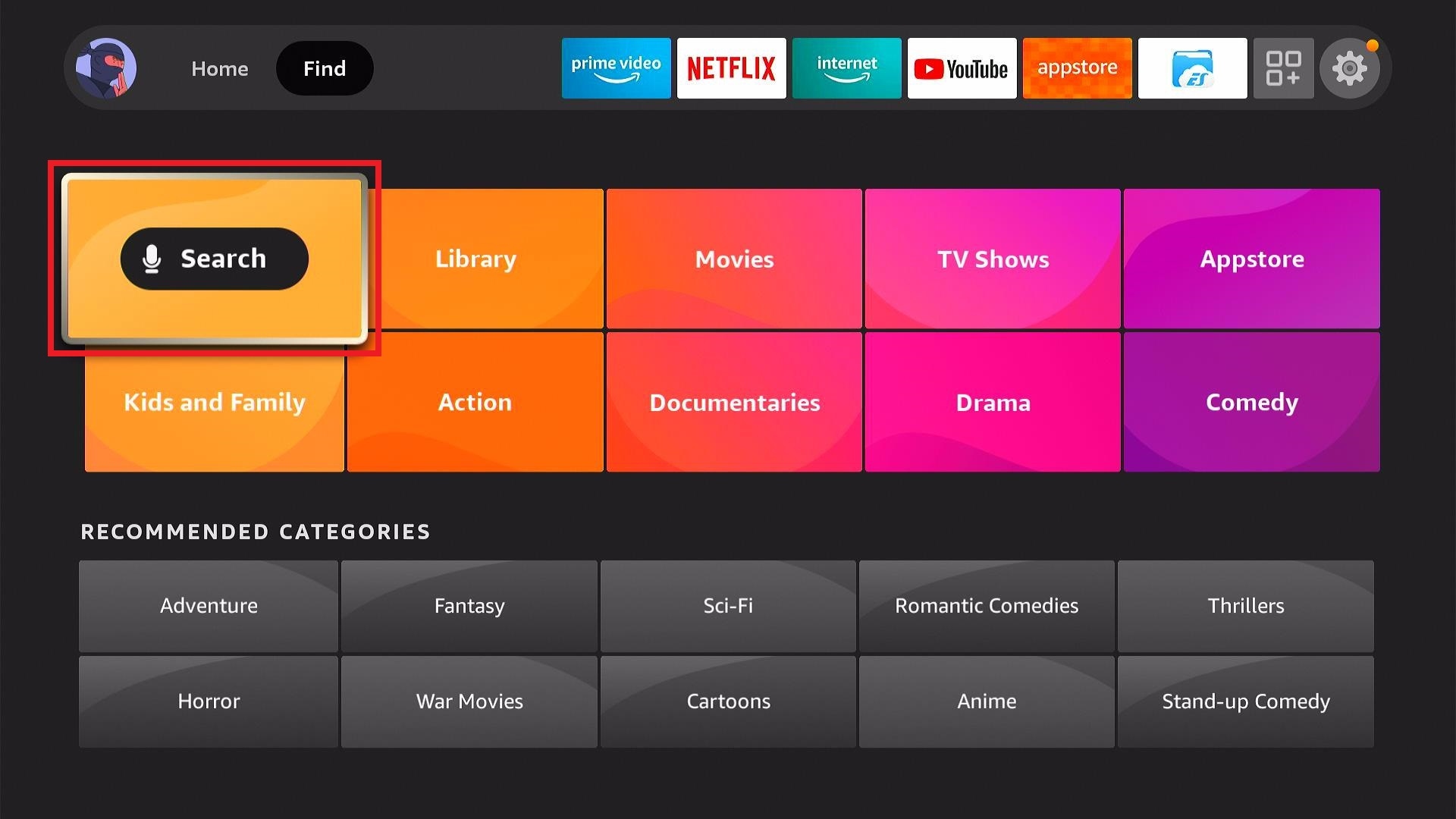
7. Press the Search button from the dropdown.
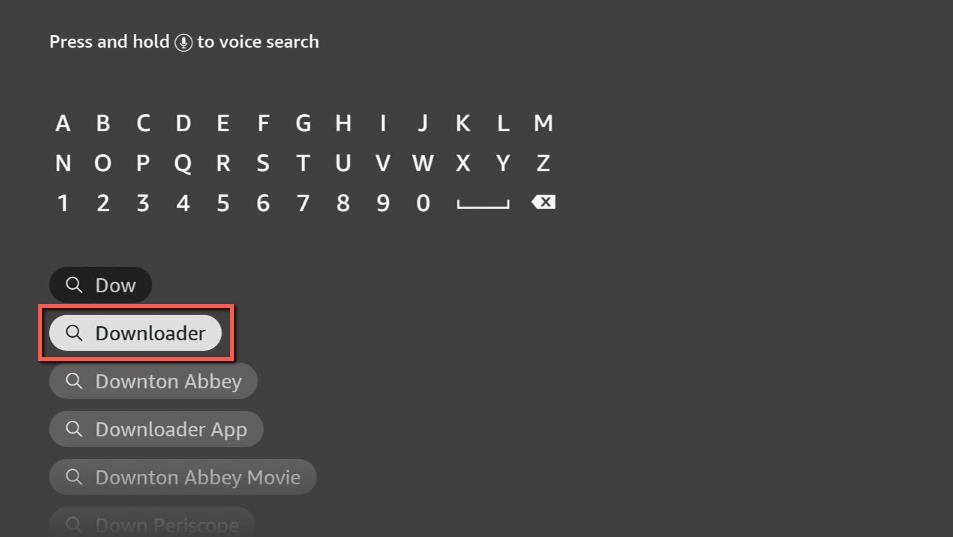
8. You can either say Downloader to your Alexa voice-enabled remote or start typing it. If you typed it, click on the suggestion when it appears.
9. Click on the Downloader Icon.
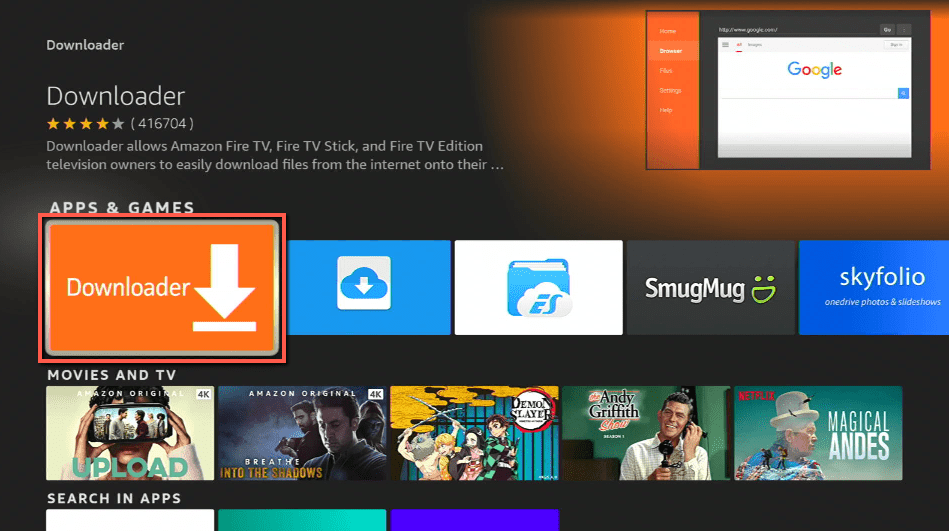
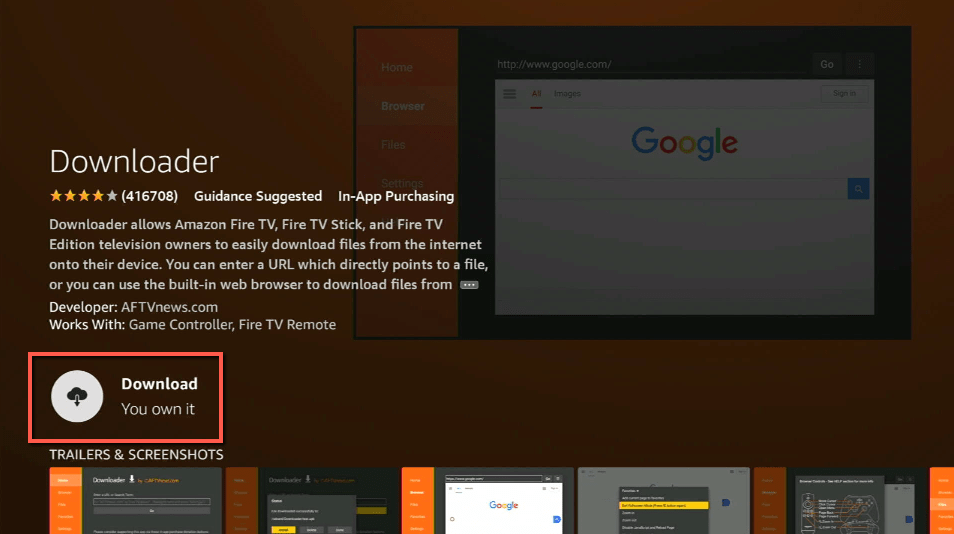
10. Tap on Download.
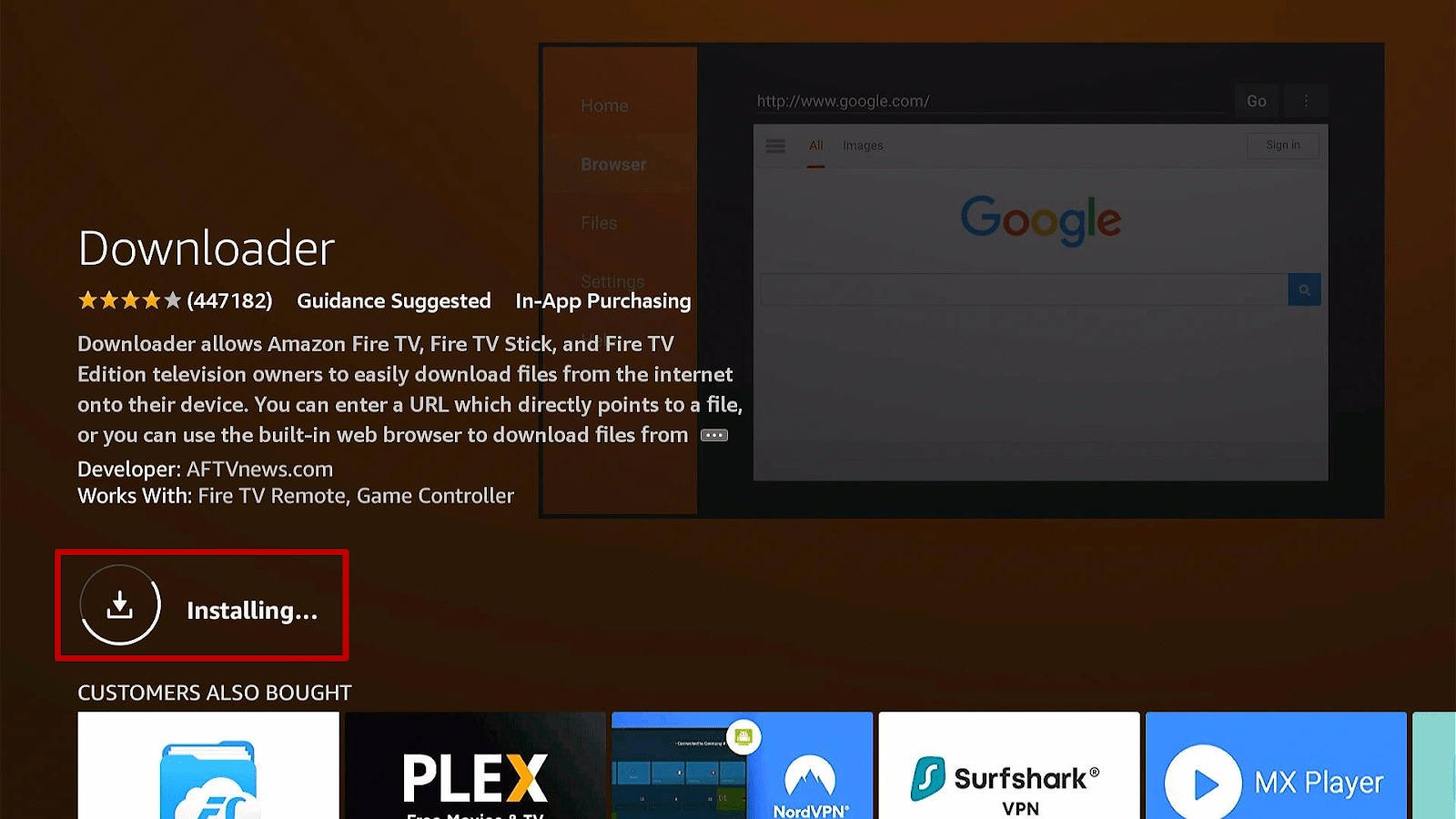
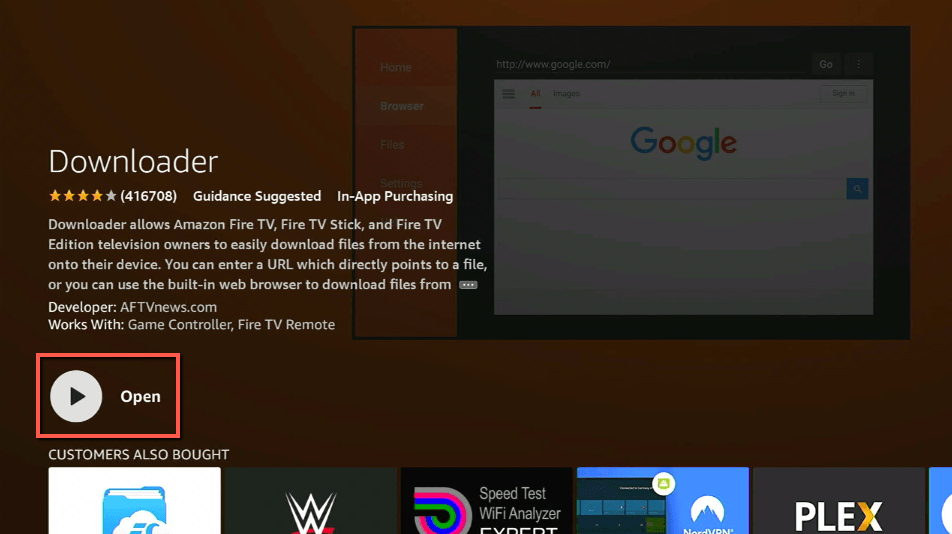
11. Click on Open.
12. Press on the Allow button.
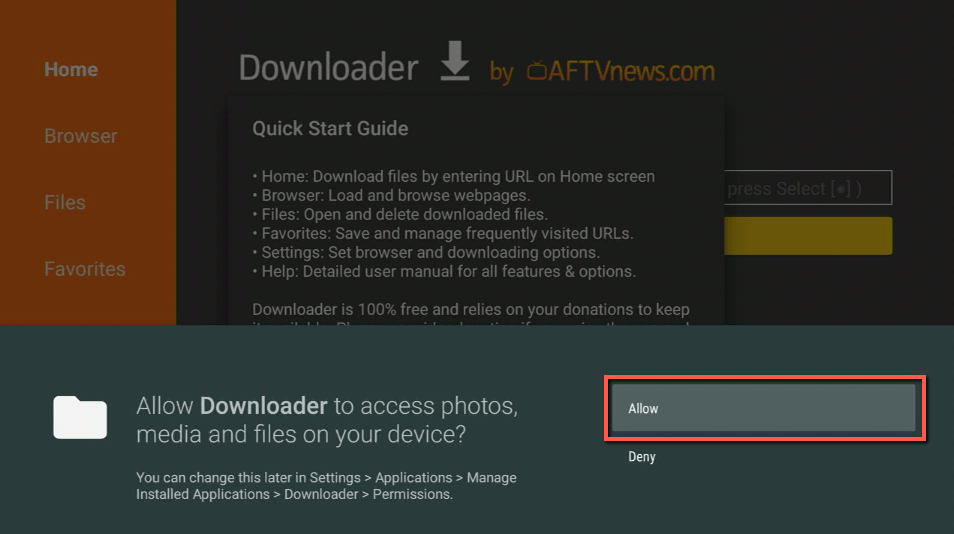
13. You can now use the Downloader app.
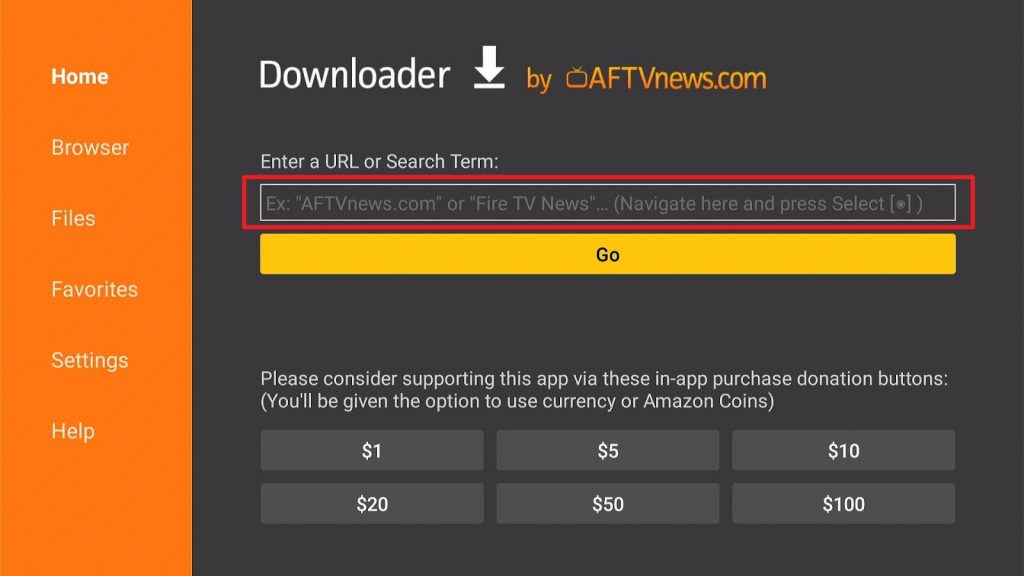
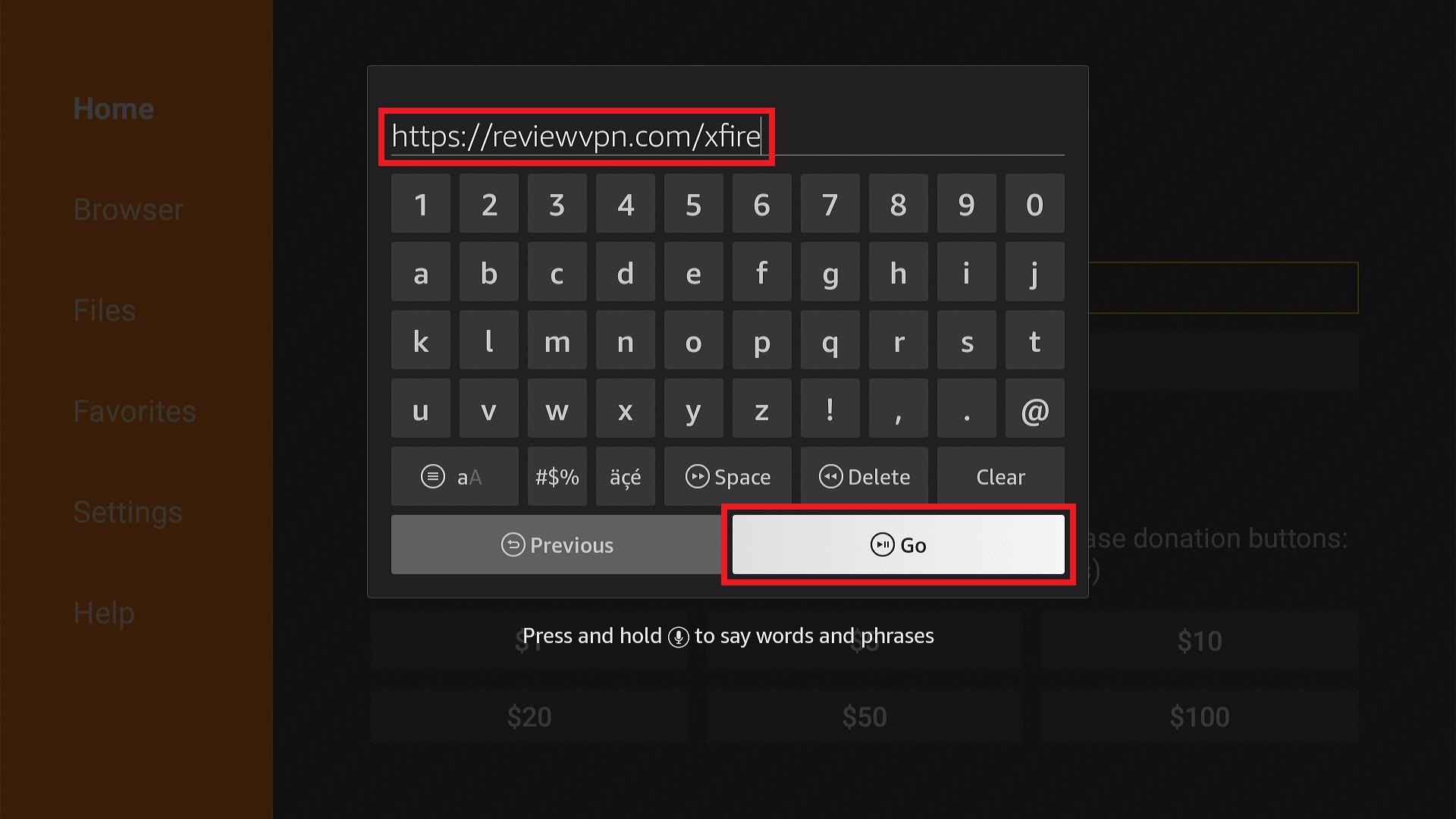
14. Type in https://reviewvpn.com/xfire and click the Go button.
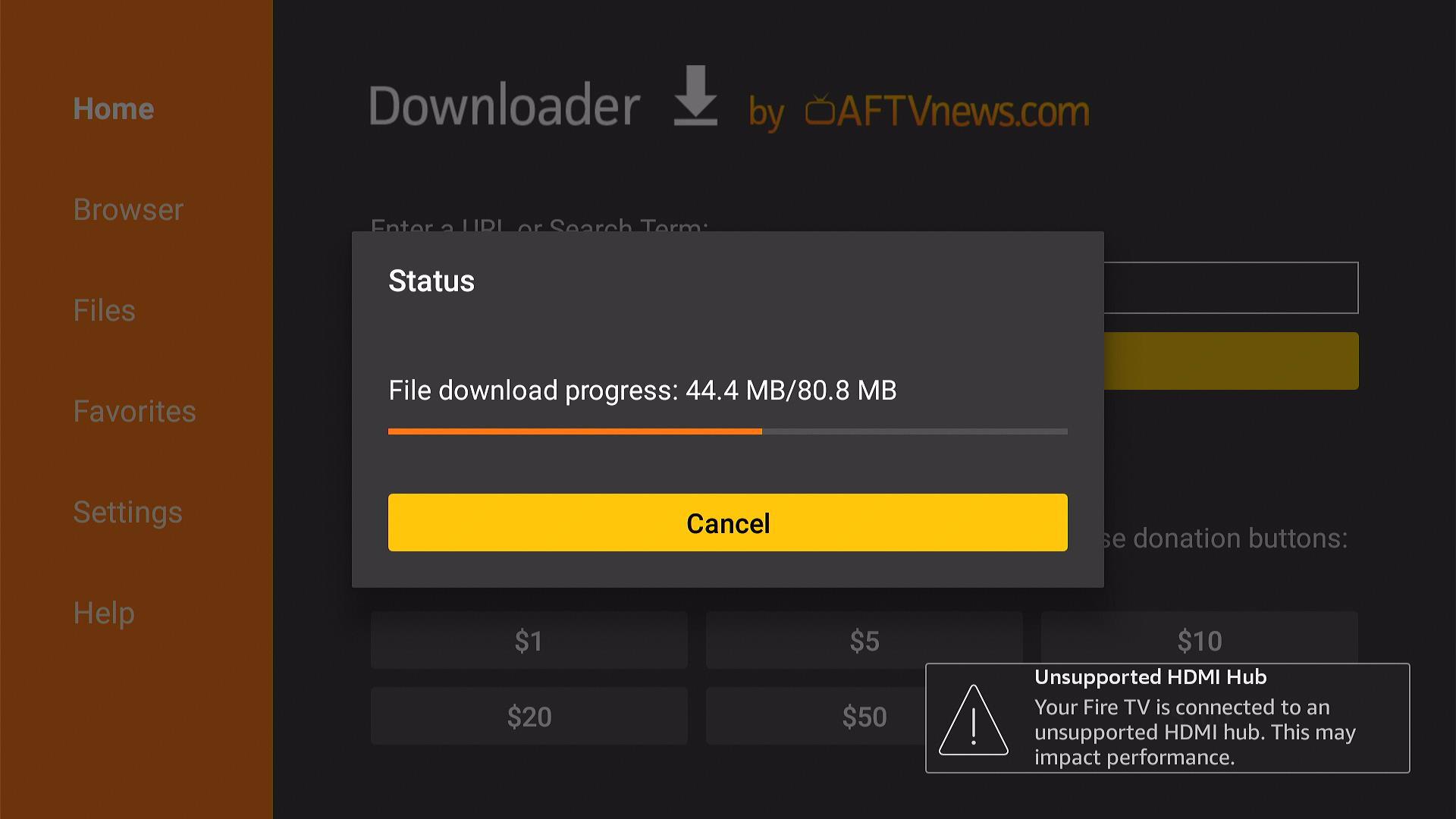
15. The XFireStreamz installer will download on your device.
16. Press the Install button.
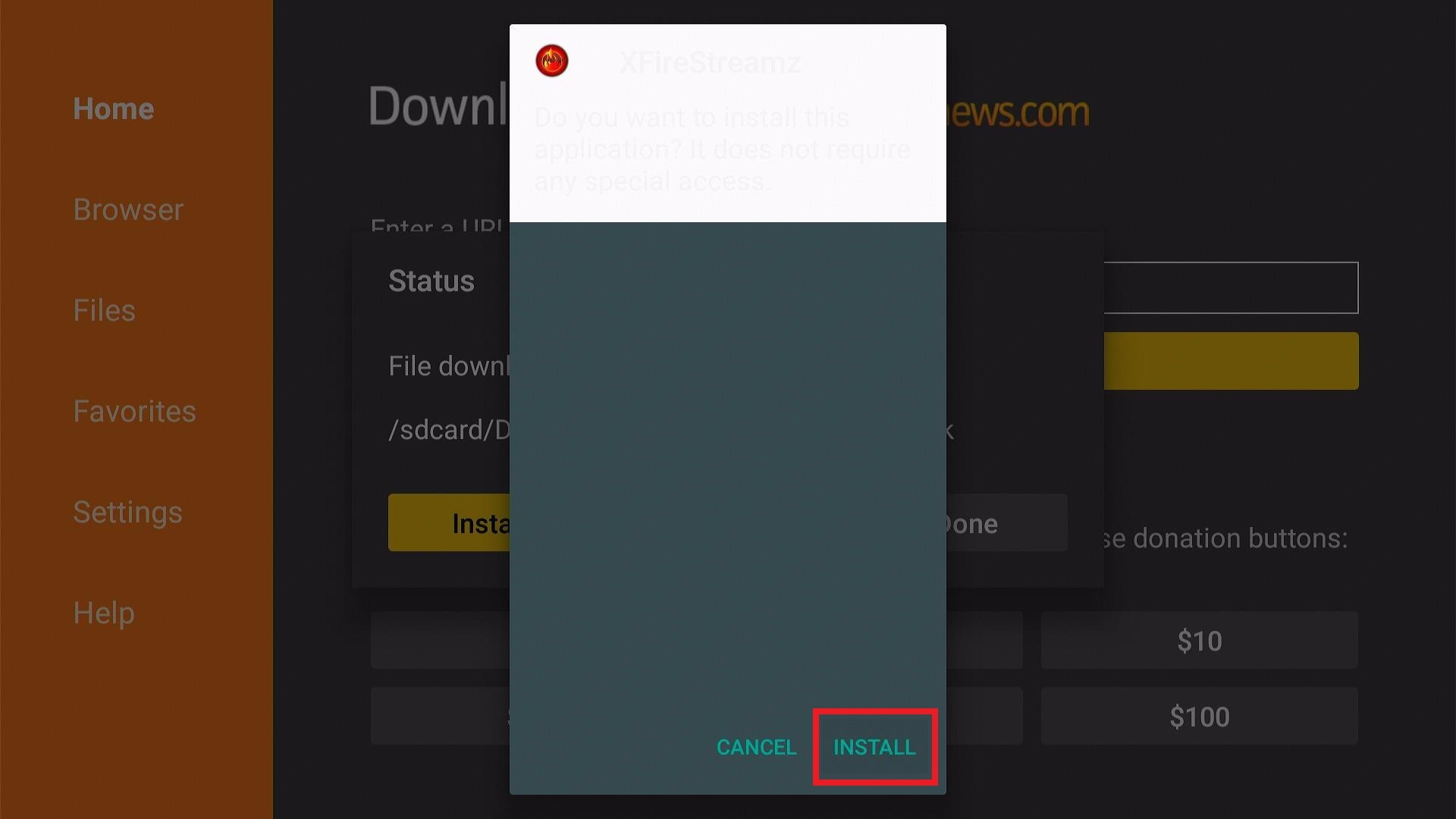
17. XFireStreamz will now install on your Fire TV stick.
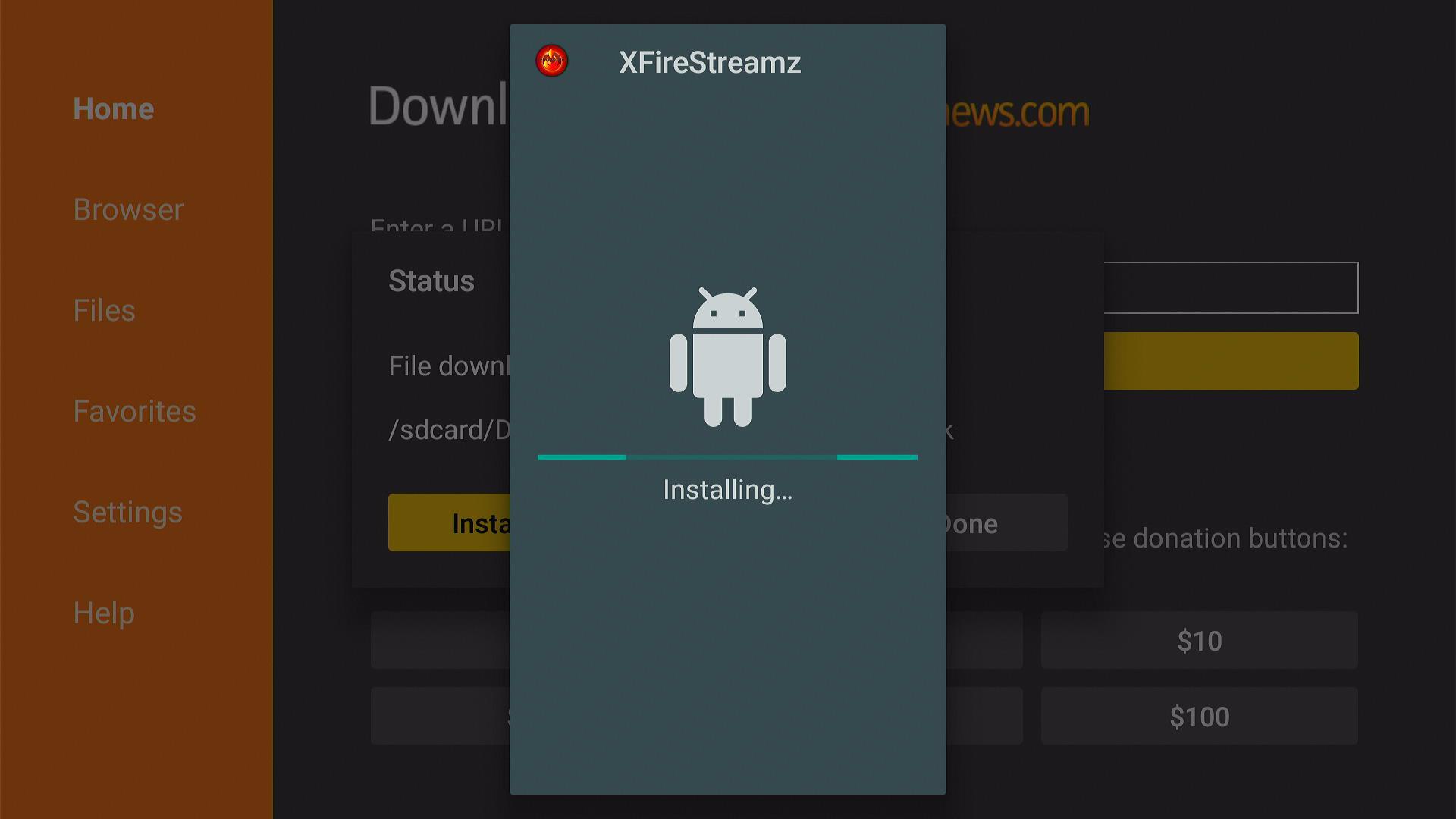
18. Click the Open button to launch the XFireStreamz IPTV app.
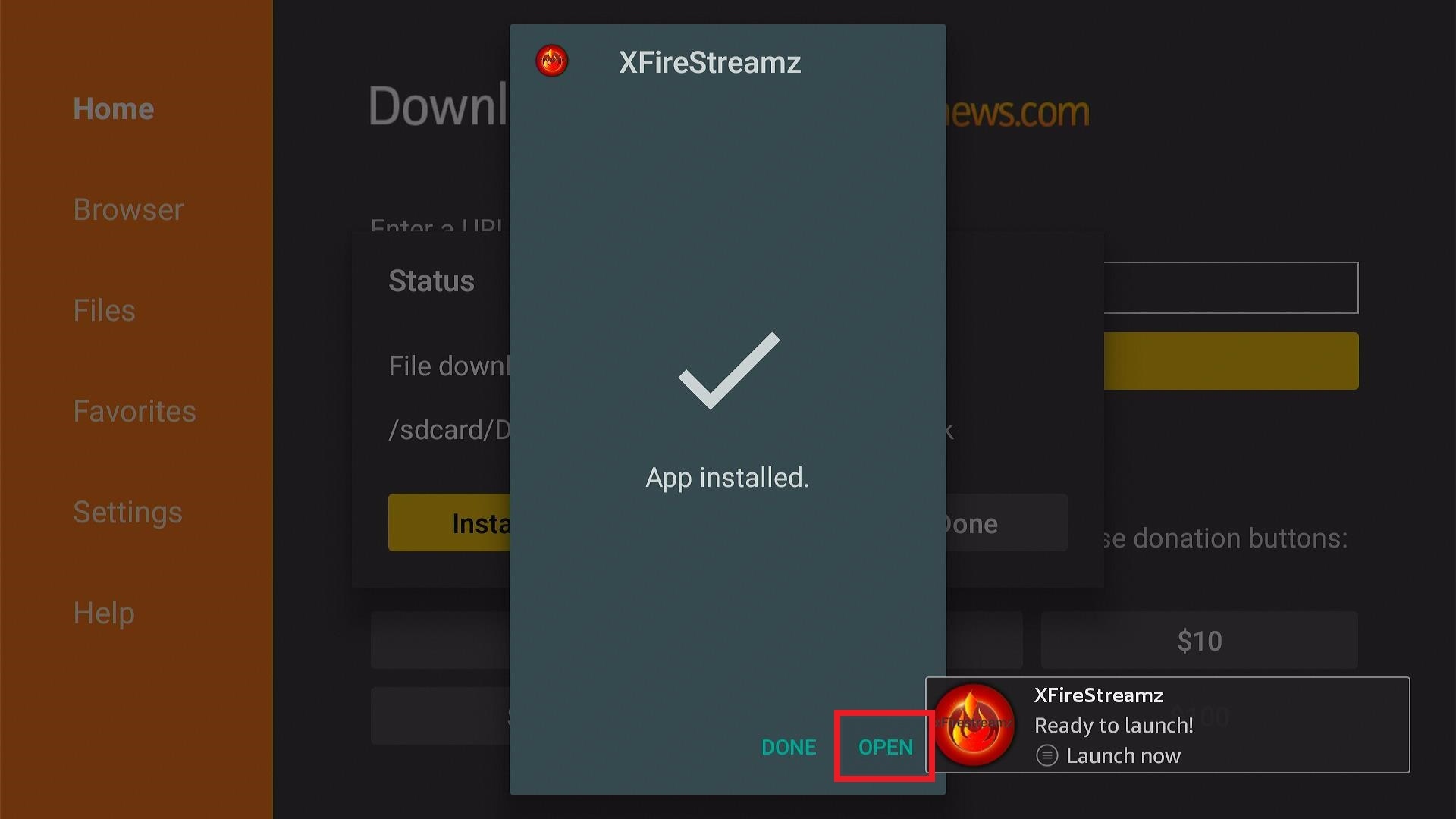
19. Please wait while the XFireStreamz IPTV app loads its user interface.

20. You can now enter the app with your account credentials.
ReviewVPN cannot attest to the legality, security and privacy of the applications discussed on this site. It is highly recommended that you use a VPN service while streaming or using Kodi. Currently, your IP 216.73.216.206 is visible to everyone and your Browser is being tracked by Advertisers & ISP Provider. Here are the main reasons why you must use a VPN: A VPN works be replacing your ISP-assigned IP address and creating an encrypted tunnel. We recommend the no log service offered by IPVanish. It works well on a Firestick and offers the fastest possible speeds.
YOUR INTERNET ACTIVITY IS BEING WATCHED
Legal Disclaimer: ReviewVPN.com does not encourage or endorse any illegal activity involved in the usage of services and applications referenced on this site. We do not verify the licensing agreements of services. The end-user is wholly responsible for ensuring that any media accessed through these services does not violate copyright and/or licensing laws. ReviewVPN does not promote, link to, or receive compensation from any Apps and IPTV services.
Install SurfShark on Firestick

XFireStreamz IPTV Features
XFireStreamz Channel Categories
- Sports
- News
- Movies
- Action
- Drama
- Romance
- Comedy
- Kid’s TV
- Documentaries
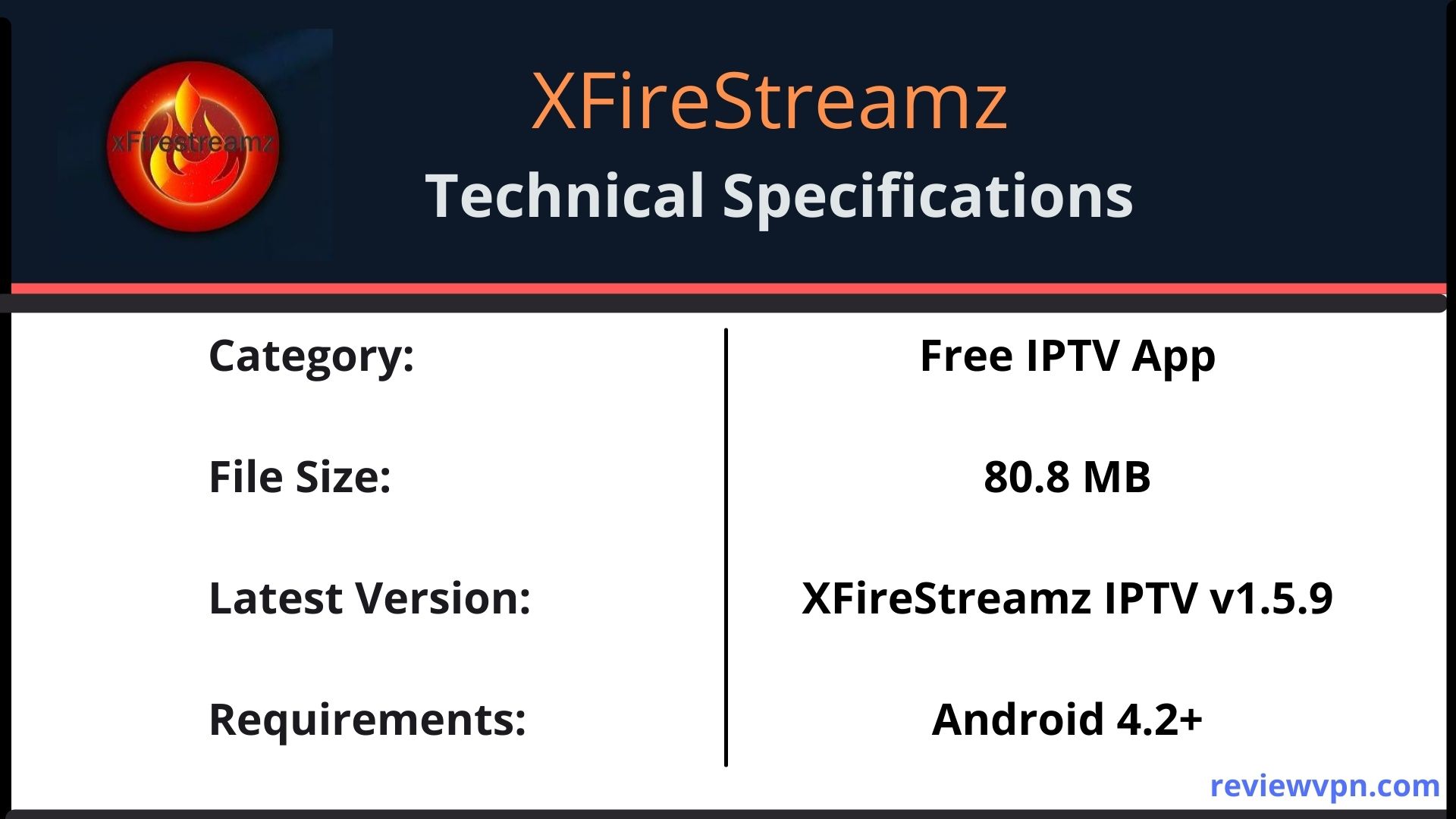
Technical Specifications of the XFireStreamz IPTV app
Compatible Devices
- Nvidia SHIELD
- Amazon Fire TV devices
- iOS
- Android (Box TV, smartphone, tablet, etc.)
Customer Support

The XFireStreamz IPTV app provides a 24/7 support service for its subscribers. You can submit a support ticket and reach XFireStreamz IPTV via their Facebook fan page.
Subscription Package
XFireStreamz IPTV offers a subscription package starting at $10 per month. The three months package of XFireStreamz goes for $25. For six and twelve months subscription packages of XFireStreamz IPTV are $50 and $90 respectively. Each subscription package allows for multiple device connections on all streaming devices except for the MAG device.
NOTE: XFireStreamz IPTV will lock your account if you share it with others. Also, you need to create an account before you can use XFireStreamz IPTV. Login to their portal and create an account. You will receive an email with your password and username. Go back to the portal and use your login details to purchase any subscription packages.
Is A VPN Required?

We often recommend installing a virtual private network (VPN) for your privacy and safety. A VPN enables you to access any internet stuff anonymously.
Here are some benefits of getting SurfShark:
- It conceals all your online activities.
- Acquire a new IP address.
- Bypass geo-blocks.
- Keep your data private while using IPTV services.
- Your IP address will be anonymous from your internet service provider network (ISP).
- It prevents buffering and stuttering on Android and Fire TV devices.
Note: For more information about SurfShark, please read our SURFSHARK REVIEW.
Click here to get the lowest price on SurfShark through our exclusive limited-time offer.
How to Install Surfshark on Firestick with Screenshots
If your Firestick still has the older interface, read this article to learn how to update it: Update Firestick Interface.
You can download Surfshark directly from the Amazon App store. It will be easy for you to find Surfshark with your Firestick’s Find feature. Refer to our screenshots below.
Follow our screenshots below to install the SurfShark VPN app on your Fire TV stick.
1. Go to the Home screen of your Firestick.

2. Navigate towards the Find tab. Press the Search button from the resulting dropdown.

3. Type in the keyword of SurfShark and select from the suggestions that will appear.

4. Click the official SurfShark icon from your search results.

5. Press the Download (You own it) button.

6. The SurfShark VPN installer will download on your device.

7. SurfShark VPN’s app will automatically install itself on your Fire TV stick.

8. Press the Open button after completing SurfShark VPN’s installation process.

9. Please wait for the SurfShark VPN to load its user interface.

10. You can now log in with your SurfShark VPN account credentials.

Learn more about Surfshark and Grab the Best Surfshark Deal Now!
Install Surfshark on Firestick



For more VPN discounts, go to ReviewVPN Deals and purchase the best VPN for you.
FAQs
Is the XFireStreamz app free?
Yes, you can download the app for free. However, you have to subscribe to its services to use its app.
Is it safe to use the XFireStreamz IPTV app?
Yes. We did not encounter any cyber threats with the XFireStreamz app.
Conclusion
XFireStreamz IPTV shares with us many live TV channels we can enjoy. If you like to use the app, we recommend choosing a subscription plan according to your budget. Each subscription plan supports multiple device connections. You can connect many streaming devices that you want.
Final Words
We hope this article helps you install the XFireStreamz IPTV app on your Fire TV stick,






