

Team Milhanos Kodi Addon
Quick Navigation
Source: http://vkodi.net/repo/

Team Milhano is a Kodi video add-on that can be found under the Vikings repository. It provides a sufficient amount of Portuguese channels that may include tv shows, sports tv, and documentaries. If you are of Portuguese or Brazilian descent and you miss home, Team Milhanos Kodi Addon is perfect for you. It also features channels from the US, UK, France, and etc.
Features
- IPTV feature
- Kuala tv, Zeus Tv, Alado Tv, Martunis, M.Team TV, Divino Tv, Odin, Wolf, Alado Kids
- Portuguese tv-shows
- Sports channel
- Best used in conjunction with F4m Tester

Notable Categories
- Portugal Tv
- Portugal TV2
- TV Cine
- Desporto Pt
- ElevenS PT
Under each category holds multiple channels that range from Portugal TV up to English TV channels. So you will have many options on the content you want to watch.
Installation Procedure of Milhano Kodi Video Add-on
- Choose the “settings” icon on the left-hand side of the home screen.
- Click on “File manager”.
- Choose the “Add source file” on the left side.
- After the “Add source file” tab will appear, then choose “none”.
- Type in the URL http://vkodi.net/repo/ and press “ok”.
- Type in “Team Milhanos” as the name of the source file.
- Double-check the URL and source file name and choose “ok”
- Head back to the homepage and choose “Add-ons”.
- At the top left side, choose the “Package installer” icon.
- Choose “Install from zip file”.
- Select “Team Milhanos”
- Choose plugin.video.tvtuga.milhano-0.1.zip
- In a matter of seconds, the add-on will be installed and then after that, a notification will appear confirming that the installation is a success.
So there, we are now all set to use the Milhano Add-on.
How to Install Team Milhanos on Kodi with Screenshots
1. From the home screen, select the cogwheel at the upper left.

2. Select System in the bottom right corner.

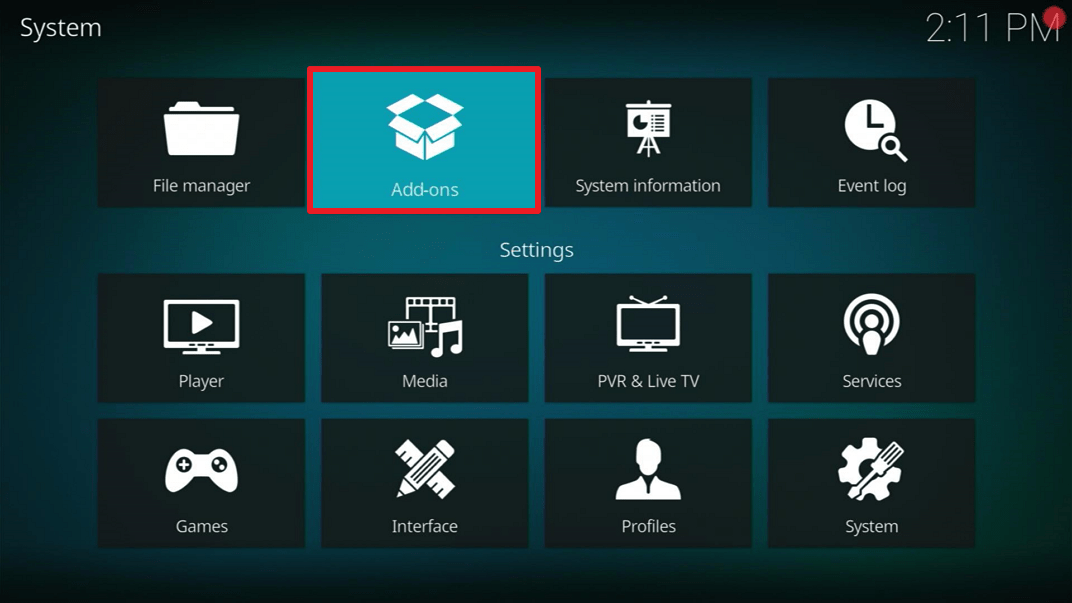
3. Select Add-ons on the left side of the screen.

4. Select Unknown sources.
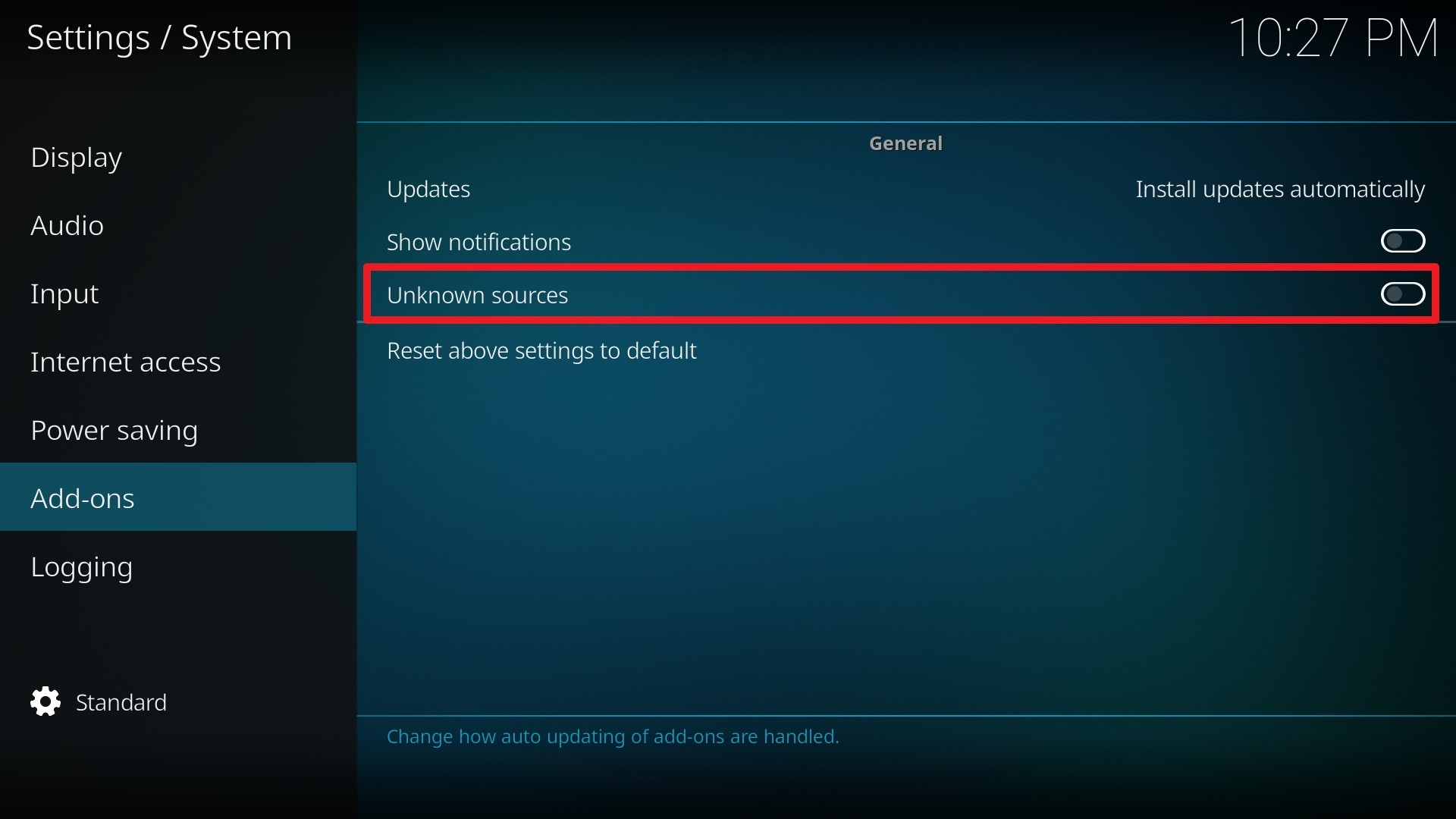
5. Click Yes to allow unknown sources.

6. Select File manager.
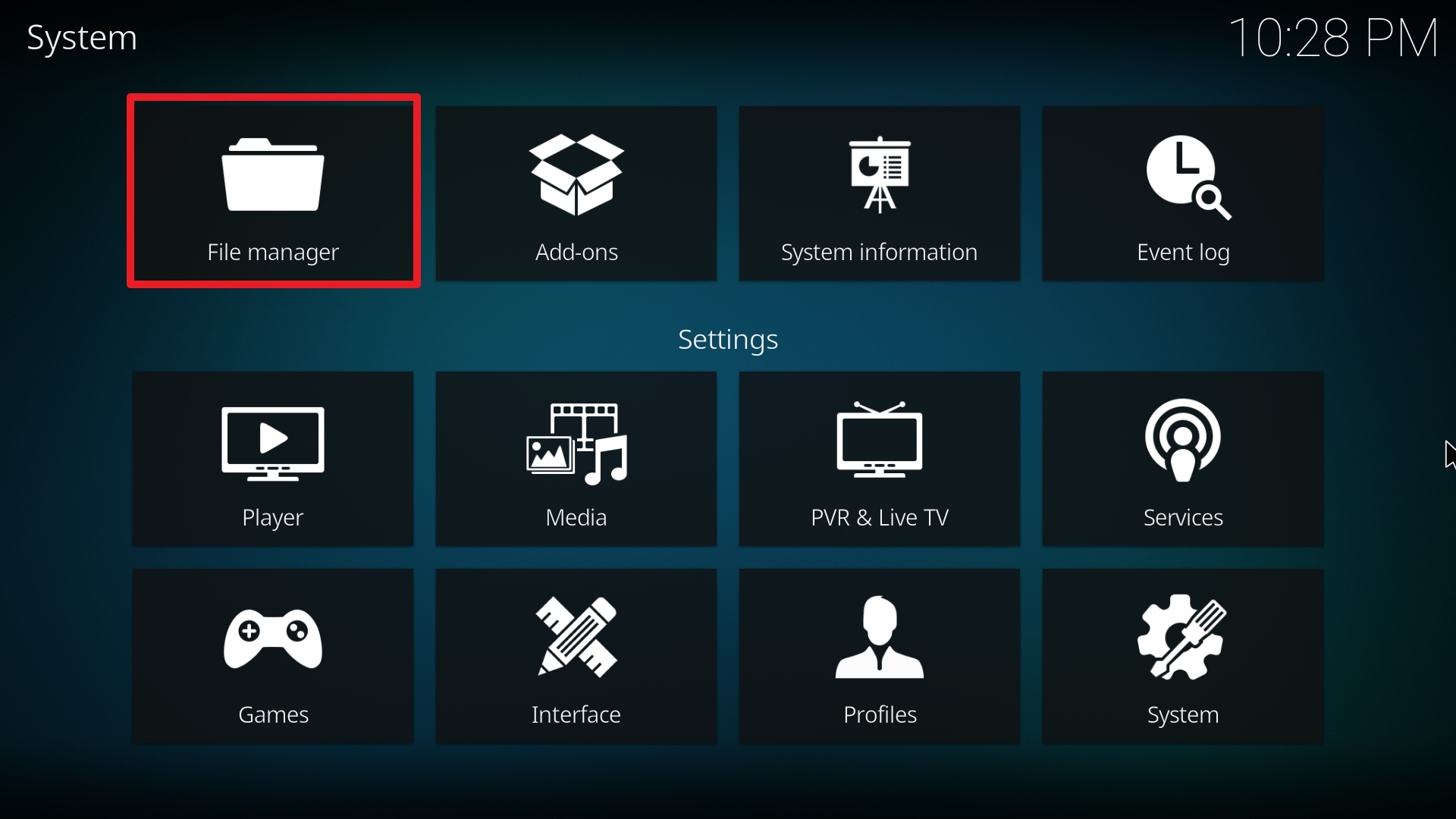
7. Click Add source.

8. Click on <None>.

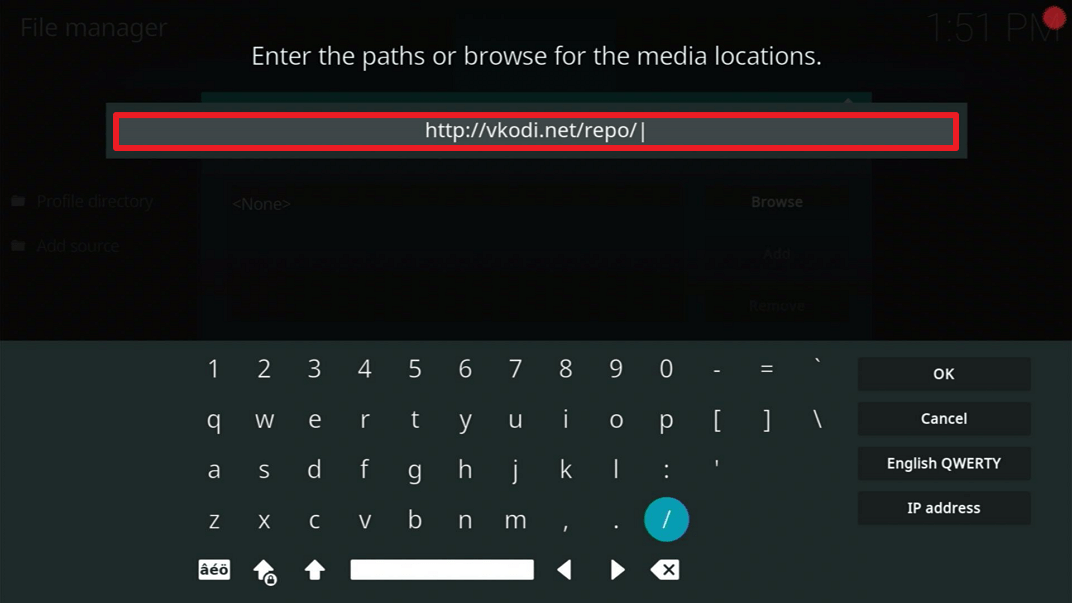
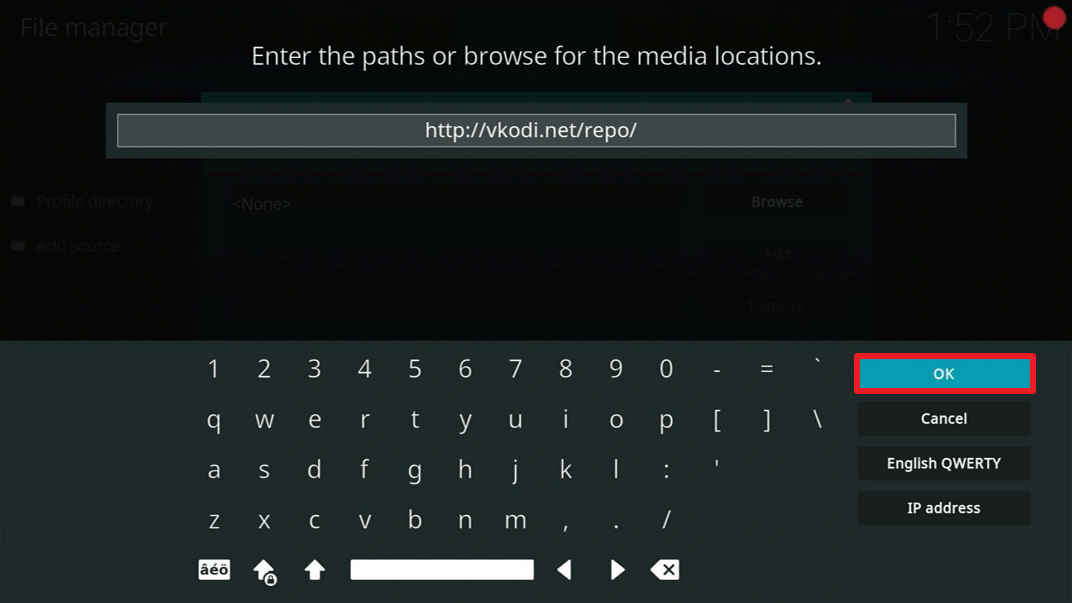
9. Type exactly: http://vkodi.net/repo/
10. Click on OK.
11. Select enter a name for this media source.
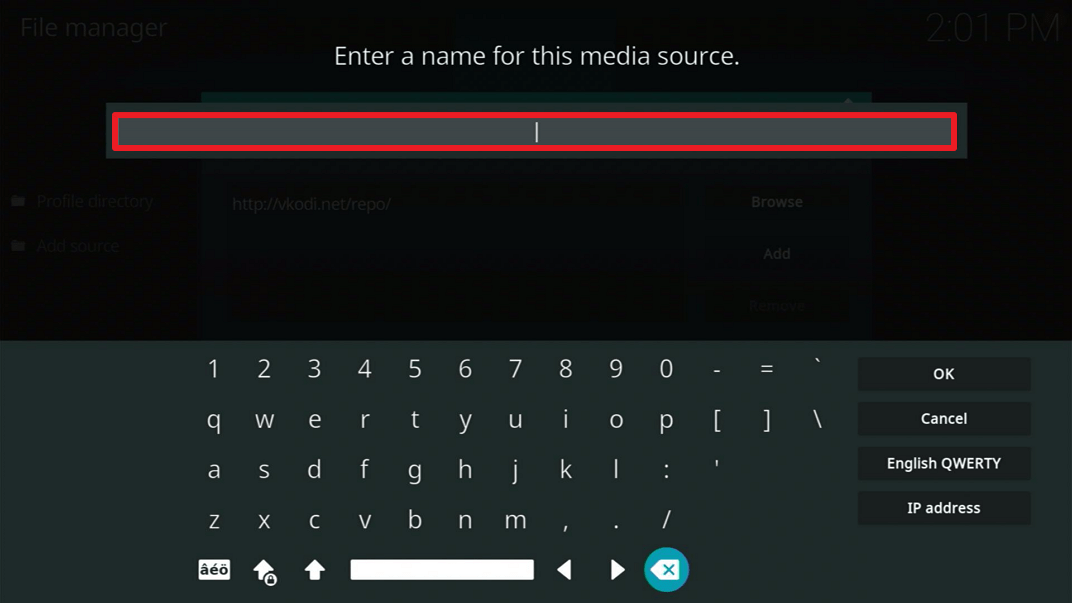
12. Name is Milhanos (this part isn’t critical as long as you remember the name).
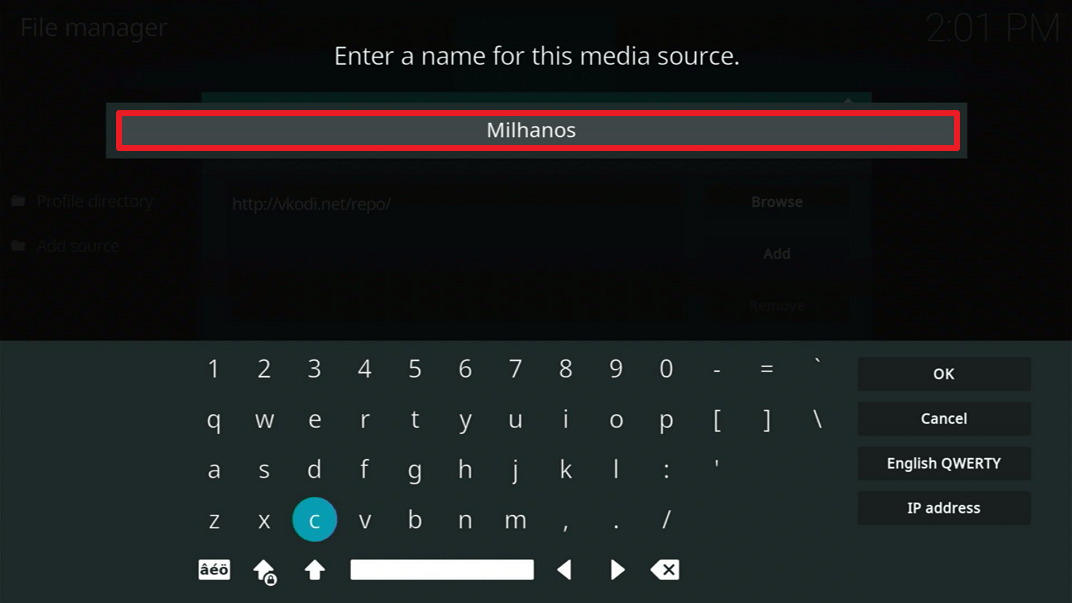
13. Click on OK.
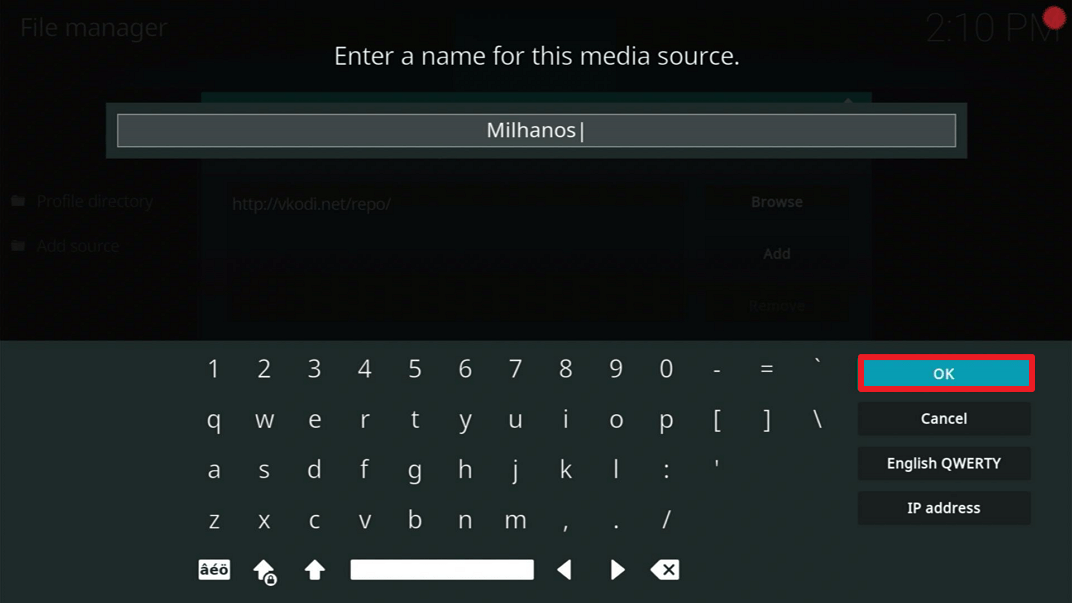
14. Click on OK.
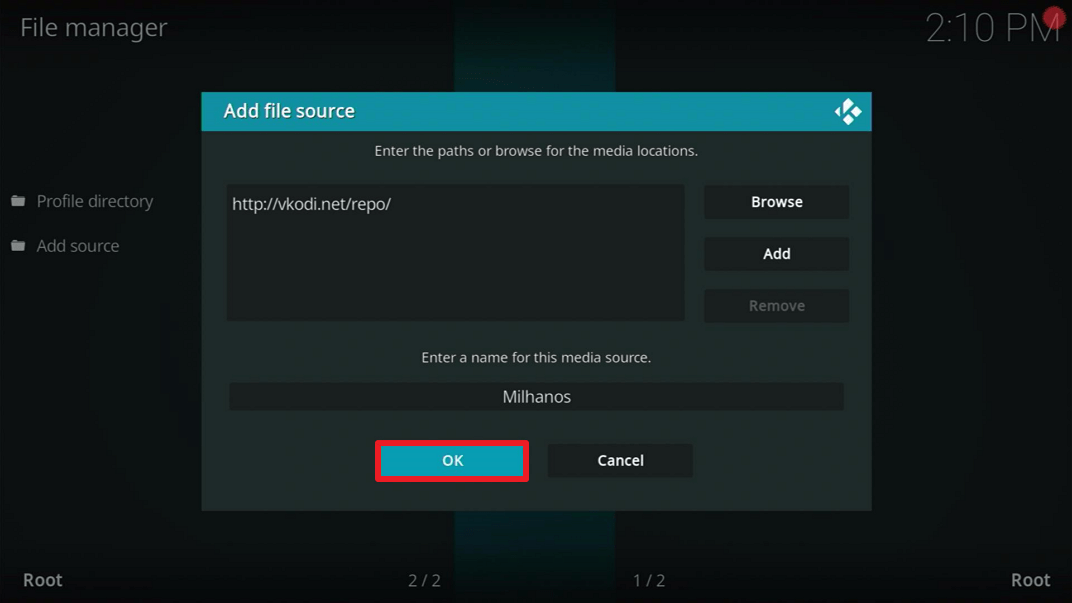
15. Take one step back and click on Add-ons.
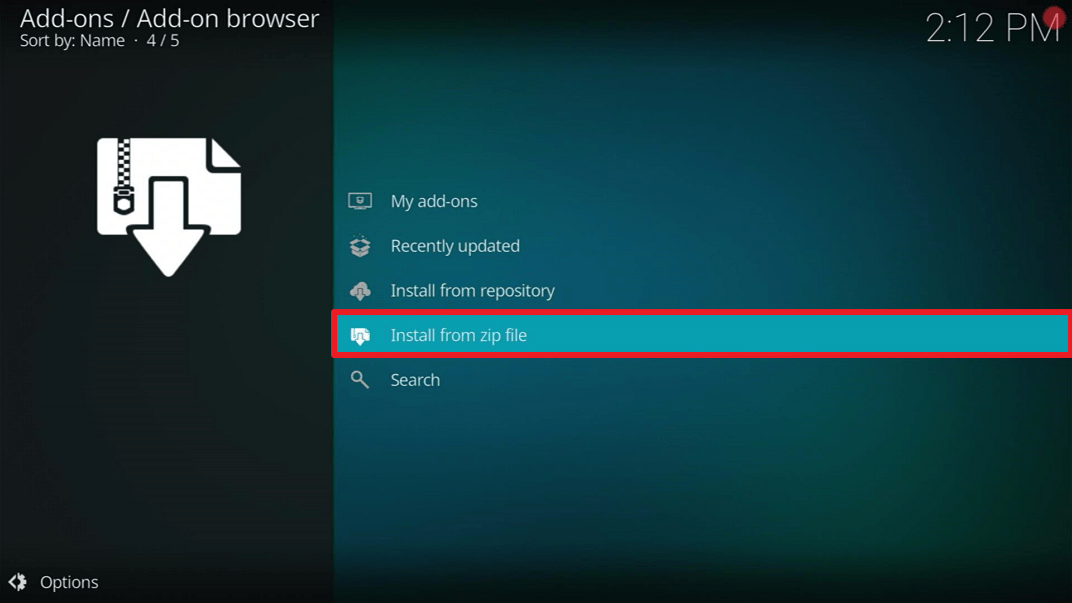
16. Select install from zip file.
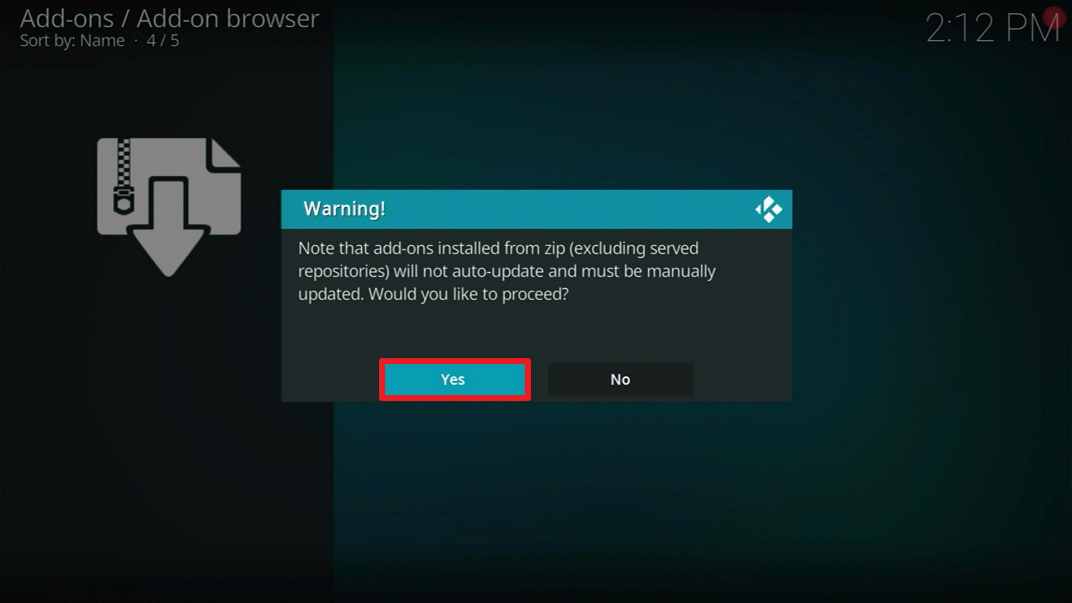
17. Click Yes.
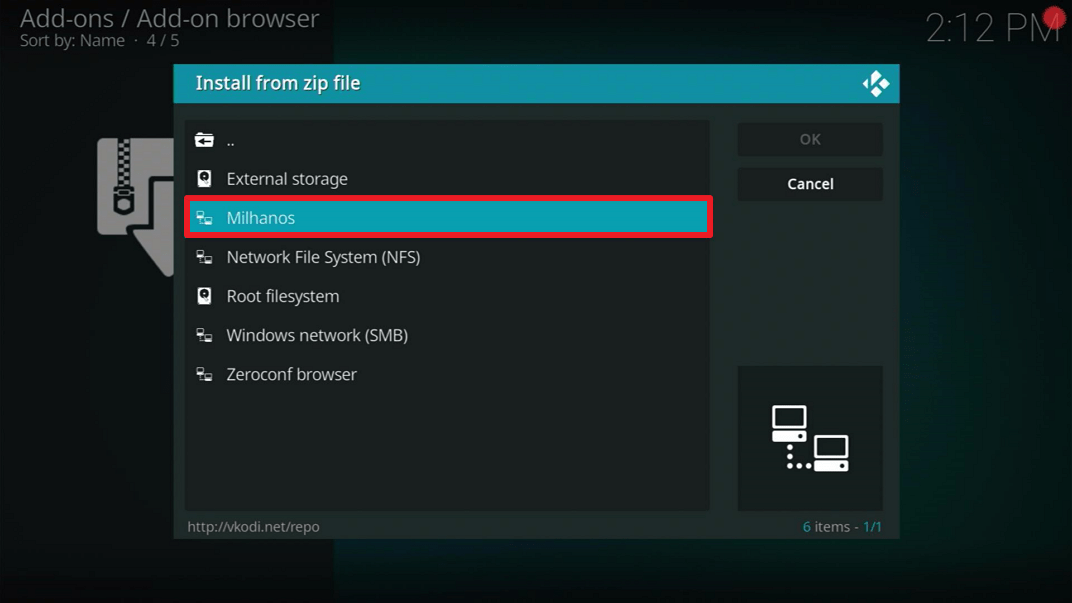
18. Click on Team Milhanos (or whatever you named the source).
19. Click on repo.vikings.zip
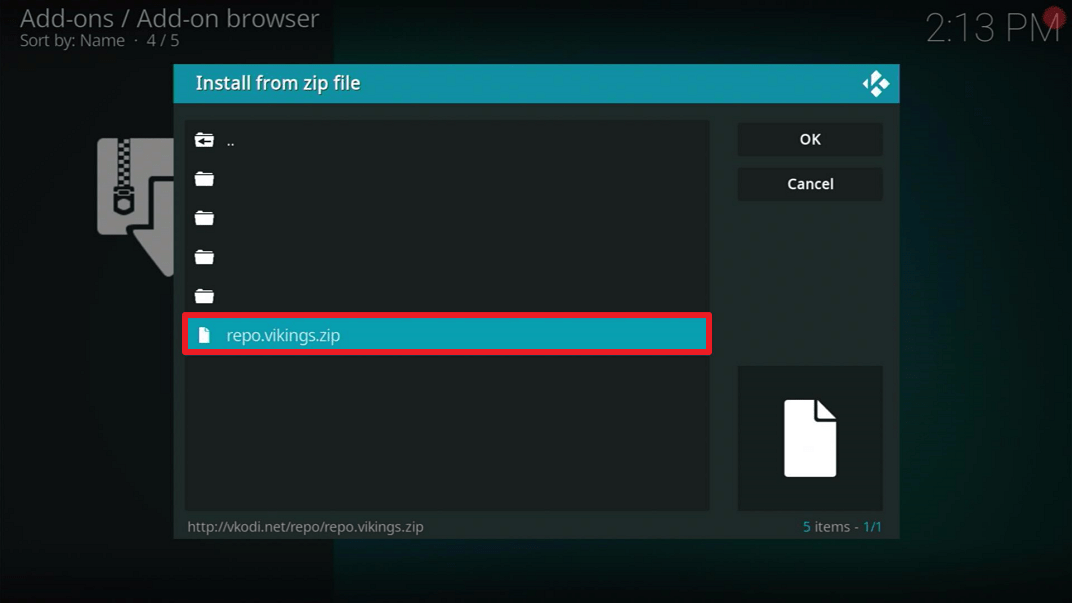
20. Select on Install from repository.
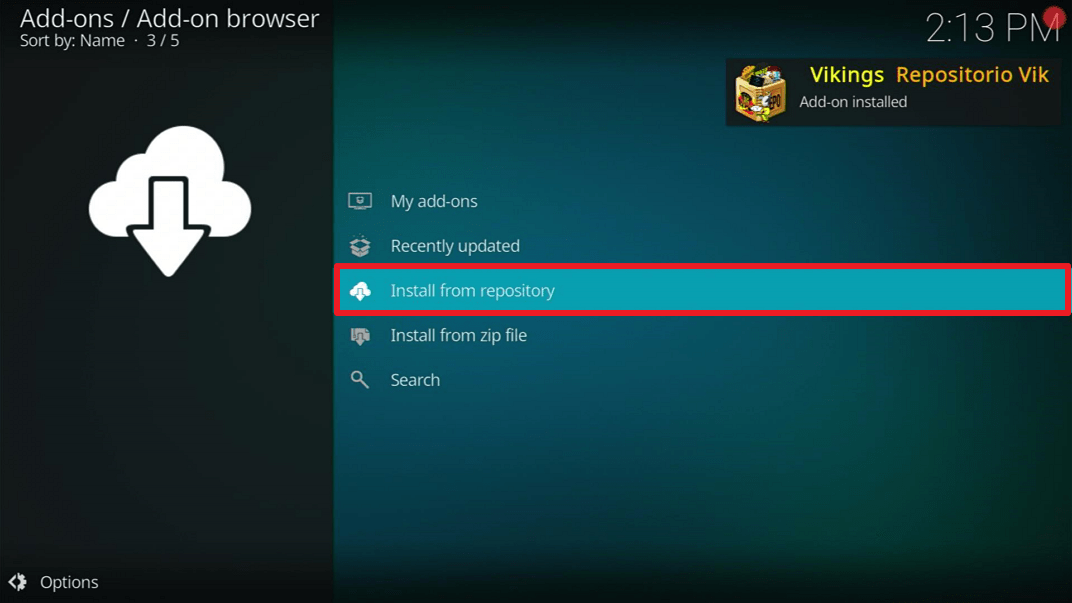
21. Click on Repositorio Vikings Official, SEM BANIMENTO
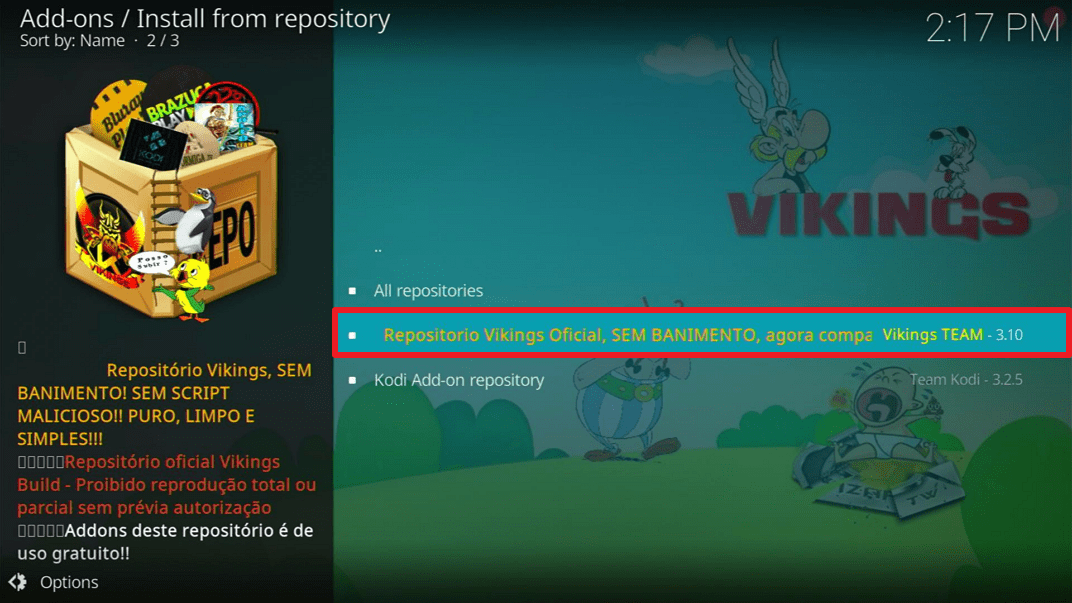
22. Pick Video add-ons.
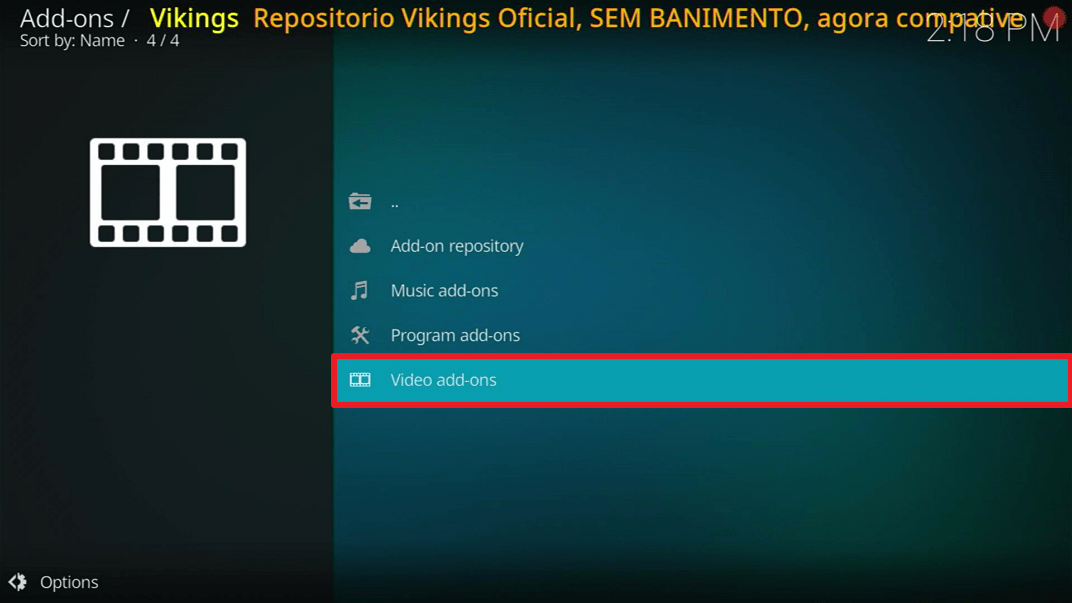
23. Select Team Milhanos .
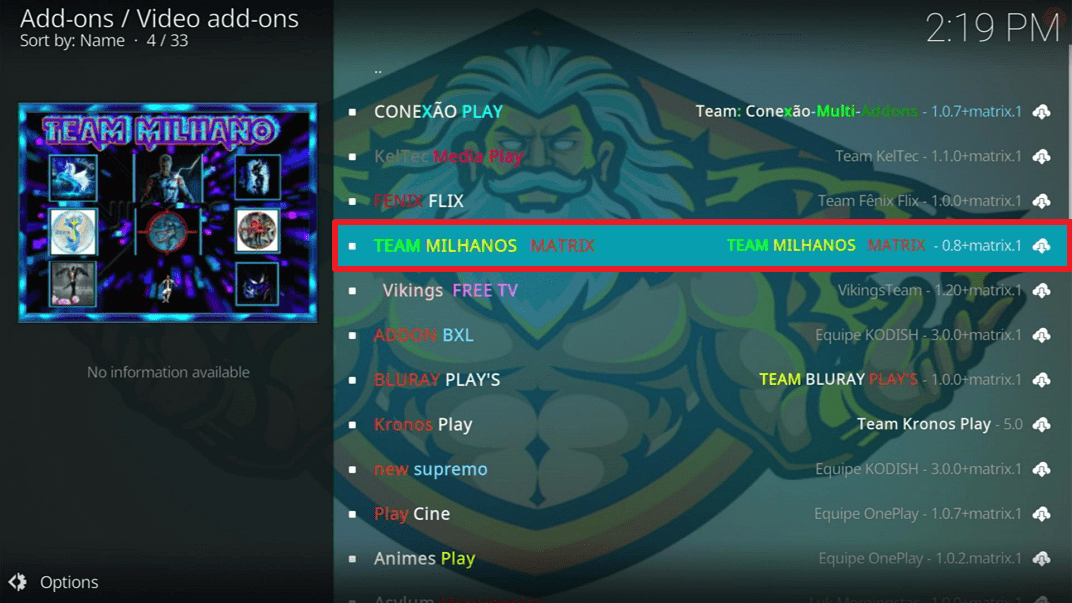
24. Click on Install.
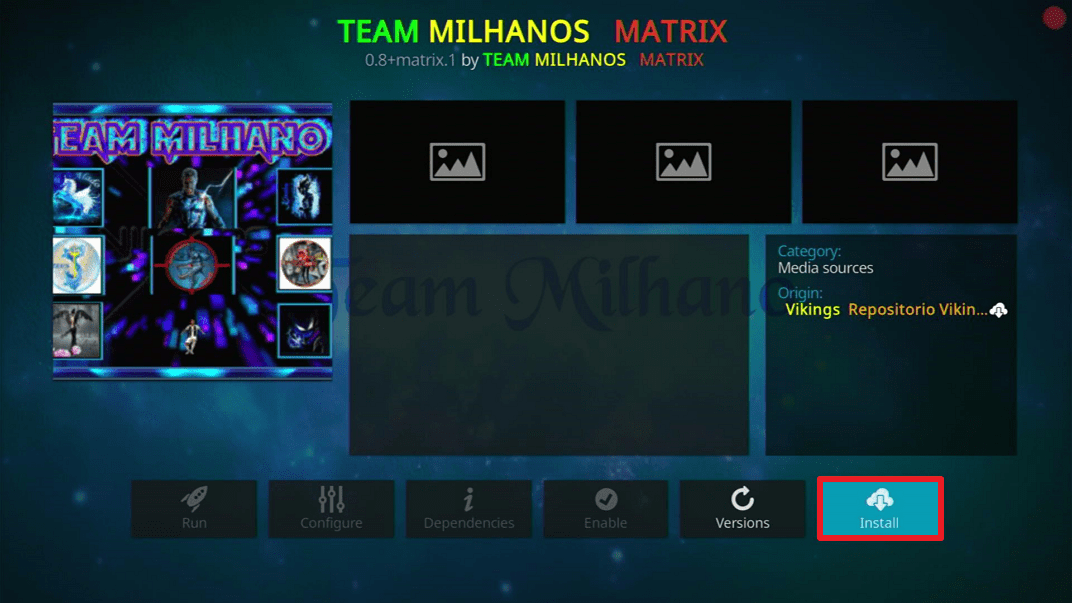
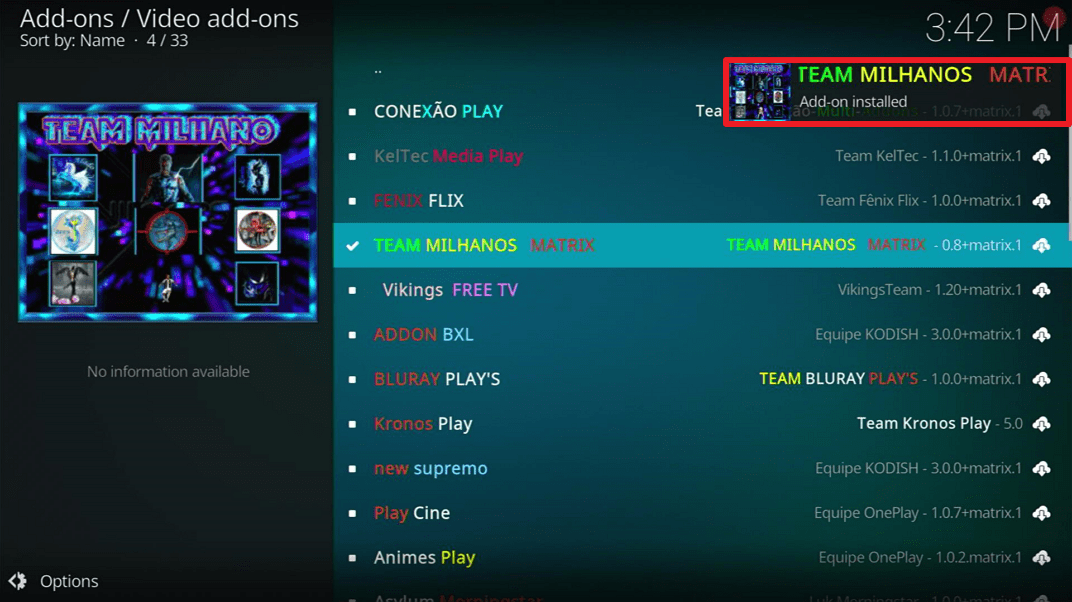
25. You should see a popup in the upper right corner saying Team Milhanos has installed. There will actually be multiple popups for the various components.
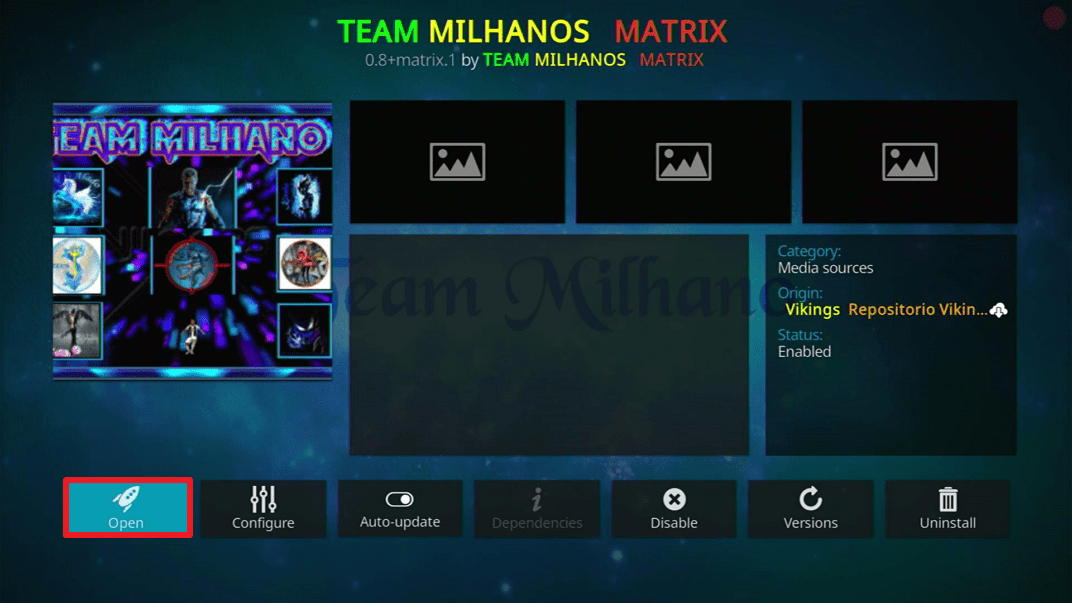
26. Click on Open to start Team Milhanos add-on.
Why Should You Use A VPN On Your Fire Stick?
If you are dealing with geo-restrictions trying to stream the entertainment content on your Fire Stick, a Virtual Private Network or VPN is the best solution. Even though the Amazon Fire TV and Fire Stick have built-in Virtual Private Network services, you can still acquire all of the Surfshark service’s advantages. The Surfshark service will encrypt the internet traffic of your Fire Stick and hide your location to go around geo-restrictions. Thus, you can easily stream your favorite videos, movies, and TV shows on your Fire Stick even if the content isn’t available in your region, regardless of where you are.
Best VPN Deal
The first thing a VPN service asks for is a username and a password. Surfshark is a premium service but it has an exclusive discount that offers 83% OFF. To obtain the user name & password and avail of the huge discount, type https://reviewvpn.com/deal into any browser.
If you want to know about the other service and features it offers, kindly read our Surfshark Review.
Grab your subscription now!
Click here to get the lowest price on Surfshark through our exclusive limited-time offer.
How to Install Surfshark VPN on Firestick
If your Firestick still has the older interface, read this article to learn how to update it: Update Firestick Interface.
Follow our screenshots below to install the SurfShark VPN app on your Fire TV stick.
1. Go to the Home screen of your Firestick.

2. Navigate towards the Find tab. Press the Search button from the resulting dropdown.

3. Type in the keyword of SurfShark and select from the suggestions that will appear.

4. Click the official SurfShark icon from your search results.

5. Press the Download (You own it) button.

6. The SurfShark VPN installer will download on your device.

7. SurfShark VPN’s app will automatically install itself on your Fire TV stick.

8. Press the Open button after completing SurfShark VPN’s installation process.

9. Please wait for the SurfShark VPN to load its user interface.

10. You can now log in with your SurfShark VPN account credentials.

Learn more about Surfshark and Grab the Best Surfshark Deal Now!
Install Surfshark on Firestick



For more VPN discounts, go to ReviewVPN Deals and purchase the best VPN for you.
Click here to get the lowest price on Surfshark through our exclusive limited-time offer.
Alternatives
Always get your content from trusted sources as it will help prevent from encountering issues that may pose risk to your device. Here at ReviewVPN, we always suggest that our subscribers have a back-up in times of unforeseen circumstances. In that way, our entertainment does not get interrupted. The following add-ons are similar to Team Milhano in terms of content. They also provide tv shows and movies that cater mainly to Portuguese users. They are as follows:
- One Play Add-on
- Alado Tv Add-on
- Masteruga Add-on
- Iberika Add-on
Looking for these add-ons is pretty straightforward, you can find it in Google and any other search engine there is. But always remember to secure them from reliable and trusted sources.
Common Errors
These are some of the things that may cause an issue when installing Team Milhano:
Always verify if you have written the correct URL. Also, recheck if you have downloaded the right repository. Always make sure that your internet connection is stable and also you must be protected by a very reliable VPN. Check here for the best VPN deal.
This usually appears when Kodi is not properly installed. Also, it is worth noting that the add-on may be improperly installed as well. To resolve this, you must reinstall the add-on by following the guide we provided above. You can also reinstall Kodi if this problem still continues to persist.
This happens when your media cache is full of memory. Our cache usually produces what we call snippets that make loading faster. Over time, this will fill out your entire cache. SO the best solution to this issue is to just simply empty your cache and use trusted tools that will optimize the performance of Kodi on your device.
Team Milhanos Kodi Addon does not store any of the content on its servers, it only provides streams that provide that particular content it is meant for. You should try other sources that may only take a matter of seconds to load up. For other solutions please take time to read our in-depth guide linked above.
Conclusion
Team Milhanos Kodi Addon is a pretty decent add-on if you want to diversify the content you have on Kodi. It offers channels that other add-ons may not offer so there is no harm if you want to have it in your roster. Overall, it becomes handy if ever you have guests who are of Portuguese descent that are coming over. It adds up to your hospitality whenever you host which actually creates more meaningful memories for you and your guests.
We hope that this guide will help you in your search for the best add-on that will cater to your needs and preferences. Please do drop us a comment and suggestion here on our website and on our other social media platforms. Have a wonderful day ahead!






