

Overview
Quick Navigation
In this article, we’ll walk you through the steps on how to install DropBox on Firestick successfully.
Are you considering using DropBox on your Firestick? Or are you simply interested in what Dropbox can do for you? Alternatively, you’re presumably someone who already uses Dropbox on a different operating system and wants to sync files on your Firestick. Therefore, you may be asking how to install Dropbox on Firestick, particularly if it is not available through the app store.

Dropbox is a cloud-based storage service that is compatible with a variety of popular systems, including Firestick, Mac, and Windows. Moreover, it enables you to save files and view them from anywhere, even when you are not connected to the Internet.
Furthermore, you can access all of your files instantly by logging into your Dropbox account. As a result, Dropbox has swiftly become one of the most popular file-sharing applications among internet users due to its ease of use. Therefore, if you’re someone who prefers to keep their data in the cloud rather than on a computer or external hard drive, this guide on how to install Dropbox on Firestick is for you.

How To Install DropBox on Firestick
To begin, if your Firestick has not yet been jailbroken, follow the simple steps below to jailbreak it to install DropBox on your device:
1. Click Home on your remote and scroll once to your Right. Click Setting (Gear Wheel Icon).
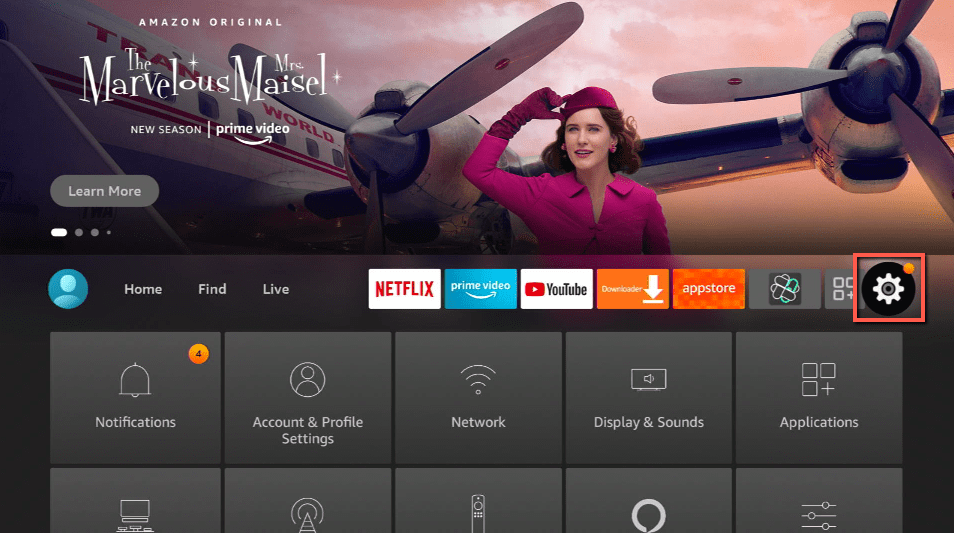
2. Scroll down and to the right until you get to My Fire TV. Click on it.
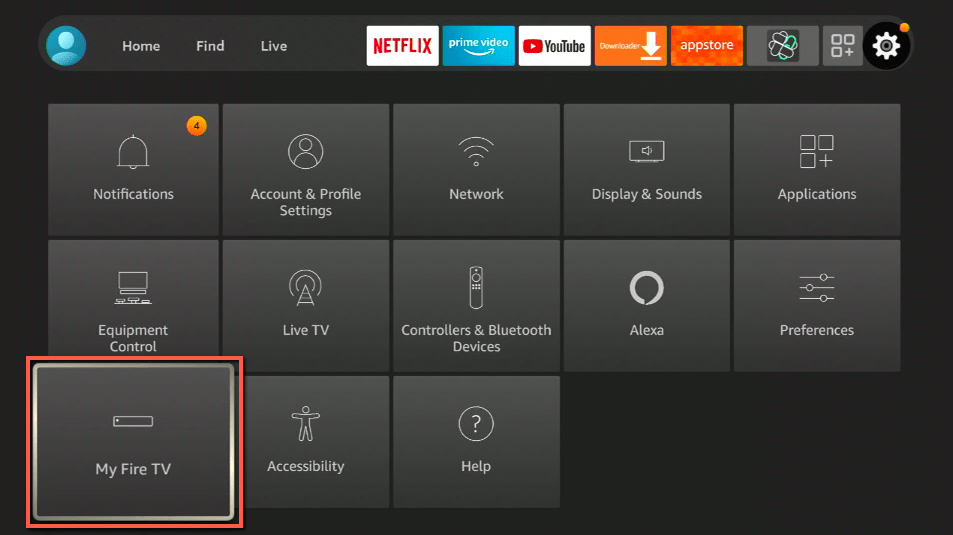
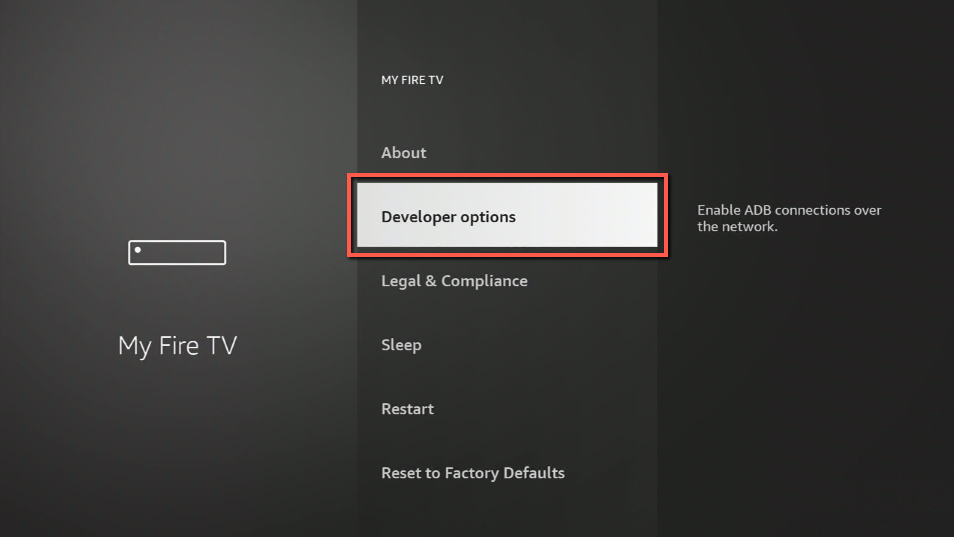
3. Select Developer options.
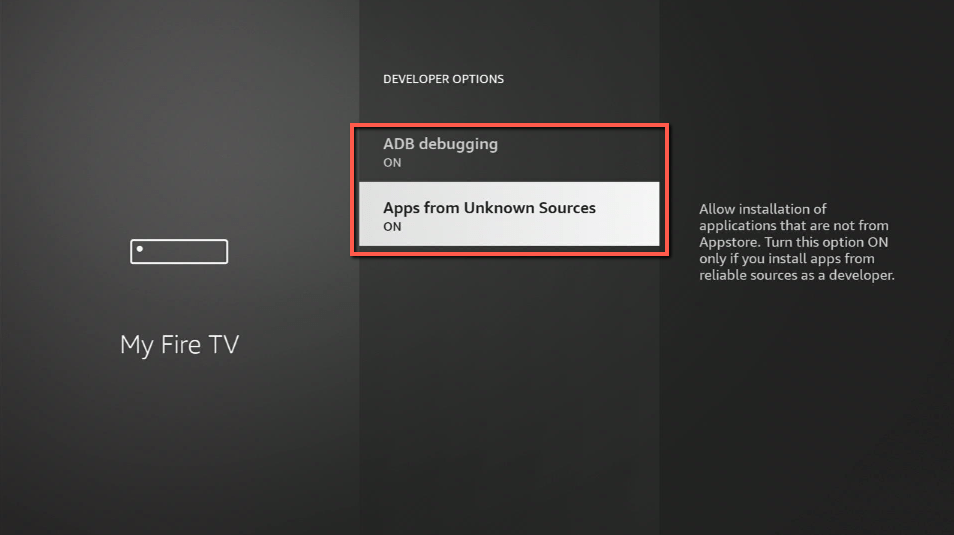
4. Turn on ADB debugging and Apps from Unknown Sources.
5. Click Turn On when the pop-up appears.
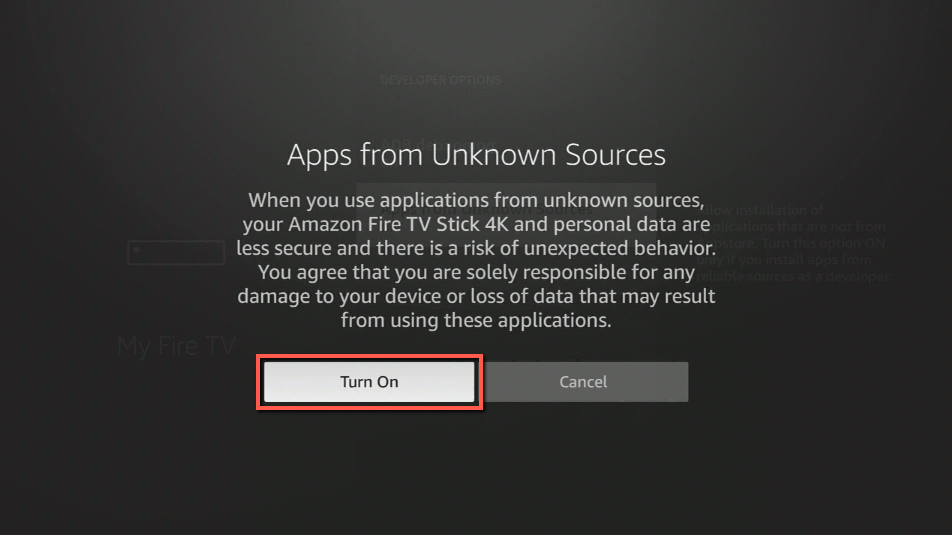
Then, after jailbreaking your Firestick, you’ll need to download the Downloader app to sideload DropBox. This app, which is easily available on the Amazon App Store, allows you to download APK files.
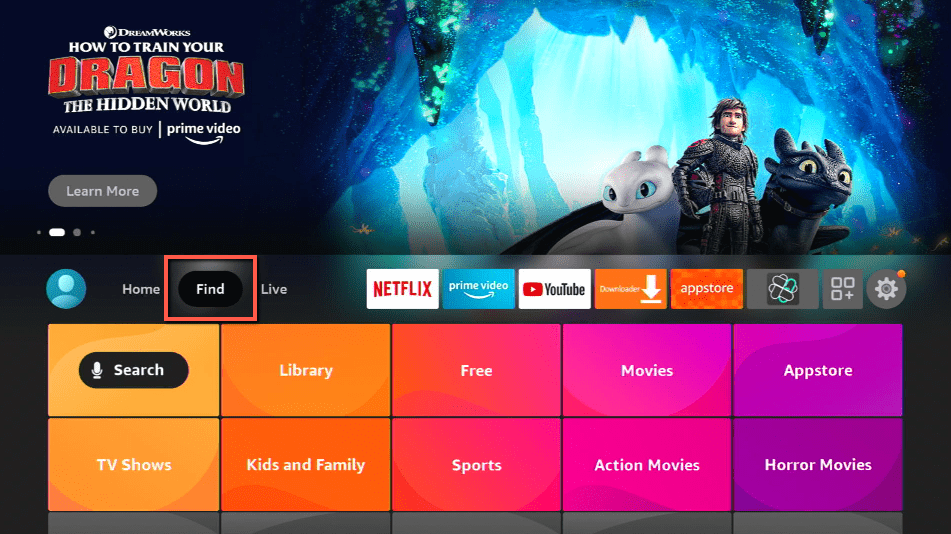
6. Click Home, click FIND.
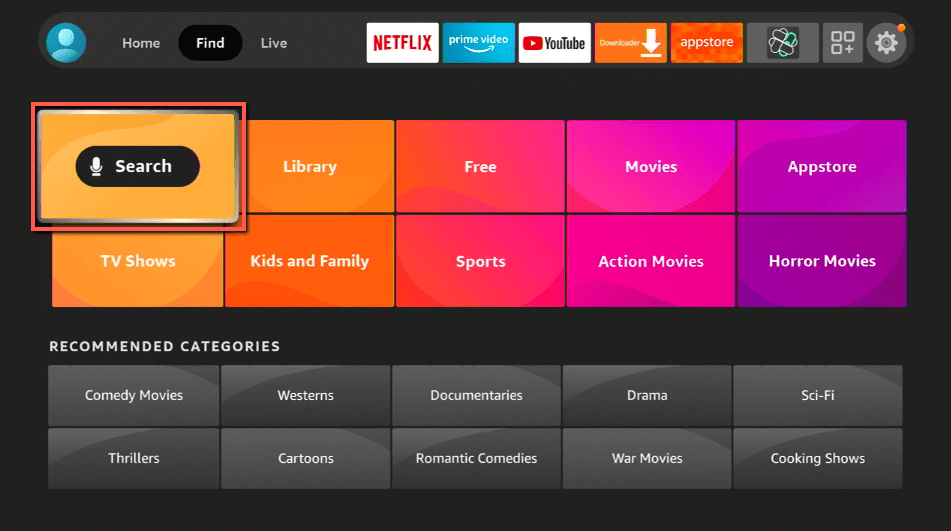
7. Click Search.
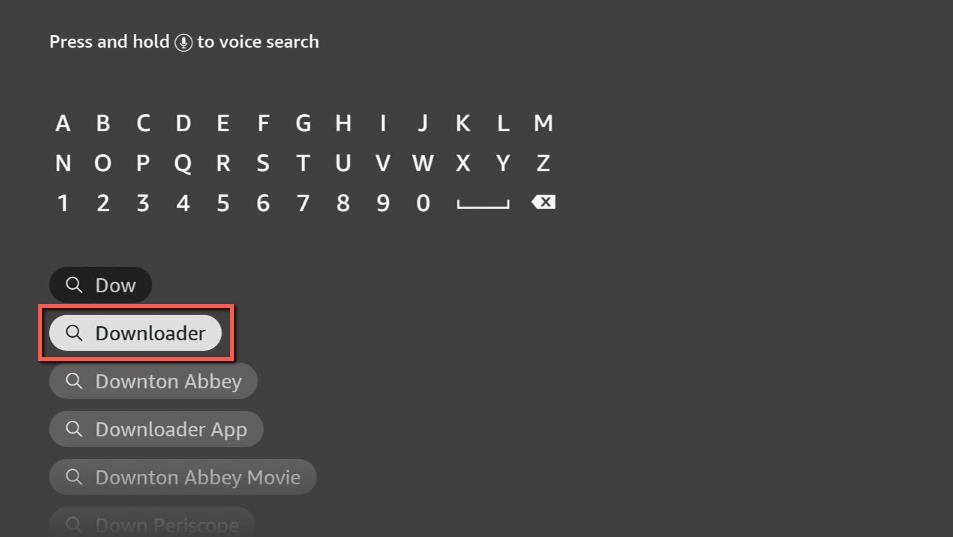
8. You can either say Downloader to your Alexa voice-enabled remote or start typing it. If you typed it, click on the suggestion when it appears.
9. Click on the Downloader Icon.
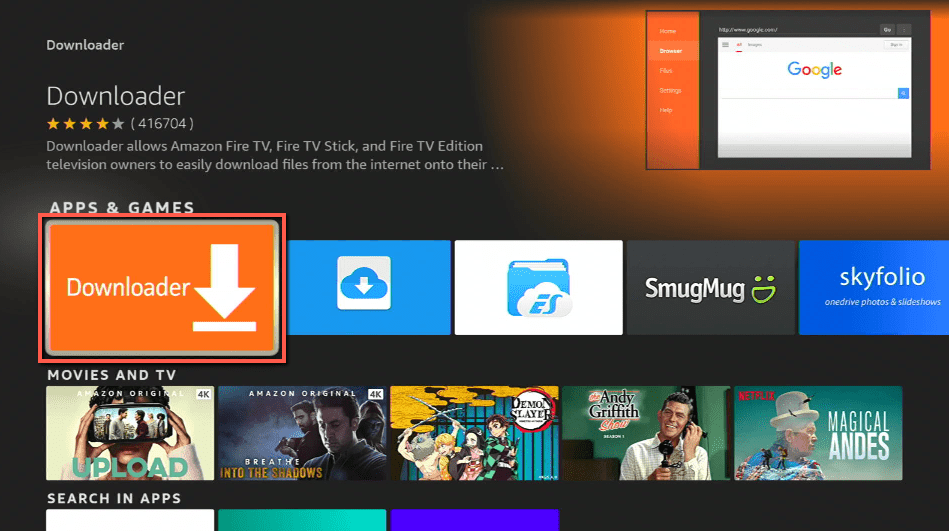
10. Click Download.
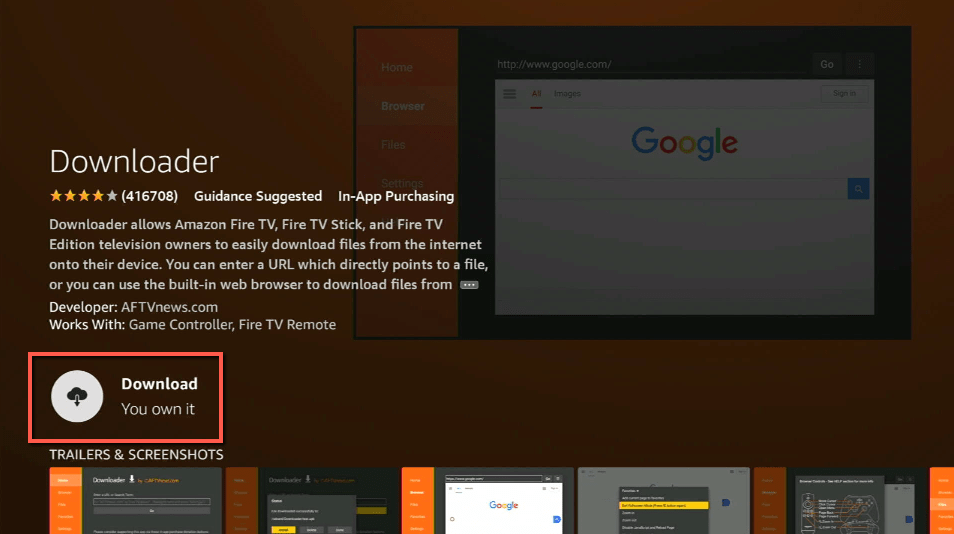
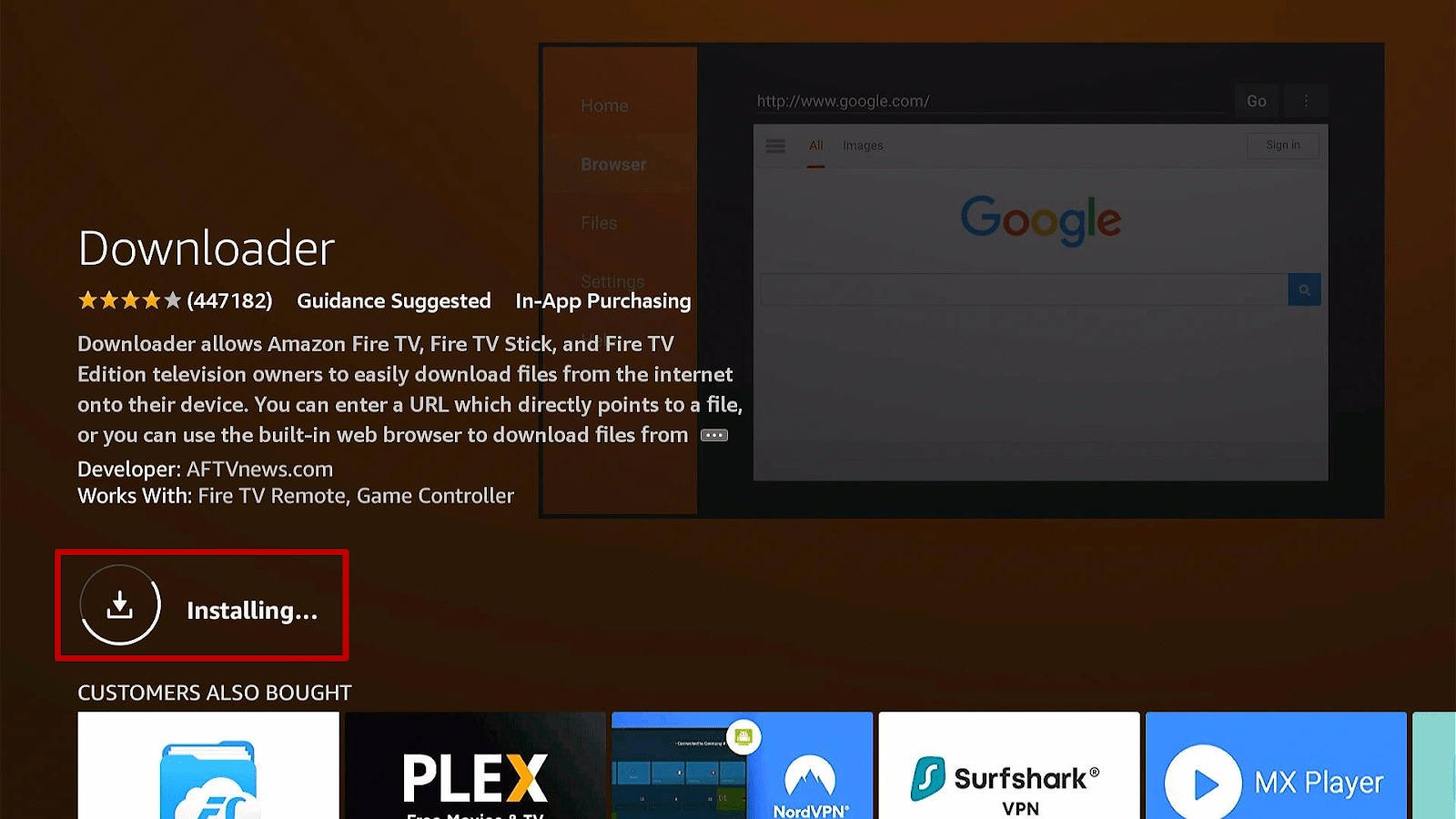
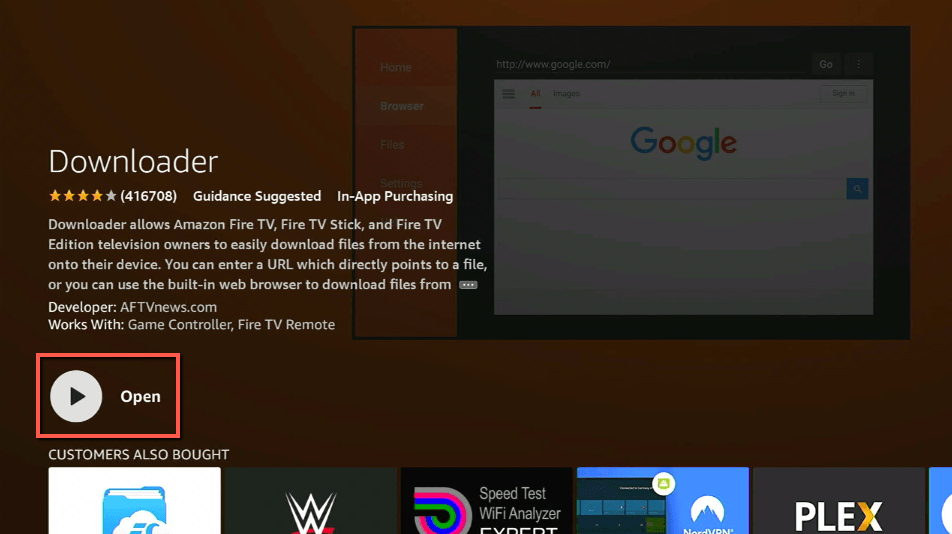
11. Click on Open.
12. Click on Allow.
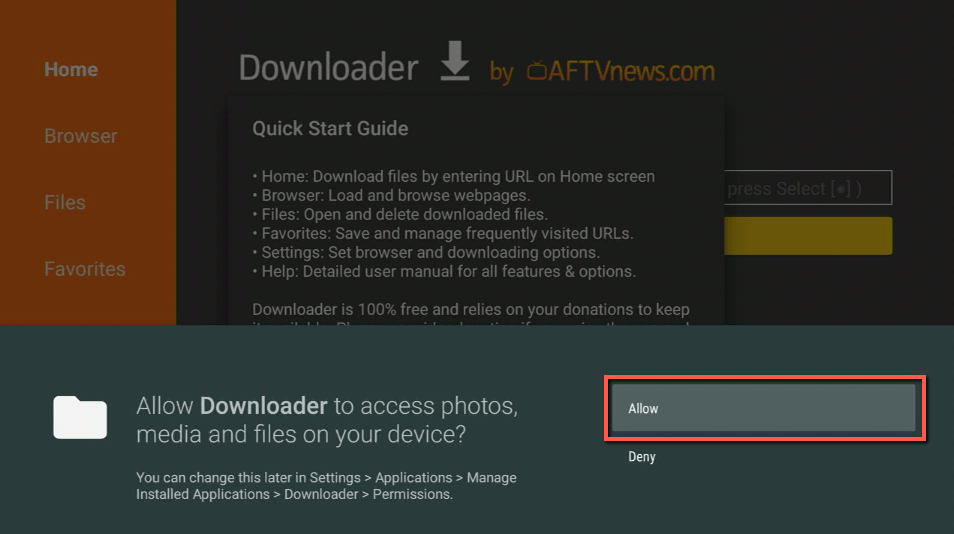
13. Use the Downloader search tab.
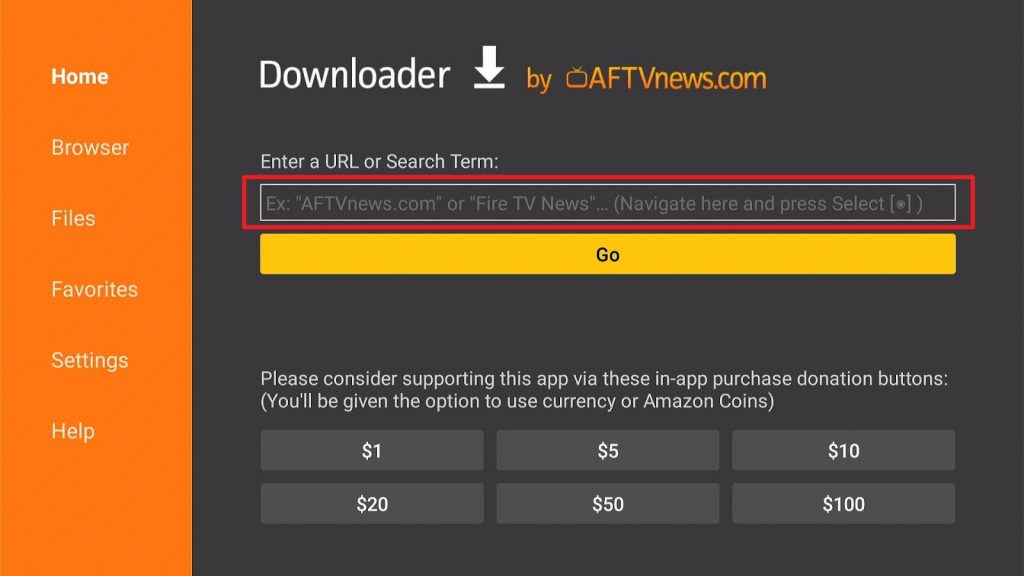
14. You will be asked to enter a download link. Type in “https://reviewvpn.com/dro” and select Go.
15. Depending on your internet connection, the APK will take a few seconds to download.
16. After that, choose Install.
17. Then click Open.
How To Create an Account on Dropbox
1. To create an account, click “Sign up” once the app launches.
2. Type your First and Last Name, Email Address, and Password.
3. Then, click the checkbox and choose “Create an account.”
4. Complete the reCAPTCHA verification process.
5. Then click “Sign in.”
6. After that, your account will be created. If you receive a notification that Dropbox Plus is required, simply disregard it.
7. Then, either select an option from the menu (back up my photos, share a photo or file, scan documents, connect dropbox to desktop) or click on “Skip” in the upper right corner of the screen.
25. That’s it, DropBox is now ready on your Firestick.
DropBox APK Download for Android Devices

Note: ReviewVPN.com does not host this APK file. It is hosted by Archive.org
Legal Disclaimer: ReviewVPN.com does not encourage or endorse any illegal activity involved in the usage of services and applications referenced on this site. We do not verify the licensing agreements of services. The end-user is wholly responsible for ensuring that any media accessed through these services does not violate copyright and/or licensing laws. ReviewVPN does not promote, link to, or receive compensation from any Apps and IPTV services.
Install Surfshark on Firestick
ReviewVPN cannot attest to the legality, security and privacy of the applications discussed on this site. It is highly recommended that you use a VPN service while streaming or using Kodi. Currently, your IP 216.73.216.193 is visible to everyone and your Browser is being tracked by Advertisers & ISP Provider. Here are the main reasons why you must use a VPN: A VPN works be replacing your ISP-assigned IP address and creating an encrypted tunnel. We recommend the no log service offered by IPVanish. It works well on a Firestick and offers the fastest possible speeds.
YOUR INTERNET ACTIVITY IS BEING WATCHED
App Features
- Provides 2GB of storage for free
- Enables you to organize your content by creating folders.
- Allows you to upload files, folders, and documents.
- Assists you in backing up images and galleries to maintain a copy of them
- Permits you to see files even if you’re not connected to the Internet.
- You can request files from anyone, regardless of whether or not they have a Dropbox account.
- It enables you to view finished file requests, which include uploaded files and other details.
- Allows you to scan documents and receipts (only available if you have a camera on your device)
- It enables you to capture images with the camera on your device (only available on phones)
- You can sort files alphabetically or by date modified.
- A single account can support up to three devices.
- You can set a passcode to protect your files.
- Available in two various modes: light and dark.
- Allows for the syncing of contacts on Dropbox.
- You can invite friends to receive free space.
- The app has a cache, and search history clear option.
- You can hide recent items on Home to protect your privacy.
Categories
- Home
- Files
- Photos
- Account
Sections – Home
Recent
This is the landing screen on the Dropbox Homescreen after you open the app. In addition, you may access your recently viewed files here, so you can continue where you left off.
Shared
As the section title implies, this tab contains all of your shared folders.
Starred
This section is similar to your usual Favorites section, where you may locate items you’ve starred.
Pros & Cons
Pros
- 2 GB of free storage
- It enables you to remove the app’s cache and search history directly.
- A convenient tool for file sharing
- You can sync files across three devices.
Cons
- When you try to access your account, the program crashes.
- They push the premium Dropbox Plus plan immediately upon app launch, leading you to believe that you cannot use the free plan.
Protect Your Data with a VPN
When using file-sharing apps like DropBox, it’s always advisable to use a VPN because these apps store your files as well as personal information like your name, email address, etc. Certainly, the last thing you want is for hackers and phishers to use your files and data for financial gain or other malicious purposes. As a result, a VPN such as Surfshark is ready to aid you in concealing your IP address from these hackers by supplying you with one of the thousands of available anonymous IP addresses.
By using AES 256-bit military-grade encryption, Surfshark enables you to upload and download data from DropBox with the appropriate level of privacy and security. Thus, you can be certain that your internet activities will not be monitored or recorded by shady snoopers. Apart from that, the following are some of the perks of Surfshark:
- Provides you with unlimited network bandwidth, allowing you to upload and download any file on DropBox.
- Enjoy unlimited simultaneous devices so you may use DropBox with Surfshark on all of your devices.
- It is compatible with a variety of popular platforms, including iOS, macOS, Android, Windows, and Linux.
- Maintains anonymity even when using public wifi and hotspots.
Click here to get the lowest price on Surfshark through our exclusive limited-time offer.
How to Install Surfshark VPN on Firestick
If your Firestick still has the older interface, read this article to learn how to update it: Update Firestick Interface.
1. Go to the Home screen of your Firestick.

2. Navigate towards the Find tab. Press the Search button from the resulting dropdown.

3. Type in the keyword of SurfShark and select from the suggestions that will appear.

4. Click the official SurfShark icon from your search results.

5. Press the Download (You own it) button.

6. The SurfShark VPN installer will download on your device.

7. SurfShark VPN’s app will automatically install itself on your Fire TV stick.

8. Press the Open button after completing SurfShark VPN’s installation process.

9. Please wait for the SurfShark VPN to load its user interface.

10. You can now log in with your SurfShark VPN account credentials.

Learn more about Surfshark and Grab the Best Surfshark Deal Now!
Install Surfshark on Firestick



For more VPN discounts, go to ReviewVPN Deals and purchase the best VPN for you.
Click here to get the lowest price on Surfshark through our exclusive limited-time offer.
App Alternatives
- Nextcloud
- Resilio Sync
- Box
- Amazon Drive
- Autosync
FAQs
What is DropBox?
DropBox is a well-known file-sharing service that is available on a variety of popular platforms, including Firestick. Moreover, it enables users to upload and backup files to its free 2GB cloud storage.
Is DropBox safe?
Yes, installing and using DropBox on your Firestick is completely safe.
Is DropBox legal?
Yes, DropBox is legal to use even if it is not available on the Amazon App Store.
Is DropBox free?
Yes, DropBox is free. However, it only offers 2GB of free cloud storage. Therefore, if you require additional storage, you can upgrade to their premium service, DropBox Plus.
Conclusion
DropBox is a great free tool for storing your files on your device. Moreover, it enables you to sync files, upload documents, and backup galleries, among other functions. As a result, you can always be certain that you will have access to any file you desire across all of your devices due to the file’s availability on up to 3 devices. Apart from that, it provides 2GB of free storage for your files and photos on your account.






