
Overview
Quick Navigation
In this article, we will show you how to install the Best YouTube apps on your Fire TV stick.
The Fire TV stick is a remarkable invention allowing us to stream many videos from the internet. Either you are into TV shows, movies, or user video uploads, the Fire TV stick can stream it for you. When it comes to streaming user-uploaded videos on the internet, the YouTube website still holds the world standard.

Beginning in 2015, the website continues to grow. You will now find your favorite music videos, instructional videos, gaming walkthroughs, cooking recipes, funny video logs, sports videos, and many more. Going to our main topic, we will teach you about the different YouTube apps you can install on your Fire TV stick.
There are two types of YouTube apps for the Fire TV stick. One type is the apps you can find with your Fire TV stick and install directly. The other type requires you to Jailbreak your Fire TV Stick and sideload these YouTube app variants for their successful installation.

Best YouTube Apps on Firestick
We will now show you the Best YouTube apps you can install on your Fire TV stick via the direct method. There is no need to sideload the app or Jailbreak your Fire TV stick.
YouTube TV
The first app in our list of the best YouTube Apps on Firestick is YouTube TV. Following the success of the YouTube website and the growing popularity of streaming services – YouTube TV began in 2017. When it comes to streaming online videos, YouTube is the first website that pops into our minds. It is why we expected the launch of an app we now know as YouTube TV.
YouTube TV aims to be a streaming service. Following the example success of Netflix, Amazon Prime, and Disney, the YouTube TV app is meant to serve the needs of the cord-cutting community. Combining the streaming capabilities of the Fire TV stick, you can find the YouTube TV app directly. We will now teach you how to install the YouTube TV app on your Fire TV stick.
How to Install YouTube TV App on your Fire TV stick with Screenshots
Follow our screenshot guide down below to find and install the YouTube TV app on your Fire TV stick.
1. Go to the Home button from the main menu of your Fire TV stick’s interface.
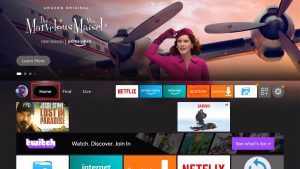
2. Navigate to the Find button of its main menu.
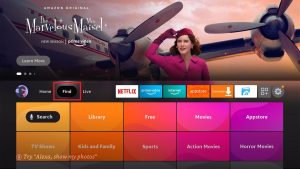
3. Press on the Search tab from the resulting drop-down.
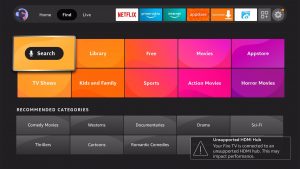
4. On the search screen, type in YouTube or YouTube TV.
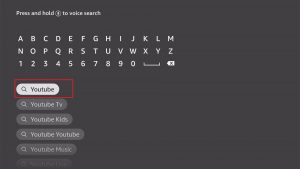
5. Click on the primary YouTube icon that represents the YouTube TV app.
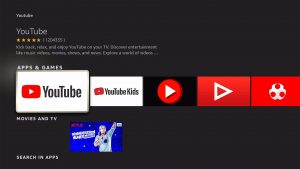
6. Press on the Download – You Own It button just below the app’s description.
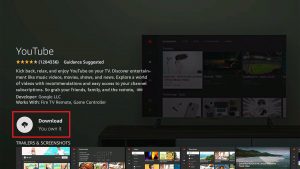
7. YouTube TV app’s installer will download shortly.
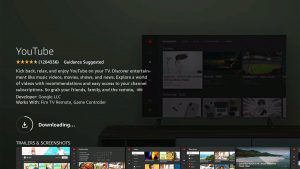
8. The YouTube TV app will automatically install itself on your Fire TV stick.
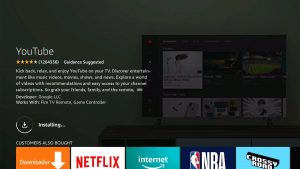
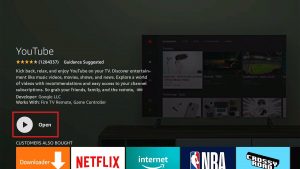
9. After its installation process, you can now press the Open button to launch the YouTube TV app.
10. Ensure to create an account or log in with your YouTube credentials. You may also log in with your Google account.
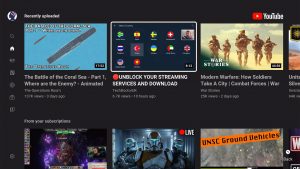
11. The YouTube TV app will now stream any video you like to watch. It works the same as the main YouTube website.

Install Surfshark on Firestick
YouTube Kids
YouTube Kids has the best features compatible with youngsters. This is the reason why we include this as one of The Best YouTube Apps for Firestick!
Following the success of the YouTube TV app, YouTube Kids is an app made for children. Gaining worldwide fame, YouTube is our main choice when searching for video uploads. Either looking for original videos or channels, YouTube has it all.
It is an enjoyable task to watch after kids. Whether it is a baby, toddler, or child, we tend to let them watch channels that contain cartoons, nursery rhymes, and children-friendly videos. Fortunately for many of us, YouTube Kids caters to this very particular requirement.
After launching the YouTube Kids app, users can create an account, log in, or continue as a guest. Upon completing the first step, you can choose options between Preschool, Younger, and Older. These selections represent the age set and video content for streaming.
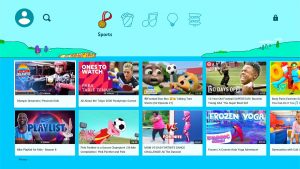
For example, if you click on the Younger button, all the YouTube videos for kids will show as a gallery. The display is similar to the YouTube TV app. YouTube Kids follows a child-friendly design. While using the YouTube Kids app, you don’t have to worry about the videos that your child is watching.
How to Install YouTube Kids App on your Fire TV stick with Screenshots
Follow our screenshot guide down below to find and install the YouTube Kids app on your Fire TV stick.
1. Go to the Home button from the main menu of your Fire TV stick’s interface.
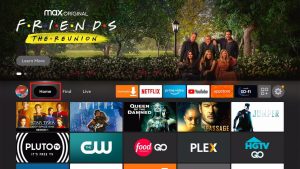
2. Navigate to the Find button of its main menu.
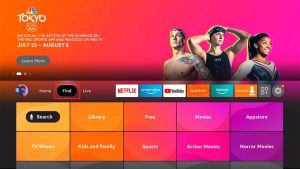
3. Press on the Search tab from the resulting drop-down.
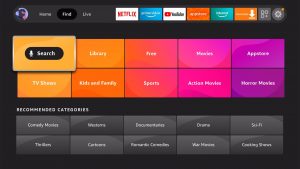
4. On the search screen, type in YouTube or YouTube TV.
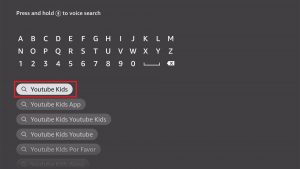
5. Click on the primary YouTube icon that represents the YouTube TV app.
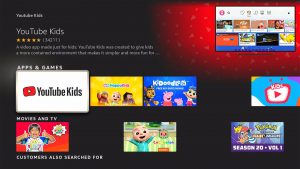
6. Press on the Download – You Own It button just below the app’s description.
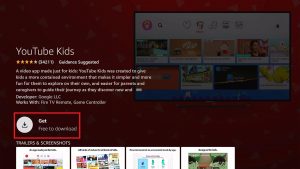
7. YouTube Kids app’s installer will download shortly.
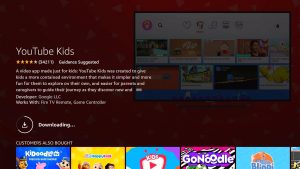
8. The YouTube Kids app will automatically install itself on your Fire TV stick.
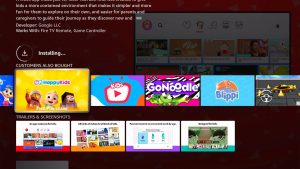
9. After its installation process, you can now press the Open button to launch the YouTube Kids app.
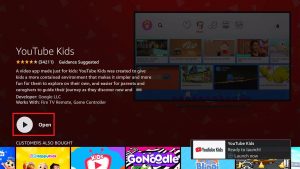
10. Wait for the YouTube Kids app to load its interface.
11. When you come across the Content Experience page, carefully select the best option for your child.
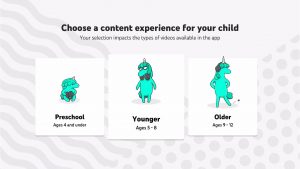
12. Each option represents typical age sets for children, you will find a ton of video content appropriate for their age.
Install Surfshark on Firestick
How to Sideload the Best YouTube Apps on Firestick
Sideloading is when you choose to install a third-party app on your Fire TV stick.
Before we tell you about the Best YouTube apps for Firestick that you can sideload, let us teach you how to Jailbreak your Fire TV stick and use the Downloader app. The Downloader app is useful for getting these YouTube app variants from the internet.
How to Install Downloader App on your Fire TV Stick with Screenshots
1. Open your Firestick Settings Tab. (Gear Wheel Icon).
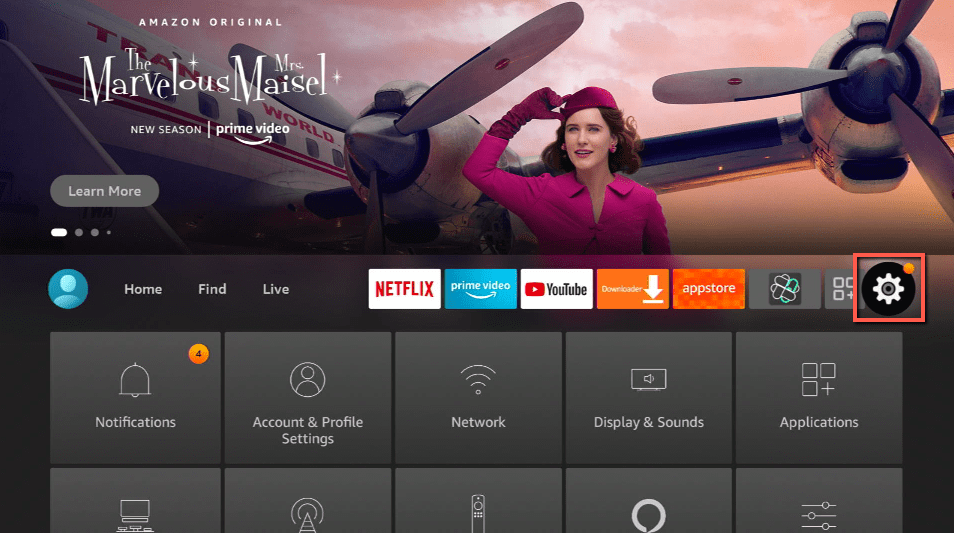
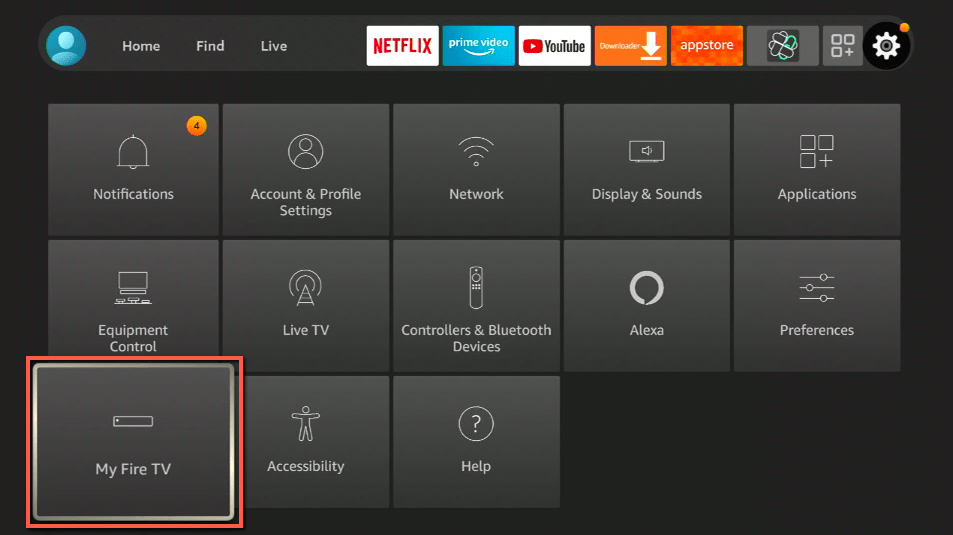
2. Scroll down and to the right until you get to My Fire TV. Click on it.
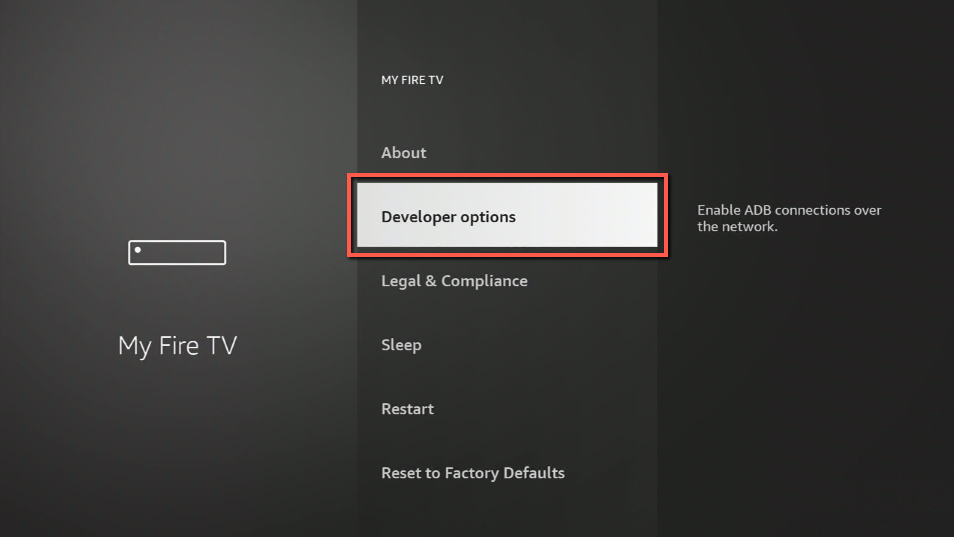
3. Select Developer options.
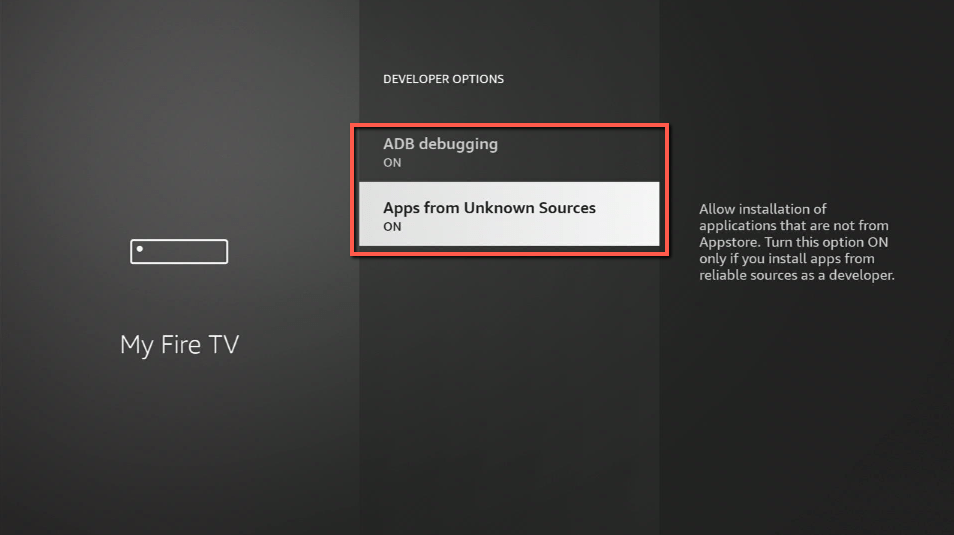
4. Turn on ADB debugging and Apps from Unknown Sources.
5. Press the Turn On when the pop-up appears.
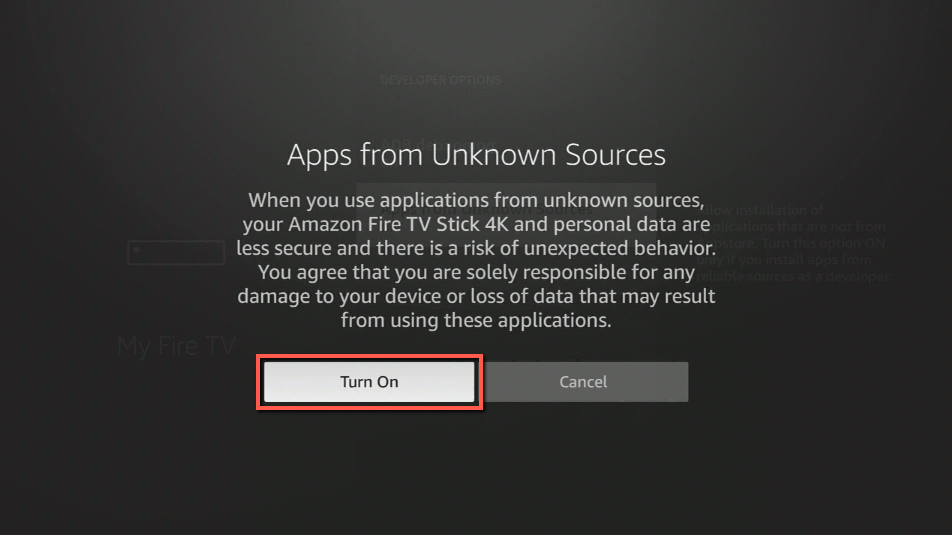
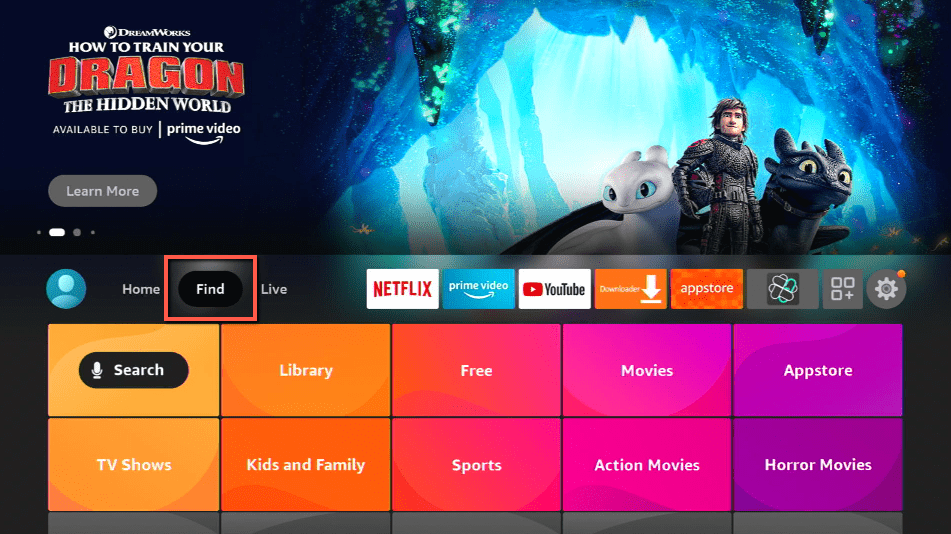
6. Click Home and press on FIND.
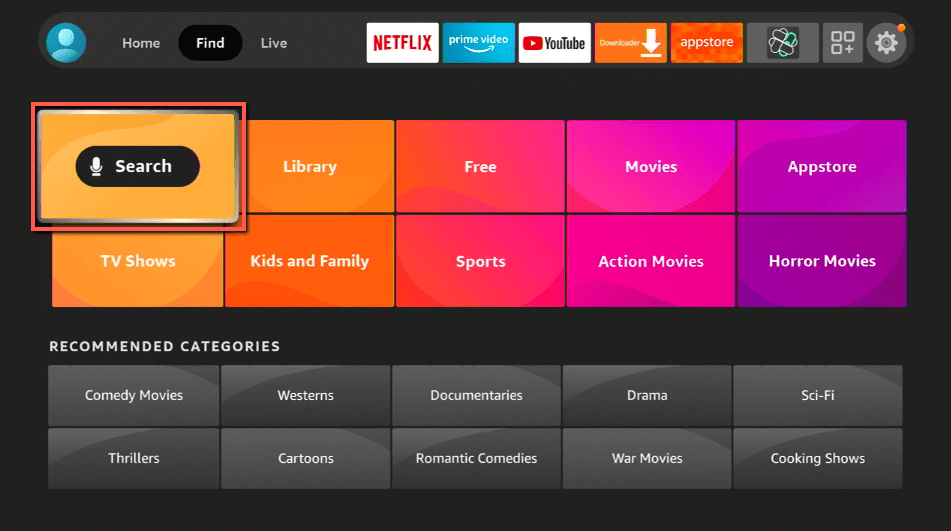
7. Press on Search.
8. You can either say Downloader to your Alexa voice-enabled remote or start typing it. If you typed it, click on the suggestion when it appears.
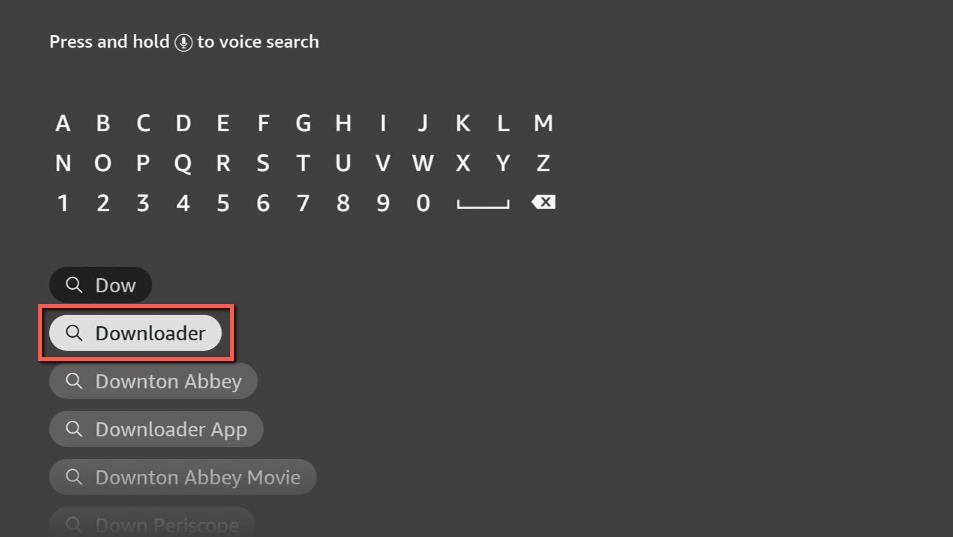
9. Click on the Downloader Icon.
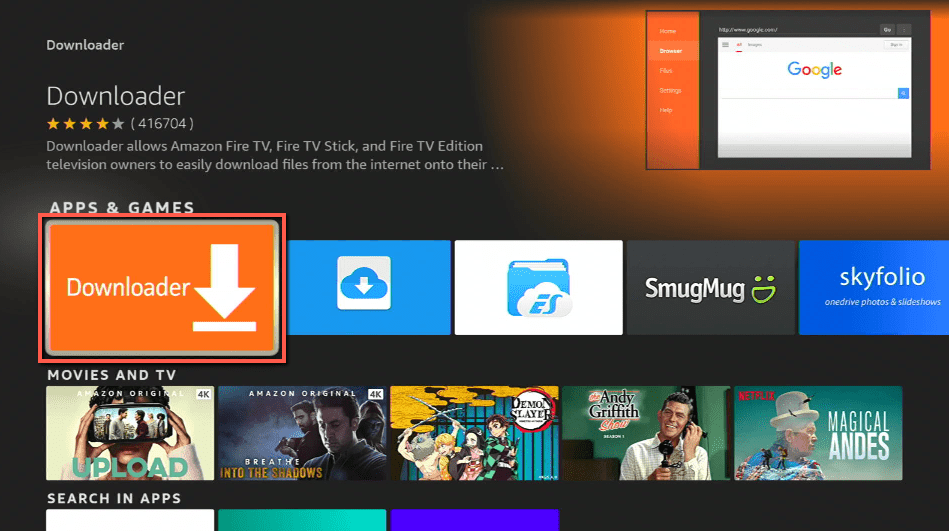
10. Tap on Download.
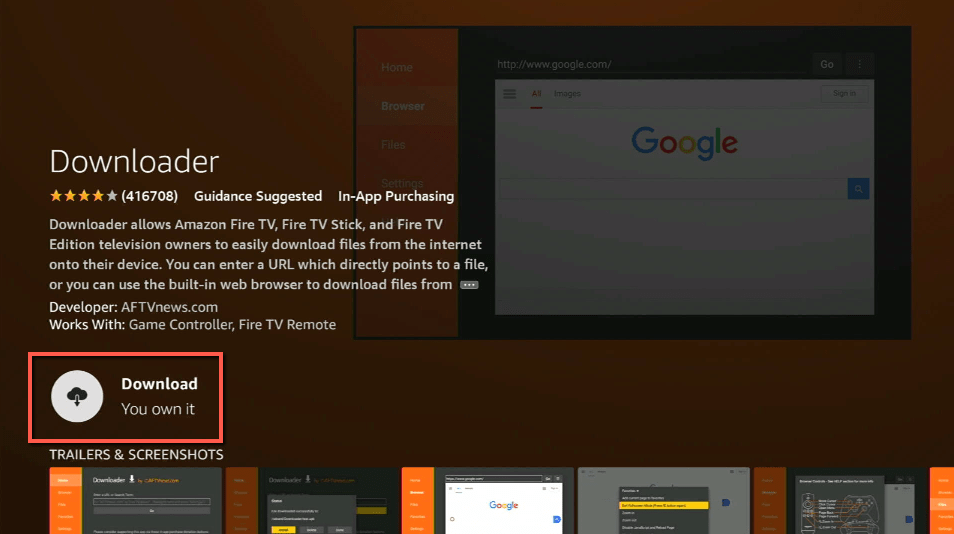
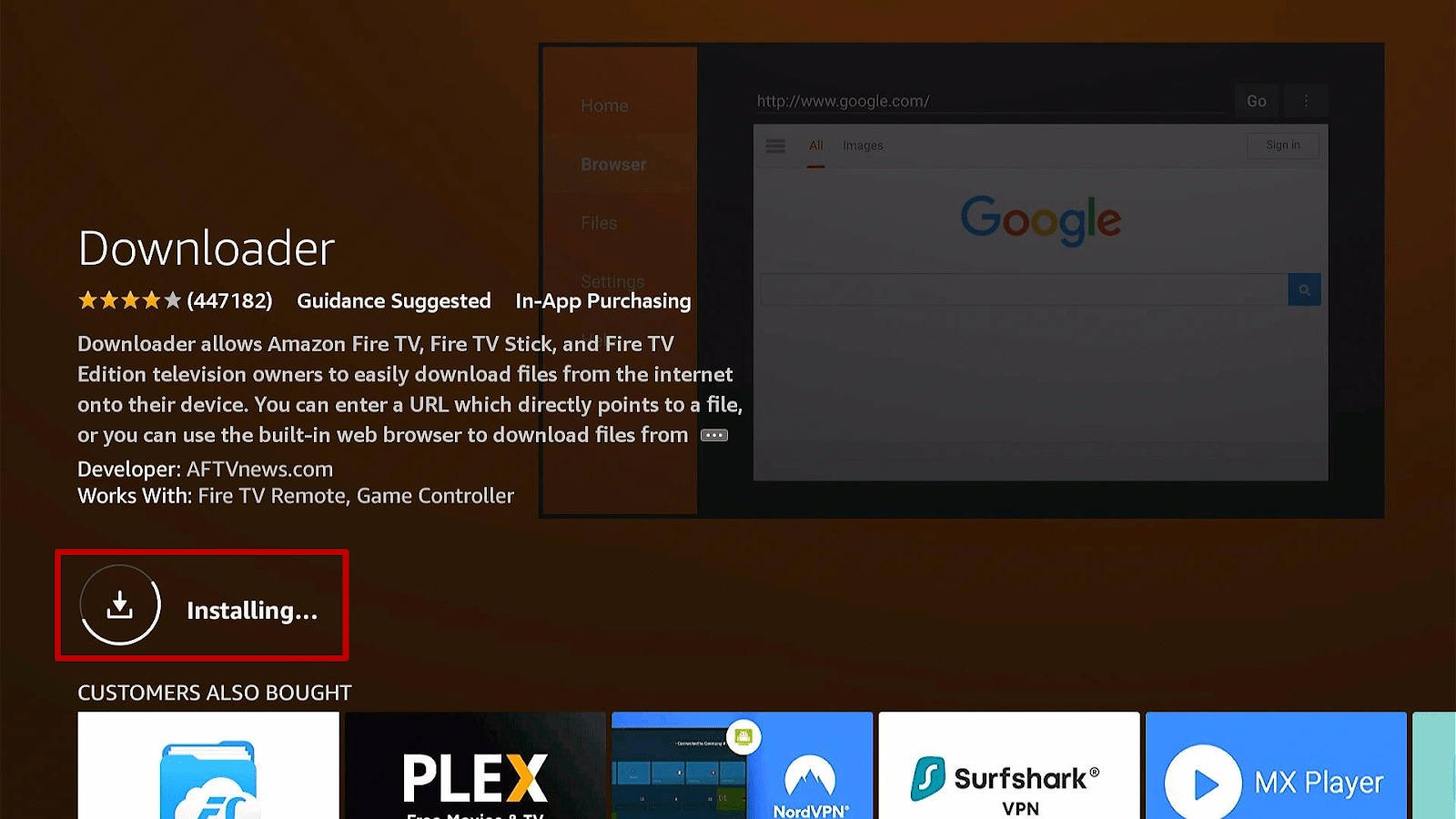
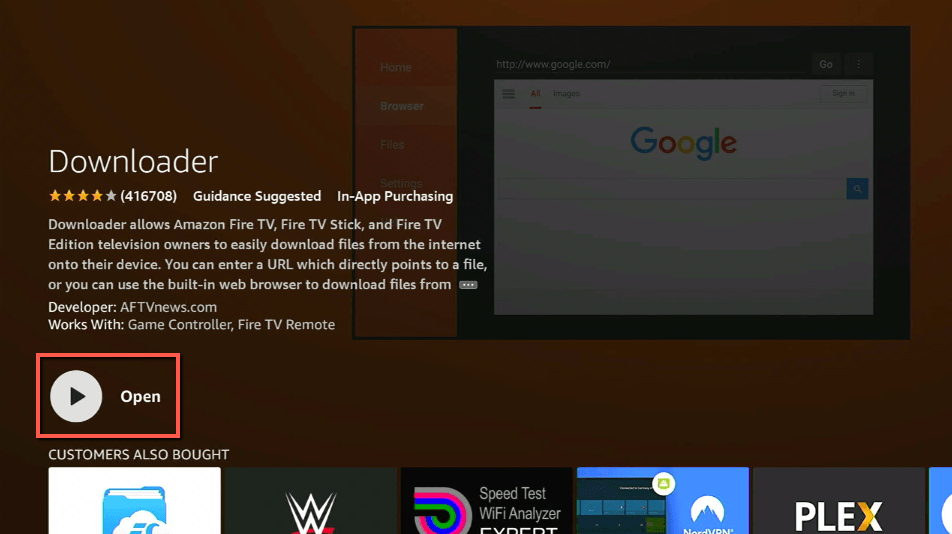
11. Click on Open.
12. Press on the Allow button.
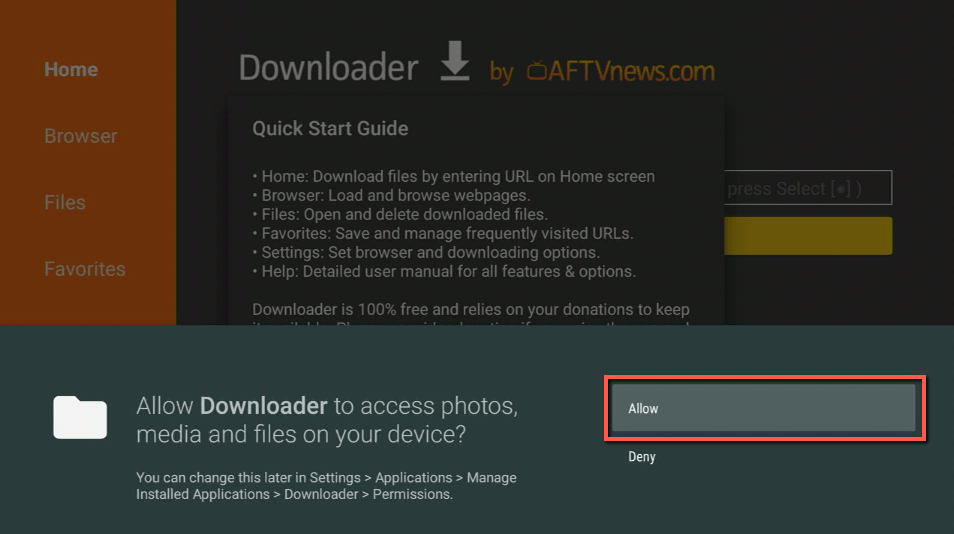
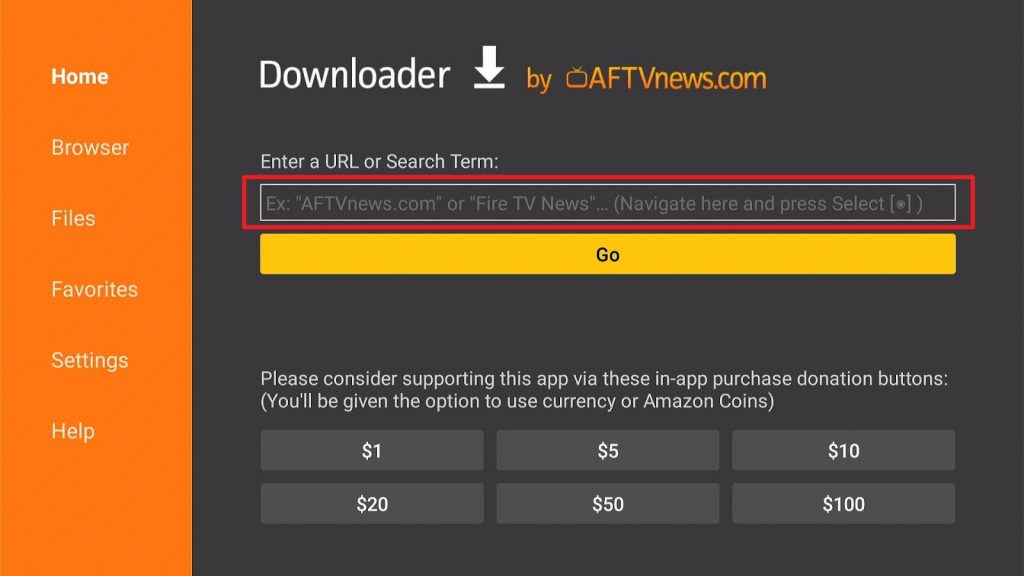
13. Downloader app has a search engine browser for finding third-party apps on the internet.
Install Surfshark on Firestick
The Best YouTube Apps You Can Sideload on Firestick
Let us now introduce you to the best YouTube apps for sideloading on your Fire TV stick. Each of these YouTube apps has modifications. Upon opening these apps you won’t notice many changes in the way they function. However, some modifications cancel out annoying pop-up ads or add extra features.
YouTube Vanced
Do you want to enjoy YouTube without disruptive pop-up ads? If yes, then we just have the right app for you! YouTube Vanced is an app with many modifications (courtesy of independent app developers). While using the app, you will not encounter frequent pop-up ads or ads that play before you can fully watch a video.
The YouTube Vanced app presents many impressive capabilities. It displays a simple interface design that is user-friendly and easy to navigate. What surprises us the most is that the app functions the same as the official YouTube website. It works well without the hassle of ads and product commercials.
One intriguing feature of the app is its independent functionality. If you choose to set your mobile device to idle, exit the app, or open another app, YouTube Vanced will continue playing the videos you are watching. This feature is useful when using the app for listening to music videos that you like.
YouTube Vanced App for Android

Note: ReviewVPN.com does not host this APK file. It is hosted by Archive.org
1. Use the Downloader app’s search engine browser.
2. Type in: reviewvpn.com/van
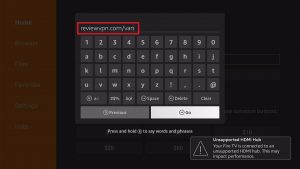
3. The Downloader app will automatically download the YouTube Vanced app’s APK installer.
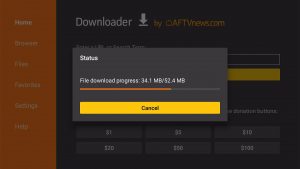
4. Press the Install button when the app completes its download process.
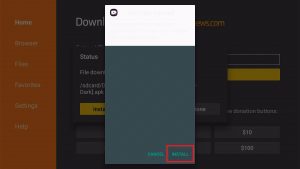
5. The YouTube Vanced app will install on your Fire TV stick.
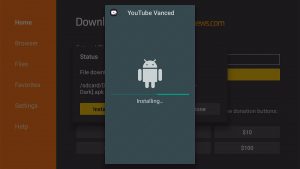
6. You can now Open the YouTube Vanced app to use its features.
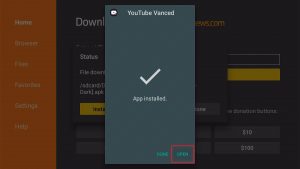
7. Wait for the YouTube Vanced app to load.
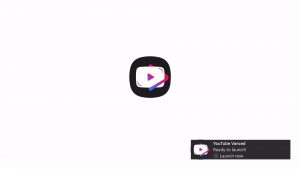
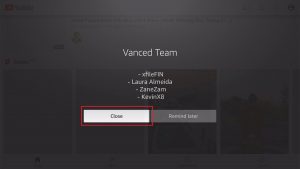
8. Click on the Close button of the Vanced Team introduction.
9. The YouTube Vanced app will show you a list of watchable YouTube videos.
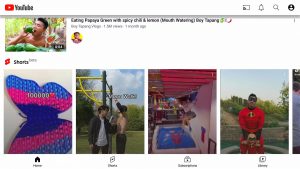
10. Enjoy streaming with the YouTube Vanced app!

Install Surfshark on Firestick
Smart YouTube TV
In our list of the Best YouTube Apps for Firestick, the Smart YouTube TV is our second choice. Although it is another YouTube app, it serves as an alternative YouTube app version when dealing with ads.
Smart YouTube TV is also an app with some modifications to its features. You will notice some changes with its app icon which has different colors but still represent the YouTube insignia. Overall, it cancels out ads that are prevalent on YouTube’s website and its official apps.
Installing the Smart YouTube TV app is possible on your Fire TV stick. Let us now teach you how by using the Downloader app.
Smart YouTube TV App for Android

Note: ReviewVPN.com does not host this APK file. It is hosted by Archive.org
1. Use the Downloader app’s search engine browser.
2. Type in: reviewvpn.com/sytv
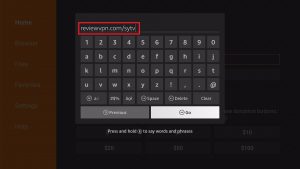
3. The Downloader app will automatically download Smart YouTube TV’s APK installer.
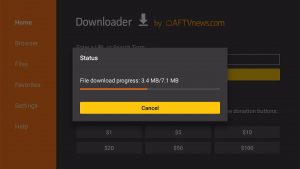
4. Press the Install button when the app completes its download process.
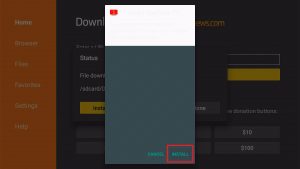
5. The Smart YouTube TV will install on your Fire TV stick.
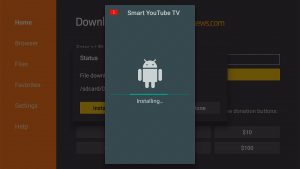
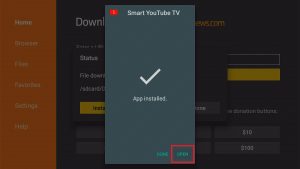
6. You can now Open the Smart YouTube TV to use its features.
7. Users may select if they want the Smart YouTube TV to filter ads by clicking on Yes.
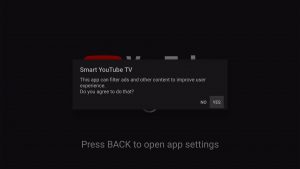
8. Smart YouTube TV app’s interface will display a similar interface to its official counterpart.
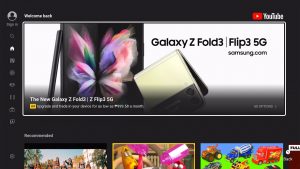
9. Streaming High-quality videos without ads are the purpose of the Smart YouTube TV app.

Install Surfshark on Firestick
Smart YouTube Next TV
As the final entry to the Best YouTube Apps you can sideload, we now introduce you to the Smart YouTube Next TV app. If you love streaming online videos, you might be familiar with the Smart YouTube TV app. However, the Smart YouTube Next TV app is a complete redesign of the Smart YouTube TV app.
The Smart YouTube Next TV app was created for compatibility with Android and Fire TV operating systems. It also contains modifications to some of its features. One remarkable feature is streaming online videos continuously without ads disrupting your experience.
The Smart YouTube Next TV app is a third-party app. You have to sideload your Fire TV stick and use the Downloader app. Let us now show you how to find the Smart YouTube Next TV app and install it on your Fire TV stick.
Smart YouTube Next TV App for Android

Note: ReviewVPN.com does not host this APK file. It is hosted by Archive.org
1. Use the Downloader app’s search engine browser.
2. Type in: reviewvpn.com/synxtv
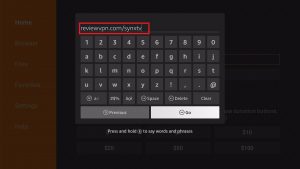
3. The Downloader app will automatically download Smart YouTube Next TV’s APK installer.
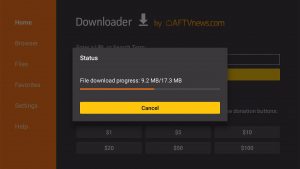
4. Press the Install button when the app completes its download process.
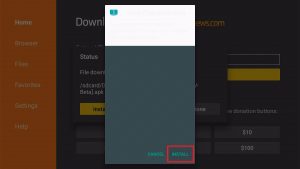
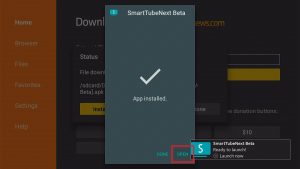
5. The Smart YouTube Next TV will install on your Fire TV stick.
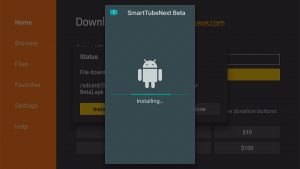
6. You can now Open the Smart YouTube Next TV.
7. A variety of online videos will appear on Smart YouTube Next TV’s interface.
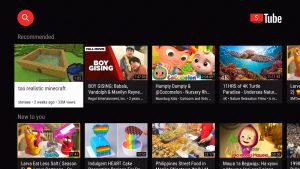
8. Stream music videos or watch user uploads without ad interruptions with the Smart YouTube Next TV app.

ReviewVPN cannot attest to the legality, security and privacy of the applications discussed on this site. It is highly recommended that you use a VPN service while streaming or using Kodi. Currently, your IP 216.73.217.61 is visible to everyone and your Browser is being tracked by Advertisers & ISP Provider. Here are the main reasons why you must use a VPN: A VPN works be replacing your ISP-assigned IP address and creating an encrypted tunnel. We recommend the no log service offered by IPVanish. It works well on a Firestick and offers the fastest possible speeds.
YOUR INTERNET ACTIVITY IS BEING WATCHED
Stream YouTube Videos with a VPN
YouTube is our primary choice for searching for various videos on the internet. It provides us space for uploading our videos. We can also find videos that show different types of content.
Streaming online videos may sometimes cause interruptions. Our streaming speed might become slow. It might result in buffering, stuttering, and lagging of some YouTube videos.
To fix this problem, we recommend you use Surfshark. The Surfshark is suitable for streaming high-quality video uploads. Surfshark also offers many advantages to its users:
- Smooth streaming of YouTube videos.
- Prevents cyber threat attacks.
- Protects your device from malicious software.
- Hide your data from prying eyes.
- Prevents stuttering, buffering, and lagging on your Android, Kodi, and Firestick.
If you are looking for VPNs suitable for YouTube, visit our article about the Best VPNs for YouTube.
Click here to get the lowest price on Surfshark through our exclusive limited-time offer.
How to Install Surfshark VPN on Firestick
If your Firestick still has the older interface, read this article to learn how to update it: Update Firestick Interface.
1. Go to the Home screen of your Firestick.

2. Navigate towards the Find tab. Press the Search button from the resulting dropdown.

3. Type in the keyword of SurfShark and select from the suggestions that will appear.

4. Click the official SurfShark icon from your search results.

5. Press the Download (You own it) button.

6. The SurfShark VPN installer will download on your device.

7. SurfShark VPN’s app will automatically install itself on your Fire TV stick.

8. Press the Open button after completing SurfShark VPN’s installation process.

9. Please wait for the SurfShark VPN to load its user interface.

10. You can now log in with your SurfShark VPN account credentials.

Learn more about Surfshark and Grab the Best Surfshark Deal Now!
Install Surfshark on Firestick



For more VPN discounts, go to ReviewVPN Deals and purchase the best VPN for you.
Click here to get the lowest price on Surfshark through our exclusive limited-time offer.
Apps that Can Block Ads While Using YouTube
Luckily for avid video streamers, many YouTube apps eliminate frequent pop-up ads. However, some ads might make it through their filters. We have a list of apps that will help your YouTube app cancel out ads before they appear on your screen.
Visit our article showing you How to Block YouTube ads and give you a smoother streaming experience.
If you want to download videos from YouTube, visit our article teaching you How to Install UCMate on Firestick. You will learn about its features, installation guide, and how to use it for downloading YouTube videos.
Conclusion
YouTube is a media website that allows us to upload videos, search for content, and subscribe to other user accounts. Following the popularity of streaming devices and apps, YouTube now has apps for streaming TV shows, movies, and user uploads. You can install some YouTube apps either directly or by Jailbreaking your Firestick and using the Downloader app.
We hope this article helps you install the Best YouTube Apps on your Fire TV stick.






