

Overview
Quick Navigation

How to Update Kodi
Kodi gets regular updates as well as a new version, running since 2002, Kodi has a major update roughly once a year and is currently on its 18th version called Leia.
If you miss an update, things can start to break on Kodi. Also, your favorite addons may stop working as they also update to the latest version.
Luckily this article will show you how to update Kodi whatever your device. So, scroll on through whether you have an Apple TV or an Amazon Firestick to find the best and easiest way to update Kodi on your device.

You can find the latest version of Kodi here: https://www.kodi.tv/download
Windows
If you run a Windows PC, there are 3 different ways that you can update Kodi. Probably the easiest platform to run and update Kodi from.
From Kodi 18 onwards, the file now comes in a 64-bit version as standard, which means that you can easily install the latest version of Kodi over your older version.
You can either navigate to Kodi and download the latest version manually and allow Windows to install the .exe file, or you can find the latest application version through the Windows App Store.
In February 2019, the development team at Kodi also released a Kodi Windows installer which you can find here: https://kodi.tv/addon/scripts/kodi-windows-installer
The Windows Installer is really interesting if you want to get your hands on the latest nightly builds, updates and even test builds that the team has to offer. It is a good option for those who are more technically minded. Bear in mind that nightly builds and fresh installs which have been untested are more likely to have bugs.
MacOS
On Mac there is only one way for you to update Kodi, by reinstalling the latest version on your OS supported device:
- Go to the link in the introduction to find the latest version of Kodi
- Scroll down the page until you find Mac OS
- You want to install the 64-bit format, which will download as a DMG file
- When your file has finished download, double click on it
- Now all you need to do is drag and drop the Kodi icon into your applications folder
- Your Mac will ask if you want to replace the existing Kodi installation, click yes to update to the latest version of Kodi
Linux
As any good Linux user knows, your better off installing and upgrading Kodi through the terminal rather than navigating through the Kodi website:
- Open Terminal on your Linux device
- Input: sudo apt-get update ,to find all applications where an update is available
- Next: sudo apt-get upgrade, then: sudo apt-get dist-upgrade
- These commands will update all the applications on your device where an upgrade is available including Kodi
Some Linux versions like Ubuntu, have a Software Updater built into the GUI, where Linux will automatically check for updates and indicate them on your home screen. So, alternatively, you can update using this method.
As Linux users already know, applications are typically installed on this OS by typing a series of commands. Therefore, it’s not surprising to see the same procedure is applied to updating Kodi.
As any Linus user knows, its worth running the update and upgrade commands at least once a week to make sure all your software is up to date, especially when it comes to minor patches and security fixes.
Android
There are two ways to update Kodi on your Android device, it depends on how you installed Kodi in the first place.
Google Play Store
If you installed Kodi using the Google Play store, then Google will automatically detect that a new version of the Android Application is ready. If automatic updates aren’t set, you can manually update Kodi through the Google Play Store
Sideloaded Android Application
You might not have the Google Play Store on your device, or you chose to download Kodi directly from a URL.
In that case, you simply need to repeat the process, by navigating to the downloads section on Kodi, scroll down and click on the most up-to-date version for Android. When you download the latest version, your device will ask if you want to overwrite the existing version, agree and Kodi will update.
Amazon Fire TV / Fire TV Stick
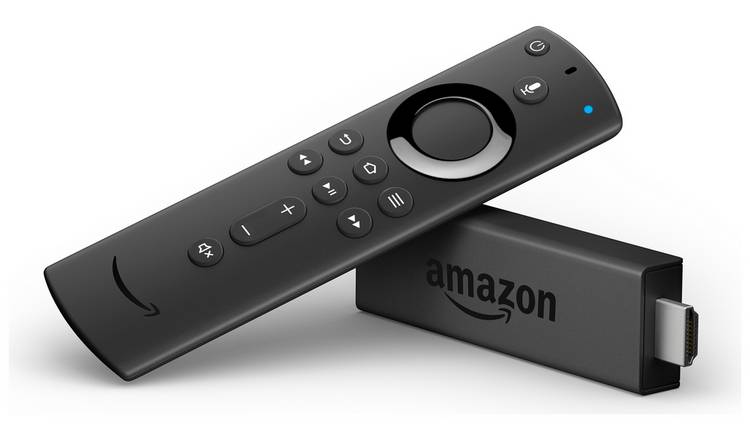
As an Amazon device user, you’ll know that you can’t download Kodi through the Amazon App user, which means you will have to repeat the process you first went through sideloading Kodi to install the latest version:
- From the home screen, go to settings, my fire tv, developer options, and enable ADB debugging and apps from unknown sources
- Click the home button and scroll one to the left
- Search for and install Downloader (it is a browser that can download files from the Internet)
- In downloader type Kodi.tv/download/852
- Download the ARMV7A (32BIT) Android version
- When prompted, allow your Amazon device to overwrite the current version of Kodi
It’s worth mentioning that updating Kodi on an Amazon Fire device can be glitchy at times. If you get a persistent problem with updating Kodi, you might have to delete the original version and download the latest version fresh. It’s a pain we know, just make sure you make a note of your favorite builds and addons to download on your updated version of Kodi.
Install Surfshark on Firestick
Legal Disclaimer: ReviewVPN.com does not encourage or endorse any illegal activity involved in the usage of services and applications referenced on this site. We do not verify the licensing agreements of services. The end-user is wholly responsible for ensuring that any media accessed through these services does not violate copyright and/or licensing laws. ReviewVPN does not promote, link to, or receive compensation from any Apps and IPTV services.
ReviewVPN cannot attest to the legality, security and privacy of the applications discussed on this site. It is highly recommended that you use a VPN service while streaming or using Kodi. Currently, your IP 216.73.217.146 is visible to everyone and your Browser is being tracked by Advertisers & ISP Provider. Here are the main reasons why you must use a VPN: A VPN works be replacing your ISP-assigned IP address and creating an encrypted tunnel. We recommend the no log service offered by IPVanish. It works well on a Firestick and offers the fastest possible speeds.
YOUR INTERNET ACTIVITY IS BEING WATCHED
Xbox One
The original device that Kodi was created for will normally operate like the Google Play Store and always check for updates for all your applications.
However, if for some reason you encounter a glitch its pretty simple to get an update for Kodi:
- Press the Xbox button on your controller
- Go to My Games and Apps
- On the left-hand side of the screen, click Updates
- Click the available Kodi update
You can fully automate this process by simply going to Settings and System Updates and setting this to automatic, so you don’t need to do the same thing next time.
iOS
Just like Amazon, the iOS store doesn’t host Kodi in the app store, so you’ll need to go back and repeat the process you first did to sideload Kodi onto your iOS device:
- Repeat the process that you first installed Kodi, either using Cydia Impactor or XCode
We found that Kodi can be really glitchy if you don’t first uninstall the original version of the software. You would be better off going through a fresh install of the latest version of Kodi. Keep a note of all your existing addons and builds to install on your fresh version of Kodi.
Chromebook
Chromebooks are a breed of their own when it comes to laptops, using all of Google’s software. Luckily it also makes it extremely easy to update Kodi:
- Open the Google Play Store and check for automatic updates, or manually update Kodi through the My Application section under your profile
- Alternatively, if you used one of the other 2 methods to install Kodi, you can repeat that process through Arc Welder or updating the Kodi extension on Chrome
If you didn’t do so before, we recommend that you install and run Kodi through the Google Play Store. Particularly if you were quirky enough to install Kodi through Arc Welder, this method is experimental, and you’ll probably end up having to install a fresh copy of Kodi. So, use the Google Play Store for a seamless update and to avoid having to reinstall your build and addons each time you update Kodi.
Apple TV
Just like iOS you can’t get the Kodi application through the tvOS store.
You will need to repeat the original process you went through installing Kodi through Cydia Impactor or XCode.
Again, like iOS there is a chance the updated version of Kodi may be glitchy, so you might need to carry out a fresh install every time you want to update Kodi.
Nvidia Shield TV
One thing we love about the Nvidia Shield is that it comes with the Google Play Store fully integrated in the OS. Which means if automatic updates are set, then Kodi should automatically update.
If you need to update Kodi manually:
- Start the Google Play Store
- Go to My Apps
- Click and update the Kodi installation if its available to update
Raspberry Pi
For the most intrepid and experimental of Kodi users, you’ll be familiar with LibreELEC which you would have originally used to install Kodi.
The Pi is the only device where you don’t have to update Kodi, but the software you installed it with:
- Start your Pi and go to Settings
- Go to LibreELEC/OpenELEC
- Click System
- Go to Updates
- From Updates Channel click Main Version
- Confirm and the software will update
Kodi should automatically update, but you may need to restart your Pi to see the updated version.
Smart TVs

You can download Kodi on most Smart TV’s directly. To update it you just need to follow the same process as any other Android device:
- Open the Google Play Store on your device
- Go to My Apps
- Click and update Kodi
If your Smart TV isn’t running an Android OS, then you will need to update the device that you are using to mirror Kodi onto your TV.
Click here to get the lowest price on Surfshark through our exclusive limited-time offer.
How to Install Surfshark VPN on Firestick
If your Firestick still has the older interface, read this article to learn how to update it: Update Firestick Interface.
Follow our screenshots below to install the SurfShark VPN app on your Fire TV stick.
1. Go to the Home screen of your Firestick.

2. Navigate towards the Find tab. Press the Search button from the resulting dropdown.

3. Type in the keyword of SurfShark and select from the suggestions that will appear.

4. Click the official SurfShark icon from your search results.

5. Press the Download (You own it) button.

6. The SurfShark VPN installer will download on your device.

7. SurfShark VPN’s app will automatically install itself on your Fire TV stick.

8. Press the Open button after completing SurfShark VPN’s installation process.

9. Please wait for the SurfShark VPN to load its user interface.

10. You can now log in with your SurfShark VPN account credentials.

Learn more about Surfshark and Grab the Best Surfshark Deal Now!
Install Surfshark on Firestick



For more VPN discounts, go to ReviewVPN Deals and purchase the best VPN for you.
Click here to get the lowest price on Surfshark through our exclusive limited-time offer.






