

How to Install Kodi on an Apple TV
This article will help you on how to install Kodi on an Apple TV.

The Apple TV hasn’t quite had the all reaching effect of the iPhone, iPad and Mac but has been growing steadily more popular since it’s first release in 2007.
The latest version 4th and 5th Generation released in 2015 and 2017, differ in terms of hardware, and the 5th generation took away the USB C Port. In this guide we’ll show you three methods of installing Kodi that will work for both the 4th and 5th Generation Apple TV.

What is Kodi?
Quick Navigation

Kodi has been going strong since 2002. One of the most popular free media players, which helps to turn any modern TV into a home entertainment centre. Run by the XMBC Foundation Kodi is now in its 18th major version and has garnered over 50 million downloads worldwide.
Kodi remains popular due to its 10-foot user interface, which allows you to easily scale any Android application to work on a TV and has a stretched User Interface, also the sheer amount of functions and media files it can play. Most importantly Kodi offers an opportunity to cut the cord and watch almost any media for free, through the thousands of third-party applications the software hosts.
Can I Install Kodi From the App Store?
No, one of the things that makes the Apple TV a bit fiddly, is that it doesn’t host Kodi on the Apple App Store, so it means we need to go through a few easy steps to get a working version of Kodi on an Apple TV.
3 Ways to Install Kodi on an Apple TV
The following methods covers all eventualities you may come across using a 4th or 5th generation, and a bonus section to install Kodi 14.2 “Helix” on a 2nd Generation Apple TV
The first 2 methods are for wired installations, and the last for non-wired. Use the first 2 methods for a 4th Generation Apple TV, and the third for a 5th Generation.
Install Surfshark on Firestick
Cydia Impactor

Using Cydia Impactor is for users who have a 4th Generation Apple Tv but aren’t going to connect their Apple TV to a Mac Book. You can connect your Mac Book to any computer that has a USB C or USB A Port.
- Download the latest Kodi DEB file here: https://kodi.tv/download onto your computer.
- To unzip the file, use your chosen programme. Or download Unarchive for Mac, 7-Zip for Windows.
- Unzip the Kodi DEB File and find the file named “data.tar”.
- Once you unzip this file you‘ll see a folder called “Data.
- Open the folder and find the folder called “Kodi.app”.
- Create a new folder next to it called “Payload”.
- Drop the “Kodi.app” folder into the “Payload” folder.
- Then use 7-Zip or Unarchive to create a new zip file.
- The zip file must be created in an archive format and named “Kodi.ipa”.
- Connect your Apple TV to your computer.
- If you haven’t already done so, download Cydia Impactor here: http://www.cydiaimpactor.com/
- Open Cydia Impactor and drag and drop your “Kodi.ipa” file into the application.
- When prompted enter your Apple ID and Password.
- Give it a few minutes to process. Cydia Impactor will be installing Kodi on your Apple TV.
- Switch your Apple TV on and you should see Kodi installed on the home screen.
YOUR INTERNET ACTIVITY IS BEING WATCHED
ReviewVPN cannot attest to the legality, security and privacy of the applications discussed on this site. It is highly recommended that you use a VPN service while streaming or using Kodi.
Currently, your IP 216.73.216.72 is visible to everyone and your Browser is being tracked by Advertisers & ISP Provider.
Here are the main reasons why you must use a VPN:
- Your activities are hidden from your ISP, the government, and from the apps you are using.
- You can access additional movies and TV streams.
- ISP attempts to throttle are thrwarted thus reducing buffering issues.
- Geographically restricted content like Netflix and Hulu can be unblocked.
A VPN works be replacing your ISP-assigned IP address and creating an encrypted tunnel. We recommend the no log service offered by IPVanish. It works well on a Firestick and offers the fastest possible speeds.
XCode Wired
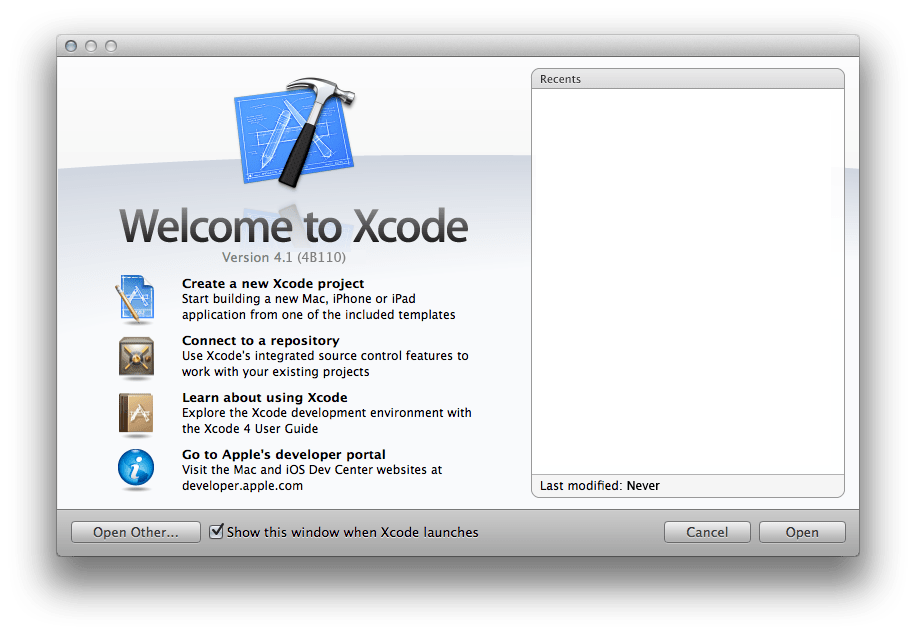
This method is for users who have a Mac Book that they can connect their Apple TV to.
- Connect your Mac to your Apple TV.
- Launch XCode on your Mac.
- In the left-hand sidebar, you will see tvOS, go to Application, and then Single View Application.
- Call the app Kodi.
- When XCode loads it will show you a warning saying it has no provisioning for the file. Click Fix Issue.
- Enter your Apple ID and XCode will fix the issue.
- Open the iOS App Signer.
- In the input file section, browse for your downloaded Kodi DEB file.
- Name the App Kodi, under App Display Name, and then click Start.
- Wait while iOS App Signer unpacks the data and creates a new file.
- Go back to XCode.
- On the top window bar, click Windows and then Devices.
- Find your Apple TV and click the “+” button.
- You can then add your newly created Kodi app, which will be installed on your Apple TV.
XCode Wireless
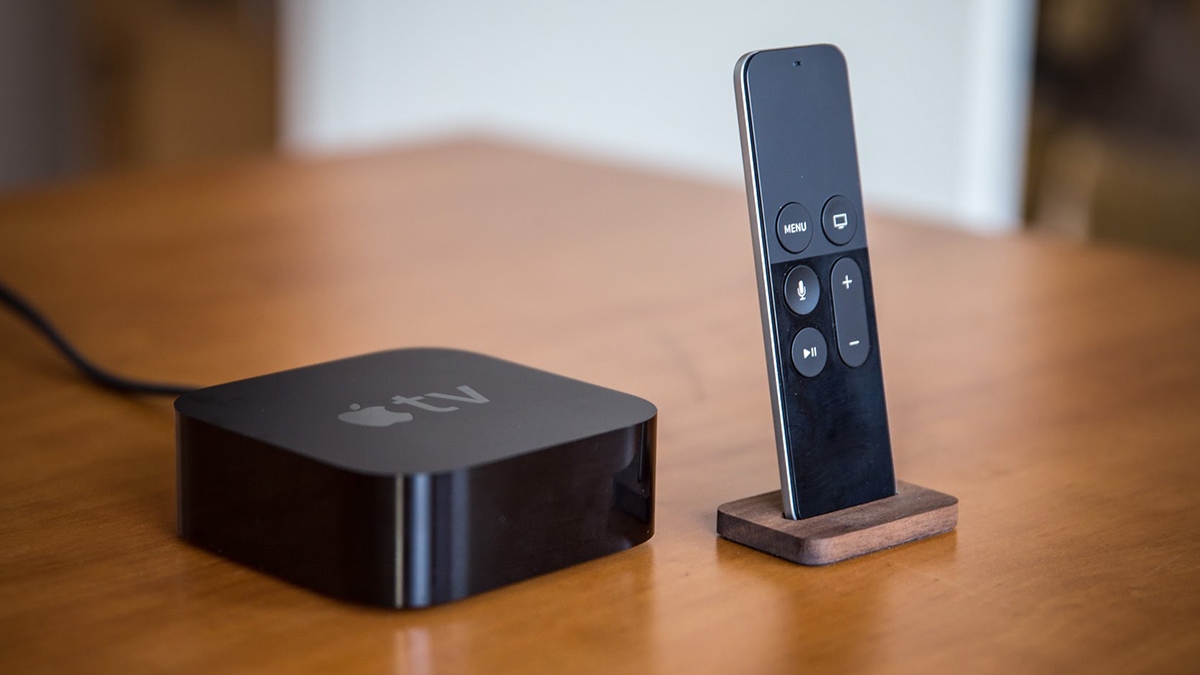
This version is for the 5th Generation Apple TV, which cannot be connected via a USB C to USB A cable.
- You will be following all the above instructions above for the XCode wired installation, but instead of connecting your Apple TV using a wire it first needs to be connected wirelessly.
- On your Apple Tv go to Setting.
- Click Remote Devices, then Remote App and Devices.
- Open your Mac and start XCode.
- From the top menu bar go to Windows and then Devices and Simulators.
- Your Mac should automatically find your Apple TV, particularly if you are in the same room, if not you can try to manually find the device.
- You can then pair your two devices. You will be prompted to enter the verification code which pops up on your Apple TV into XCode on your Mac.
- Once your 2 devices are paired you can start from Step 3 of the XCode Wired installation process above.
Install Kodi on a 2nd Generation Apple TV

Unfortunately, the latest versions of Kodi aren’t available, but you can still install Kodi 14 on a 2nd Generation Apple TV. Just be aware this may affect some Kodi addons.
- Using an Apple Mac, open Terminal and enter: ssh YOUR.ATV2.IPADDRESS (Replace IPADDRESS with your Apple TV Address), enter the password if you have changed, if not the default password is: alpine.
- Once accepted enter the following commands:
apt-get install wget
wget -0- http://apt.awkwardtv.org/awkwardtv.pub | apt-key add –
echo “deb http://apt.awkwardtv.org/ stable main” > /etc/apt/sources.list.d/awkwardtv.list
echo “deb http://mirrors.kodi.tv/apt/atv2 ./” > /etc/apt/sources.list.d/xbmc.list
apt-get update
apt-get install org.xbmc.kodi-atv2
reboot
Your Mac TV will reboot with Kodi installed.
What About 1st and 3rd Generation Apple TVs?
Unfortunately, there isn’t an easily known way to install Kodi on these generations of Apple TV, though a brave soul might find some luck trawling through Stack Overflow.
Install Surfshark on Firestick
How to Install Surfshark VPN on Firestick
If your Firestick still has the older interface, read this article to learn how to update it: Update Firestick Interface.
Follow our screenshots below to install the SurfShark VPN app on your Fire TV stick.
1. Go to the Home screen of your Firestick.

2. Navigate towards the Find tab. Press the Search button from the resulting dropdown.

3. Type in the keyword of SurfShark and select from the suggestions that will appear.

4. Click the official SurfShark icon from your search results.

5. Press the Download (You own it) button.

6. The SurfShark VPN installer will download on your device.

7. SurfShark VPN’s app will automatically install itself on your Fire TV stick.

8. Press the Open button after completing SurfShark VPN’s installation process.

9. Please wait for the SurfShark VPN to load its user interface.

10. You can now log in with your SurfShark VPN account credentials.

Learn more about Surfshark and Grab the Best Surfshark Deal Now!
Install Surfshark on Firestick



For more VPN discounts, go to ReviewVPN Deals and purchase the best VPN for you.
Click here to get the lowest price on Surfshark through our exclusive limited-time offer.






