

TV Bro Browser
Quick Navigation
Concerning the internet, browsers play a significant role in accessing & browsing essential stuff. However, when it comes to streaming devices, the browsing choices are very few. Although streaming devices come with various streaming apps, the developers showed no interest in developing a dedicated internet browser. Even the Google Chromecast with Google TV does not come along with a built-in browser, but you can sideload a web browser, such as TV Bro Browser, on Google Chromecast.

The TV Bro browser’s categories consist of the Favorites, navigation bar, Download manager, Refresh, and Settings.
TV Bro is a popular internet browser and it’s functioning great. If you’re using a Google Chromecast with Google TV or any streaming device, below are the steps for the TV Bro browser installation on your video streaming device.

Installing TV Bro browser On Google Chromecast
1. Turn on the Google Chromecast device.

2. On the upper right of the screen, choose > Settings.

3. Once in Settings, scroll down to System > About.
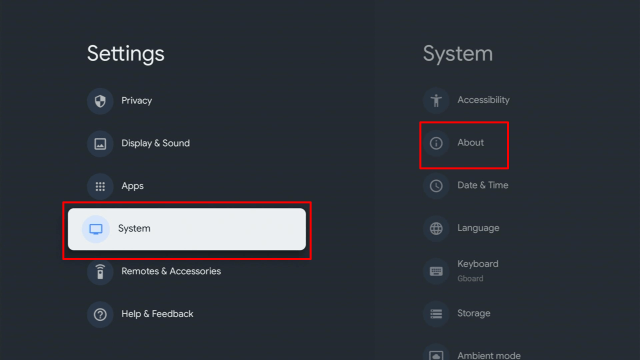
4. Scroll down to Android TV OS Build & click on it seven times until it goes into Developer options and it’s gonna say “you are now a developer”.

5. Click the Back Button and you can now see the Developer options.

6. Go back to Settings and select > Apps.

7. Scroll down to Security & Restriction – turn on Unknown Sources.

8. Go to Downloader and toggle it on.

9. Press the Google Chromecast Home button.

10. Open the Downloader app.

11. Type in the TV Bro browser download URL/APK – https://reviewvpn.com/brob
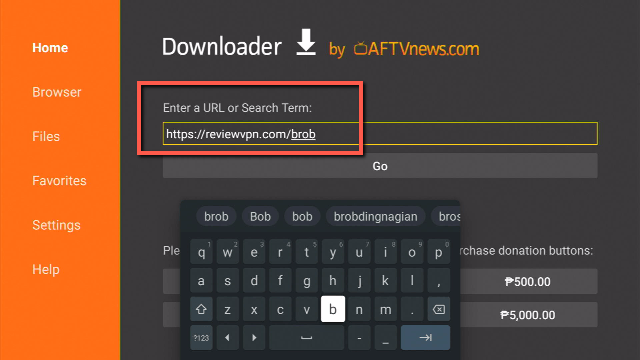
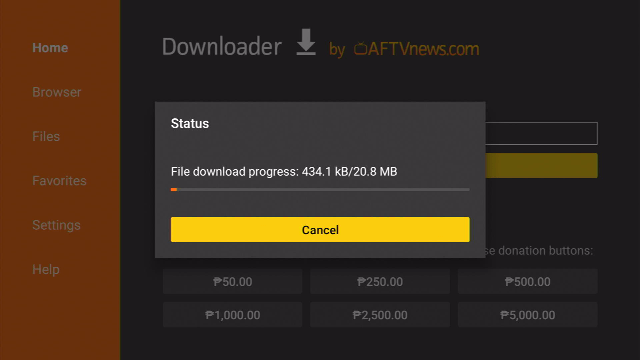
12. Wait for a few seconds for the file download process
13. Click Install
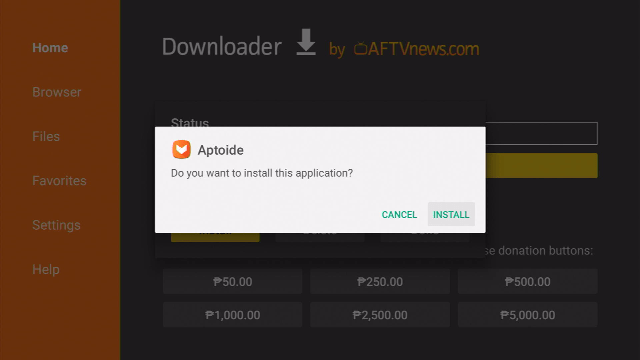
14. Select Install
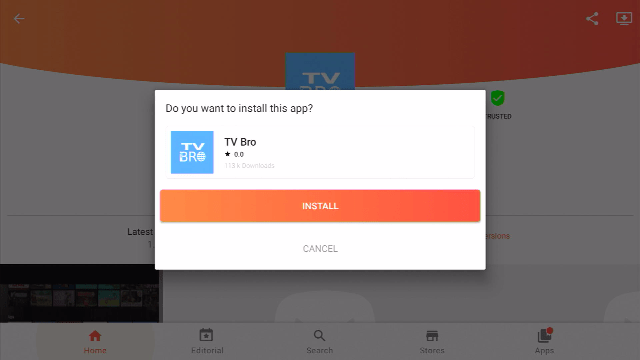
Now, you’ve successfully installed the TV Bro browser on your Google Chromecast
Note: ReviewVPN.com does not host this APK file. It is hosted by Archive.org
What Is a TV Bro Browser?
TV Bro is an internet browser that lets you browse the web using your Google Chromecast or any Android-based device. The TV Bro lets you visit websites and also allows you to download. Tons of individuals choose the Puffin TV browser for their streaming devices, but since the web browser has been having issues – it makes TV Bro one of the best alternatives.
TV Bro Browser Features
- Optimized for Android operating system (OS)
- Free to use internet browser
- Functions on all video streaming devices running Android OS
- Voice search support
- Simple navigation
- Quick page loading & rendering speed
- Built-in download manager
- Easy Settings configuration
- Smooth video playback
- Easy-to-use user interface
- Support for tabs & bookmarks
Always Use A VPN While Using The Google Chromecast
Using Virtual Private Network or VPN can be very handy on a Google Chromecast. Thanks to a VPN service, you can access platforms or services that are unavailable in your country or bypass the meaningless restrictions that several platforms sometimes impose. When you use Google Chromecast, an encrypted Virtual Private Network service provider is highly recommended to hide your online activities, identity, and location. Many Google Chromecast users prefer Surfshark VPN service for privacy, price, and speed.
Providing the fastest server speeds and amazing live chat support, Surfshark VPN is also an easy-to-use VPN app. Make sure to enable the VPN service when streaming on the internet.
Surfshark Features:
- Unblocks Netflix, Disney+, and lots more
- It works on all unlimited simultaneous devices
- 30-day money-back guarantee
- Robust encryption
- Great download speed
- Zero log policy
- Great customer service
- Compatible with Android, Windows, Linux, iOS, Mac, and other routers
Install Surfshark VPN on Google Chromecast with Screenshots
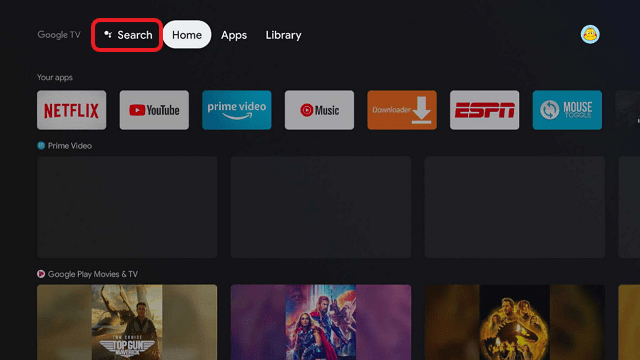
1. Click Home on your remote then select Search.
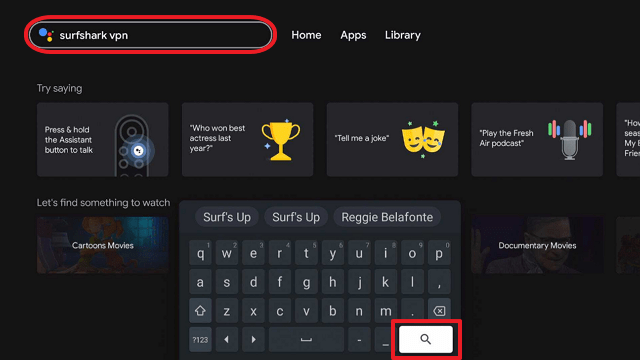
2. On the search bar, you can use google voice assistant to find Surfshark VPN or by typing it.
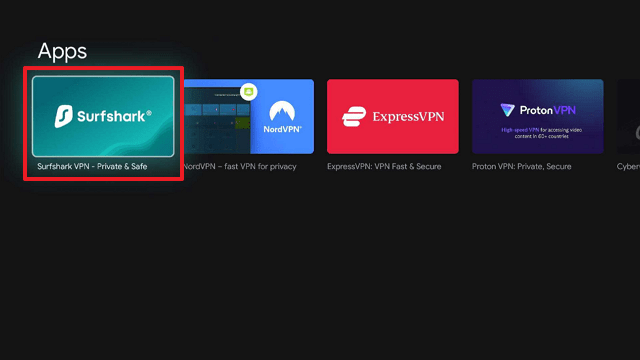
3. Click on Surfshark VPN icon.
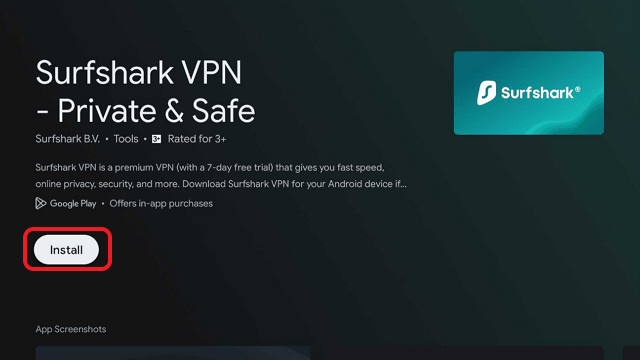
4. Click on Install.
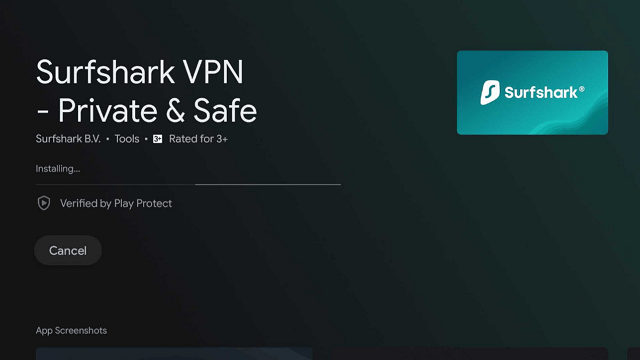
5. Surfshark VPN is now installing just wait for it until it’s done.
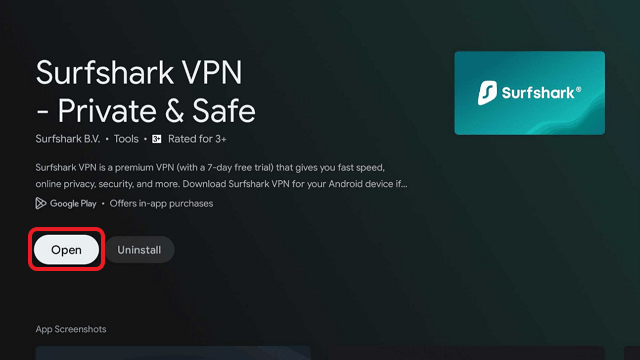
6. Click open.
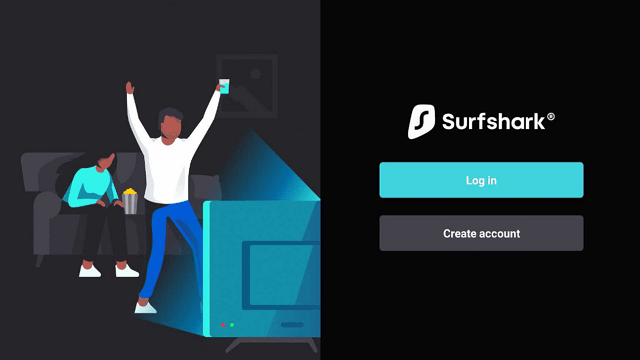
7. Input your username and password to log in
Learn more about Surfshark and Grab the Best Surfshark Deal Now!
Install Surfshark on Google Chromecast



For more VPN discounts, go to ReviewVPN Deals and purchase the best VPN for you.
Click here to get the lowest price on Surfshark through our exclusive limited-time offer.
Best Browsers for Chromecast with Google TV
- Google Chrome
- Puffin
- TV Bro
- TVWeb Browser
- Mozilla Firefox
- Web Browser for Android TV
Best websites Using TV Bro
ReviewVPN provides you a list of the best streaming websites that you can access utilizing the TV Bro browser on your Google Chromecast streaming device.
- 50+ Best Free Movie Streaming Websites – 2021 Update
- Free TV Show Websites
- Top Free Sports Apps
- Top Live TV Apps
- List of Browsers Available on Firestick
- Top Filelinked Codes
YOUR INTERNET ACTIVITY IS BEING WATCHED
ReviewVPN cannot attest to the legality, security and privacy of the applications discussed on this site. It is highly recommended that you use a VPN service while streaming or using Kodi.
Currently, your IP 216.73.217.13 is visible to everyone and your Browser is being tracked by Advertisers & ISP Provider.
Here are the main reasons why you must use a VPN:
- Your activities are hidden from your ISP, the government, and from the apps you are using.
- You can access additional movies and TV streams.
- ISP attempts to throttle are thrwarted thus reducing buffering issues.
- Geographically restricted content like Netflix and Hulu can be unblocked.
A VPN works be replacing your ISP-assigned IP address and creating an encrypted tunnel. We recommend the no log service offered by IPVanish. It works well on a Firestick and offers the fastest possible speeds.
FAQs
Is TV Bro legal?
Yes, TV Bro is legal to download, install, and use. Nonetheless, you can only browse & stream legal content in the public domain.
Is it safe?
Yes, the TV Bro browser is safe to use and has no viruses & malware. Nonetheless, since this is a third-party app, it’s recommended to use a Virtual Private Network or VPN so the app developers won’t be able to log your internet activities.
What devices can the TV Bro browser be installed on?
The TV Bro browser is compatible and functions the best with devices running the Android operating system, including Google Chromecast, Amazon Firestick, Kindle Fire Tablet, Nvidia Shield, and Android TV Boxes.
Alternatives
Google Chrome – is a safe web browser and utilizes robust encryption protocols & tools to keep people’s data safe. Unlike other internet browsers, the Google Chrome browser allows you to download files from numerous websites.
Firefox Web Browser – Firefox is a great internet browser, It has an app version available on Amazon’s App Store. After you install the Firefox Web Browser on your Google Chromecast, you can access popular video platforms, visit any website, and even search for content that you can play on your streaming device.
Silk Browser – It is one of the best web browsers for Google Chromecast because it doesn’t allow unnecessary advertisements. In addition, this browser lets you access the Best Free Movie Websites.
Puffin TV-Browser – is a good internet browser that you can download, install, & use for free. It works great on devices that run the Android OS. Whether you’re watching videos or want to listen to your favorite music, it’s a good browser to use.
Wrapping Up
It’s quite easy to install the TV Bro Browser on Google Chromecast, and the methods outlined above should really help you do so. After installing TV Bro on Google Chromecast, you’ll be able to boost your home entertainment by streaming almost anything you want.
Nonetheless, Always remember to use A VPN every time you use your Google Chromecast. Please feel free to let us know what you think of the TV Bro Browser in the comments section below.






