
Overview
Quick Navigation
The DroidMote remote app is among the best remote control apps people can use to control their Amazon Firestick or another Android streaming device. This remote application has a D-pad mode that lets you make use of it to navigate the Firestick app through Wi-Fi. You can get this awesome DroidMote remote app on Google Play Store.

Control your Amazon Firestick easily with the help of the DroidMote app. This is the server part that you must install on the streaming device that you wish to control. In addition, with the DroidMote remote app, you can utilize multi-touch apps & games – also works on devices that don’t have the touch screen feature (for instance, when connected to a television).
By default, the DroidMote remote app doesn’t have noticeable lags or delays, if you experience slowness, you may check the network connections or try it with other Client devices.
DroidMote is a remote application and an input devices emulator that can turn hardware input devices into various input devices. For example, a hardware gamepad in keyboard & mouse, or touch screen/hardware keyboard & mouse in gamepad.

Setting Up DroidMote App
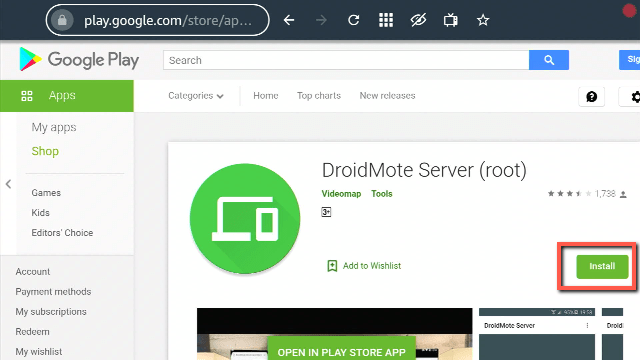
1. Install DroidMate Server on your Android device (FireStick) through Google Play Store
2. Go to Settings located on the upper right of the screen
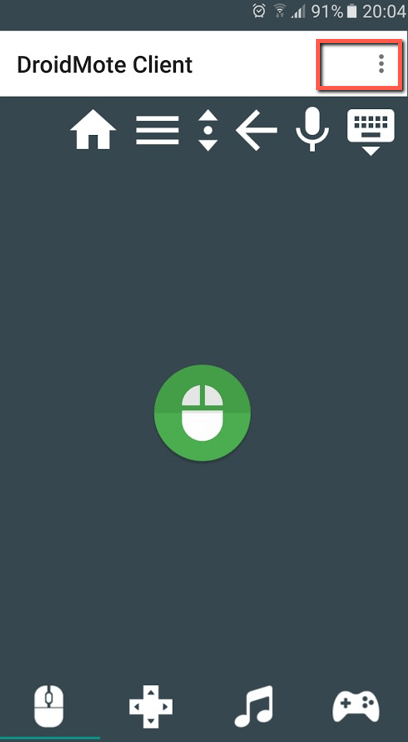
3. Allow DroidMate Server to access photos, media, and files on your device (Also, install also the DroidMate client on your Android smartphone through Google Play Store)
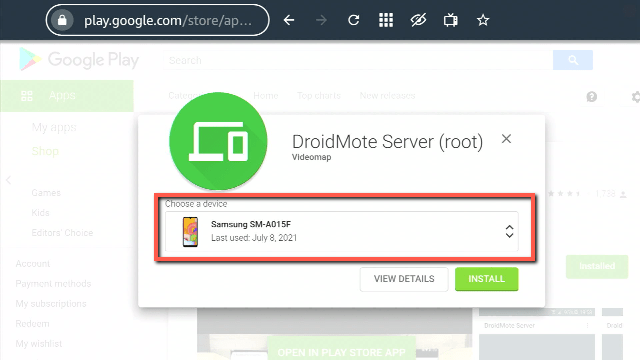
4. Launch the DroidMate app on your device
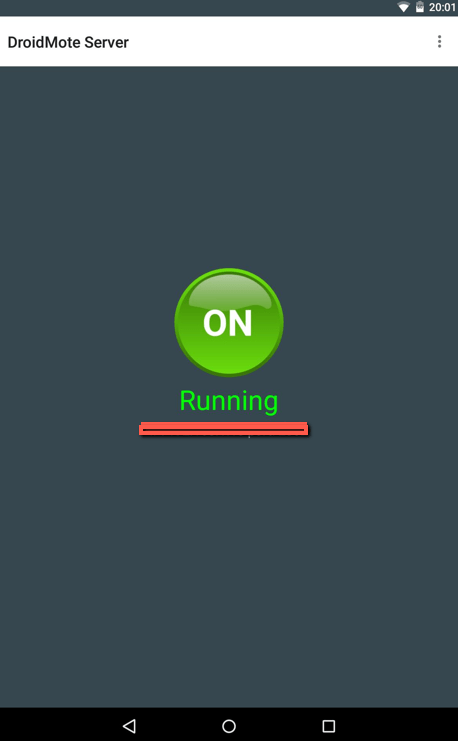
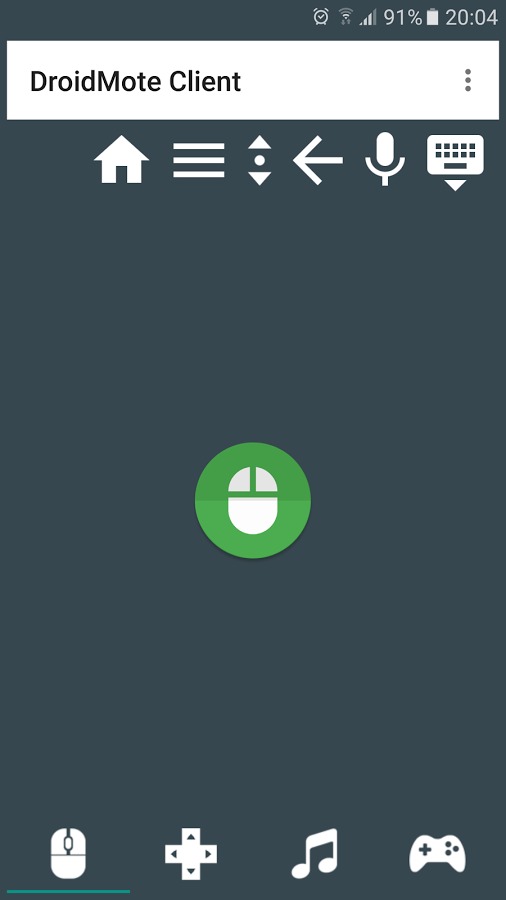
5. Now, you can use the DroidMote remote app
Install Surfshark on Firestick
How to pair the DroidMote app?
When you launch the DroidMote app, a listing of IP addresses will come into view (each is running the server of the DroidMote). Select the IP address where your Firestick is connected, and you will be connected to the server automatically. You can now use your smartphone device as your Firestick trackpad.
What Is DroidMate?
DroidMate app acts as a Remote Mouse for the Amazon Fire TV or FireStick. Once you install the DroidMate app on both your Android smartphone and Firestick, the app lets you use your mobile phone to control your FireStick in several ways.
The DroidMote remote app allows you to control Linux, Android, Chrome, and Windows OS devices. With your smartphone, you can control games & apps on your Firestick that support all types of interactions, such as a mouse, gamepad, keyboard – including touch actions. With a hardware gamepad, you can be in charge of multi-touch games as well as games that require a keyboard & mouse. However, the DroidMote KMredirect add-on lets you control multi-touch games as well as games with gamepad support.
DroidMote Uses
The DroidMote app emulates hardware devices in the Windows, Linux, and Android operating systems – this includes a keyboard, touch screen, mouse, multi-touch trackpad, and a gamepad. The DroidMote app allows you to use a hardware gamepad, soft gamepad, mouse & keyboard to play with all installed games on the server device. This works also for those without the gamepad support because of the Gamepad2Touch functionality and the touch profiles.
Games that have hardware gamepad support recognize the DroidMote app as a hardware gamepad device. If you don’t have a router, no worries – you can create a connection point to point between the devices by using Tethering or a portable hotspot of the device.
ReviewVPN cannot attest to the legality, security and privacy of the applications discussed on this site. It is highly recommended that you use a VPN service while streaming or using Kodi. Currently, your IP 216.73.217.61 is visible to everyone and your Browser is being tracked by Advertisers & ISP Provider. Here are the main reasons why you must use a VPN: A VPN works be replacing your ISP-assigned IP address and creating an encrypted tunnel. We recommend the no log service offered by IPVanish. It works well on a Firestick and offers the fastest possible speeds.
YOUR INTERNET ACTIVITY IS BEING WATCHED
Gamepad2Touch Feature
Apart from being a remote mouse, a remote gamepad, a remote multi-touch touchpad, and a remote keyboard, DroidMote is something more. As a matter of fact, the Gamepad2Touch feature lets you use all the apps and games that were developed to support devices with touch-screen features only. With DroidMote, you can remote control games that are designed for touch screen devices on a large TV screen.
Features
- Mouse
- Multi-touch trackpad
- Air Mouse
- Keyboard
- Two fingers scroll to rotate the zoom
- Dpad
- Media controls
- Supports multiple mobile phones simultaneously
- Controller for games
- Touch emulation lets you map buttons & analog sticks to the screen. You can play all the games you like with full analog support – including those without built-in controller support
- Two virtual analog stick
- Voice dictation
- Touch Mouse for games that don’t support a hardware mouse
- Copy & paste from one device to the other
- You can link a hardware gamepad to the smartphone through Bluetooth and play with multi-touch games or video games that need a mouse & keyboard.
- Android TV compatible
- The app functions well on Windows, Android, Chrome, or Linux OS.
Compatible Devices
If you want to use your Amazon FireStick to easily stream movies, and shows, or play games, you must use the DroidMote. You can download & install the DroidMote app on Android TV, Google Chromecast, and Apple TV. DroidMote Server is available for Android, Linux, Windows, and Chrome OS.
Always Use A VPN While Using Your Firestick
Using Virtual Private Network or VPN can be very handy on a Fire TV Stick. Thanks to a VPN service, you can access platforms or services that are unavailable in your country or bypass the meaningless restrictions that several platforms sometimes impose. When you use Fire TV Stick, an encrypted Virtual Private Network service provider is highly recommended to hide your online activities, identity, and location. Many FireStick users prefer Surfshark services for privacy, price, and speed.
Providing the fastest server speeds and amazing live chat support, Surfshark is also an easy-to-use VPN app. Make sure to enable the VPN service when you are streaming on the internet.
Surfshark Features:
- Unblocks Netflix, Disney+, and lots more
- Unlimited devices
- 30-day money-back guarantee
- Robust encryption
- Great download speed
- Zero log policy
- Great customer service
- Compatible with Android, Windows, Linux, iOS, Mac, and other routers
Click here to get the lowest price on Surfshark through our exclusive limited-time offer.
How to Install Surfshark VPN on Firestick
If your Firestick still has the older interface, read this article to learn how to update it: Update Firestick Interface.
You can download Surfshark directly from the Amazon App store. It will be easy for you to find Surfshark with your Firestick’s Find feature. Refer to our screenshots below.
1. Go to the Home screen of your Firestick.

2. Navigate towards the Find tab. Press the Search button from the resulting dropdown.

3. Type in the keyword of SurfShark and select from the suggestions that will appear.

4. Click the official SurfShark icon from your search results.

5. Press the Download (You own it) button.

6. The SurfShark VPN installer will download on your device.

7. SurfShark VPN’s app will automatically install itself on your Fire TV stick.

8. Press the Open button after completing SurfShark VPN’s installation process.

9. Please wait for the SurfShark VPN to load its user interface.

10. You can now log in with your SurfShark VPN account credentials.

Learn more about Surfshark and Grab the Best Surfshark Deal Now!



For more VPN discounts, go to ReviewVPN Deals and purchase the best VPN for you.
Conclusion
Now you know how to stream the DroidMote app on your Amazon Firestick. It is a great remote app, especially if you like to be entertained during in-between moments. It’s like easily controlling your Amazon Firestick from the comfort of your couch.
Always remember to use A VPN every time you use your Amazon Firestick. Please feel free to let us know what you think of the DroidMote app in the comments section below.






