

All 4 (UK TV) Overview
Quick Navigation
This article will teach you how to All 4 (UK TV) App on your Amazon Firestick.

All 4 is the UK’s most popular video on demand (VOD) service, with over 1,500 TV shows and movies freely available on your Firestick. It features shows and movies from Channel Four, which includes many popular tv shows, UK TV series, US box sets, and international dramas.
Because this app contains some content that is not appropriate for younger audiences, it is only available to those aged 16 and over. So to sign up, you must be at least 16 years old. And apart from ensuring that you are of the age of consent to use the app, you must first sign up to continue watching videos you started on other devices, add them to your watch list, and get personalized recommendations.
With All 4, you can watch shows and movies online, add them to your favorites list, or download them to watch later.

Installation Guide on Firestick
If you’re still using the older version of your Firestick, you can learn how to upgrade it by reading this article: Update Firestick Interface.
To begin, if your Firestick has not yet been jailbroken, follow the simple steps below to jailbreak it to install All 4 (UK TV) on your device:
1. Click Home on your remote and scroll once to your Right. Click Setting (Gear Wheel Icon).
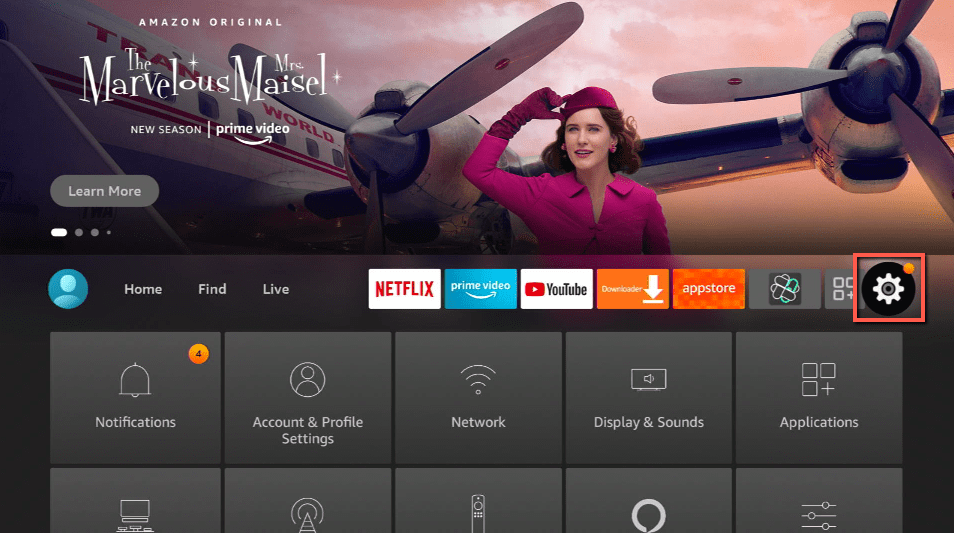
2. Scroll down and to the right until you get to My Fire TV. Click on it.
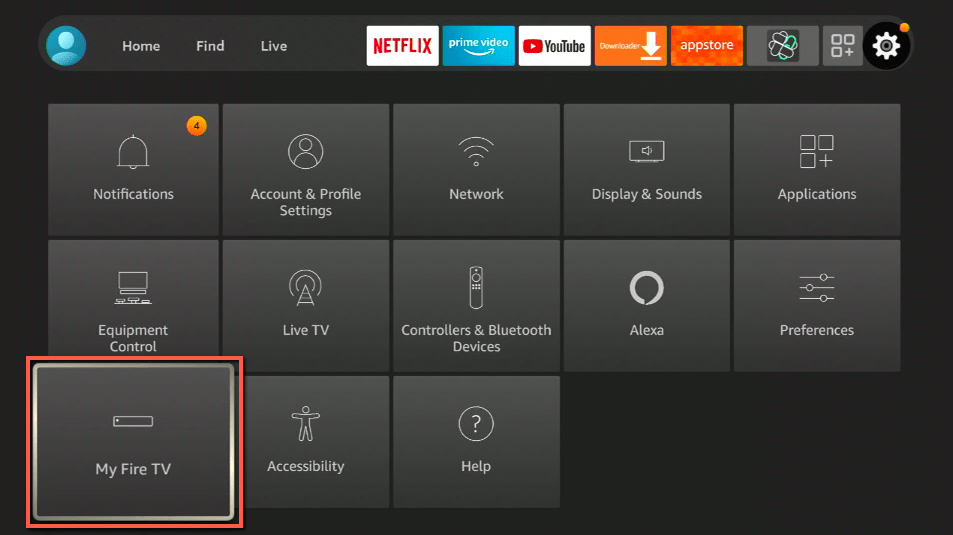
3. Select Developer options.
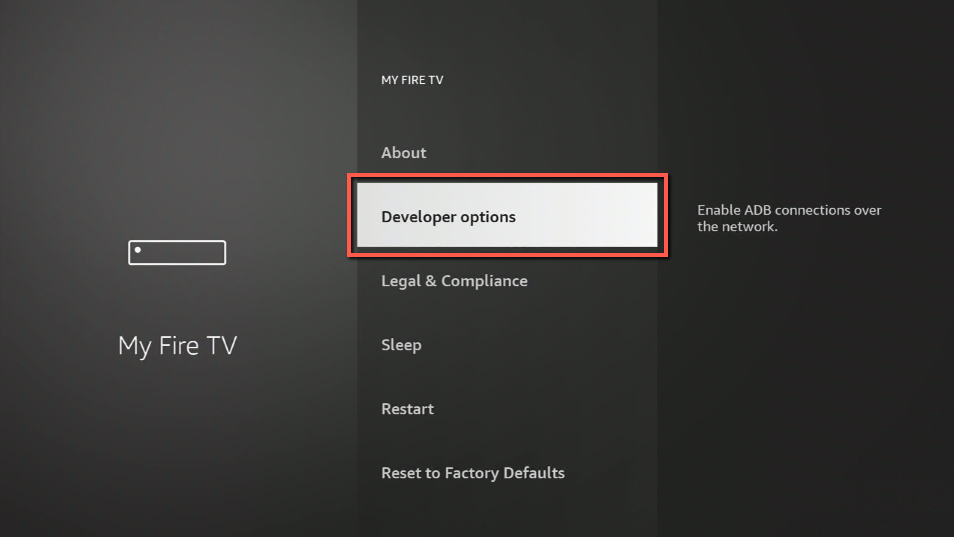
4. Turn on ADB debugging and Apps from Unknown Sources.
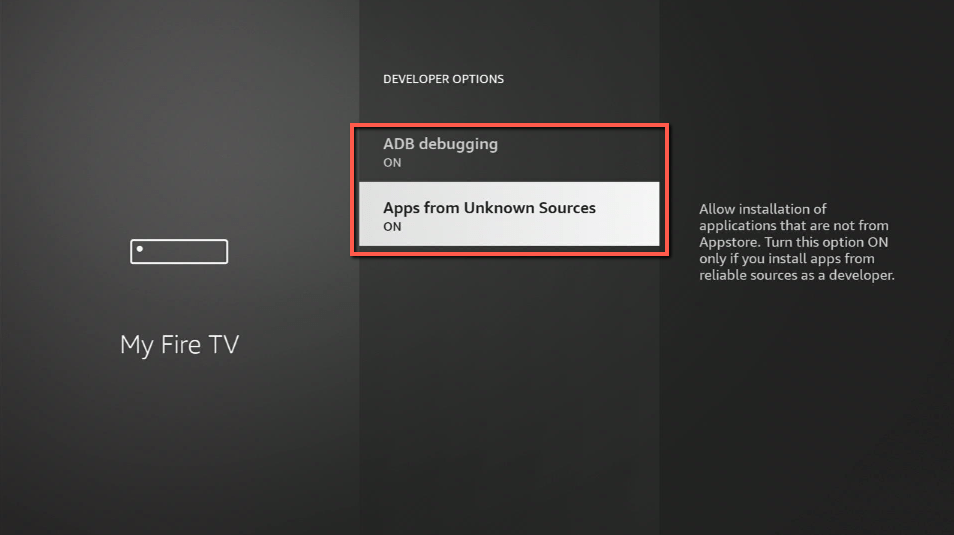
5. Click Turn On when the pop-up appears.
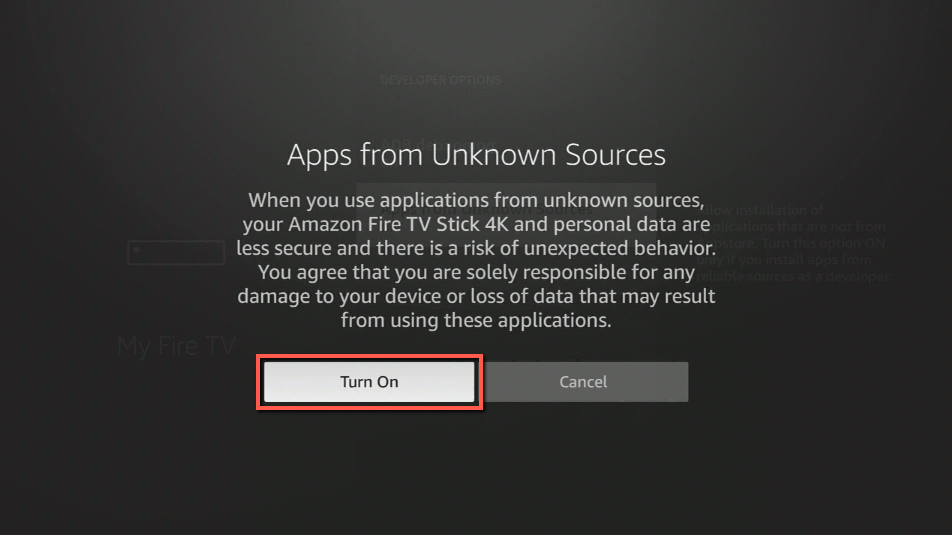
Then, after jailbreaking your Firestick, you’ll need to download the Downloader app to sideload All 4 (UK TV). This app, which is easily available on the Amazon App Store, allows you to download APK files.
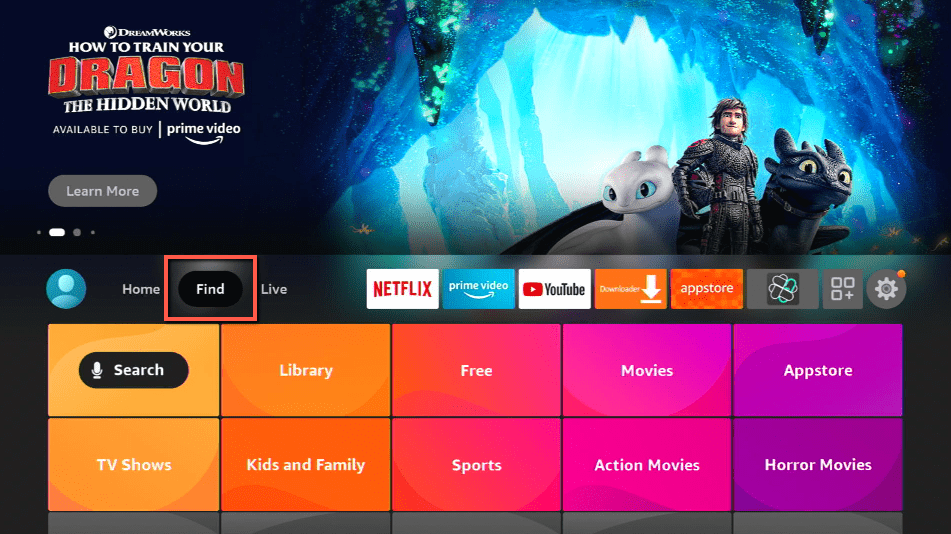
6. Click Home, click FIND.
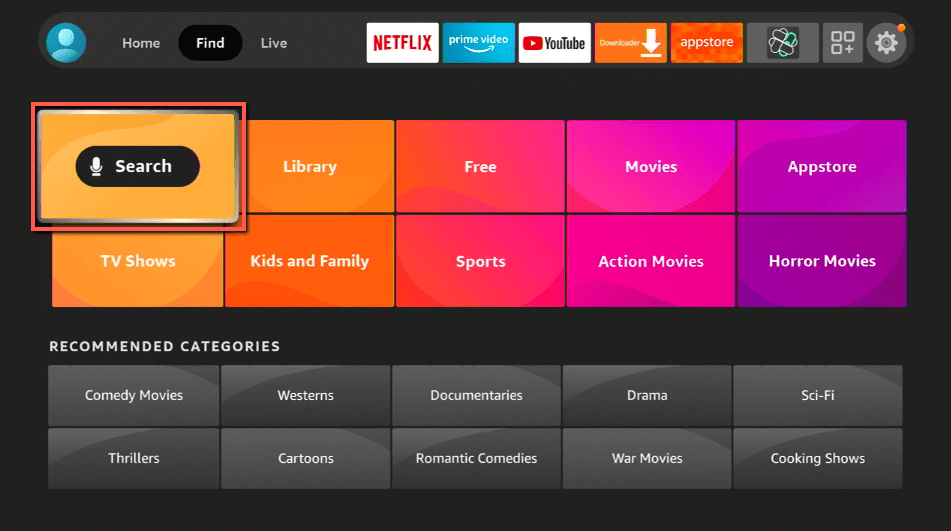
7. Click Search.
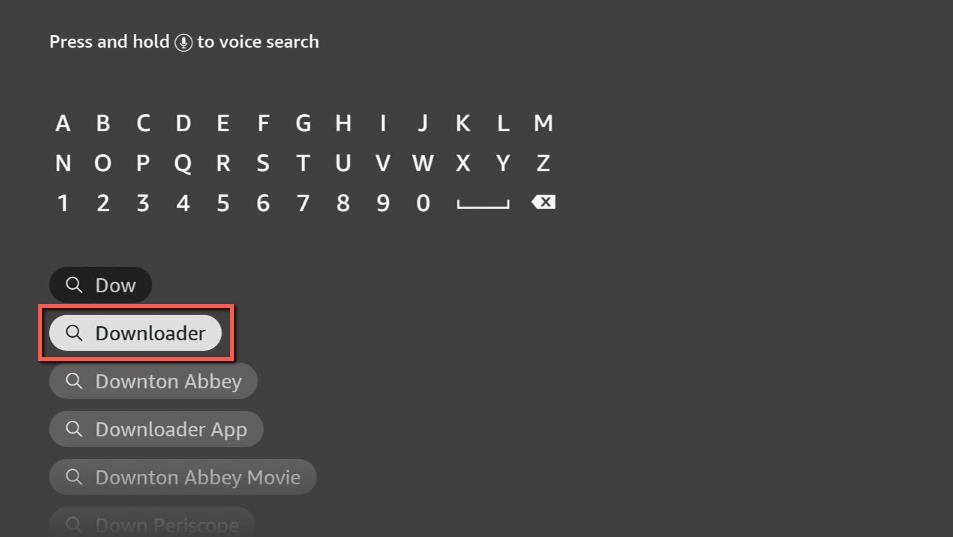
8. You can either say Downloader to your Alexa voice-enabled remote or start typing it. If you typed it, click on the suggestion when it appears.
9. Click on the Downloader Icon.
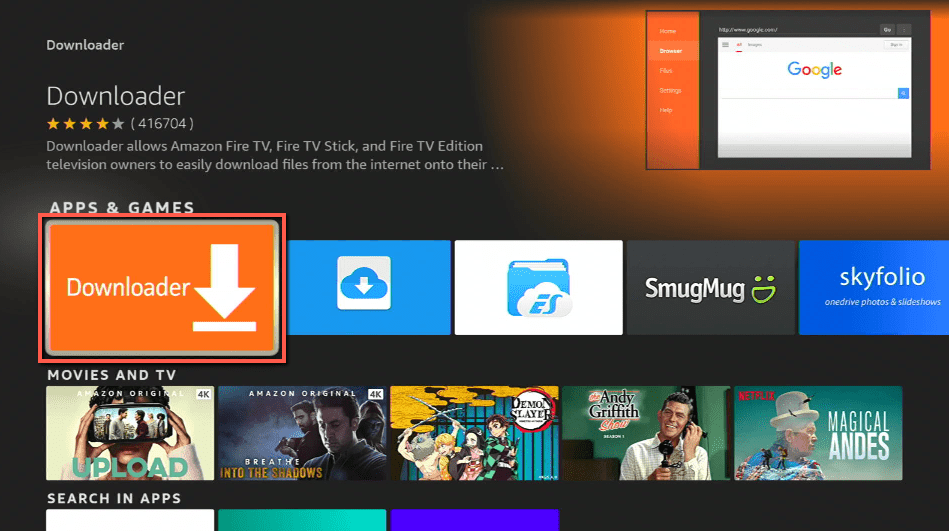
10. Click Download.
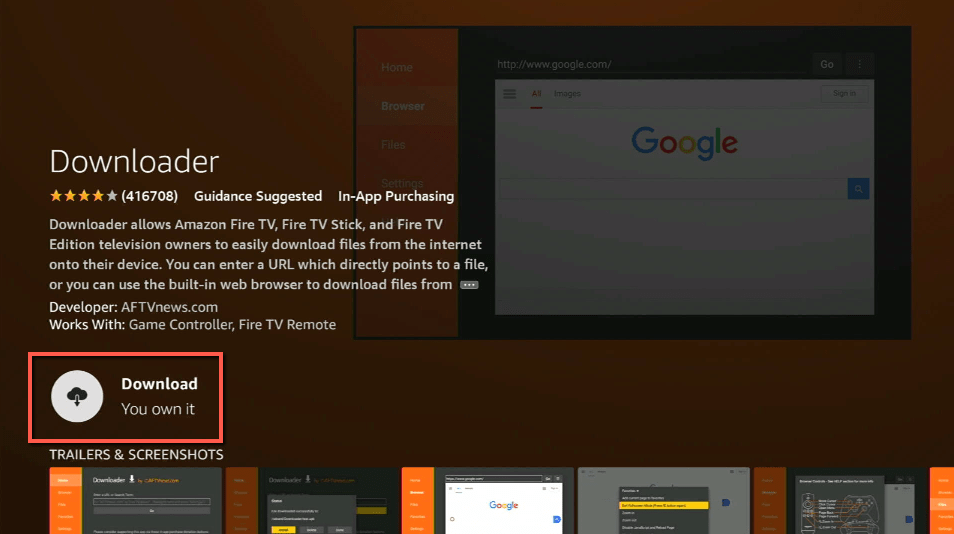
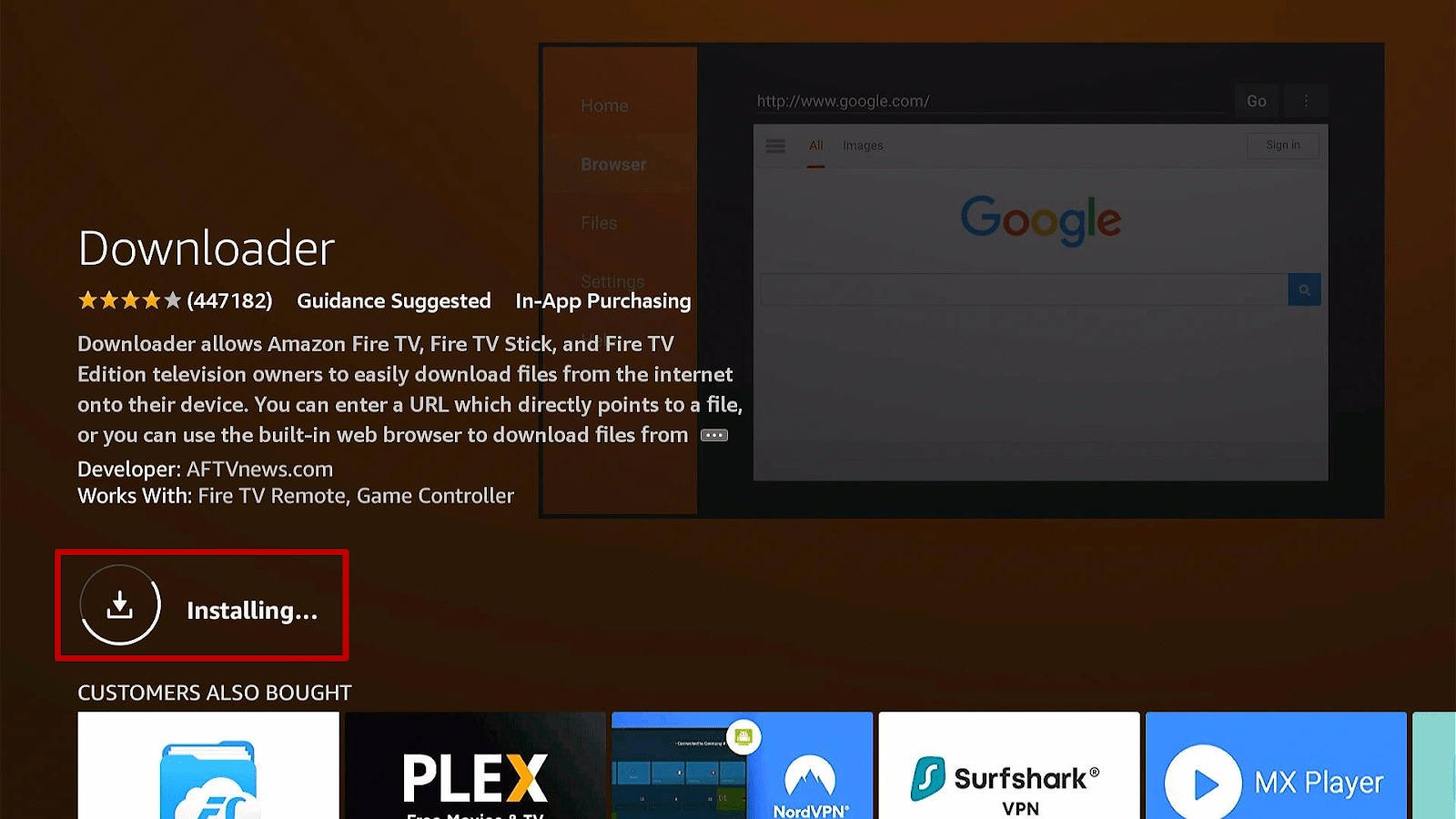
11. Click on Open.
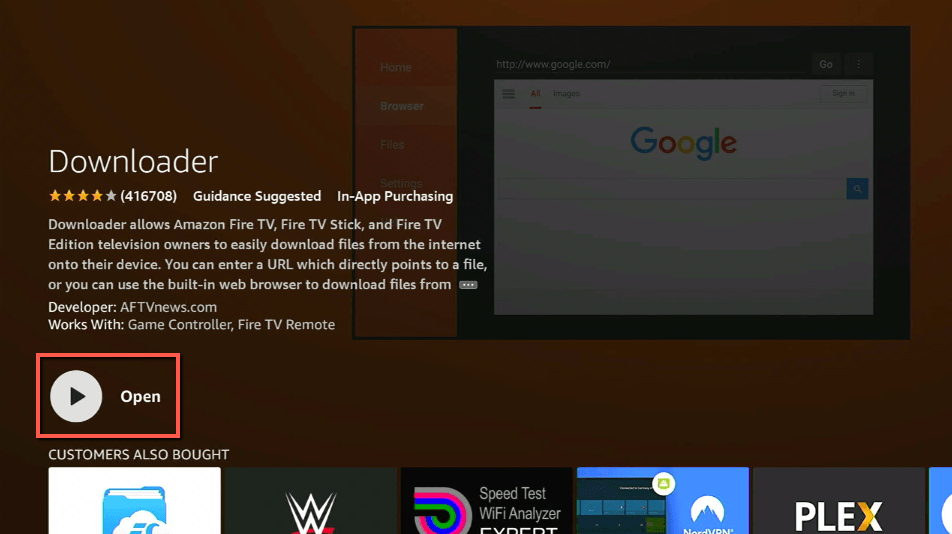
12. Click on Allow.
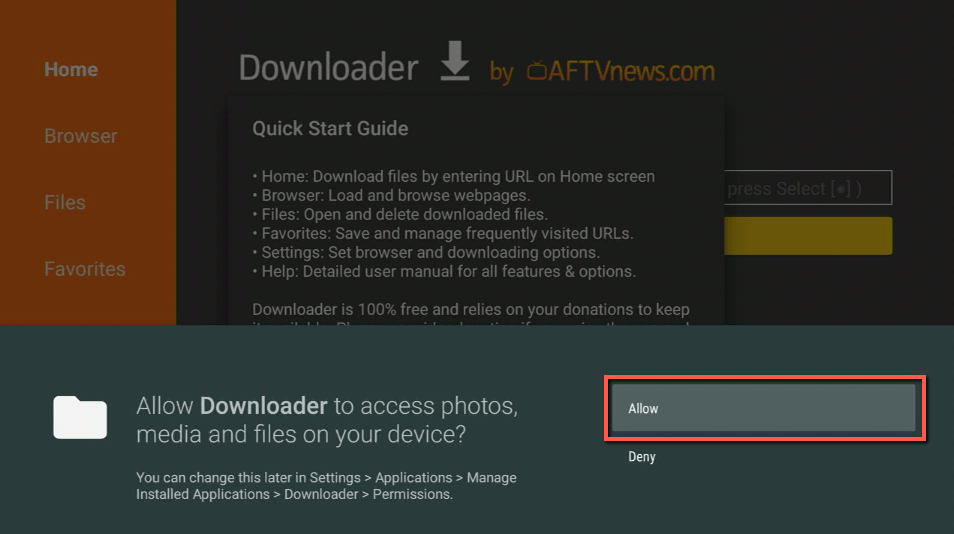
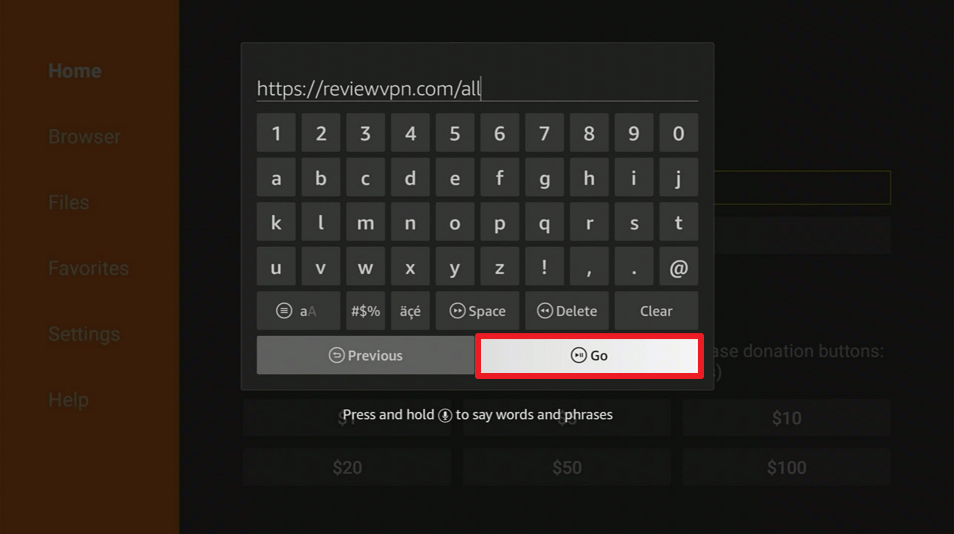
13. You will be asked to enter a download link. Type in “https://reviewvpn.com/all” and select Go.
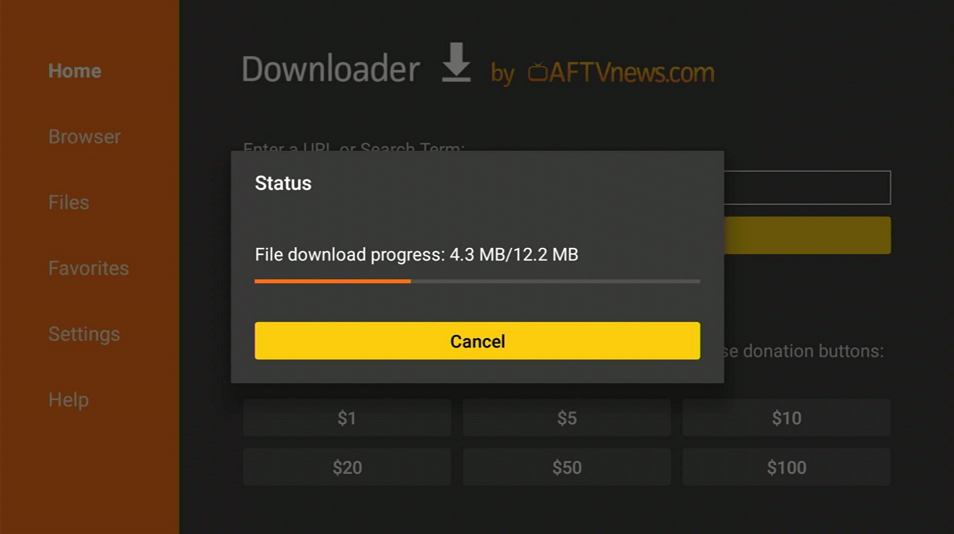
14. Depending on your internet connection, the APK will take a few seconds to download.
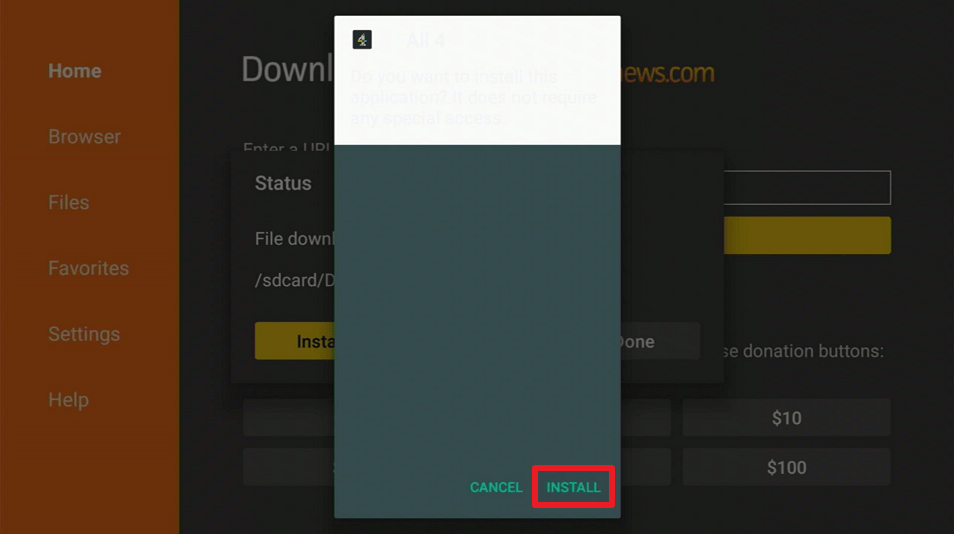
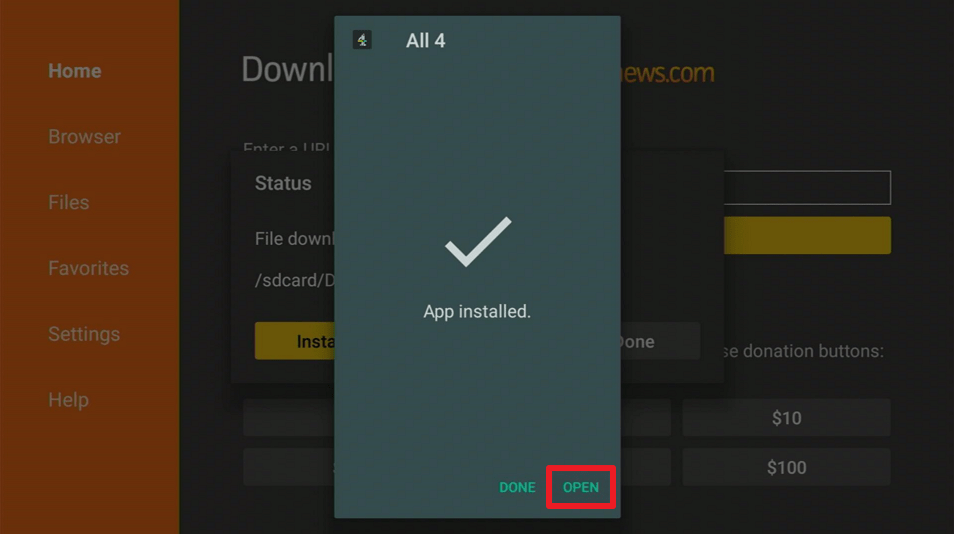
15. After that, choose Install.
16. Then click Open.
Note: If you don’t have an account with All 4, click Register Now, Sign In for existing users, or Not Now if you just want to check out the app.
All 4 (UK TV) APK Download for Android Devices

Note: ReviewVPN.com does not host this APK file. It is hosted by Archive.org
Grab your subscription now!
Click here to get the lowest price on Surfshark through our exclusive limited-time offer.
App Features
- Offers a wide array of live TV or recently broadcast shows on Channel 4, E4, More4, Film4, and 4Seven, all of which are available to watch and download for free
- Return to your favorite shows and resume watching on any of your devices
- Allows you to add shows to your watch list
- Get recommendations based on the shows you watch frequently
- Add and manage PINs for Parental Control
- Provides support for subtitles on any device
Selections
Home
This tab will display movies and shows that are categorized as follows: Most Popular, People are Talking About, New on All 4, Weekend Warm-Up, The Pride Collection, Summer of Drama, and so much more.
Live TV
You can watch live streaming of Channel 4, E4, More4, Film4, and 4seven TV channels here.
Categories
Choose from the following categories to see what’s available:
- Comedy
- Documentaries
- Drama
- Entertainment
- Film
- Lifestyle
- News & Current Affairs
- Sport
- World Drama
My4
Watching and My List are the two tabs on My4. If you’re signed in, the “Watching” tab allows you to resume unfinished shows, while “My List” lets you see and add shows to watch later.
Downloads
You can find your downloaded apps here if you’re logged in.
Pros and Cons
Pros
- Age restriction will help in ensuring that the relevant content reaches the appropriate users
- Content is available for free streaming and download
- Allows you to resume playback on any device
- Lets you add shows to the watch list
- Offers subtitle support
- Ability to set a PIN for Parental Control
Cons
- Collects data for targeted advertising
- Geo-restricted to UK and Ireland
- The app does not support the Alexa Voice Command
- There are ads
- You’ll need a Mouse Toggle to help with the navigation
Install Surfshark on Firestick
Do I Need A VPN To Use This App?

If you live outside of the United Kingdom, you’ll need a VPN to access All 4 on your Firestick device. By connecting to one of Surfshark VPN’s more than 3,200 servers in 65 countries to choose from, you can start accessing geo-restricted content and apps by having an anonymous IP address. Simply set your location to the United Kingdom, click Connect, and then open the app to begin browsing and streaming your favorite Channel 4 content on your Firestick device. Aside from that, there are a few other benefits to using a VPN like Surfshark:
- Stream your favorite shows and movies from All 4 on any device with a simultaneous Surfshark connection
- You can avoid ISP throttling by hiding your online activity from your ISP and preventing your internet connection from being slowed down
- Get unlimited bandwidth to stream and download all of your favorite content from streaming apps such as All 4
- By encrypting your data, you can keep hackers and phishers from stealing your information
- Prevents your device from getting infected by Malware and Ransomware
How to Install Surfshark on Firestick with Screenshots
If your Firestick still has the older interface, read this article to learn how to update it: Update Firestick Interface.
You can download Surfshark directly from the Amazon App store. It will be easy for you to find Surfshark with your Firestick’s Find feature. Refer to our screenshots below.
Follow our screenshots below to install the Surfshark VPN app on your Fire TV stick.
1. Go to the Home screen of your Firestick.

2. Navigate towards the Find tab. Press the Search button from the resulting dropdown.

3. Type in the keyword of Surfshark and select from the suggestions that will appear.

4. Click the official Surfshark icon from your search results.

5. Press the Download (You own it) button.

6. The Surfshark VPN installer will download on your device.

7. Surfshark VPN’s app will automatically install itself on your Fire TV stick.

8. Press the Open button after completing Surfshark VPN’s installation process.

9. Please wait for the Surfshark VPN to load its user interface.

10. You can now log in with your Surfshark VPN account credentials.

Learn more about Surfshark and Grab the Best Surfshark Deal Now!
Install Surfshark on Firestick



For more VPN discounts, go to ReviewVPN Deals and purchase the best VPN for you.
Best Alternatives
- BBC iPlayer
- Plex
- The Roku Channel
- Amazon Prime Video
- Rakuten TV
FAQs
What is All 4 (UK TV)?
All 4 is an app for users aged 16 and up that provides access to a wide variety of shows on air or could help you install recently aired on Channel 4, E4, More4, Film4, and 4Seven. They feature a large collection of classic and recent series, as well as US box sets, that you can watch for free on your Firestick or other devices.
What channels are available in All 4 (UK TV)?
All 4 gives access to shows from channels such as Channel 4, E4, More4, Film4, and 4Seven.
Is All 4 (UK TV) safe?
Though we cannot guarantee the safety of All 4 because they collect data for targeted advertising and personalized recommendations, we recommend that you use Surfshark to safeguard your network.
Is All 4 (UK TV) free?
Yes, All 4 are free to install and use.
Are there Ads?
Yes, there are ads since All 4 is ad-funded.
Is there a need for registration?
If you simply want to check out the app, you can skip the registration step, but if you want access to all of their latest and classic shows to stream or download to watch offline, you’ll need to create an account.
On what other devices is All 4 (UK TV) available for download?
All 4 is available on major streaming platforms such as Amazon Fire TV, Android, iOS, Chromecast, Roku, and XBOX
Does All 4 (UK TV) have an official website?
Yes, and you can visit them at https://www.channel4.com/
Conclusion
All4 features a lot of free content, whether it’s live TV or previous programs and shows from Channel 4. It only allows users aged 16 and up to use and access the app, and it even has a parental control feature to guarantee that only the right users are allowed access to their content. Overall, All 4 is a great app for keeping you entertained after a long and exhausting day at work.
Thank you for reaching the end of this article. We hope we were able to help you in installing All 4 on your Firestick and provide you with an overview of the app’s features. Have fun streaming!






