

Overview
Quick Navigation
In this article, I will be showing you how to install Anime TV on your Amazon Firestick.

Are you a big fan of anime but find it challenging to watch the popular stuff? Are you tired of streaming videos online but not being able to find the right sources and channels? Then let me introduce you to Anime TV. With Anime TV, watching anime online has never been easier.
Anime TV is a great anime application that allows you to watch the most recent and popular dubbed and subtitled anime shows, as well as a variety of older anime TV series. It features a large library with thousands of episodes, movies, and OVAs that are all free to watch online, allowing you to watch new anime as often as you like. Even better, with Anime TV, you can watch anime online from anywhere on your Android or Firestick device.

Anime TV APK Download for Android Devices

Note: ReviewVPN.com does not host this APK file. It is hosted by Archive.org
How To Install Anime TV on Firestick with Screenshots
If you’re still using the older version of your Firestick, you can learn how to upgrade it by reading this article: Update Firestick Interface.
To begin, if your Firestick has not yet been jailbroken, follow the simple steps below to jailbreak it to install Anime TV on your device:
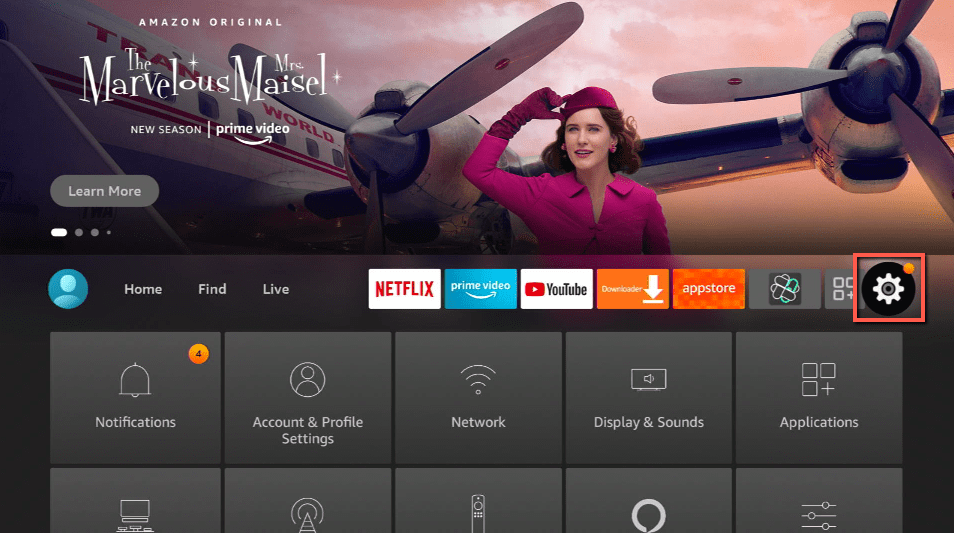
1. Click Home on your remote and scroll once to your Right. Click Setting (Gear Wheel Icon).
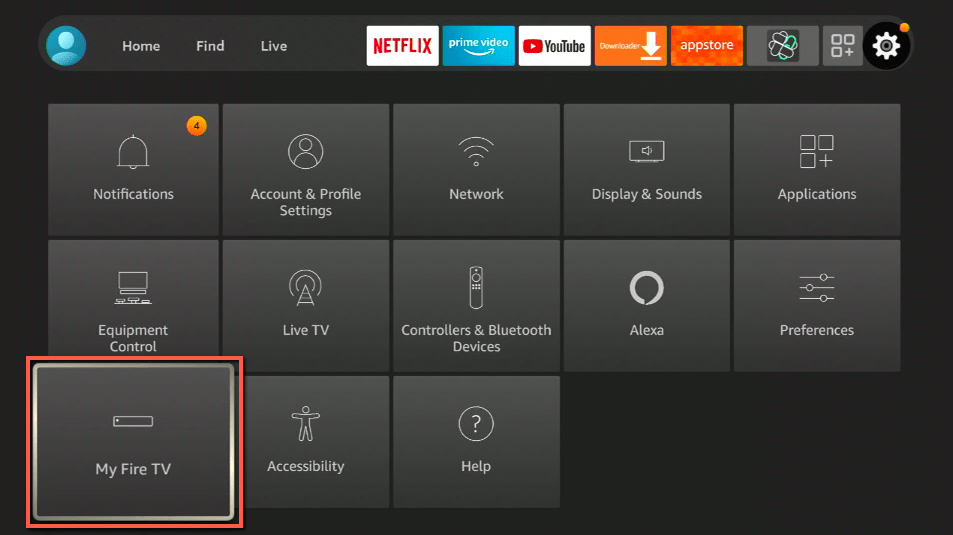
2. Scroll down and to the right until you get to My Fire TV. Click on it.
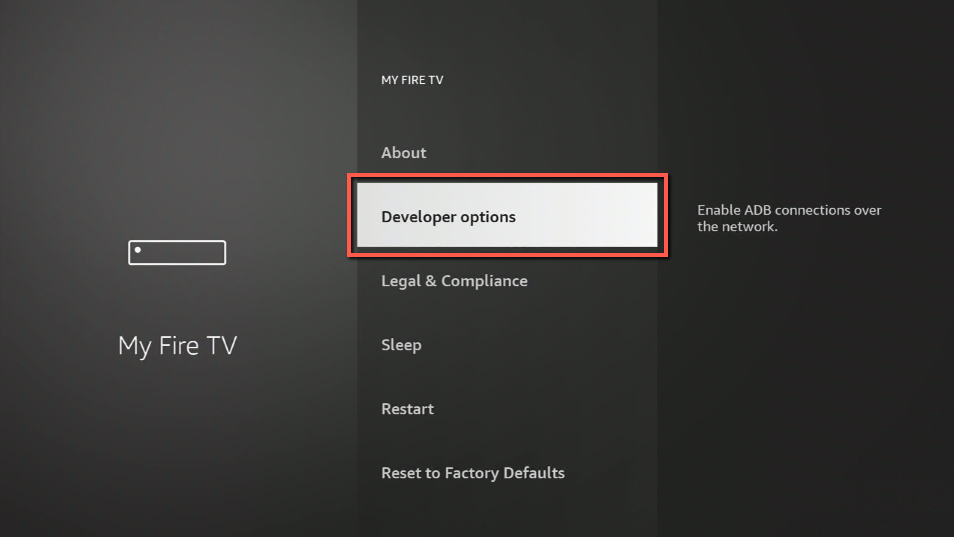
3. Select Developer options.
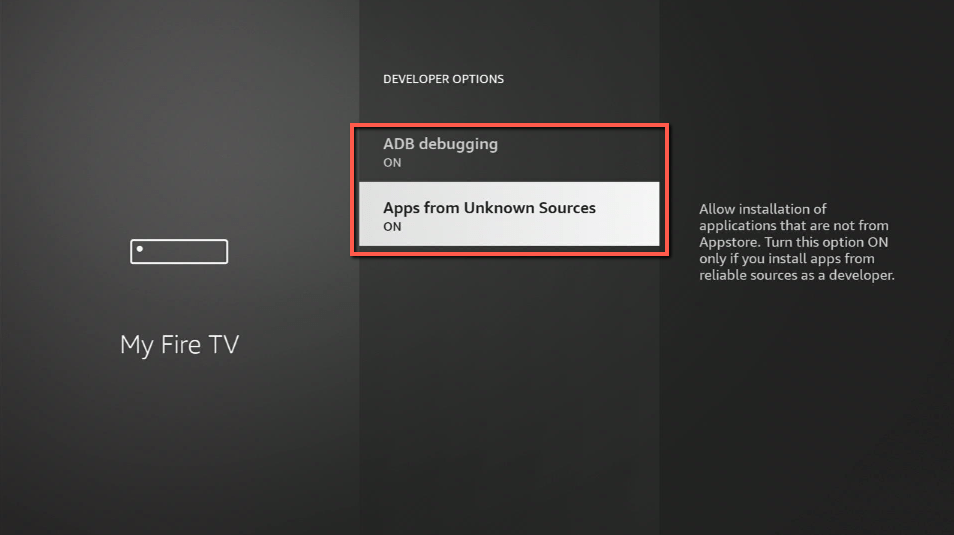
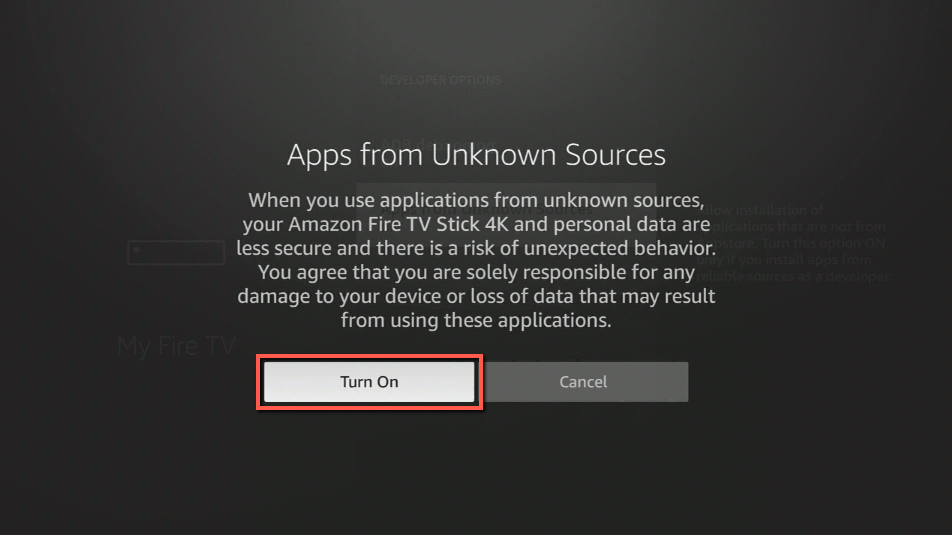
4. Turn on ADB debugging and Apps from Unknown Source.
5. Click Turn On when the pop-up appears.
Then, after jailbreaking your Firestick, you’ll need to download the Downloader app to sideload Anime TV. This app, which is easily available on the Amazon App Store, allows you to download APK files.
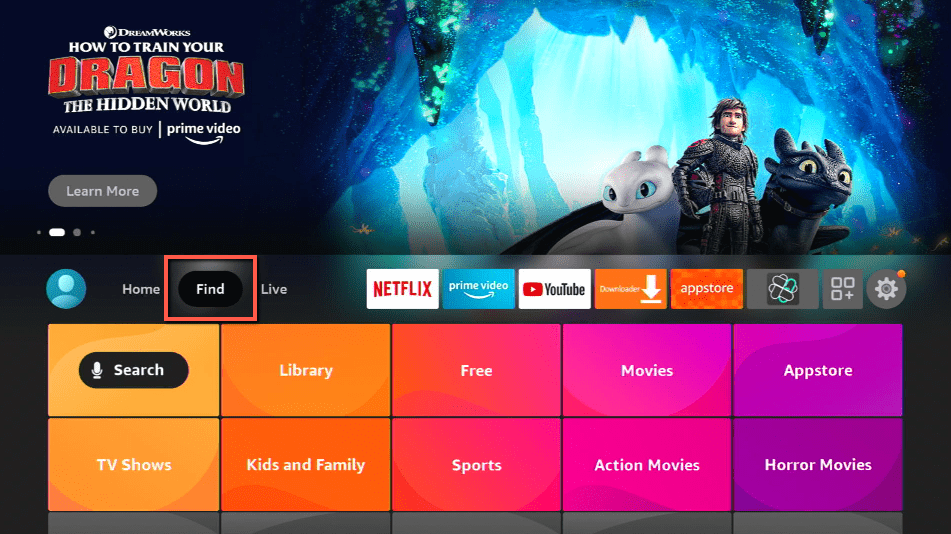
1. Click Home, click FIND.
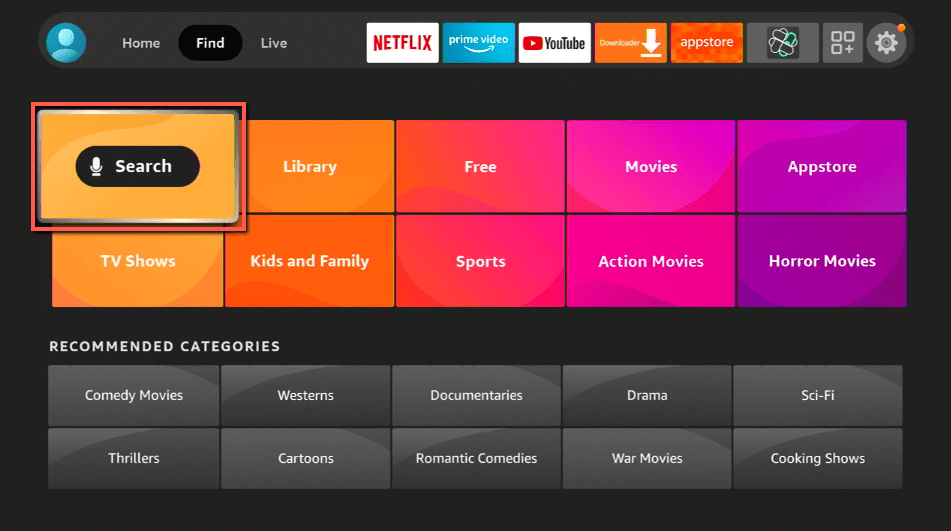
2. Click Search.
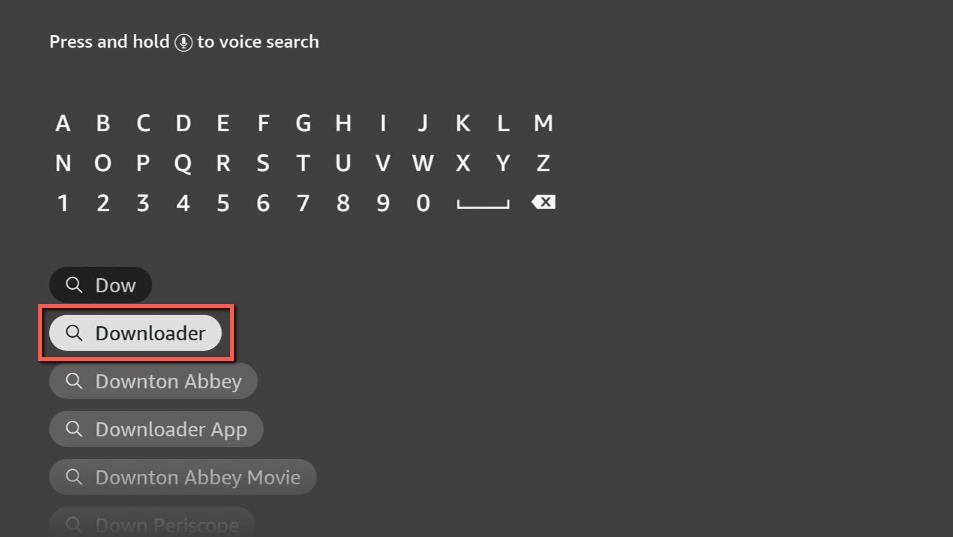
3. You can either say Downloader to your Alexa voice-enabled remote or start typing it. If you typed it, click on the suggestion when it appears.
4. Click on the Downloader icon
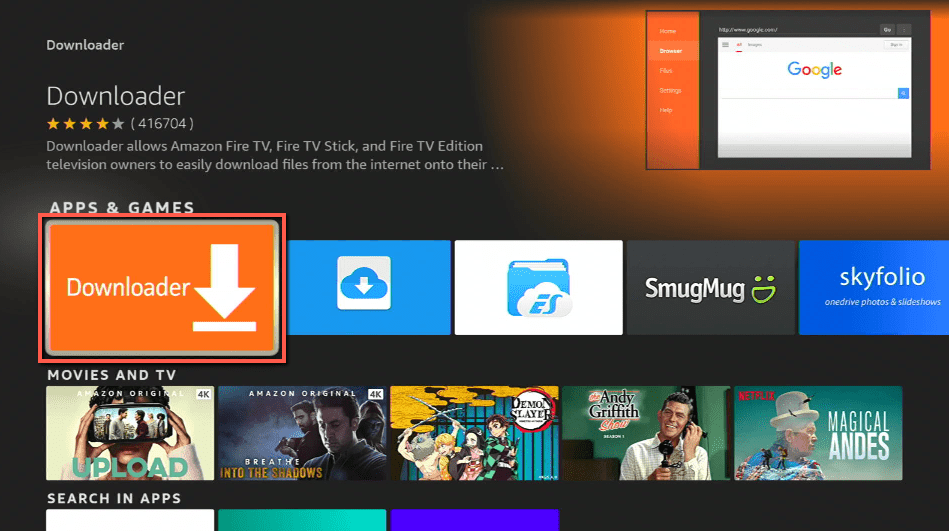
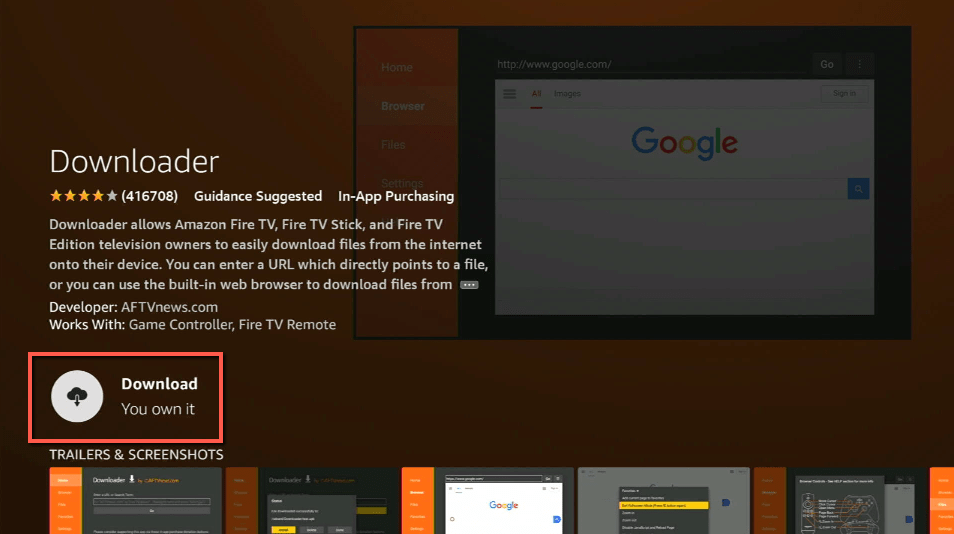
5. Click Download
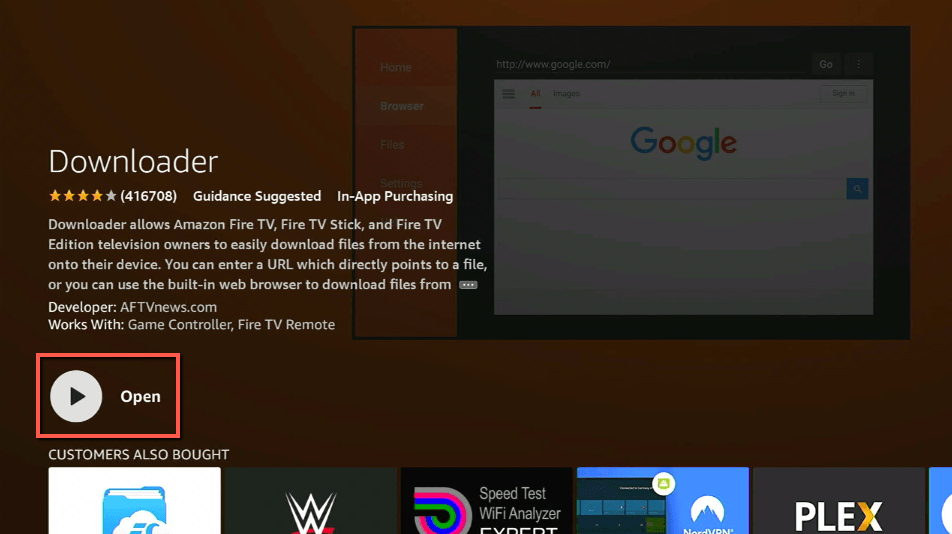
6. Click on Open.
7. Click on Allow.
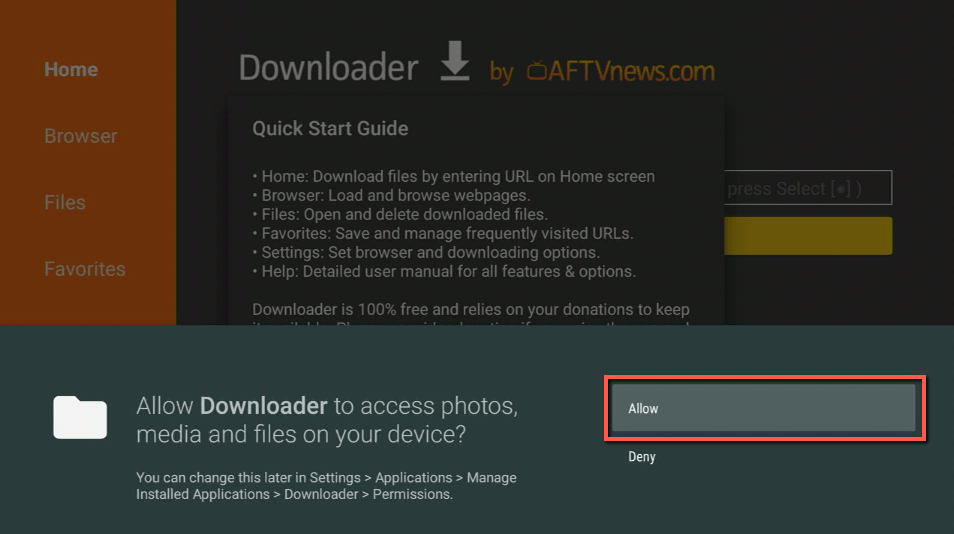
8. You will be asked to enter a download link. Type in “https://reviewvpn.com/ant” and select Go.
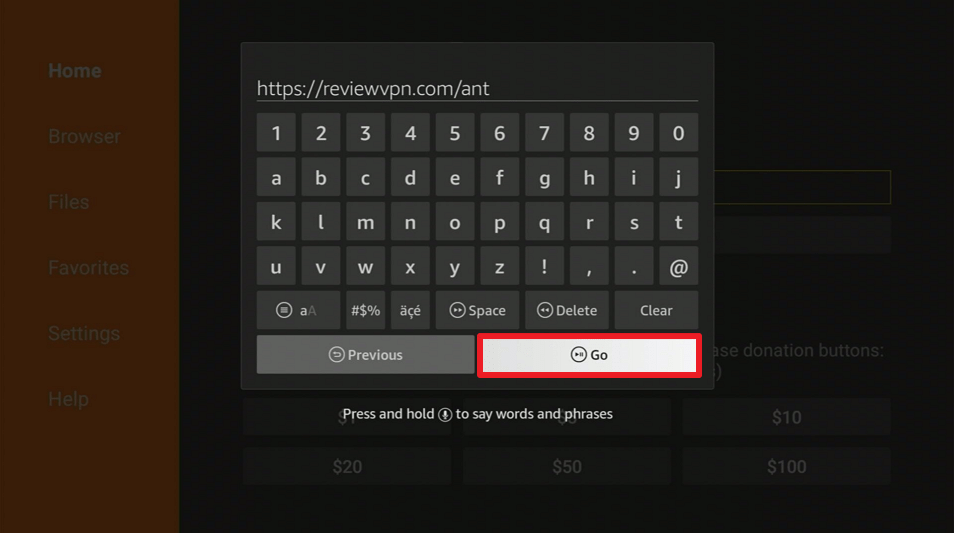
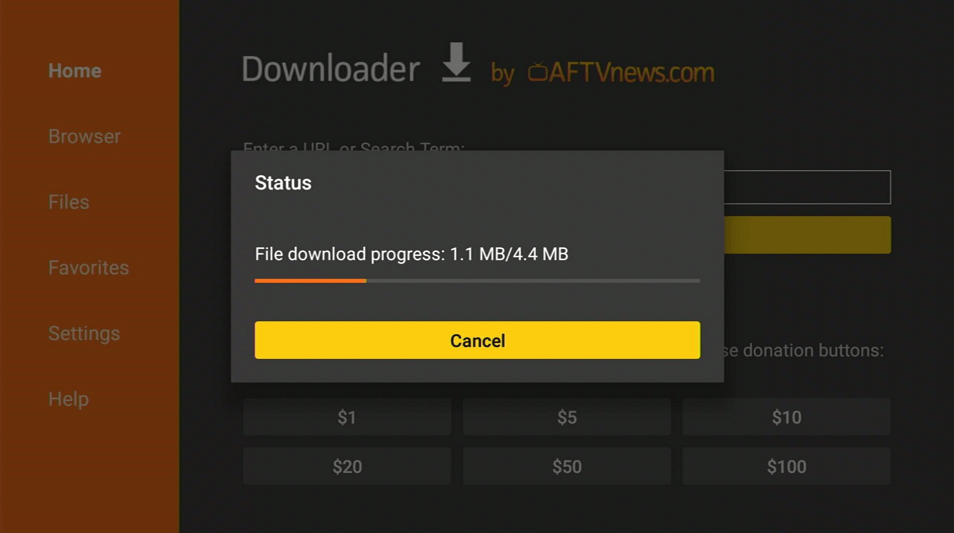
9. Depending on your internet connection, the APK will take a few seconds to download.
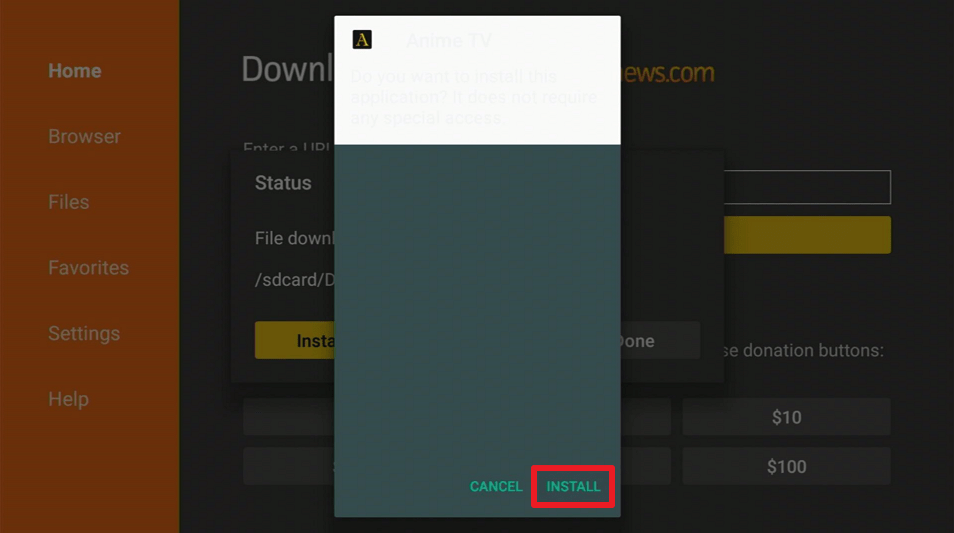
10. After that, choose Install.
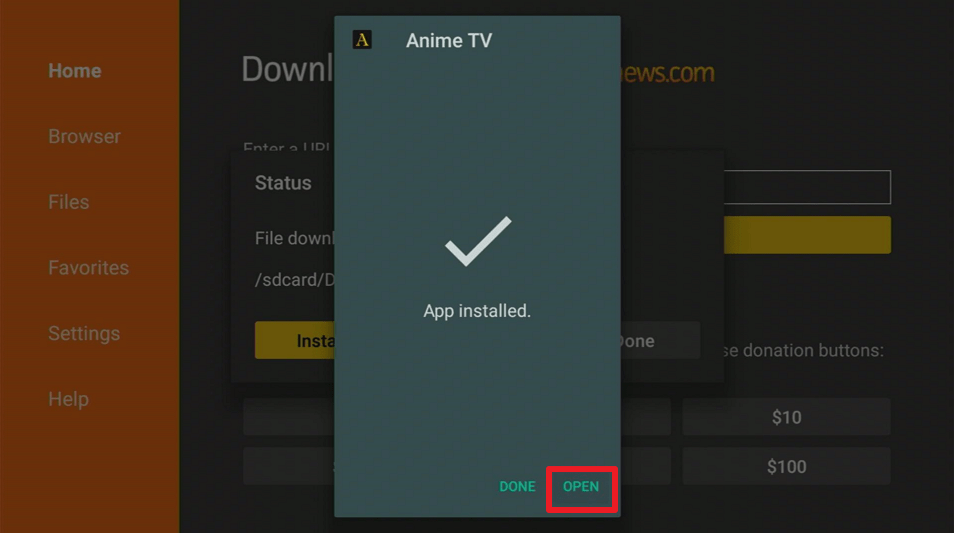
11. Then click Open.
ReviewVPN cannot attest to the legality, security and privacy of the applications discussed on this site. It is highly recommended that you use a VPN service while streaming or using Kodi. Currently, your IP 216.73.216.193 is visible to everyone and your Browser is being tracked by Advertisers & ISP Provider. Here are the main reasons why you must use a VPN: A VPN works be replacing your ISP-assigned IP address and creating an encrypted tunnel. We recommend the no log service offered by IPVanish. It works well on a Firestick and offers the fastest possible speeds.
YOUR INTERNET ACTIVITY IS BEING WATCHED
Legal Disclaimer: ReviewVPN.com does not encourage or endorse any illegal activity involved in the usage of services and applications referenced on this site. We do not verify the licensing agreements of services. The end-user is wholly responsible for ensuring that any media accessed through these services does not violate copyright and/or licensing laws. ReviewVPN does not promote, link to, or receive compensation from any Apps and IPTV services.
Install Surfshark on Firestick

App Features
- Has a wide variety of anime and cartoon series and movies
- Add your favorite movies and TV series to your Favorites list
- Anime and cartoons can be viewed in SD or HD quality
- Watch in regular or full-screen mode
- The search function makes it easier to find your favorite movies and TV series
- You can search for anime and cartoon shows by genre
- Watch your favorite anime on your preferred video player
Selections
- Dubbed Anime
- Cartoons
- Subbed Anime
- Movies
- OVA Series
Pros and Cons
Pros
- Free to install and watch
- You can play videos with other video players
- It contains both new and classic anime
- One-click play app
Cons
- The thumbnail for each series on the homepage is the same
- You’ll need a Mouse toggle to navigate the app
- It takes a few seconds for videos to load
- The videos keep on buffering
- The app is quite hard to navigate
FAQs
Is Anime a TV show?
Anime is a Japanese animated show that consists of several series, so it can be classified as a TV show.
Does Anime count as a TV show?
Yes, you can count Anime as a TV show.
Is Anime TV safe?
Yes, Anime TV is safe. However, if you want to be certain that you are streaming safely, you should get a VPN such as Surfshark.
Is Anime TV free?
Yes, Anime TV is free to install and use.
Are there Ads?
Yes, Anime TV has ads.
Is there a need for registration?
Luckily, there’s no need to register to access and stream Anime TV’s free content
Stream Safely With a VPN
The best part about owning a Firestick is having unlimited access to apps and websites where you can stream your favorite movies and TV shows in all genres. However, with that advantage, you must always remember to secure your connection to stream with ease. And you’ll need a VPN like Surfshark to help you with that. Surfshark encrypts your connection and allocates you an anonymous IP address, ensuring that third-party servers and cyber attackers such as hackers and phishers are unable to track your online activity.
Among its other advantages are the following:
- You can store up to 500GB of secured data in the cloud and access it from any device
- Connect to public wi-fi or hotspot without any risk of data leaks
- Your network connection and online activities remain protected with advanced encryption
- Surfshark supports Windows, iOS, Android, and Amazon devices, with no maximum device connection
- Make the most of your bandwidth with no data restrictions
- Access geo-restricted contents by connecting to more than 3200+ servers in 65 countries worldwide locations
- Ensure zero logs and no IP address leaks through Surfshark automatic deletion of activity and connection data
Note: For more information about Surfshark, please read our Surfshark Review.
How to Install Surfshark VPN on Firestick
If your Firestick still has the older interface, read this article to learn how to update it: Update Firestick Interface.
Follow our screenshots below to install the SurfShark VPN app on your Fire TV stick.
1. Go to the Home screen of your Firestick.

2. Navigate towards the Find tab. Press the Search button from the resulting dropdown.

3. Type in the keyword of SurfShark and select from the suggestions that will appear.

4. Click the official SurfShark icon from your search results.

5. Press the Download (You own it) button.

6. The SurfShark VPN installer will download on your device.

7. SurfShark VPN’s app will automatically install itself on your Fire TV stick.

8. Press the Open button after completing SurfShark VPN’s installation process.

9. Please wait for the SurfShark VPN to load its user interface.

10. You can now log in with your SurfShark VPN account credentials.

Learn more about Surfshark and Grab the Best Surfshark Deal Now!
Install Surfshark on Firestick



For more VPN discounts, go to ReviewVPN Deals and purchase the best VPN for you.
Click here to get the lowest price on Surfshark through our exclusive limited-time offer.
Conclusion
There aren’t many apps available for your Amazon Firestick that allow free streaming of your favorite anime movies and TV shows but luckily, there’s Anime TV. However, because its videos keep buffering, you won’t be able to get the most out of its streaming service. Its user interface isn’t also appealing, and it’s quite difficult to navigate. But the good thing about Anime TV is that it has a lot of streaming options, with both Anime and Cartoon selections that can be watched subbed or dubbed. So, if you want to give the app a shot, go ahead and do so since it’s free to install and use.
Thank you for reading our article on Anime TV. We hope we were able to help you install it on your Firestick device and gave you a quick overview of how the app works.
Related articles:
10+ Best Anime Websites – Watch Anime For Free






