

Overview

The vision of Destiny Kodi Addon
This article will help you install the Vision of Destiny Kodi Addon on your Firestick.

Vision of Destiny is one of the best Kodi add ons currently available with a dizzying array of features and can be found from One Nation Repository.
What is Kodi?

Kodi is a free and legal piece of open-source software that acts as a media player. Its popularity stems from not only being one of the oldest around, dating back from 2002.
But also, because it’s very feature-rich, will play almost any type of media and has a 10-foot interface allowing it to be integrated easily with your TV through your device.
You can also access thousands of unofficial add ons allowing you to watch anything, anywhere and mostly for free.

What is an Add On?
An add on is just an added feature stand-alone application which gives you added functionality within Kodi.
Think of it like an optional upgrade.
Add ons allow you to access certain types of media, channels or categories that may not be provided with Kodi. Most add ons aren’t in the official application store as they aren’t endorsed by Kodi. Which only endorses add ons which do not stream illicit copyrighted material or content which does not have the owner’s permission.
What is Vision of Destiny?
Vision of Destiny is a rich multi-feature add on and one of the most popular on Kodi
Features
- Simple and easy to use UI
- Torrent streaming
- Series tracking without Trakt
- Movies
- TV Shows
- Kids TV
- NBA
- Live Sports
- Live TV
- Real Debrid compatible
- Clear cache
- Trakt.tv compatible
- Last played
- Check ratings
- Update scraper sources
- Ace streams
- M3U8 Playlists for Live TV
- Import Kodi scrapers
Install Surfshark on Firestick
Legal Disclaimer: ReviewVPN.com does not encourage or endorse any illegal activity involved in the usage of services and applications referenced on this site. We do not verify the licensing agreements of services. The end-user is wholly responsible for ensuring that any media accessed through these services does not violate copyright and/or licensing laws. ReviewVPN does not promote, link to, or receive compensation from any Apps and IPTV services.
ReviewVPN cannot attest to the legality, security and privacy of the applications discussed on this site. It is highly recommended that you use a VPN service while streaming or using Kodi. Currently, your IP 216.73.216.72 is visible to everyone and your Browser is being tracked by Advertisers & ISP Provider. Here are the main reasons why you must use a VPN: A VPN works be replacing your ISP-assigned IP address and creating an encrypted tunnel. We recommend the no log service offered by IPVanish. It works well on a Firestick and offers the fastest possible speeds.
YOUR INTERNET ACTIVITY IS BEING WATCHED
How to Install Vision of Destiny
It’s quick and easy to get going with Vision of Destiny following these steps.
- Make sure Kodi is open and on the home screen
- Go to settings and then system
- Switch on Unknown sources which lets you access and install add ons from non-approved third-party sources
- Go back and click on File Manager
- Click add source and then “Add None”
- In the URL bar that pops up type in : http://onenation.info/Repo (Sometimes repository links go down, if that happens you’ll get an unrecognized error message. Just use Google to search for a working link)
- Name the source Vision of Destiny, click ok to add it to your file manager
- Click Add ons and install from .zip file
- Select your Vision of Destiny file and then install it from the repository
- You want to also allow any additional add ons to be installed with Vision of Destiny
- Now when you return to your Kodi Home Screen you’ll see Vision of Destiny installed
How to Install Vision of Destiny on Kodi with Screenshots
- From the home screen, select the cogwheel at the upper left.

2. Select System in the bottom right corner.

3. Select Add-ons on the left side of the screen.

4. Select Unknown sources.
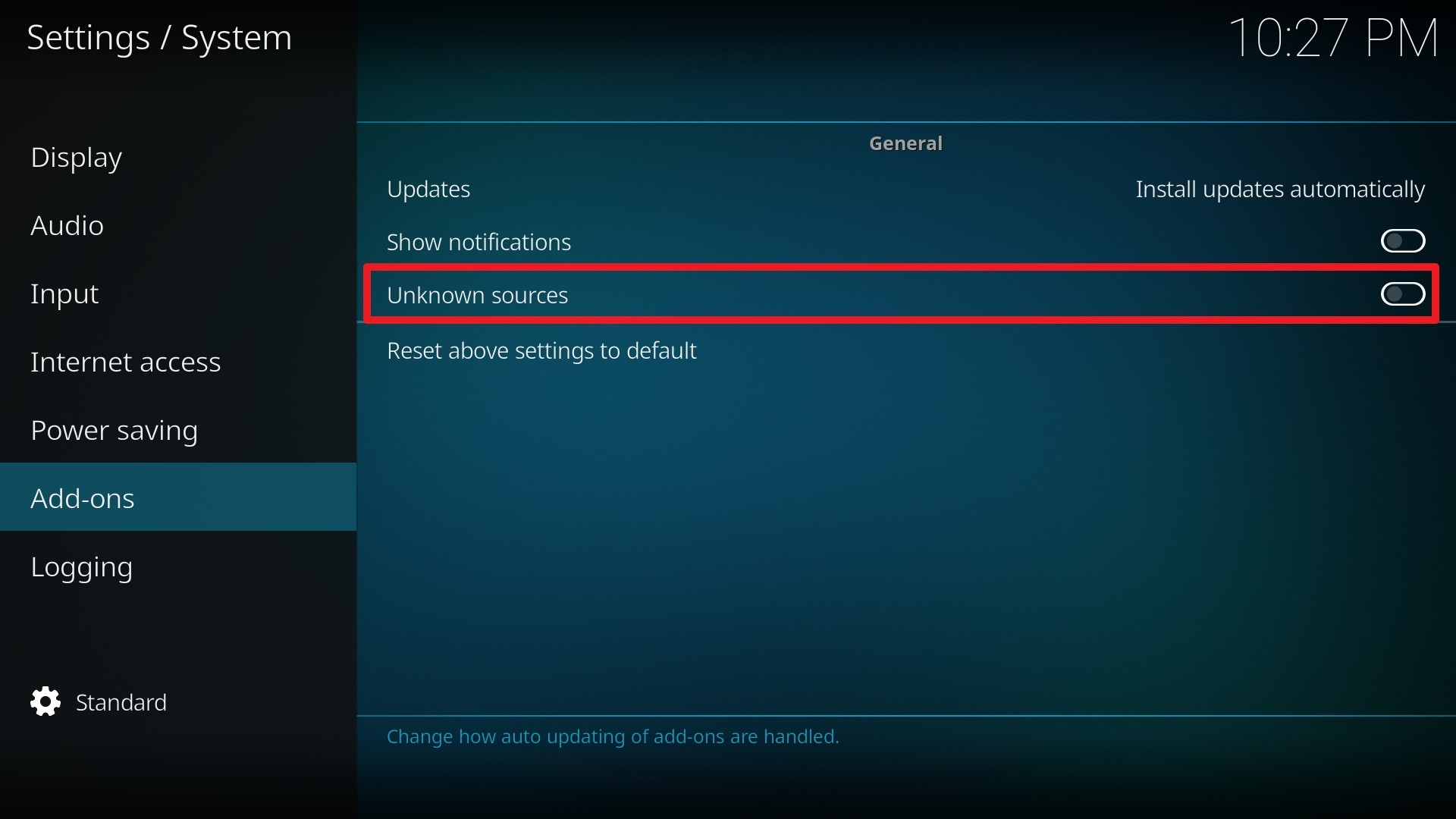
5. Click Yes to allow unknown sources.

6. Select File manager.
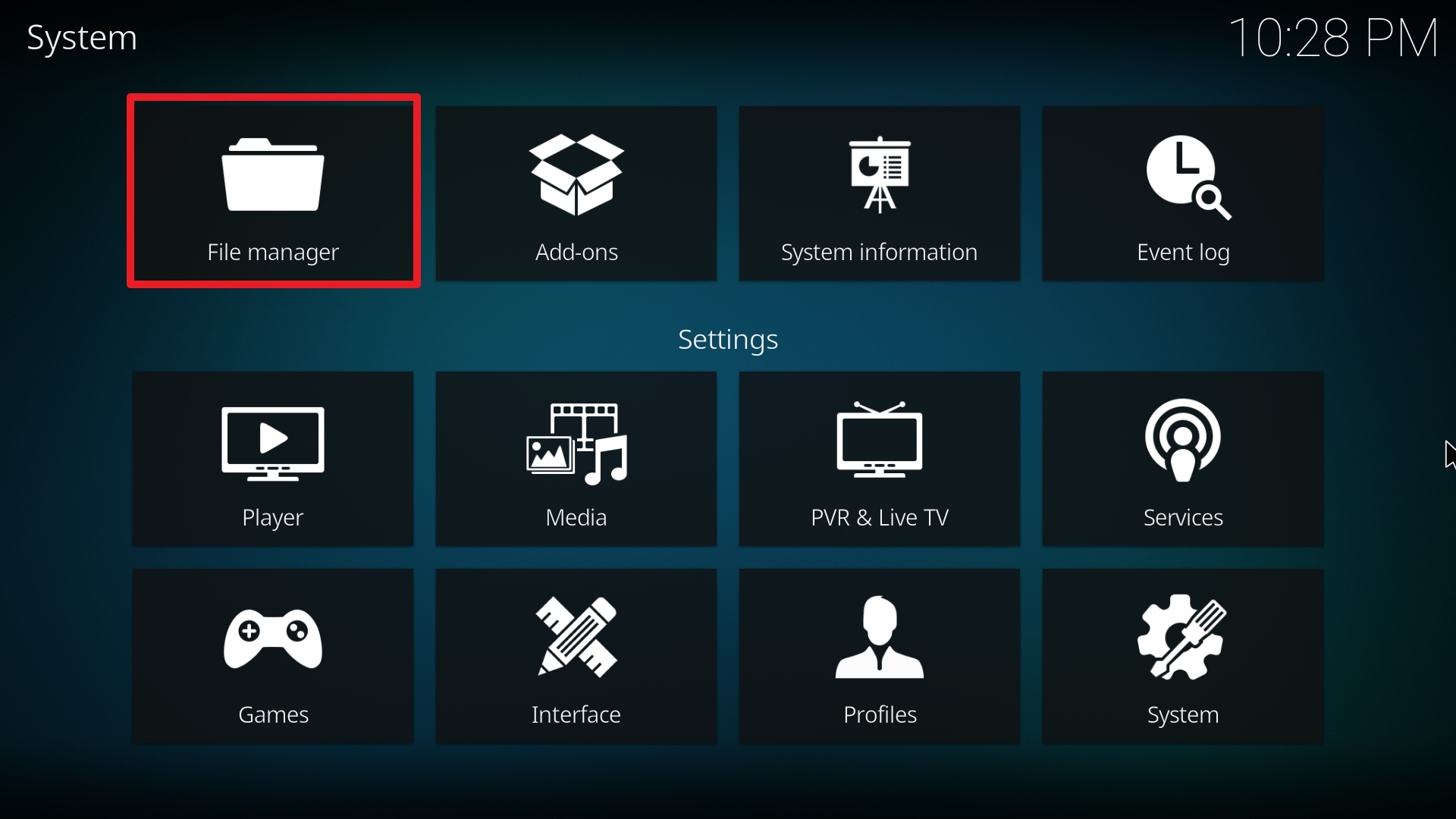
7. Click Add source.

8. Click on <None>.

9. Type exactly: https://team-crew.github.io/
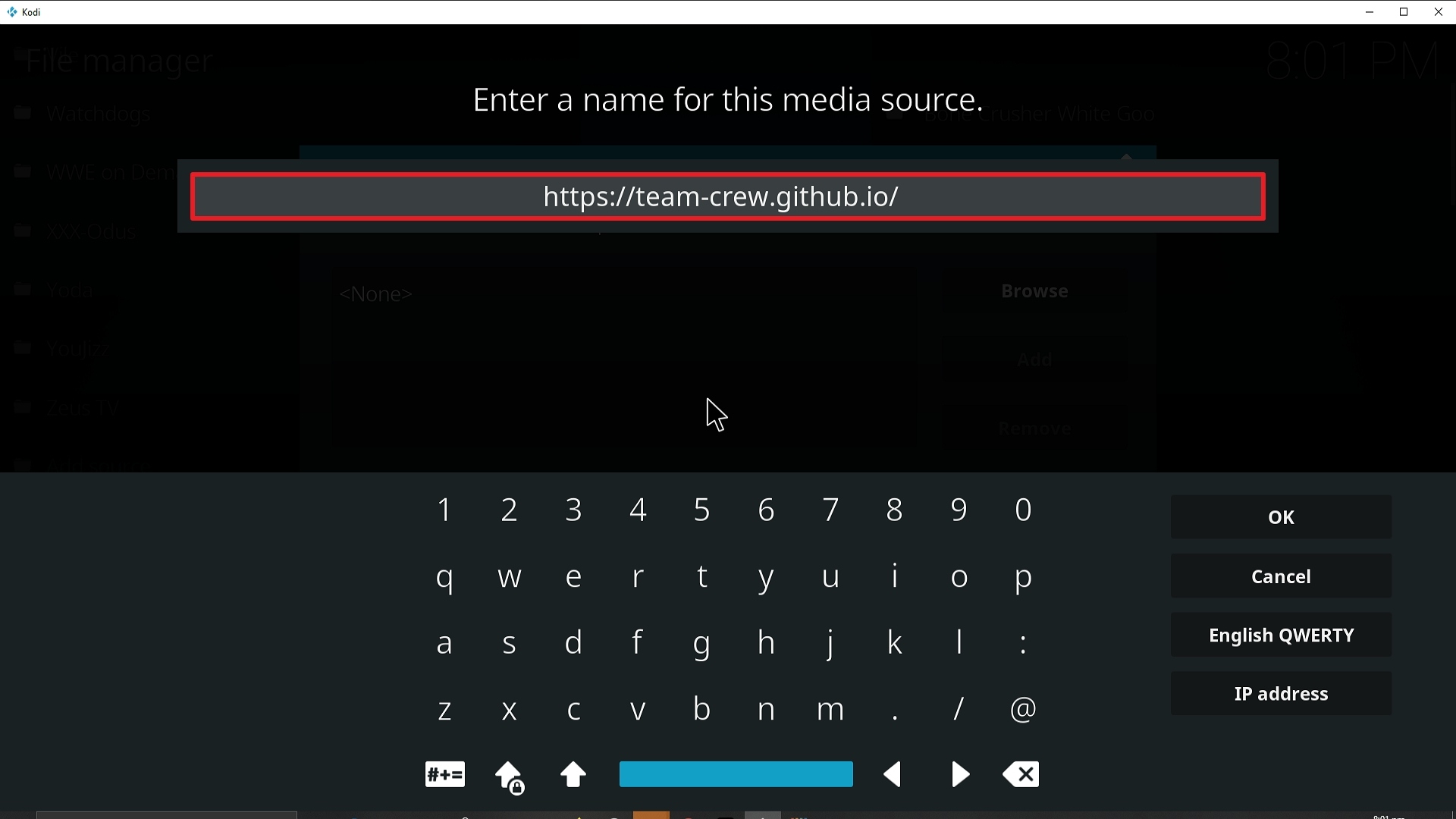
10. Click on OK.
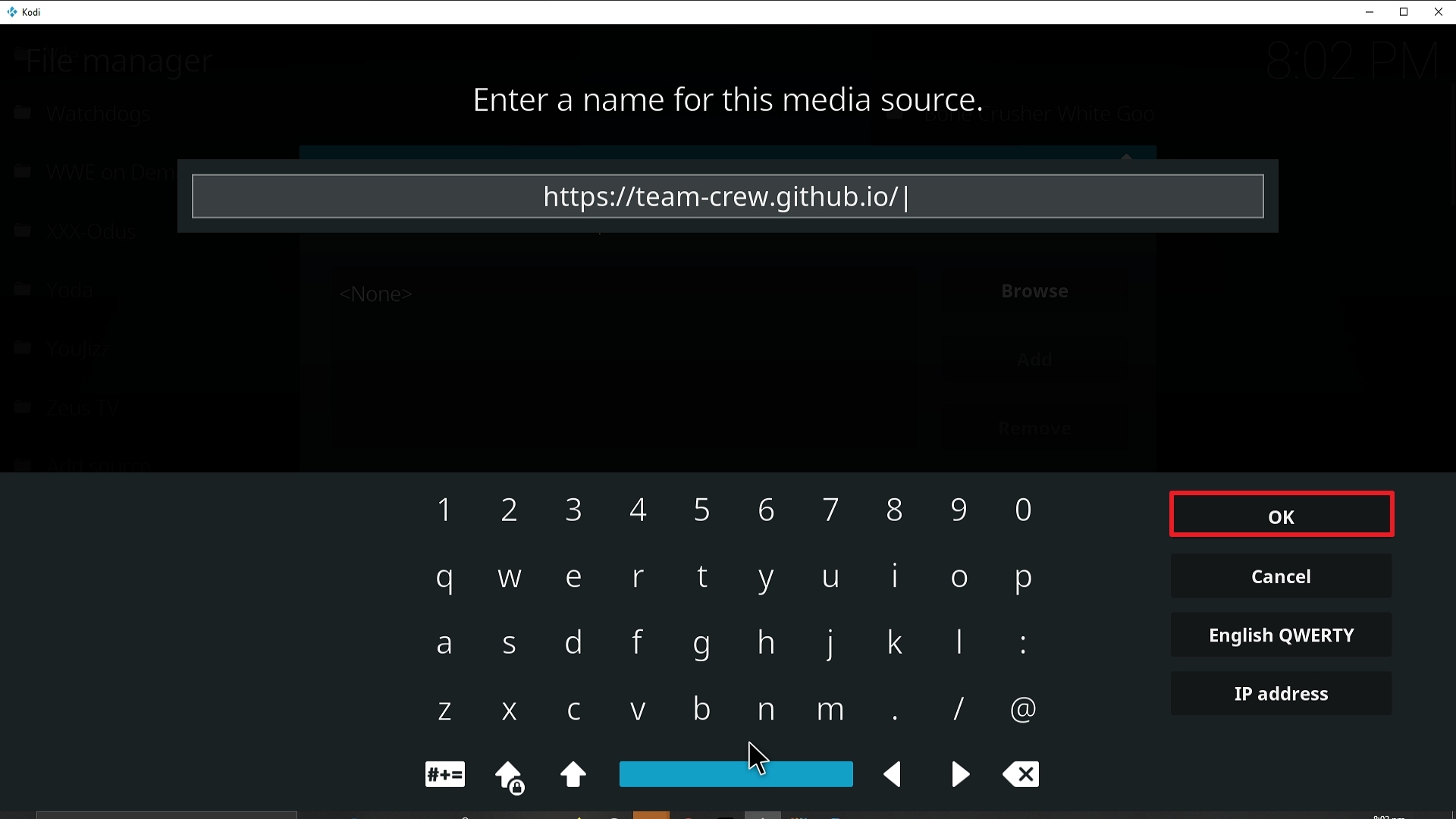
11. Select enter a name for this media source.
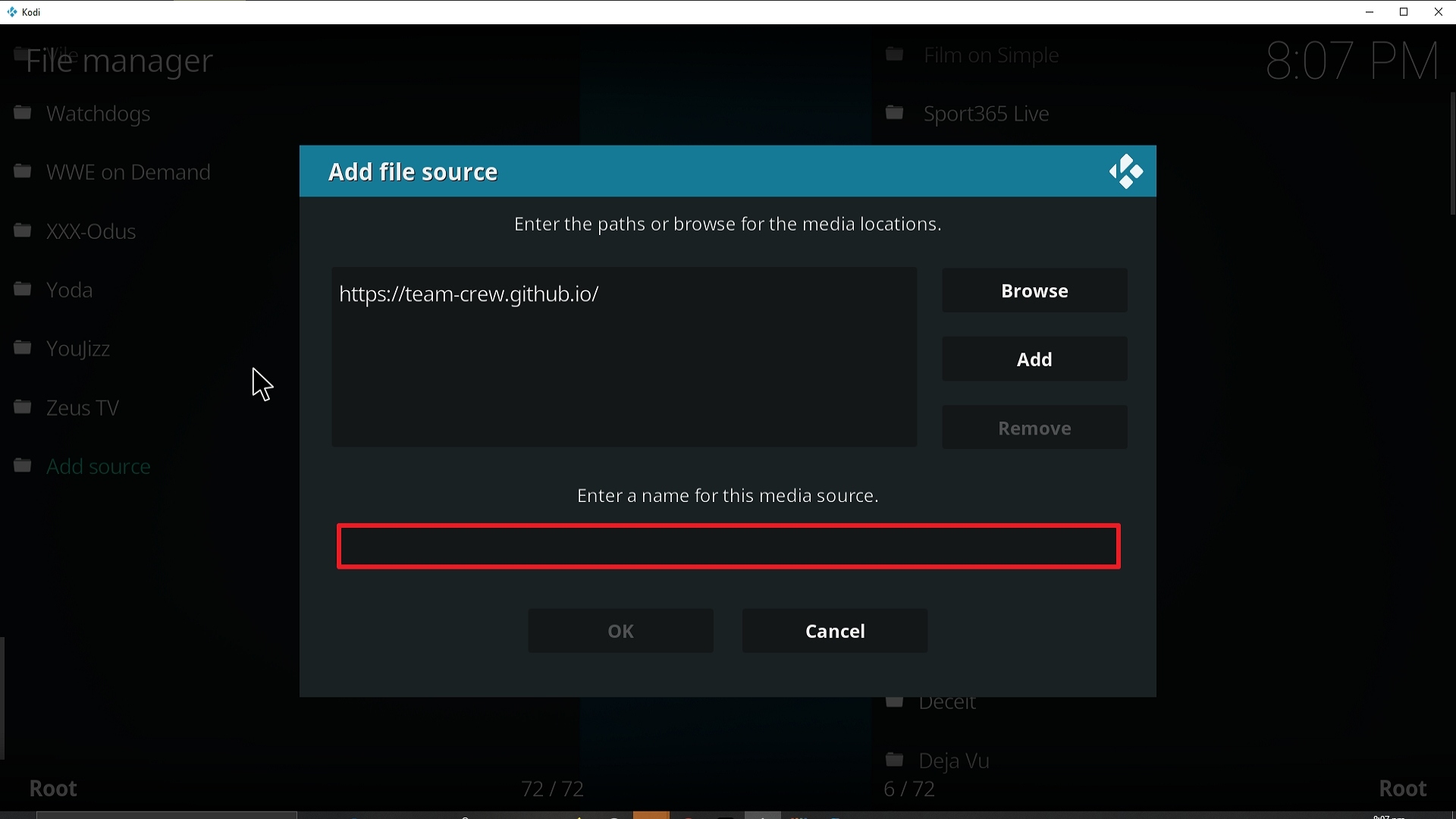
12. Name is Vision of Destiny (this part isn’t critical as long as you remember the name).
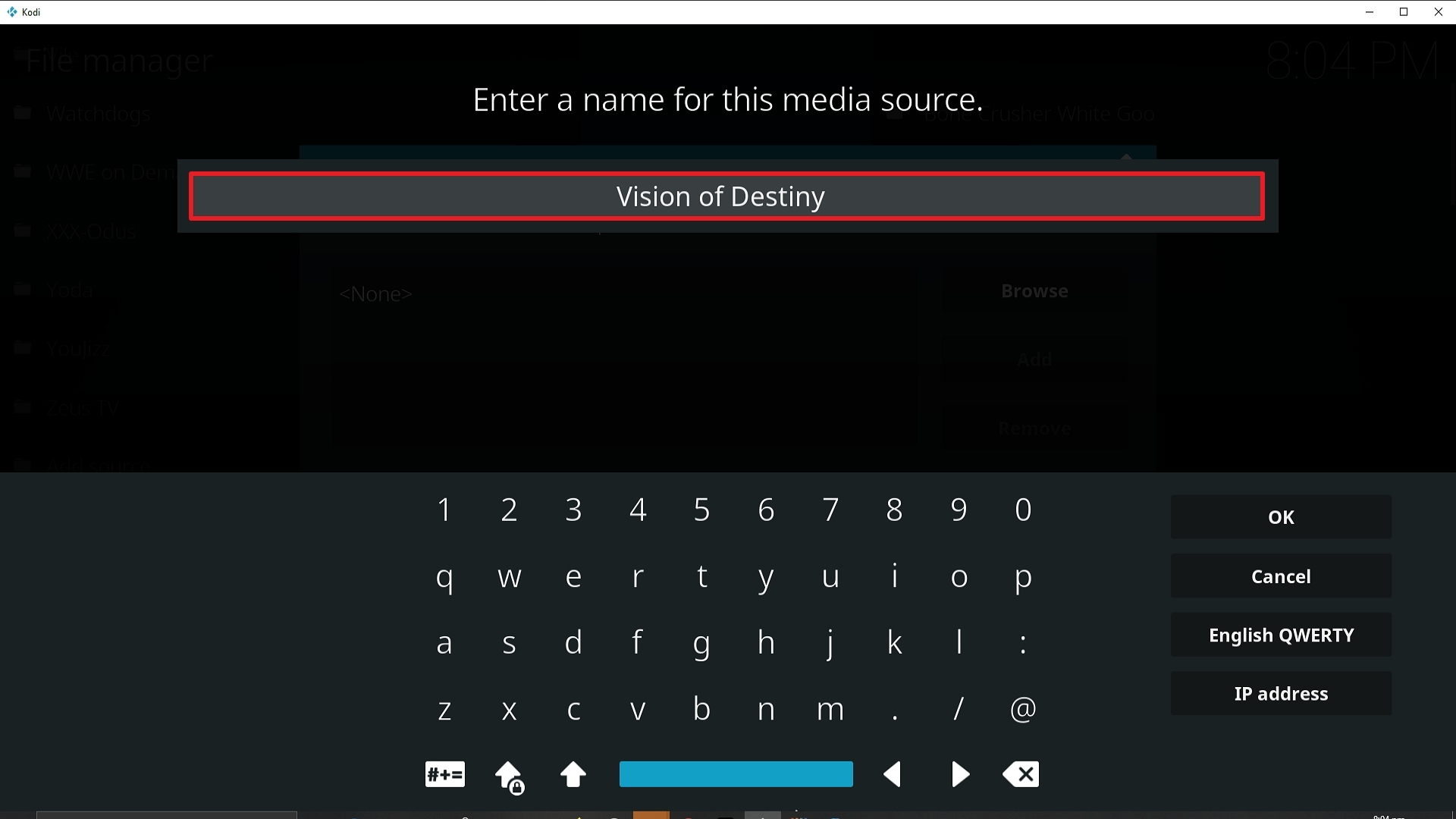
13. Click on OK.
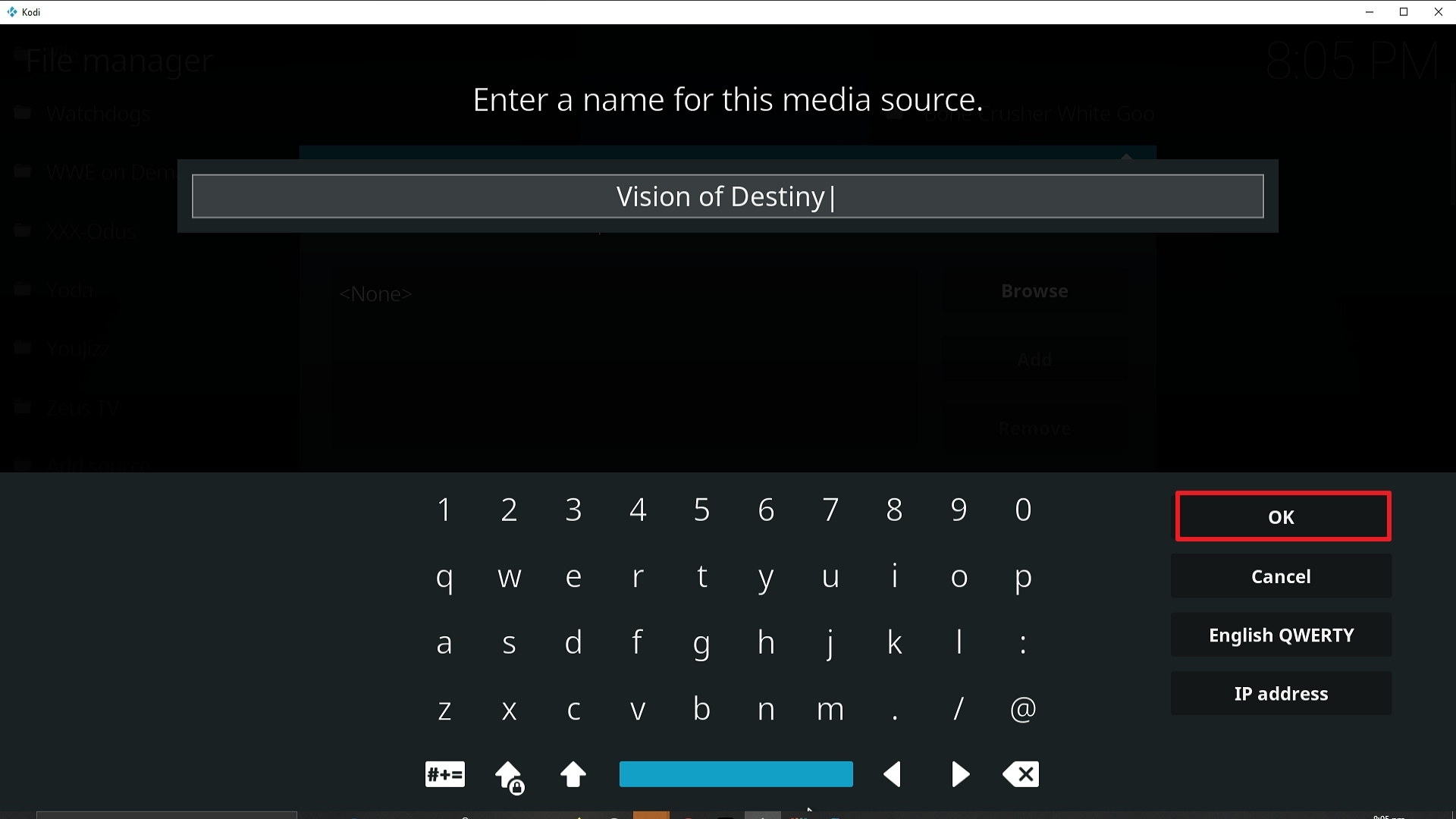
14. Click on OK.
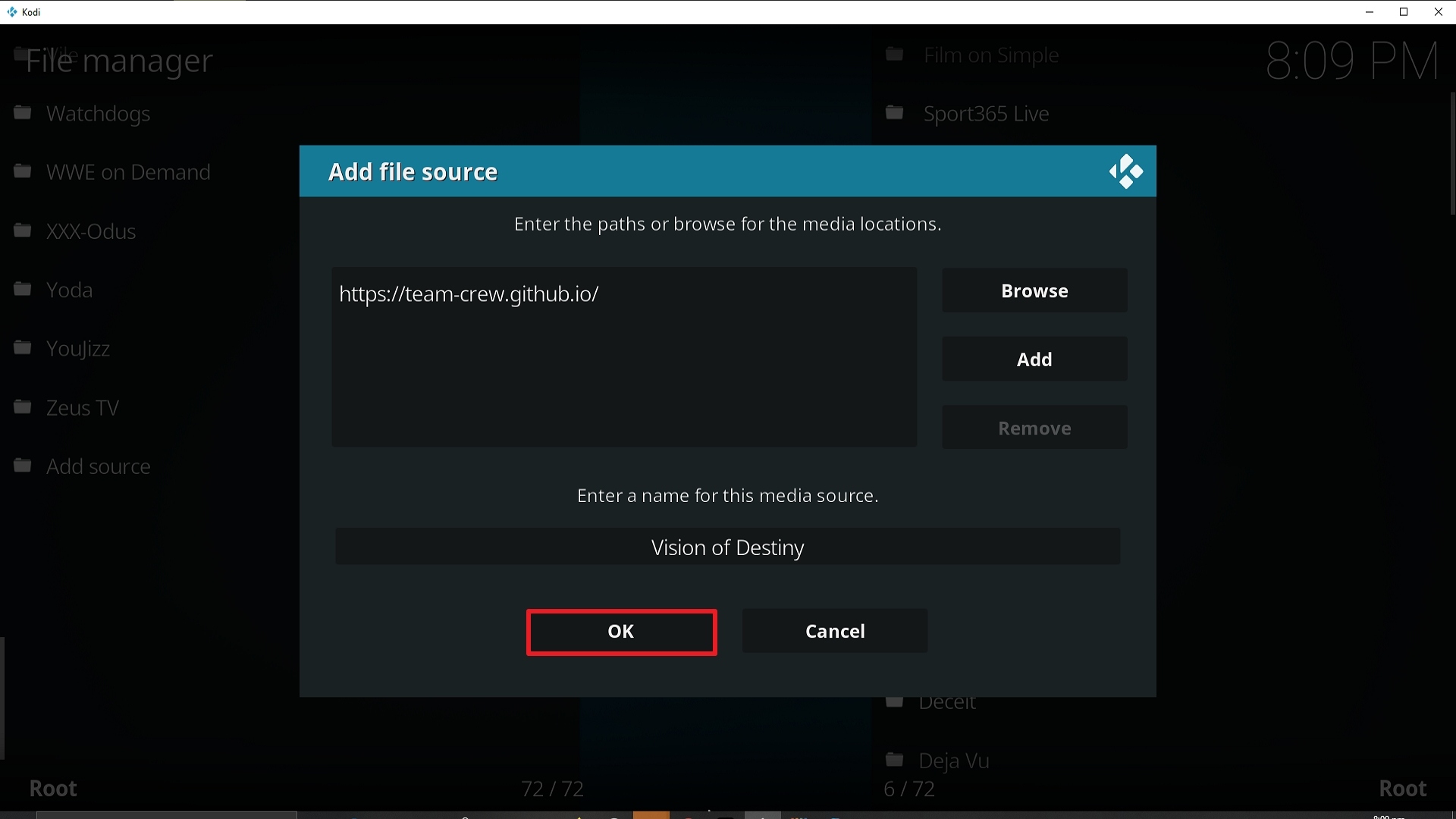
15. Take one step back and click on Add-ons.
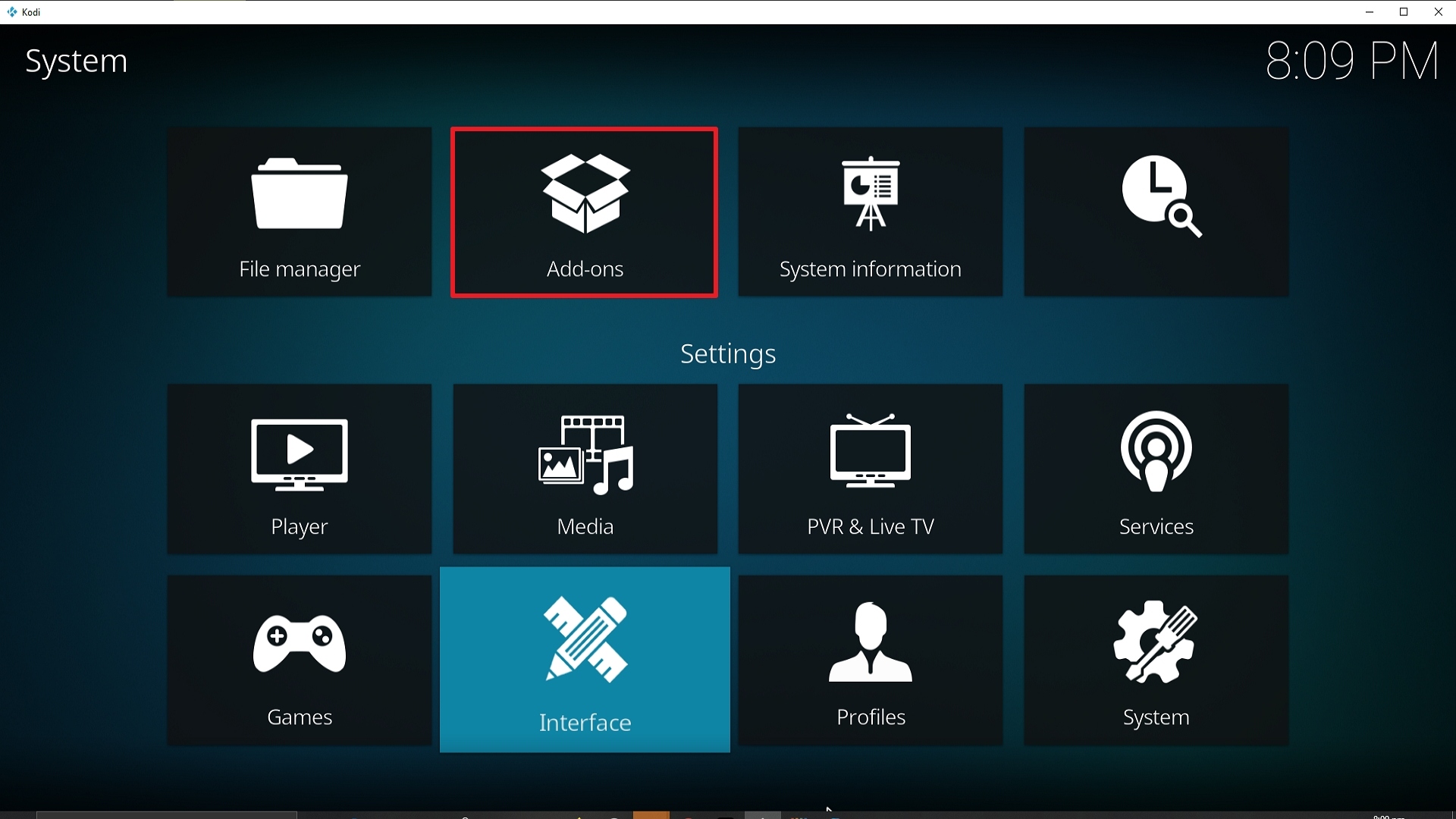
16. Select install from zip file.
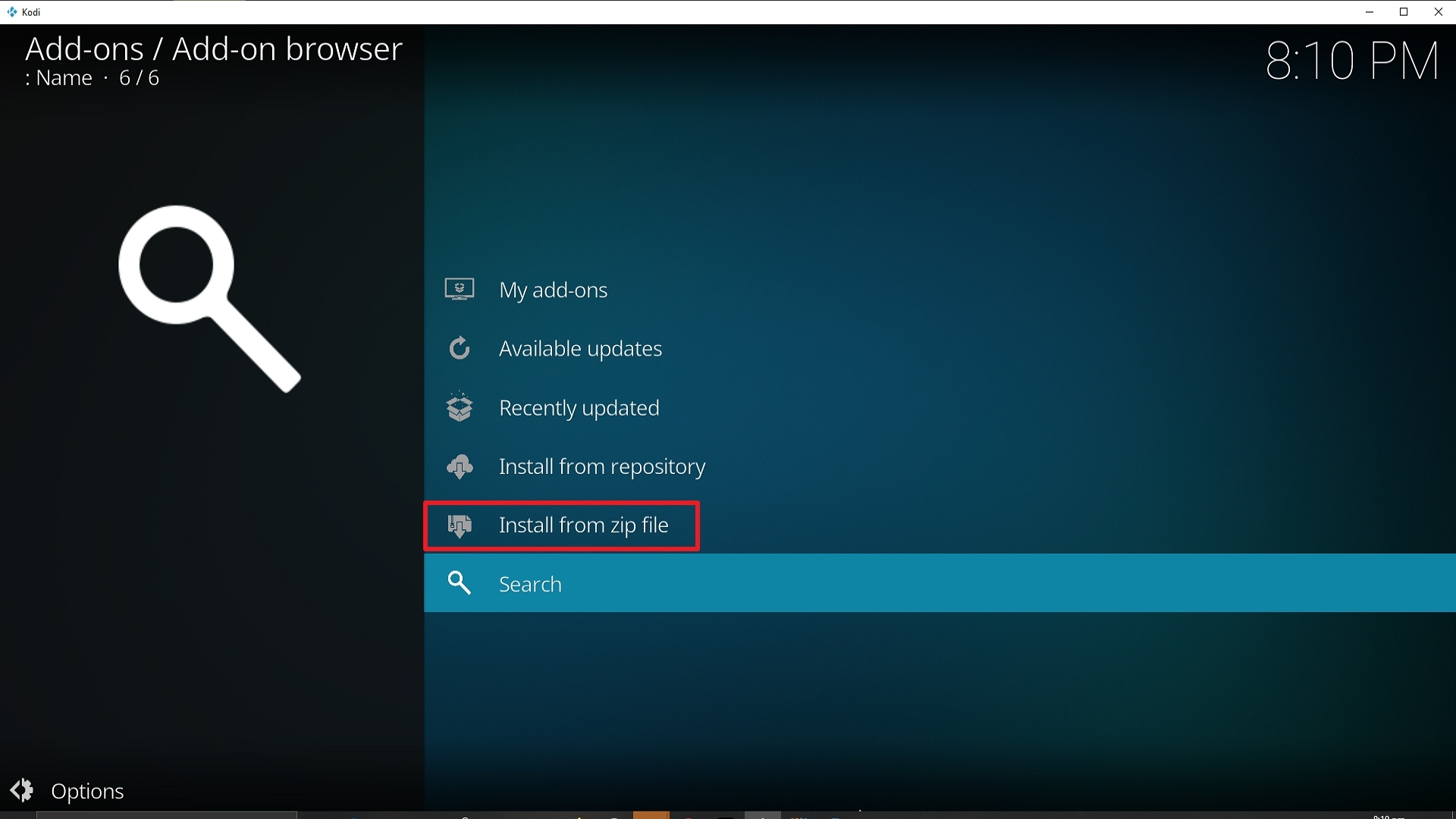
17. Click on Vision of Destiny (or whatever you named the source).
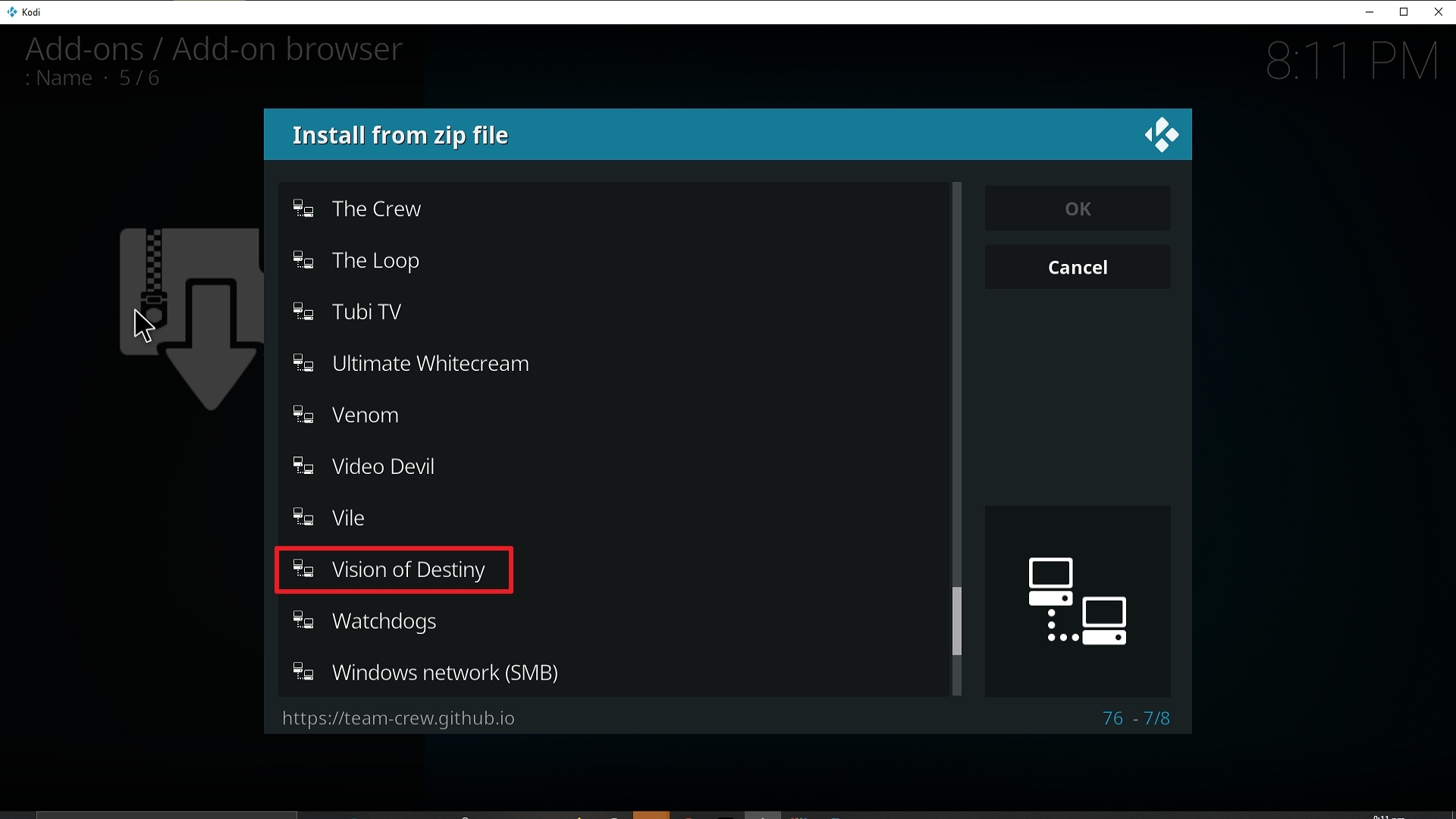
18. Click on repository.thecrew-0.1.0.zip
19. Select on Install from repository.
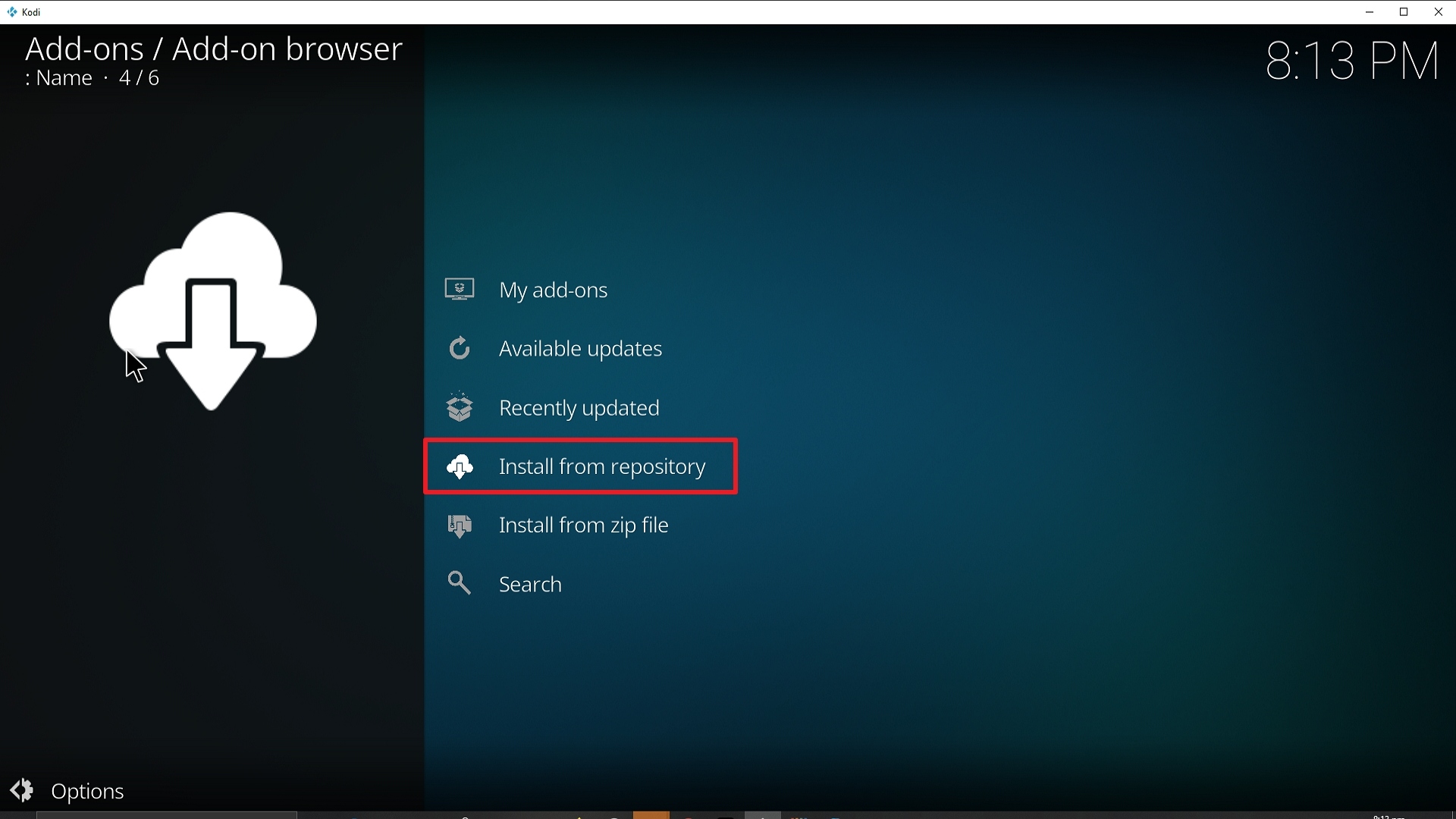
20. Click on The Crew Repo.
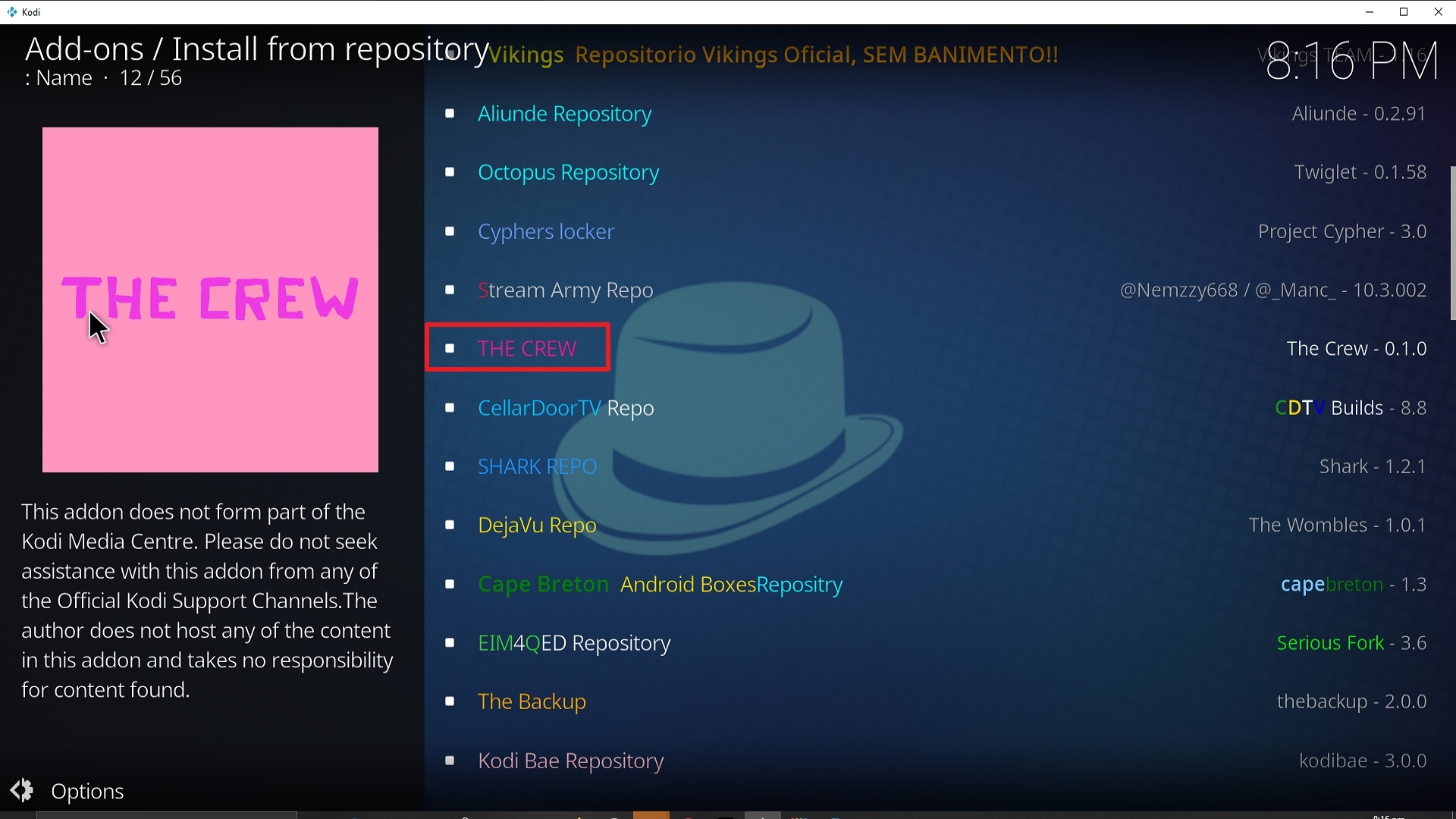
21. Pick Video add-ons.
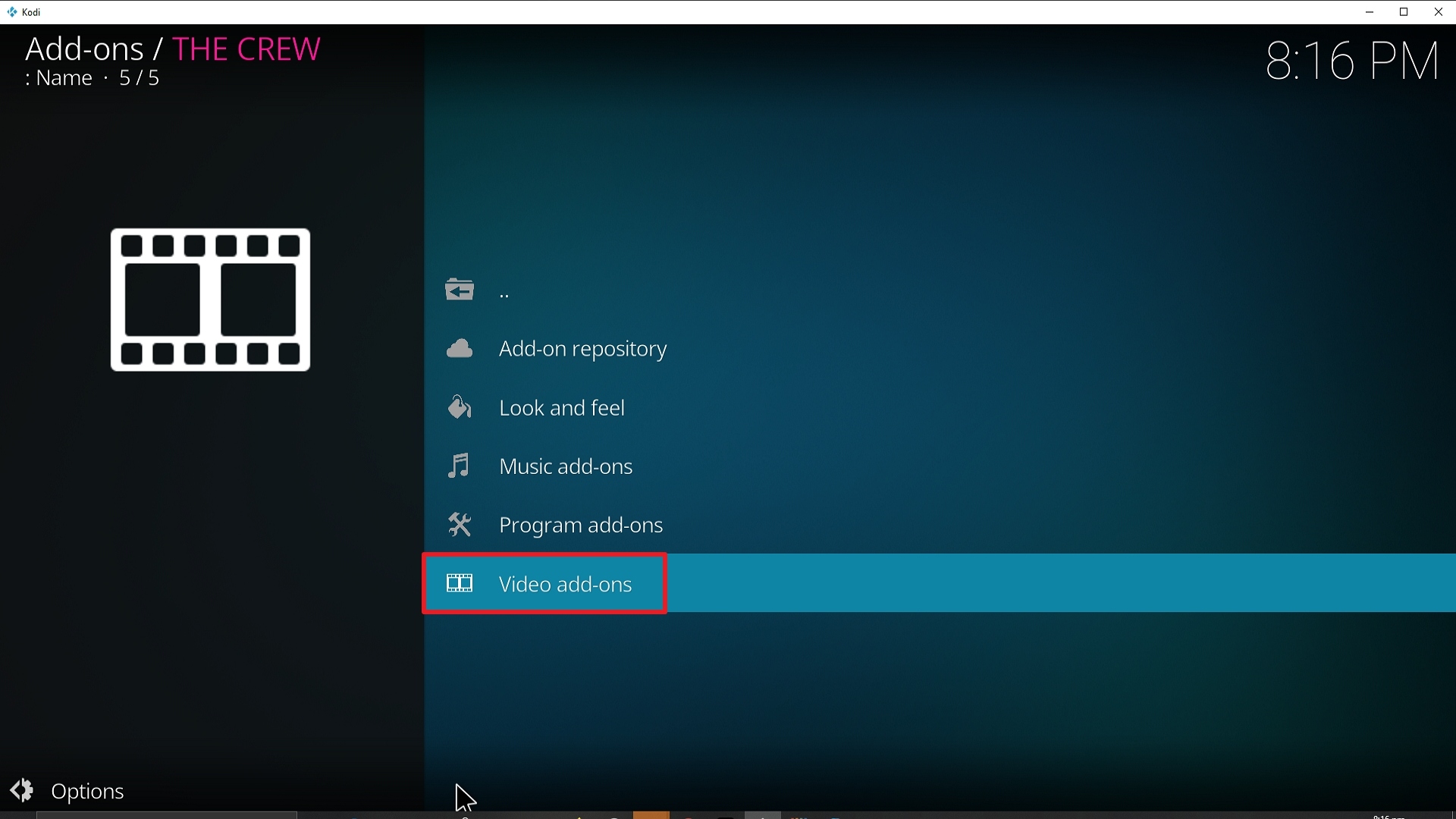
22. Select Vision of Destiny again.
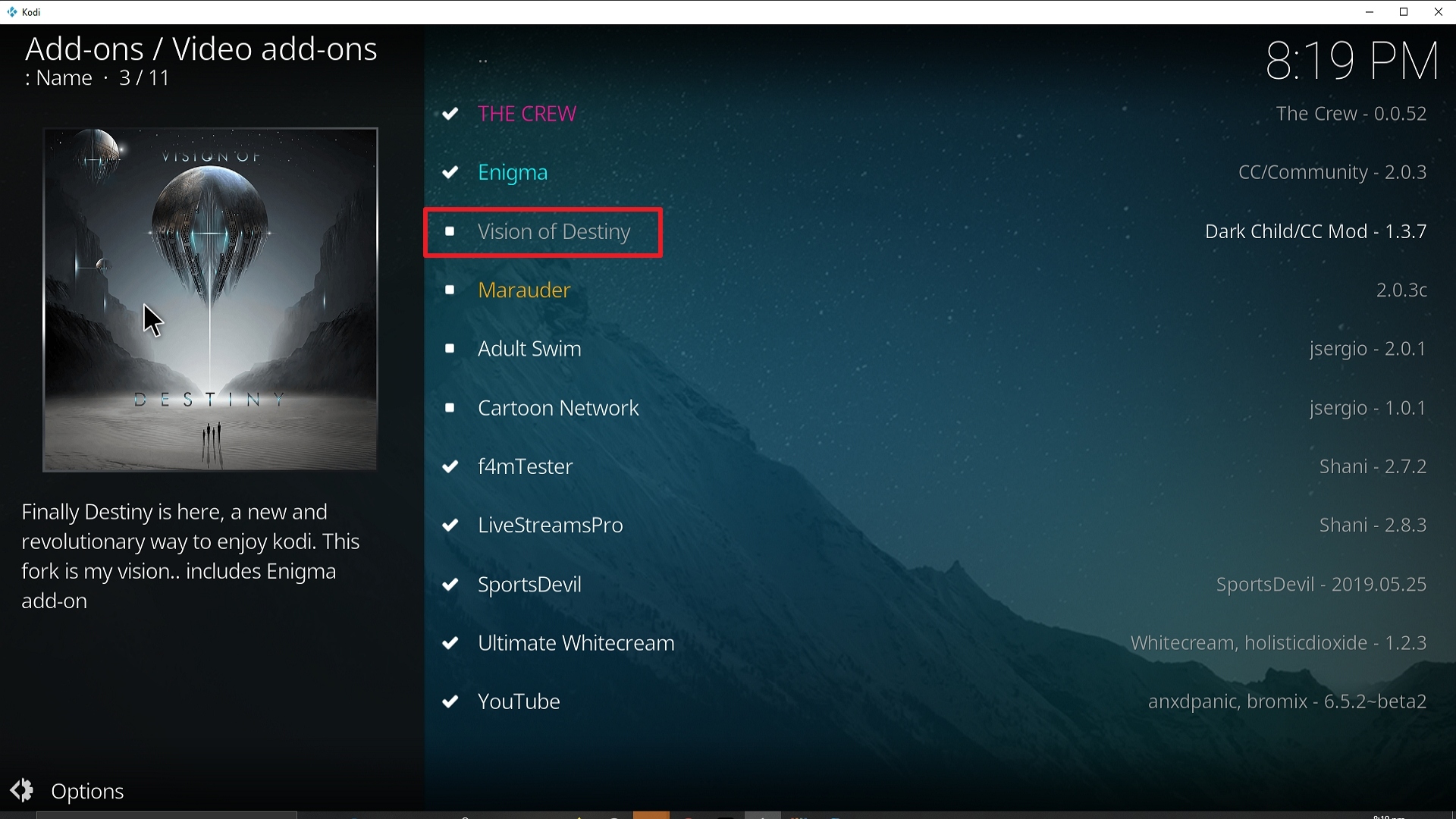
23. Click on Install.
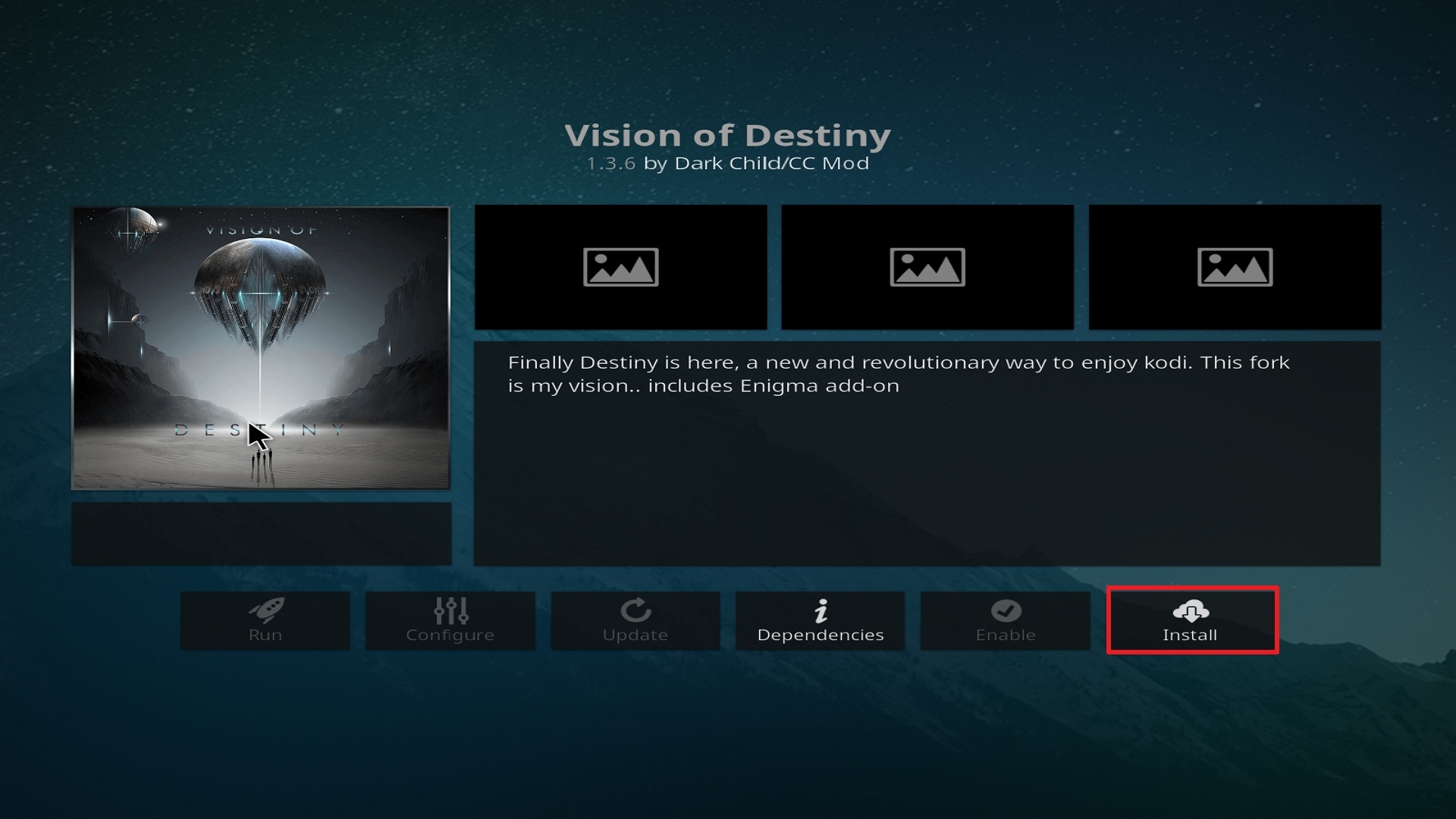
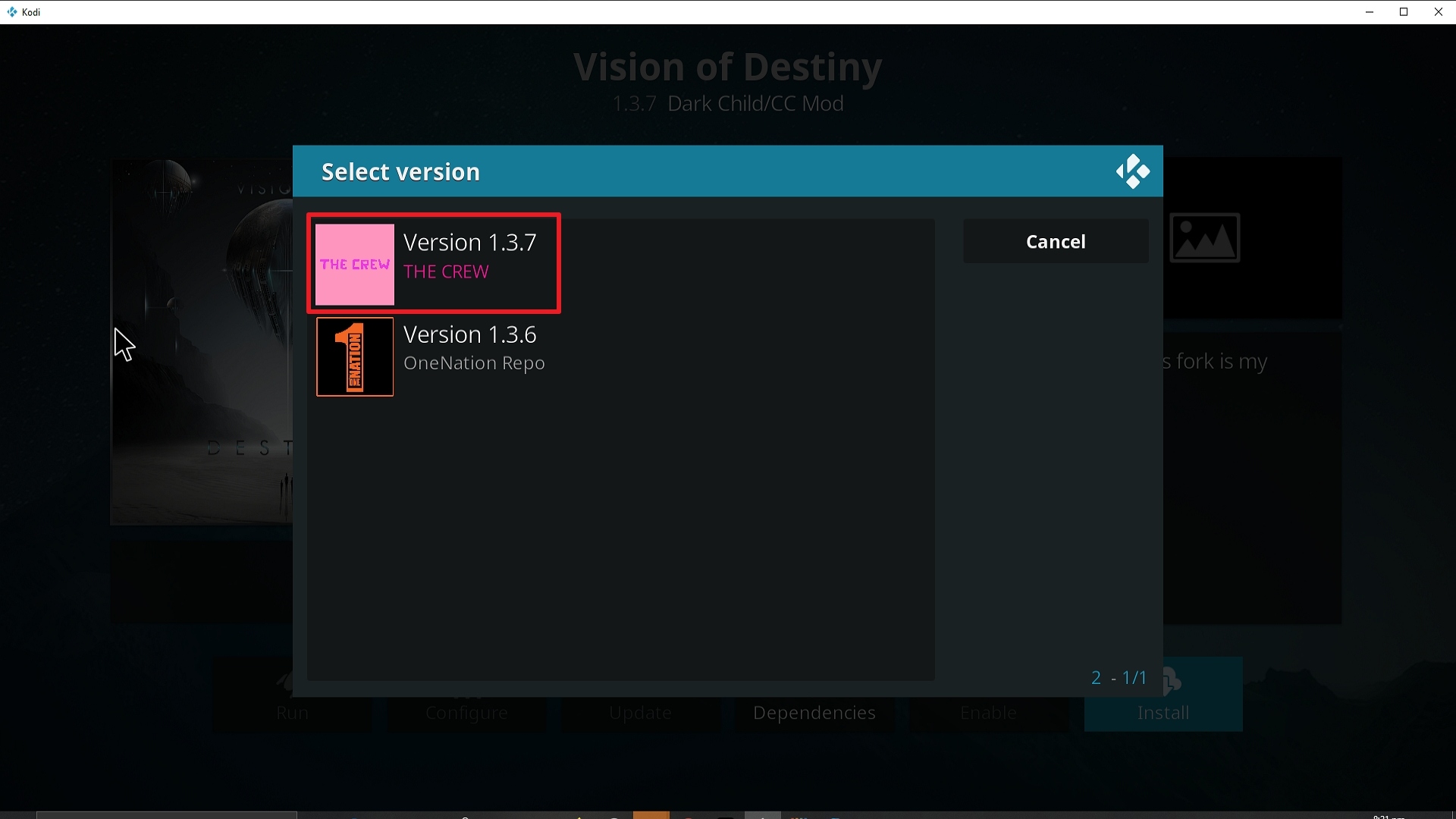
24. Select The Crew Repo
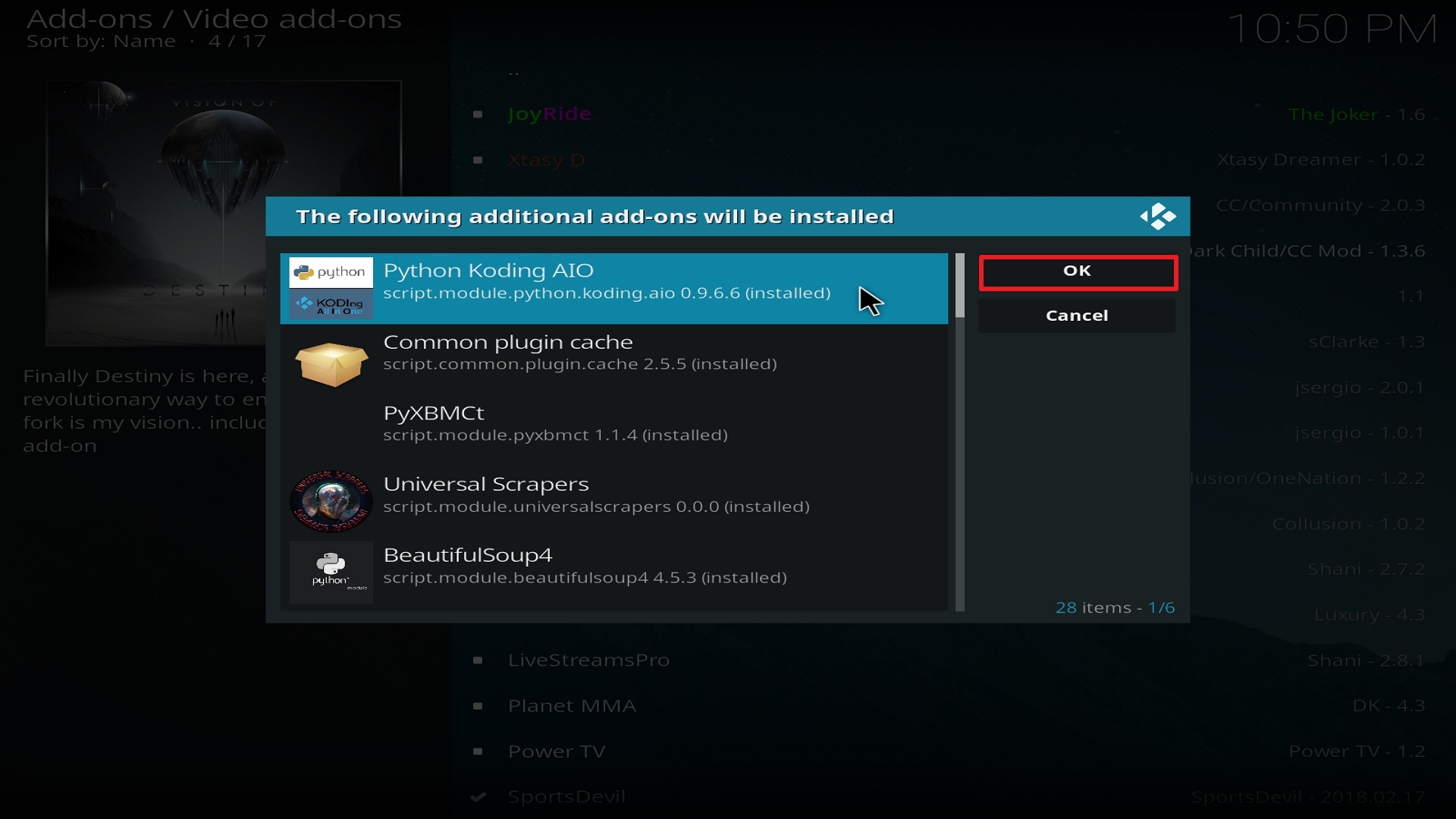
25. Select OK after reviewing the add-ons that will be installed.
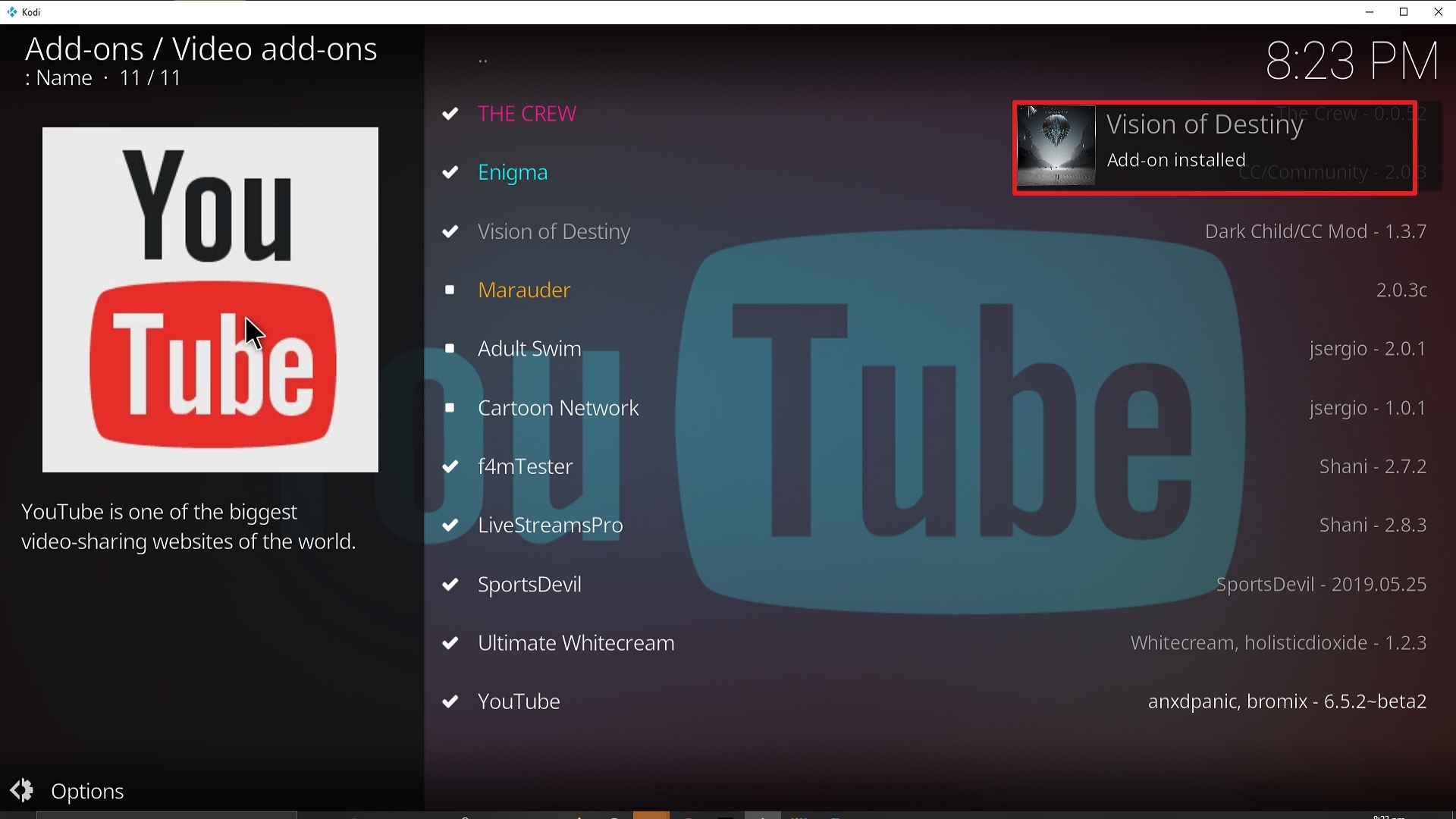
26. You should see a popup in the upper right corner saying Vision of Destiny has installed. There will actually be multiple popups for the various components.
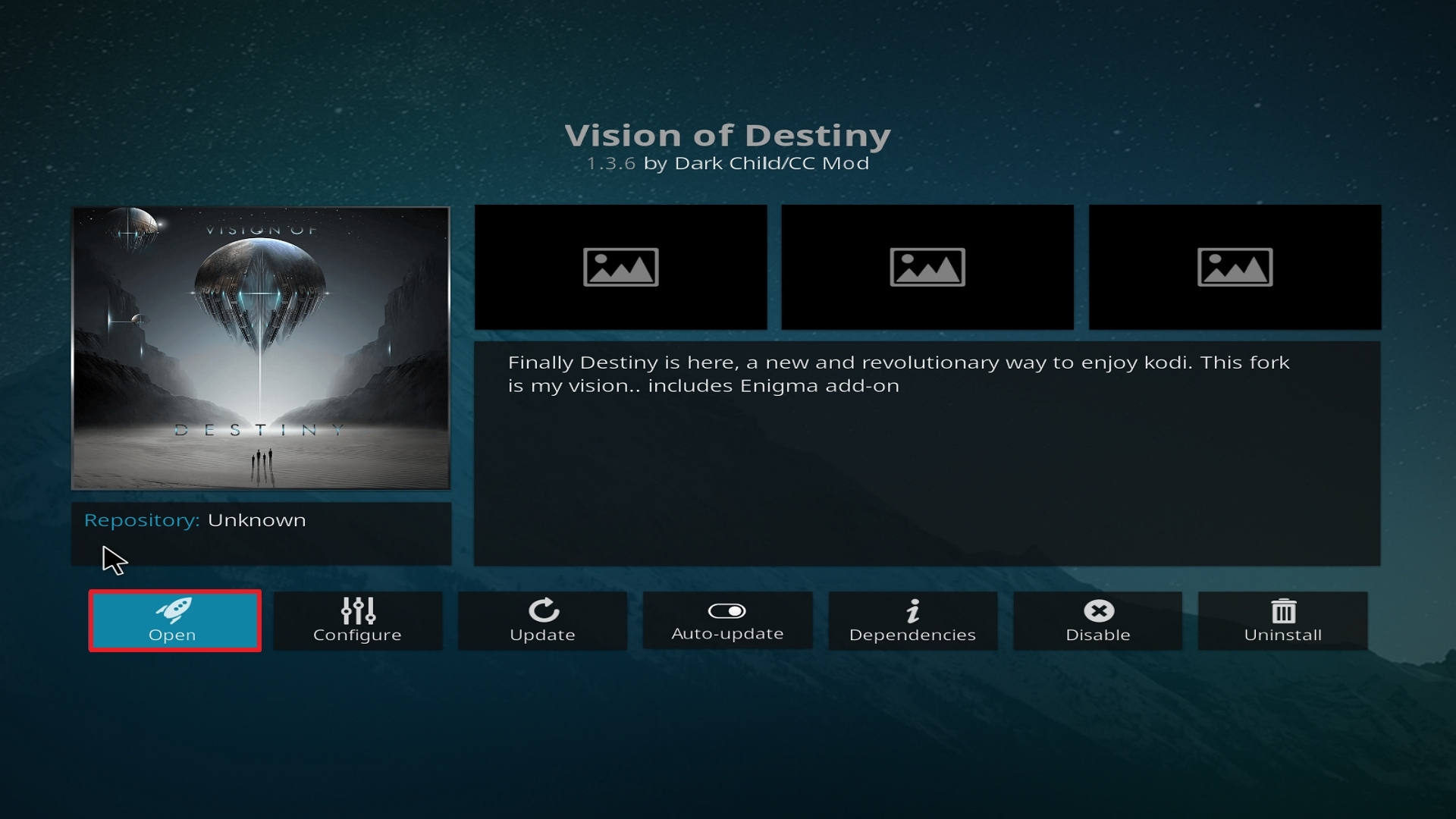
27. Click on Open to start the Vision of Destiny add-on.
FAQs
Is it Safe to Use?
Vision of Destiny is one of the longest-running add ons on Kodi and is safe to use.
Your biggest danger will be downloading the file from a copycat file host that isn’t from the Egg Man repo. Always be careful of copycats and make sure the file comes from the right source.
If you aren’t sure you can always pop the URL into your browser to check or scan the file before you open it.
Is it Legal or Grey?
Vision of Destiny is a grey area but barely. Let’s face it if you are using Destiny then you are probably trying to get your hands on something you don’t want to pay for.
Though the add on isn’t banned and is pretty popular you’ll find that if you use Destiny over your regular internet connection without encryption, then after a while it may become less stable and then stop working altogether.
Should I Use This App With a VPN?

We recommend using a VPN for anything you do online and especially when you are using Vision of Destiny or Kodi. There are several reasons:
- Without a VPN, Destiny may not even work. Media companies work with your Internet Service Provider to ban any IP addresses which allow the distribution of their content for free
- A VPN prevents you from being tracked by your ISP. Depending on the country you live in, your ISP may keep your browsing history for up to a year, as well as potentially pass these details on to third parties. A gross breach of your right to privacy
- Using a VPN, you can access region-restricted content which may not be viewable from an IP address based in your home country. A VPN gives you access to thousands of servers across a number of countries and regions. Using a VPN, you can log onto any of their servers around the world and circumvent any restrictions on your watching content.
If you want to know more about this VPN, kindly read our Surfshark Review.
Click here to get the lowest price on Surfshark through our exclusive limited-time offer.
How to Install Surfshark VPN on Firestick
If your Firestick still has the older interface, read this article to learn how to update it: Update Firestick Interface.
1. Go to the Home screen of your Firestick.

2. Navigate towards the Find tab. Press the Search button from the resulting dropdown.

3. Type in the keyword of SurfShark and select from the suggestions that will appear.

4. Click the official SurfShark icon from your search results.

5. Press the Download (You own it) button.

6. The SurfShark VPN installer will download on your device.

7. SurfShark VPN’s app will automatically install itself on your Fire TV stick.

8. Press the Open button after completing SurfShark VPN’s installation process.

9. Please wait for the SurfShark VPN to load its user interface.

10. You can now log in with your SurfShark VPN account credentials.

Learn more about Surfshark and Grab the Best Surfshark Deal Now!



For more VPN discounts, go to ReviewVPN Deals and purchase the best VPN for you.
Is it Free?
Yes
History
When Was It Released?
Destiny was originally released in 2017, it has been a top Kodi add on for much of that time as well.
Best Alternatives
Destiny is fantastic and feature-rich add on which features much more than most comparable add ons as well as having been updated and stable for some time.
We always recommend you have a number of add ons downloaded in case one goes down unexpectedly:
- Yoda
- Deathstar of Destiny
- 7 of 9
- The Magic Dragon
- Numbers
- Seren
- Exodus Redux
If for any reason multiple add ons go down, you can search Google and easily find the latest working add ons.
Our Opinion
Vision of Destiny has some great features which really make it stand out.
The M3U8 list means that you can continuously update your Live TV channels to find the best working lists. Importing and updating scrapers means you can find the best server hosts to find working streams.
Free torrent caching is also a great bonus and integrated with Real Debrid means you don’t have to trawl through endless dead or low-quality links. Real Debrid is a paid-for service, costing around $4 a month. In return you get access to high-quality links from 50 different hosting providers, meaning top links will always work and be of high quality.






