

Deleting Apps on Firestick
Quick Navigation
This article can guide you on how to properly delete apps on your Firestick.

Amazon Firestick is one of the best innovations when it comes to home entertainment. It brings new streaming capabilities to conventional TV sets. The Firestick is a popular device among members of the cord-cutting community.
Users of the Firestick are treated to various media content. These entertainment materials are found online. People access their favorite shows and movies by downloading apps. The thing about downloaded software is their requirement for storage space.
The Firestick offers flexibility when it comes to software downloads. You have the leeway to choose which apps to keep or discard. Some of these apps may be an OTT platform, a streaming service, or maintenance software. Other files that take up storage space are APK installation files.
The Firestick, being an amazing device, has its share of shortcomings. Its limited storage only gives space to a select number of apps. Sooner, any user would have to delete some applications to save space. Some people also do this to replace old apps with new releases.

If your Firestick still has the older interface, read this article to learn how to update it: Update Firestick Interface.
Guide to Delete Apps on your Firestick
The method of removing apps from your Firestick is simple. Users are given the freedom to use applications they require and remove unnecessary software. It is a great way for device efficiency and extra space for new apps and device updates.
Manually Delete Apps on your Firestick:
1. Access the Settings menu on your Firestick home screen.
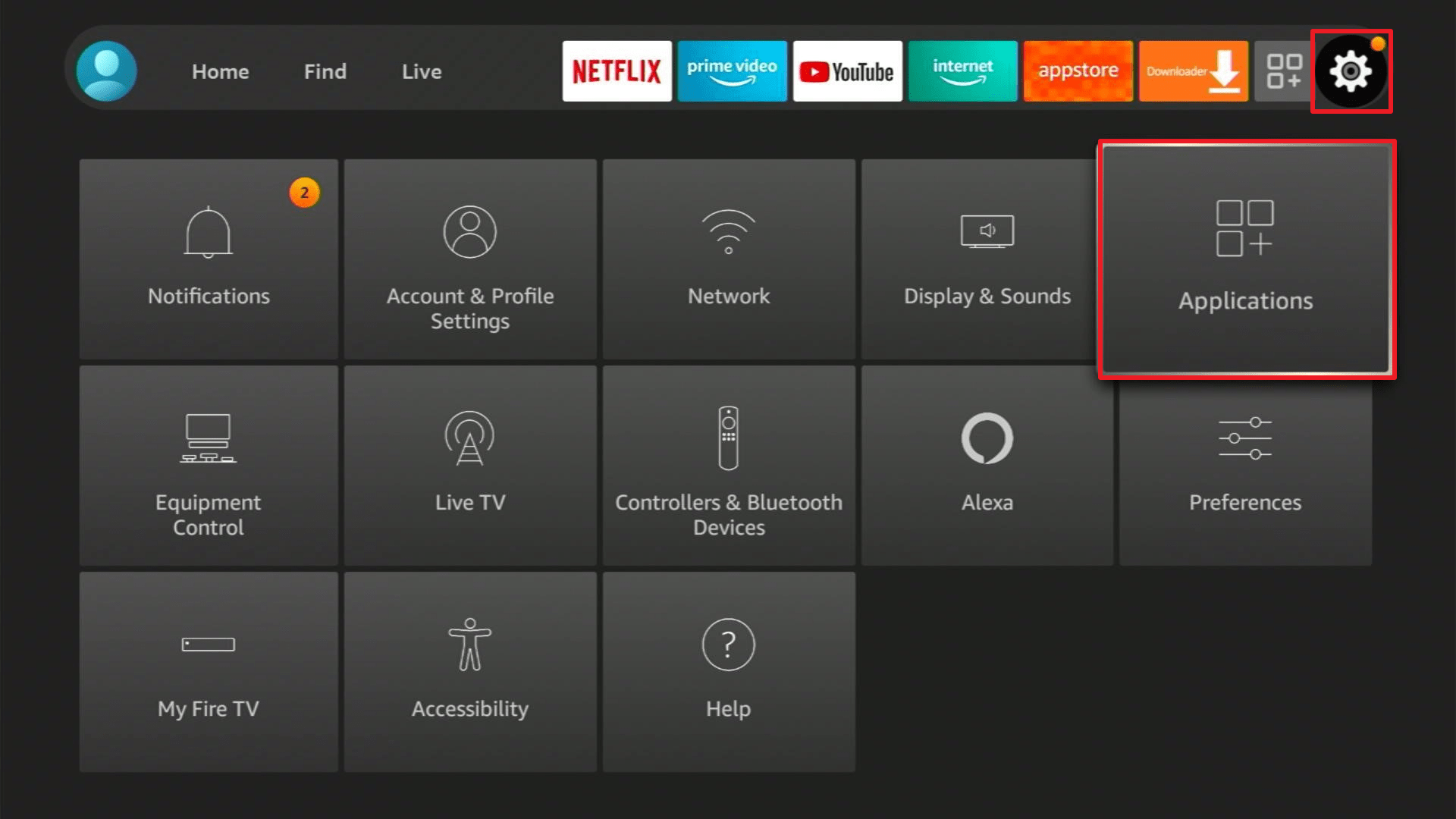
2. Press on Manage Installed Applications.
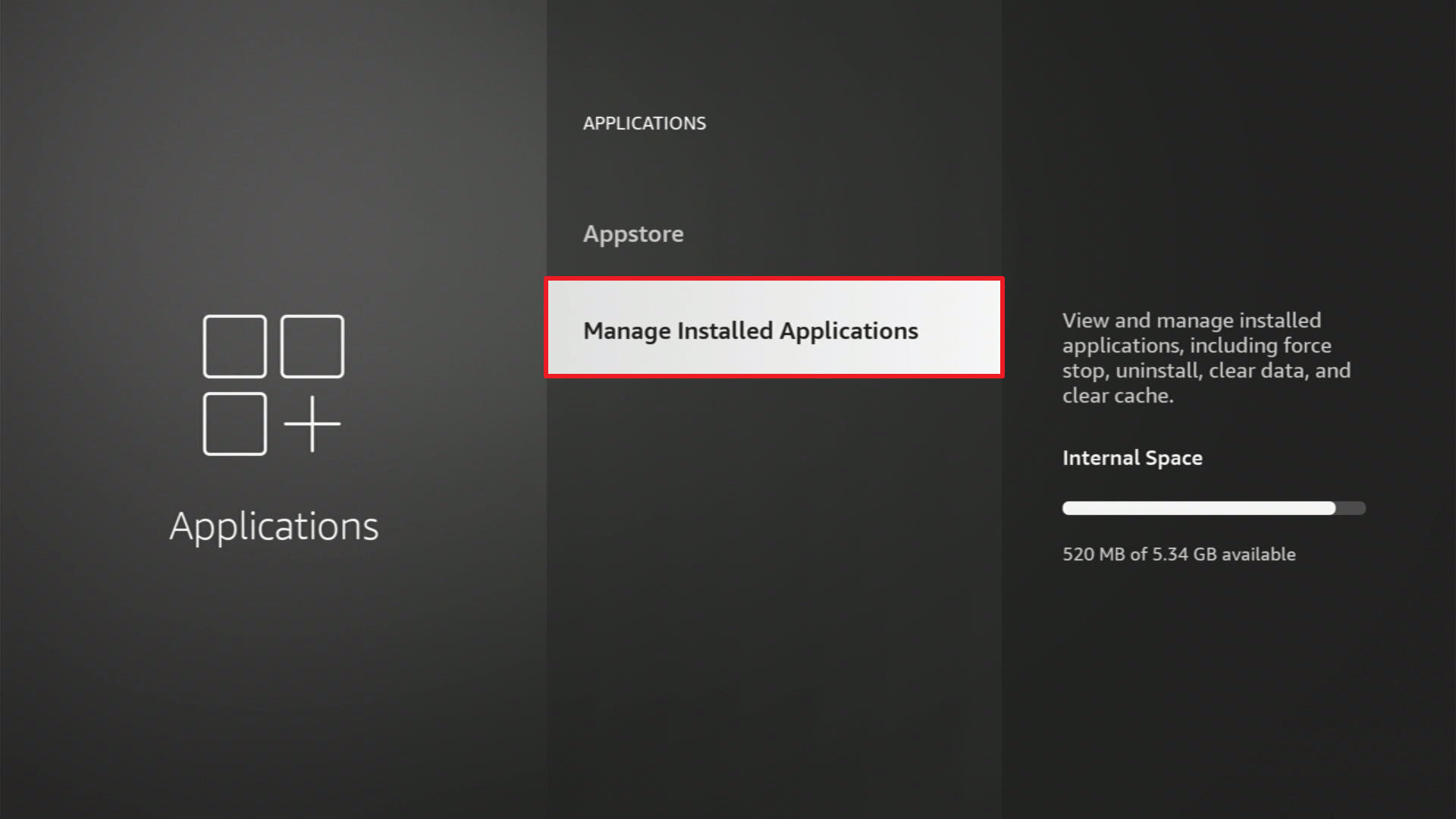
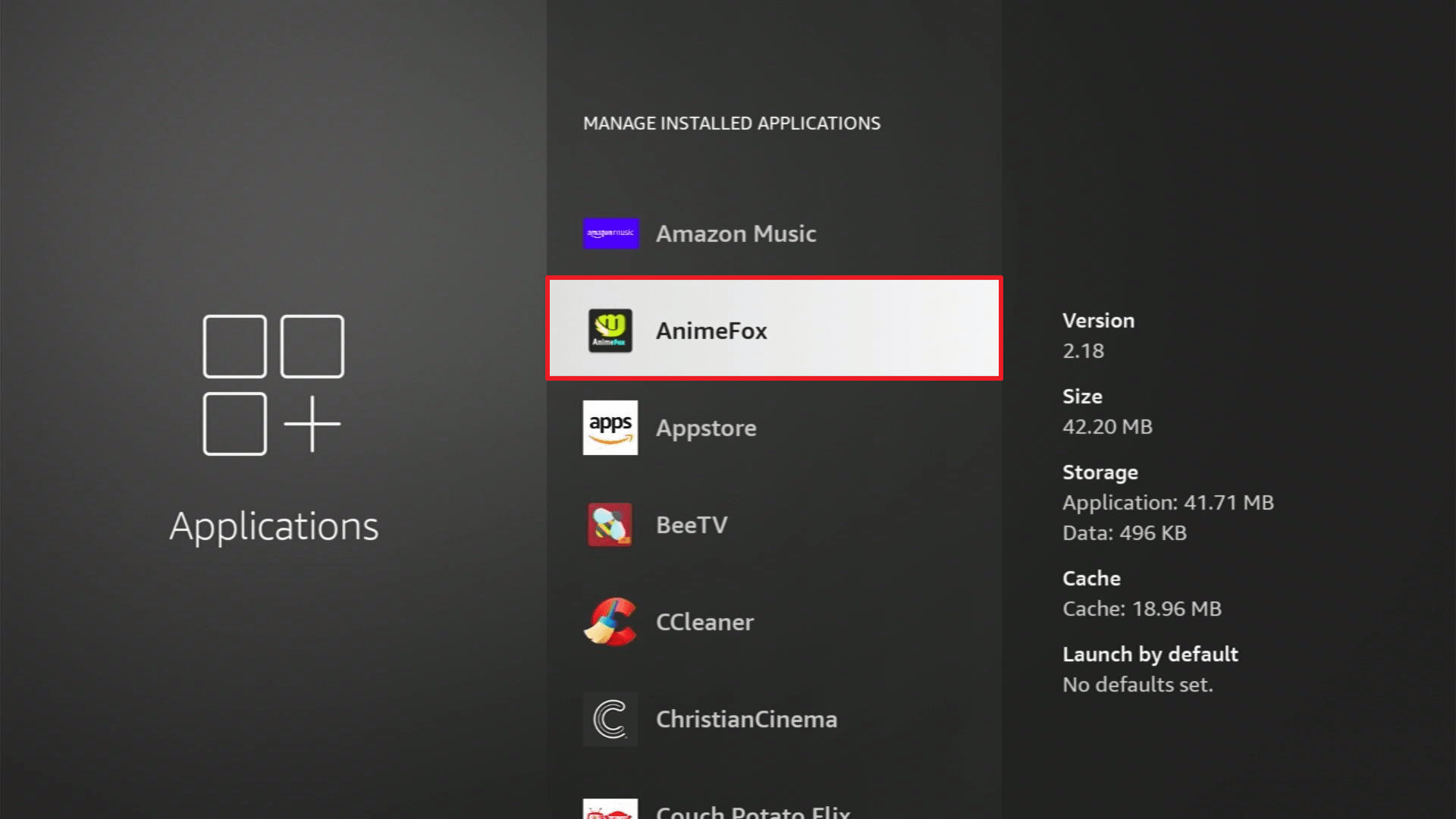
3. Select an application from the list provided for Uninstallation procedures. Click on the chosen app for removal.
4. Tap on Uninstall from a list of prompt actions.
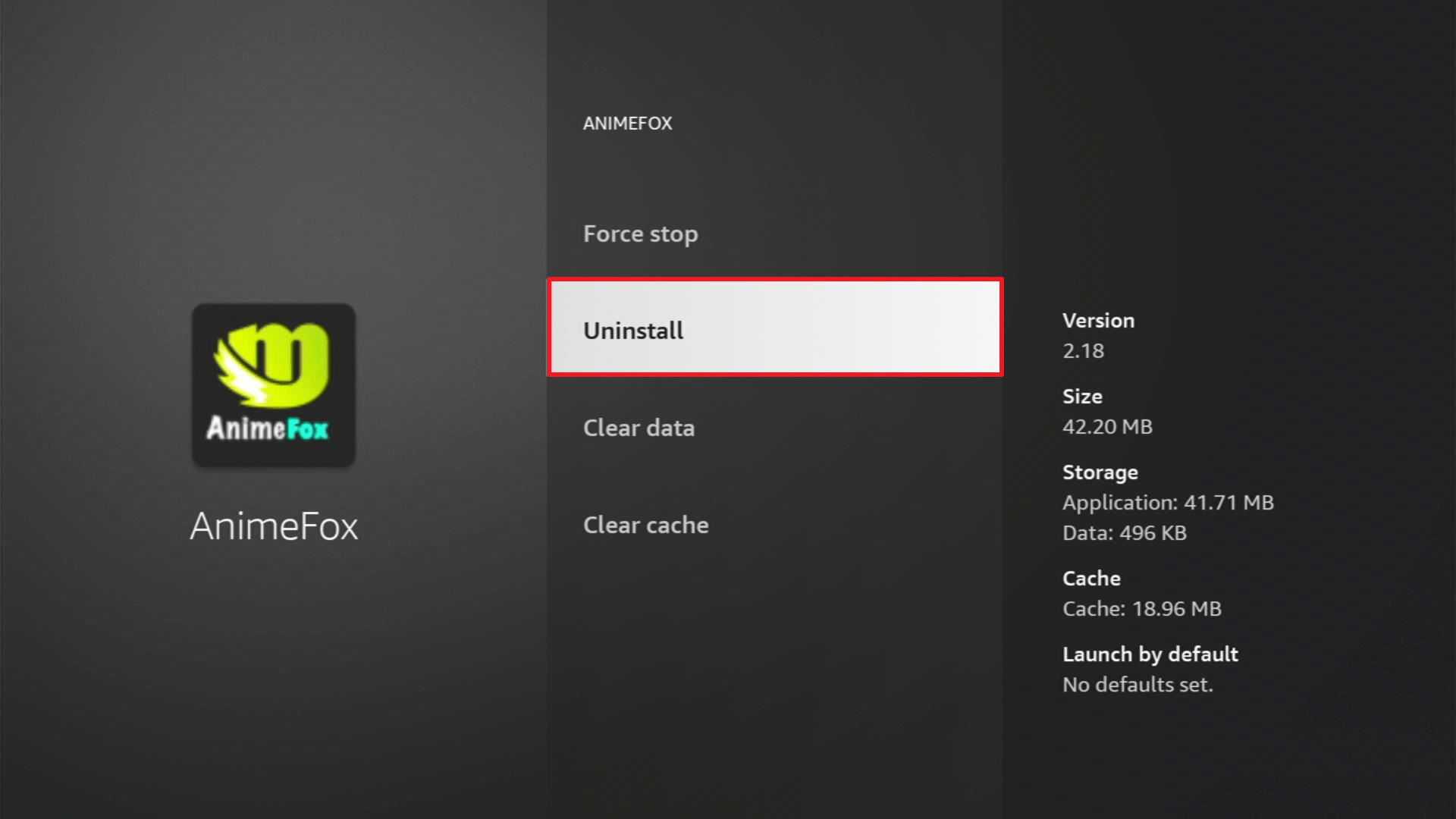
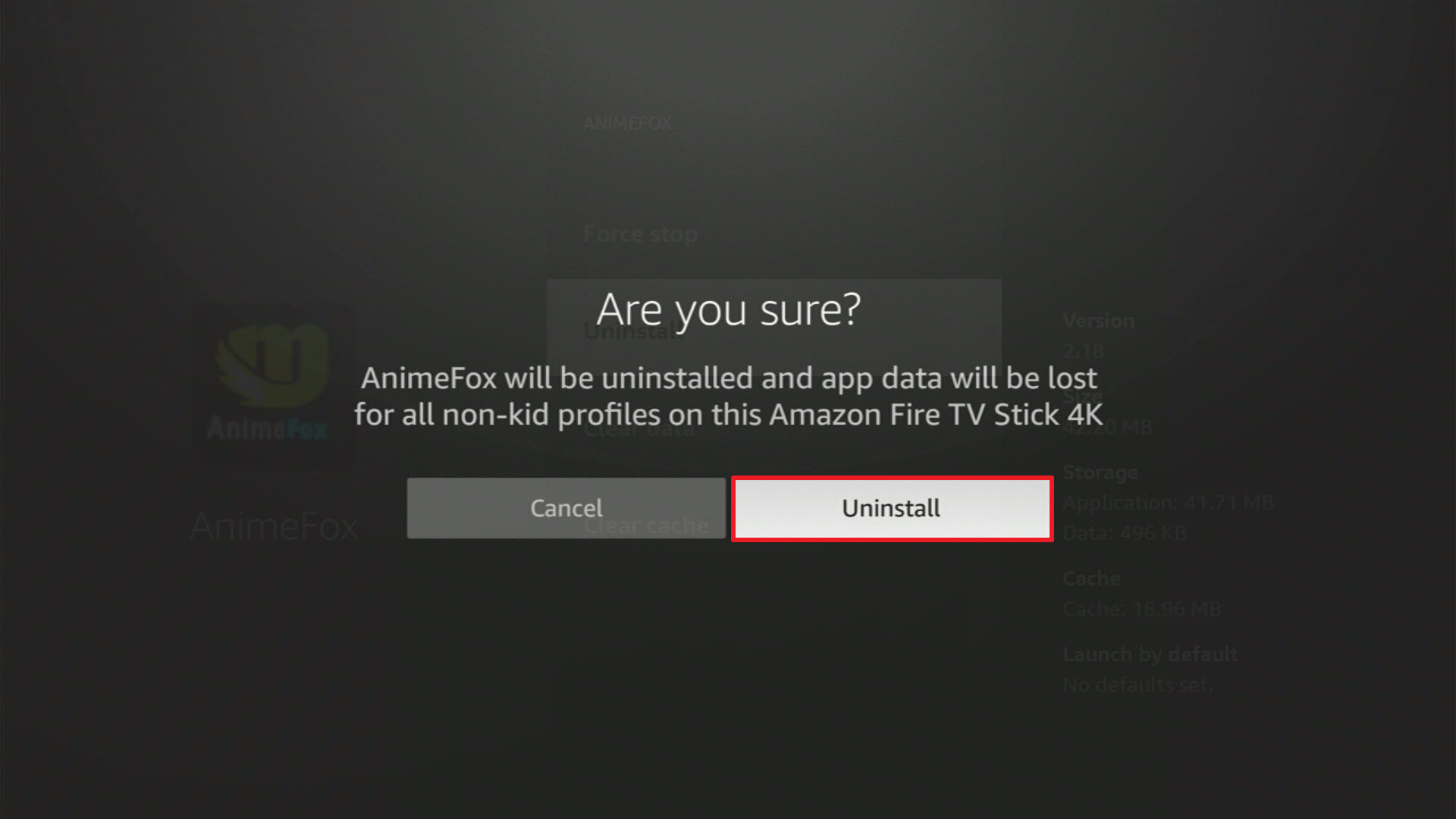
5. Press the again Uninstall button that confirms the action.
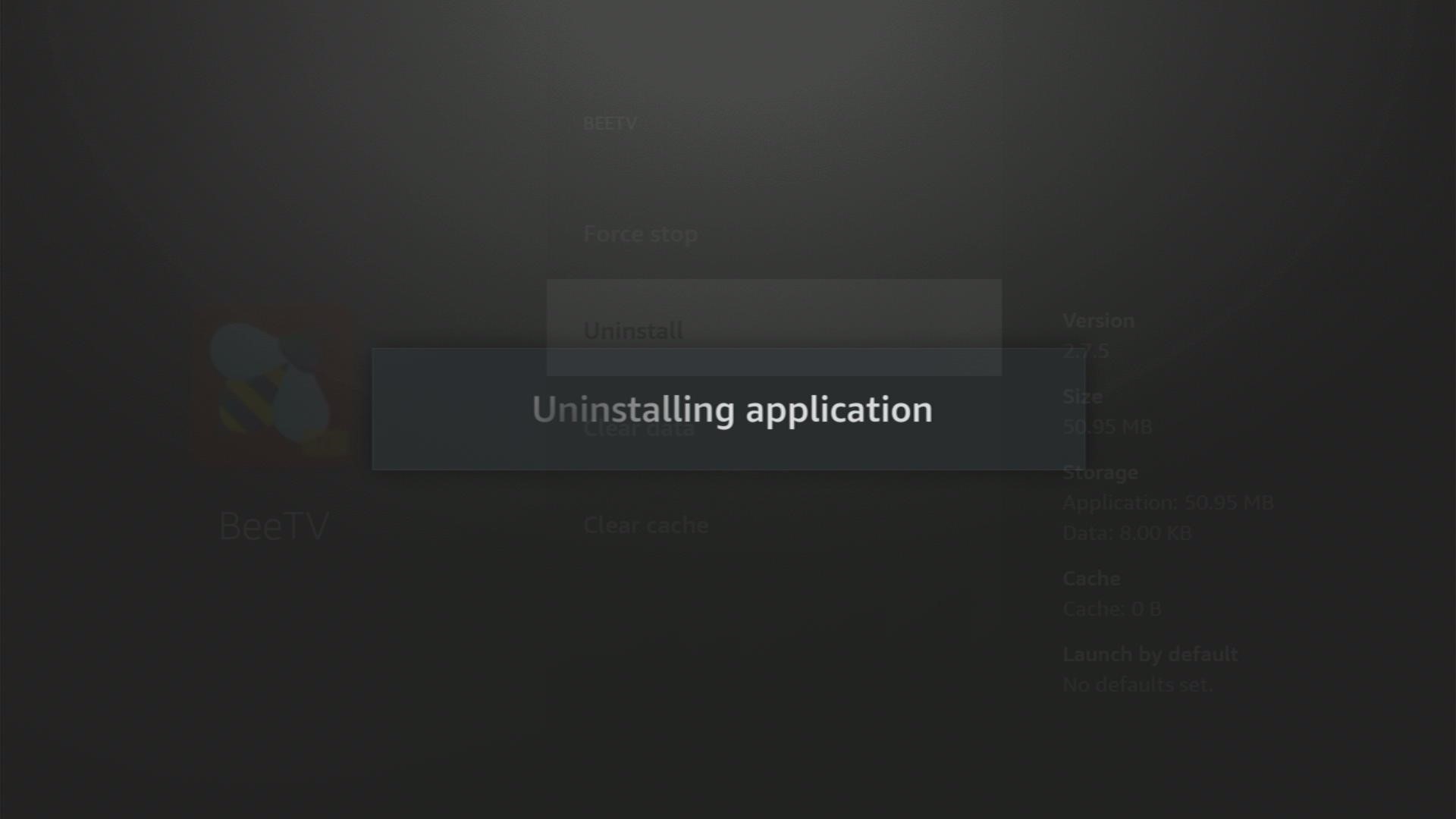
6. The application for removal is successfully uninstalled from Firestick.
ReviewVPN cannot attest to the legality, security and privacy of the applications discussed on this site. It is highly recommended that you use a VPN service while streaming or using Kodi. Currently, your IP 216.73.217.61 is visible to everyone and your Browser is being tracked by Advertisers & ISP Provider. Here are the main reasons why you must use a VPN: A VPN works be replacing your ISP-assigned IP address and creating an encrypted tunnel. We recommend the no log service offered by IPVanish. It works well on a Firestick and offers the fastest possible speeds.
YOUR INTERNET ACTIVITY IS BEING WATCHED
Legal Disclaimer: ReviewVPN.com does not encourage or endorse any illegal activity involved in the usage of services and applications referenced on this site. We do not verify the licensing agreements of services. The end-user is wholly responsible for ensuring that any media accessed through these services does not violate copyright and/or licensing laws. ReviewVPN does not promote, link to, or receive compensation from any Apps and IPTV services.
Install Surfshark on Firestick

How to Check for Firestick Disk Space
The storage space of your device is a crucial aspect relating to its performance. It is the reservoir established for the installation of various apps. Periodically maintaining your Firestick storage ensures its smooth operation.
Method No.1: Firestick Settings
- Go to Settings on your Firestick home screen.
- Choose the Device tab.
- Select the About section.
- Use the remote’s down button to access the Storage tab.
- Your screen will display the status of your Firestick’s storage space.
Method No. 2: DiskApp
Note: DiskApp is software that checks the storage status of your Firestick’s device.
- Access the Settings of your Firestick.
- Select the Device icon.
- Choose App Developer.
- Turn on the Apps from Unknown Devices option.
- Enable ADB Debugging.
- Return to your Home Screen.
- Press the Find tab on your home screen.
- Use the Search Bar.
- Input Downloader/Downloader app.
- Click on the Downloader option.
- Get the Downloader application.
- Downloader would install.
- Open the Downloader app after installation.
- Select Allow.
- Click on OK.
- Use the Downloader app URL link search bar.
- Type in: tvcola.com/duapk
- Tap on the Install prompt.
- Open DiskApp after installation.
- Use the DiskApp to scan your Firestick device.
- DiskApp will scan your Firestick’s memory.
- DiskApp shows you apps installed on your Firestick.
- The App also displays your remaining storage space.
Enjoy Firestick Streaming with a VPN
Accessing streaming services is observed by your internet service provider (ISP). Streaming high-quality media content can also strain your internet bandwidth. Additional loads are requested by your IP from their server. It results in lags, stuttering, and buffering. Slow connections result in streaming inconvenience. We recommend having a powerful VPN like Surfshark. Surfshark is the best VPN for streaming online media content.
Here is a list of advantages that Surfshark may offer you:
- Shields your device from ISP spying.
- Eliminates geo-block restrictions by connecting you to virtual channels.
- Conceals your identity from several online threats.
- Secures your device from malware and ransomware.
- Keeps you hidden while using the internet.
- Improves your cyberspace connection.
- Helps you find torrents and increases the download rate.
- Prevents Firestick buffering and Kodi buffering.
Note: For more information about Surfshark, please read our Surfshark Review.
Install Surfshark on Firestick
How to Install Surfshark VPN on Firestick
If your Firestick still has the older interface, read this article to learn how to update it: Update Firestick Interface.
Follow our screenshots below to install the SurfShark VPN app on your Fire TV stick.
1. Go to the Home screen of your Firestick.

2. Navigate towards the Find tab. Press the Search button from the resulting dropdown.

3. Type in the keyword of SurfShark and select from the suggestions that will appear.

4. Click the official SurfShark icon from your search results.

5. Press the Download (You own it) button.

6. The SurfShark VPN installer will download on your device.

7. SurfShark VPN’s app will automatically install itself on your Fire TV stick.

8. Press the Open button after completing SurfShark VPN’s installation process.

9. Please wait for the SurfShark VPN to load its user interface.

10. You can now log in with your SurfShark VPN account credentials.

Learn more about Surfshark and Grab the Best Surfshark Deal Now!
Install Surfshark on Firestick



For more VPN discounts, go to ReviewVPN Deals and purchase the best VPN for you.
Alternative Solutions to Free Firestick Disk Space
There are other solutions to clean up your Firestick’s storage space. Applications can be found and downloaded on the internet that helps in cleaning your memory. Here is a list of alternative apps for cleaning up space:
Clean Master App
Installation:
- Go to the Settings tab of your Firestick.
- Click on the Device icon.
- Choose App Developer.
- Turn on the Apps from Unknown Devices option.
- Enable ADB Debugging.
- Return to your Home Screen.
- Press the Find tab on your home screen.
- Use the Search Bar.
- Input Downloader/Downloader app.
- Click on the Downloader option.
- Get the Downloader application.
- Downloader would install.
- Open the Downloader app after installation.
- Select Allow.
- Click on OK.
- Use the URL link search bar of the Downloader app.
- Type in: tvcola.com/cmapk
- Install CleanMaster App.
- Open the CleanMaster App after installation.
How to Use the Clean Master App
- Open the Clean Master App.
- Let Clean Master perform a scan.
- Press on Boost to free up memory.
SD Maid Pro
Installation:
- Access the Settings tab of your Firestick.
- Select the Device icon.
- Choose App Developer.
- Turn on the Apps from Unknown Devices option.
- Enable ADB Debugging.
- Return to your Home Screen.
- Press the Find tab on your home screen.
- Use the Search Bar.
- Input Downloader/Downloader app.
- Click on the Downloader option.
- Get the Downloader application.
- Downloader would install.
- Open the Downloader app after installation.
- Select Allow.
- Click on OK.
- Use the URL link search bar of the Downloader app.
- Type in: tvcola.com/sdmaidapk
- Install SD Maid Pro.
How to Use the SD Maid Pro App
- Open your SD Maid Pro App.
- Use SD Maid Pro’s Disk Space Analyzer to scan apps on your Firestick memory.
- Interact with the System Cleaner feature within the app.
- Access the Uninstall feature.
- Choose which apps you like to remove.
Conclusion
Clearing up storage space on your Firestick is beneficial to its overall performance. You will have enough space for other apps. It can also improve your Firestick’s efficiency. There are numerous ways to delete applications you no longer require or free up virtual memory for the installation of various applications.
We hope that this article has helped you with deleting apps on your Firestick.






